Generate Click-Boosting YouTube Thumbnails with AI

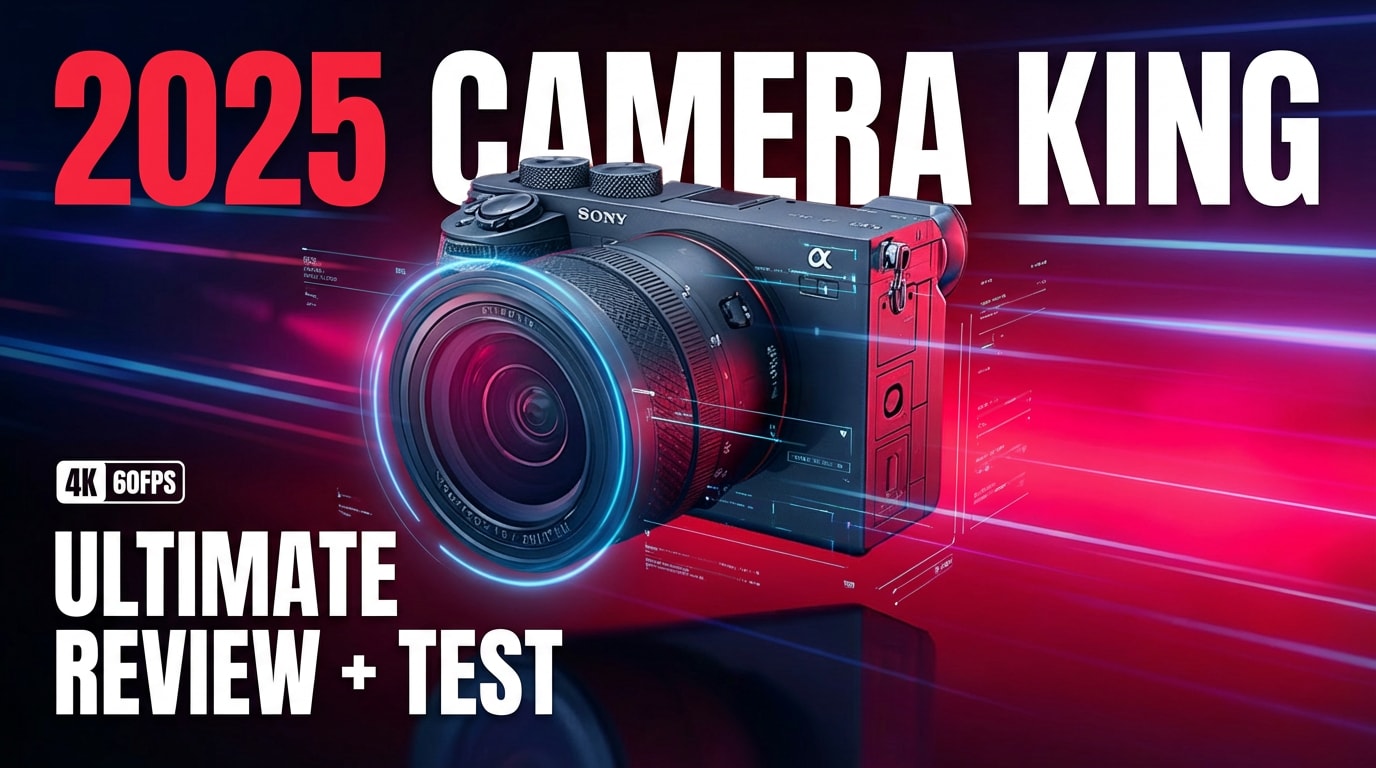
Make scroll-stopping YouTube thumbnails from text, screenshots, or your own photos with AI. Powered by Gemini / Nano Banana Pro, Media.io generates sharp 16:9 thumbnails for YouTube videos and 9:16 thumbnails for Shorts, all optimized for clicks, quality, and visibility—instantly and watermark-free.

Create My YouTube Thumbnail with AI

Upload & Generate. Free credits on login.

AI thumbnail from text and screenshots

Turn Text & Screenshots into Thumbnails

Start with a title, idea, or video screenshot and let AI handle the design. Instantly turn rough concepts into polished, clickable YouTube thumbnails—no Photoshop, no templates, no design skills required.

CTR focused AI thumbnail layout

CTR-Focused Layouts & Styling

Gemini and Nano Banana Pro automatically compose bold text, clean framing, and punchy colors so your thumbnail stands out in feeds and suggested videos, helping improve clicks and watch starts.

AI thumbnail for YouTube videos and Shorts

16:9 & 9:16 for Videos and Shorts

Generate the perfect aspect ratio for every upload—classic 16:9 for long-form videos and 9:16 for YouTube Shorts, Reels, and vertical content, all with consistent style across your channel.

HD AI thumbnail ready to upload

HD, Watermark-Free, Ready to Upload

Export high-quality, watermark-free thumbnails in just a few clicks. Drop them straight into YouTube, or reuse them across social posts, channel banners, and promo graphics.

Style AI YouTube Thumbnail Prompt (Copy & Paste) 9:16 16:9 Copy & Create
Viral Creator Strategy Thumbnail
#nano banana pro #high CTR #viral thumbnail

Create a top-performing, high-impact YouTube thumbnail inspired by the strongest elements of “Nano Banana Pro”, “Secret Method”, and top creator thumbnails. Make both the person and the headline the two dominant focal points.

Extract the person cleanly and enlarge them significantly—45–65% of the entire canvas. Apply a clean white outline stroke and boost brightness/contrast so the subject pops clearly from the background. Use an expressive facial reaction such as shock, excitement, surprise, or intense focus to create instant emotional connection. Ensure the face is extremely sharp, bright, and fully unobstructed.

Place an ultra-large, ultra-bold headline on the opposite side of the subject, occupying 50–70% of the width. Use blocky, thick sans-serif typography with very high contrast (yellow/white/black). Treat the title as a major visual object, not just text. Put it inside a bold rectangular color bar or rounded banner that makes it visually dominant and impossible to miss on small screens.

Add one strong creative hook that matches the content: a bright foreground object or symbolic item (e.g., product, banana, bottle, phone), enlarged and positioned prominently near the subject. Use a simple guiding element such as a dashed arrow, equal sign, or minimal reaction emoji to reinforce the idea without clutter.

Use a dramatic but clean background: heavy blur or motion blur, dark-to-light gradient, subtle vignette, and dynamic diagonal energy to push focus toward the subject and title. Increase brightness around the subject to intensify separation.

Maintain the overall style of top viral thumbnails: extremely bold, high-contrast, creative, personality-driven, and instantly readable, with subject and title dominating the frame and all other elements supporting a single clear visual idea.

Vertical AI YouTube thumbnail example 01 Horizontal AI YouTube thumbnail example 01 Create
Cinematic Fitness Thumbnail
#fitness #cinematic #gym content

Create a clean yet high-impact cinematic fitness YouTube thumbnail from the uploaded image, styled after top-performing fitness creators. Make the man extremely prominent—enlarge the subject so he occupies 45–65% of the entire frame. Boost brightness, contrast, and clarity on his face and physique so he becomes the main visual anchor. Keep his face, eyes, hair, and upper chest fully unobstructed and sharply visible.

Add a massive, ultra-bold headline at the top or bottom of the frame, stretching fully across the width. The title block should take up 45–55% of the canvas height for maximum thumbnail impact. Use a strong rectangular bar or tall gradient strip behind the title to create extreme readability. Use clean, heavy sans-serif typography with no more than two colors.

Include one or two very large inset images showing key fitness exercises (push-ups, dumbbell curls, etc.), placed on the far left or far right. Make these inset frames oversized—20–35% of the canvas—with soft corners, a subtle glow, and high contrast so they are instantly recognizable.

Add dramatic but clean cinematic enhancements: warm sun flare, boosted highlights on the subject’s muscles, deeper shadows for definition, and a soft background blur or gradient to separate the subject. Increase overall contrast and energy in the scene, but avoid messy details or distracting clutter.

Do not use arrows or busy graphics. Instead, rely on strong composition, oversized text, an extremely dominant subject, and bold contrast to create a powerful, attention-grabbing 2025 fitness thumbnail that feels intense, modern, and highly clickable.

Vertical AI fitness thumbnail example Horizontal AI fitness thumbnail example Create
Music Creator / Beat Maker Thumbnail
#music creator #studio vibes #beat maker

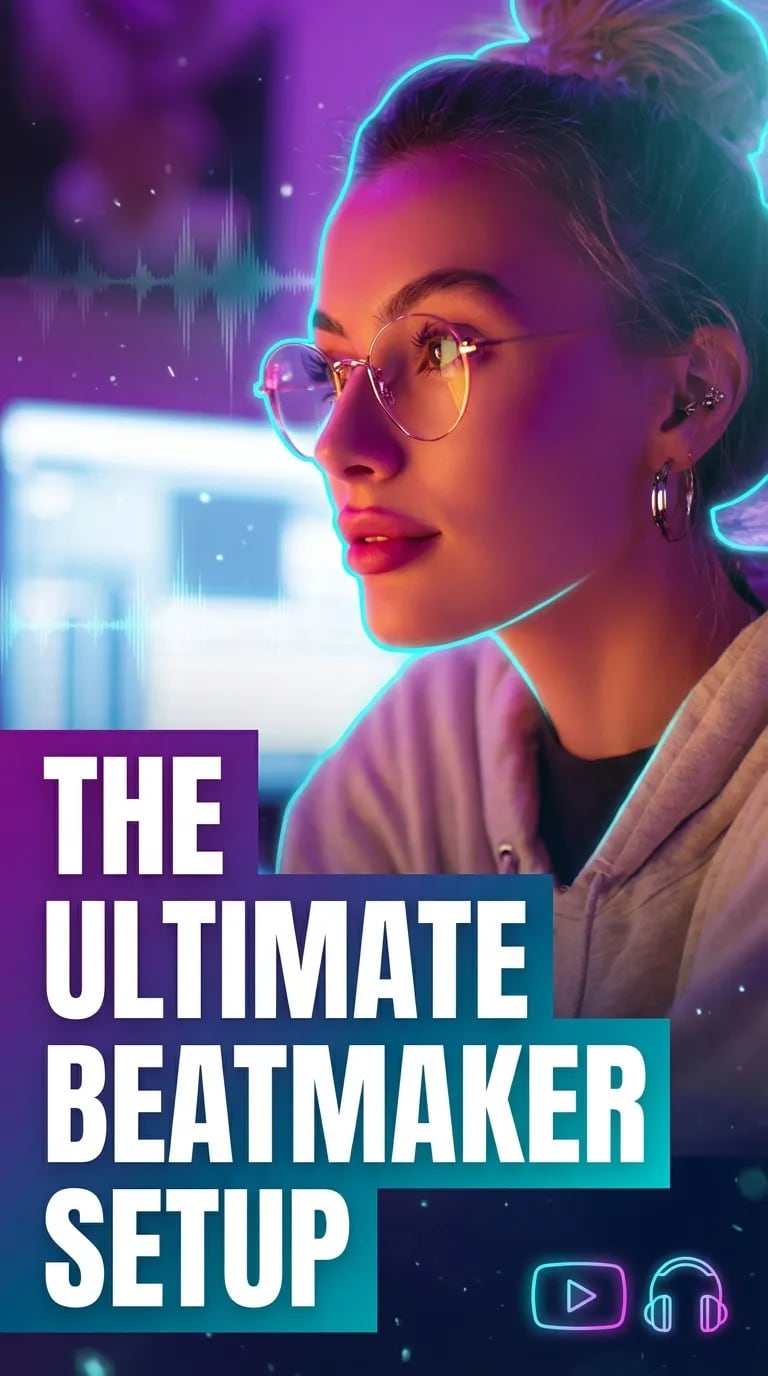
Create a high-impact, music-creator style YouTube thumbnail optimized for trending YouTube music / studio / beat-maker content. Use the uploaded image as the main subject. Extract the person with a clean cutout and apply a subtle outline stroke around them to help the subject stand out sharply — but keep it tasteful and not cartoonish. Ensure the face and upper body of the subject remain fully visible and unobstructed.

Place a very large, ultra-bold, solid headline on the left side of the frame, occupying about 45–60% of the width, so that the title and subject share equal visual weight. Use a clean, modern sans-serif font with strong fill (no outline fonts), and position the text over a semi-transparent gradient or block background to ensure readability on small devices.

For visual style, use vibrant yet tasteful neon-inspired colors (e.g. electric purple, vibrant cyan, pink) or high-contrast cinematic color grading to match music/creator vibe. Add subtle design accents relevant to music creation: faint audio-waveform lines behind or beside the subject, minimal glowing particles (like dust or studio light glow), subtle light leaks or soft bokeh — but keep decoration minimal to avoid clutter.

Optionally, include a small play-button icon or minimal “studio gear” icon (like headphones silhouette or waveform icon) near a corner or edge — not overlapping subject or title. Use thin, modern icon style with glow or light outline.

Ensure overall composition feels like a professional music-creator’s video cover: strong dual focus (title + person), clean layout, high contrast, modern color scheme, and optimized for mobile viewing and high click-through rate on YouTube’s recommendation feed.

Vertical AI music creator thumbnail example Horizontal AI music creator thumbnail example Create

YouTube & Social Thumbnail Size Guide

Media.io’s AI Thumbnail Generator is built for YouTube creators—but it also works perfectly for Shorts, TikTok, Reels, and more. Choose the right size and aspect ratio for your content, and let AI handle the design.

Platform Recommended Size Aspect Ratio Typical Use
YouTube Video
1280 × 720 px 16:9 Standard YouTube video thumbnails, livestream covers, playlists.
YouTube Shorts
1080 × 1920 px 9:16 Vertical covers for YouTube Shorts and Stories.
TikTok
1080 × 1920 px 9:16 Video covers and thumbnails for TikTok feed and profile grid.
Instagram Reels
1080 × 1920 px 9:16 Reels covers and vertical Story-style previews.
Facebook Reels
1080 × 1920 px 9:16 Vertical covers for Facebook Reels and short videos.
Livestreams & Other 16:9 Platforms
1280 × 720 px or 1920 × 1080 px 16:9 Thumbnails for YouTube Live, webinars, and horizontal video platforms.

How to Create a YouTube Thumbnail with AI

01

Upload a Screenshot or Photo

Go to Media.io/ai → Image-to-Image and upload your video screenshot, face shot, or any base image you want to turn into a thumbnail. You can also start from a blank prompt if you don’t have an image ready yet.

02

Paste a Thumbnail Prompt

Copy a ready-made AI YouTube thumbnail prompt from this page or describe your video (gaming, vlog, tutorial, reaction, review, Shorts, etc.). Gemini / Nano Banana Pro understands your style and builds a high-impact thumbnail automatically.

03

Generate & Download

Click Generate and let the AI create a sharp, clickable thumbnail in 1280×720 (16:9) or 9:16 for Shorts. When you’re happy, download your HD, watermark-free thumbnail and upload it directly to YouTube.

FAQs for Making Thumbnails with AI

1. What is an AI YouTube thumbnail generator?

An AI YouTube thumbnail generator creates thumbnails automatically from your text, screenshots, or photos. Instead of designing manually, you simply describe your video and the AI generates a ready-to-upload, click-optimized thumbnail in seconds.

Media.io uses Gemini / Nano Banana Pro to analyze your prompt or uploaded screenshot and design a thumbnail with eye-catching text, colors, and composition. Just upload an image, type your idea, click Generate, and download your finished thumbnail.

Media.io is built for beginners, creators, and small businesses — what used to take hours in Photoshop now takes just a few seconds with AI.

Yes. Media.io supports both 16:9 and 9:16 formats.
Use 16:9 for regular YouTube videos, and 9:16 for YouTube Shorts, Stories, or other vertical content.

You can design thumbnails for almost any creator platform:

16:9 → YouTube videos, livestreams, playlists
9:16 → YouTube Shorts, Instagram Reels, TikTok covers, Facebook Reels, and vertical Stories

As long as the platform uses horizontal or vertical covers, you can create matching thumbnails with AI.

Yes, you can create thumbnails using free daily credits. Downloads are HD and watermark-free, so you can publish them immediately to your channel without extra editing.

You can generate thumbnails for almost any niche, including:
– Gaming and livestreams
– Vlogs and lifestyle
– Tutorials and how-tos
– Reactions and commentary
– Education and tech reviews
– Cooking, finance, travel, and more

Just type a prompt describing the mood, style, and topic — or choose from the ready-made thumbnail prompts on this page.

Gemini / Nano Banana Pro generate cleaner facial details, sharper text, better lighting, and stronger compositions. The result is thumbnails that look more professional and often achieve higher click-through rates. They also understand prompts more accurately, giving you higher quality, more reliable results compared to older or simpler AI models.

Media.io Online AI Tools Quality Rating:
vote 4.7 (162,357 Votes)