Cliquez ou faites glisser pour télécharger, ou choisissez parmi Mon HistoriqueCliquez pour téléchargerMon Historique
Pas d'idées ? Générer une image d'abord. >
Importez des images jpg, jpeg, png jusqu'à 50 Mo, avec une largeur/hauteur minimale de 300 px.
Warm Photo Filter: Fix Cool Lighting, Keep Natural Color
The photo is sharp, but the light makes everyone look a little pale or blue. A warm photo filter can soften that cool cast while keeping the picture true to the moment. Whether it is a cloudy-day selfie, a cafe portrait or an indoor family photo, aim for warmer skin and gentler neutrals rather than a fake sunset. Adjust the color feel in Media.io AI Face Editor, then compare whites, shadows and skin before picking a version to share.
Look at white shirts and walls first. If they turn deep yellow, the warmth may be too strong.
Warm Photo Filter Prompts for 10 Everyday Lighting Problems
A warm lighting filter should solve the lighting problem already present in your photo. Some images need warmer highlights, others need the green cast removed or a gentler skin tone in shade. Use these photo edits as targeted instructions rather than adding an orange film to the whole frame.
Cool Window Selfie
Use the uploaded photo as your exact visual reference. Reduce mild blue cast from cloudy window lighting and bring skin to neutral-warm without changing window light direction. For the result, keep the camera position, facial features, garments and background consistent with the uploaded image. If the existing scene cannot support a requested light source, use a subtler adjustment instead of inventing unrelated objects. Keep texture, edges and local color believable. No text, labels, logos or collage.
Fluorescent Office Portrait
Use the uploaded photo as your exact visual reference. Reduce green-cyan fluorescent cast and retain true gray shirt and white wall colors. For the result, keep the camera position, facial features, garments and background consistent with the uploaded image. If the existing scene cannot support a requested light source, use a subtler adjustment instead of inventing unrelated objects. Keep texture, edges and local color believable. No text, labels, logos or collage.
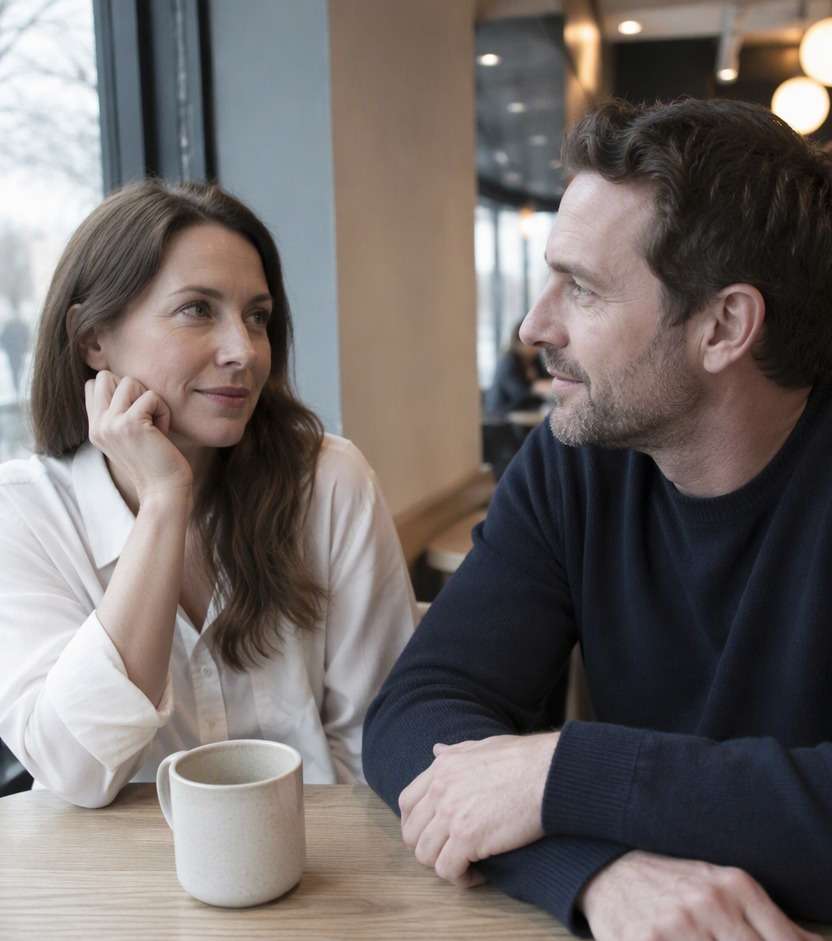
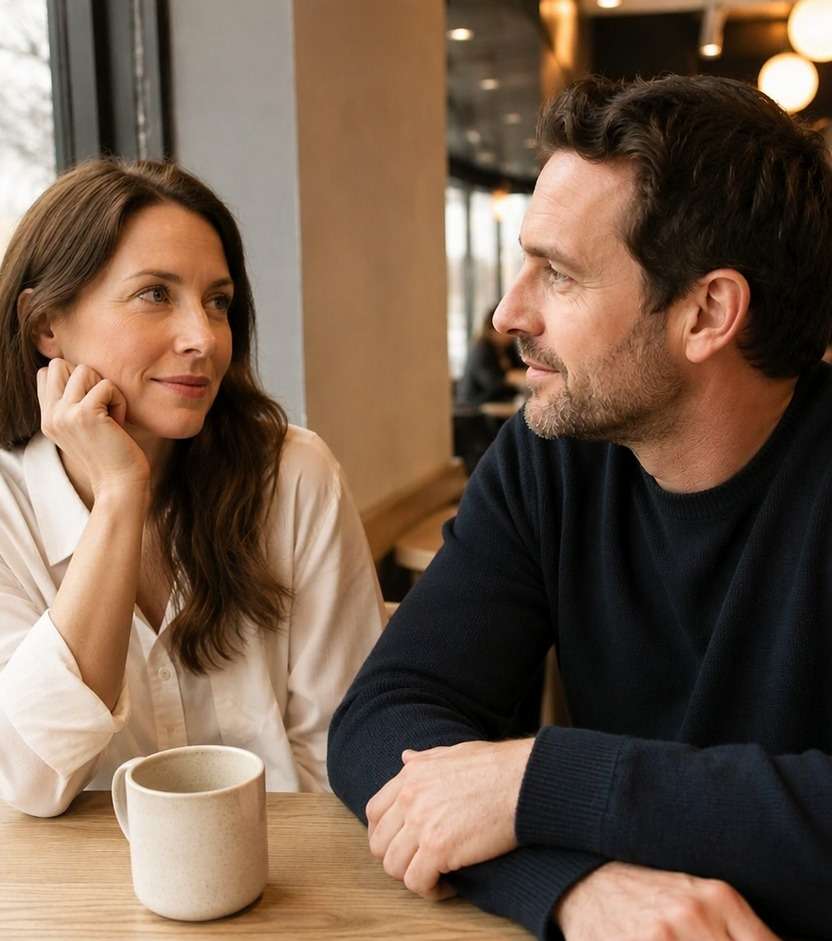
Cozy Coffee Shop
Use the uploaded photo as your exact visual reference. Warm cafe interior bounce on faces and wood grain while leaving ceramic cup and blouse light neutral. For the result, keep the camera position, facial features, garments and background consistent with the uploaded image. If the existing scene cannot support a requested light source, use a subtler adjustment instead of inventing unrelated objects. Keep texture, edges and local color believable. No text, labels, logos or collage.
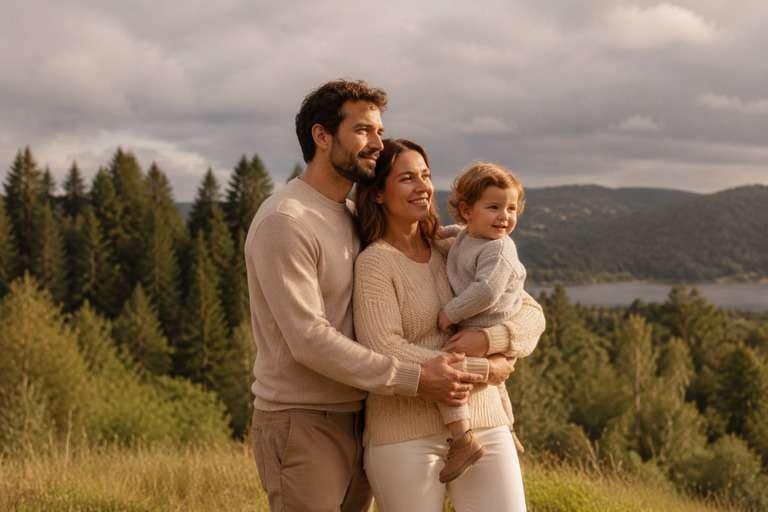
Cloudy Park Family
Use the uploaded photo as your exact visual reference. Add gentle warmth to faces while keeping trees green and cloudy sky neutral gray. For the result, keep the camera position, facial features, garments and background consistent with the uploaded image. If the existing scene cannot support a requested light source, use a subtler adjustment instead of inventing unrelated objects. Keep texture, edges and local color believable. No text, labels, logos or collage.
Indoor Birthday Portrait
Use the uploaded photo as your exact visual reference. Balance mixed warm bulbs and cool overhead ambient while retaining clothing colors and decorations. For the result, keep the camera position, facial features, garments and background consistent with the uploaded image. If the existing scene cannot support a requested light source, use a subtler adjustment instead of inventing unrelated objects. Keep texture, edges and local color believable. No text, labels, logos or collage.
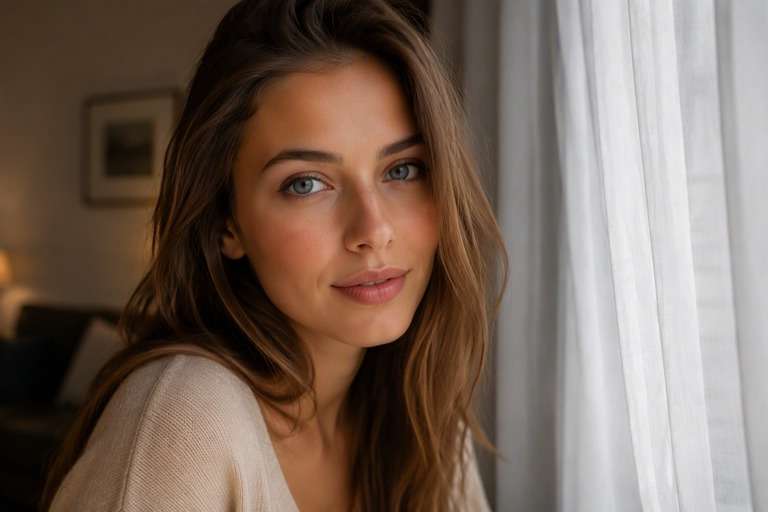
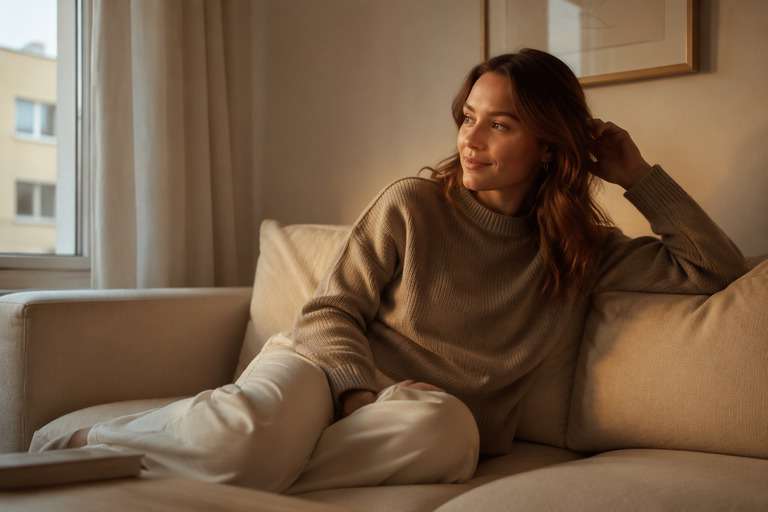
Cool Apartment Morning
Use the uploaded photo as your exact visual reference. Slightly warm cold north-facing window light without creating an imaginary sunset beam. For the result, keep the camera position, facial features, garments and background consistent with the uploaded image. If the existing scene cannot support a requested light source, use a subtler adjustment instead of inventing unrelated objects. Keep texture, edges and local color believable. No text, labels, logos or collage.
Soft Warm Professional Headshot
Use the uploaded photo as your exact visual reference. Warm midtone skin subtly while keeping shirt, wall and hair colors accurate and professional. For the result, keep the camera position, facial features, garments and background consistent with the uploaded image. If the existing scene cannot support a requested light source, use a subtler adjustment instead of inventing unrelated objects. Keep texture, edges and local color believable. No text, labels, logos or collage.
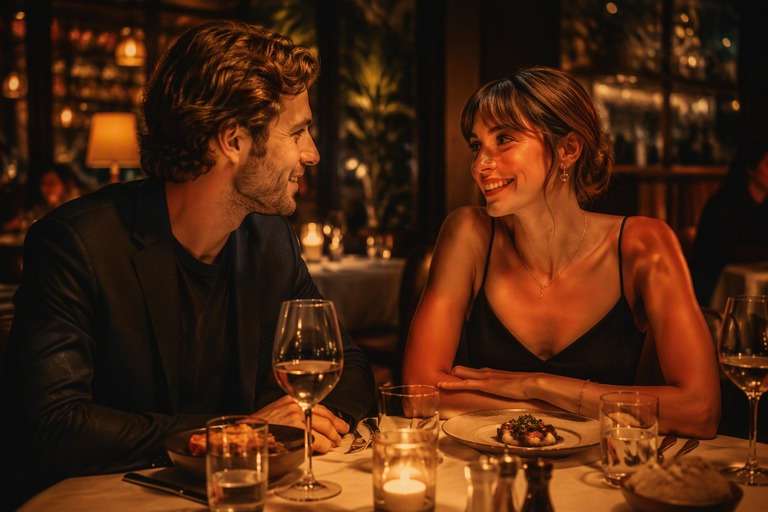
Warm Restaurant Memory
Use the uploaded photo as your exact visual reference. Remove excess blue shadow tint, retain warm practical lamps and dark areas with texture. For the result, keep the camera position, facial features, garments and background consistent with the uploaded image. If the existing scene cannot support a requested light source, use a subtler adjustment instead of inventing unrelated objects. Keep texture, edges and local color believable. No text, labels, logos or collage.
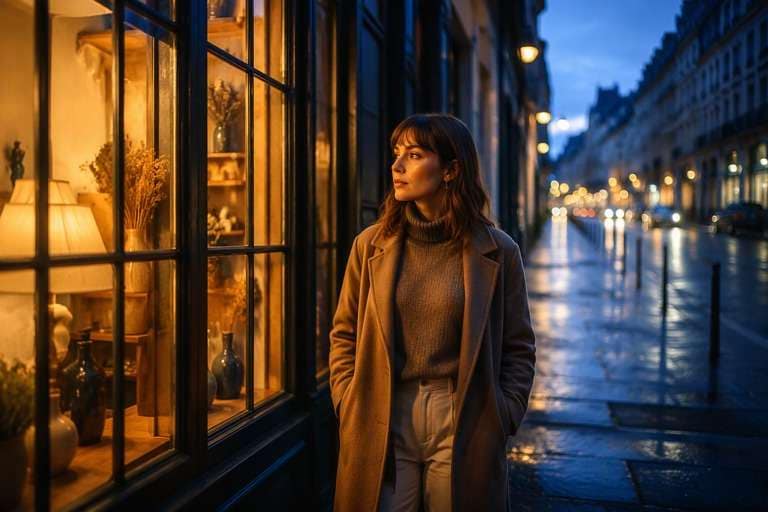
Evening Street Portrait
Use the uploaded photo as your exact visual reference. Bring out warmer reflected storefront light while maintaining blue pavement shadows and realistic dusk. For the result, keep the camera position, facial features, garments and background consistent with the uploaded image. If the existing scene cannot support a requested light source, use a subtler adjustment instead of inventing unrelated objects. Keep texture, edges and local color believable. No text, labels, logos or collage.
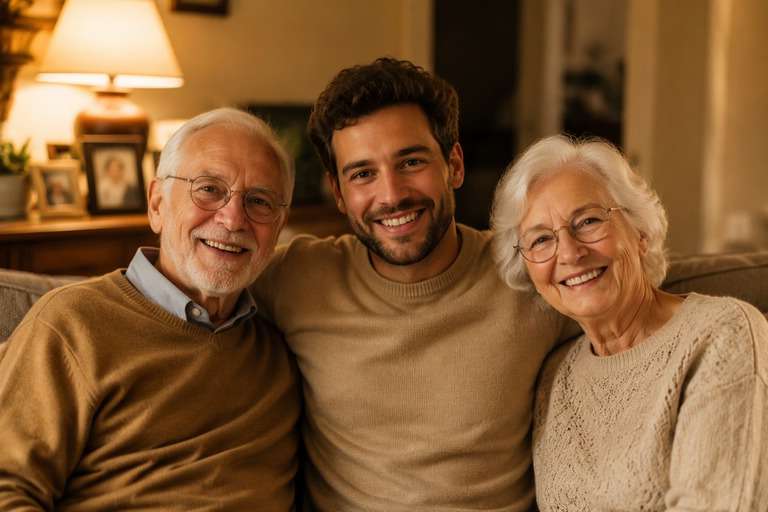
Warm Photo Album Match
Use the uploaded photo as your exact visual reference. Natural warm color balance in a candid indoor snapshot with visible textures, not orange haze. For the result, keep the camera position, facial features, garments and background consistent with the uploaded image. If the existing scene cannot support a requested light source, use a subtler adjustment instead of inventing unrelated objects. Keep texture, edges and local color believable. No text, labels, logos or collage.
Warm Up the Image Without Losing Its Real Colors
Correct the Cold Cast First
Cool fluorescent or cloudy light can push skin toward blue or green. Ask for neutral whites and a subtle warmer balance in midtones before adding any creative amber look. When the white shirt in the picture still looks white, the result is less likely to appear overprocessed.
Keep Every Skin Tone Believable
A flattering warm edit needs more care than a generic temperature increase, especially in group portraits. Keep natural differences between faces and avoid smoothing skin into one uniform peach color. Check highlights, lips and eye whites at full size to catch an overly aggressive edit.
Add Comfort Without Pretending It Is Sunset
Home and cafe photographs can feel inviting with warmer practical light and soft shadows. The room does not need a new orange sky or golden-hour backlight. Describe the existing lamp or window lighting, and ask for a modest glow that respects the original time of day.
Match a Photo Set Without Copying Colors Blindly
Vacation galleries and family albums often combine images shot in different rooms. A consistent warm mood can help them feel related, but each photograph has different exposure and skin colors. Evaluate each original separately rather than forcing identical yellow saturation across the set.
How to Add a Warm Photo Filter to a Picture Online
For a warm tone photo filter, start by identifying whether your image looks bluish, gray or green from indoor lighting. Use Media.io AI Face Editor with a clear editing request, then judge the result using neutral objects and skin tones instead of relying only on overall warmth.
Step 1
Upload a Photo with Cool or Flat Light
Upload your existing picture to Media.io AI Face Editor. A portrait with natural skin detail and a neutral reference, such as a white shirt or pale wall, makes it easier to judge the warmth. Avoid blurry originals where skin and color are hard to evaluate.
Step 2
Request Balanced Warmth, Not Orange
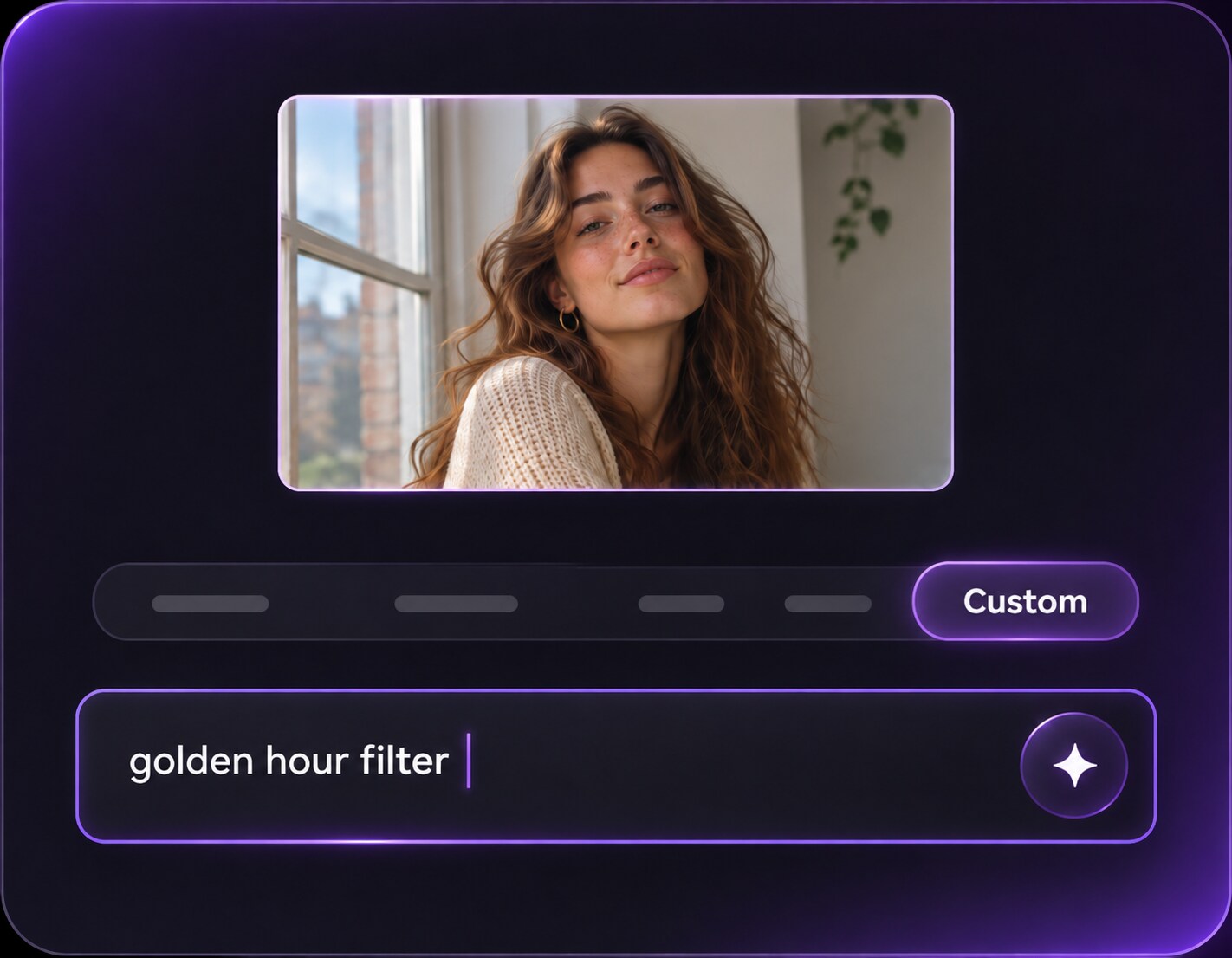
In a custom prompt, ask to reduce the cold or green cast, introduce gentle warm highlights and keep white objects neutral. Preserve the same people, expressions, background and hairstyle. Avoid saying only make everything yellow, since that can hide the colors you liked.
Step 3
Generate and Check Skin and Whites
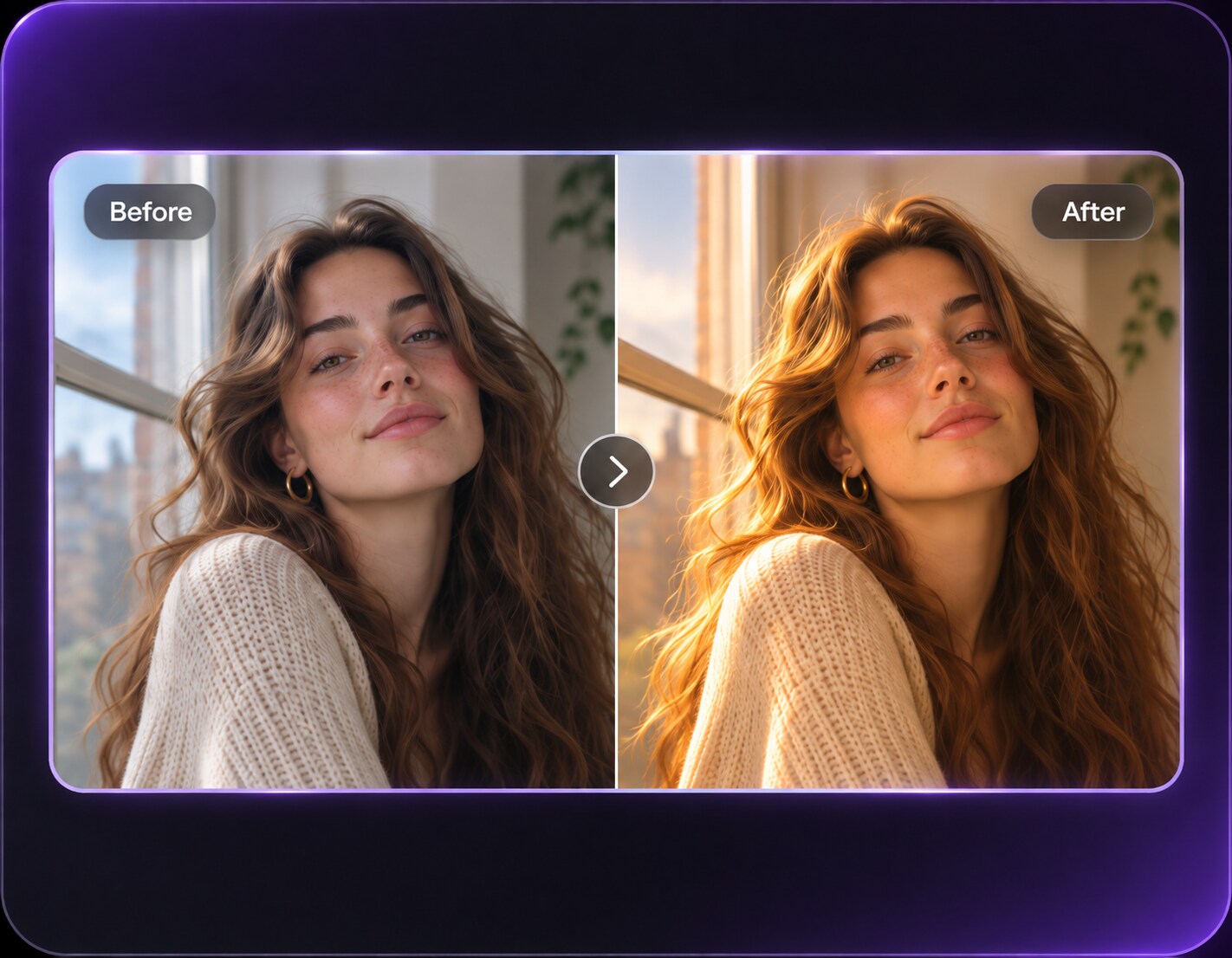
Click Generate and compare the warmer image with the original. Inspect skin tones, white clothing and shadow areas. If faces look too orange, ask for a smaller temperature change or more neutral midtones while retaining the original scene.
Warm Tone Photo Filter Ideas for Real-Life Pictures
A warm portrait photo editor is useful when a good picture feels colder than the moment itself. Focus on correcting light that distracts from faces, not inventing an entirely new setting.
Cloudy-Day Selfies and Portraits
A clear selfie in open shade can look slightly blue or lifeless. Add a small amount of warmth to midtones while keeping daylight shadows soft. The adjustment should lift the face and preserve outdoor greens, not imply that the photo was actually taken at sunset.
Family Photos under Mixed Indoor Bulbs
Living rooms may have one warm lamp and a cooler overhead light, leaving different skin tones across the group. Describe an even, gentle light balance and keep everyone recognizable. Review both the lamp and a white wall so the result does not appear unnaturally yellow.
Cafe and Everyday Lifestyle Posts
A coffee shop portrait can benefit from richer wood tones and a gentle amber reflection on the table. Preserve pastry, clothing and mug colors as photographed. When the edit keeps neutrals intact, the image can feel cozy without losing the casual realism people like about it.
Warm Photo Filter Quality Checklist
Neutral Whites
Preview checklist
"Do whites still look white?" Use a shirt, eye white or pale background to detect an excessive yellow color cast.
Natural Skin
Preview checklist
"Does warmth suit each person?" Keep individual skin tones visible, especially when several people share the same frame.
Shadow Color
Preview checklist
"Did the shadows lose their shape?" Warm highlights can coexist with cooler shadows; they should not turn uniformly orange.
Scene Authenticity
Preview checklist
"Is this still the same location?" A warm edit should not invent sunlight, remove lamps or change the original time of day.
It usually reduces cool blue or green color casts and shifts the lighting toward a warmer visual balance. An AI edit can also be prompted to soften warm highlights while preserving the people and setting. The exact result depends on the original image and editing instructions.
2. How can I warm a portrait without making skin orange?
Ask for gently warmer midtones, realistic skin hues and neutral whites. Avoid applying the same strong amber tint to all pixels. Compare the edited portrait with the original around cheeks, lips and eye whites, then reduce the warmth if those details look unnatural.
3. Is a warm lighting filter the same as golden hour?
No. A warm lighting filter can correct the color temperature of an indoor or overcast photograph without changing the apparent time of day. Golden hour is a specific directional sunlight look, usually featuring longer shadows and low-angle light. Choose the effect that matches your source image.
4. Which photos look better with a warm tone filter?
Cool indoor portraits, cloudy selfies and everyday lifestyle pictures are common candidates. Look for neutral references like white fabric or a wall so you can judge whether the correction is balanced. Photos already dominated by orange stage lights may need less warmth, not more.
5. Can a warm filter help photos under fluorescent lights?
A prompt can request reducing a blue-green fluorescent cast and making faces look more natural. Mixed lighting remains tricky, because different light sources can affect separate parts of the image. Inspect the edited result carefully instead of assuming every cast will be corrected.
6. Will the edit leave the background and clothing unchanged?
You can explicitly ask the model to preserve faces, outfits, objects and framing, but generative edits can alter details. Compare clothing colors, signage and edges before using the result, especially when you need faithful documentation rather than a creative mood edit.