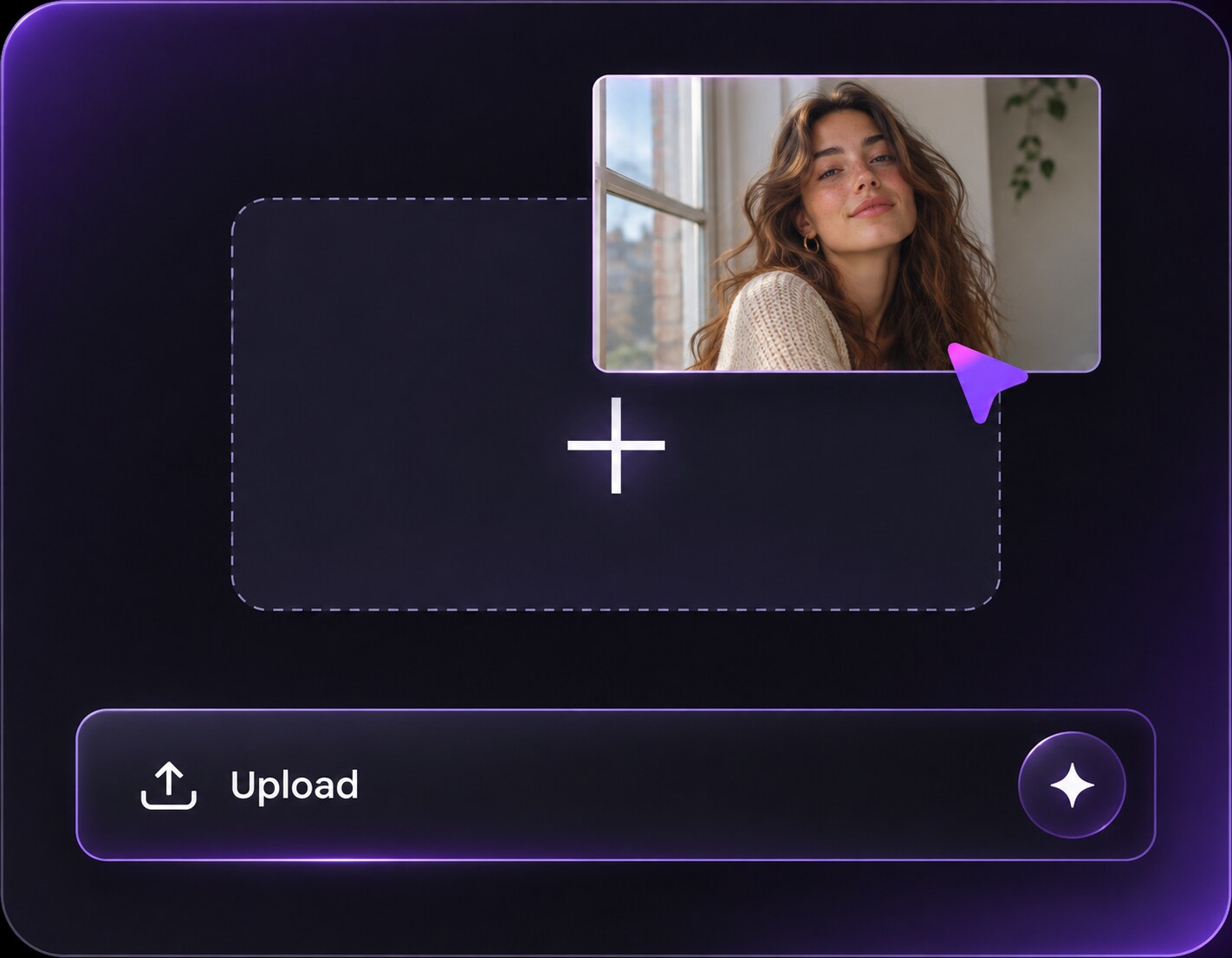
Cliquez ou faites glisser pour télécharger, ou choisissez parmi Mon HistoriqueCliquez pour téléchargerMon Historique
Pas d'idées ? Générer une image d'abord. >
Importez des images jpg, jpeg, png jusqu'à 50 Mo, avec une largeur/hauteur minimale de 300 px.
AI Paparazzi Filter: Give Your Photo a Celebrity Flash Look
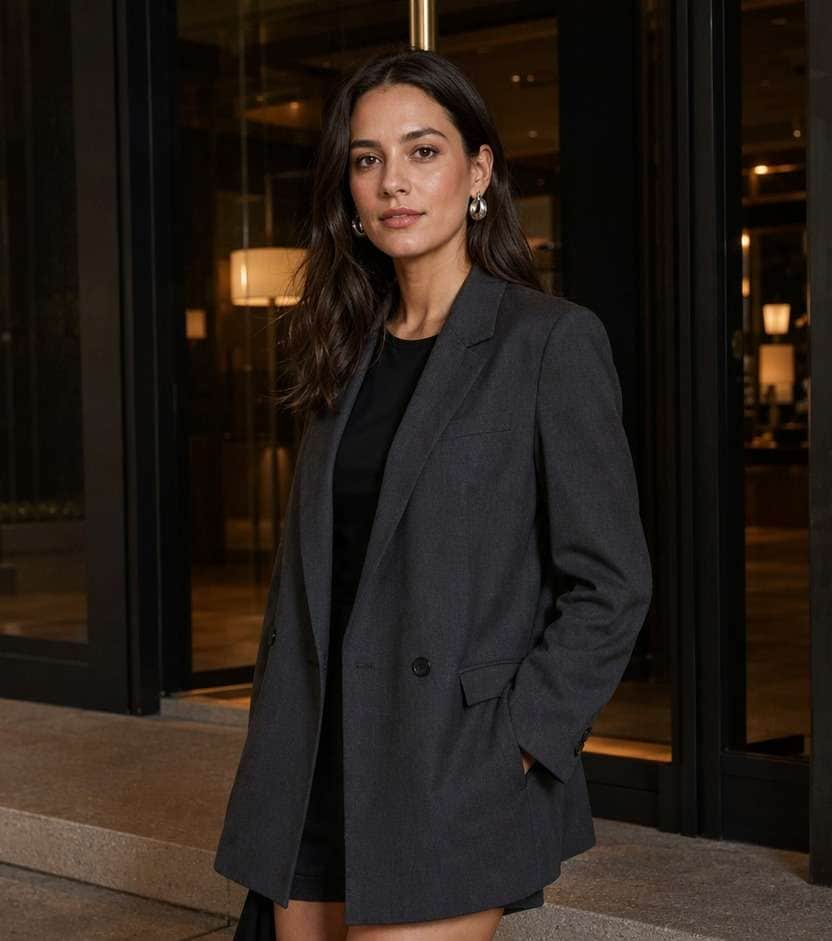
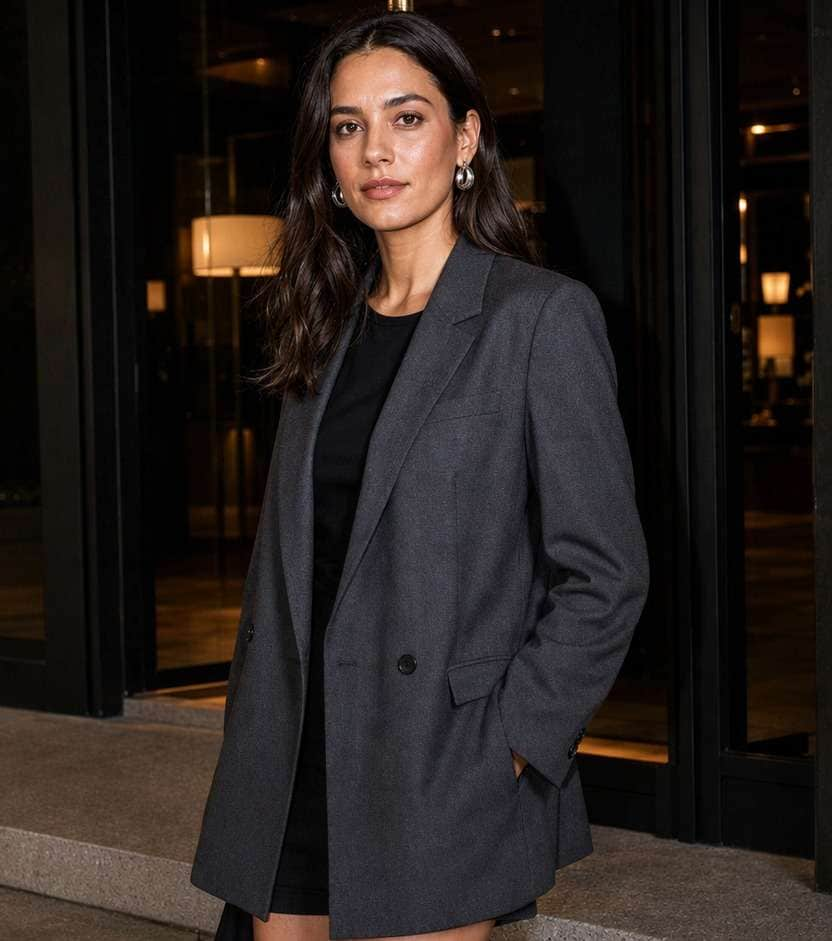
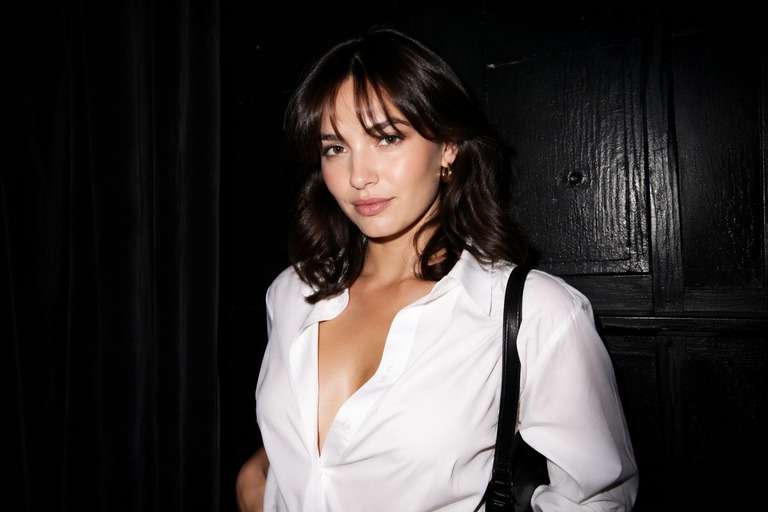
Your outfit photo has the pose, but the lighting feels ordinary. An AI Paparazzi filter can give that same image the hard on-camera flash, dark background and caught-off-guard energy of a red-carpet arrival. Start with your favorite portrait, then choose between a clean editorial flash and gritty 2000s tabloid color. Keep your face, clothes and setting recognizable while you test the mood - no camera crew or reshoot required.
A clear face and a darker background help the flash stand out. Keep highlights on skin from blowing out.
10 Paparazzi Photo Filter Prompts for Different Flash Looks
Not every flash photo needs to look like a red carpet. A paparazzi photo effect can lean toward glossy event coverage, a messy late-night club exit or a direct-flash street outfit shot. These prompts start from your uploaded picture; keep your expression, outfit, jewelry and background while asking for a different flash pattern, grain level or shadow falloff.
Red Carpet Arrival
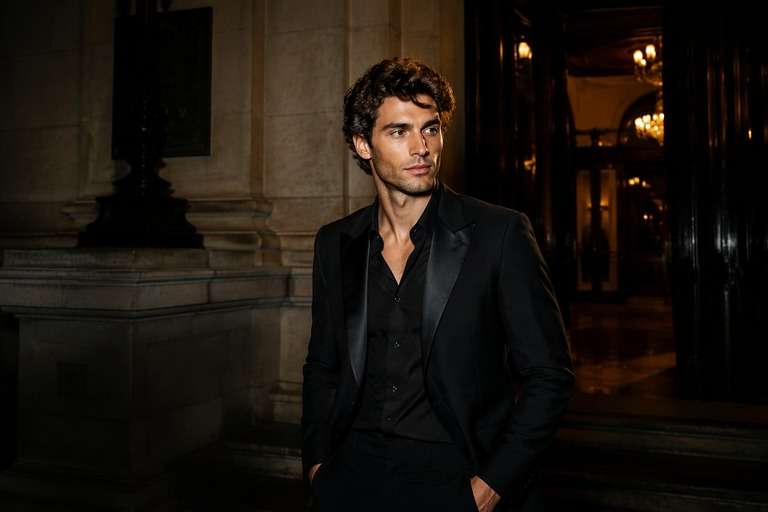
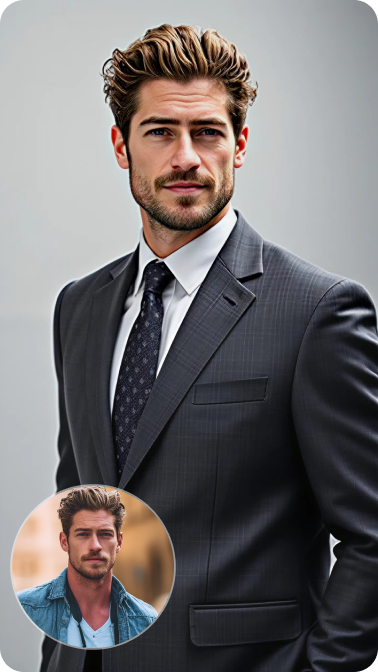
Use the uploaded photo as your exact visual reference. An elegant dark entryway with a tailored black suit, crisp lens-axis flash and refined skin highlights; keep a high-end editorial finish without adding reporters. For the result, keep the camera position, facial features, garments and background consistent with the uploaded image. If the existing scene cannot support a requested light source, use a subtler adjustment instead of inventing unrelated objects. Keep texture, edges and local color believable. No text, labels, logos or collage.
2000s Tabloid Snapshot
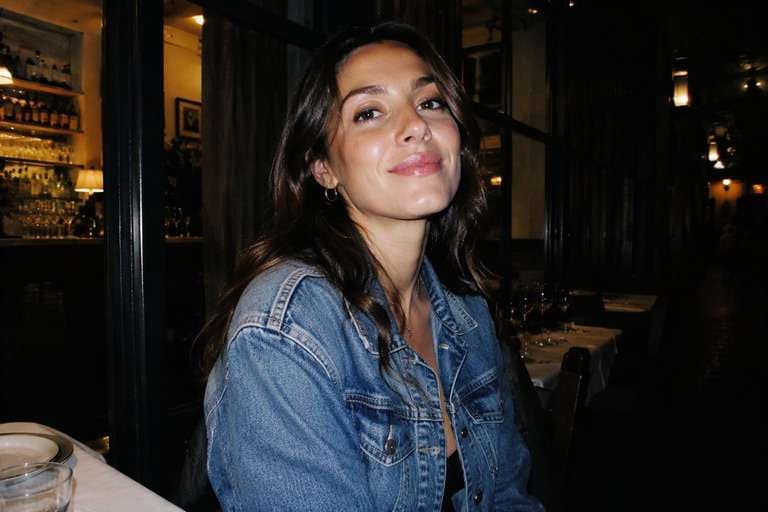
Use the uploaded photo as your exact visual reference. Early-2000s compact digital-camera character with frontal flash, slightly uneven exposure and fine sensor grain; avoid heavy VHS lines or a fake date stamp. For the result, keep the camera position, facial features, garments and background consistent with the uploaded image. If the existing scene cannot support a requested light source, use a subtler adjustment instead of inventing unrelated objects. Keep texture, edges and local color believable. No text, labels, logos or collage.
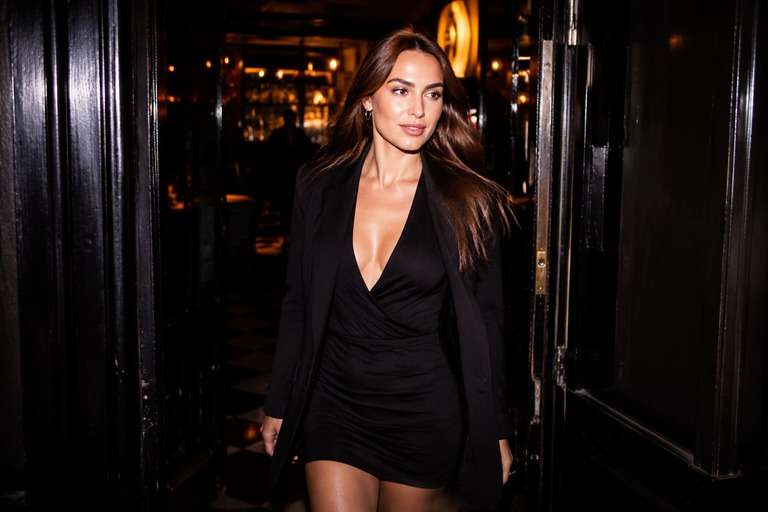
Restaurant Exit Candid
Use the uploaded photo as your exact visual reference. Preserve the existing entrance signage and door frame, add near-lens flash with sharper facial contrast while darkening the corridor beyond. For the result, keep the camera position, facial features, garments and background consistent with the uploaded image. If the existing scene cannot support a requested light source, use a subtler adjustment instead of inventing unrelated objects. Keep texture, edges and local color believable. No text, labels, logos or collage.
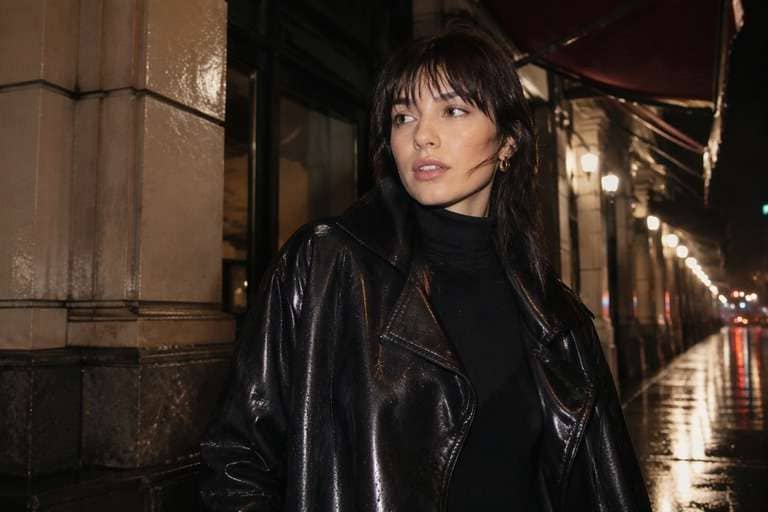
Rainy Street Flash
Use the uploaded photo as your exact visual reference. Direct-flash foreground with small, physically plausible highlights on wet pavement and a subdued rainy background; no invented storm or extra passersby. For the result, keep the camera position, facial features, garments and background consistent with the uploaded image. If the existing scene cannot support a requested light source, use a subtler adjustment instead of inventing unrelated objects. Keep texture, edges and local color believable. No text, labels, logos or collage.
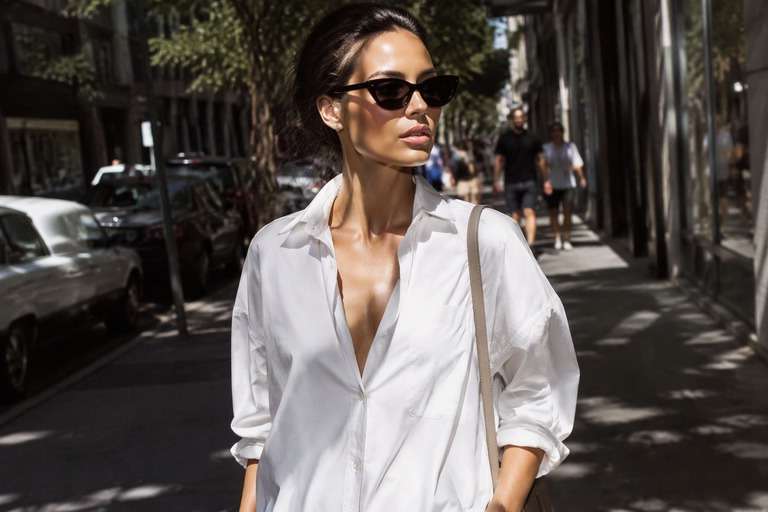
Sunglasses Street Style
Use the uploaded photo as your exact visual reference. Bright daytime magazine flash used as fill on face and sunglasses, deliberate hard shadow below the chin without turning daylight into nighttime. For the result, keep the camera position, facial features, garments and background consistent with the uploaded image. If the existing scene cannot support a requested light source, use a subtler adjustment instead of inventing unrelated objects. Keep texture, edges and local color believable. No text, labels, logos or collage.
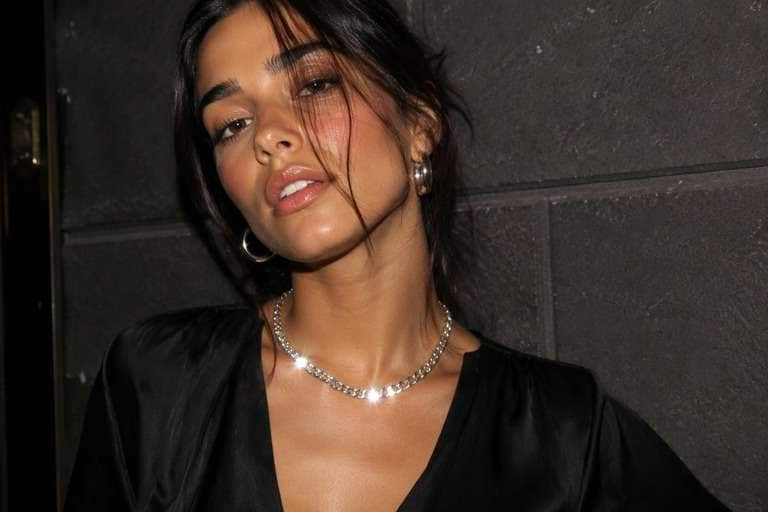
Jewelry Highlight Moment
Use the uploaded photo as your exact visual reference. Catch controlled flash reflections on an existing necklace and earrings, avoiding white blobs and extra jewelry; retain accurate metal color. For the result, keep the camera position, facial features, garments and background consistent with the uploaded image. If the existing scene cannot support a requested light source, use a subtler adjustment instead of inventing unrelated objects. Keep texture, edges and local color believable. No text, labels, logos or collage.
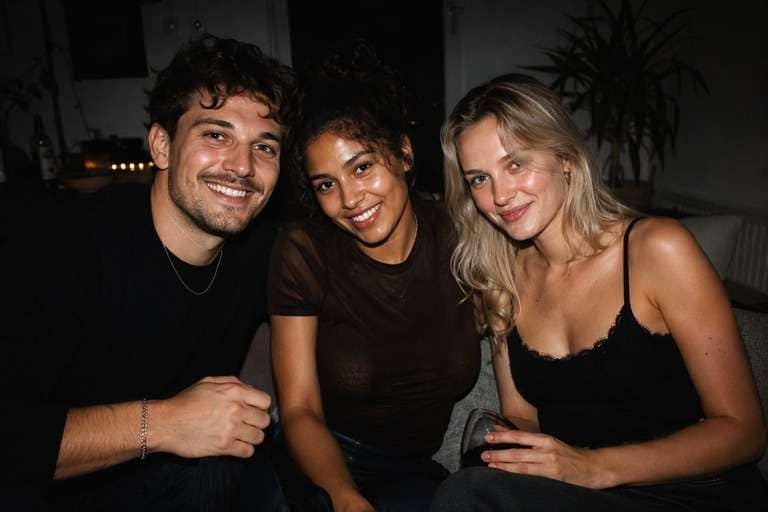
After-Party Group Photo
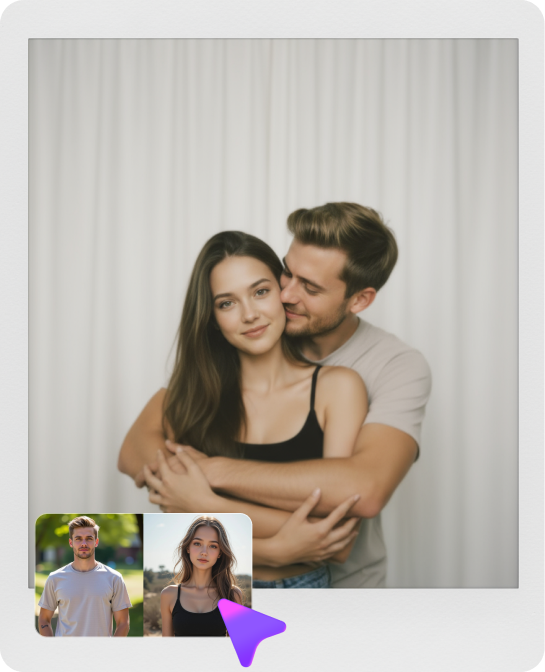
Use the uploaded photo as your exact visual reference. Balanced direct flash over the original group, preserving all faces and hands while the room recedes into darkness with subtle snapshot grain. For the result, keep the camera position, facial features, garments and background consistent with the uploaded image. If the existing scene cannot support a requested light source, use a subtler adjustment instead of inventing unrelated objects. Keep texture, edges and local color believable. No text, labels, logos or collage.
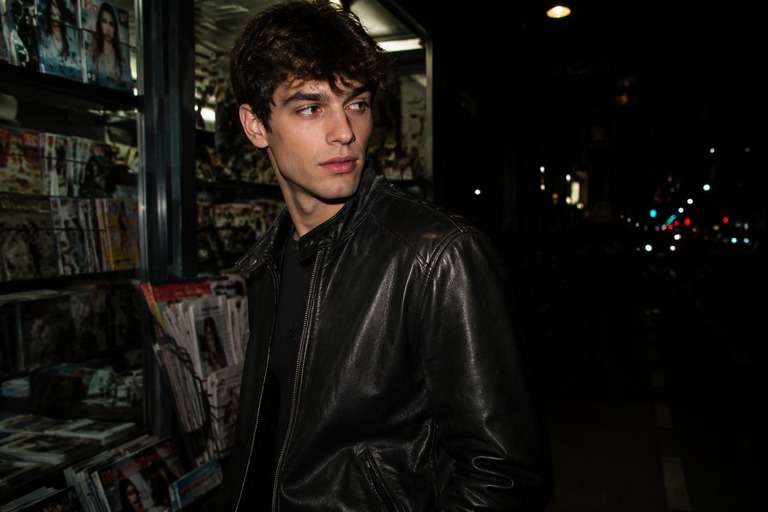
Leather Jacket Editorial
Use the uploaded photo as your exact visual reference. Bring out grain and texture on an existing leather jacket using frontal flash and defined shadow edges without reshaping the material. For the result, keep the camera position, facial features, garments and background consistent with the uploaded image. If the existing scene cannot support a requested light source, use a subtler adjustment instead of inventing unrelated objects. Keep texture, edges and local color believable. No text, labels, logos or collage.
Late-Night Taxi Candid
Use the uploaded photo as your exact visual reference. Slightly off-axis flash at a taxi curb with reflective window detail, emphasizing motion-free stillness and authentic city color. For the result, keep the camera position, facial features, garments and background consistent with the uploaded image. If the existing scene cannot support a requested light source, use a subtler adjustment instead of inventing unrelated objects. Keep texture, edges and local color believable. No text, labels, logos or collage.
Clean Magazine Flash
Use the uploaded photo as your exact visual reference. Minimal noise, neutral facial skin tone and controlled front flash on a simple dark background; avoid the exaggerated star glints of party filters. For the result, keep the camera position, facial features, garments and background consistent with the uploaded image. If the existing scene cannot support a requested light source, use a subtler adjustment instead of inventing unrelated objects. Keep texture, edges and local color believable. No text, labels, logos or collage.
Control the Camera-Flash Look Without Rebuilding Your Photo
Hard Flash, Not a White Overlay
An authentic press-camera effect puts a strong light close to the lens, brightening the subject while letting the background fall away. Ask for a short, crisp shadow and clear fabric detail rather than a flat, overexposed face. It should still look like the original photograph.
Choose Polished or Tabloid Grain
A formal event portrait can use clean flash with detailed skin and a controlled black backdrop. A 2000s-inspired paparazzi edit looks better with restrained digital-camera noise and a slightly imperfect highlight roll-off. Pick one visual era instead of piling every retro effect onto the image.
Keep Your Outfit the Main Character
The most convincing result keeps the actual clothing, accessories, pose and facial expression. Flash can reveal satin, leather and jewelry differently, but it should not invent a new coat or erase an earring. For outfit posts, check shiny fabric and eyeglass reflections before saving.
Make a Still Photo, Not a Fake Video Promise
Some viral paparazzi effects animate a walk through photographers. This page is for a single edited photograph: a bright flash moment with nightlife atmosphere. If you need moving camera flashes, choose a separate image-to-video workflow rather than expecting motion from a still-image filter.
How to Add an AI Paparazzi Filter to a Photo Online
To create a paparazzi photo filter online, start with the image you already like, describe the direct-flash treatment in the Face Editor prompt workflow where available, and inspect the highlights before using your result. There is no verified one-click paparazzi preset promised here.
Step 1
Upload a Portrait or Outfit Photo
Upload your original portrait, party photo or full-length outfit picture to Media.io AI Face Editor. A visible face, clear clothing textures and a simple background give you a useful reference for preserving the same person and outfit.
Step 2
Describe the Flash and Camera Mood
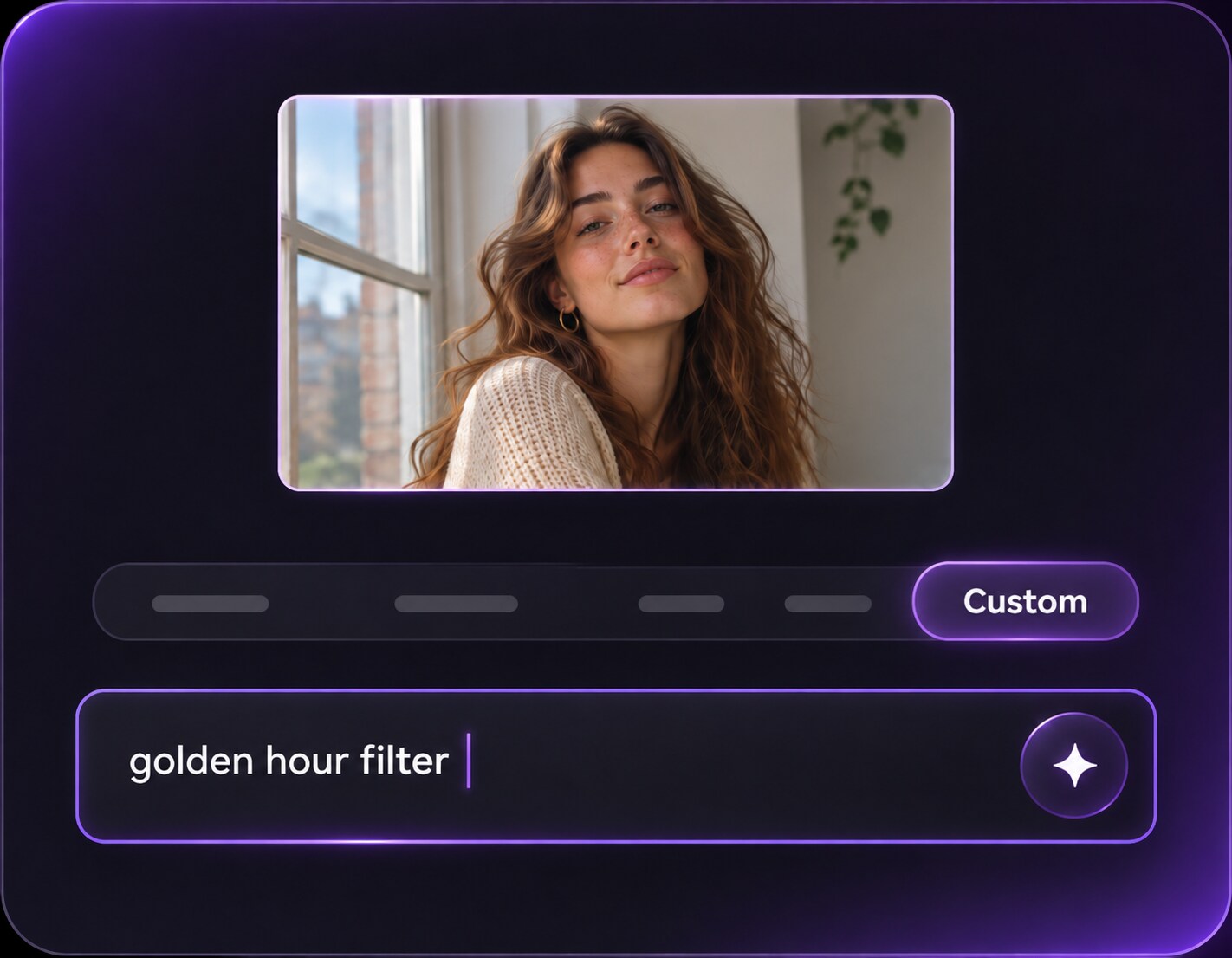
Write a custom prompt for hard front-facing flash, a darker background and controlled grain. Specify whether you want a glossy red-carpet photograph or an imperfect night-out snapshot, and ask to keep the original expression, clothing and camera angle.
Step 3
Generate and Inspect Flash Details
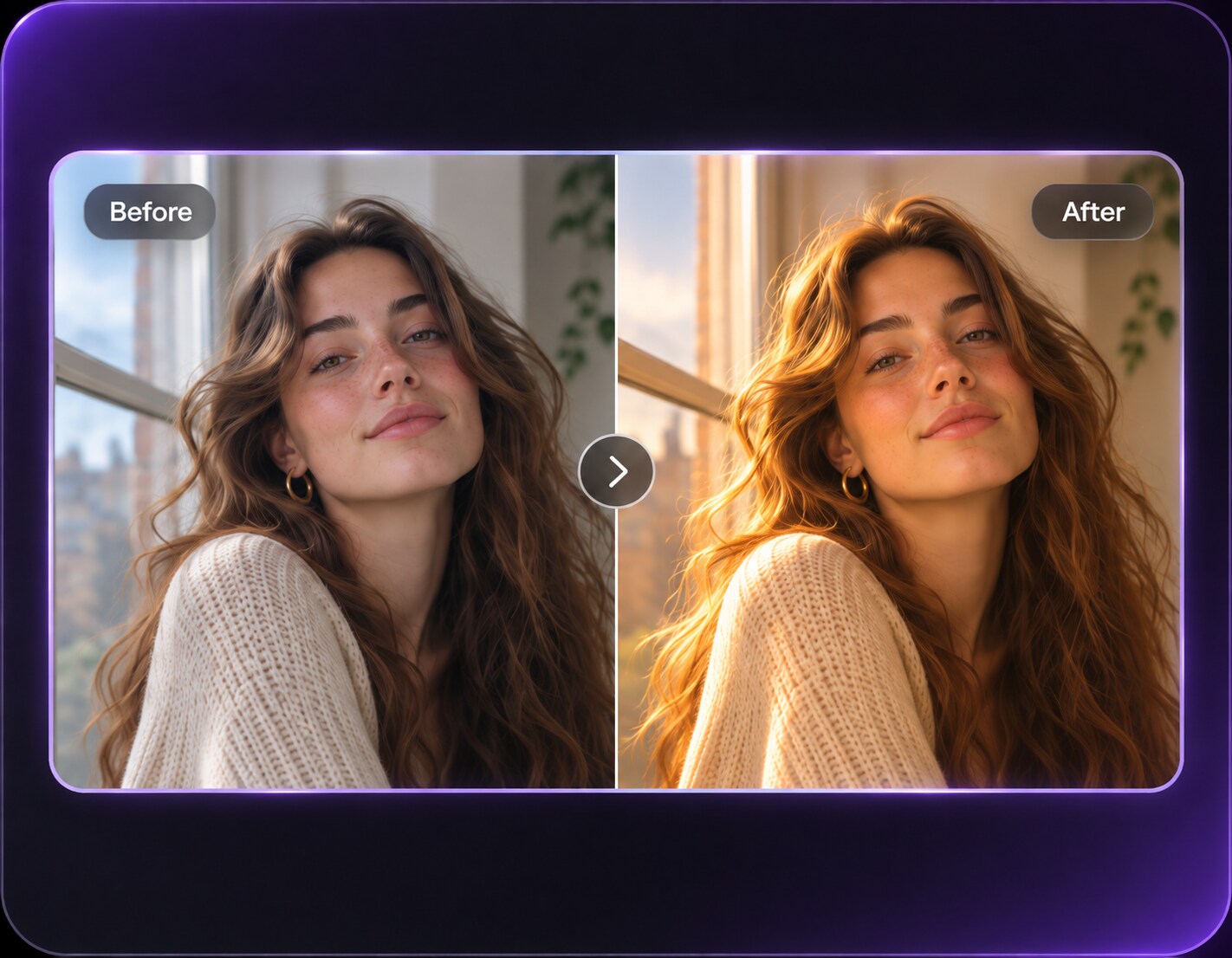
Click Generate, then compare the edited photograph with the original. Check that eyes, jewelry and cheeks are not overexposed and that shadows agree with the flash direction. Refine the prompt when the face or background changes too much.
An AI Paparazzi filter effect works especially well when the scene already contains an interesting person or outfit. Let the flash signal a moment of attention rather than asking AI to invent a new celebrity or venue.
A Night-Out Look Worth Posting
A restaurant or club entrance photo often has weak indoor lighting and a distracting doorway behind you. Add hard flash to draw attention to the face and outfit while holding the entrance details in shadow. It makes the image feel like a spontaneous arrival without pretending you were at a real celebrity event.
Fashion Outfits with Magazine Energy
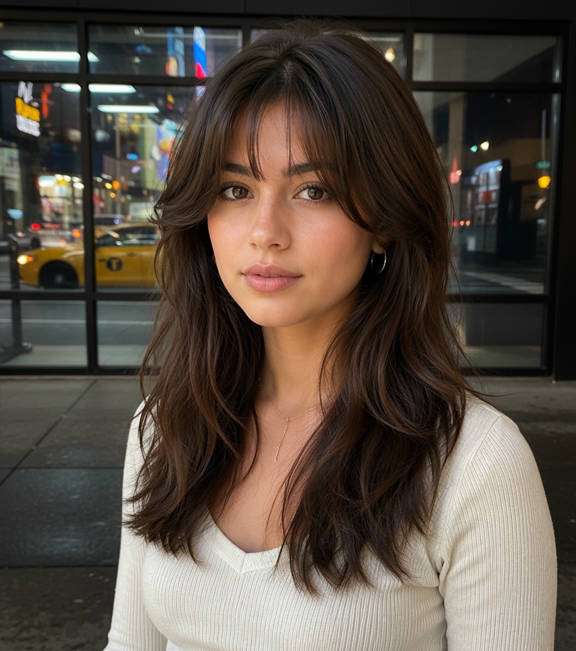
For a street-style shot, keep the existing sidewalk and coat but turn the light into an editorial direct flash. Preserve fabric structure and the actual shoes so viewers can still appreciate the look. A small amount of film grain can feel stylish; oversized starbursts on every accessory usually look artificial.
Throwback Party and Y2K Albums
A group photo from a birthday or house party can take on early-digital-camera character with bright foreground faces, dark room edges and subtle noise. Keep all people and facial expressions consistent. Avoid invented guests, duplicate hands or dramatic exposure that makes one person disappear.
Paparazzi Photo Preview Checklist
Flash Exposure
Preview checklist
"Are facial highlights still readable?" Check foreheads, cheeks and white clothing for detail instead of washed-out bright patches.
Candid Composition
Preview checklist
"Does the original moment still feel real?" Keep the existing posture and location; new strangers or cameras can make the edit look staged.
Shadow Direction
Preview checklist
"Does the flash fit the scene?" A lens-facing flash should brighten the foreground while leaving the surrounding room or street darker.
Texture and Grain
Preview checklist
"Is the 2000s grain helping?" Review skin texture, fabric and digital noise at full size before choosing a stronger retro style.
It is a photo-editing look that imitates the harsh direct flash, darker surroundings and spontaneous framing associated with press or celebrity street photography. You can describe those lighting and texture changes in an AI photo editor while asking it to keep the original person and scene.
2. Can I get a paparazzi look without adding photographers?
Yes. A convincing paparazzi-style portrait often depends mainly on frontal flash, sharp contrast and visible nighttime ambience. If you only want the photographic treatment, tell the editor not to add photographers, crowds, red carpets or new backgrounds.
3. How is a paparazzi photo filter different from a paparazzi walk video?
A photo filter delivers one still image that looks flash-lit. Paparazzi walk trends use image-to-video tools to animate movement and a sequence of flashes. Media.io AI Face Editor is the still-photo route described on this page; do not expect video motion from this workflow.
4. Which source photo is best for the direct-flash effect?
Try a clear portrait or outfit photo with the subject separated from the background. A darker environment usually makes the flash treatment more visible, but a brighter daytime picture can work as an intentional fashion editorial. Check face detail after editing.
5. Can I make it look like a 2000s digital camera photo?
You can request modest sensor grain, slightly cool skin-neutral highlights and a deep background to suggest that period. Keep the grain subtle enough for people to recognize clothing, jewelry and facial features; heavy VHS distortion belongs to a different camera look.
6. Will AI preserve my face and outfit exactly?
The prompt can ask to keep identity, clothes and framing, but generated details may vary. Compare the output with your uploaded image, especially accessories, fingers, facial features and logos, and regenerate or revise the instructions if anything important changes.