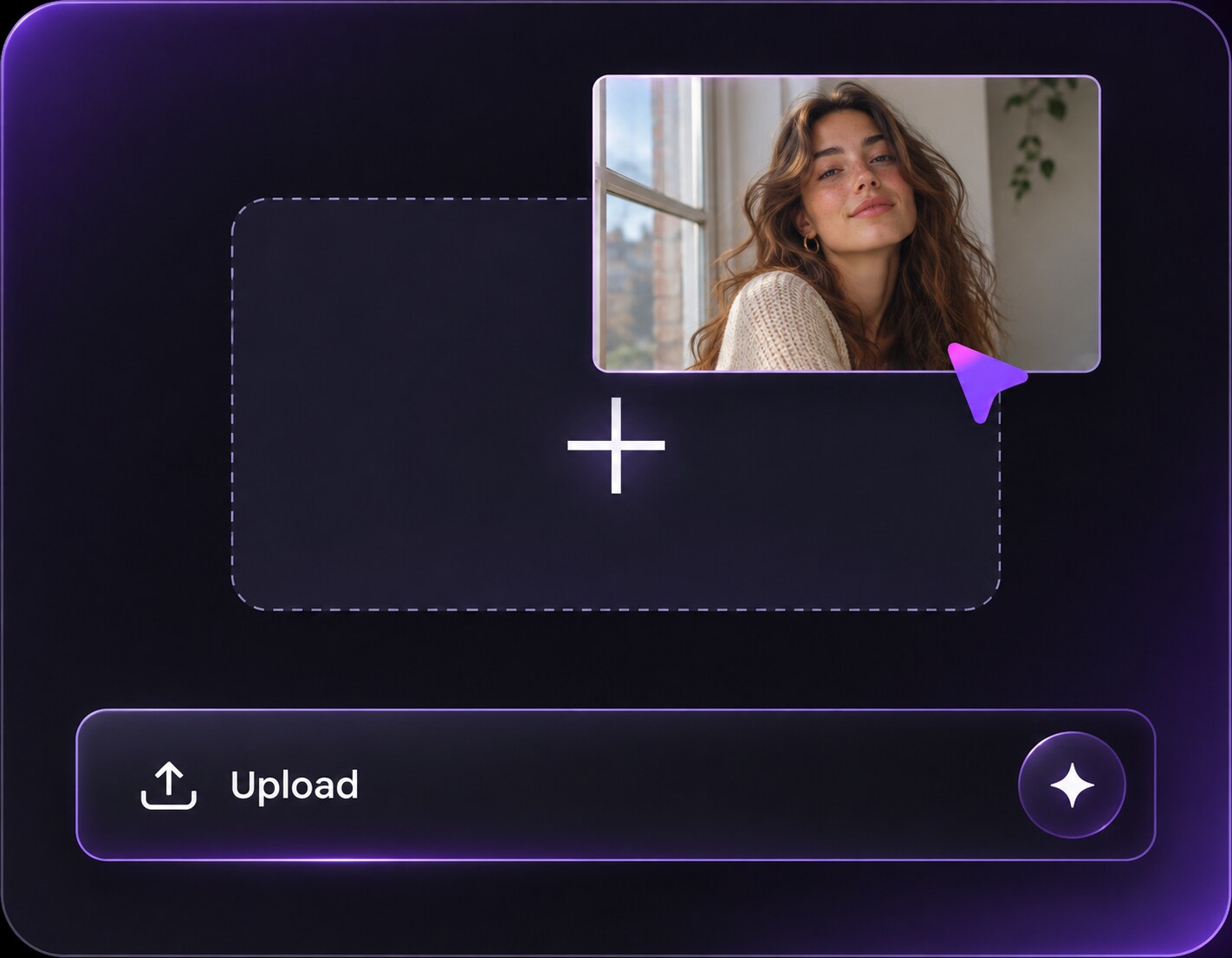
Cliquez ou faites glisser pour télécharger, ou choisissez parmi Mon HistoriqueCliquez pour téléchargerMon Historique
Pas d'idées ? Générer une image d'abord. >
Importez des images jpg, jpeg, png jusqu'à 50 Mo, avec une largeur/hauteur minimale de 300 px.
Golden Hour Filter: Add Soft Sunset Light to Your Photos
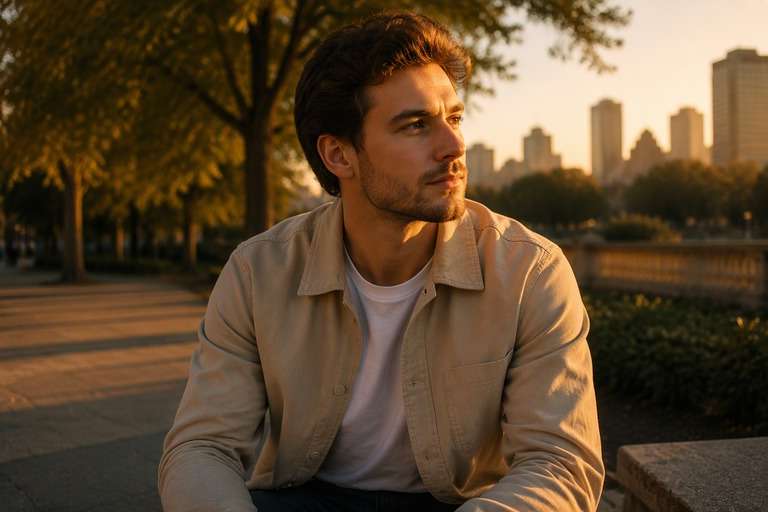
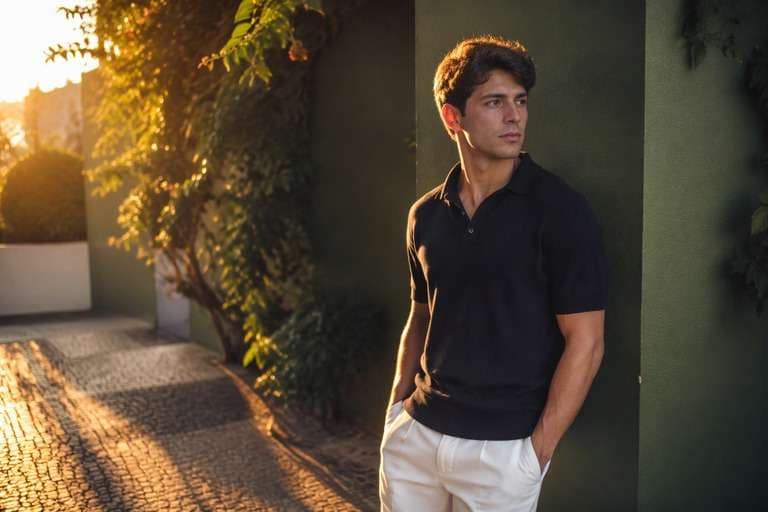
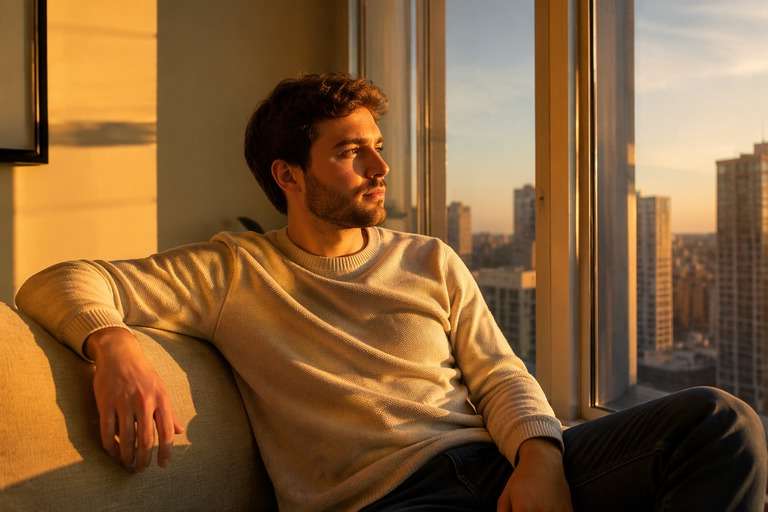
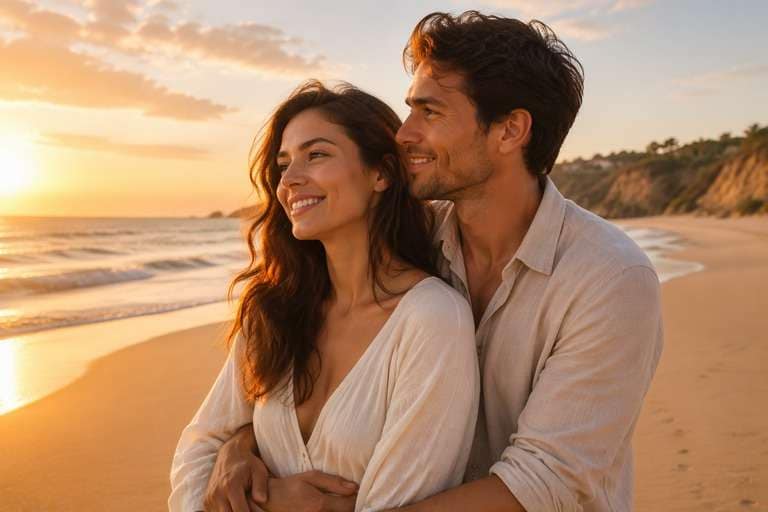
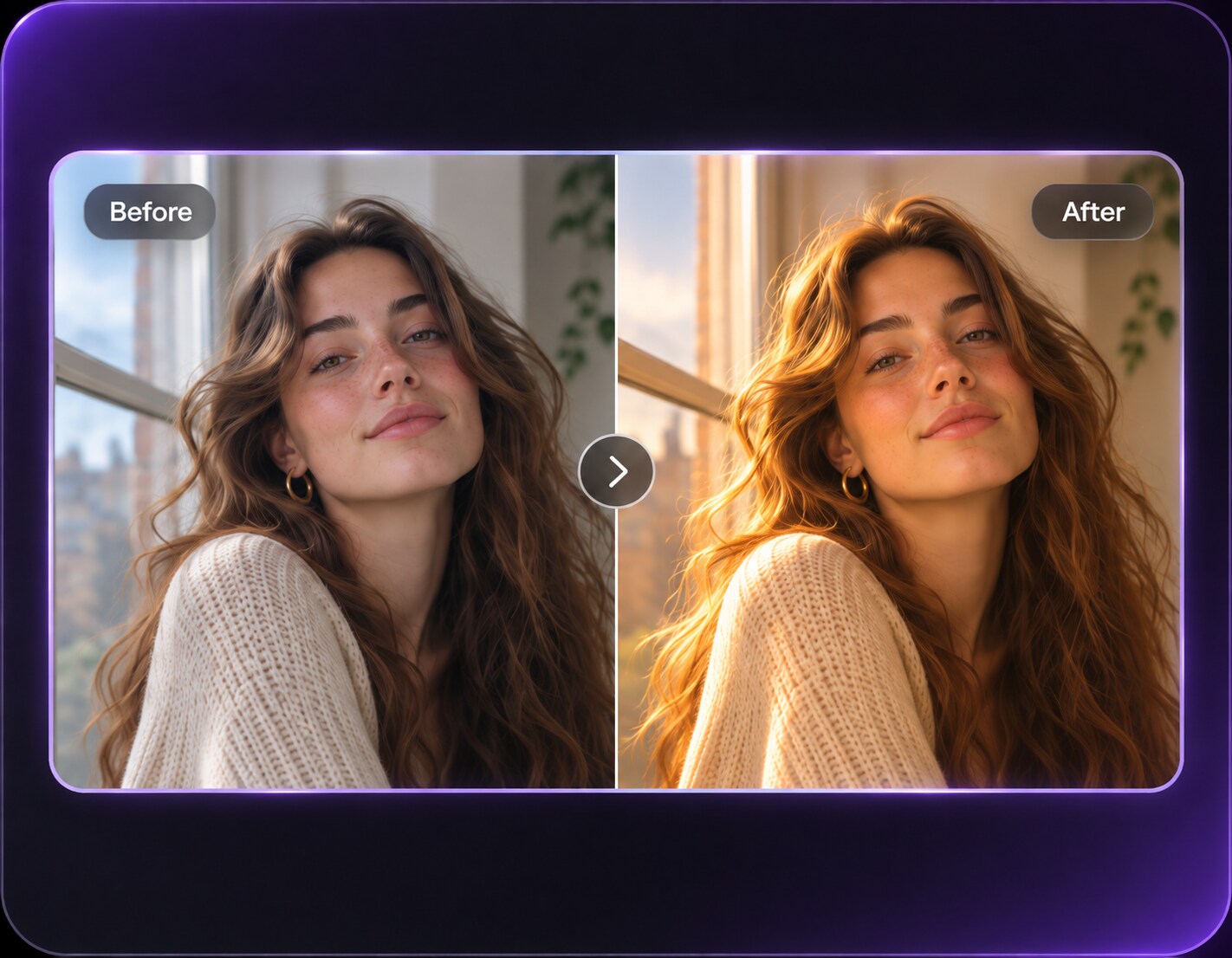
Love the portrait, but not the flat lighting? With Media.io AI Face Editor, you can give your existing photo a golden hour filter-style glow without reshooting at sunset. Upload a selfie, couple photo or travel portrait and describe where the sunlight should fall. Compare a gentle peach-gold finish with stronger backlighting while keeping your expression, outfit and original setting recognizable. Pick the warmth that looks right for your photo before sharing.
For a believable result, use a clear photo and match the new sunlight to the original scene.
Golden Hour Photo Editing Prompts for 10 Lighting Styles
Different photos call for different light. Start with your own image and choose a prompt for a warm side glow, soft window light, a sunset rim light or a gentle beach reflection. These golden hour effect photo ideas aim to change the lighting, not your face, outfit or location. Keep the sun direction and shadow placement believable, then adjust the warmth to suit the scene.
Soft Side-Lit Portrait
Edit the uploaded photo as the main reference. Warm sunlight enters from one side of the existing portrait, lifting the cheeks while preserving skin texture, with gentle shadow transition and no orange wash. Keep the people, facial features, expressions, pose, outfit, background objects and original crop consistent. The golden hour light should look physically plausible and photorealistic; avoid a uniform yellow overlay, plastic skin, unrelated scene changes, text and logos.
Golden Rim Light
Edit the uploaded photo as the main reference. Keep the original subject and scene, add a thin glowing edge of low sun behind the hair and shoulders, subtle haze, warm backlight, no blown-out highlights. Keep the people, facial features, expressions, pose, outfit, background objects and original crop consistent. The golden hour light should look physically plausible and photorealistic; avoid a uniform yellow overlay, plastic skin, unrelated scene changes, text and logos.
Window Sunset Glow
Edit the uploaded photo as the main reference. Relight the uploaded indoor photo with low warm sunlight through the visible window; match the shadow direction to window placement and preserve room details and people. Keep the people, facial features, expressions, pose, outfit, background objects and original crop consistent. The golden hour light should look physically plausible and photorealistic; avoid a uniform yellow overlay, plastic skin, unrelated scene changes, text and logos.
Beach Reflection
Edit the uploaded photo as the main reference. Keep the same people and beach, add low amber sunlight near the horizon and natural warm reflections across wet sand, realistic cool shadows and fine details. Keep the people, facial features, expressions, pose, outfit, background objects and original crop consistent. The golden hour light should look physically plausible and photorealistic; avoid a uniform yellow overlay, plastic skin, unrelated scene changes, text and logos.
City Street at Sundown
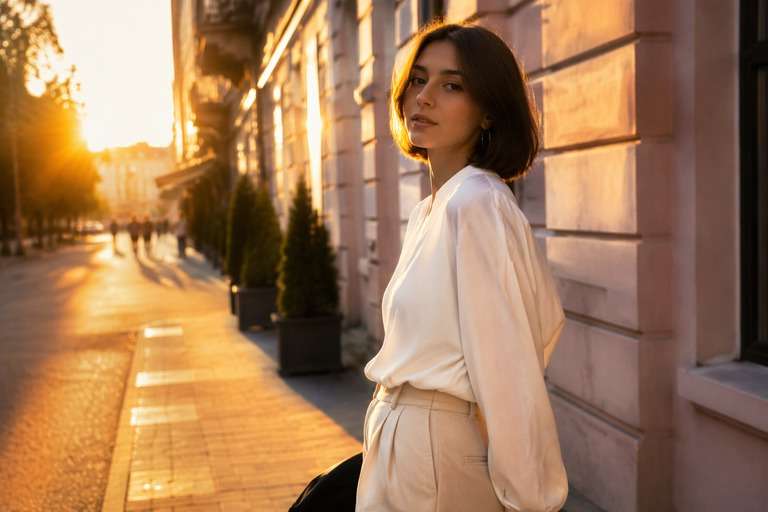
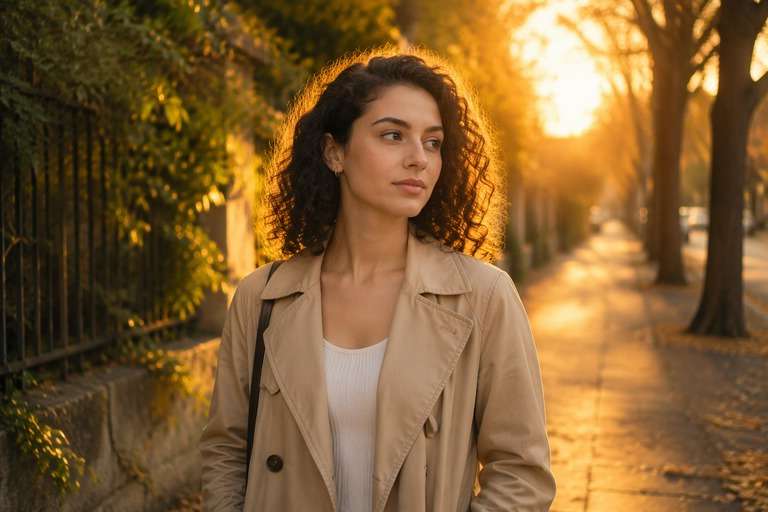
Edit the uploaded photo as the main reference. Maintain the exact architecture and subject of the original city photo. Add directional late-day golden light along building edges with natural long shadows and restrained lens bloom. Keep the people, facial features, expressions, pose, outfit, background objects and original crop consistent. The golden hour light should look physically plausible and photorealistic; avoid a uniform yellow overlay, plastic skin, unrelated scene changes, text and logos.
Couple Backlight
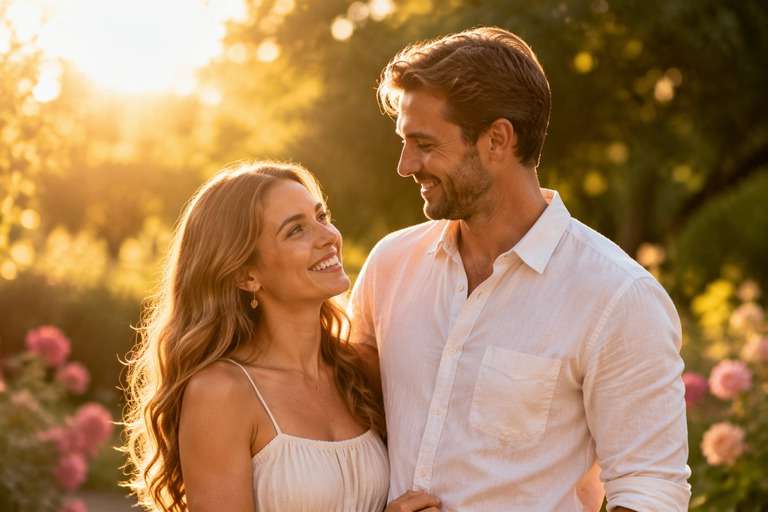
Edit the uploaded photo as the main reference. Keep both recognizable faces and original clothing. Add gentle warm backlight from behind the couple, peachy highlights and an airy but realistic romantic atmosphere. Keep the people, facial features, expressions, pose, outfit, background objects and original crop consistent. The golden hour light should look physically plausible and photorealistic; avoid a uniform yellow overlay, plastic skin, unrelated scene changes, text and logos.
Golden Garden Portrait
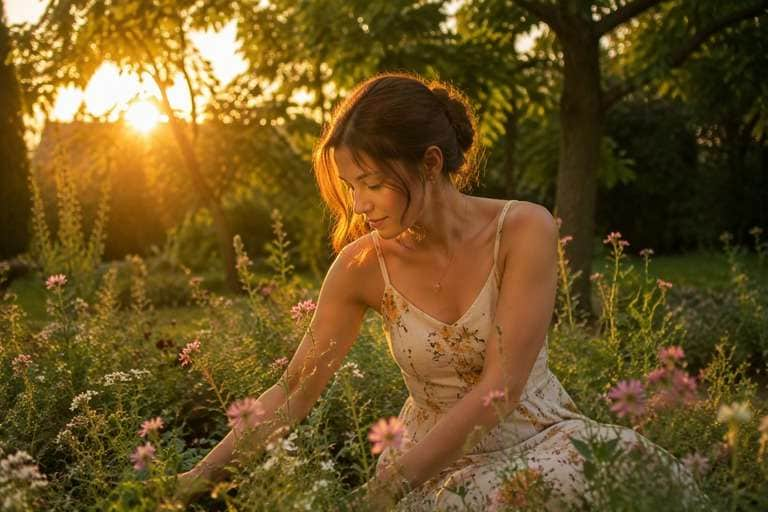
Edit the uploaded photo as the main reference. Apply a natural late-afternoon garden light with sun filtering through foliage, warm highlights on the subject, muted shadows and believable leaf-shadow shapes. Keep the people, facial features, expressions, pose, outfit, background objects and original crop consistent. The golden hour light should look physically plausible and photorealistic; avoid a uniform yellow overlay, plastic skin, unrelated scene changes, text and logos.
Travel Mountain Glow
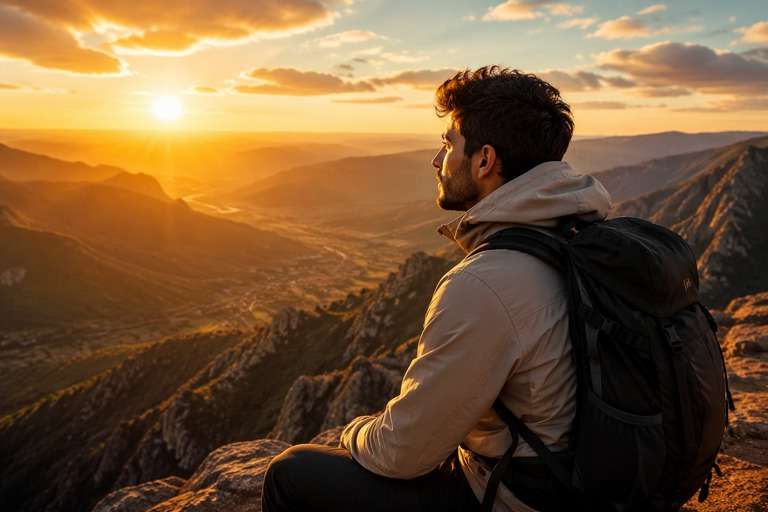
Edit the uploaded photo as the main reference. Keep the original mountain view and landscape layout. Add an amber sun low near the horizon, natural atmospheric depth and subtle warm light on ridge lines without repainting landmarks. Keep the people, facial features, expressions, pose, outfit, background objects and original crop consistent. The golden hour light should look physically plausible and photorealistic; avoid a uniform yellow overlay, plastic skin, unrelated scene changes, text and logos.
Cozy Cafe Light
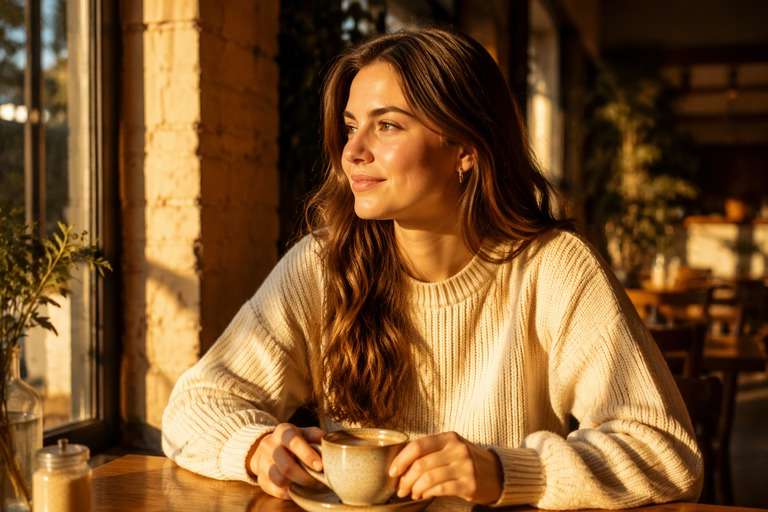
Edit the uploaded photo as the main reference. Preserve the cafe setting and seated subject. Give the window-facing side of the table soft golden sunlight, accurate shadow falloff, natural food colors and a welcoming late-day mood. Keep the people, facial features, expressions, pose, outfit, background objects and original crop consistent. The golden hour light should look physically plausible and photorealistic; avoid a uniform yellow overlay, plastic skin, unrelated scene changes, text and logos.
Film-Soft Golden Glow
Edit the uploaded photo as the main reference. Keep the photo composition. Add warm low sun, delicate highlight bloom and lightly faded contrast without heavy grain, exaggerated orange grading, or changes to the subject face. Keep the people, facial features, expressions, pose, outfit, background objects and original crop consistent. The golden hour light should look physically plausible and photorealistic; avoid a uniform yellow overlay, plastic skin, unrelated scene changes, text and logos.
Create a Golden Hour Effect Without a Sunset Reshoot
Warm the Light, Not Just the Colors
A yellow tint alone can make a portrait look orange. For a more natural golden hour photo, ask for warm highlights on the light-facing side of the face, softer transitions into shadow, and a background that responds to the same imagined sun. Compare skin tones before deciding which version to keep.
Put the Sunset Where It Makes Sense
Backlighting creates a fine bright edge around shoulders and hair; side lighting gives cheekbones and fabric more shape. In an indoor photo, a window can provide a plausible light source. Describe the direction first, then choose a subtle glow or a more cinematic flare.
Keep Your Original Moment Recognizable
You do not need to replace your outfit, expression or location to change a photo's mood. In Media.io AI Face Editor, describe the new sunset lighting and ask the model to retain facial features, clothing and composition. Review the output carefully because AI edits can still alter small details.
Try More Than One Level of Warmth
A soft peach glow may suit a profile picture better than an intense amber sunset. Try the same source photo with gentle, moderate and dramatic light descriptions. Looking at the versions side by side helps you pick an effect that feels intentional rather than overprocessed.
How to Add a Golden Hour Filter to a Photo Online
To try a golden hour filter online with Media.io AI Face Editor, upload a clear photo, describe the sunset light you want using the available custom-edit instructions, and generate a preview. This is a prompt-guided lighting edit, not a verified one-tap Golden Hour preset.
Step 1
Upload the Photo You Want to Relight
Open Media.io AI Face Editor and upload a clear selfie, portrait or photo featuring people. Choose an image where facial details are visible and the light direction can be understood from the window, horizon or surrounding scene.
Step 2
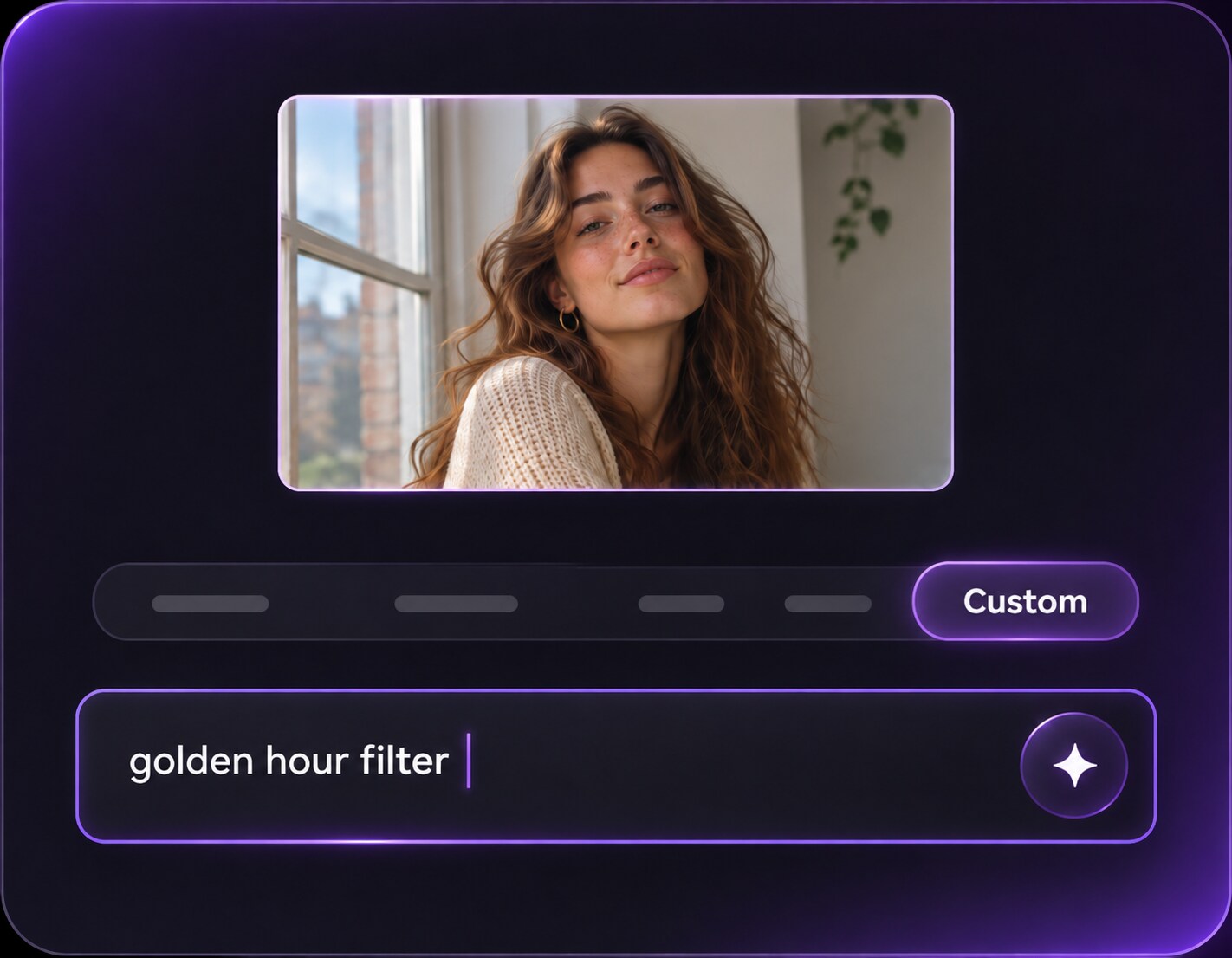
Describe the Golden Sunlight
Use the available custom prompt or edit instructions to describe your light: 'Add soft late-afternoon sunlight from the left, a subtle golden rim glow, and natural shadows; preserve the same people, facial features, clothing and background.' Adjust the wording to match the original photo.
Step 3
Generate, Compare and Refine
Select Generate in AI Face Editor, then compare the result with your original photo. Check skin tones, facial features, shadow direction and background details. If the lighting is too orange or strong, reduce the warmth in the instructions and try another edit before saving.
A small lighting adjustment can change how a favorite image feels. Try the AI golden hour filter where added warmth has a clear purpose - flattering a portrait, restoring the mood of a trip, or bringing gentle intimacy to a shared moment.
Give a Portrait a Softer, Warmer Mood
A cloudy-day portrait may have a lovely expression but cool, flat light. Request subtle side sunlight across the cheeks and gentle backlight along the shoulders. Keep pores and skin color natural. This gives profile photos and lifestyle portraits warmth without making the person look like someone else.
Bring Sunset Atmosphere to Travel Photos
A travel portrait on a beach, city street or mountain overlook can capture a great moment even when the midday light feels flat. Ask for low warm sunlight near the horizon and natural reflections while keeping your face, the landmark and the original framing intact. This works best when the people are clearly visible in the source photo.
Make Couple and Wedding Photos Feel Intimate
For a couple portrait or pre-wedding picture, use soft backlight behind both people rather than an orange wash across every face. A slight glow on fabric and hair can create a romantic finish. Check that faces remain recognizable and neither person's expression is altered.
Golden Hour Photo Preview Checklist
Light Direction
Preview checklist
Does the sunlight have a believable source?Look for highlights and shadows that agree on where the imagined sun sits in the scene.
Natural Skin
Portrait check
Do faces still look like the original photo?Avoid orange skin, blurred eyes, overly smooth texture and changes to facial shape.
Scene Consistency
Background check
Is the setting still the same place?Buildings, clothing, plants and horizon lines should stay recognizable after the lighting edit.
Final Warmth
Sharing check
Is the glow subtle enough for your goal?A light edit may suit a family picture; stronger haze or flare can work for a stylized travel post.
It gives a photo the warm, low-angle lighting associated with sunrise or the period before sunset. Instead of only increasing yellow tones, an AI edit can aim for soft highlights, directional shadows and a gentle rim glow. The result depends on your original image and prompt.
2. How do I apply a golden hour effect to a photo online?
Open Media.io AI Face Editor and upload a portrait or selfie. In the available edit instructions, describe the angle and warmth of the sunset light, then generate a preview. Compare the result with the original and adjust the wording if the skin or shadows look unnatural.
3. Can I use a golden hour filter on indoor pictures?
Yes, but give the light a plausible source. For a living-room or cafe image, request warm sunlight coming through a visible window rather than creating a bright outdoor sun behind the subject. Indoor edits often look more convincing with less flare and softer contrast.
4. How can I avoid orange skin in an AI golden hour photo?
Ask for natural skin tones and restrained amber highlights, not a full-frame orange cast. Keep whites and neutral fabrics reasonably neutral, and request cooler, readable shadows. If skin looks too yellow, lower the warmth and specify a gentler peach-gold glow in the next prompt.
5. Is a golden sunlight photo filter the same as adding sun rays?
Not exactly. Golden hour lighting describes the overall direction, softness and warmth of low sunlight; visible sun rays are optional beams in the scene. If you want a realistic portrait, try warm side light or backlight first. Use distinct light rays only where windows, trees or haze make them believable.
6. Will the golden hour filter preserve my face and background?
The goal is to relight your uploaded picture while retaining the people and composition. Include explicit instructions to preserve facial features, clothing, pose and background. Because the result is AI-generated, inspect the final image for unexpected changes and regenerate if necessary.