Create a Custom Slide Background for Clear, Branded Presentations
Generate a slide background from text for business decks, lessons, and pitch slides in seconds. Media.io helps you create a polished presentation background, modern ppt background, or custom visual theme with text-safe space, 16:9 framing, and fast downloadable results. It is also a practical option for backgrounds for presentations.
Review these example directions, then tailor the prompt details to get stronger results with this Slide Background and a more usable background for the presentation. It also supports background for slide.
Soft Mesh Gradient
Create a clean professional slide background with soft mesh gradients blending blue, lavender, and subtle violet tones. Use smooth diffused lighting, a minimalist corporate mood, gentle depth, silky color transitions, and wide negative space for headline text. Keep the composition elegant, uncluttered, and optimized for a 16:9 presentation layout.
Muted Geometric Layers
Generate a modern business background for presentation slides with layered geometric panels in navy, slate gray, and white. Add subtle shadows, crisp edges, balanced spacing, and a premium editorial feel. Leave a large text-safe area, keep visual hierarchy clean, and maintain a polished 16:9 corporate deck composition.
Flowing Gradient Waves
Design an abstract slide background with flowing gradient waves in teal, indigo, and soft cyan. Use graceful curved motion, glossy blended lighting, and a contemporary tech-inspired mood. Keep textures smooth, avoid clutter, and reserve a calm open center so titles and bullet points remain readable on a widescreen slide.
Glassmorphism Blur
Create a modern slideshow background with translucent glass panels, frosted blur layers, and soft reflections on a cool neutral palette. Use pale blue, silver, and gray tones, balanced spacing, and a sleek UI-inspired aesthetic. Preserve clear negative space for text and make the overall image crisp, futuristic, and presentation-friendly.
AI Network Grid
Generate a futuristic technology background for slide use with a dark blue digital grid, glowing network lines, and subtle cyan connection points. Add controlled contrast, sleek depth, and a smart innovation mood without overwhelming the layout. Keep one side cleaner for content placement and ensure a professional 16:9 business presentation look.
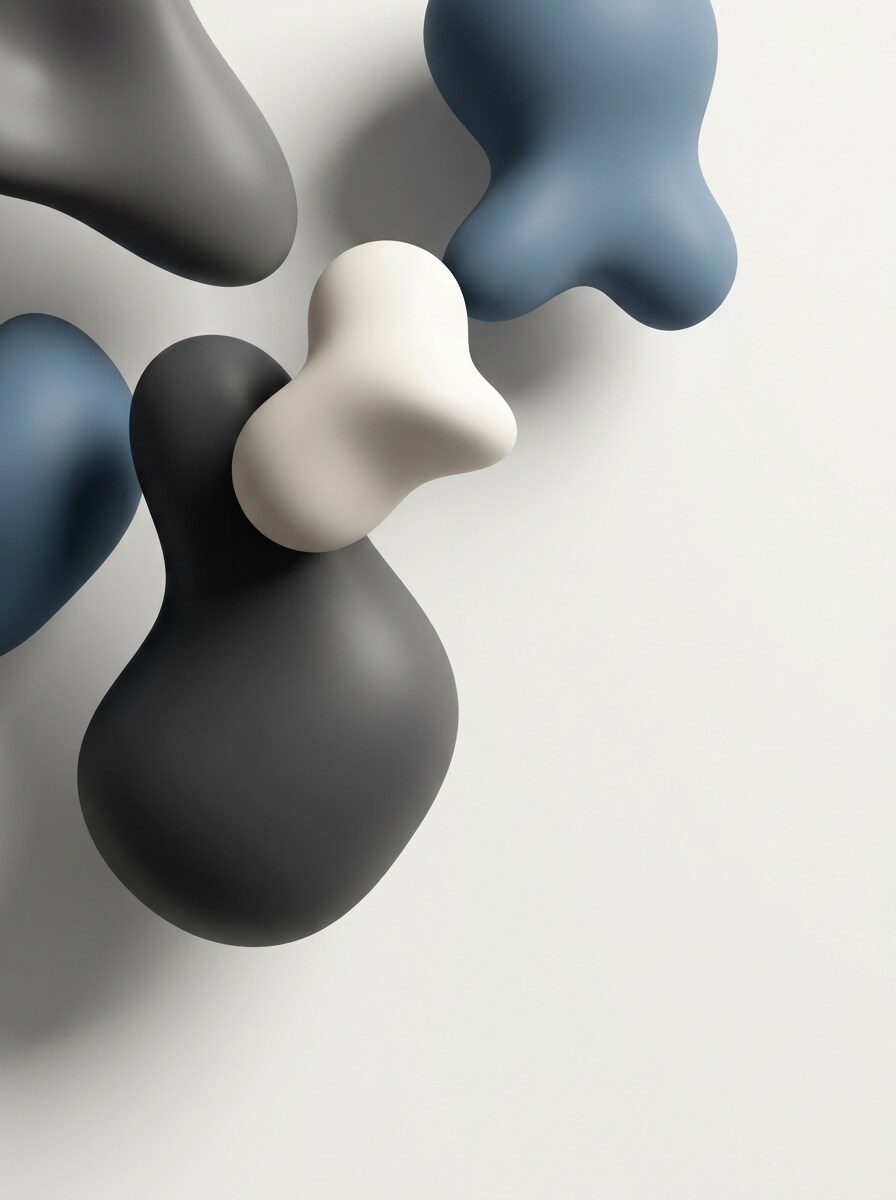
3D Abstract Shapes
Make a premium background for the presentation featuring smooth floating 3D forms with soft shadows and refined gradients. Use a restrained palette of graphite, off-white, and muted blue, with studio-style lighting and a calm modern mood. Keep the shapes off-center so the composition leaves strong readable space for headings and charts.
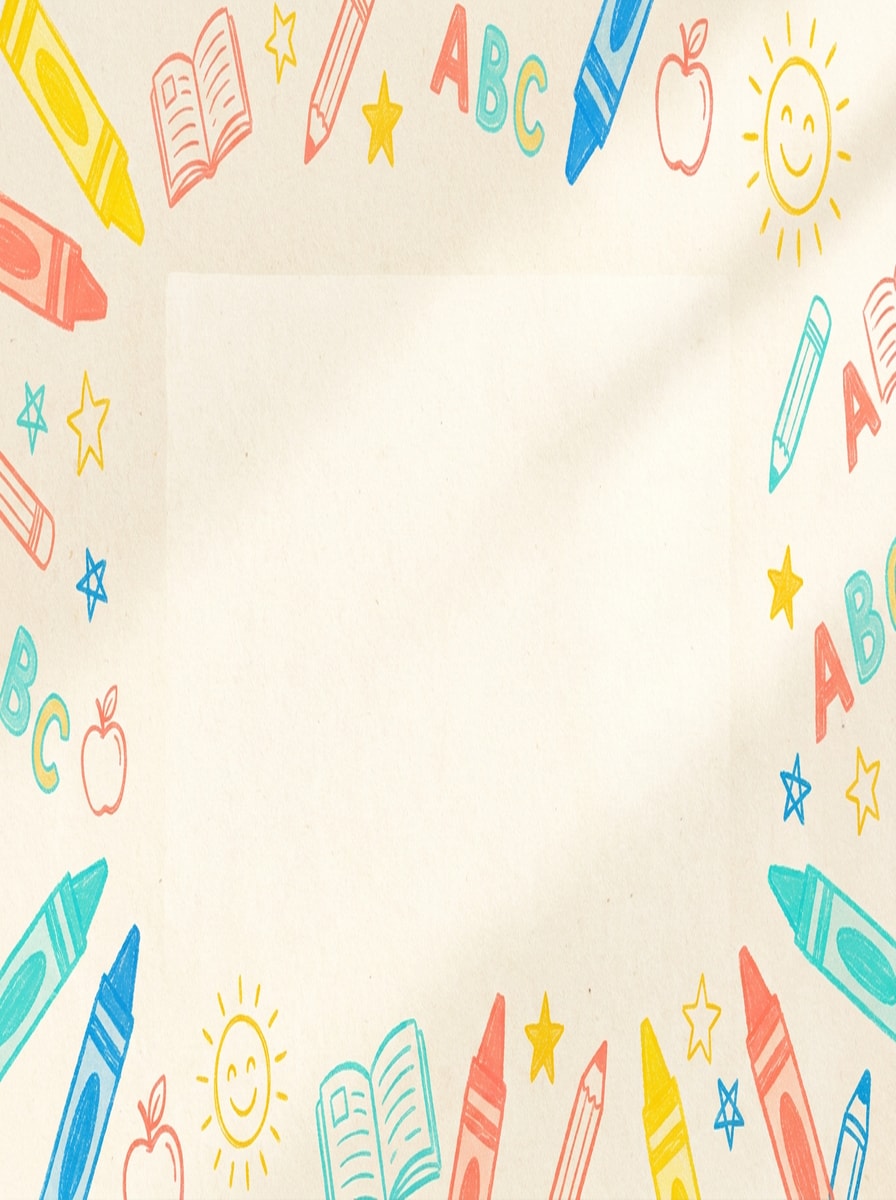
Playful Doodle Paper
Create a cheerful classroom background for slide lessons with light paper texture, hand-drawn doodles, and bright accent colors like yellow, coral, aqua, and blue. Keep the center clean, the illustrations small and playful around the edges, and the mood friendly, educational, and easy to read on a widescreen layout.
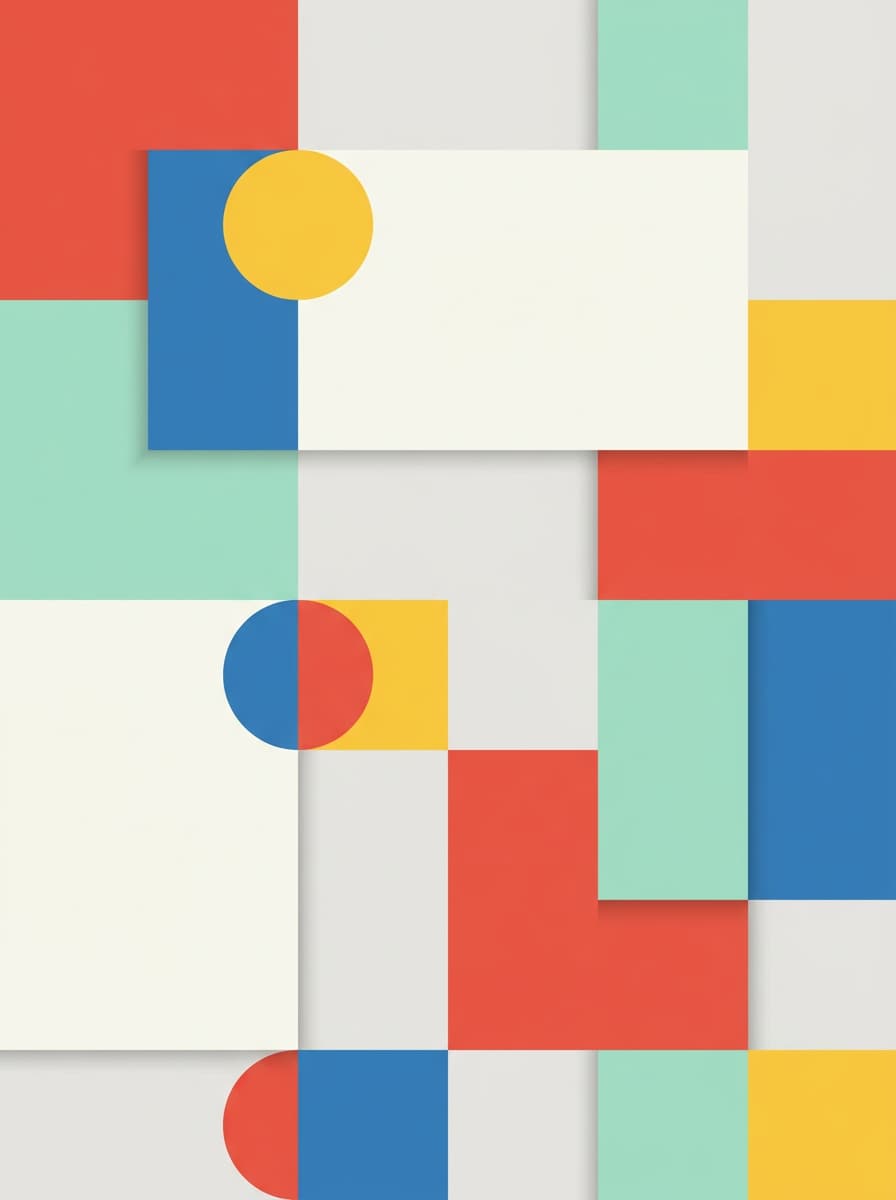
Color Block Learning
Generate colorful backgrounds for presentations focused on education, using clean geometric color blocks, soft shadows, and a balanced modern layout. Blend warm red, blue, yellow, and mint accents with plenty of neutral breathing room. The composition should feel organized, upbeat, and ideal for lesson titles, classroom agendas, or student-friendly visuals.
Luxury Dark Gradient
Create a premium dark background for ppt with black, charcoal, and subtle gold gradient lighting. Use minimal elements, elegant depth, soft glow, and refined contrast to produce an executive presentation mood. Leave generous negative space for white typography and make the image feel sophisticated, high-end, and visually clean in 16:9 format.
Editorial Beige Texture
Design an editorial background image presentation with warm beige paper texture, subtle grain, and soft natural lighting. Add minimalist composition, creamy neutral tones, and a modern brand-deck mood that feels calm and premium. Keep ample empty space for messaging, avoid heavy details, and ensure a polished widescreen result for professional slides.
Why Use Media.io for Presentation-Ready Backgrounds
Preserve Identity While Changing the Look
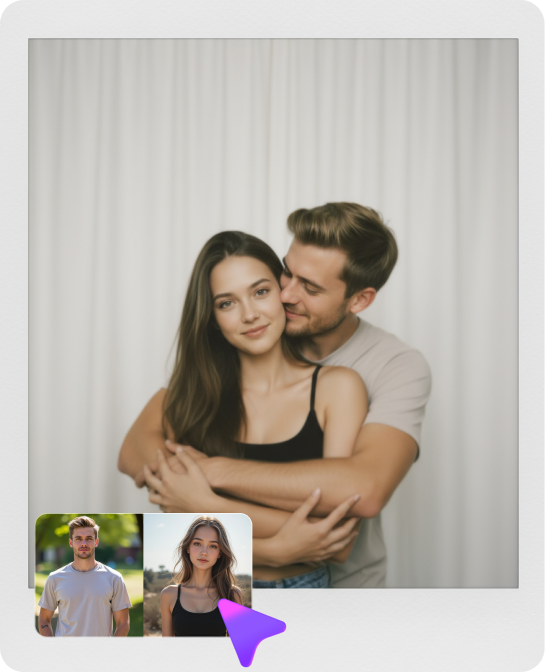
When a result needs to stay tied to the original subject, Media.io helps preserve recognizable features while adapting the overall slide background style for social, branding, or mockup use. Creators often use it for slideshow background.
Switch between business, classroom, and creative styles fast
When style is part of the decision-making, Media.io helps you compare multiple directions from the same slide background base, which makes creative selection more efficient. It can also help with background slides.
Fit One Visual Direction to More Layouts
If one concept has to cover more than one publishing need, Media.io helps adjust the output for different layouts so the final assets feel more format-aware and ready to use. It is also a practical option for background image presentation.
Generate Backgrounds That Hold Up Beyond Preview
When speed and usability both matter, Media.io helps shape slide background into ready-to-use visuals more efficiently so production feels more practical from draft to final asset. It also supports powerpoint background.
How to Make a Slide Background Online
1
2
3
1
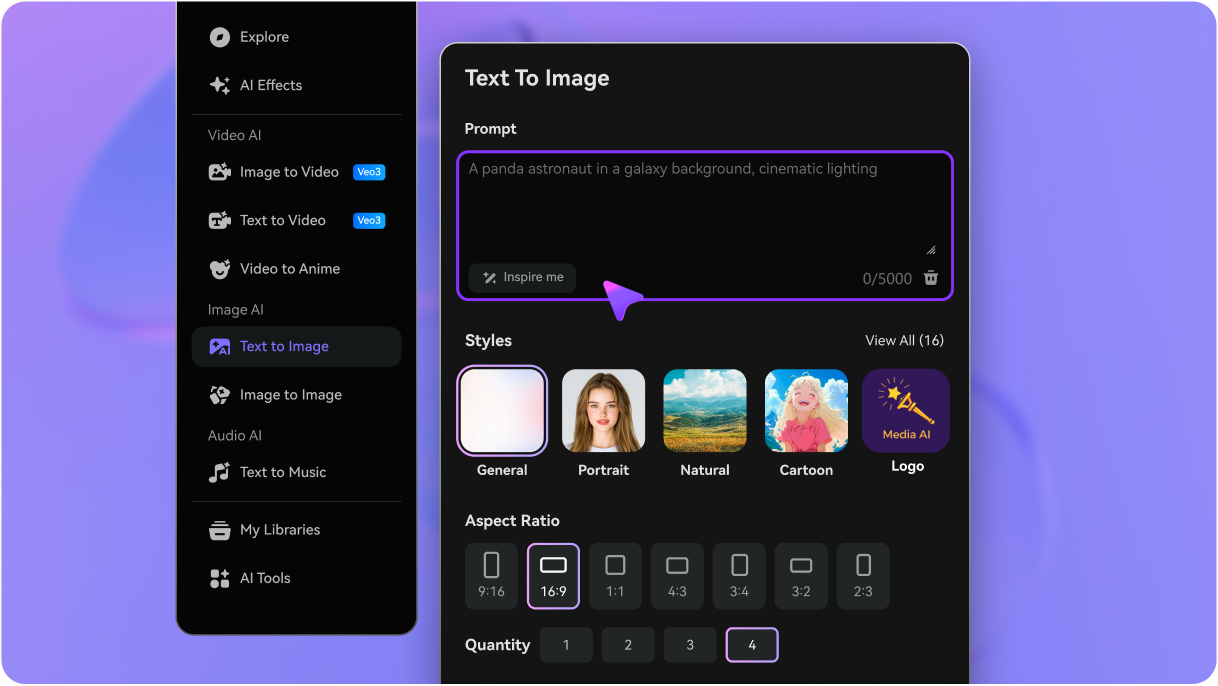
Step 1: Open Media.io AI Image Generator
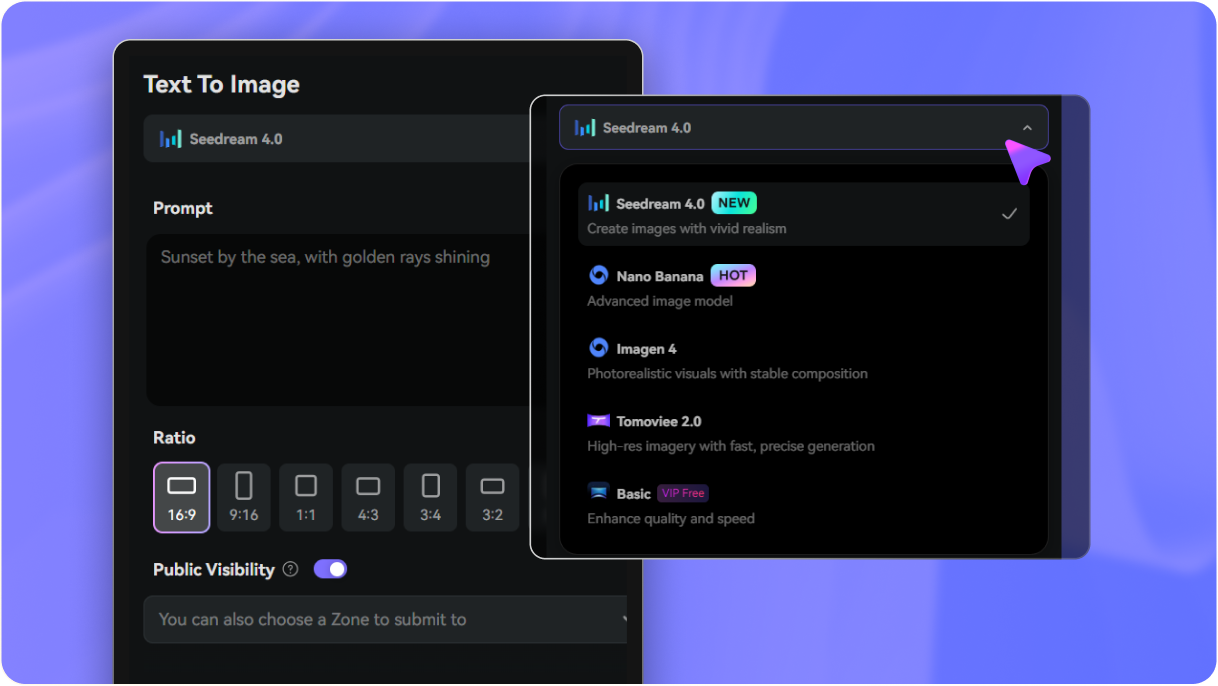
Go to AI Text to Image Generator and open the AI Image Generator under AI -> Text to Image. This online tool runs in your browser, so you can create a background for slide projects on desktop or mobile without installing design software.
2
Step 2: Enter a Prompt
Type a detailed prompt such as "minimalist business slide background, soft blue mesh gradient, lots of text-safe space, 16:9, clean professional lighting." Adjust style and aspect ratio for a background for the presentation, classroom deck, or branded powerpoint background.
3
Step 3: Generate, Refine & Download
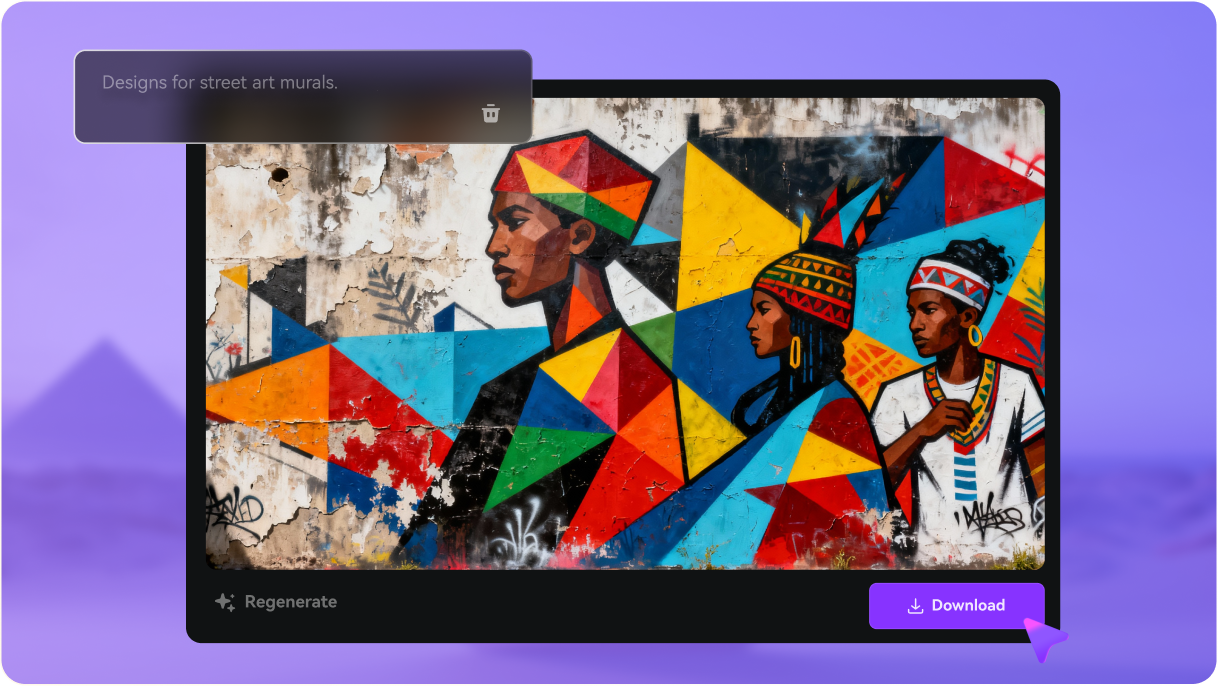
Click Generate. Tweak the prompt if needed to improve color, spacing, or mood, then download your high-resolution image. You can use it as a background for ppt, a Google Slides visual, or other presentation assets.
See how creators use this Slide Background for content, marketing, and personal projects, then adapt each idea to fit the brief.
Branded business decks that look more original
Create polished visuals for sales pitches, investor updates, and company reports without relying on overused templates. A custom business scene, subtle gradient, or abstract corporate layout can give your background for presentation a more branded feel and make the deck easier for stakeholders to remember.
Teaching slides with energy but clear readability
Build classroom visuals that feel friendly and engaging while keeping content easy to follow. Soft paper textures, doodles, and organized color blocks work well as backgrounds for slides in lesson intros, learning modules, and student-facing materials where clarity matters as much as personality.
Modern conference and webinar presentations
Use clean abstract visuals, tech-inspired layouts, or premium editorial textures for keynote slides, internal talks, and online workshops. Media.io helps you generate slide backgrounds that match the topic, audience, or event style while still leaving enough empty space for charts, titles, and takeaways.
What Users Say
Maya Chen
Brand Strategist
"Faster than searching template libraries" I needed a clean deck background for a client pitch and got a better result from one prompt than from browsing stock sites for half an hour. The text-safe layout was especially useful.
Jordan Patel
High School Teacher
"Great for classroom slides" The education-style backgrounds helped me make lesson slides feel more inviting without looking messy. I like that I can generate something playful and still keep the center clear for notes.
Elena Rossi
Product Marketing Manager
"Useful for branded presentations" We used Media.io to create a consistent visual direction across webinar slides and launch materials. It was easy to refine the prompt until the colors and mood matched our brand.
David Nguyen
Startup Founder
"Simple way to make investor decks look sharper" I’m not a designer, so this helped a lot. I generated a dark premium background in minutes and dropped it straight into my pitch deck. It looked far more custom than a default template.
You can create free slide backgrounds in Media.io with the included free credits, which is helpful if you want something more original than stock templates. If you need more generations or watermark-free downloads, you can compare plans on the pricing page. Creators often use it for background for ppt.
2. Can I generate a slide background from text?
Media.io is a text-to-image tool, so you can describe the look you want and generate a custom slide visual or background for the presentation from a prompt.
3. What size is best for a presentation background?
For most modern decks, 16:9 is the best starting ratio because it fits common widescreen presentation formats. Media.io supports 16:9 and other aspect ratios, and you can generate images up to 4K depending on how sharp you want the final result to look.
4. Will the background work in PowerPoint and Google Slides?
Once you download the image, you can insert it as a background in PowerPoint or Google Slides. That makes Media.io a practical option when you need backgrounds for slides, a custom background for presentation, or a clean visual for standard deck workflows.
5. How do I make a slide background look professional?
Start with a simple composition, restrained colors, and clear negative space so your text stays readable. In Media.io, prompts that mention a clean layout, soft lighting, minimal detail, and 16:9 framing usually produce a more professional result than overly busy artwork for a ppt background or executive deck.
6. Can I create a custom background for a business presentation?
Media.io works well for custom business deck visuals because you can guide the style with prompts such as minimalist corporate gradient, dark premium layout, muted geometric layers, or futuristic tech design. That helps you create a more branded presentation background instead of relying on a generic template.