Use a Sims Filter to Turn Photos Into Playful Avatars
Create a polished sims filter makeover from your selfie, couple shot, family photo, or pet portrait. Media.io helps you turn real images into colorful life-sim characters fast, with styles inspired by CAS portraits, plumbob edits, and a fun sims avatar filter look.
Review these example directions, then tailor the prompt details to get stronger results with this Sims Filter.
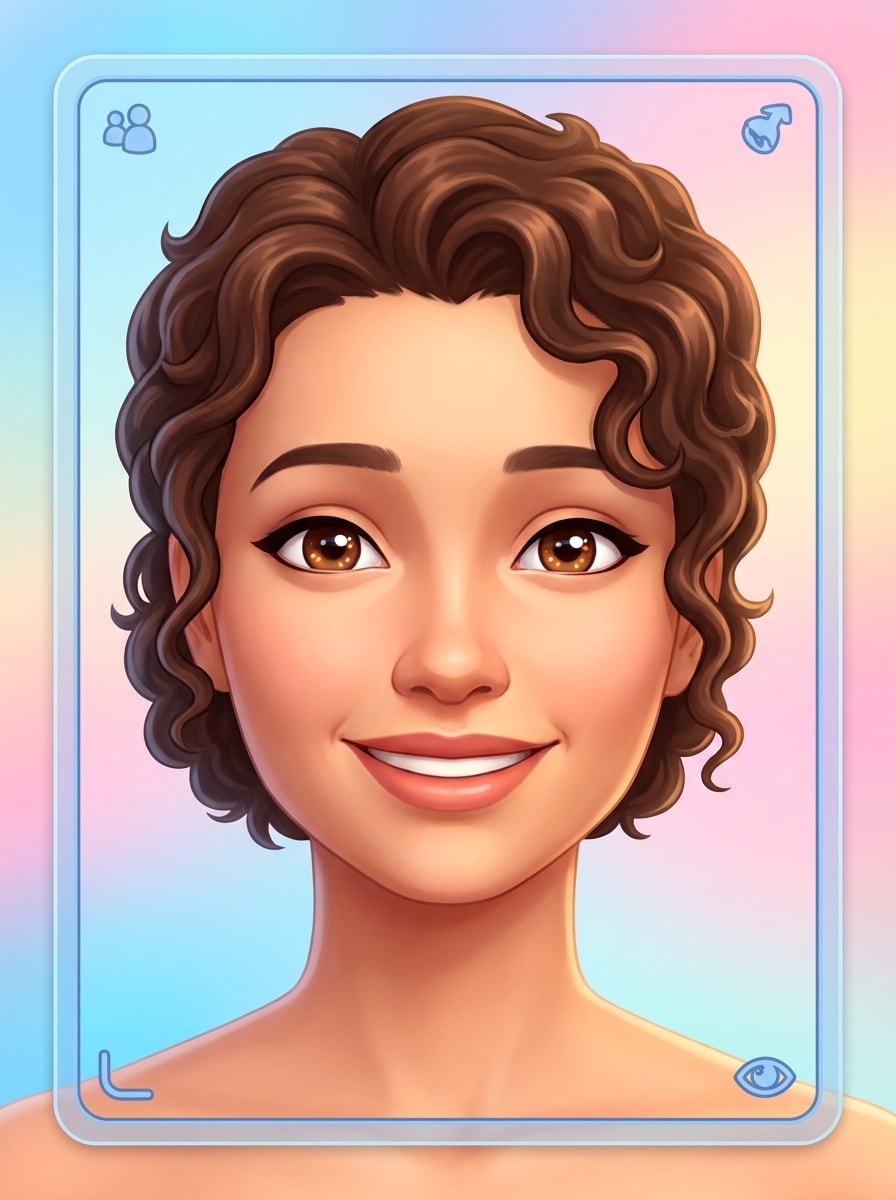
Create-a-Sim Headshot
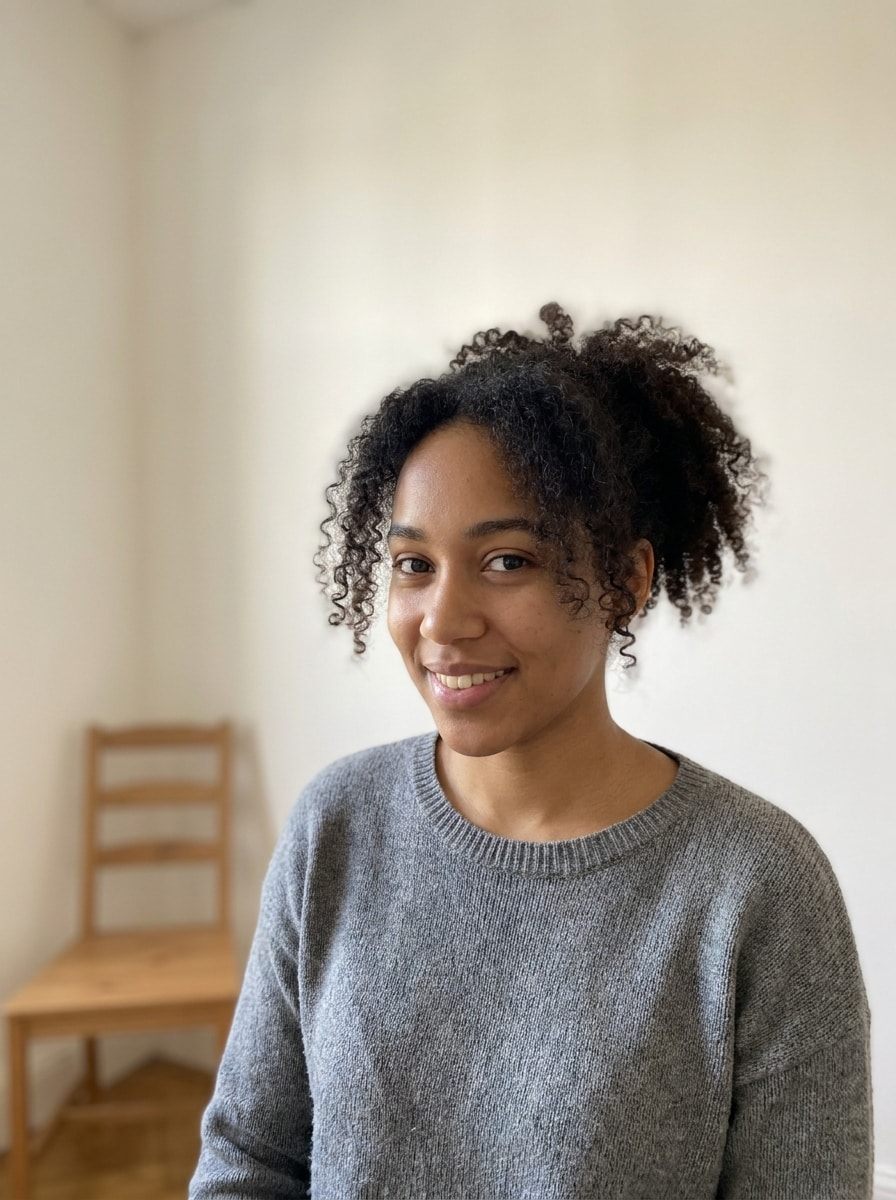
Use the uploaded image as the main subject and transform it into a polished Sims-inspired Create-a-Sim headshot. Keep the facial identity recognizable, add smooth stylized skin, expressive eyes, soft cheerful lighting, a bright pastel background, clean portrait framing, subtle game-like shading, and high-detail semi-cartoon realism.
Sims 4 Character Render
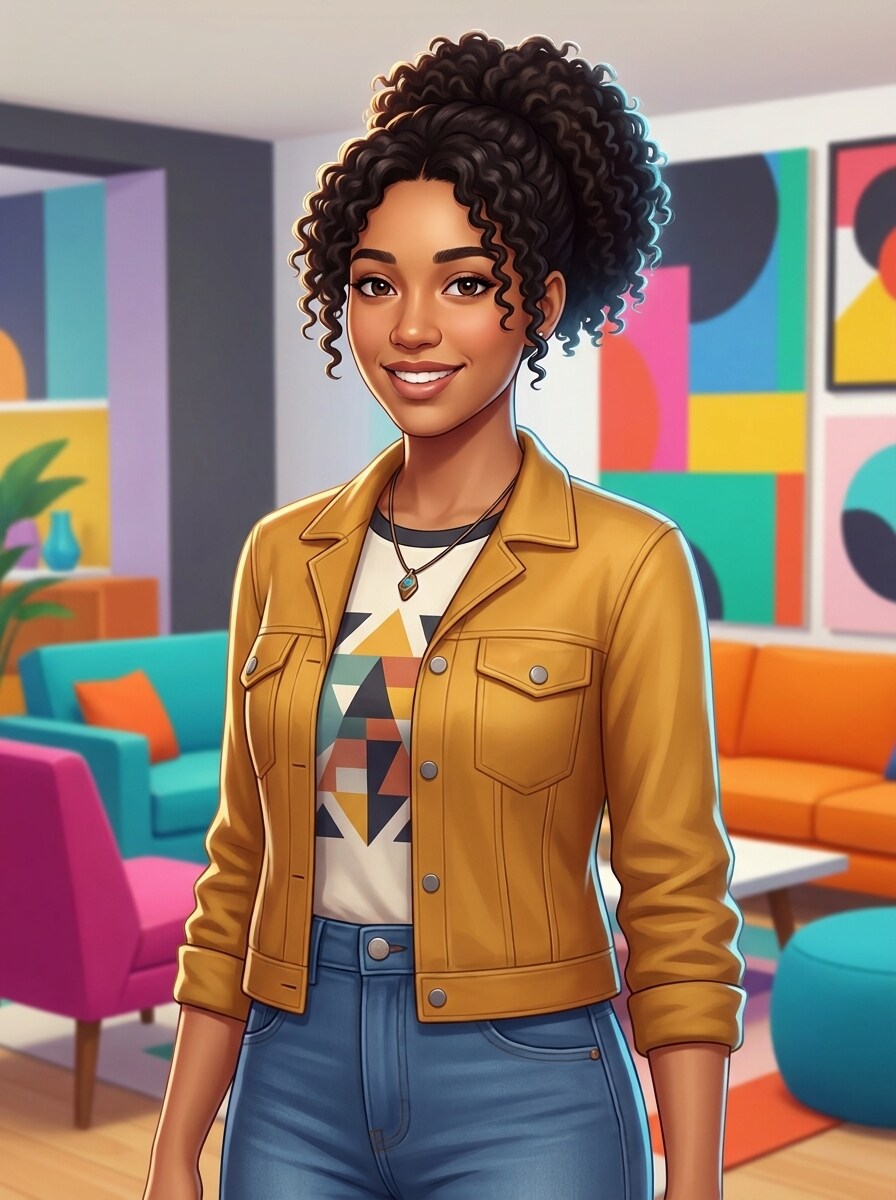
Use the uploaded photo as the subject and restyle it into a vibrant Sims 4-inspired character render. Preserve the person’s hairstyle and face shape, add a stylish modern outfit, clean colorful background, glossy game-art finish, soft rim lighting, balanced composition, and a friendly avatar expression with polished detail.
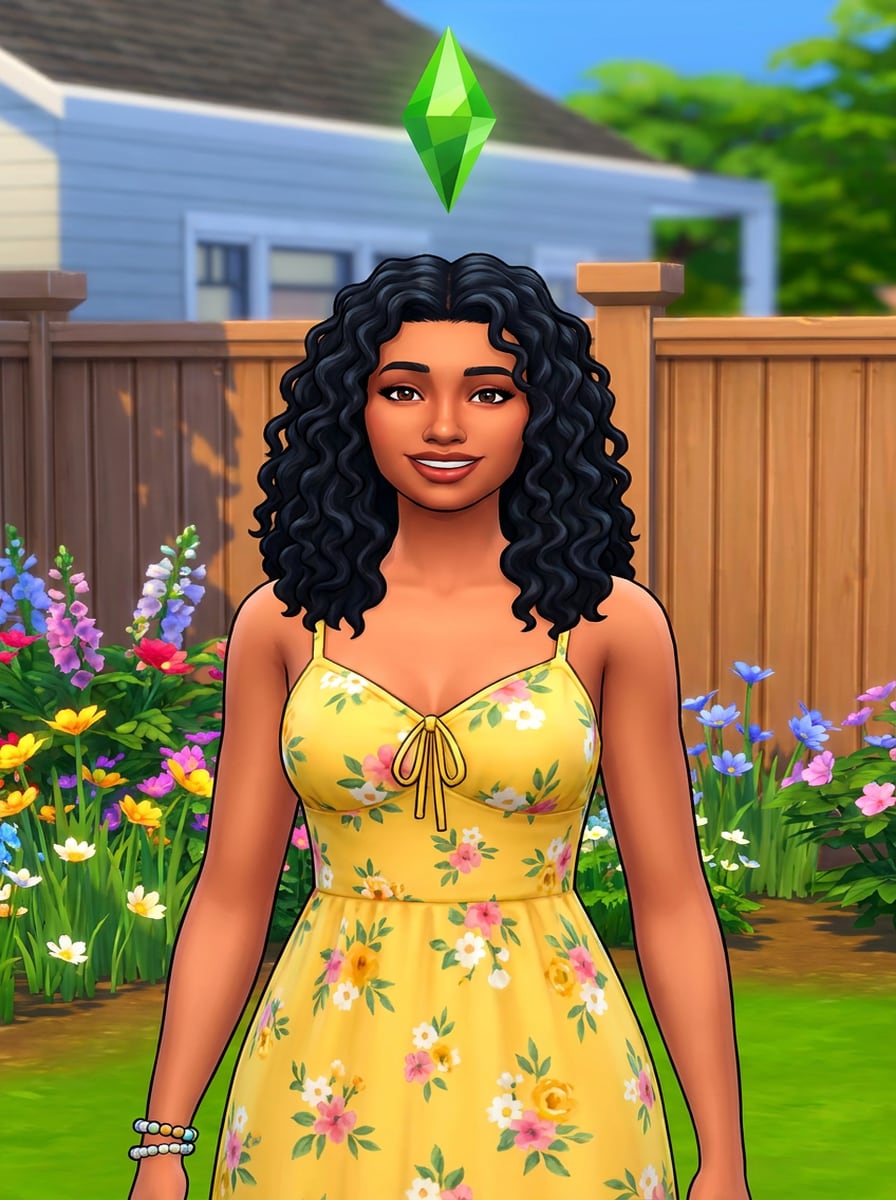
Plumbob Portrait
Use the uploaded image as the character base and add a classic life-sim makeover with a floating green plumbob above the head. Keep the subject recognizable, use vivid cheerful colors, soft shadows, crisp outlines, casual fashionable clothing, playful suburban energy, and a polished portrait composition.
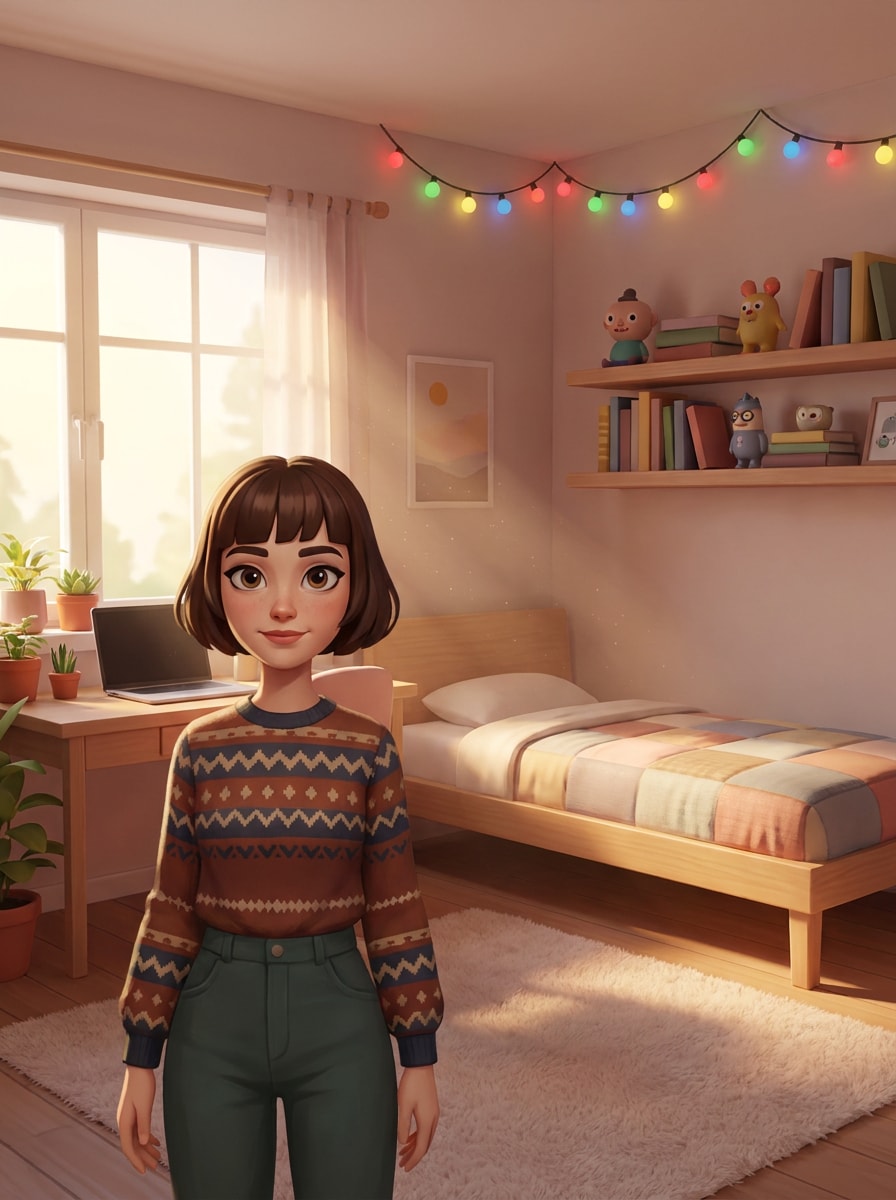
Life Sim Room Scene
Use the uploaded photo as the subject and place them in a cozy Sims-style bedroom scene. Preserve key facial features, add bright ambient window light, playful decor, clean stylized furniture, warm textures, neat composition, and a semi-realistic game-art finish that feels lively, inviting, and character-focused.
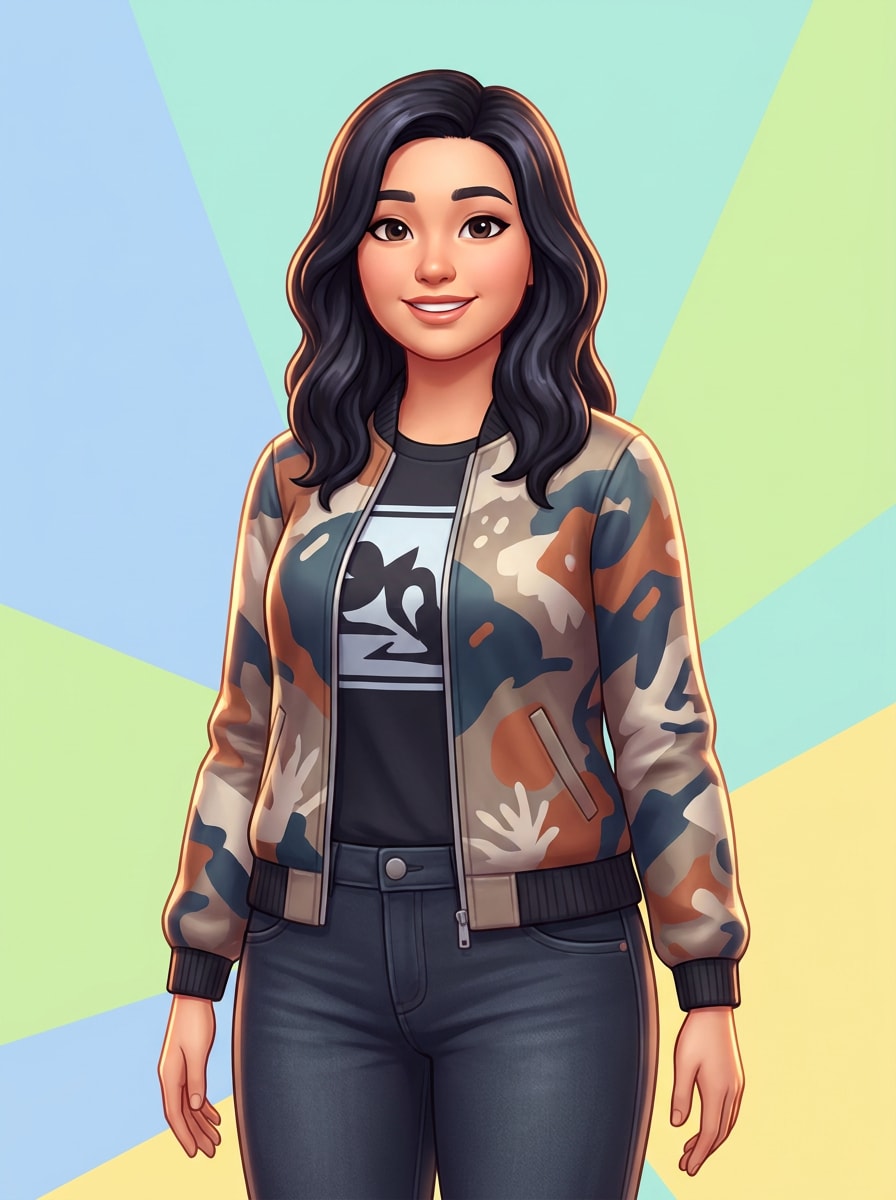
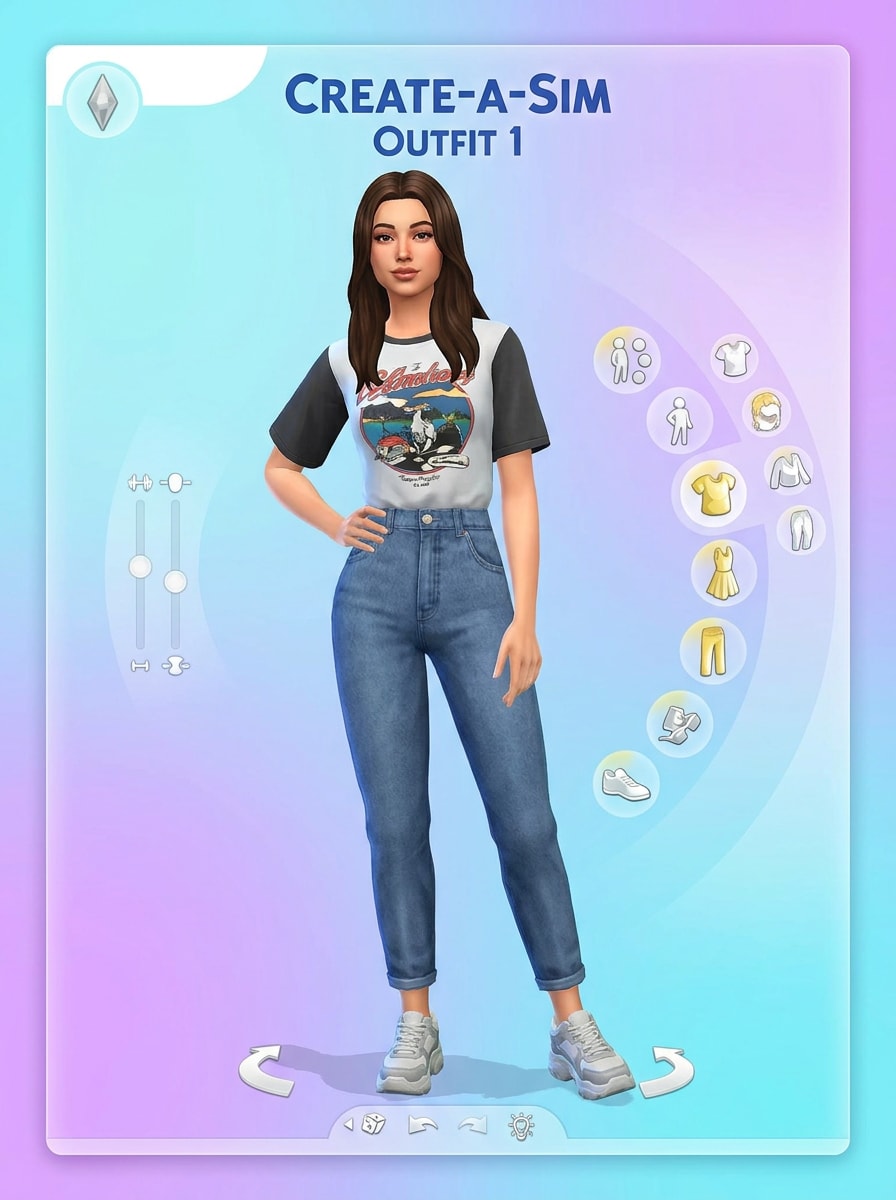
CAS Fashion Card
Use the uploaded image as the reference and transform it into a fashionable Create-a-Sim card. Keep the person recognizable, switch to a full-body avatar pose, add trendy outfit styling, bright studio lighting, colorful clean background, game UI-inspired framing, crisp edges, and polished character rendering.
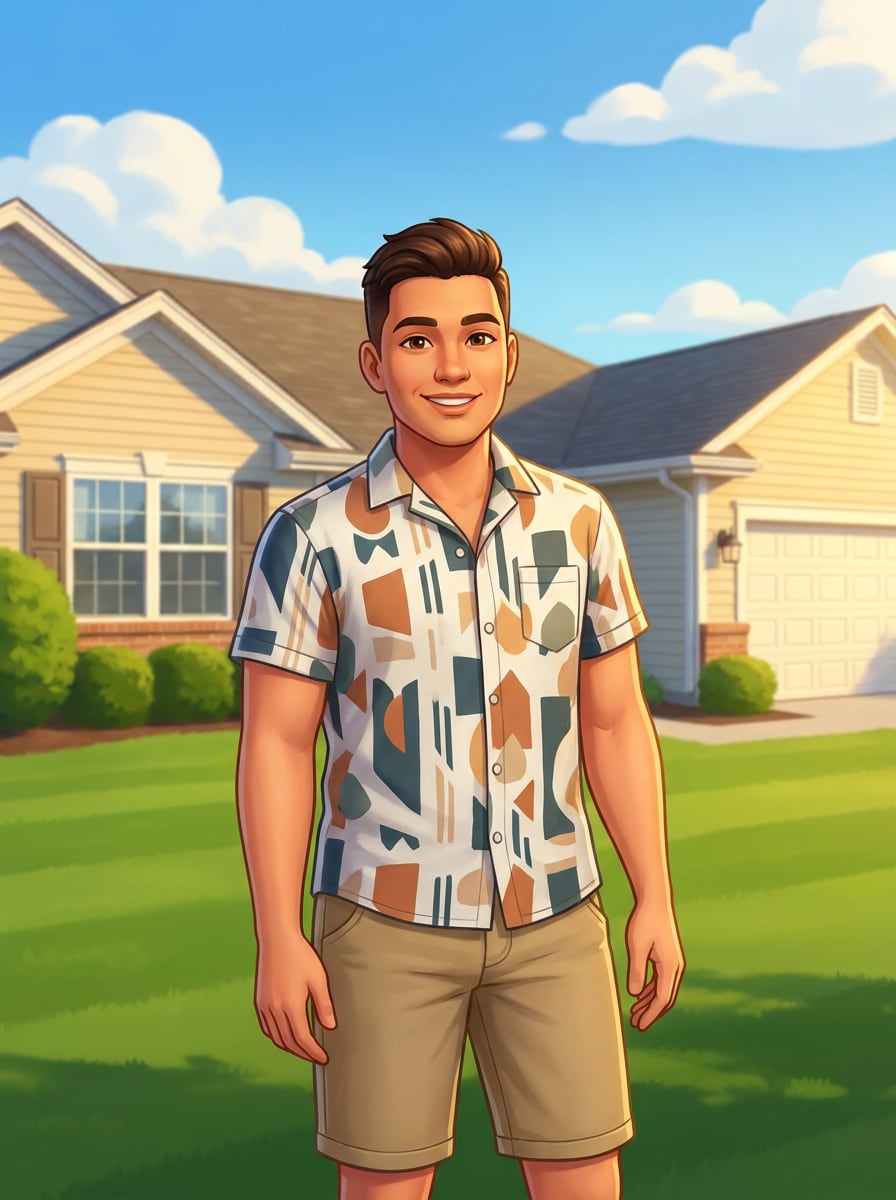
Suburban Sims Lifestyle
Use the uploaded photo as the subject and turn it into a cheerful suburban life-sim character. Preserve face identity, add sunny neighborhood scenery, bright blue sky, modern casual fashion, smooth semi-cartoon textures, warm daylight, friendly smile, saturated palette, and a polished lifestyle portrait feel.
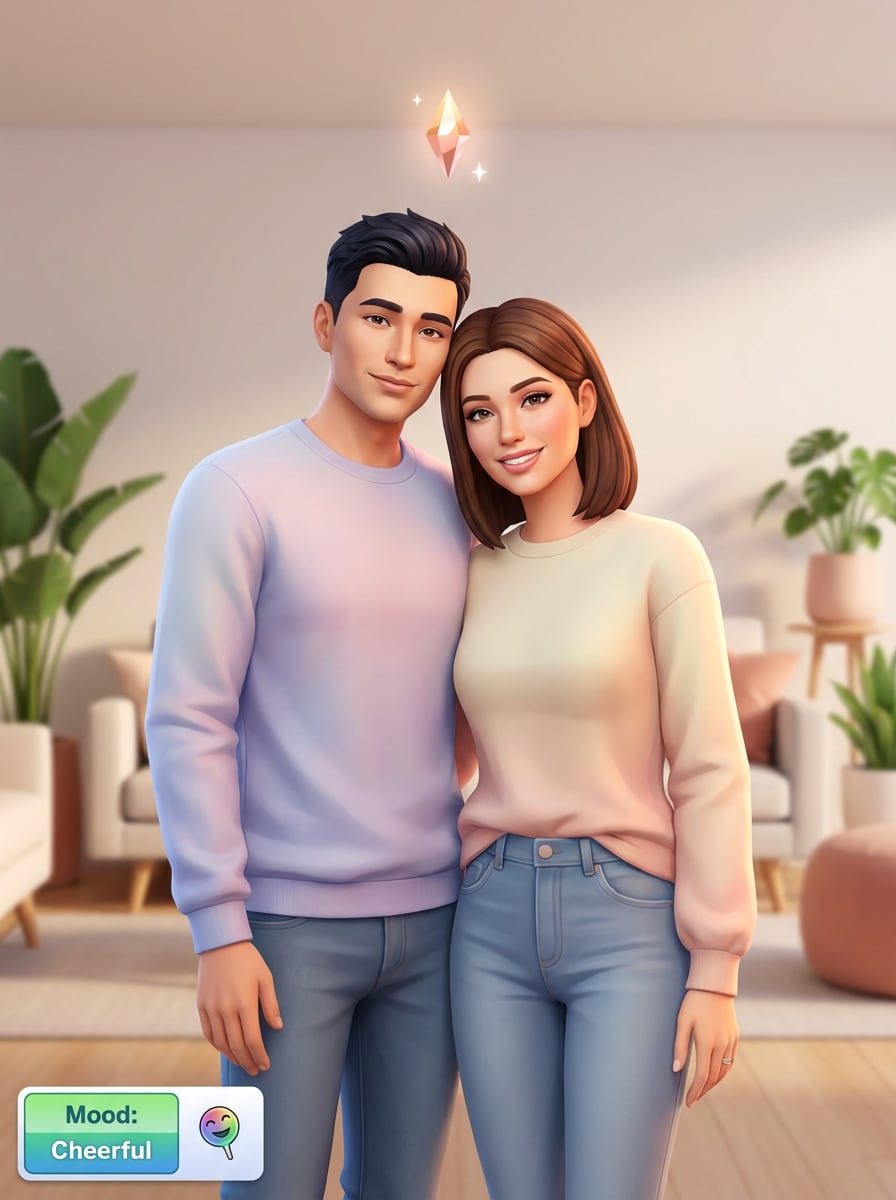
Sims Couple Portrait
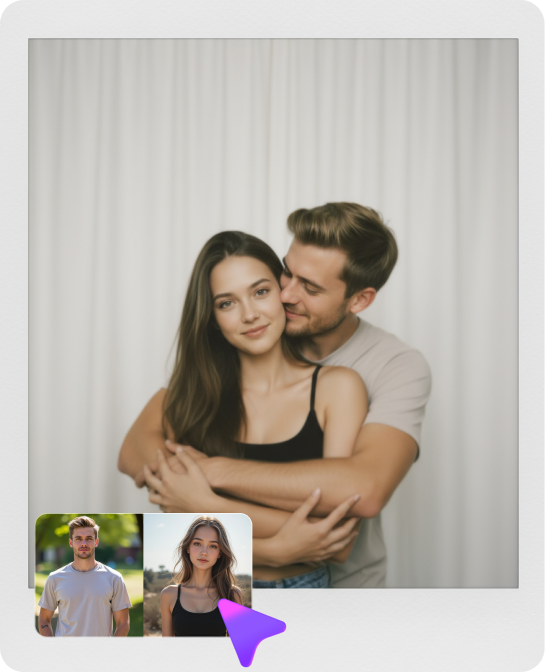
Use the uploaded couple photo as the reference and transform both people into a coordinated Sims-inspired portrait. Keep each face recognizable, add colorful life-sim styling, soft romantic lighting, matching outfit harmony, clean background, balanced spacing, and polished avatar rendering with a cheerful affectionate mood.
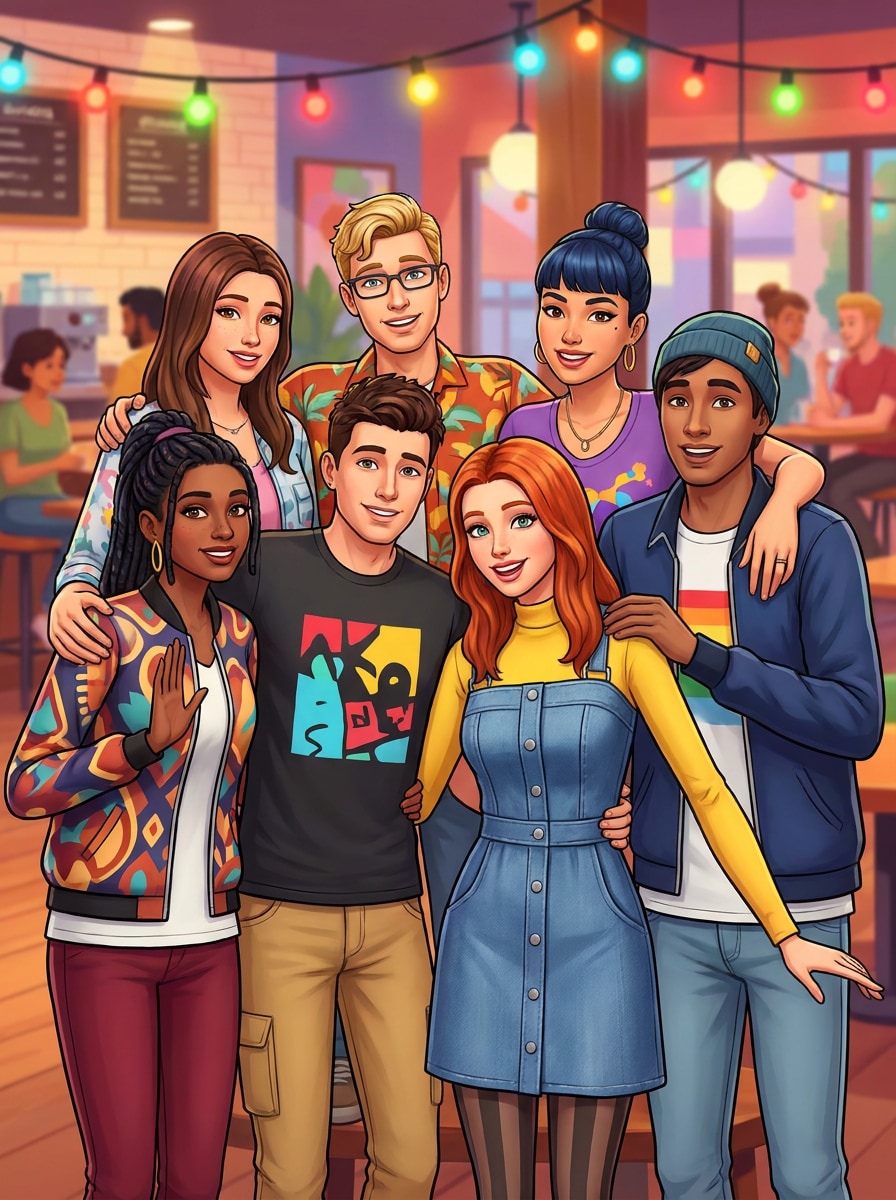
Friend Group Sim Makeover
Use the uploaded group photo as the source and convert everyone into distinct Sims-style characters. Preserve recognizable faces and hairstyles, give each person unique outfit details, add bright social-scene lighting, clean stylized rendering, vivid colors, playful mood, and a well-balanced group composition.
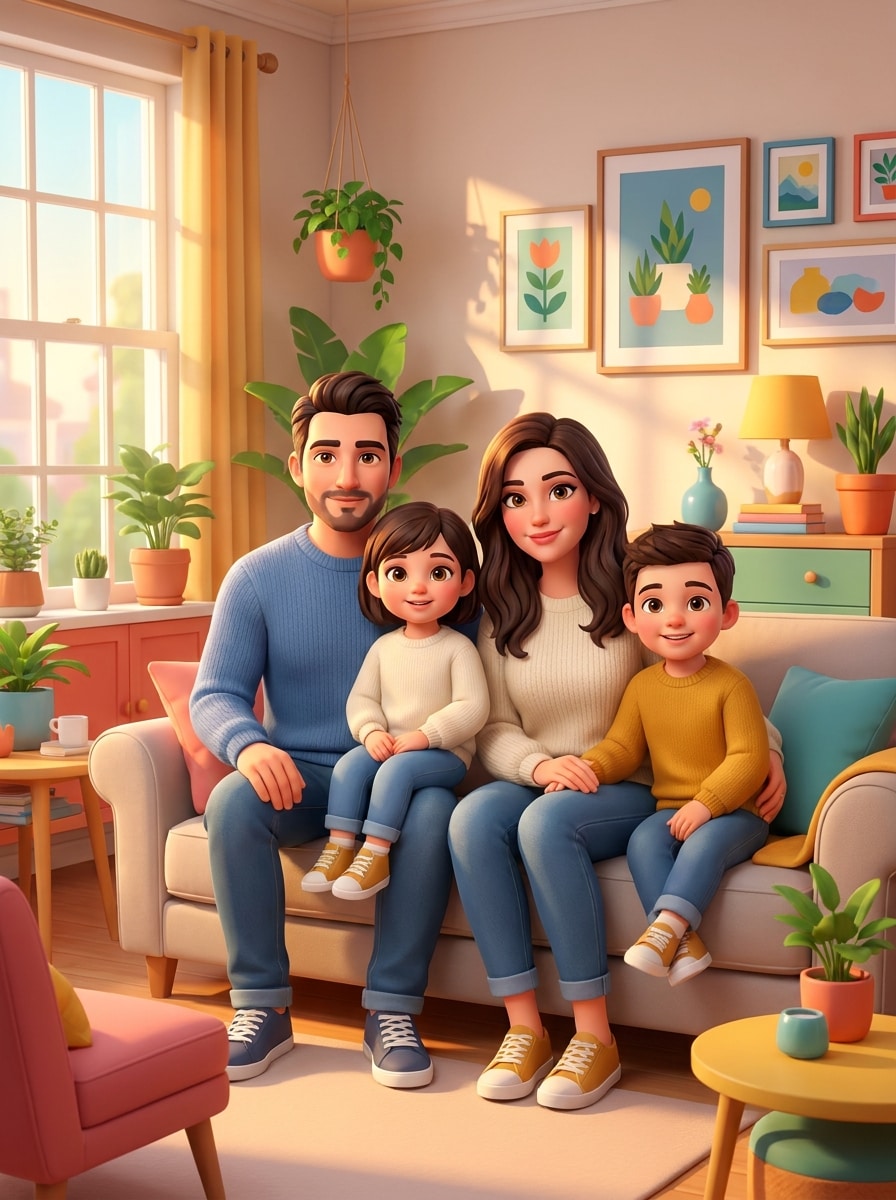
Family Sim Portrait
Use the uploaded family picture as the reference and turn it into a warm Sims-inspired family portrait. Keep each person recognizable, add coordinated styling, soft golden indoor light, colorful life-sim atmosphere, tidy room backdrop, smooth cartoon-real textures, and a polished composition with inviting family energy.
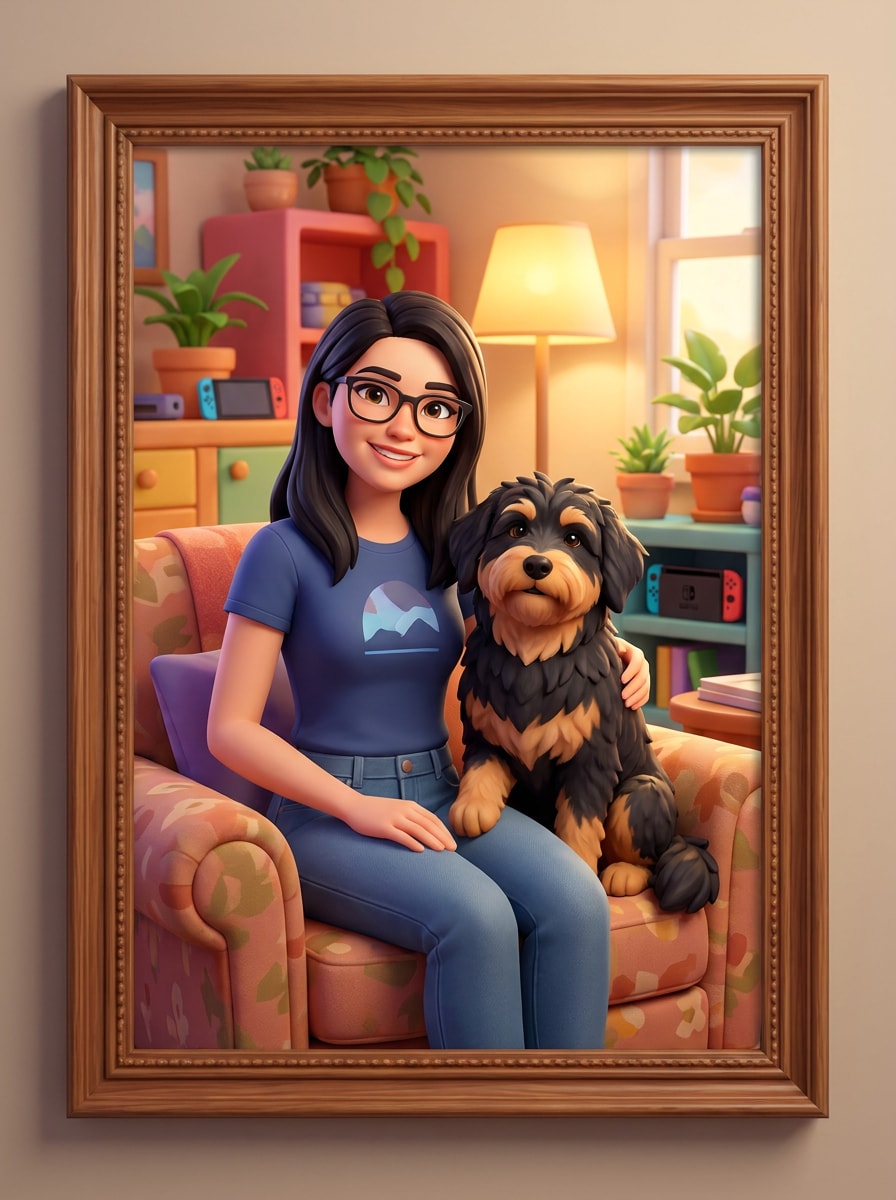
Pet With Sim Owner
Use the uploaded photo as the source and transform the person and pet into a bright Sims-style portrait. Keep both subjects recognizable, add cheerful colors, cozy game-like surroundings, soft ambient lighting, stylized fur and clothing textures, clean framing, and polished character art with a playful bond.
Why Use Media.io for Sims-Style Photo Transformations
Switch Between Avatar, CAS, and Scene-Based Styles
From clean headshots to plumbob portraits and cozy room scenes, Media.io helps you guide the exact transformation with your prompt and model choice. You can turn photo into sims visuals that match the mood you want to share.
Keep Faces Recognizable in a Game-Style Makeover
When style is part of the decision-making, Media.io helps you compare multiple directions from the same sims filter visual base, which makes creative selection more efficient.
Generate Cleaner Output Up to 4K
Some results need to do more than look good in a preview. Media.io helps generate cleaner sims filter visuals with output up to 4K so the final image holds up in wallpapers, decks, and mockups.
Work Across Devices Without Extra Installs
When a sims filter visual idea starts away from your main setup, Media.io lets you create and refine it in the browser so moving between mobile and desktop feels seamless instead of disruptive.
How to Make a Sims-Style Character From Your Photo
Turn your words into stunning visuals in three simple steps, then continue refining the result if you want to take it further.
Step 1
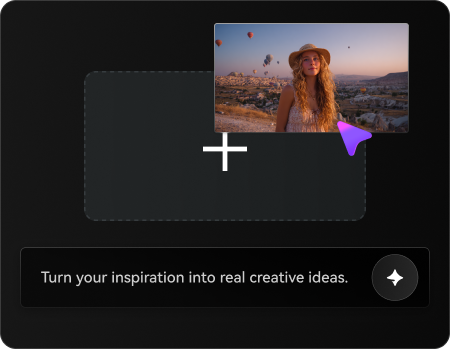
Upload Your Reference Image
Start with a clear selfie, couple shot, group photo, family image, or pet portrait in JPG, PNG, or JPEG format. A sharp, well-lit source photo gives the AI stronger facial details to transform into a fun Sims-style character.
Step 2
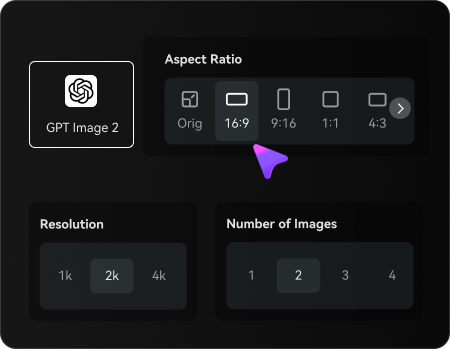
Describe the Change and Set Options
Tell the AI the look you want, such as CAS headshot, suburban lifestyle, plumbob portrait, or colorful character card. Then choose your preferred model and adjust aspect ratio, resolution, and image count for the final layout.
Step 3
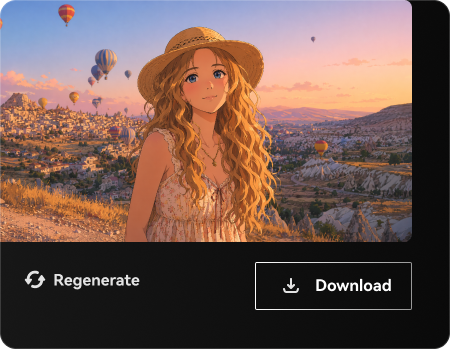
Generate, Download, and Keep Improving
Create your variations, compare the results, and download the one that fits best. If needed, refine the prompt, try another style direction, or regenerate for a stronger game-inspired makeover with better outfit, lighting, or background details.
See how creators use this Sims Filter for content, marketing, and personal projects, then adapt each idea to fit the brief.
Make Scroll-Stopping Profile Pictures
Turn a regular selfie into a bright, stylized avatar for TikTok, Instagram, Discord, or gaming communities. A polished life-sim portrait adds personality fast and gives your profile a playful, instantly recognizable visual twist.
Create Shareable Couple and Friend Edits
Use side-by-side portraits, date photos, or group shots to make coordinated character makeovers for posts, stories, and reaction content. This is a fun way to create before-and-after reveals or themed social graphics with a consistent cartoon-real vibe.
Design Personalized Family and Pet Keepsakes
Transform family portraits or owner-and-pet photos into cozy illustrated scenes that feel warm and custom-made. These edits work well for digital cards, framed prints, or lighthearted gifts when you want a stylized memory instead of a standard photo.
What Users Say About This Sims-Style Filter
Alyssa M.
TikTok Creator
"Perfect for viral before-and-after posts" I uploaded a simple selfie and got a super cute Sims-style avatar in minutes. The face still looked like me, which made the before-and-after reveal way more fun to post.
Jordan P.
College Student
"Easy on mobile and surprisingly detailed" I wanted a quick sims filter effect from my phone, and the workflow was simple. The colors, outfit styling, and character vibe looked clean enough to use as a profile picture.
Renee T.
Lifestyle Blogger
"Great for couple and room-scene edits" I tested it with a couple photo and then again with a cozy room prompt. Both results felt playful and polished, and I liked being able to steer the style without needing design software.
Marcus L.
Pet Owner
"Fun results for me and my dog" The pet portrait version was the surprise winner for me. It turned a normal photo of me and my dog into a bright game-style image that still kept our features recognizable.
A Sims filter is an image effect that transforms a real photo into a colorful life-sim style character portrait. With Media.io, you upload a reference image and apply prompts or styles that give it a polished avatar look, similar to a Create-a-Sim-inspired makeover.
2. How can I turn a photo into a Sims-style character?
Upload a clear JPG, PNG, or JPEG photo to Media.io, then describe the look you want, such as a CAS headshot, plumbob portrait, or suburban character scene. After that, choose your model and image options, generate variations, and download the result you like best.
3. Is this Sims filter free to use?
Yes, free users can try the tool with free credits. If you want more generations or extra usage, you can explore the pricing page. Free exports may include a watermark, while paid plans support watermark-free high-resolution downloads. Free users can use free credits. For more usage, users can subscribe to a plan on the pricing page. Upgrade to a paid plan on the pricing page for more credits and watermark-free high-resolution downloads.
4. Can I use the Sims character filter on iPhone or Android?
Media.io is web-based, so you can use this sims character filter on iPhone, Android, Mac, or Windows as long as you have a browser. That makes it easy to upload a photo, generate edits, and save your avatar from almost any device. Media.io is a web-based tool that works on any device with a browser (Windows, Mac, iOS, Android).
5. How long does it take to generate a Sims-style image?
Generation time can vary based on the model, settings, and current demand, but the workflow is designed to be fast. In most cases, you can upload a photo, apply your prompt, and get Sims-style variations without a long editing process.
6. Will my Sims-style photo look high resolution?
Yes, Media.io supports 1K, 2K, and 4K resolution options for image-to-image edits. That gives you flexibility if you want a cleaner result for profile pictures, social posts, or higher-quality downloads beyond a basic preview. Free users may have watermarks.