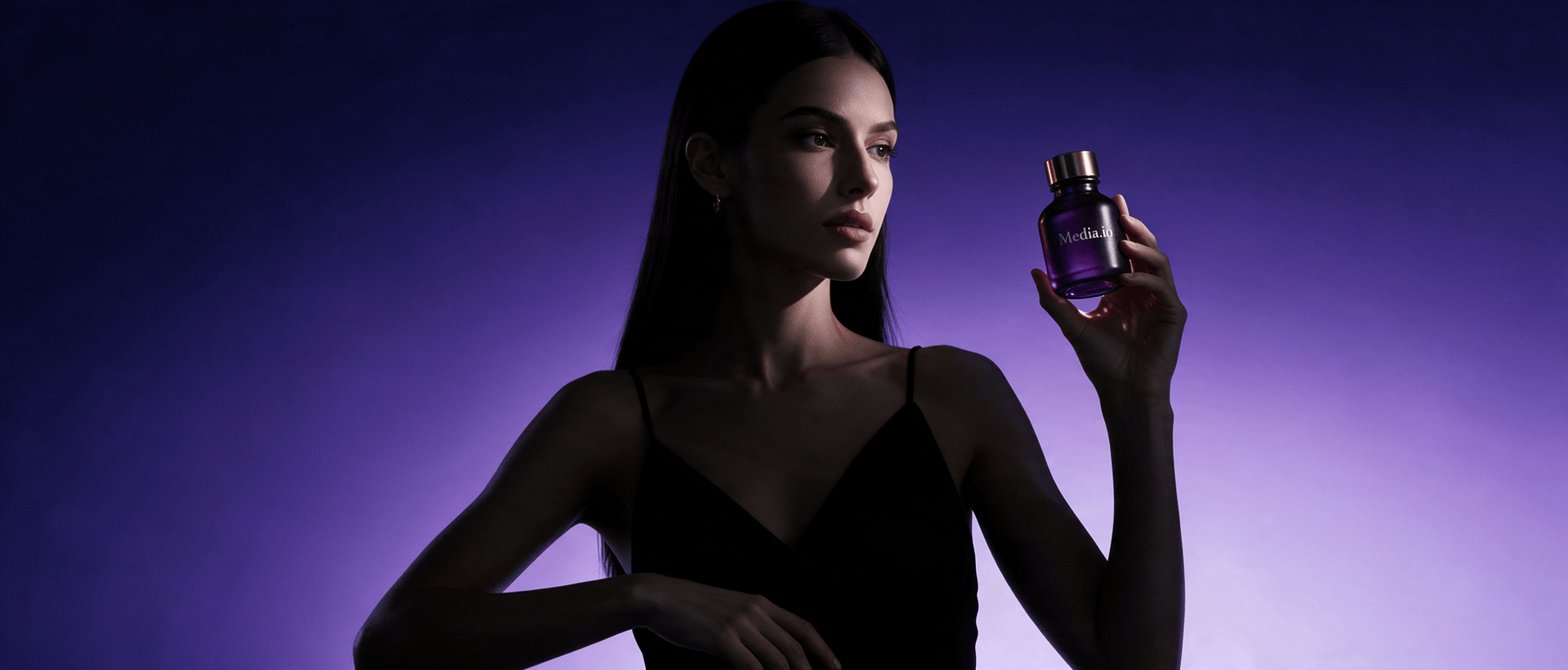
Tops Model Images Video Maker For Multi-Look Styling And Catalog Refreshes
Media.io uses the top or shirt listing and owned images to identify neckline, sleeves, fabric, buttons, opacity, color, and fit. Turn those inputs into editable styling-led video drafts for multi-look styling and catalog refreshes, without rebuilding the brief for every version.















From One Source To Multiple Tops Model Images Video Concepts
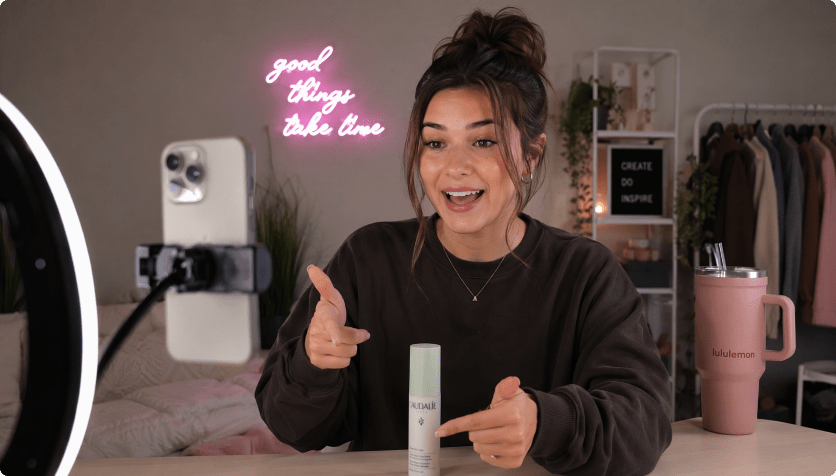
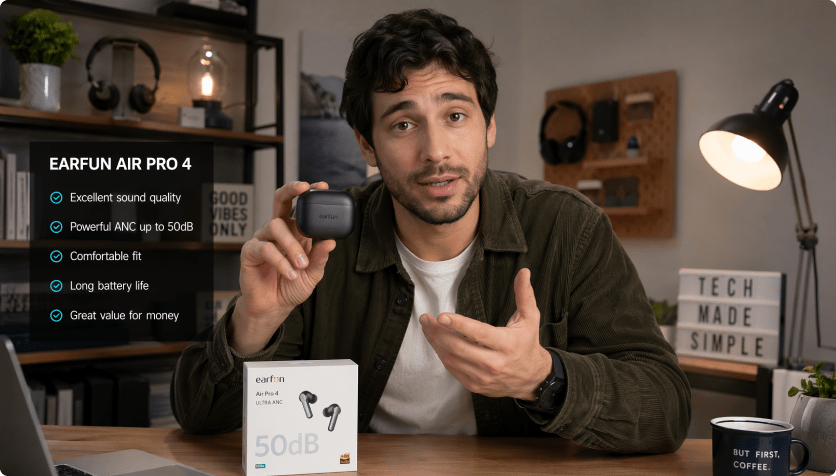
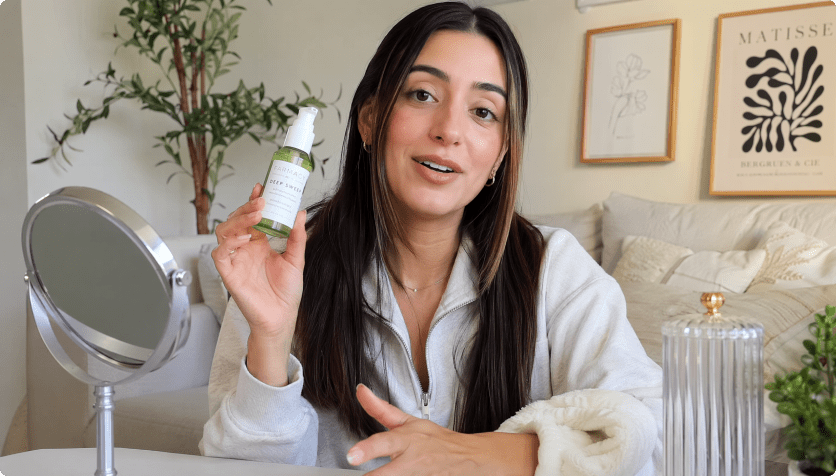
The carousel demonstrates how one product source can support tutorial, review, UGC, lifestyle, unboxing, and motion-led formats. Apply that range to tops model images while keeping the actual product information at the center.

Portable Blender
shopify.com/products/blender

Red Shoulder Bag
shopify.com/products/red-shoulder-bag
World Cup Potato Chips
tiktokshop.com/products/world-cup-potato-chips

Glow Serum
tiktokshop.com/products/serum

Matcha Latte App
appstore.com/app/matcha-latte

Luxury Chronograph Watch
ebay.com/itm/luxury-chronograph-watch
Build More Styling Stories From Tops Model Images
Media.io can read neckline, sleeve, buttons, fabric, color, and fit from a top or shirt listing, then use those details to generate multiple short-video directions. That makes one set of tops model images useful beyond a single tucked-in catalog look.
Turn Product Details Into Styling Beats
Use collars, cuffs, pleats, trims, and fabric movement as planned close-ups rather than leaving them too small to notice in a product grid.
Generate Work, Casual, And Layered Versions
Create different scripts for office styling, weekend outfits, layering, tucked and untucked looks, or seasonal transitions from the same source page.
Control The Character And Canvas
Choose a role or no-role setup, then set style, aspect ratio, resolution, duration, and quality for the channel where the tops video will appear.
Check Opacity And Fit Descriptions
Review wording about sheerness, stretch, oversizing, crop length, and body fit so shirts model images are not turned into unsupported promises.
Turn Tops Model Images Into A Multi-Look Styling Video
Use neckline, sleeves, fabric, buttons, color, and fit to create work, casual, layered, and occasion-led versions.
Extract The Details Hidden In The Product Grid
Media.io reads collars, cuffs, pleats, trims, material, color variants, and model images before generating the script.
✓Plan close-ups for neckline details
✓Carry fabric and sleeve information forward
✓Keep color variants tied to the right images
Give One Top More Than One Outfit Role
Generate office styling, weekend denim, layered fall looks, tucked comparisons, creator reviews, or demos.
✓Show tucked and untucked silhouettes
✓Pair the top with different wardrobe contexts
✓Use motion to reveal fabric flow
Choose How The Garment Should Be Presented
Set a character or no-character approach, then select style, aspect ratio, duration, resolution, and quality.
✓Use a role for complete outfit context
✓Keep product-only scenes for construction
✓Choose vertical formats for styling content
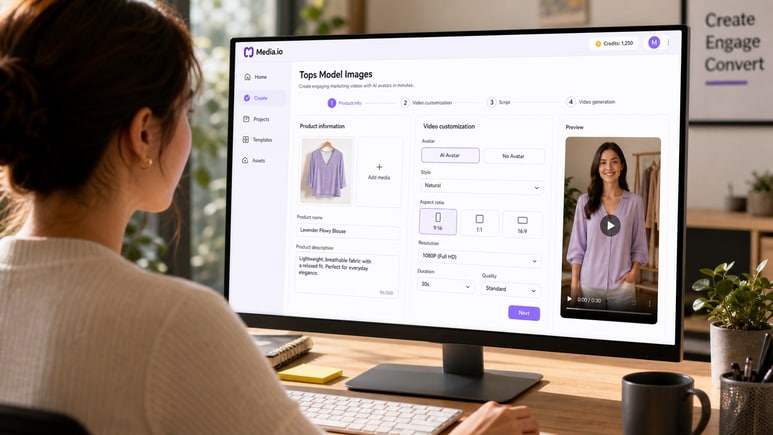
Check Opacity, Fit, And Sizing Language
Review sheer fabric, stretch, oversized fit, crop length, and body-shape wording against the listing.
✓Avoid unsupported fit promises
✓Clarify fabric opacity carefully
✓Inspect generated buttons, seams, and prints
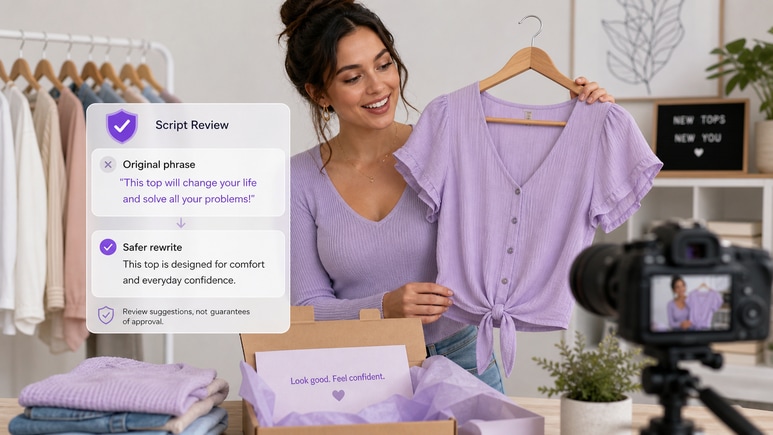
The Three-Step Workflow Behind A Tops Model Images Video
Start with neckline, sleeves, fabric, buttons, opacity, color, and fit; decide how the styling-led story should look; then review the script before Media.io renders the video.
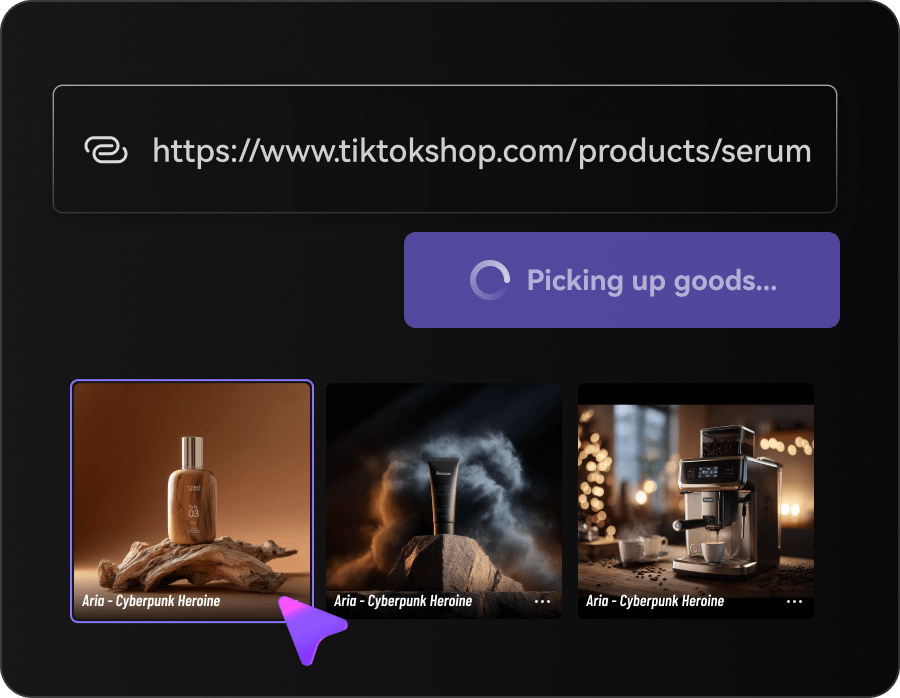
Bring In The Top Or Shirt Listing And Selling Points
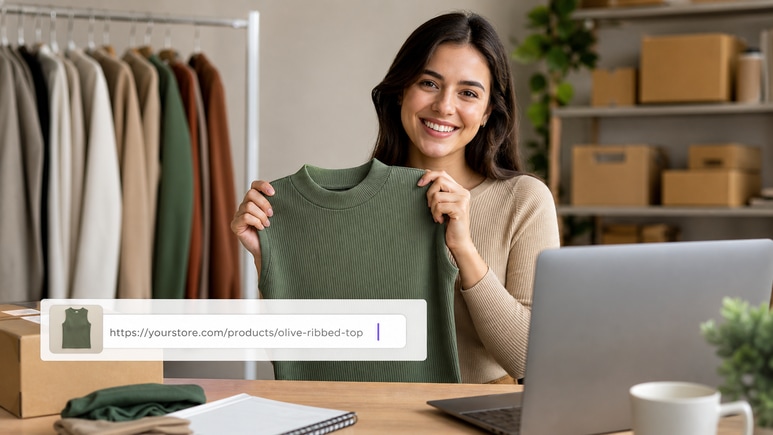
Paste the product URL or upload owned images. Media.io reads the page and gallery for neckline, sleeves, fabric, buttons, opacity, color, and fit, creating a source-grounded brief for this tops model images project.
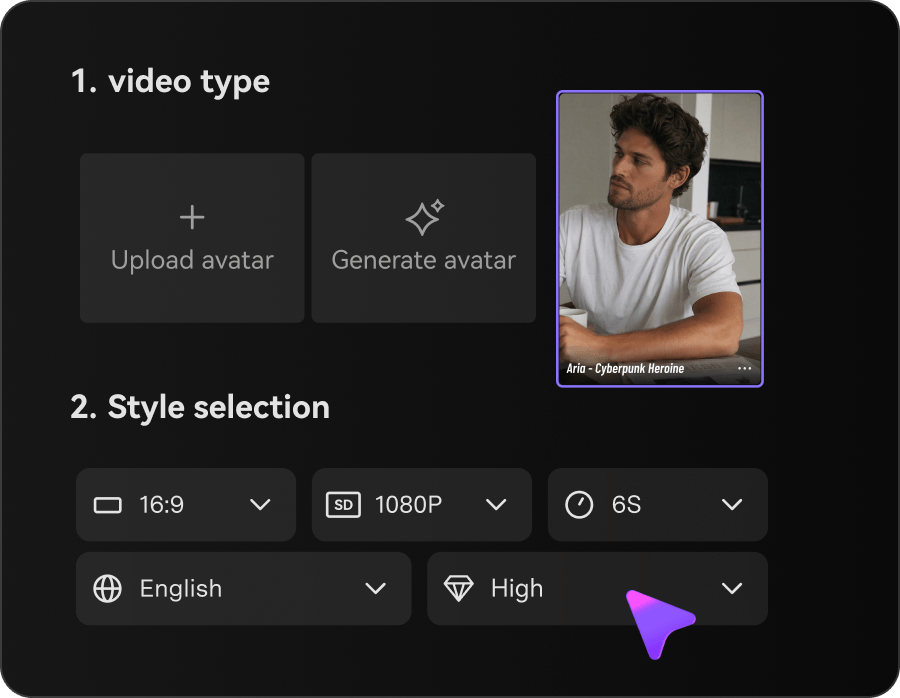
Set The Tops Model Images Creative Direction
Choose character or no-character mode, select a suitable style, and set aspect ratio, resolution, duration, and quality around multi-look styling and catalog refreshes.
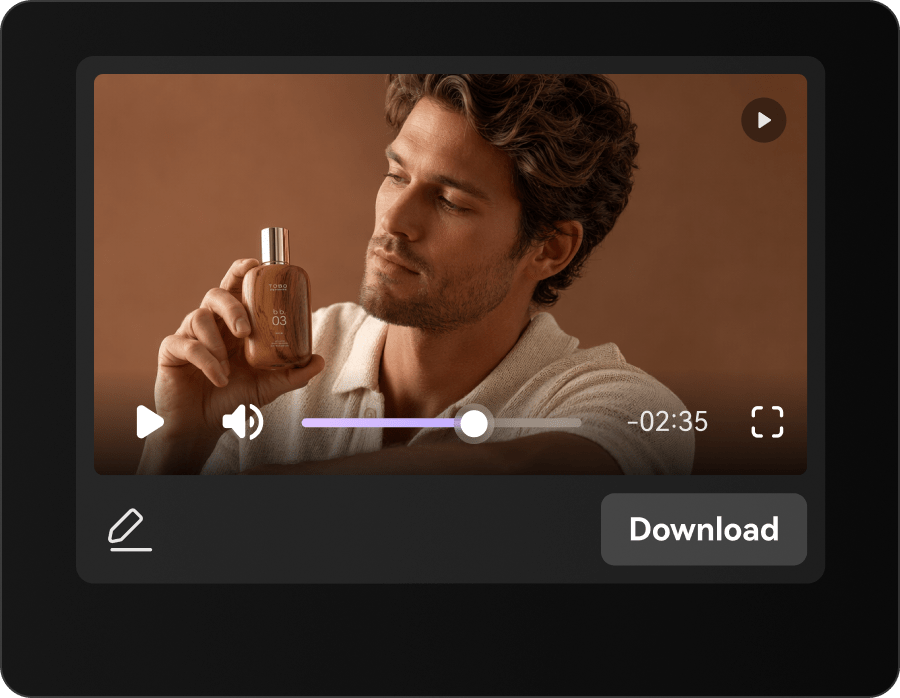
Review The Tops Model Images Script And Generate The Video
Check the sequence, product details, tone, and opacity, stretch, sizing, and fit claims. Make edits, generate the video, and review the result before publishing.
Where Tops Model Images Video Fits Across The Commerce Team
The workflow supports teams responsible for multi-look styling and catalog refreshes. Each role can reuse the same approved top or shirt listing while changing the message, format, or channel goal.
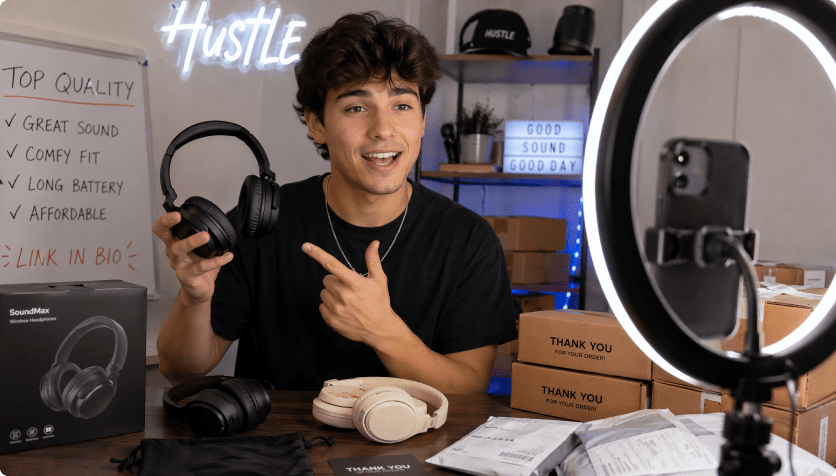
Fashion Boutiques
Launch tops model images creative using the real top or shirt listing, with emphasis on neckline and the needs of fashion boutiques.
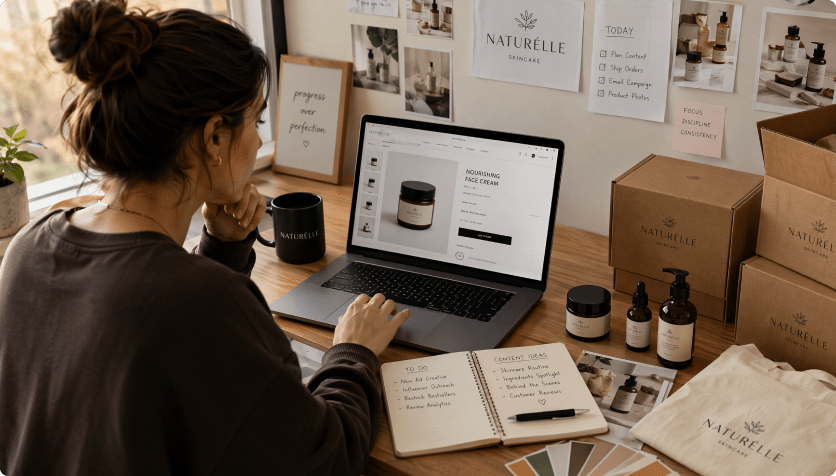
Shirt Brands
Merchandise tops model images creative using the real top or shirt listing, with emphasis on sleeves and the needs of shirt brands.
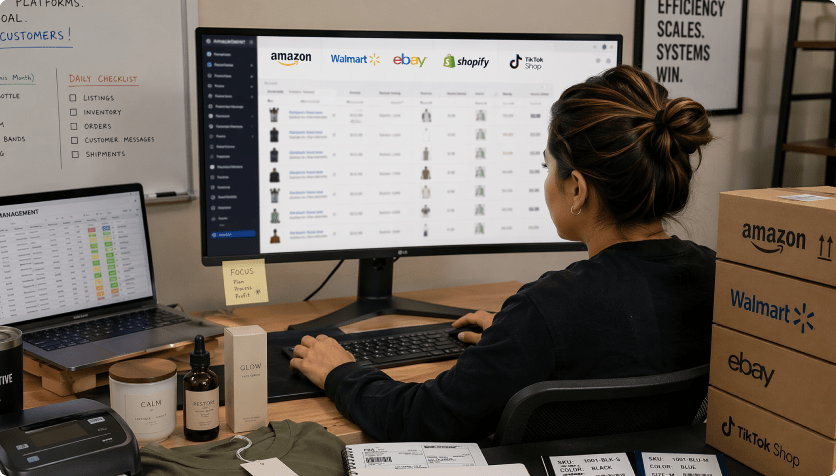
Workwear Retailers
Explain tops model images creative using the real top or shirt listing, with emphasis on fabric and the needs of workwear retailers.
Manual Tops Model Images Production Vs. A Source-Driven AI Ad Workflow
The Manual Tops Model Images Content Route

- Re-enter neckline, sleeves, fabric, buttons, opacity, color, and fit for every new brief
- Plan styling-led scenes without a reusable product source
- Coordinate separate image, script, and video handoffs
- Resize and rewrite the same top or shirt listing for each channel
- Discover opacity, stretch, sizing, and fit claims late in production
- Produce too few versions for multi-look styling and catalog refreshes
Media.io URL To Ads For Tops Model ImagesMedia.io URL To Ads
- Import the top or shirt listing and owned images once
- Carry neckline, sleeves, fabric, buttons, opacity, color, and fit into the script automatically
- Choose a video style and controllable settings
- Review the theme-specific script before rendering
- Create alternate formats from the same source
- Inspect product accuracy before publishing
From Approved Tops Model Images Assets To More Usable Creative
These examples reflect the practical value of connecting neckline, sleeves, fabric, buttons, opacity, color, and fit to scripts and video settings instead of treating every tops model images request as a new production job.

We already had the top or shirt listing; the useful change was turning neckline, sleeves, fabric, buttons, opacity, color, and fit into a sequence our campaign team could review.

The styling-led version felt specific to multi-look styling and catalog refreshes, not like another generic product montage.
For tops model images, changing the style and output format let us reuse one approved source across several campaign needs.
Our merchandising review happened at the script stage, where corrections to opacity, stretch, sizing, and fit claims were still easy to make.
We used the same approved tops model images source for a detailed product-page version and a faster social cut.
The result still needed a final accuracy check, but the starting point was much closer to the actual top or shirt listing.
Tops Model Images Video Creation: Questions Before You Generate
How Does Media.io Create A Tops Model Images Video?
Media.io reads the top or shirt listing and gallery for neckline, sleeves, fabric, buttons, opacity, color, and fit, lets you choose the creative setup, drafts a script, and then generates the video for review.
Can I Use Top Or Shirt Listing Images Without A Product Url?
Yes. Upload owned images when the URL is unavailable or when selected images provide the clearest source for neckline, sleeves, fabric, buttons, opacity, color, and fit.
What Should I Check In AI-Generated Tops Model Images Visuals?
Review product identity, text, colors, proportions, scene logic, and opacity, stretch, sizing, and fit claims. AI-generated details can vary from the source.
Which Product Links Work For This Tops Model Images Workflow?
Common ecommerce and marketplace links are supported when the page is accessible and contains clear product information and images. Image upload is available as an alternative.
Which Video Styles Suit Tops Model Images?
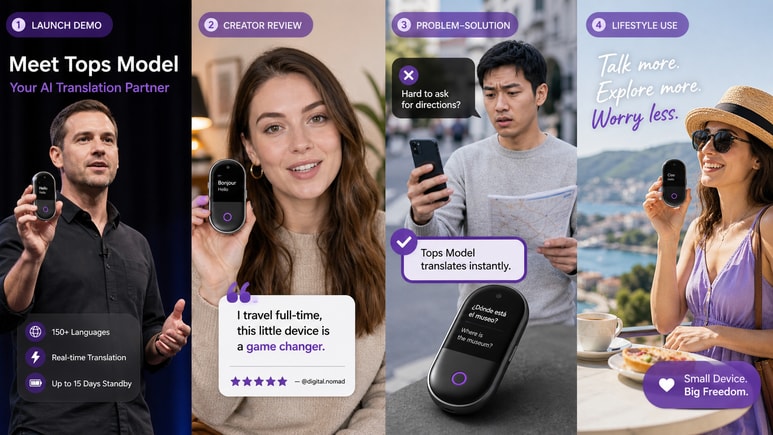
Useful directions may include tutorial, review, UGC, lifestyle, unboxing, comparison, problem-solution, close-up demo, or motion-led styles, depending on multi-look styling and catalog refreshes.
Do I Need Editing Experience To Create Tops Model Images Video?
No specialist editing timeline is required. Use the guided character, style, ratio, resolution, duration, quality, and script-review controls.
Where Can I Use A Tops Model Images Video?
Adapt the output for product pages, marketplace promotion, paid social, organic short video, landing pages, or multi-look styling and catalog refreshes.
Can I Edit The Tops Model Images Script Before Rendering?
Yes. Revise product details, scene order, tone, selling points, and opacity, stretch, sizing, and fit claims before generating the final video.
Does Review-Friendly Scripting Guarantee Ad Approval?
No. Review-friendly scripting can reduce common wording risks, but no tool can guarantee approval. You remain responsible for rights, accuracy, and platform compliance.
More Media.io Tools For Tops Model Images Production

 4.7 (162,357 Votes)