Exact Reference-Based Video Editing
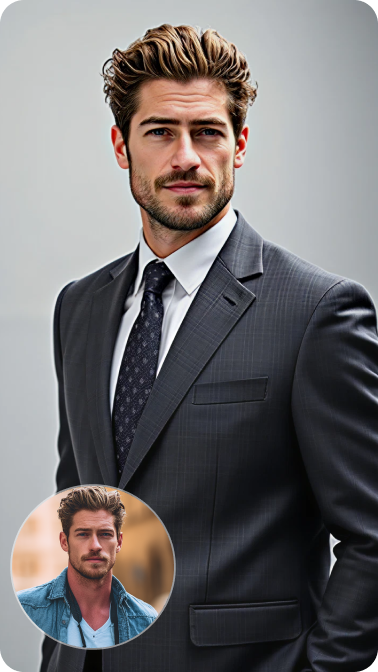
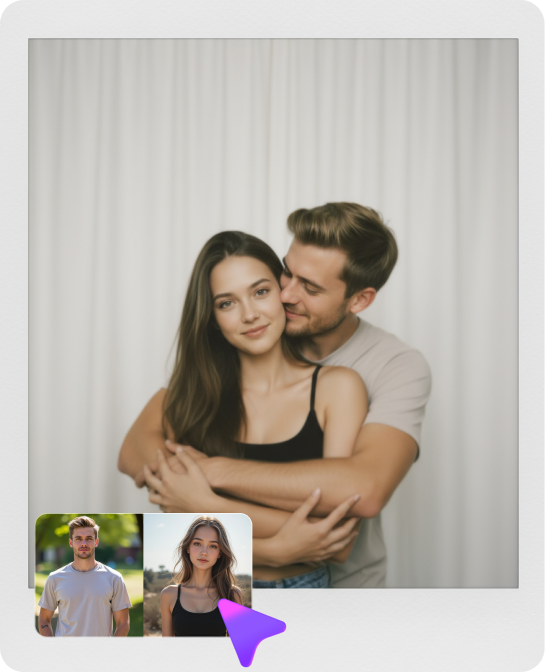
Move beyond random generation. Upload your base video and up to 4 reference images to precisely control characters, style, and outfits. Achieve exact visual targeting effortlessly.
 Seedance 2.5
Use Kling AI Video Editor on Media.io to swap, remove, add, and relight videos with ease. Upload a video and reference images to replace subjects, transform scenes, and create smooth, cinematic results with up to 15 seconds of multi-shot output and native audio-visual generation.
Free credits on signup.
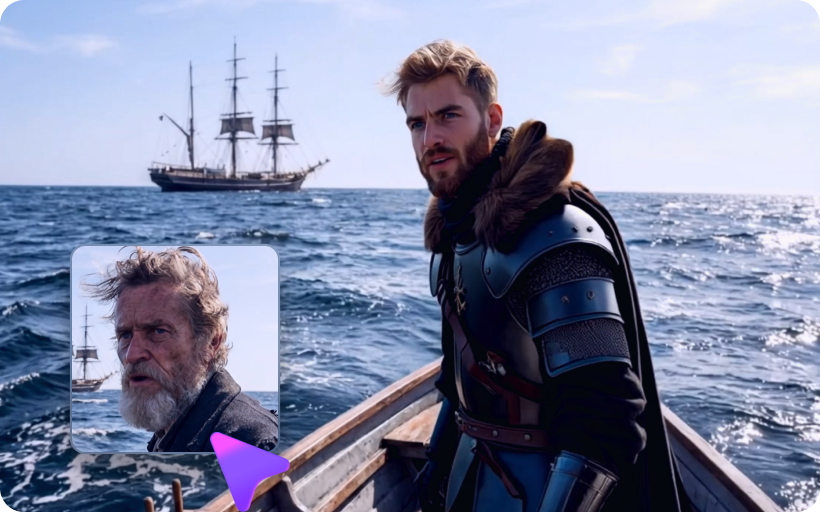
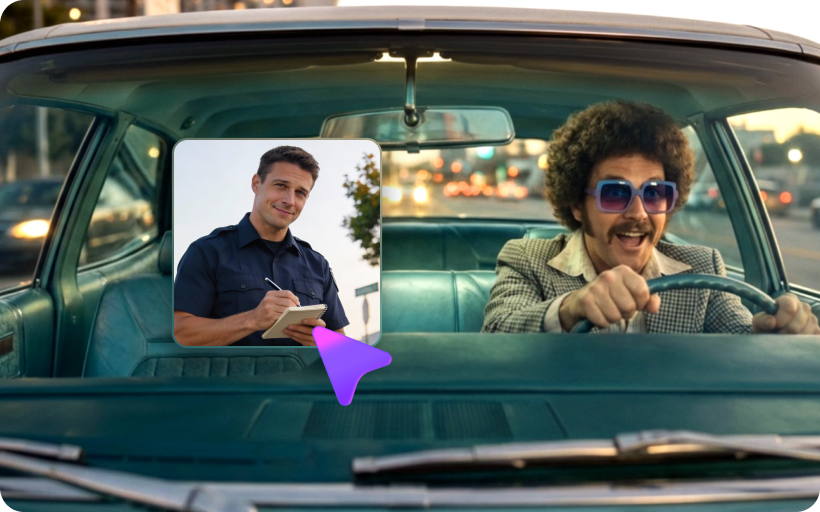
Move beyond random generation. Upload your base video and up to 4 reference images to precisely control characters, style, and outfits. Achieve exact visual targeting effortlessly.
Transform existing videos instead of starting from scratch. Our AI preserves crucial details like camera movement, timing, and environment, guaranteeing natural motion flow and zero broken motion.
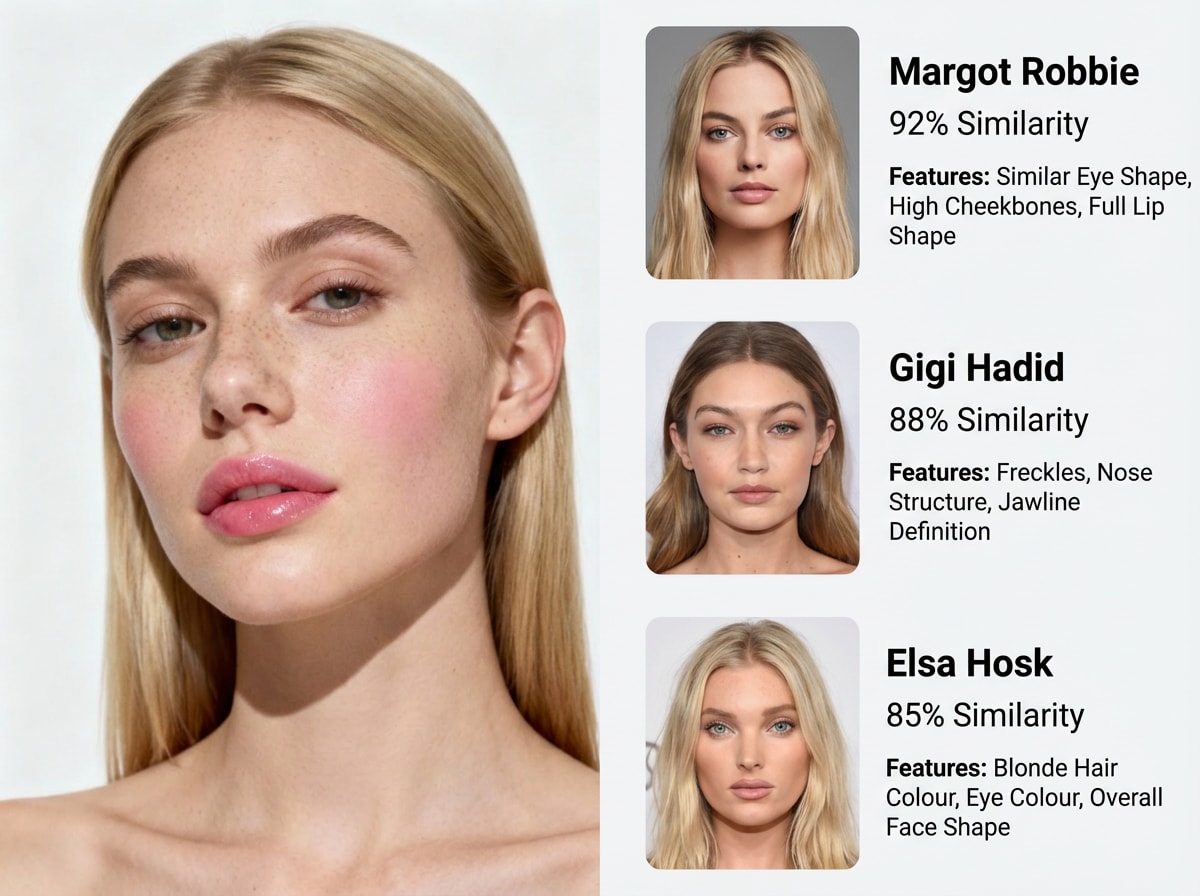
Use natural language prompts to replace actors with celebrities, remove unwanted background objects, or insert entirely new elements seamlessly while maintaining the background.
Experience a next-gen control layer that offers 8K / high-resolution rendering. Master advanced relighting, style transfers, and scene transformation with perfectly sharp details and no distortion.
Begin your Kling video to video generation by uploading your base footage alongside up to 4 reference images. This creates your precise multi-reference visual target.
Utilize hybrid control. Let your image dictate who appears, your video manage how they move, and use text prompts (e.g., "look back and turn") to define specific actions.
Click generate to apply your Kling 3.0 Omni Edit adjustments. Download your newly transformed, cinematic 8K video with perfectly preserved camera angles and smooth motion.

VFX Supervisor

“Finally solves the biggest AI issue: broken motion.” I used Kling 3.0 Omni Edit to alter the environment of my scene. It perfectly preserved the original crowd movement and lighting. Truly next-level motion consistency.
Indie Filmmaker
“Reference-based video editing is a game-changer.” Uploading 4 reference images to control the face, outfit, and style gave me exact visual targeting. No more randomly generated characters ruining the shot.
Content Creator
“Effortless natural language object swapping.” AI video editing with Kling makes swapping out an actor for a celebrity incredibly easy. The background stayed perfectly intact. Best control layer ever!
Video Editor
“Mind-blowing cinematic 8K output.” I needed to apply a vintage style transfer and adjust lighting. Kling video to video generation handled the relighting flawlessly without causing any blur or distortion.
Kling 3.0 Omni Edit is a next-gen control layer for AI video editing. It enables users to edit existing footage using natural language prompts combined with image references. This multimodal editing capability ensures precise visual targeting instead of random generation.
Our reference-based video editing is a core USP that allows you to upload one base video and up to 4 reference images. This allows you to combine face, outfit, style, and environment from different sources, offering exact control over what appears in your final video.
Absolutely. Kling video to video generation transforms your videos without starting from scratch. It carefully preserves camera movement, timing, crowd motion, and camera angles, solving the biggest AI issue: broken or unnatural motion flow.
Yes, utilizing Kling omni edit features, you can type natural language prompts to replace a person (like swapping an actor with Leonardo DiCaprio), remove unwanted artifacts, or seamlessly insert new elements while the background is perfectly maintained.
The advanced AI video editing with Kling offers Relighting (adjusting light sources), Object Swapping, Reframe & Cleanup, and Style Transfer. Combined with 8K resolution support, you achieve high-resolution, cinematic quality output with zero distortion.