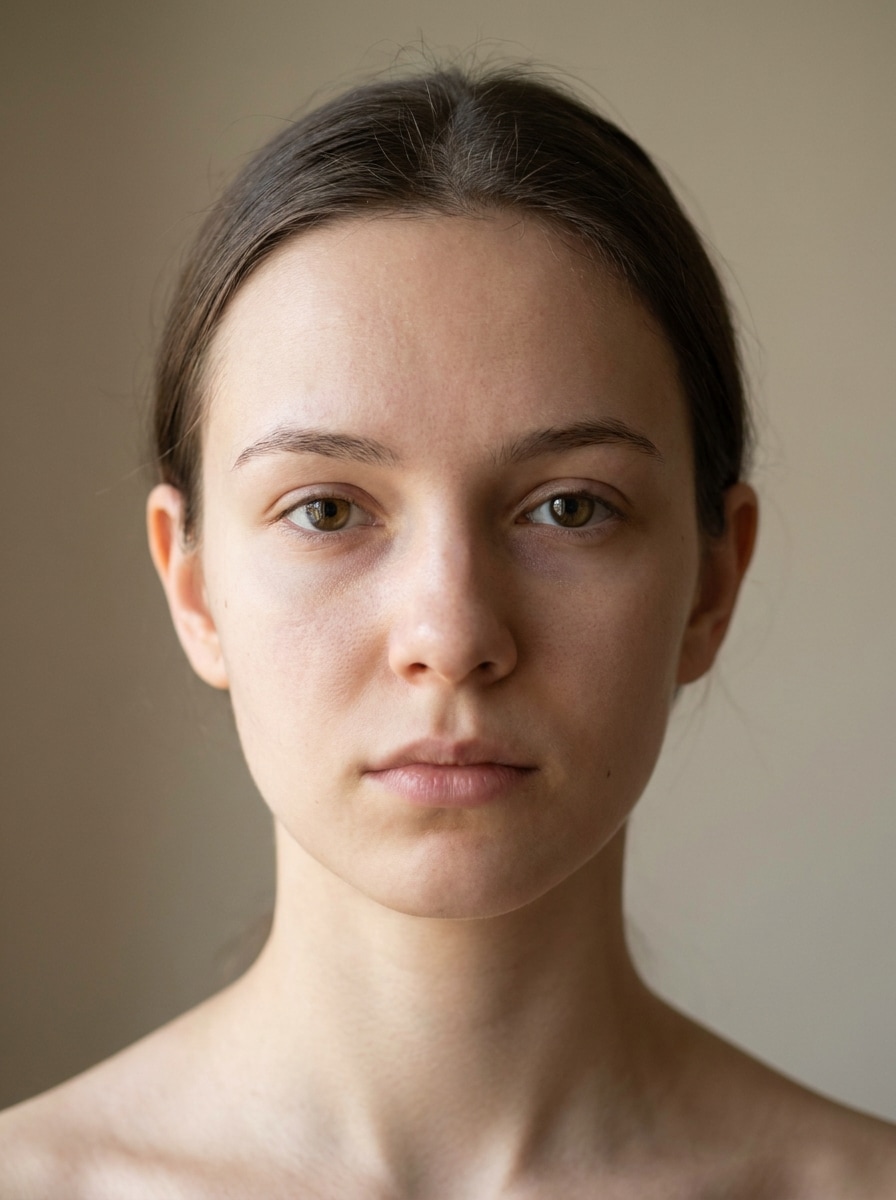
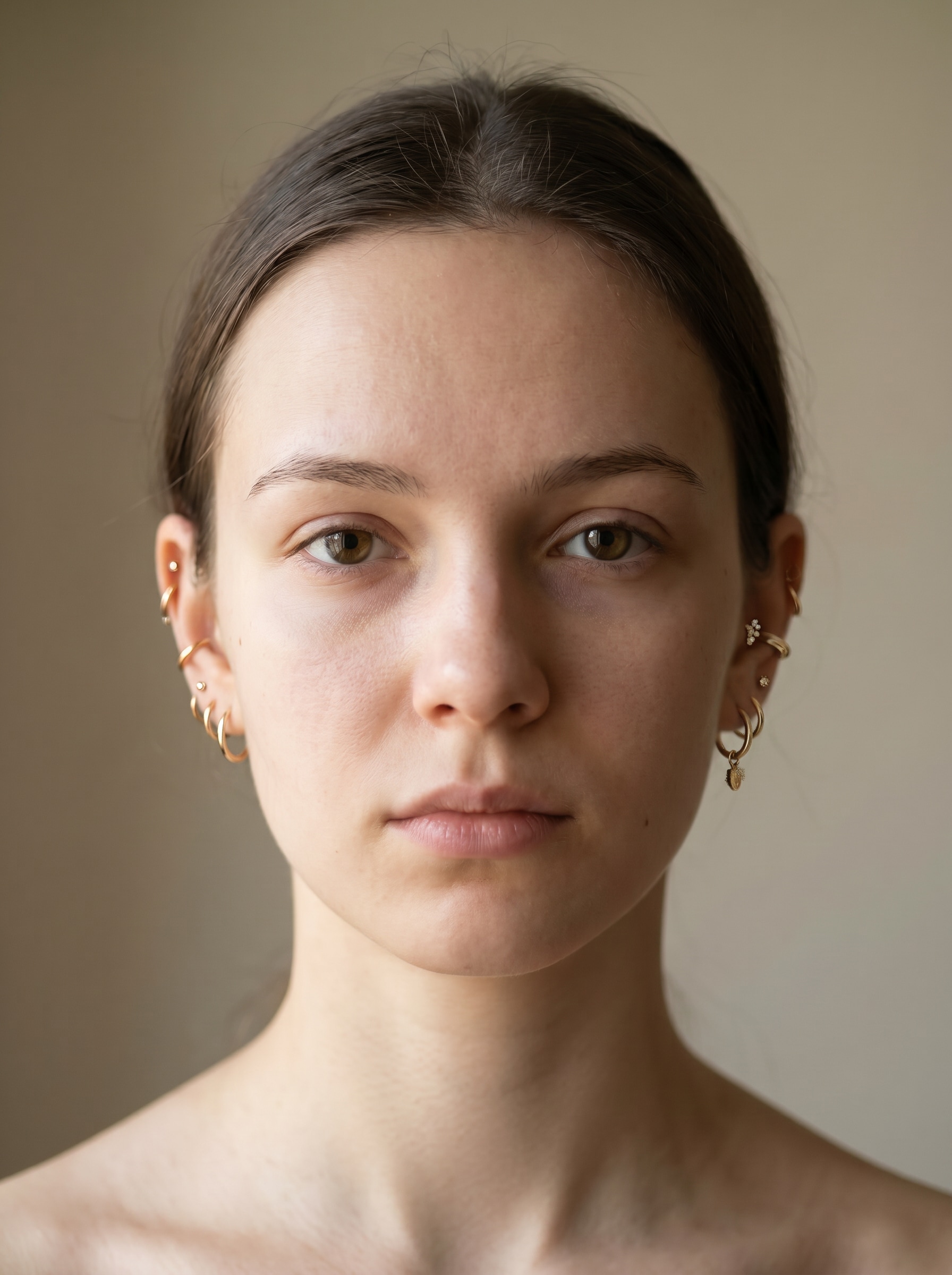
Try a Piercing Filter on Your Selfie With Realistic AI Edits
Create realistic virtual piercing previews from a selfie with Media.io. Try ear, nose, lip, tongue, and septum jewelry styles with a natural-looking piercing filter online, using flexible edits for everything from a subtle nose stud to a bold curated ear stack. Creators often use it for piercing instagram filter.
Review these example directions, then tailor the prompt details to get stronger results with this AI piercing filter in Media.io.
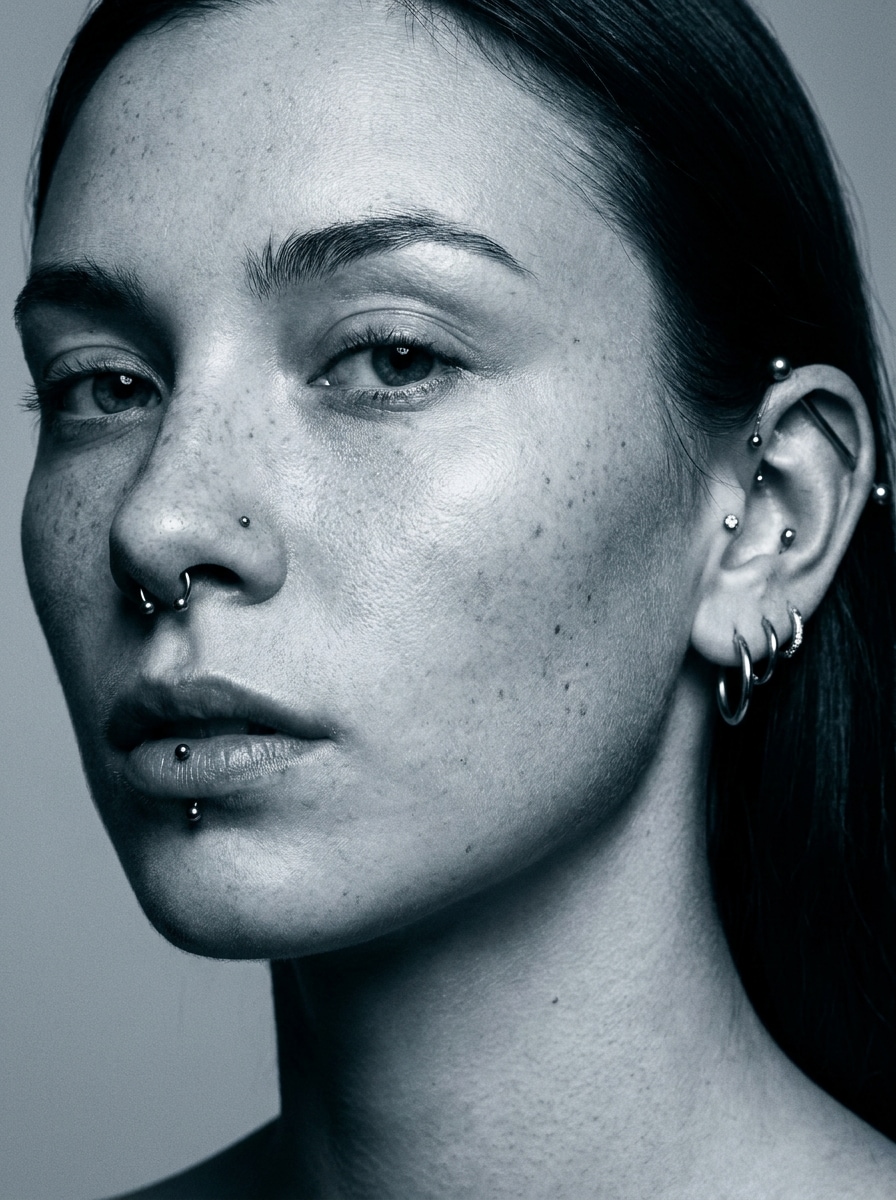
Curated Ear Stack
Use the uploaded selfie as the subject and add a stylish curated ear stack with multiple lobe, helix, and conch piercings. Keep anatomy accurate, jewelry scale refined, metal reflections realistic, skin texture natural, and lighting soft and beauty-focused for a polished social-ready portrait.
Minimal Gold Ear Look
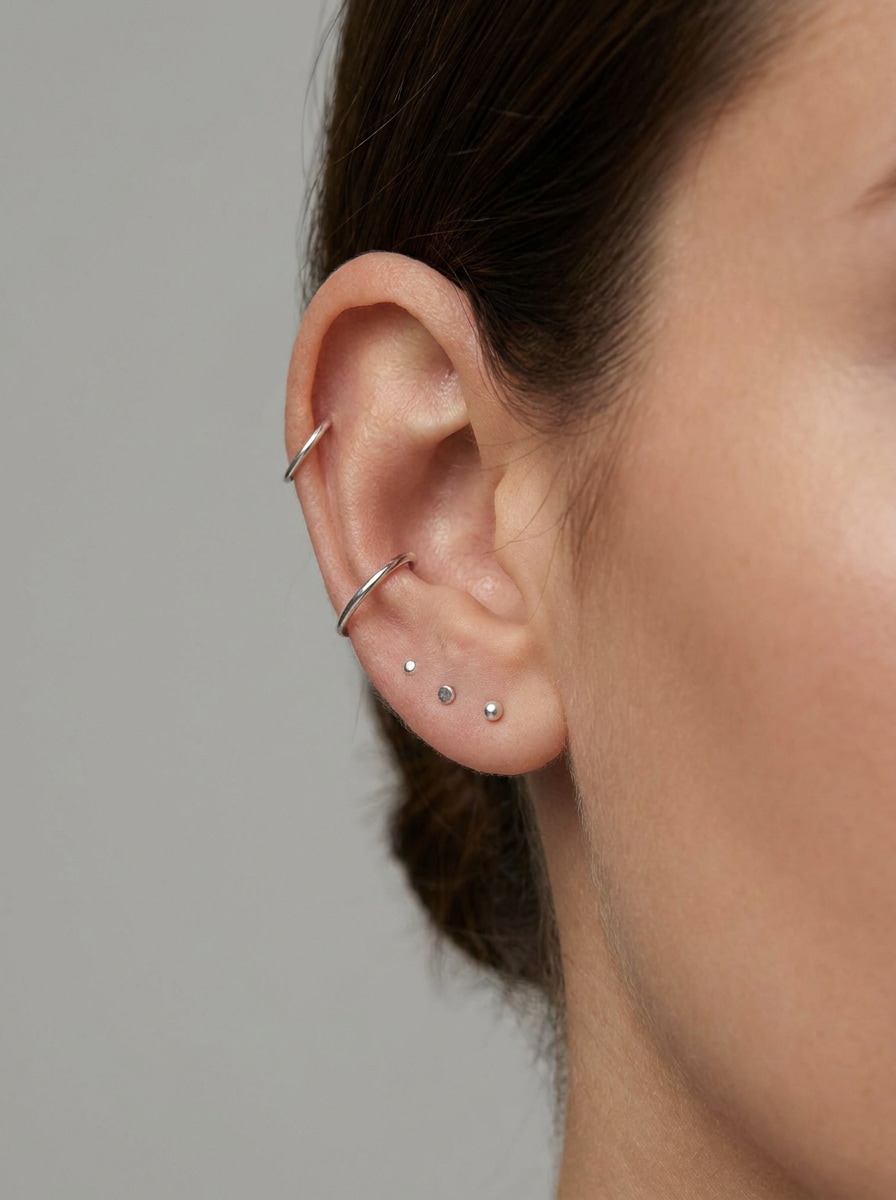
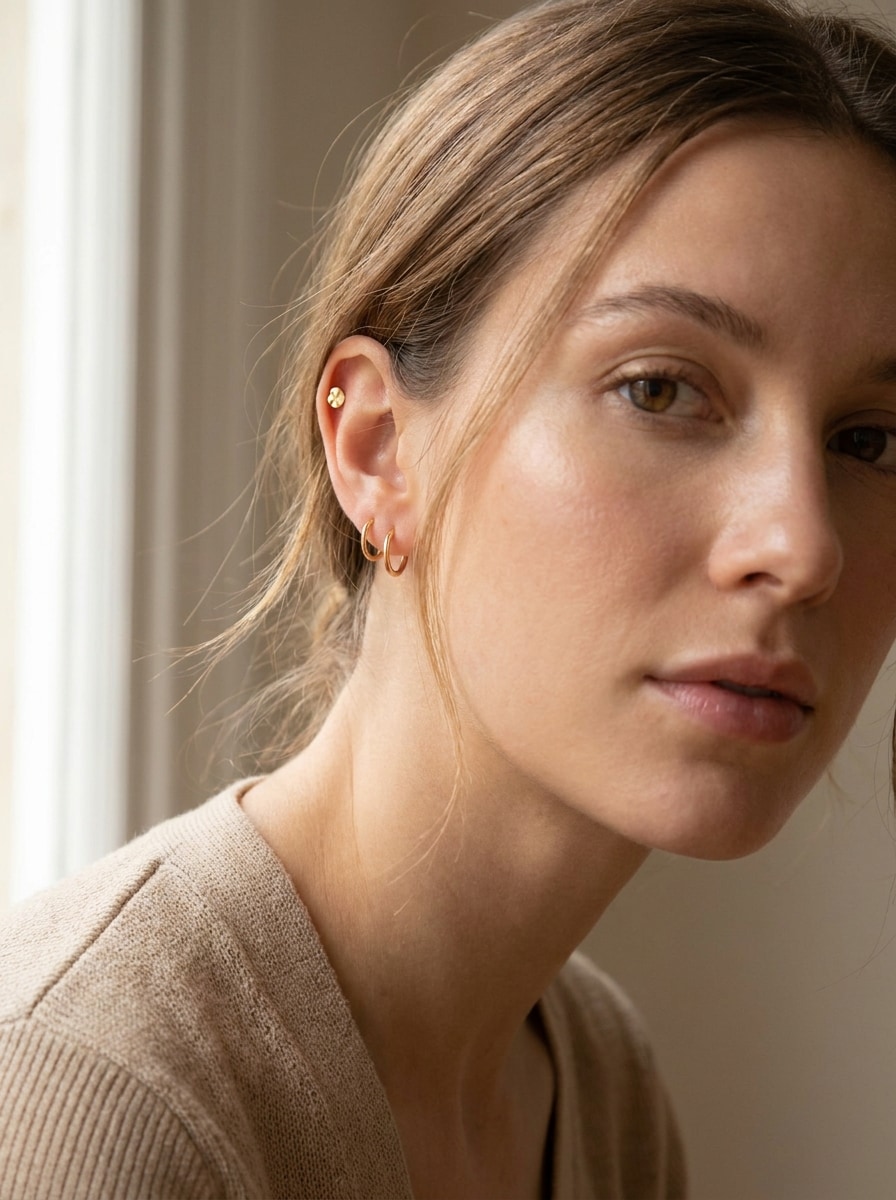
Use the uploaded image as the subject and transform it with a clean minimalist ear piercing look. Add delicate gold lobe and helix jewelry, keep placement believable, shadows soft, metal warm and refined, and preserve natural skin texture for an understated luxury finish.
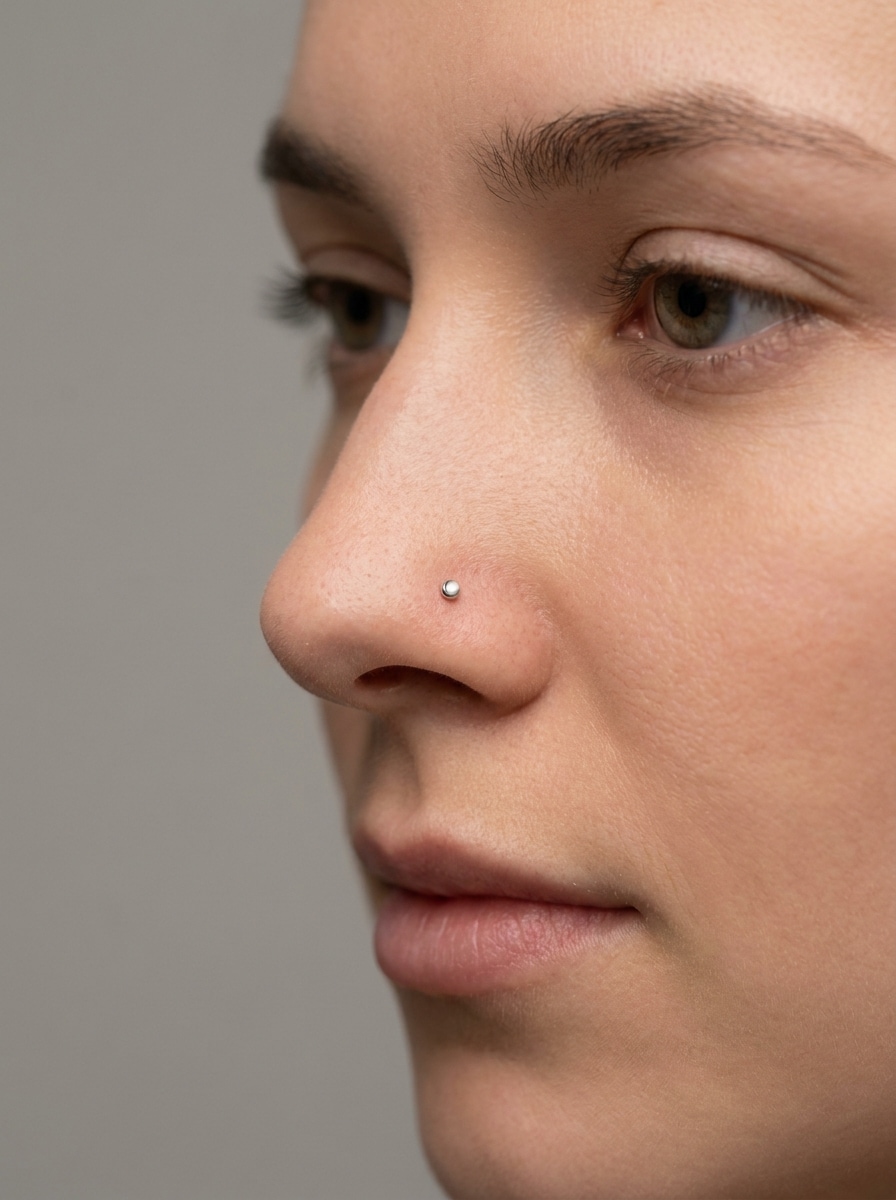
Tiny Nose Stud
Use the uploaded selfie as the subject and add a tiny nostril stud for a subtle everyday look. Keep the jewelry small and realistic, align it naturally with facial features, preserve skin detail, and use gentle highlights and shadows for seamless blending.
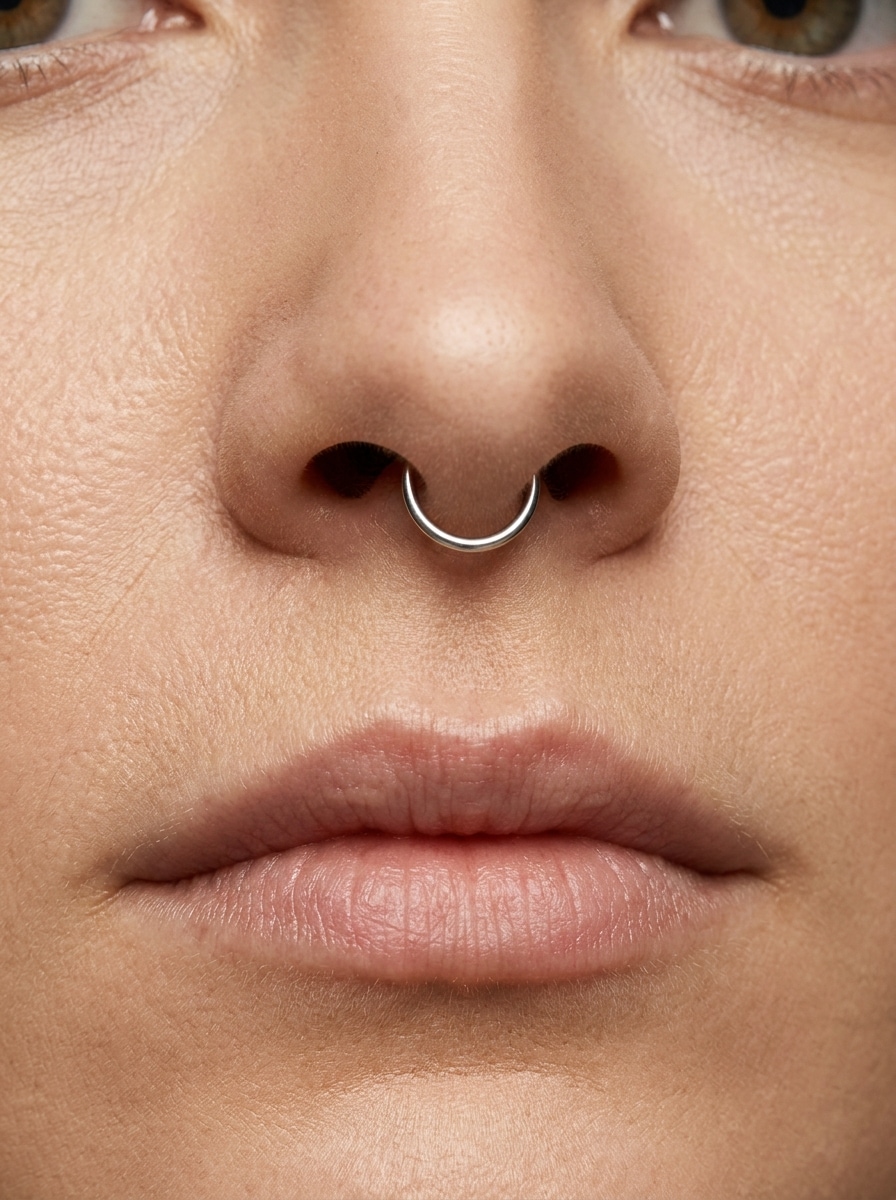
Septum Ring Preview
Use the uploaded photo as the subject and show a realistic septum ring under the nose. Keep the ring scale balanced, metal reflections subtle, face symmetry intact, and lighting consistent so the result looks like a believable jewelry try-on rather than a sticker overlay.
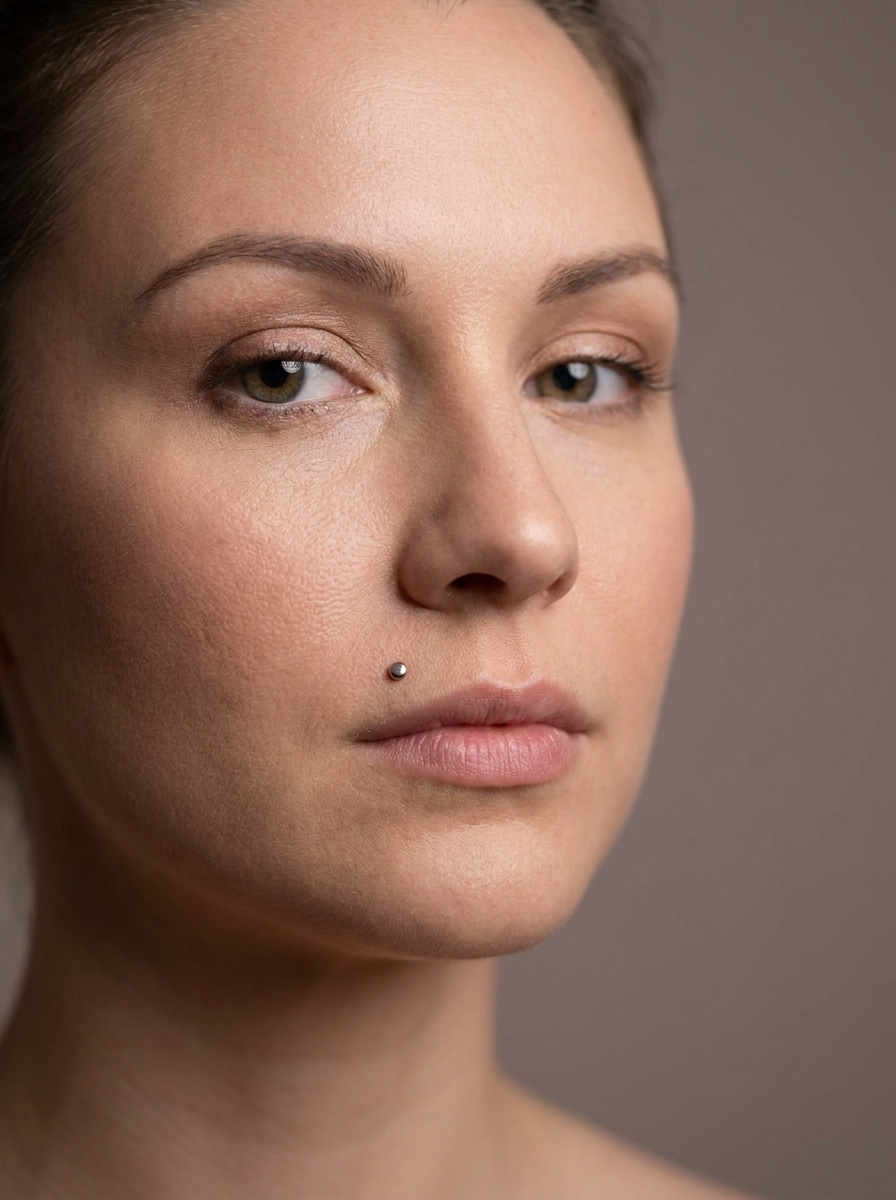
Monroe Lip Piercing
Use the uploaded image as the subject and add a Monroe piercing above the upper lip. Keep the placement precise, the metal stud clean and polished, and the overall portrait natural with flattering light, real skin texture, and a soft glam mood.
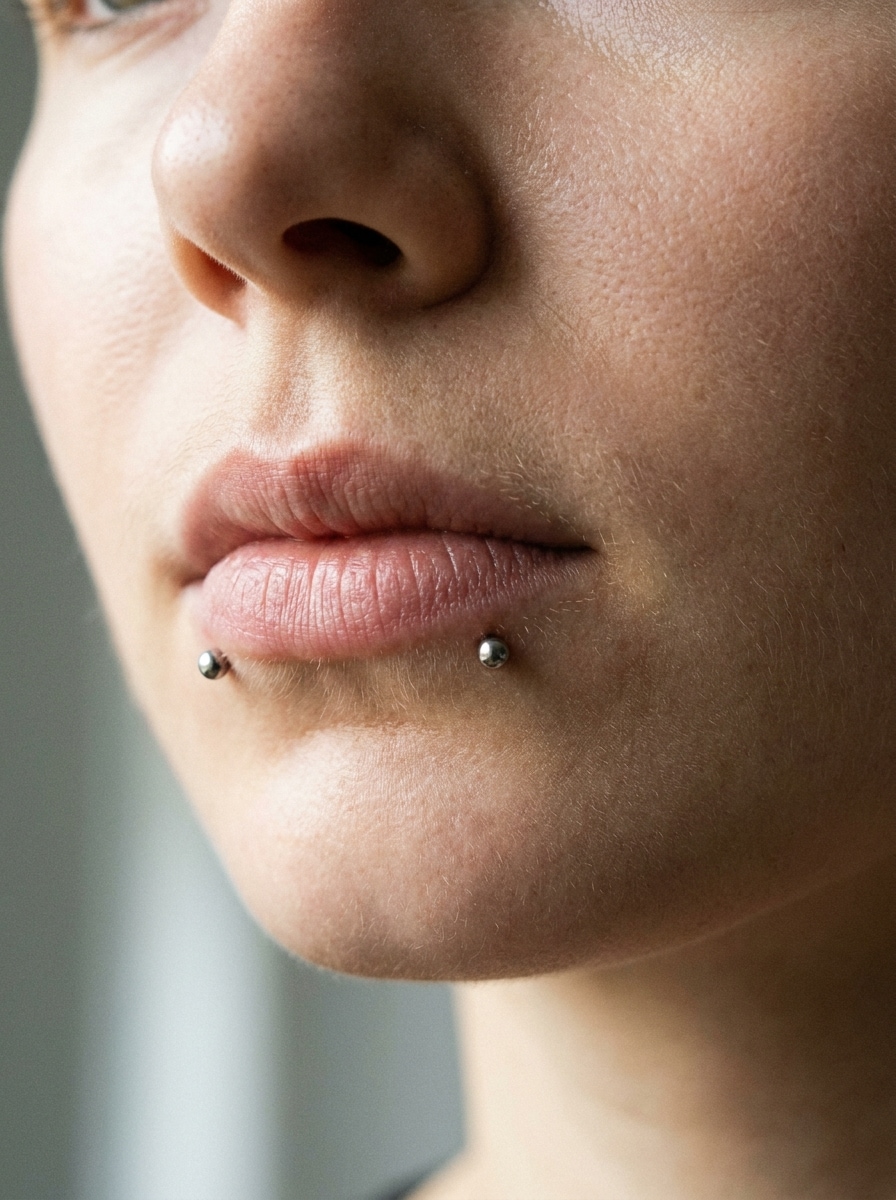
Snake Bites
Use the uploaded selfie as the subject and create realistic snake bite piercings below the lower lip. Keep both sides symmetrical, jewelry size balanced, metallic texture crisp, and skin blending natural under soft portrait lighting for a confident edgy style.
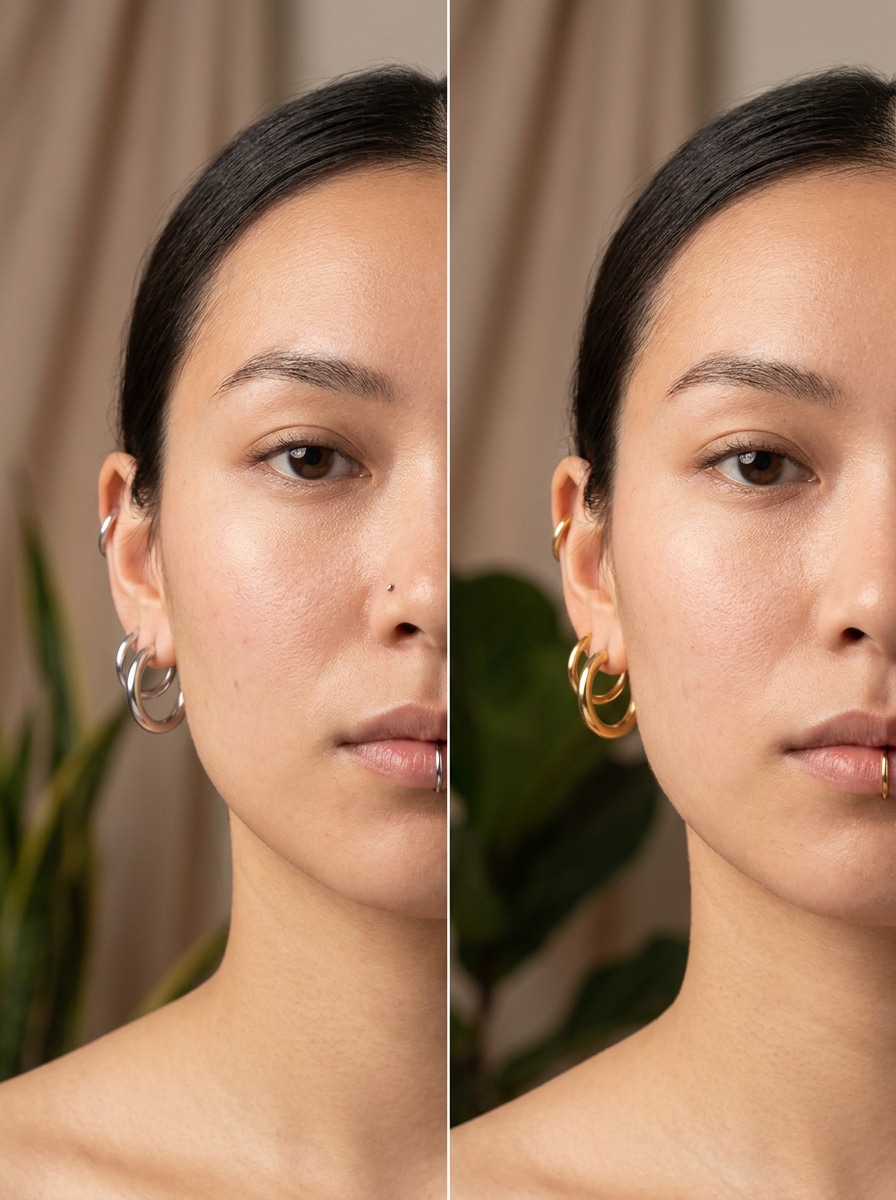
Silver vs Gold Comparison
Use the uploaded image as the subject and create a split comparison showing silver jewelry on one side and gold on the other. Keep the same face angle, consistent lighting, realistic reflections, and neat side-by-side composition to compare which metal suits the portrait best.
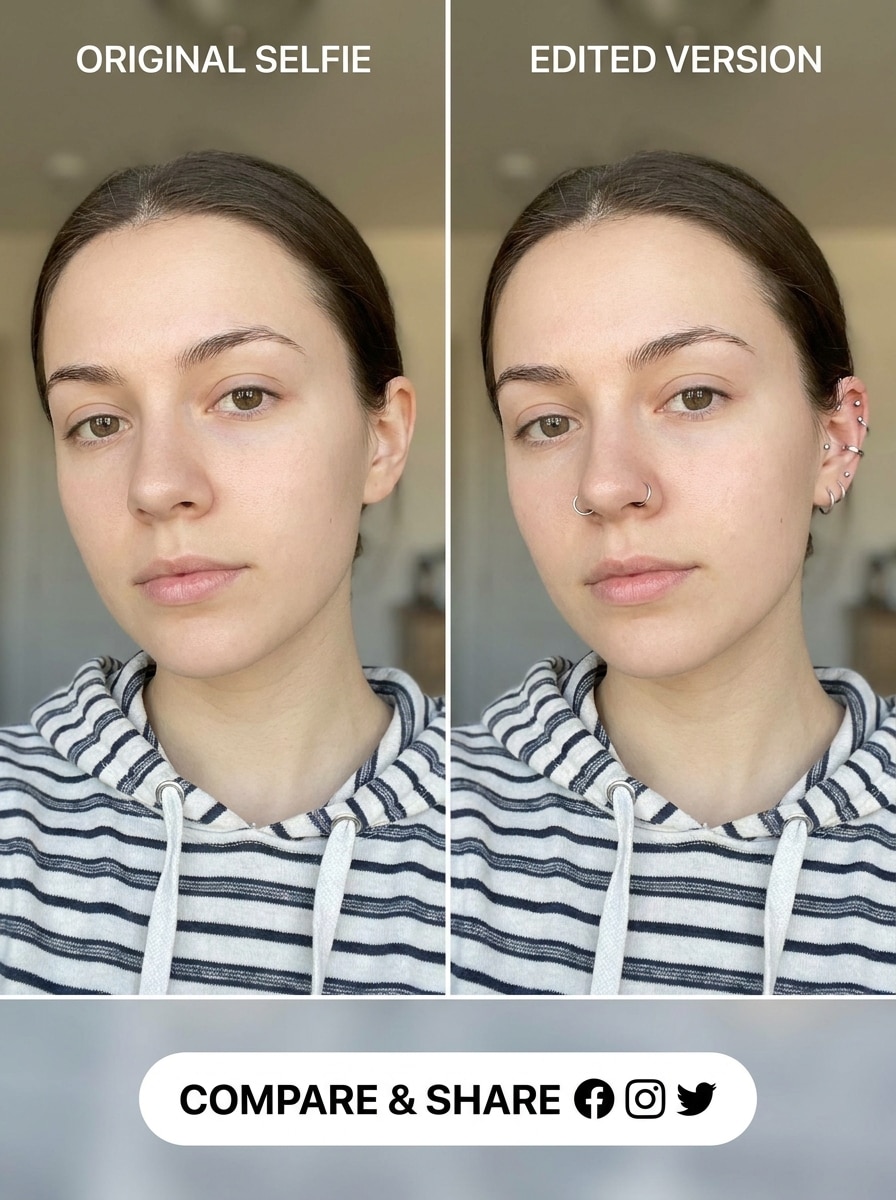
Before and After Try-On
Use the uploaded selfie as the subject and generate a before-and-after piercing preview. Keep the original look on one side and add realistic ear and nose jewelry on the other, with clean layout, matched lighting, seamless skin blending, and high clarity for easy comparison.
Custom Face Piercing Look
Use the uploaded image as the subject and add a custom face piercing design based on the prompt, such as bridge, lip, or tongue-inspired styling. Keep placement realistic, jewelry material polished, facial proportions intact, and lighting coherent for a believable personalized transformation.
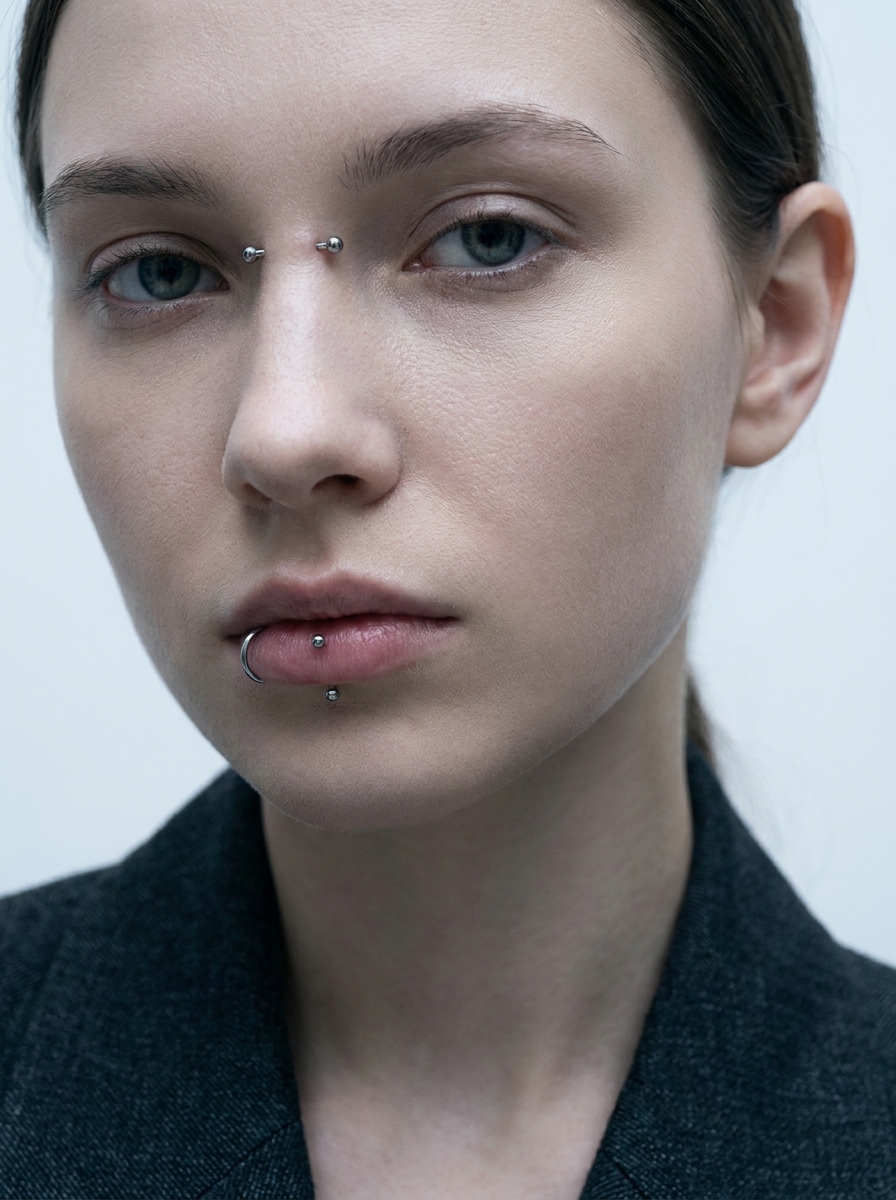
Edgy Editorial Piercing Look
Use the uploaded selfie as the subject and transform it into an edgy editorial portrait with multiple bold but believable piercings. Preserve identity, maintain realistic metal textures and skin detail, and use dramatic beauty lighting with a fashion-magazine finish.
Why Use Media.io for a Virtual Piercing Try-On
Try More Placements From One Reference Photo
From a nose piercing filter test to an ear piercing filter mockup or lip placement preview, Media.io lets you reuse one clear portrait and try different jewelry positions on the same face, so comparisons feel faster, cleaner, and more consistent.
Match the Right Style for Every Version
If the creative direction is still undecided, Media.io helps you explore multiple looks around the same piercing concept, whether you are testing a septum piercing filter, a lip piercing filter, or a more experimental face piercing filter, so it is.
Generate Cleaner Output Up to 4K
When a piercing filter visual is headed for real publishing use, Media.io gives you sharper output up to 4K, which helps the image stay clear across presentations, backgrounds, and reused assets.
Browser-Based Editing That Works Without an App
Creative edits often move between devices, and Media.io keeps the piercing filter online workflow in your browser. That keeps the workflow moving even when you switch between phone and desktop.
How to Use an AI Piercing Filter
Turn your words into stunning visuals in three simple steps, then continue refining the result if you want to take it further.
Step 1
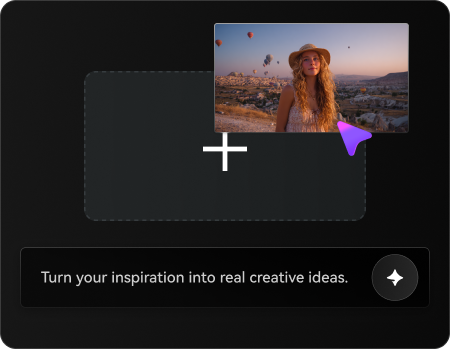
Upload Your Reference Image
Start with a clear selfie, portrait, or close-up photo where the ear, nose, lips, or full face is easy to see. Front-facing images with clean lighting work best for placements like a septum piercing filter, nostril stud, or curated ear stack.
Step 2
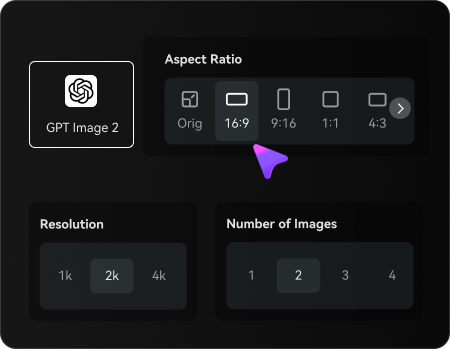
Describe the Change and Set Options
Enter the piercing look you want, such as a minimalist nostril stud, stacked ear jewelry, bridge accent, or snake bites. Then choose your model and adjust aspect ratio, resolution, and number of image variations to match your preview goal.
Step 3
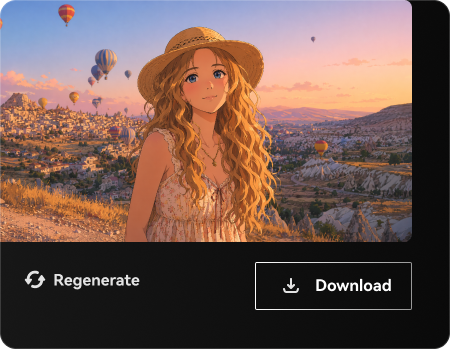
Generate, Download, and Keep Improving
Create multiple piercing previews, compare the results, and download your favorite version. If you want to refine the look, edit the prompt, regenerate new placements, or continue enhancing the image for social content and visual comparisons.
See how creators use this piercing preview workflow in Media.io for content, marketing, and personal projects, then adapt each idea to fit the brief.
Preview Jewelry Before You Commit
Test subtle studs, hoops, or stacked looks on your own features before booking an appointment. Media.io is especially helpful for comparing a nose ring filter, a septum piercing filter option, or a small lip accent when you want a clearer sense of balance and placement.
Build Shareable Style Comparisons
Create side-by-side concepts for silver versus gold, minimal versus bold, or single versus multiple placements. These comparison visuals work well for mood boards, beauty content, and social posts, whether you want a nose piercing filter online preview or a polished editorial concept built from one selfie.
Explore Custom Placements Across the Face
Go beyond presets by testing ideas like a bridge accent, curated ear stack, or paired lip jewelry on the same portrait. Media.io makes it practical to explore a bridge piercing filter concept, a tongue piercing filter mockup, or a face piercing filter look with more realism, including styles inspired by a nose ring snapchat filter.
What Users Say About This Piercing Try-On Tool
Maya Collins
Beauty Content Creator
"Much more realistic than sticker apps" I wanted a nose and septum preview that actually matched my face, and this gave me a far better result than basic overlay apps. The lighting and skin blending looked natural enough to use in my content planning.
Jordan Lee
Lifestyle Blogger
"Easy to test multiple placements" I used one selfie to try ear, lip, and nostril options without downloading anything. Being able to regenerate different versions made it easier to compare subtle and bold styles before deciding what suited me best.
Sofia Ramirez
Social Media Designer
"Great for before-and-after visuals" The comparison-style outputs are what sold me. I made clean before-and-after piercing previews for a campaign concept, and the image quality was strong enough to repurpose across story and reel layouts.
Ethan Walker
Student Creator
"Fast browser-based try-on" I liked that I could use it online instead of installing an app. I uploaded a clear portrait, described the look I wanted, and had a realistic preview in just a few clicks.
1. How does an AI piercing filter work on a selfie?
An AI piercing filter uses your uploaded selfie as a reference image, then applies an image-to-image edit based on the prompt you enter. In Media.io, you can describe the placement and style you want, and the tool generates a new preview with more natural-looking jewelry blending, lighting, and facial alignment.
2. Can I try ear, nose, lip, and septum piercings in one tool?
Media.io supports reference-based image editing, so you can upload one portrait and test multiple looks such as an ear stack, a nose piercing filter online preview, a lip stud concept, or a septum ring style. You can regenerate different variations to compare placements on the same face.
3. Is this piercing filter free to use?
Yes, free users can get started with free credits in Media.io. If you need more generations or want higher-end downloads, you can check Media.io's pricing page. Free exports may include watermarks, while paid plans support watermark-free high-resolution downloads.
4. How realistic will the virtual piercing look on my photo?
Realism depends on the clarity of your photo and prompt, but Media.io is built for image-to-image editing rather than simple sticker placement. That helps the result look more convincing, with better skin blending, believable metal reflections, and placement that follows visible facial features more naturally.
5. Do I need to download an app, or can I use it online?
You can use Media.io online in your browser, so it works across devices without requiring an app download. That makes it useful for a quick virtual try-on from a laptop, tablet, or phone.
6. What kind of photo works best for a piercing try-on?
A clear, well-lit selfie or portrait works best, especially when the area you want to edit is fully visible. For a nostril, bridge, lip, or ear placement preview in Media.io, choose a sharp image with a simple angle, minimal blur, and enough detail around the feature you want to transform.