AI Webcam Filter for Fast Portrait, Retro, and Avatar Makeovers
Turn a webcam photo into polished portraits, stylized avatars, and nostalgic effects in seconds. Media.io makes it easy to apply an AI webcam filter, create an old webcam filter look, or use a webcam photo filter to add a grainy retro finish online with simple upload-and-transform controls. This workflow is especially useful for 2000s webcam filter.
Review these example directions, then tailor the prompt details to get stronger results with this webcam photo filter in Media.io.
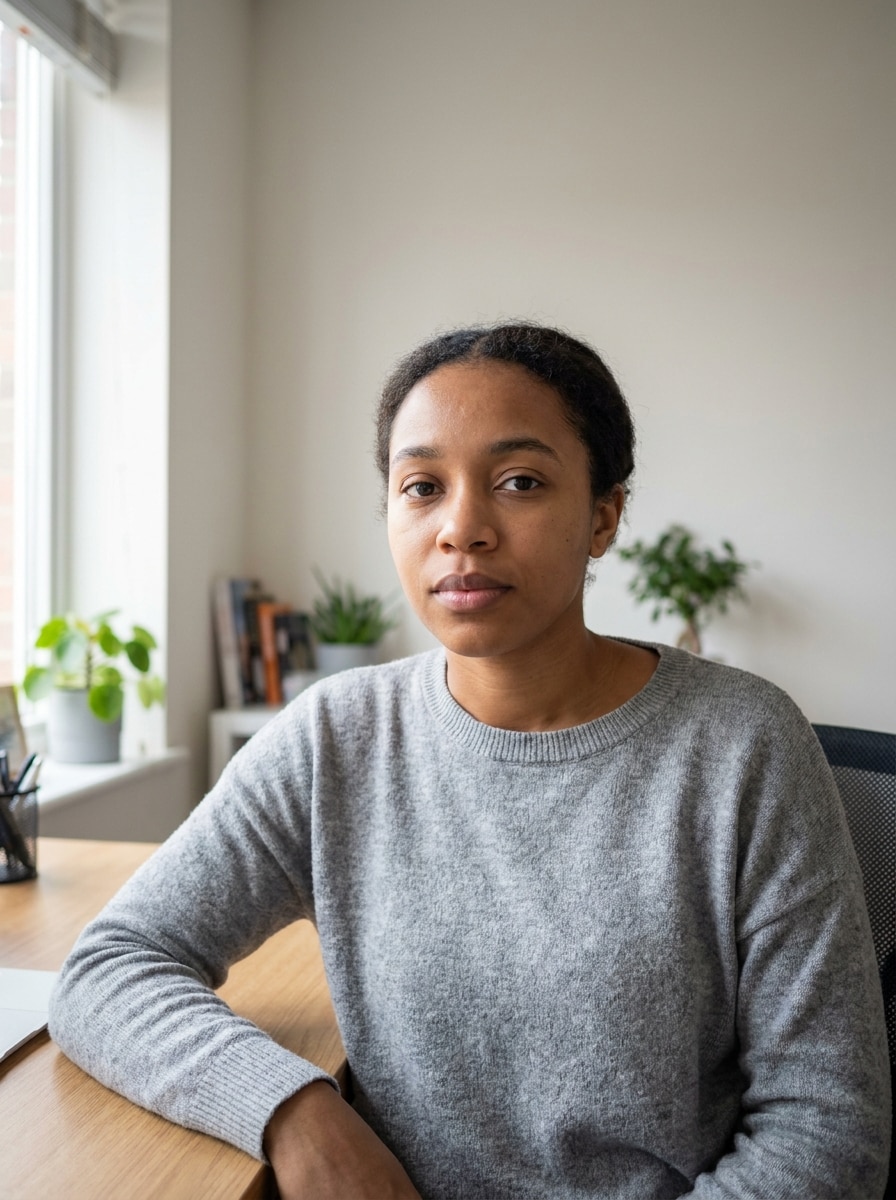
Professional Headshot
Use the uploaded image as the subject and transform it into a polished professional headshot with realistic facial detail, natural skin texture, soft studio lighting from the front, crisp eyes, business-casual styling, a clean neutral blurred background, balanced contrast, and high-resolution photo-real quality.
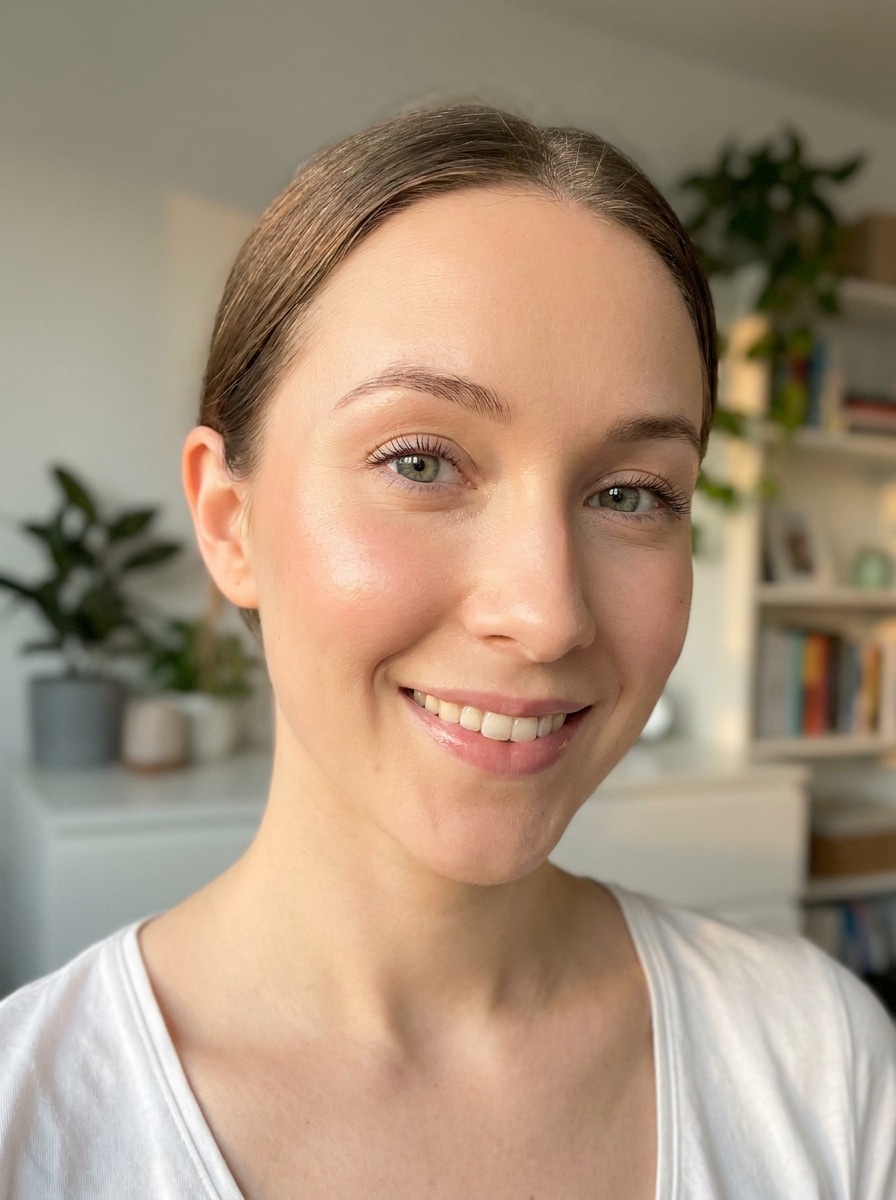
Beauty Glow Filter
Use the uploaded image as the subject and apply a flattering beauty glow effect with smooth but realistic skin, bright eyes, soft warm lighting, gentle cheek highlight, subtle makeup-inspired refinement, fresh color balance, clean background blur, and a social-ready portrait finish without losing natural identity.
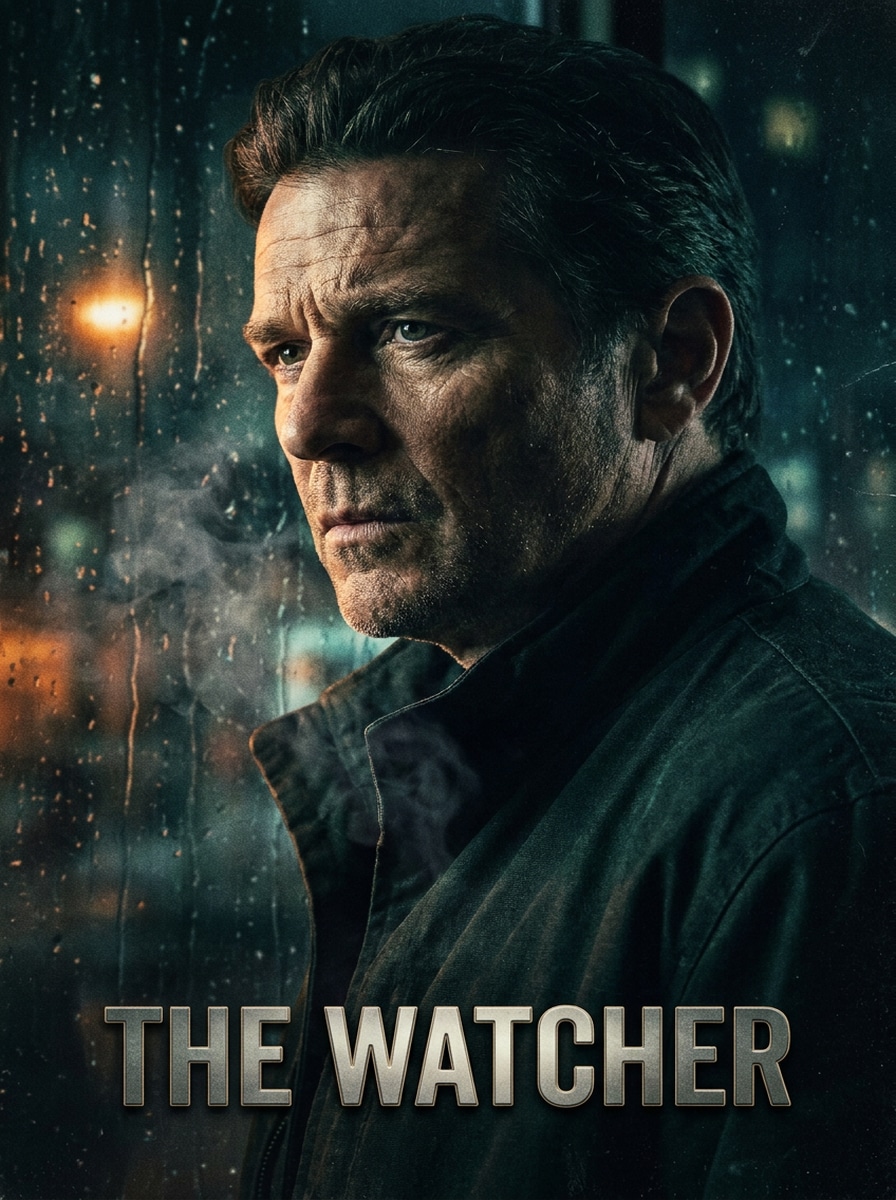
Movie Poster Portrait
Use the uploaded image as the subject and restyle it like a cinematic movie poster with dramatic side lighting, rich shadows, deep contrast, moody color grading, shallow depth of field, strong centered composition, textured atmosphere, and a premium high-detail character portrait while keeping the face recognizable.
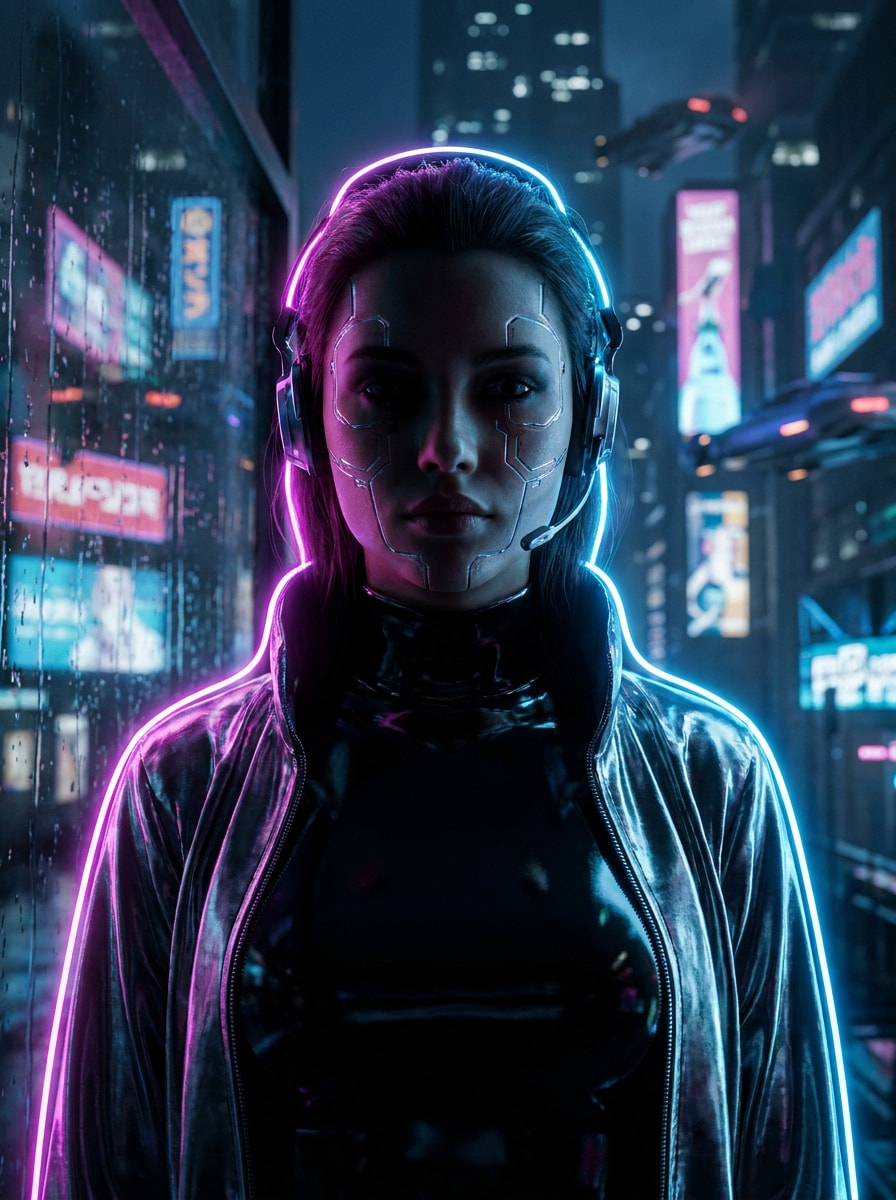
Cyberpunk Neon
Use the uploaded image as the subject and transform it into a cyberpunk neon portrait with electric pink and blue rim lighting, futuristic city glow, reflective textures, moody shadows, high face preservation, crisp detail, cool metallic tones, and a vivid sci-fi atmosphere with dramatic depth.
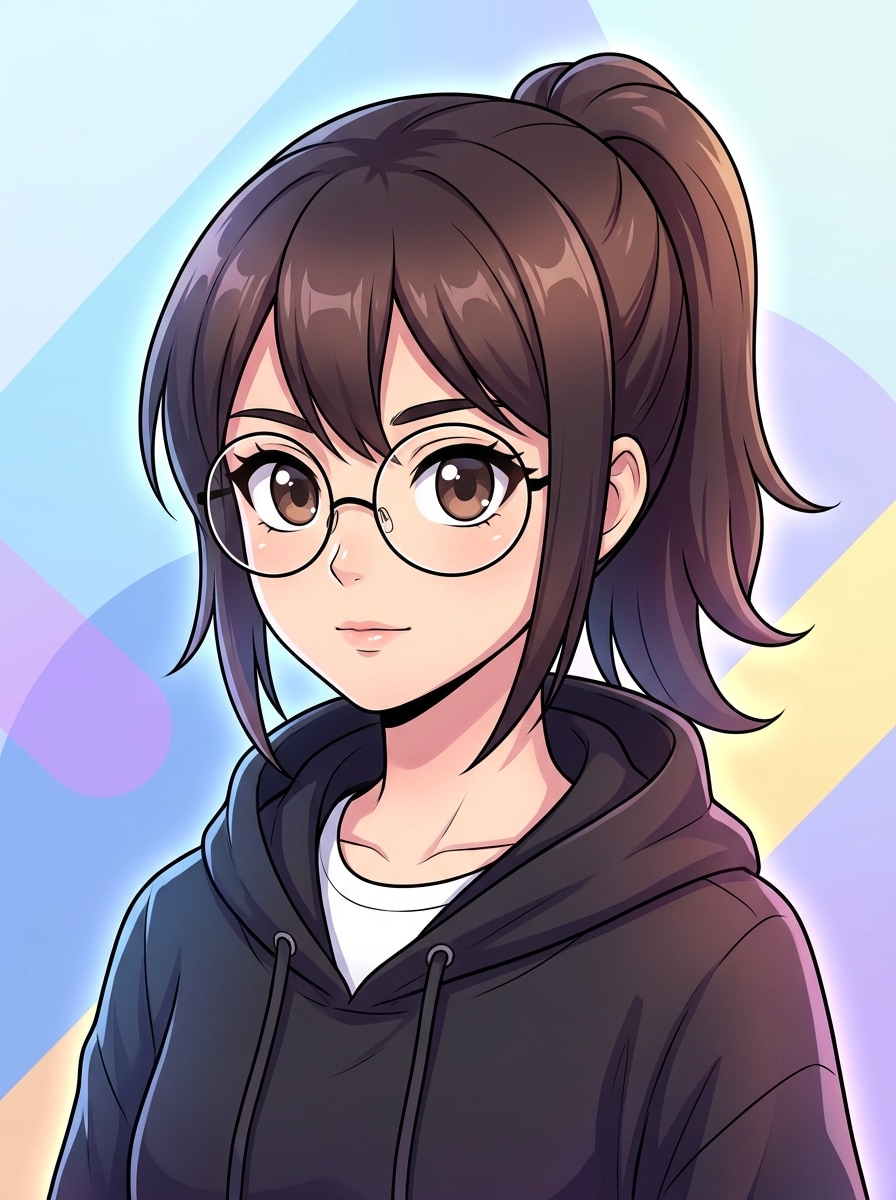
Anime Avatar
Use the uploaded image as the subject and turn it into a modern anime avatar with expressive eyes, clean cel shading, preserved hairstyle and face proportions, crisp line art, soft gradient colors, bright balanced lighting, smooth background shapes, and a vibrant polished character-portrait finish.
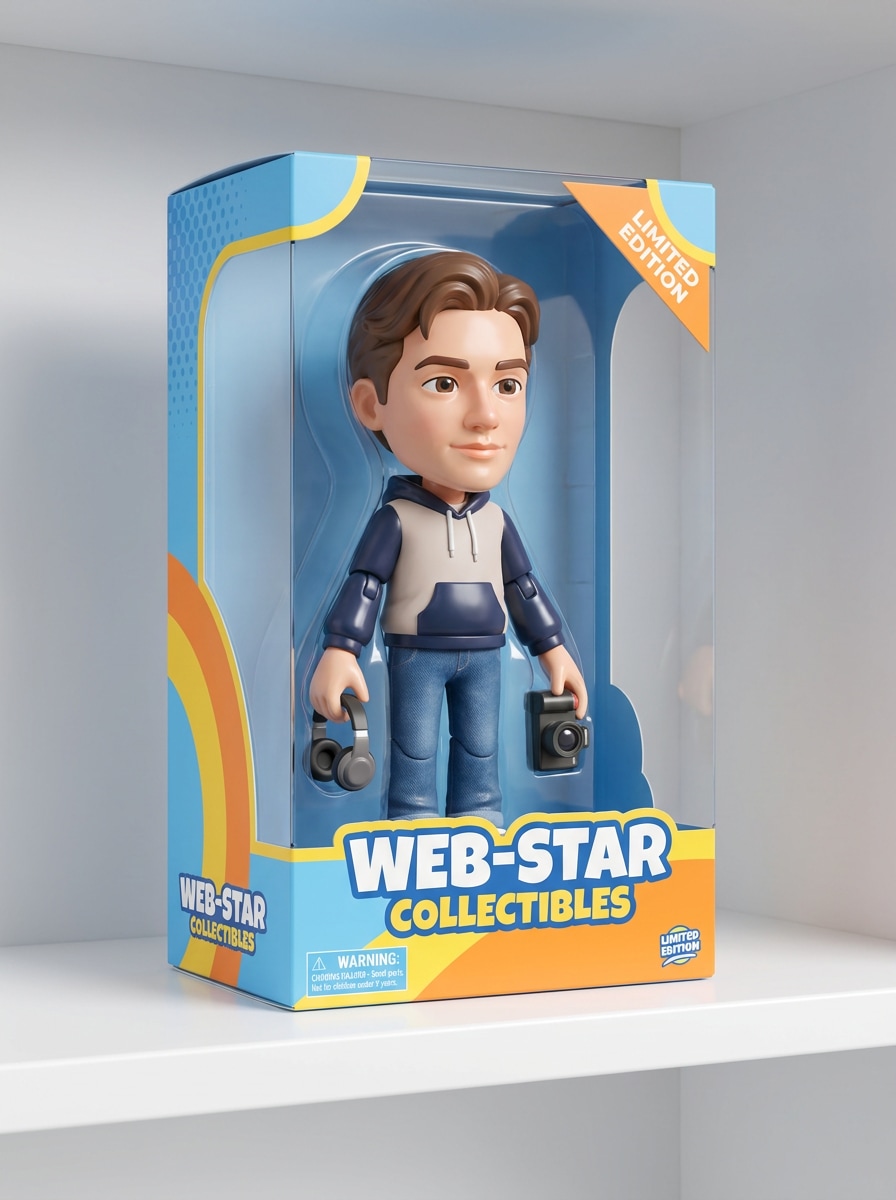
3D Doll Box
Use the uploaded image as the subject and transform it into a stylized collectible doll inside a display box, keeping the face recognizable, adding glossy plastic materials, playful accessories, bright commercial lighting, clean packaging design, cheerful color accents, and a polished 3D product-render look.
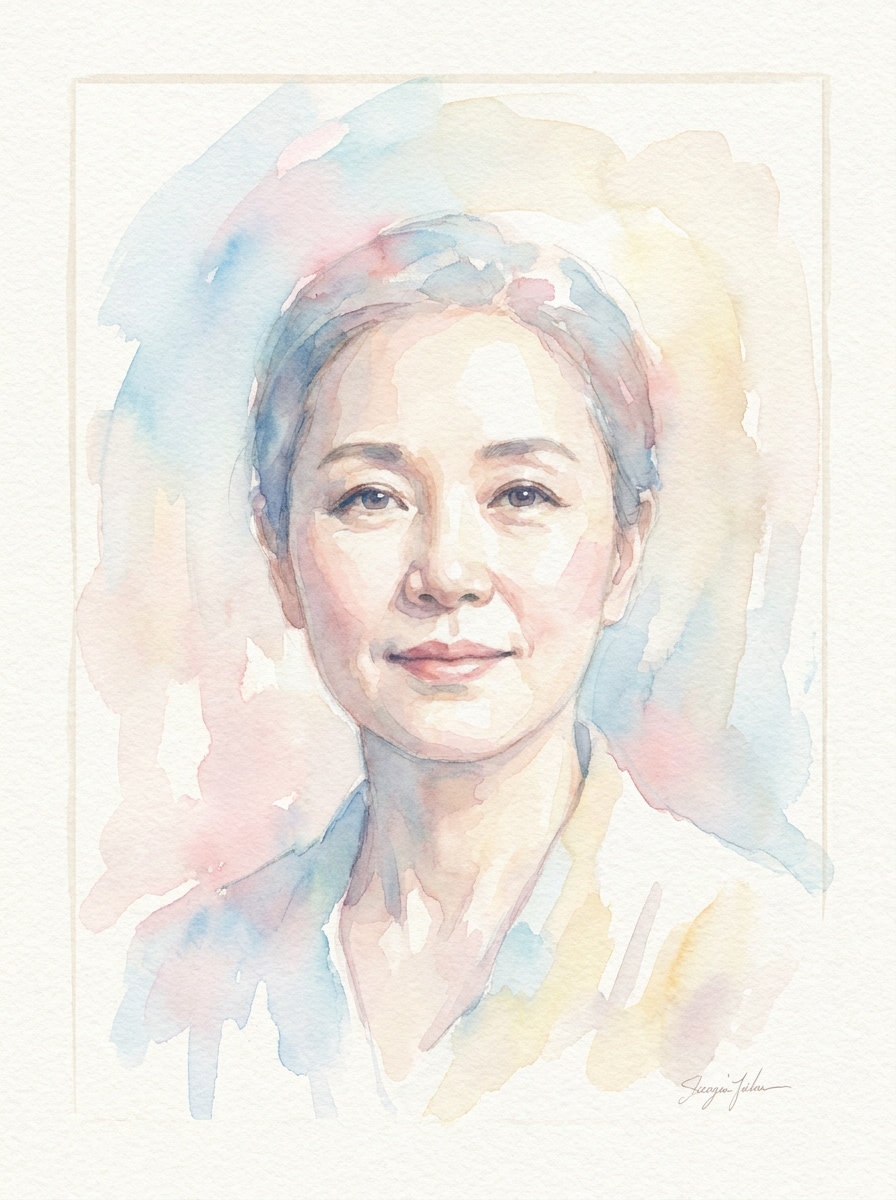
Watercolor Portrait
Use the uploaded image as the subject and restyle it as a watercolor portrait with delicate brush textures, soft color bleeding, subtle paper grain, elegant composition, gentle pastel palette, preserved facial identity, airy light, and an artistic handcrafted finish that still feels recognizable.
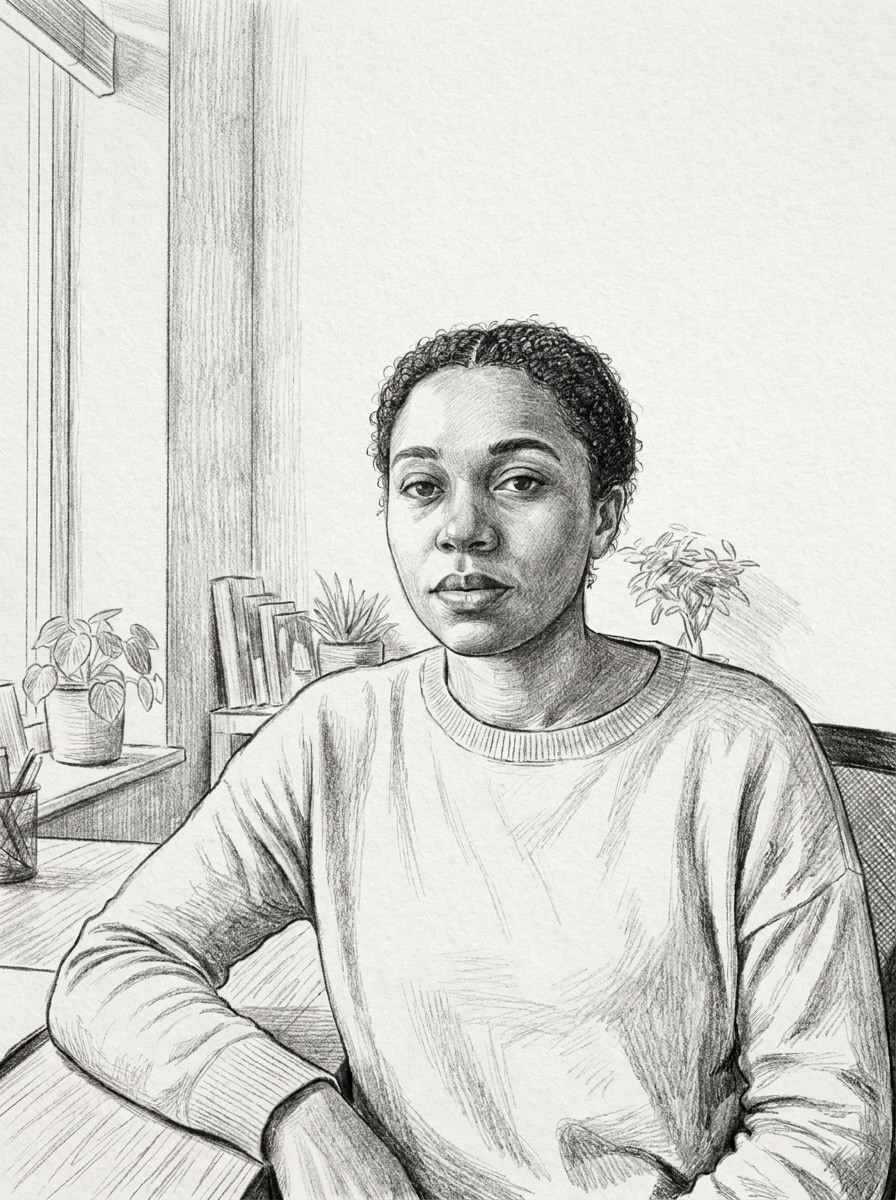
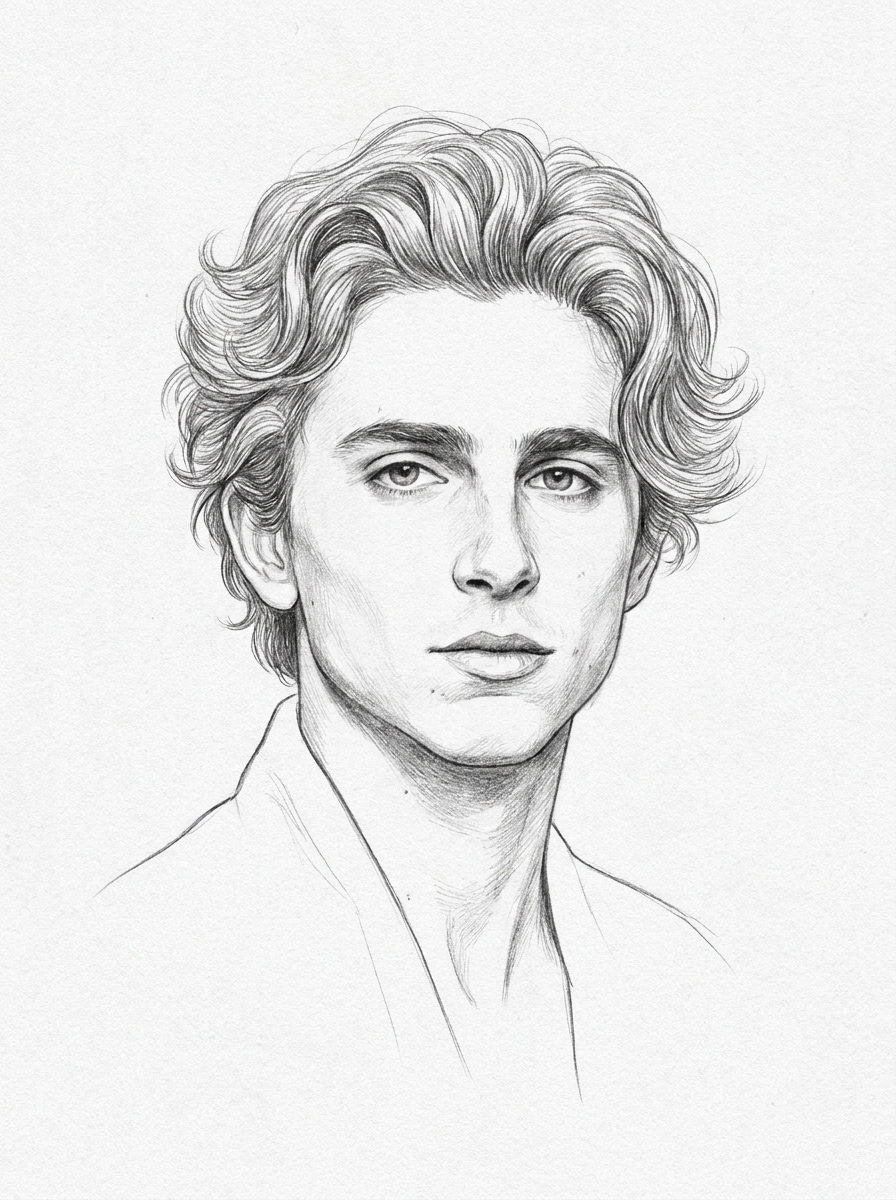
Pencil Sketch
Use the uploaded image as the subject and convert it into a refined pencil sketch with realistic graphite shading, clean contour lines, detailed hair texture, monochrome tones, subtle paper texture, preserved likeness, balanced composition, and an elegant hand-drawn portrait look with crisp clarity.
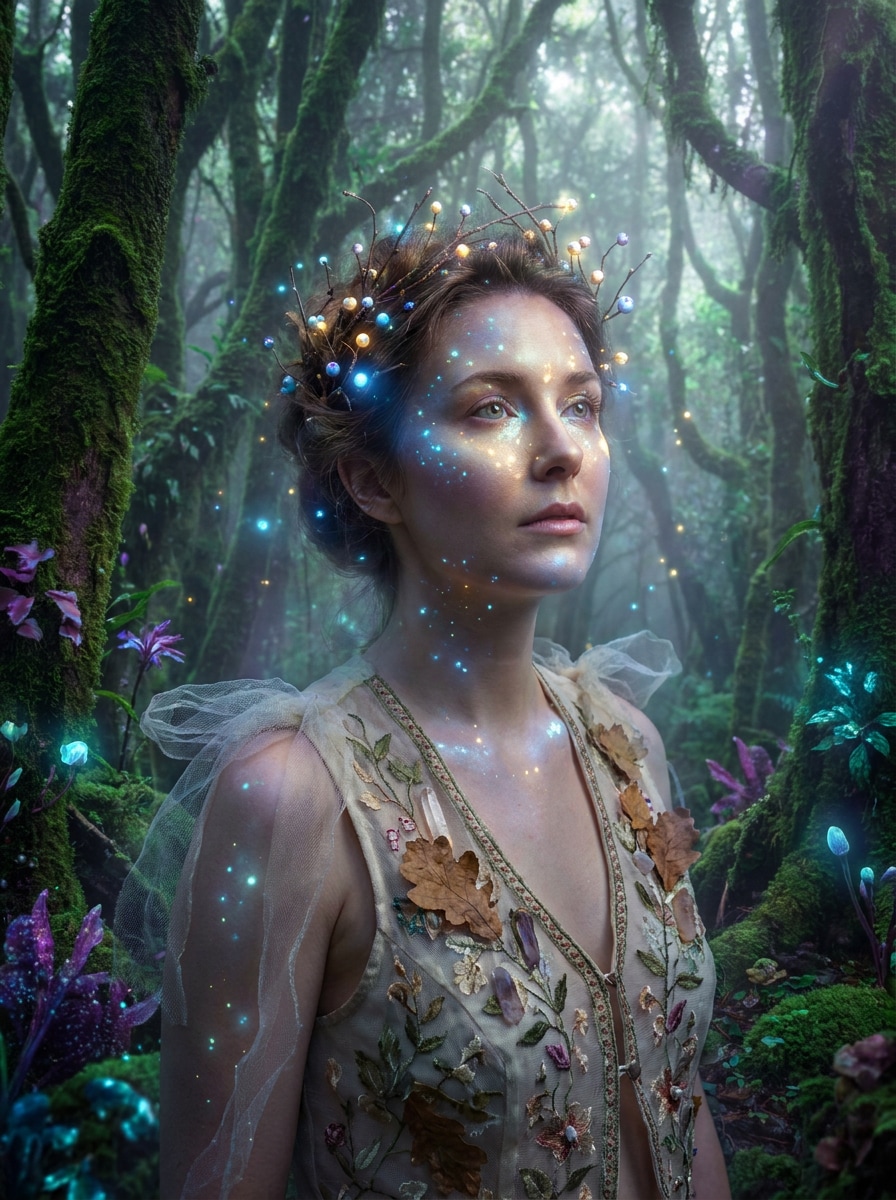
Fairy Fantasy Portrait
Use the uploaded image as the subject and give it a magical fantasy makeover with glowing particles, soft enchanted forest tones, luminous highlights, dreamy atmosphere, delicate costume accents, preserved facial features, ethereal depth, and a whimsical cinematic finish in rich greens, golds, and violet light.
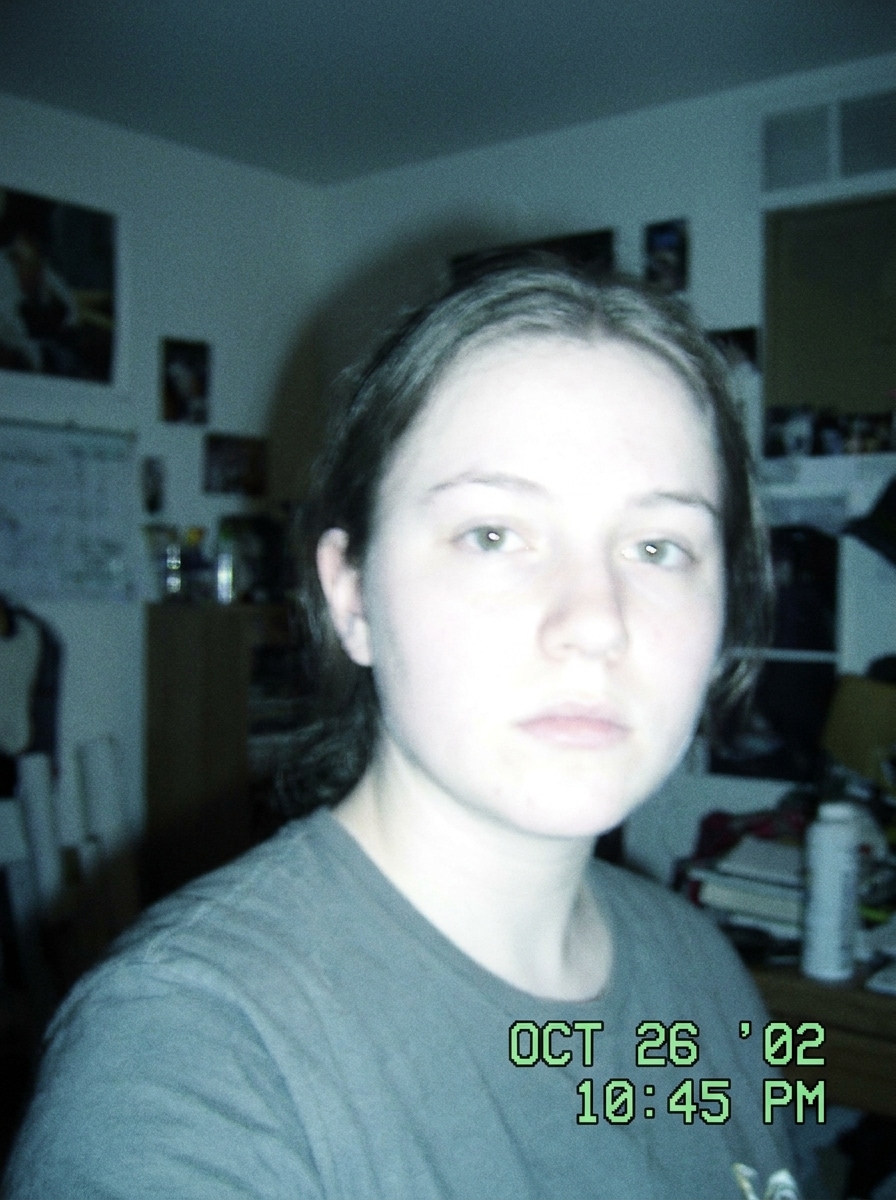
Retro Film Cam
Use the uploaded image as the subject and create a nostalgic 2000s webcam filter look with soft flash lighting, faded cool tones, subtle blur, timestamp-style mood, low-fi contrast, authentic analog grain, and a classic webcam photo filter finish that feels candid and memorable.
Why Use Media.io for Webcam Photo Transformations
Personalize Results Around a Reference Subject
From polished portraits to stylized avatars and nostalgic edits, Media.io gives you flexible image-to-image control from a single webcam capture. That helps the final image feel personalized instead of generic.
Keep Faces Recognizable While Changing the Style
A single idea often needs more than one look. Media.io helps reinterpret the same webcam filter visual across different styles so each version can better match the project brief.
Create High-Resolution Images for Real Use
When a webcam filter visual is headed for real publishing use, Media.io gives you sharper output up to 4K, which helps the image stay clear across presentations, backgrounds, and reused assets.
Edit in Your Browser Without Extra Software
Some webcam filter visual concepts get drafted on the go and finished later at a desk. Media.io keeps that process online, so you can return to the same workflow without extra installs or setup.
How to Use an AI Webcam Filter Online
Turn your words into stunning visuals in three simple steps, then continue refining the result if you want to take it further.
Step 1
Upload Your Reference Image
Upload a clear webcam photo, selfie, or portrait in JPG, PNG, or JPEG format. A well-lit source image with visible facial details gives the AI a stronger base for realistic filters, avatar looks, or vintage-style transformations.
Step 2
Describe the Change and Set Options
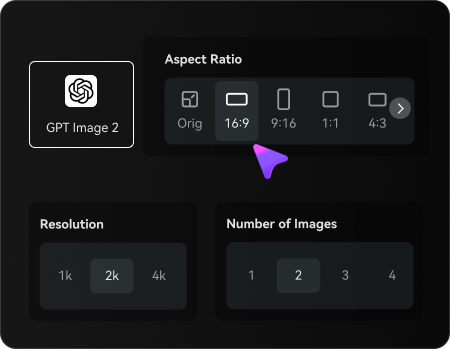
Enter the effect you want, such as a polished headshot, anime avatar, cinematic lighting, or a retro cam look. Then choose your model and adjust aspect ratio, resolution, or the number of image variations to match your goal.
Step 3
Generate, Download, and Keep Improving
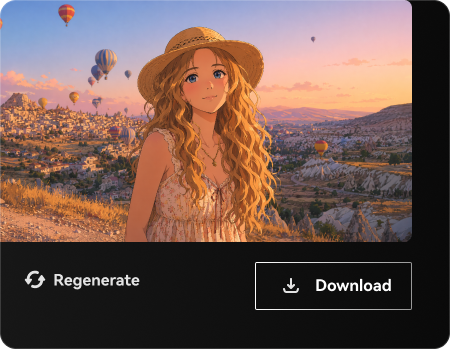
Create your filtered results, compare the variations, and download the version you like best. If needed, refine the prompt, try another style strength, or generate again until the face, mood, and finish look right.
See how creators use this webcam filter for content, marketing, and personal projects, then adapt each idea to fit the brief.
Upgrade casual webcam shots into profile-ready portraits
Turn a flat camera capture into a cleaner headshot for LinkedIn, speaker bios, portfolio pages, or team profiles. Media.io helps transform a simple webcam image into a more intentional portrait with stronger lighting and a sharper finish, without needing a reshoot.
Create nostalgic low-fi edits for social content
Build throwback visuals for TikTok, Reels, or mood-board posts with a retro cam aesthetic. Media.io is a strong fit when you want an early-digital vibe, subtle blur, and a grainy webcam photo effect that feels playful, recognizable, and close to an old desktop-camera look.
Turn selfies into character art and shareable avatars
Restyle a simple face capture into anime, fantasy, doll-box, or cinematic character imagery for profile pictures, channel branding, or creator content. Media.io makes this especially useful when you want dramatic transformation while still keeping your identity visible through the edit.
What Users Say About Media.io
Jasmine R.
Content Creator
"Perfect for quick style changes" I uploaded a basic laptop-camera photo and got several strong looks fast. The retro and anime styles were the most fun, and the face still looked like me.
Ethan L.
Freelance Designer
"Useful for social visuals" I like that I can turn one portrait into multiple formats for posts and covers. The browser workflow is simple, and the output quality is good enough for client mockups.
Monica P.
Marketing Coordinator
"Better than generic filter apps" Most filter tools feel limited, but this gave me more control over the final style. The professional headshot effect was surprisingly natural from an ordinary webcam image.
Noah T.
Student Creator
"Great for trend-driven avatars" I used it for a doll-box style profile image and a cyberpunk version for my socials. It was fast to test different prompts without installing anything.
An AI webcam filter is an image-to-image effect that takes a webcam photo or similar portrait and restyles it into a different look, such as a polished headshot, anime avatar, cinematic portrait, or retro cam aesthetic. On Media.io, you upload a reference image, describe the style you want, and generate a new version with controllable layout and resolution options.
2. How do I turn a webcam photo into an AI-styled image?
Upload your webcam photo to Media.io, then describe the look you want to create. You can guide the result with details like lighting, color mood, realism, background feel, or a style direction such as a movie-poster portrait, watercolor art, or a webcam photo filter with a retro look. Then choose your image settings and generate variations until the result matches your idea.
3. Can I use an AI webcam filter online for free?
Media.io offers free credits so you can try an AI webcam filter online before subscribing. Free usage may include watermarks, while paid plans unlock watermark-free high-resolution downloads and more generation capacity. You can compare the available options on the pricing page.
4. Which AI webcam filters create the most realistic results?
Media.io works in modern browsers on desktop and mobile, so you can create and revise designs without installing heavy software.
5. Does an AI camera filter work on phone and desktop?
Media.io is web-based, so you can use it on phones, tablets, and desktop devices as long as you have a browser. That makes it easy to create an AI portrait, an old webcam filter look, or a retro webcam-style image whether you start from a mobile selfie or a laptop camera shot.
6. How fast does an AI webcam filter generate an image?
Generation is designed to be fast, especially for a simple upload-and-transform workflow. Exact timing can vary based on the model, settings, and number of variations, but Media.io is built for quick experiments and rapid visual comparison.