AI Ocean Wave Filter for Dramatic Portrait and Photo Transformations
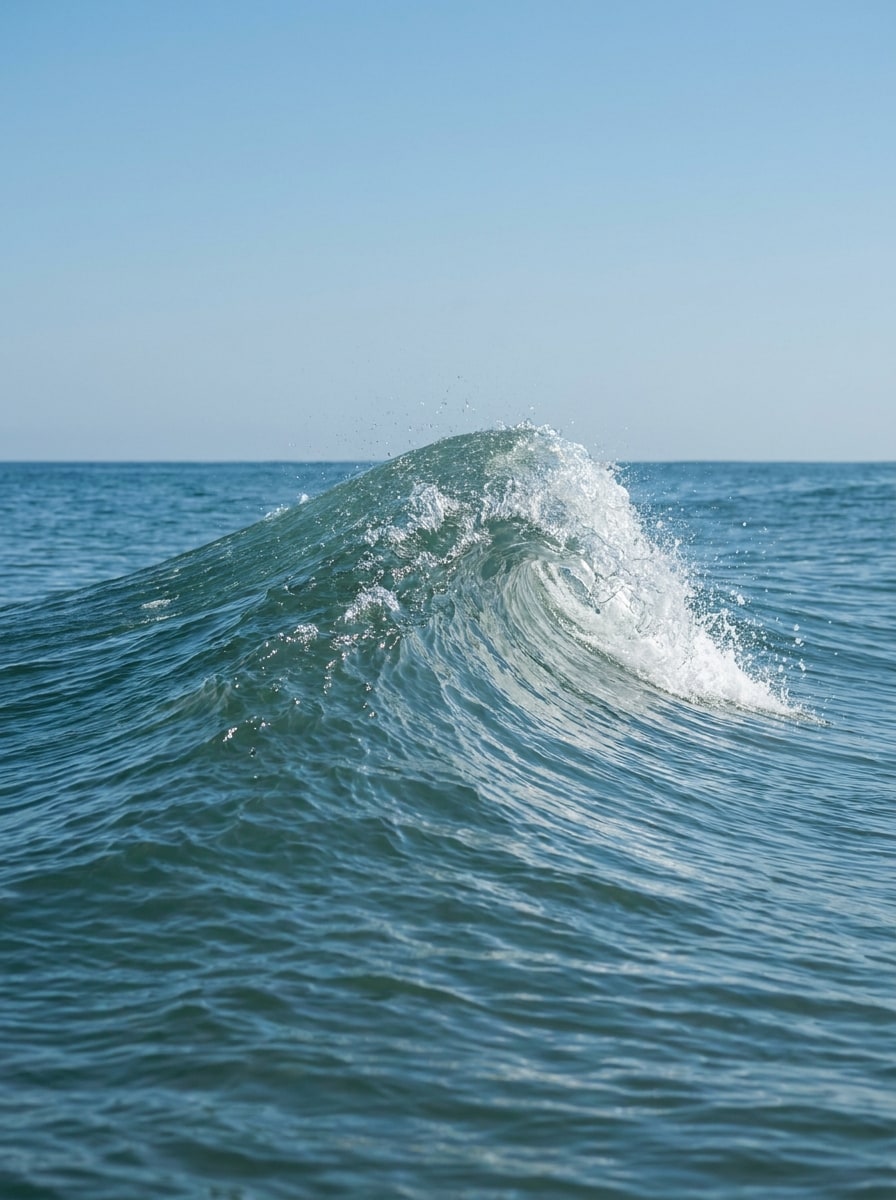
Turn portraits and photos into cinematic ocean-inspired edits with an AI ocean wave filter. Upload one image to create surfer scenes, a polished beach wave filter look, or a dreamy ocean aesthetic filter with realistic water texture, motion, and face-preserving detail. This setup works well for sea wave photo filter.
Review these example directions, then tailor the prompt details to get stronger results with this Ocean Wave Filter in Media.io.
Barrel Wave Portrait
Use the uploaded image as the main subject and transform it into a cinematic barrel wave portrait. Keep the face recognizable while blending the hair, shoulders, and clothing into translucent blue water, foamy spray, sunlit reflections, and a powerful curling wave, with dramatic contrast and crisp detail.
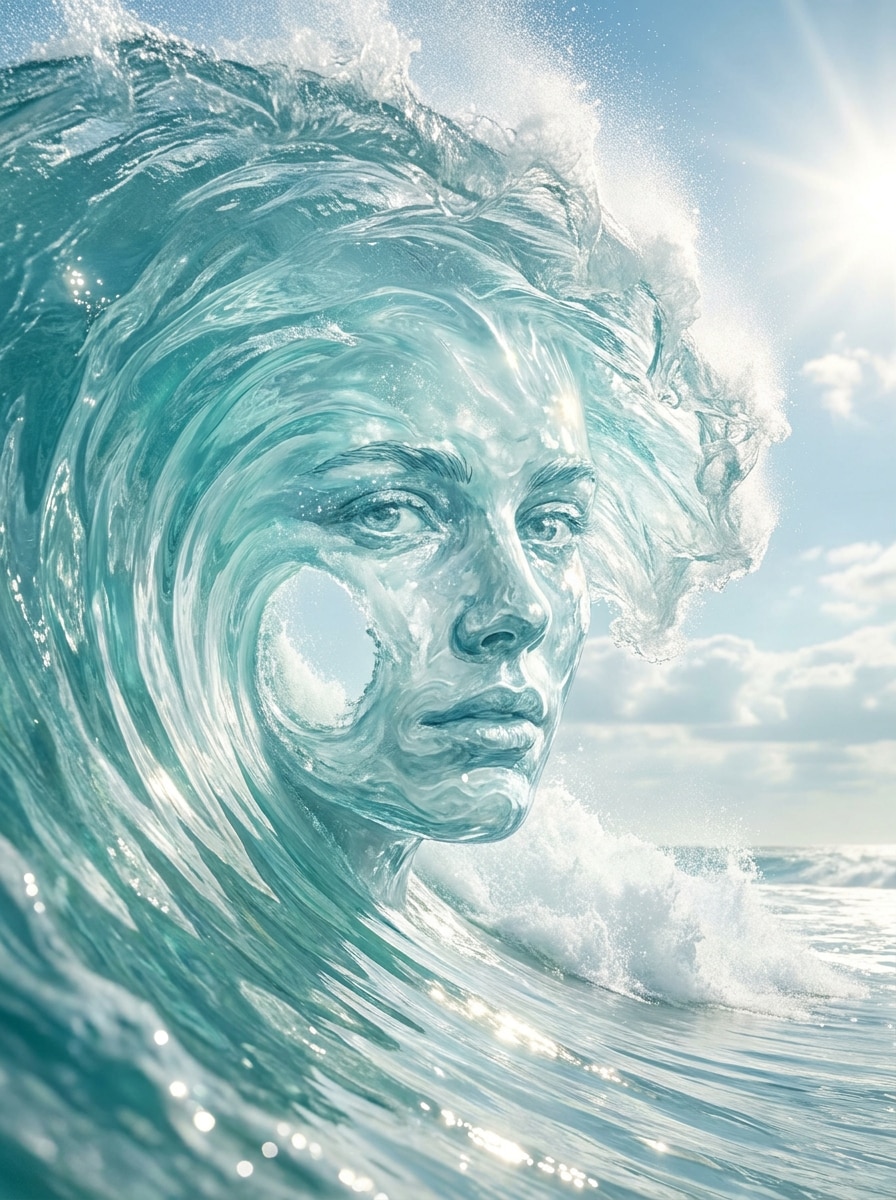
Face in the Wave
Use the uploaded portrait as the subject and reshape it into a crystal-clear wave composition. Preserve the facial structure and eyes while integrating the face inside a curling ocean wave with foam edges, fluid contours, bright sky reflections, and a clean coastal atmosphere for an elegant, surreal result.
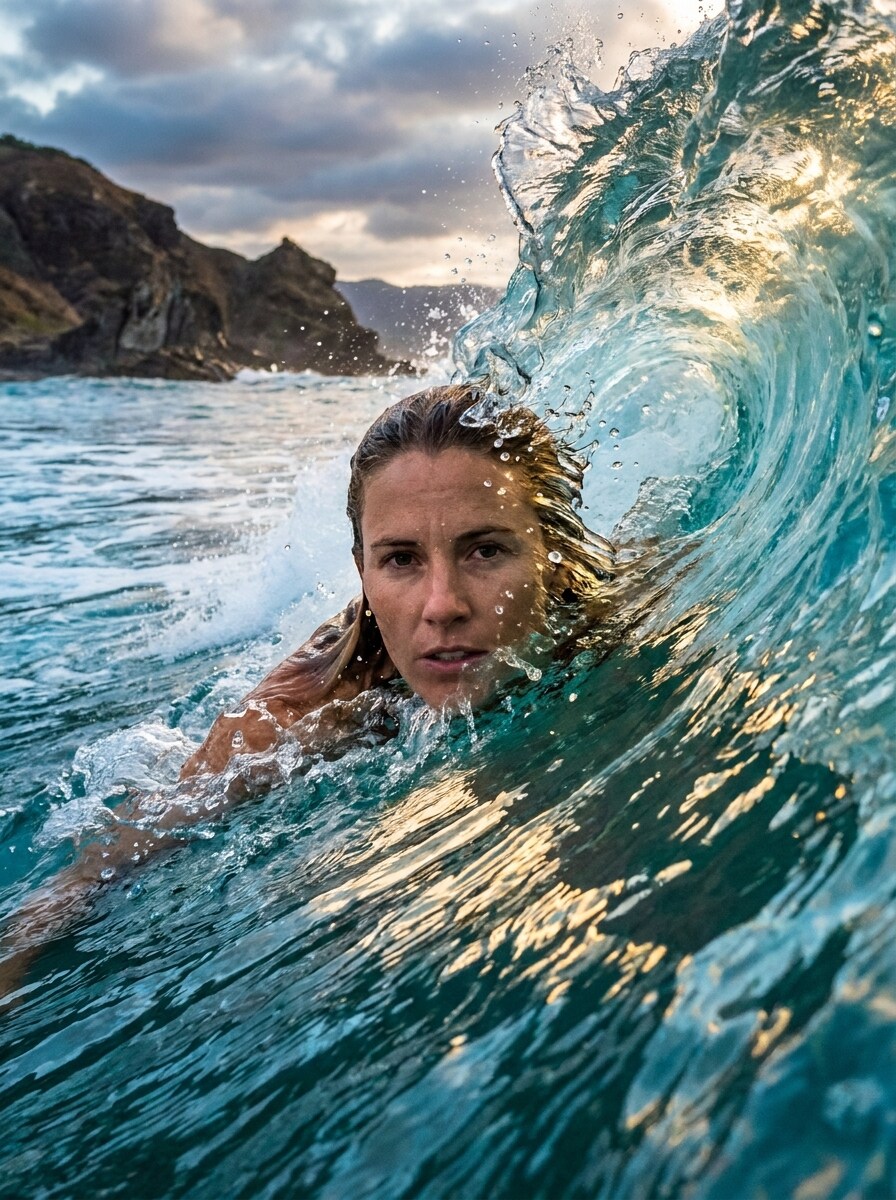
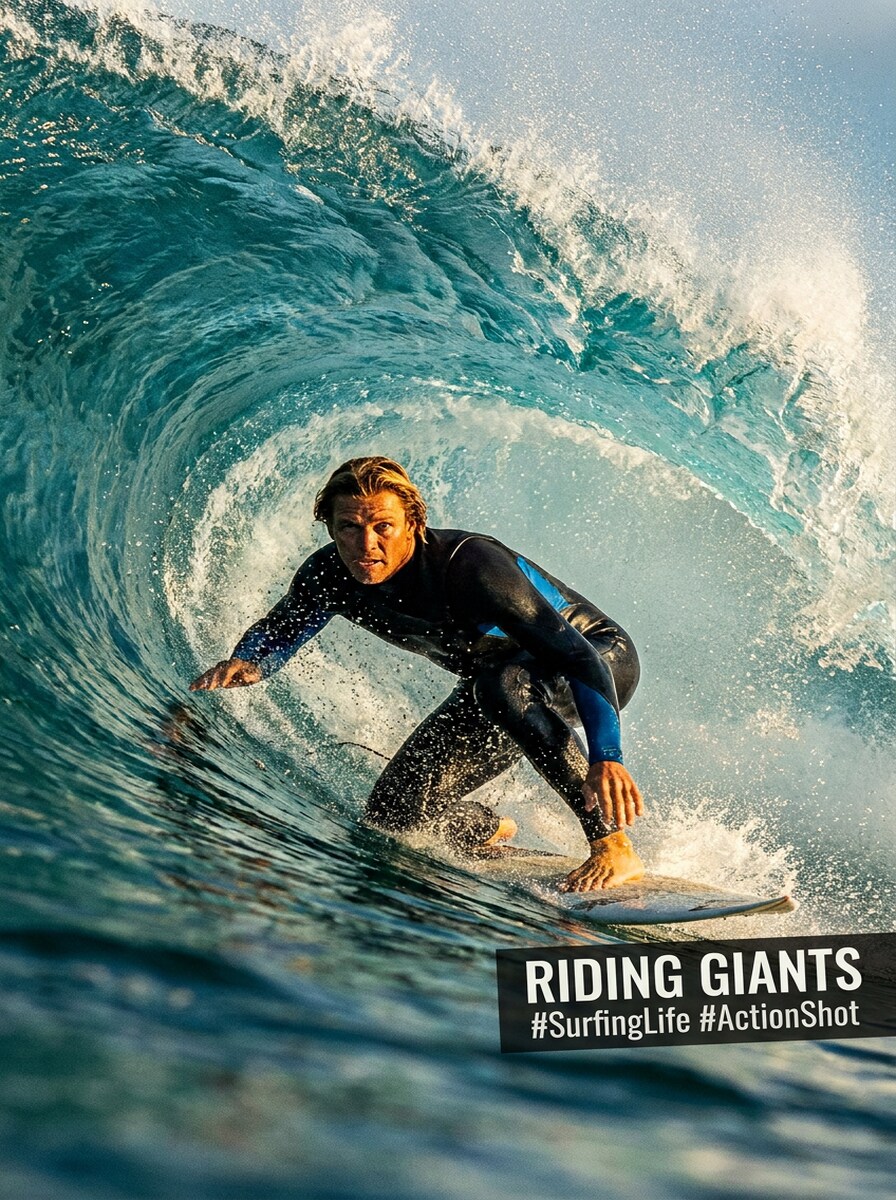
AI Surfer Filter
Use the uploaded photo as the main character and turn it into a high-energy surfing scene. Place the subject riding a massive turquoise wave with dynamic spray, athletic motion, bright sunlight, and sports-photography framing, while keeping the face recognizable and the pose natural inside the action.
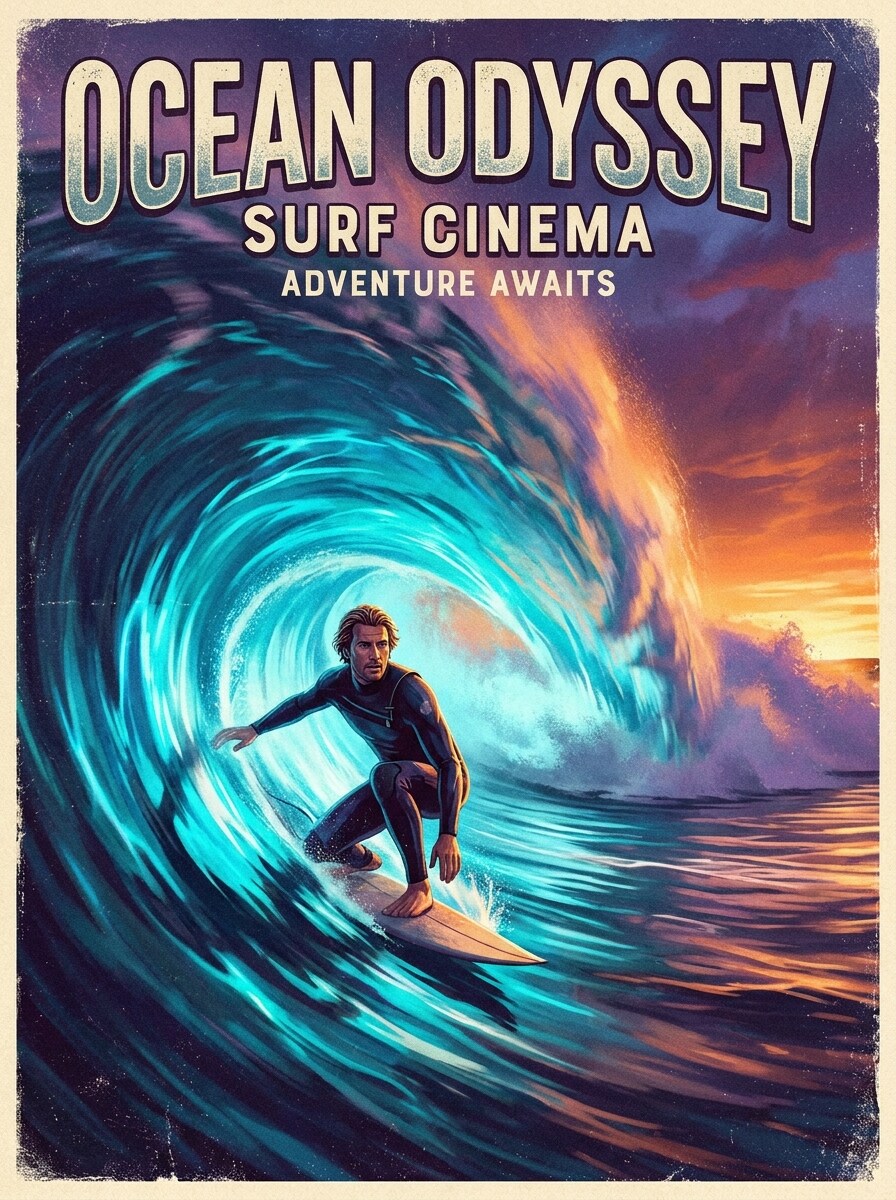
Wave Rider Fantasy
Use the uploaded image as the subject and surround it with a giant glowing wave tunnel like an extreme surf poster. Keep the person clear and recognizable, then add luminous blue tones, ocean mist, horizon light, motion blur accents, and dramatic poster-style contrast for a bold fantasy effect.
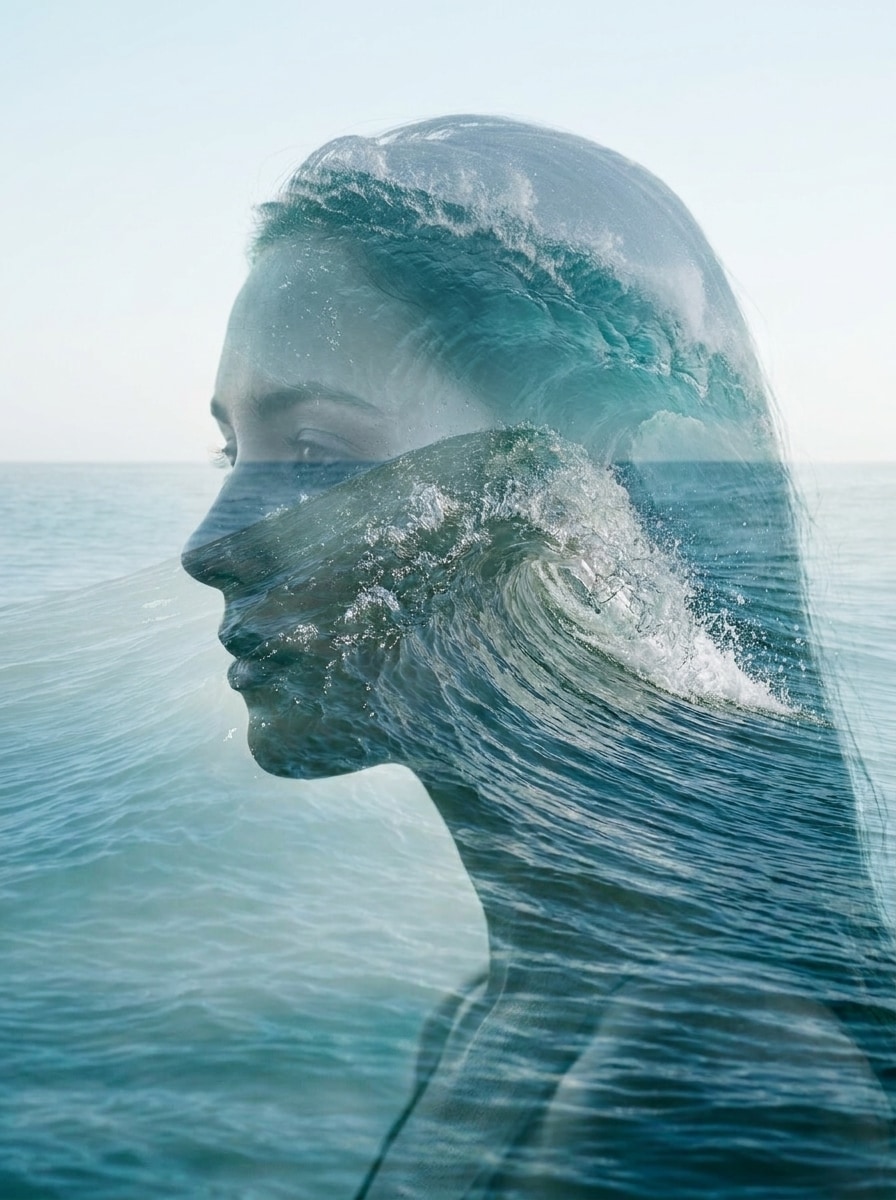
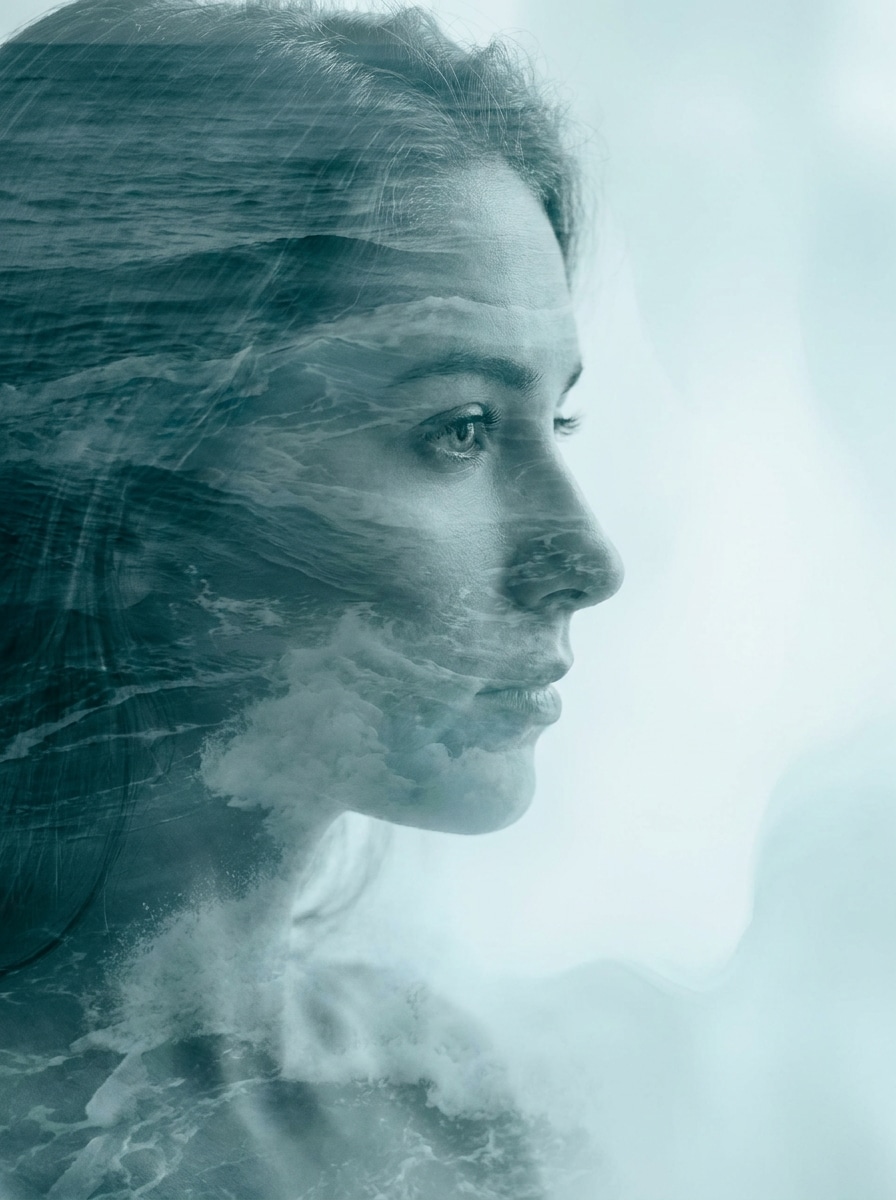
Double Exposure Ocean
Use the uploaded portrait as the base image and blend it with layered ocean waves in a refined double-exposure style. Keep facial features visible while adding sea mist, soft translucency, teal and aqua tones, and a calm fine-art mood for a polished editorial-style transformation.
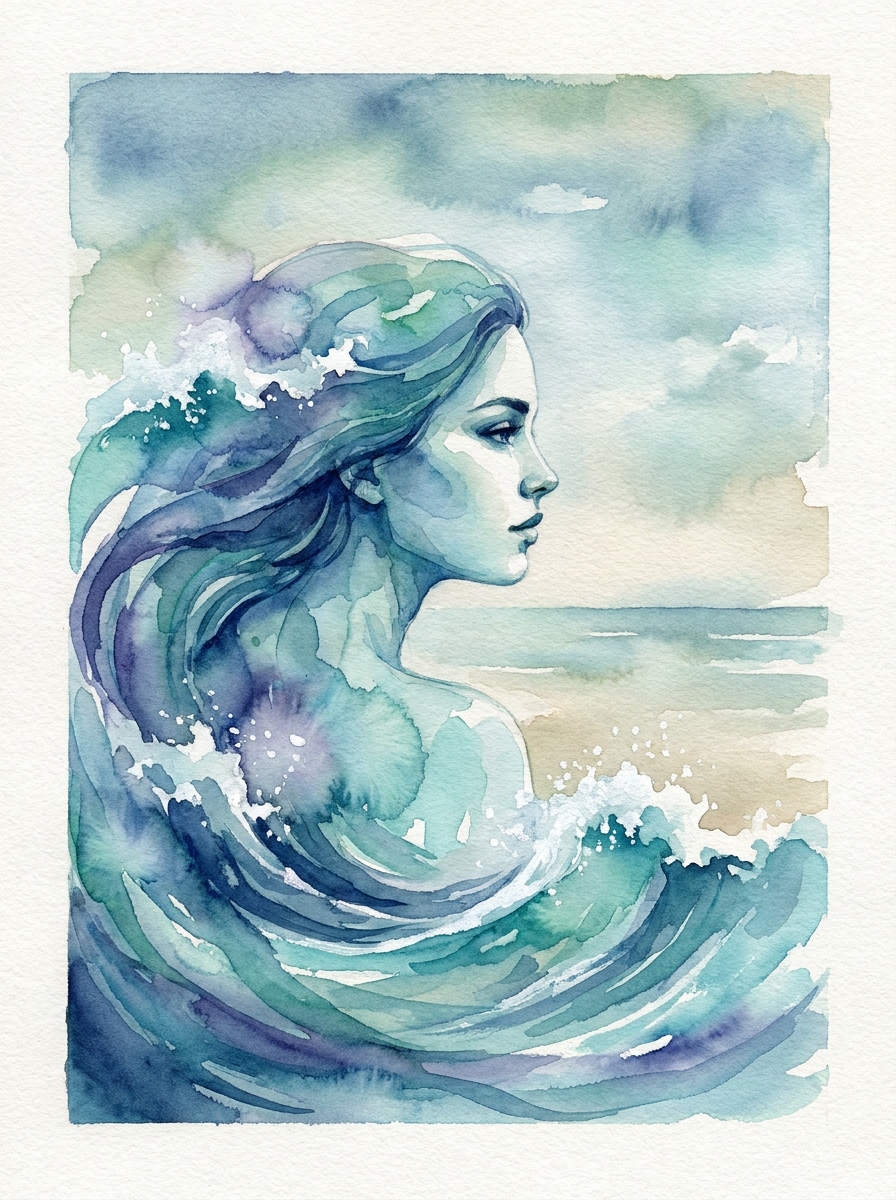
Watercolor Wave Filter
Use the uploaded photo as the subject and restyle it into watercolor ocean artwork. Preserve the person’s face and silhouette while adding flowing blue brush strokes, foamy wave forms, subtle paper texture, soft edges, and a calm coastal palette for a handcrafted artistic finish.
Mythic Sea Portrait
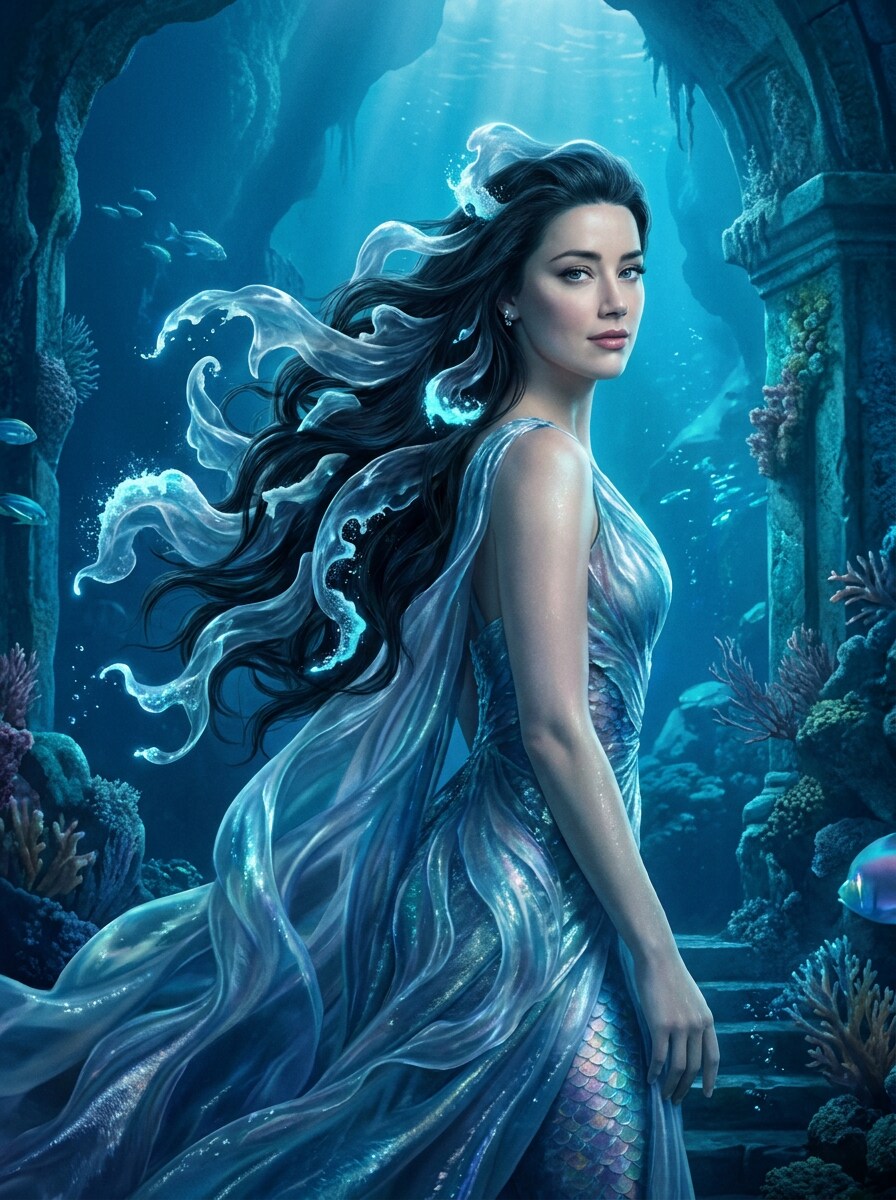
Use the uploaded portrait as the subject and transform it into a magical ocean-inspired character image. Keep the face recognizable while shaping hair and surrounding details into flowing waves, luminous sea foam, sapphire light, and a cinematic fantasy atmosphere with elegant, glossy textures.
Storm Wave Cinematic
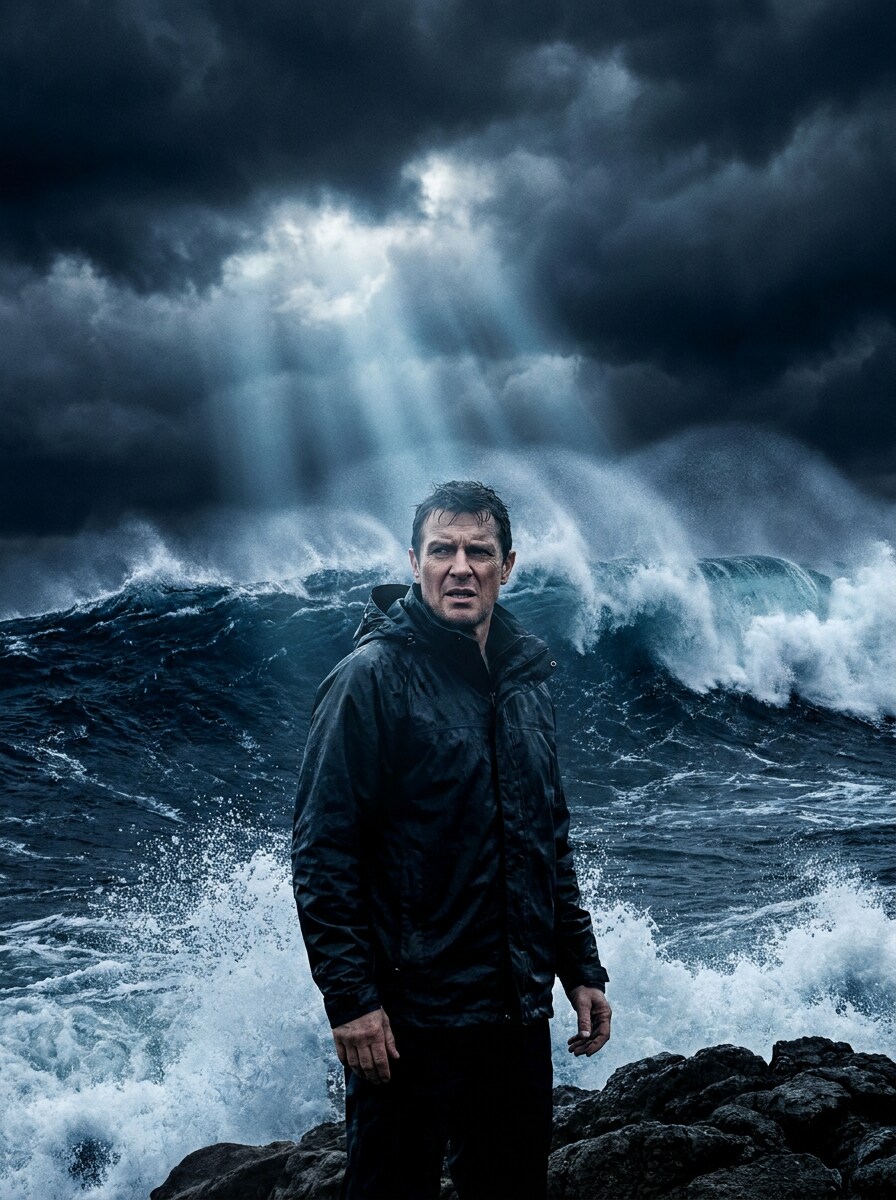
Use the uploaded image as the subject and create an intense storm-wave transformation. Preserve the face while surrounding the person with towering dark-blue waves, airborne spray, dramatic cloud light, and moody contrast for a cinematic scene that feels powerful, immersive, and realistic.
Soft Coastal Glow
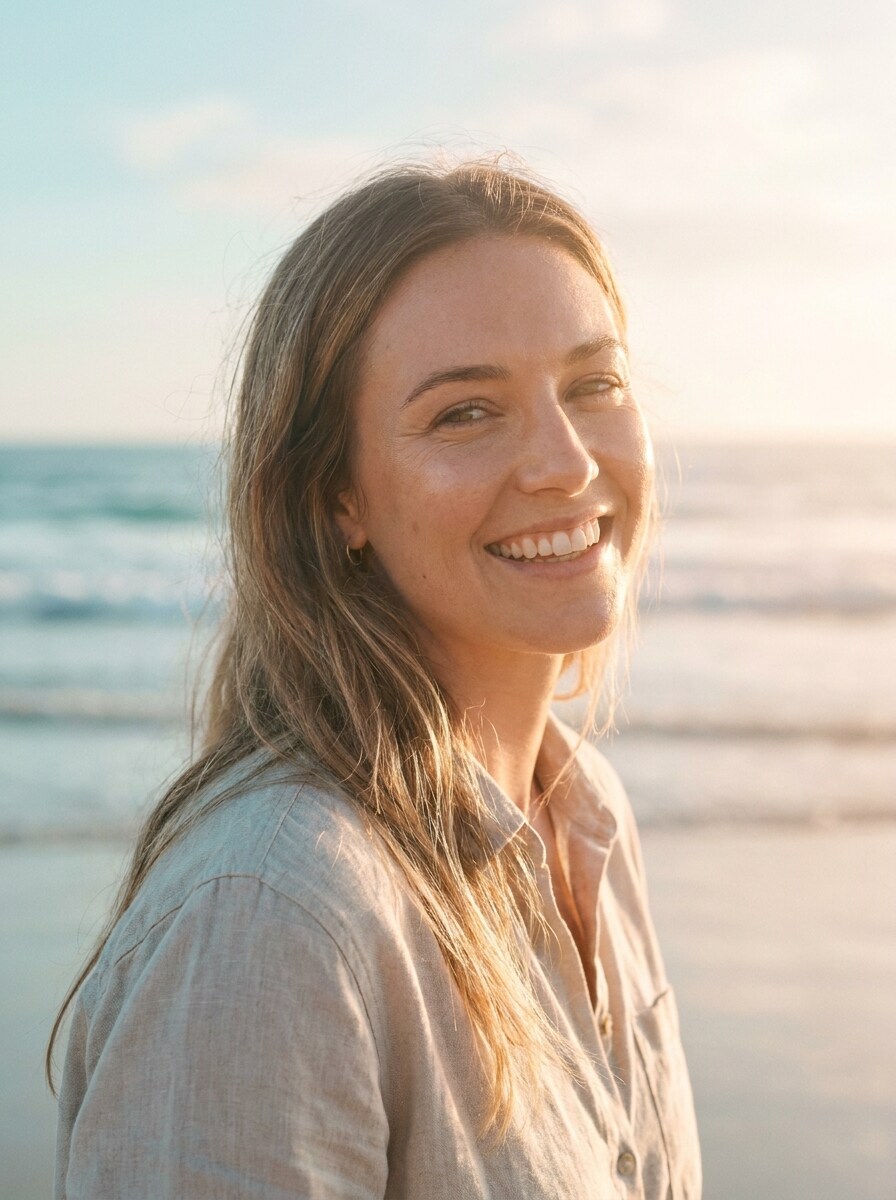
Use the uploaded portrait as the base and apply a clean ocean-inspired beauty edit. Keep skin natural and the face recognizable while adding pastel aqua tones, soft sunlight glow, subtle wave textures, airy highlights, and a refined lifestyle mood for an understated sea wave photo filter look.
Blue Lagoon Photo Effect
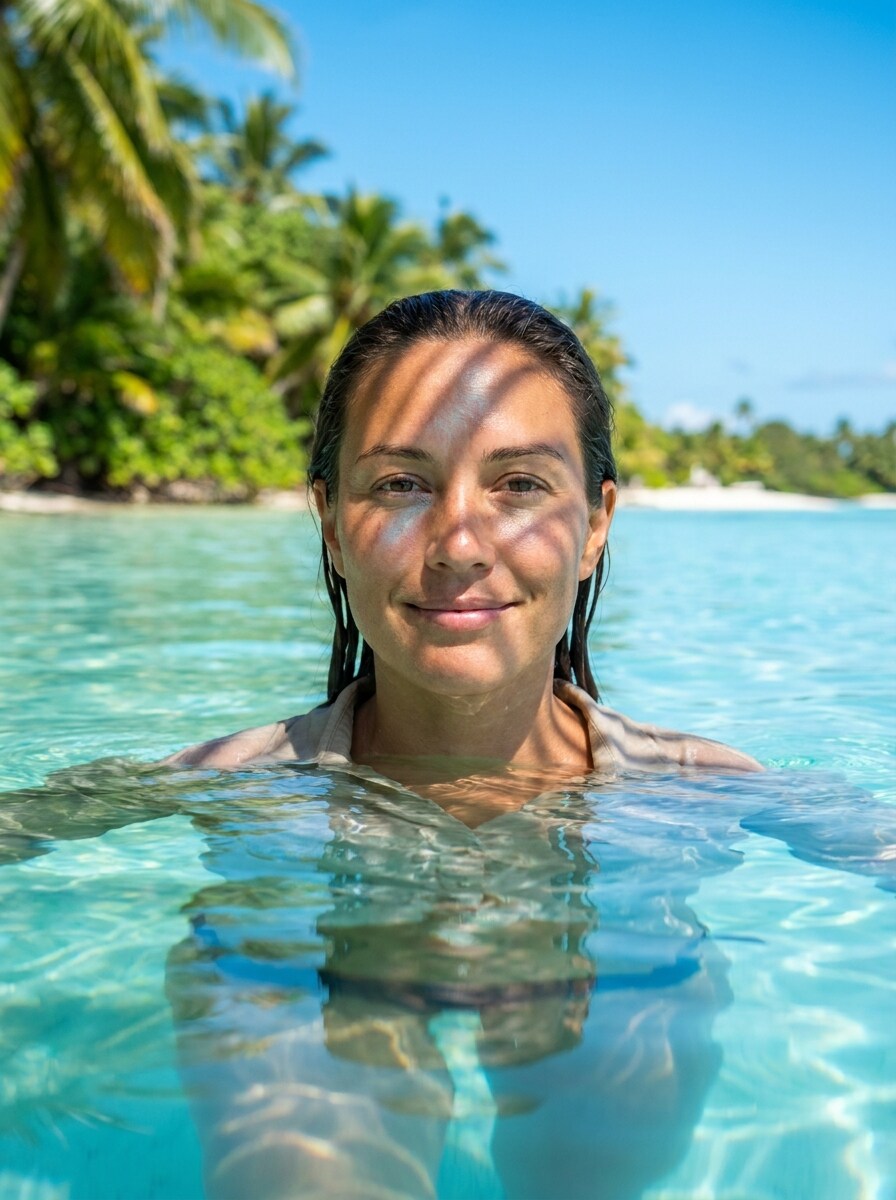
Use the uploaded image as the subject and place it inside a vivid tropical lagoon scene. Keep the person recognizable while adding clear blue water reflections, gentle wave textures, bright summer light, and crisp travel-photo styling for a refreshing, social-ready wave background filter result.
Why Use Media.io for Ocean Wave Photo Transformations
Preserve Identity While Changing the Look
For portraits, selfies, and creator headshots, Media.io lets you upload a reference image and shape it into an ocean wave photo effect while keeping the subject recognizable, so the result feels personal instead of turning into a generic ocean scene.
Switch from Soft Coastal Looks to Dramatic Surf Scenes
Different outputs call for different aesthetics. Media.io helps you explore varied treatments of the same ocean wave filter scene concept so the final visual lands in the right tone faster.
Generate Cleaner Output Up to 4K
For designs that need to go beyond a small preview, Media.io can produce sharper ocean-wave visuals up to 4K, helping your wave background filter concept stay clear and more dependable in presentations, posters, or branded content.
Work Across Devices Without Extra Installs
Some ocean wave filter scene concepts get drafted on the go and finished later at a desk. Media.io keeps that process online, so you can return to the same workflow without extra installs or setup.
How to Apply an AI Ocean Wave Filter
Turn your words into stunning visuals in three simple steps, then continue refining the result if you want to take it further.
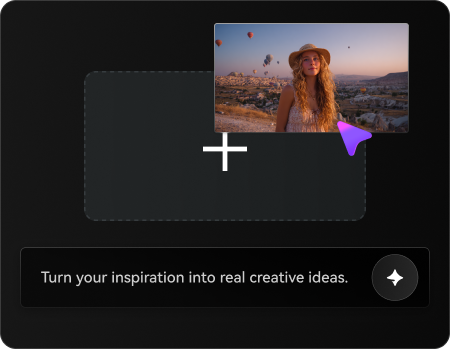
Step 1
Upload Your Reference Image
Start with a clear portrait, selfie, or full-body photo in JPG, PNG, or JPEG format. A clean source image with visible facial features and simple lighting helps the tool create more convincing surfer edits, wave overlays, and ocean-inspired transformations.
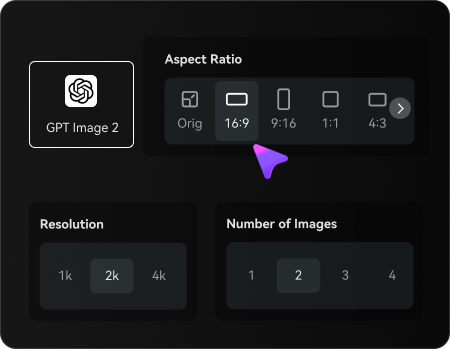
Step 2
Describe the Change and Set Options
Enter the look you want, such as a dramatic barrel wave, a dreamy wave background filter, or a tropical lagoon style. Then choose your preferred AI model and adjust aspect ratio, quality, resolution, and the number of image variations.
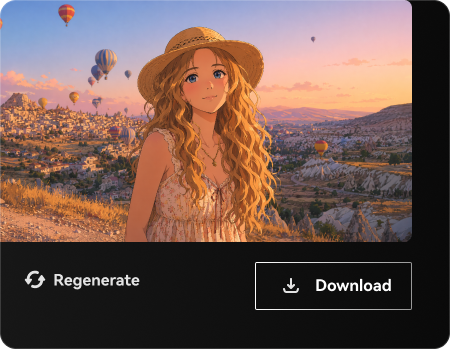
Step 3
Generate, Download, and Keep Improving
Create your wave-style images, compare the variations, and download the version you like best. If needed, refine the prompt, switch the mood from realistic to artistic, or generate new versions until the water texture, lighting, and face detail feel right.
See how creators use this Ocean Wave Filter for content, marketing, and personal projects, then adapt each idea in Media.io to fit the brief.
Turn Selfies Into Scroll-Stopping Social Edits
Transform an everyday portrait into a stylized wave scene for TikTok, Instagram, or profile updates. With Media.io, you can create anything from a polished ocean aesthetic filter look to a dramatic surf-inspired visual that keeps your face clear while adding motion and ocean texture.
Create Surfer Posters and Coastal Mood Art
Design eye-catching visuals for moodboards, wallpapers, posters, or digital covers by blending people with giant waves, sea mist, and cinematic blue lighting. Media.io makes it easy to build coastal artwork or a striking wave background filter style that feels more custom than a standard preset.
Refresh Travel and Summer Content With Ocean Atmosphere
Upgrade vacation shots, beach portraits, or lifestyle photos with a bright lagoon scene or a subtle beach wave filter finish. Media.io works well for creators, brands, and hobbyists who want breezy color, soft water reflections, and a stronger coastal identity in their images.
What Users Say About This Wave Effect Tool
Maya R.
Content Creator
"Perfect for viral portrait edits" I uploaded a simple selfie and got a dramatic wave portrait in minutes. The face stayed recognizable, and the water textures looked much better than the filter apps I tried before.
Jordan T.
Social Media Designer
"Great control over style and framing" I liked being able to switch between a soft ocean look and a more cinematic surf scene. The aspect ratio options made it easy to create both story-sized content and wallpaper-style images.
Elena P.
Lifestyle Blogger
"Fast and surprisingly polished" The results felt clean and high quality, especially for tropical and dreamy beach edits. I used it on mobile first, then finished downloads on desktop without any extra setup.
Chris L.
Digital Artist
"Useful for both realistic and artistic wave art" What stood out to me was the range. I could make a double-exposure ocean portrait, then test a storm-wave concept from the same photo. It saves a lot of time when exploring ideas.
An AI ocean wave filter is an image-to-image editing effect that transforms an uploaded photo into ocean-inspired artwork or realistic wave-based scenes. With Media.io, you can use a reference image to create portraits with wave textures, surfer-style action, soft coastal color grading, or layered water effects while keeping the original subject as the visual guide.
2. How do I turn a photo into an ocean wave effect?
Upload a JPG, PNG, or JPEG photo to Media.io, then describe the wave style you want, such as a dramatic barrel wave portrait, a tropical blue-water look, or a soft coastal edit. After that, choose your model and settings, generate the image, and refine the prompt if you want a different mood, composition, or level of realism.
3. Can I use this AI wave filter for portraits and selfies?
Media.io is well suited for portraits and selfies because it uses your uploaded image as the reference for the transformation. That makes it useful for face-preserving wave edits, artistic ocean portraits, and surfer-inspired visuals where you still want the person to remain recognizable.
4. Is the AI ocean wave filter free to try?
Free users can try Media.io with free credits before deciding whether they need more generation volume. If you want additional usage or watermark-free downloads, you can compare plans on the pricing page and upgrade for more credits and higher-resolution exports.
5. How realistic are the ocean wave results?
The realism depends on your source image, prompt, and selected model, but Media.io supports advanced image-to-image models that can produce convincing water texture, foam detail, lighting, and wave motion. You can also steer the look toward fantasy, fine-art, or clean lifestyle styling if you do not want purely photorealistic results.
6. Will my edited image be high resolution?
Media.io offers resolution options including 1K, 2K, and 4K, so you can create outputs that work for social sharing, wallpapers, posters, and other creative projects. Higher resolution is especially helpful when you want wave texture, spray detail, and facial features to stay sharp, though free users may have watermarks.