Creations are stored for only 7 days. Assets created after upgrading to a Membership plan will be stored permanently.
Unlock your creative potential and experience the magic of Media AI right away!
Applica un filtro fotografico a infrarossi per trasformazioni surreali simili alla fotocamera
Trasforma un'immagine normale in una foto in stile infrarosso con vegetazione luminosa, cieli scuri e contrasto cinematografico. Media.io ti permette di creare un realistico filtro fotografico a infrarossi aspetto, dal bianco e nero IR a filtro infrarosso a falsi colori stili, velocemente su desktop o cellulare.
Scrivi la tua idea -> l’IA la realizza. Provalo gratis.
Consulta questi esempi di istruzioni, poi adatta i dettagli del prompt per ottenere risultati migliori con questo filtro foto a infrarossi.
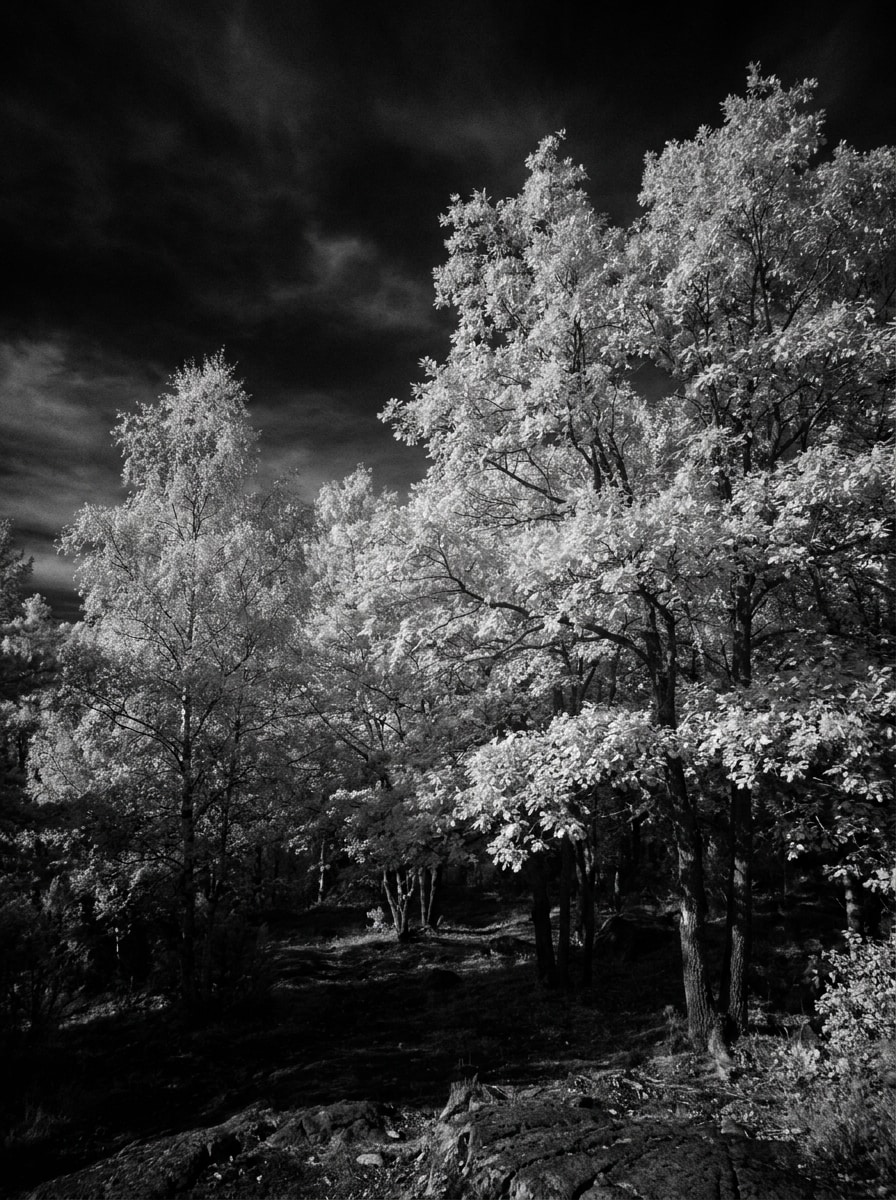
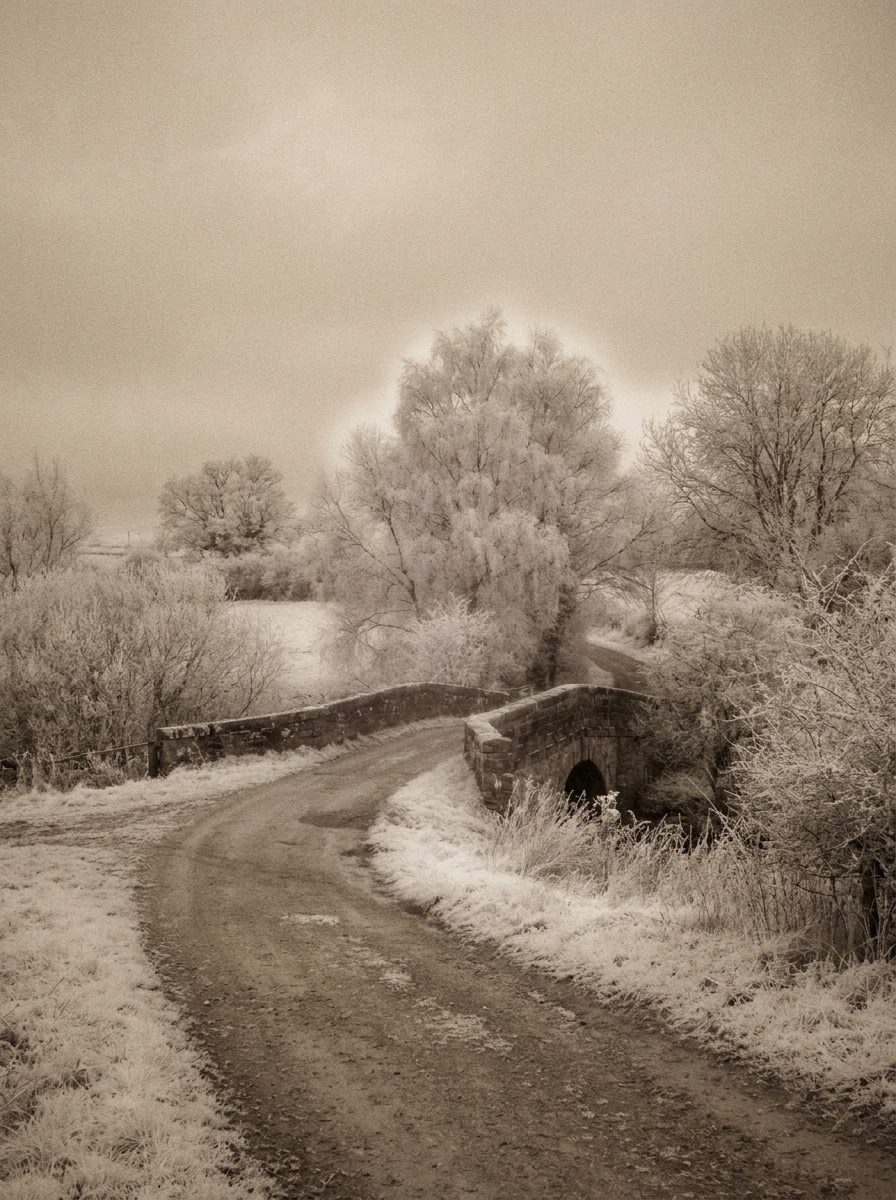
Infrarossi bianco e nero
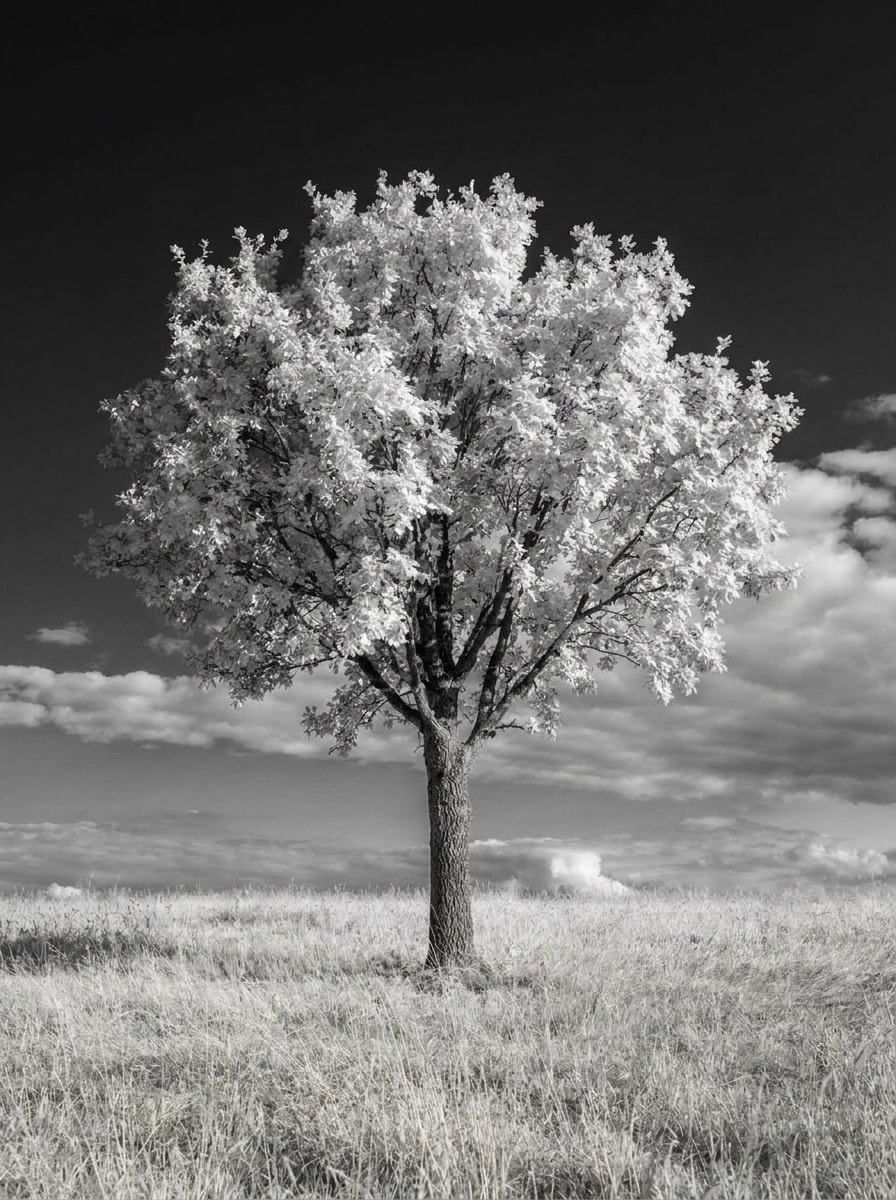
Usa l’immagine caricata come soggetto e trasformala in una classica foto paesaggistica a infrarossi in bianco e nero. Crea fogliame bianco luminoso, cieli scuri intensi, forte contrasto tonale, dettagli dei bordi nitidi, consistenza fotografica realistica, esposizione bilanciata e un’atmosfera artistica senza tempo con profondità naturale.
Infrarossi a Contrasto Profondo
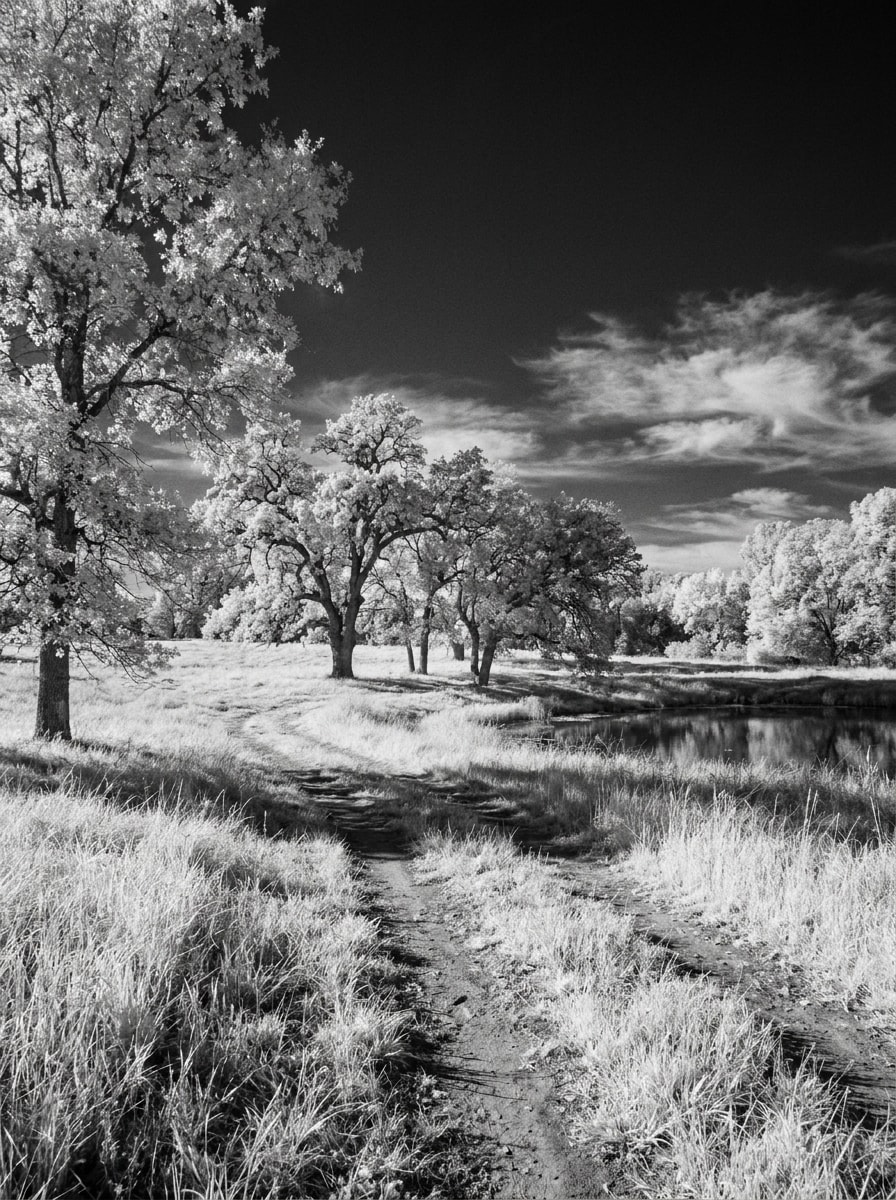
Usa la foto all’aperto caricata come base e applica un look drammatico da fotocamera a infrarossi. Rendi il fogliame brillante e luminoso, approfondisci il cielo fino a una tonalità carbone intensa, aumenta la separazione tonale, conserva la direzione della luce realistica e aggiungi dettagli nitidi per un risultato audace in stile galleria.
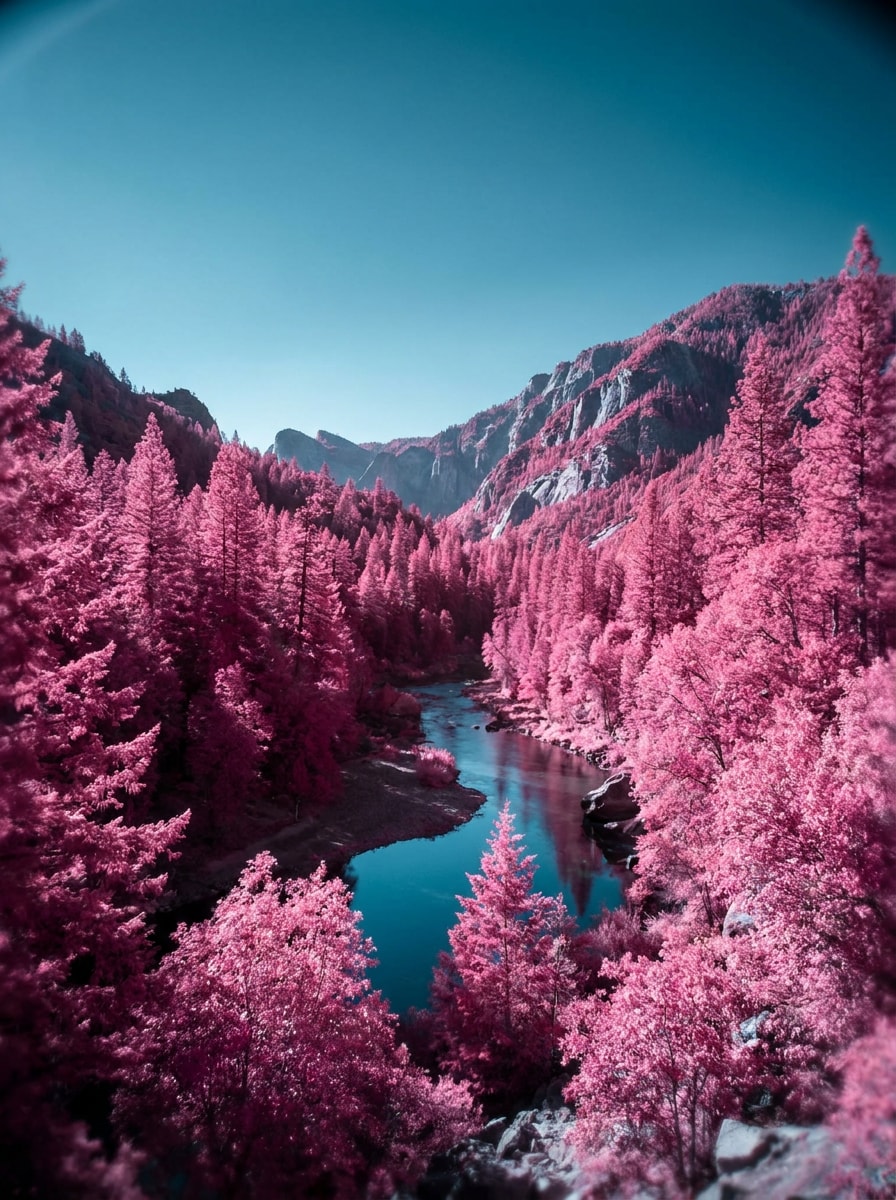
Fogliame Rosa IR
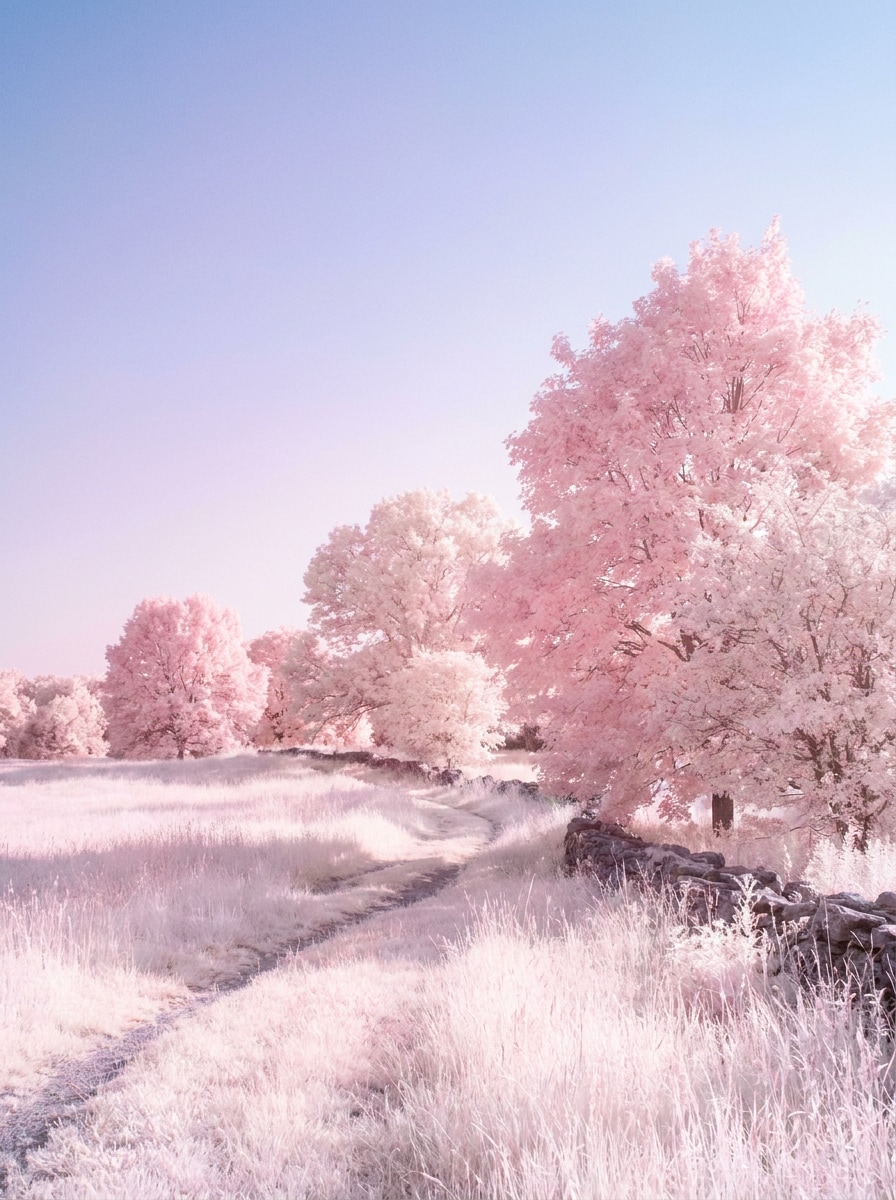
Usa l’immagine caricata come soggetto e convertila in una vivida scena a infrarossi a falsi colori. Trasforma alberi e piante in tonalità rosa e magenta, mantieni il cielo in ciano-blu freddo, preserva realistici punti luce e ombre, e crea un’atmosfera surreale ma fotografica all’aperto con dettagli nitidi.
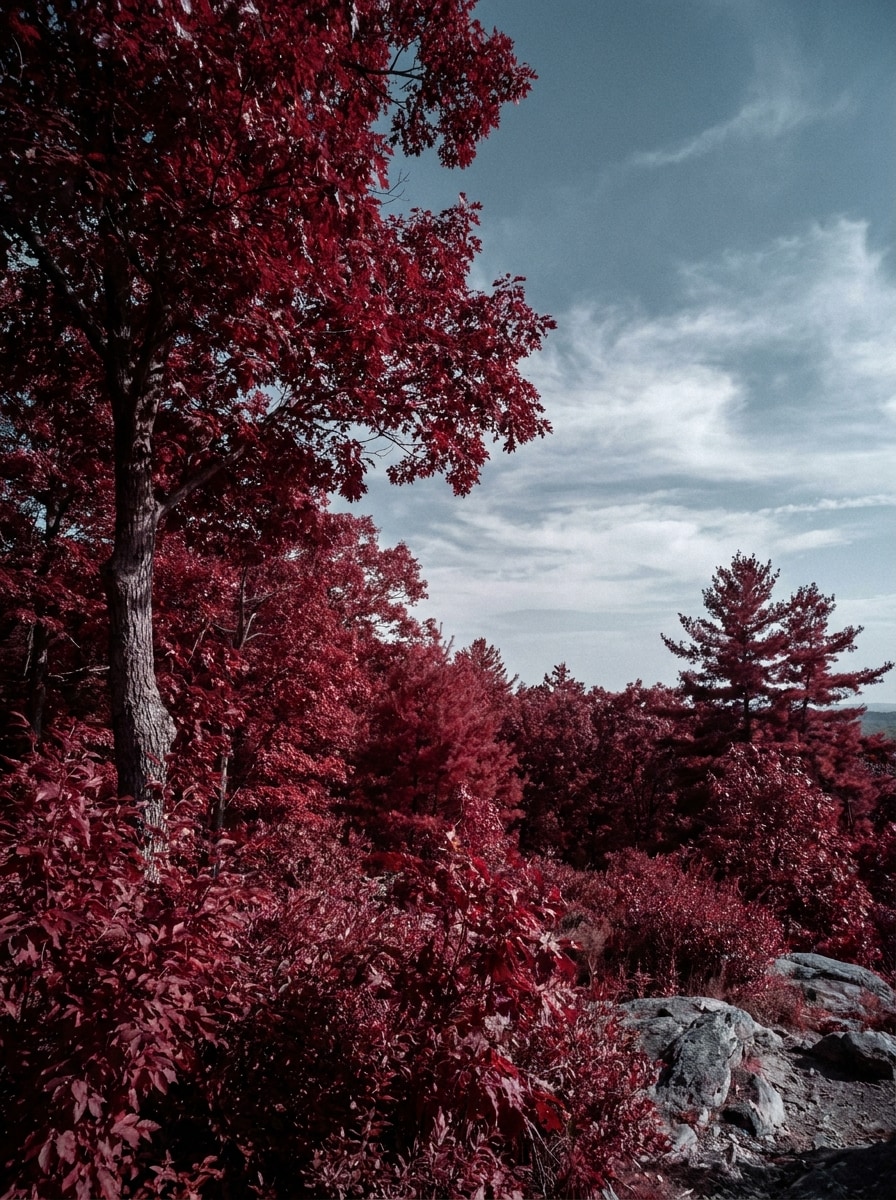
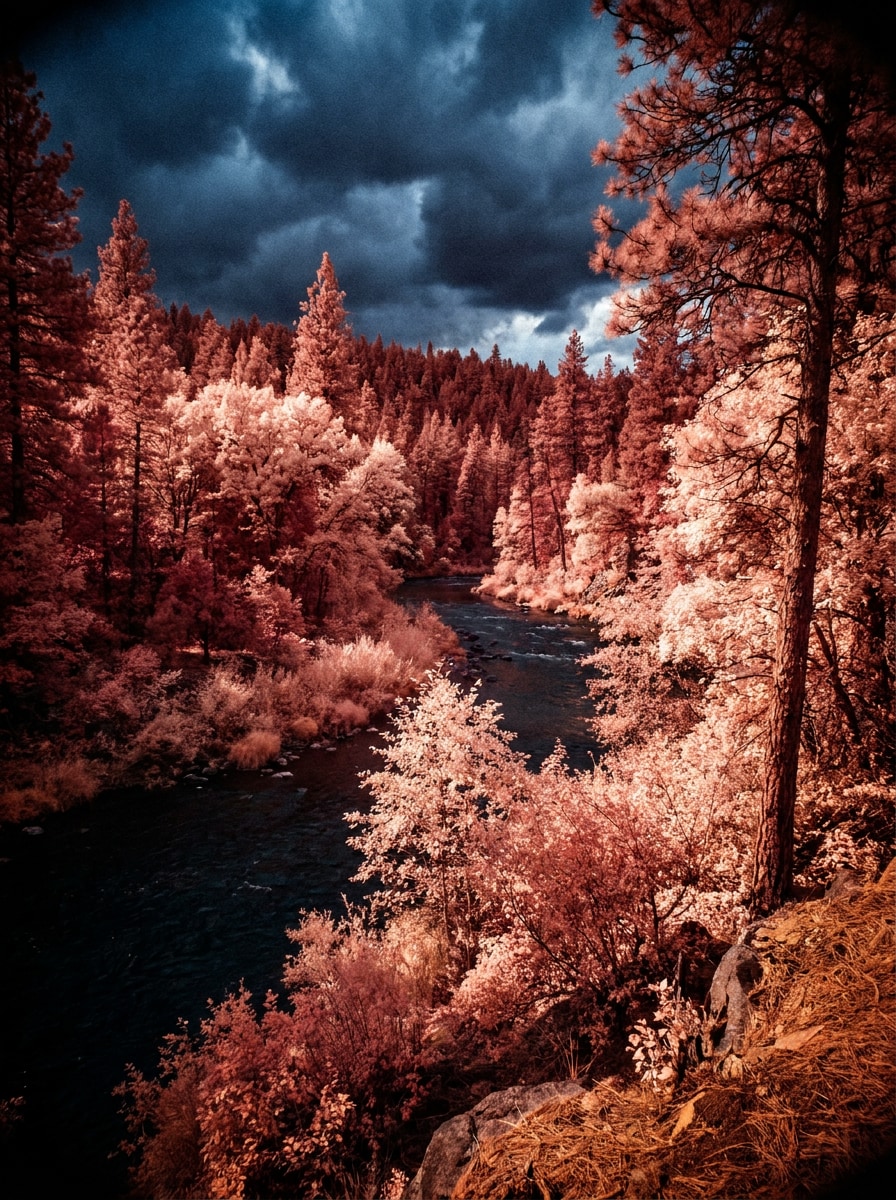
Fogliame Rosso IR
Utilizza l’immagine esterna caricata e applica una trasformazione a infrarossi con canale rosso intenso. Rendi la vegetazione in ricche tonalità cremisi e scarlatte, separa il cielo con blu smorzati più freschi, mantieni le ombre credibili e conserva dettagli realistici per una fotografia naturalistica drammatica e artistica.
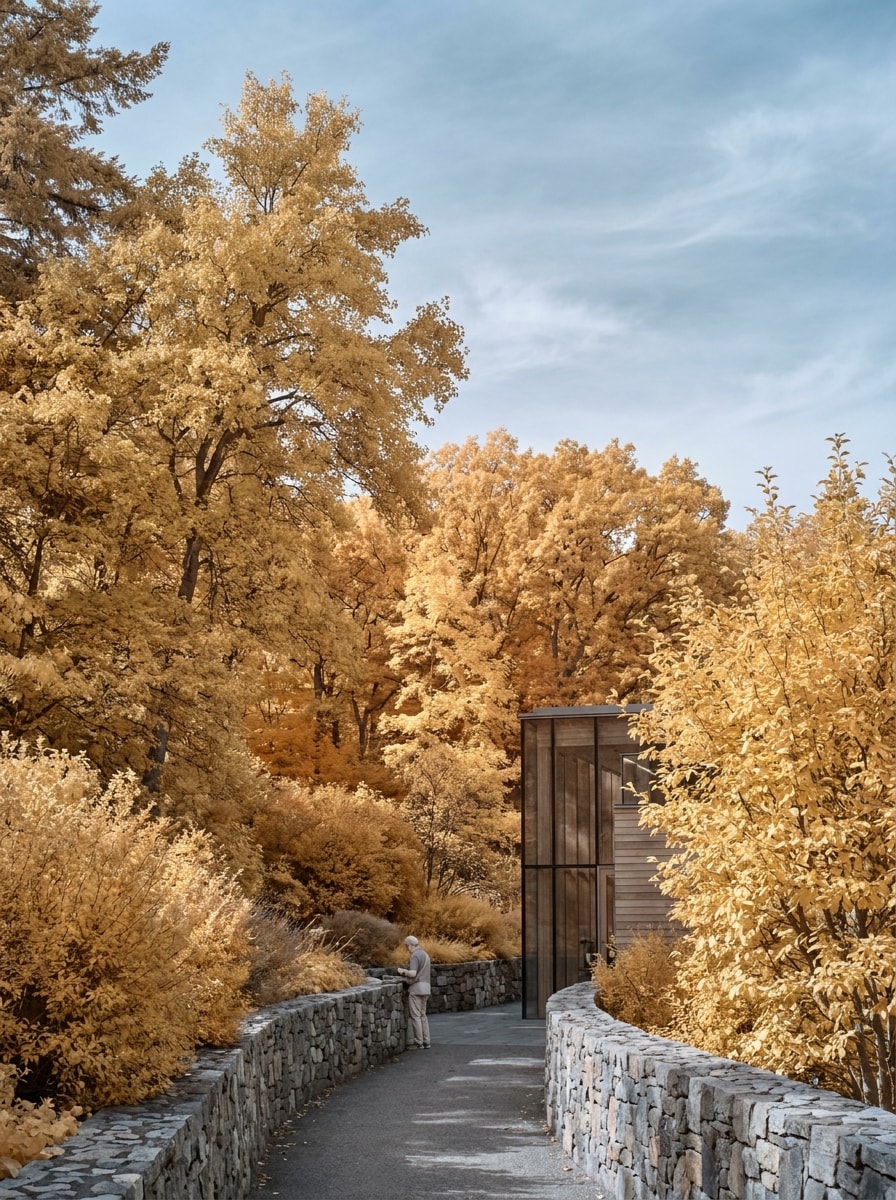
Look IR Chrome Giallo
Usa l’immagine caricata come riferimento e trasformala in una modifica a falsi colori ispirata alla IR chrome. Rendi il fogliame caldo giallo e oro, mantieni il cielo di un azzurro delicato, conserva luce e texture realistiche e crea una foto artistica raffinata con transizioni morbide e un richiamo visivo moderno.
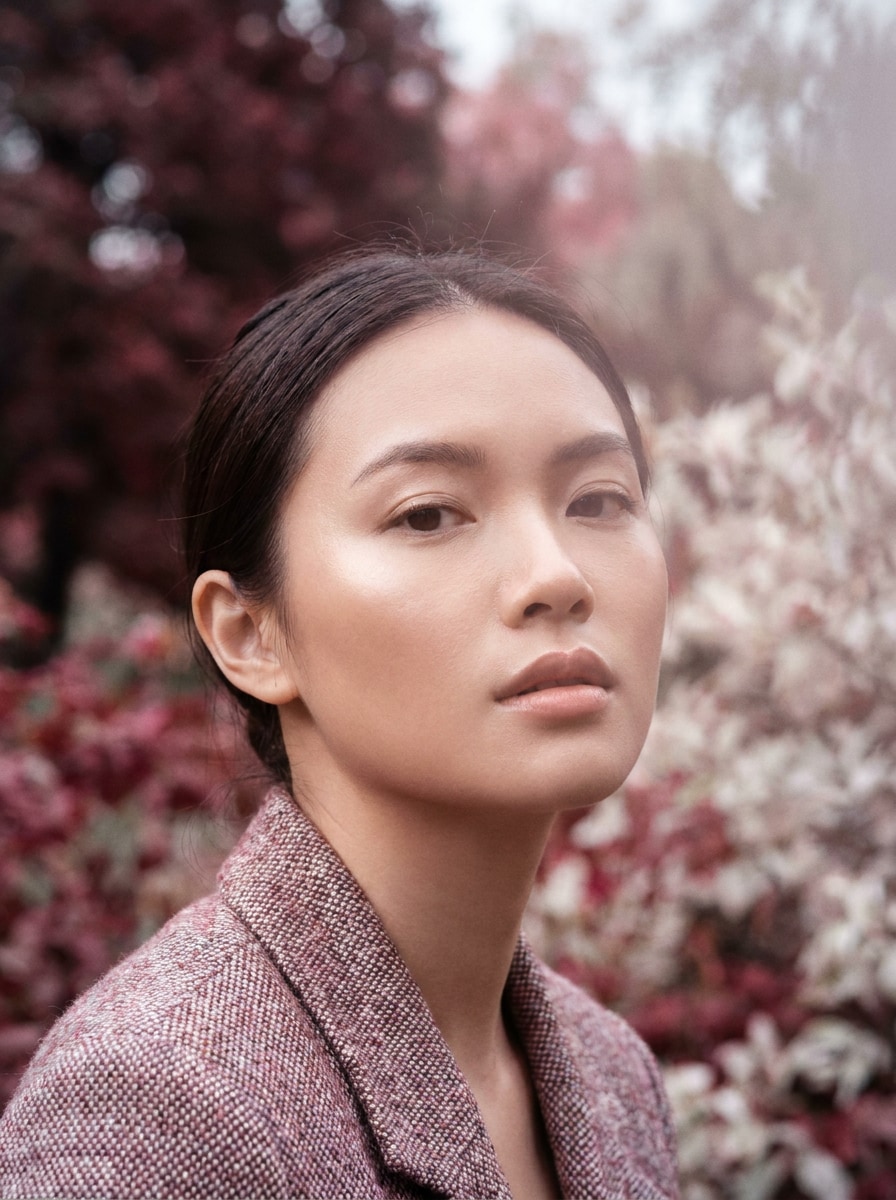
Ritratto a Infrarossi Pelle Morbida
Usa il ritratto caricato come soggetto e applica un filtro cinematografico per ritratti a infrarossi. Mantieni i lineamenti realistici, rendi la pelle luminosa e morbida, desatura delicatamente lo sfondo, controlla il contrasto e aggiungi illuminazione editoriale premium per un risultato elegante da filtro infrarossi per ritratti.
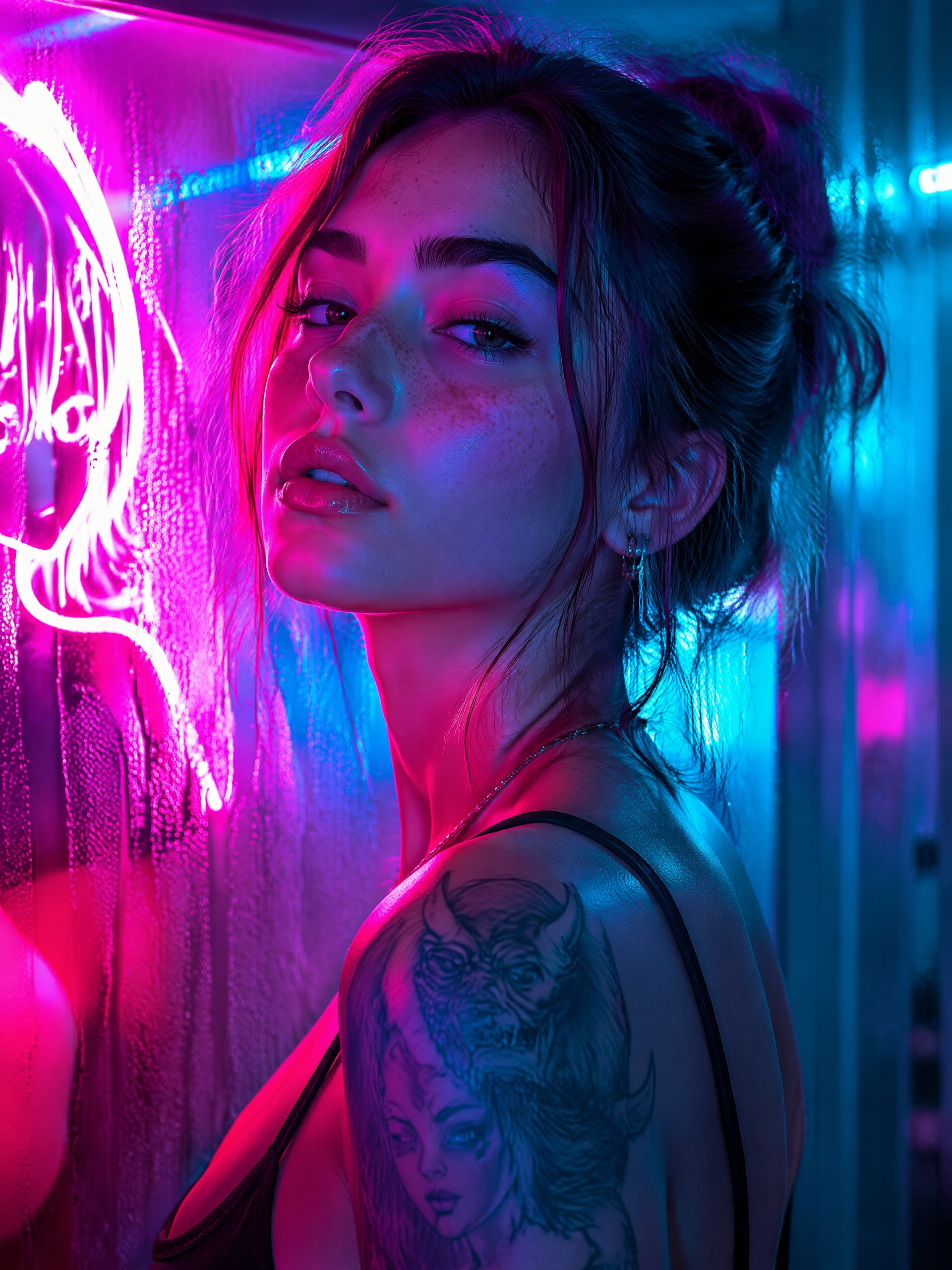
Ritratto Neon Surreale IR
Usa il ritratto caricato e trasformalo in un’immagine stilizzata a infrarossi neon. Mescola toni magenta e ciano nella scena, aggiungi punti luce luminosi, aumenta il contrasto, preserva l’identità del volto e crea un ritratto surreale ma raffinato, pronto per i social, con un tocco di moda vibrante.
Grana da pellicola a infrarossi
Usa la foto caricata come sorgente e ricrea un mood da pellicola analogica a infrarossi. Schiarisci il fogliame verso il bianco, ammorbidisci la nitidezza digitale, aggiungi una sottile grana e alone, mantieni il contrasto naturale ma distinto e produci un look fotografico nostalgico con texture realistica e sfumature tonali morbide.
Look Filtro Rosso Intenso
Usa l’immagine caricata come base e simula un filtro stile infrarossi rosso intenso. Arricchisci la vegetazione con toni di rosso caldo, scurisci le zone più fredde, preserva il realismo generale e aggiungi un tocco analogico sottile per far sembrare la foto il risultato di una trasformazione drammatica effettuata con filtro fotografico.
Infrarossi Estivi Sognanti
Usa la foto estiva caricata e trasformala in una modifica a infrarossi da sogno con atmosfera ariosa. Fai brillare alberi ed erba di bianco o rosa pastello, ammorbidisci il gradiente del cielo, addolcisci le luci e crea un’immagine elegante e condivisibile con fresca separazione cromatica stagionale.
Perché usare Media.io per modifiche foto in stile infrarossi
Trasforma Foto Normali in Immagini IR Velocemente
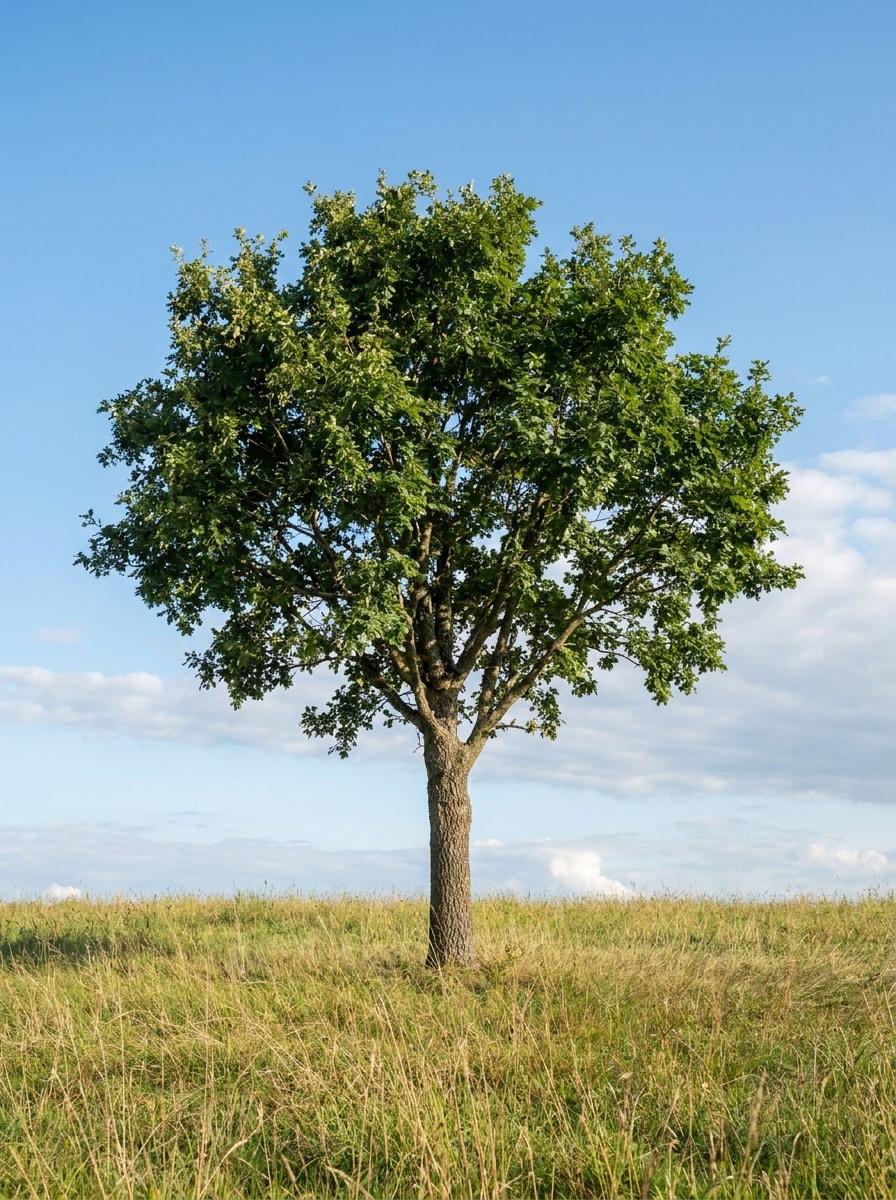
Invece di una fotocamera convertita, Media.io ti permette di caricare una foto normale e applicare un filtro infrarosso AI in pochi minuti. Questo significa test di concept più rapidi per paesaggi, ritratti e post social con una trasformazione chiara prima-dopo.
Trova lo stile giusto per ogni versione
Quando lo stile fa parte della decisione, Media.io ti aiuta a confrontare più direzioni partendo dalla stessa base di filtro fotografico a infrarossi, rendendo la selezione creativa più efficiente.
Mantieni il risultato finale nitido per i progetti reali
Quando un filtro fotografico a infrarossi è destinato a un utilizzo pubblicitario/ufficiale, Media.io offre un output più nitido fino a 4K, contribuendo a mantenere le immagini chiare in presentazioni, sfondi e asset riutilizzati.
Continua il flusso di lavoro su più dispositivi
Il lavoro creativo raramente resta su uno schermo solo. Media.io mantiene il flusso di lavoro del filtro foto a infrarossi nel browser, così puoi iniziare da telefono e finire su desktop senza installare software extra.
Come creare un effetto foto infrarossi online
Trasforma le tue idee in immagini sorprendenti in tre semplici passaggi, poi continua a perfezionare il risultato se vuoi spingerti oltre.
Passo 1
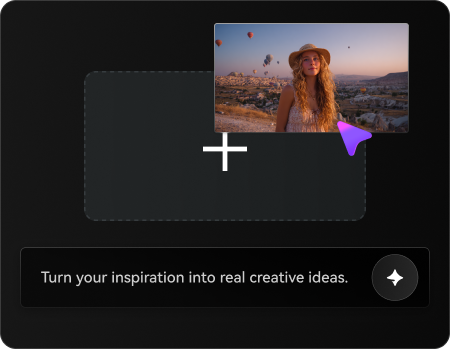
Carica la tua immagine di riferimento
Inizia con una foto JPG, PNG o JPEG chiara. Scene all’aperto con alberi, erba, cielo o ritratti vicino a luce naturale funzionano particolarmente bene se desideri fogliame luminoso, cieli scuri o un effetto fotocamera a infrarossi.
Passo 2
Descrivi il cambiamento e imposta le opzioni
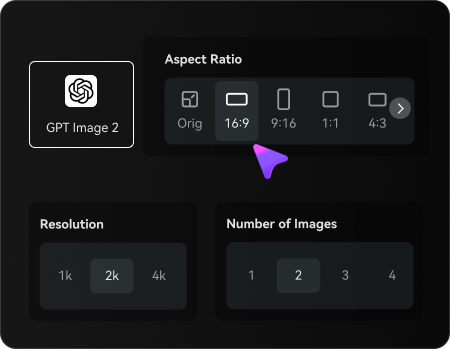
Inserisci lo stile che desideri, come IR bianco e nero, fogliame rosa, toni rosso intenso o un ritratto surreale. Poi scegli il modello e regola il formato, la qualità dell’immagine e la risoluzione per condivisione social o download ad alta definizione.
Passo 3
Genera, scarica e migliora ancora
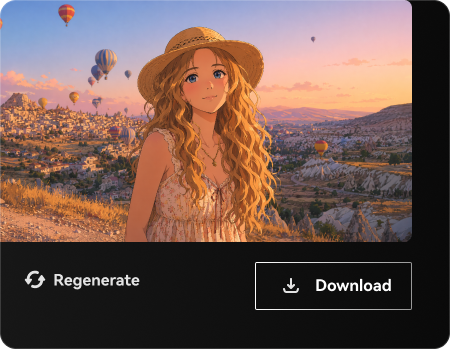
Crea le varianti a infrarossi, confronta i risultati e scarica la versione che ti piace di più. Se necessario, perfeziona il prompt, prova un trattamento colore diverso o genera altre opzioni finché la scena non ha esattamente il mood e il contrasto che desideri.
Sblocca il potenziale dell’effetto fotocamera a infrarossi
Scopri come creator usano questo filtro fotografico a infrarossi per contenuti, marketing e progetti personali, poi adatta ogni idea alle tue esigenze.
Reinventa foto di viaggi e natura
Trasforma parchi, foreste e paesaggi ordinari in opere d’arte da sogno con vegetazione luminosa e cieli drammatici. È ideale per fotografi e hobbisti che desiderano un’estetica IR surreale senza hardware specifico o post-produzione tecnica.
Crea ritratti che catturano lo sguardo
Aggiungi un look cinematografico o toni neon a primi piani e ritratti all’aperto mantenendo la persona riconoscibile. Un trattamento a infrarossi stilizzato rende profili, concept editoriali e contenuti social più distintivi e moderni.
Produci contenuti prima-dopo condivisibili
Mostra come una foto standard diventa uno straordinario effetto fotocamera a infrarossi editing per Reels, TikTok o portfolio. Il contrasto visivo tra originale e trasformazione rende tutorial, promo e post portfolio più attraenti e cliccabili.
Cosa dicono gli utenti
Ava Martinez
Fotografa di viaggi
"Ottimo per modifiche paesaggistiche surreali" L’ho usato su foto normali delle vacanze e ho ottenuto lo stile fogliame luminoso a infrarossi molto velocemente. Gli stili bianco e nero e fogliame rosa sono risultati sufficientemente rifiniti per il mio portfolio.
Jordan Lee
Content Creator
"Perfetto per post social con il prima e dopo" La trasformazione è drammatica, in senso positivo. Ho caricato una semplice immagine all’aperto, provato alcuni prompt, e ottenuto una versione a falsi colori molto d’impatto che ha funzionato bene nei video brevi.
Priya Shah
Ritoccatrice di ritratti
"Utile per concept di ritratti stilizzati" Mi è piaciuto poter mantenere il soggetto riconoscibile cambiando però tutta l’atmosfera. Il risultato cinematografico mi è sembrato creativo ma non troppo artificioso, cosa difficile da ottenere con molti filtri veloci.
Ethan Collins
Studente di design
"Facile sperimentare più stili a infrarossi" Volevo confrontare look rosso intenso, IR monocromatico e ritratti neon per un progetto universitario. Media.io mi ha permesso di sperimentare e esportare facilmente risultati puliti senza software di editing avanzato.
Esplora i più popolari effetti video e immagini AI
1. Cos’è un effetto filtro fotografico a infrarossi?
Un filtro fotografico a infrarossi ricrea lo stile visivo associato alla fotografia IR, come vegetazione brillante, cieli più scuri, insolita separazione dei colori e forte contrasto tonale. Con Media.io, puoi applicare questo stile a una foto standard caricata ed esplorare stili dal monocromatico al filtro a falsi colori realistico.
2. Posso creare una foto infrarossi da una normale immagine?
Media.io è progettato per l’editing immagine su immagine, quindi puoi caricare una foto JPG, PNG o JPEG normale e trasformarla in un risultato in stile infrarossi. È utile se vuoi l’atmosfera IR senza usare una fotocamera modificata o un filtro fisico.
3. Quanto è realistico un filtro fotografico a infrarossi AI rispetto a una vera fotocamera IR?
Una vera fotocamera IR cattura la luce oltre lo spettro visibile, quindi resta la migliore scelta per una fotografia IR autentica. Media.io si concentra nel creare una trasformazione in stile infrarossi convincente partendo da una foto normale, ideale per editing creativo, concept, ritratti e immagini social quando vuoi lo stile senza attrezzature specializzate.
4. Esiste un filtro a infrarossi gratuito online?
Media.io offre crediti gratuiti per provare una modifica in stile infrarossi online prima dell’abbonamento. Per utilizzi maggiori e download ad alta risoluzione senza watermark, consulta la pagina prezzi. Gli utenti free possono utilizzare i crediti gratis. Per usare di più, ti puoi abbonare da pagina prezzi. Passa a un piano a pagamento dalla pagina prezzi per più crediti e download ad alta risoluzione senza watermark.
5. Quali foto funzionano meglio per un effetto a infrarossi?
Immagini con alberi, erba, foglie, cielo aperto e luce diurna producono solitamente risultati più d’impatto, perché le modifiche IR enfatizzano il fogliame e la separazione del cielo. Anche nei ritratti il risultato è valido, specialmente per un filtro per ritratti a infrarossi se il volto è chiaro e la luce equilibrata.
6. Posso usare questo filtro foto a infrarossi sul mio telefono?
Media.io è web-based, quindi puoi usare questo strumento dal browser mobile su iPhone o Android, così come su desktop. È facile caricare una foto, provare uno stile filtro a infrarossi AI e scaricare il risultato senza installare software extra.
Oltre al filtro foto a infrarossi online alimentato da IA