Creations are stored for only 7 days. Assets created after upgrading to a Membership plan will be stored permanently.
Unlock your creative potential and experience the magic of Media AI right away!
Applica un filtro fotografico autunnale per makeover caldi e realistici
Trasforma ogni ritratto, foto di animale domestico o paesaggio in una modifica stagionale accogliente con un filtro fotografico autunnale. Carica la tua immagine, usa un filtro foglie autunnali o un prompt personalizzato, e crea colori caldi, vegetazione realistica e un effetto ritratto autunnale in pochi minuti. Questo flusso di lavoro è particolarmente utile per aggiungere foglie autunnali alle foto.
Scrivi la tua idea -> L’AI la realizza. Gratis da provare.
Consulta queste istruzioni d’esempio, poi personalizza i dettagli del prompt per ottenere risultati migliori con questo Filtro Fotografico Autunnale, sia che tu voglia cambiamenti di colore delicati o un filtro foglie autunnali AI effetto.
Ritratto autunnale dorato
Usa l’immagine caricata come soggetto principale e trasformala in un ritratto autunnale dorato realistico. Aggiungi vegetazione ambrata e rame sullo sfondo, luce soffusa dell’ora d’oro, profondità di campo delicata, toni naturali della pelle, atmosfera da stagione dei maglioni e dettagli del viso puliti con una finitura editoriale raffinata.
Bagliore Autunnale Cinematografico
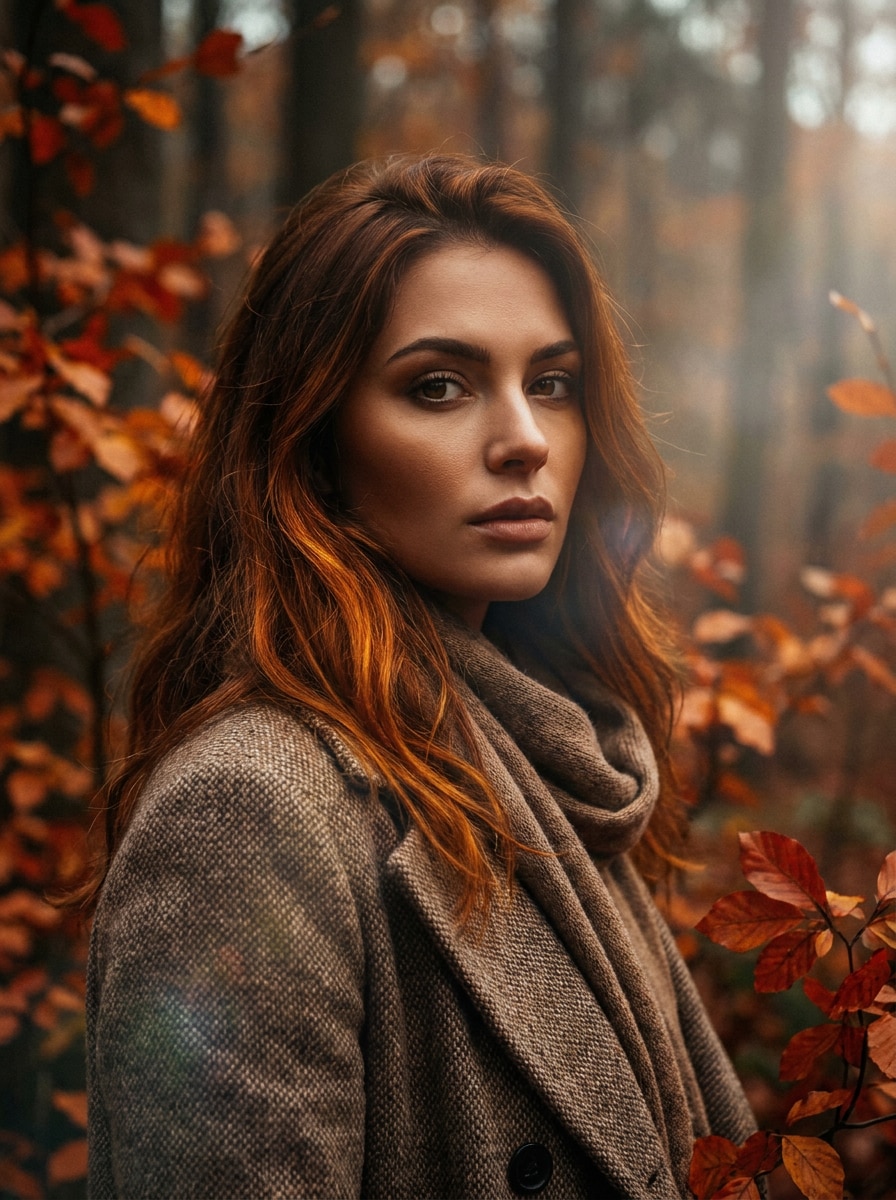
Usa l’immagine caricata come soggetto e applica una gradazione autunnale cinematografica con tonalità ambrate profonde, ombre marroni calde, leggera foschia, delicato flare di lente e vegetazione arancione realistica. Mantieni il soggetto riconoscibile aggiungendo contrasto intenso, texture rifinita e un’atmosfera narrativa stagionale ricca.
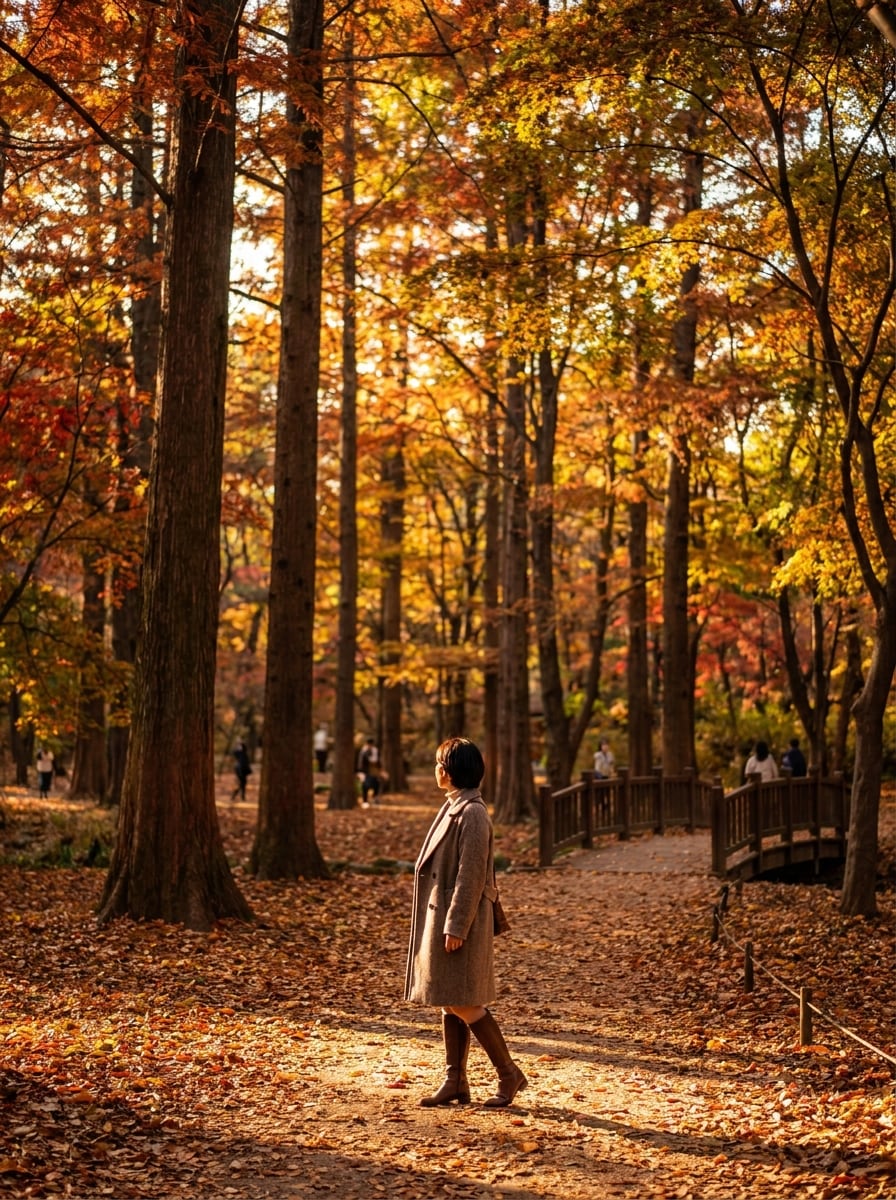
Trasformazione del Parco Frondoso
Usa l’immagine caricata come soggetto e trasforma lo sfondo in un realistico parco autunnale. Aggiungi alberi rossi, arancioni e gialli, foglie cadute lungo il sentiero, luce stagionale soffusa, aria limpida e prospettiva naturale mantenendo il soggetto nitido e ben separato dalla scena.
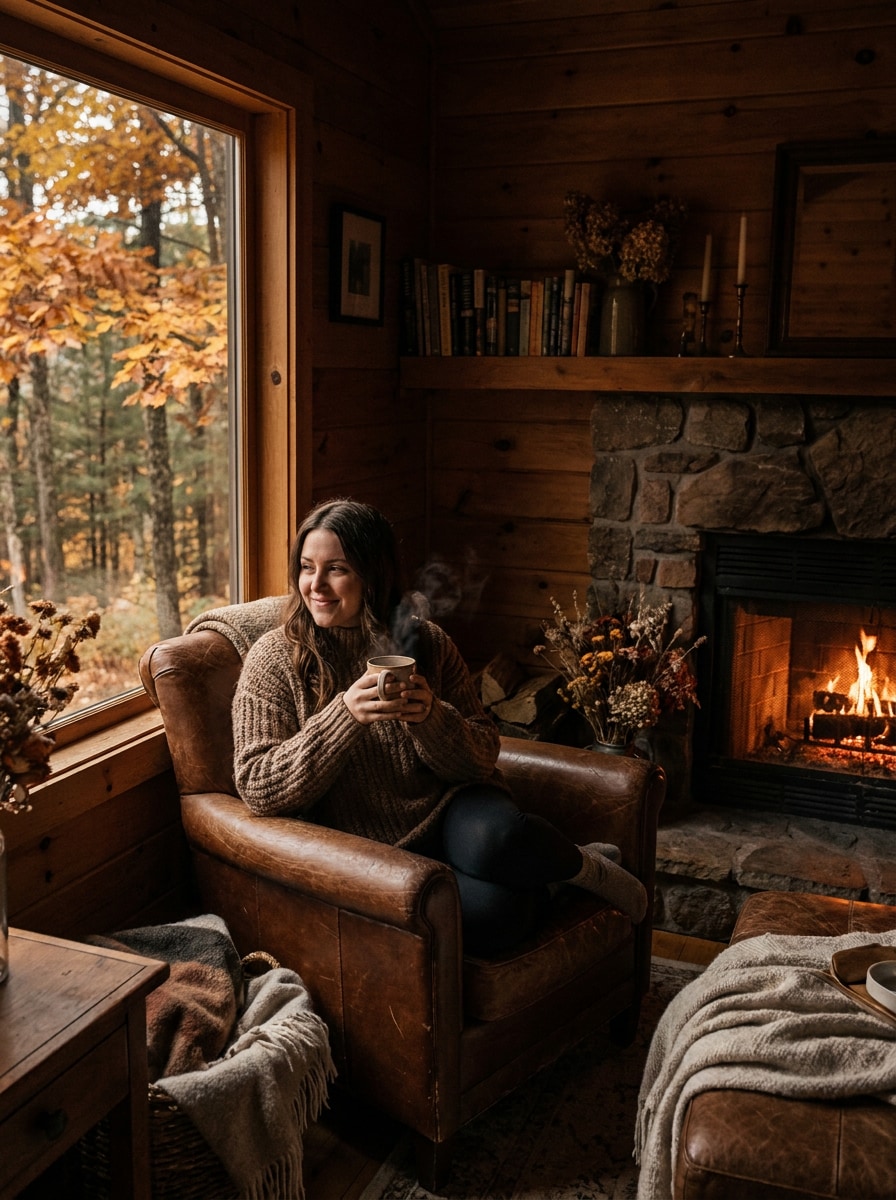
Scena da capanna autunnale
Usa l’immagine caricata come soggetto e ridisegna la scena in un’atmosfera da capanna autunnale accogliente. Circonda il soggetto con texture di legno rustico, vegetazione calda arancione, bagliore soffuso da finestra, toni marroni terrosi e un mood lifestyle tranquillo preservando proporzioni e identità realistiche.
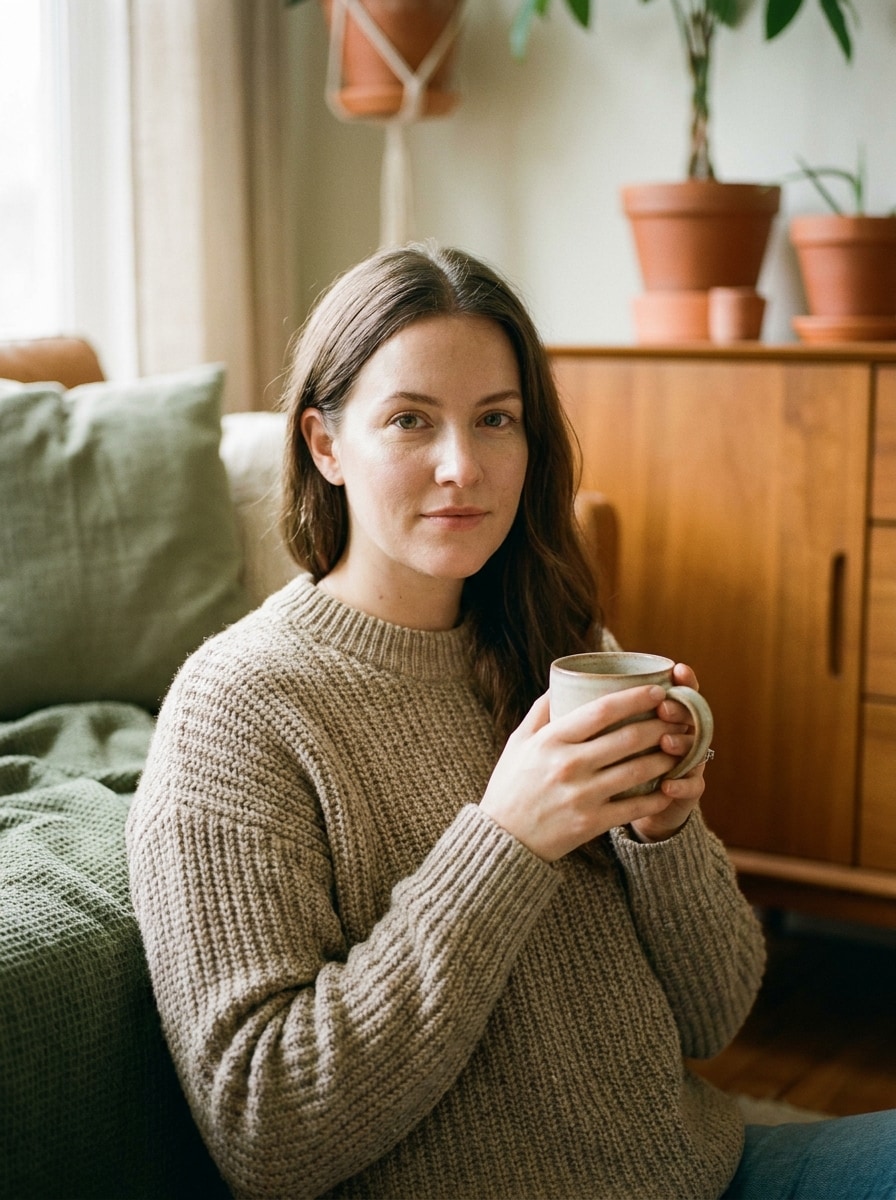
Filtro Estetico Autunnale
Usa l’immagine caricata come base e applica un’estetica autunnale soft con verdi attenuati, toni terracotta e caramello, luci cremose, grana delicata e styling lifestyle accogliente. Mantieni l’immagine realistica, valorizzata, con texture pulite e una palette stagionale elegante, pronta per i social.
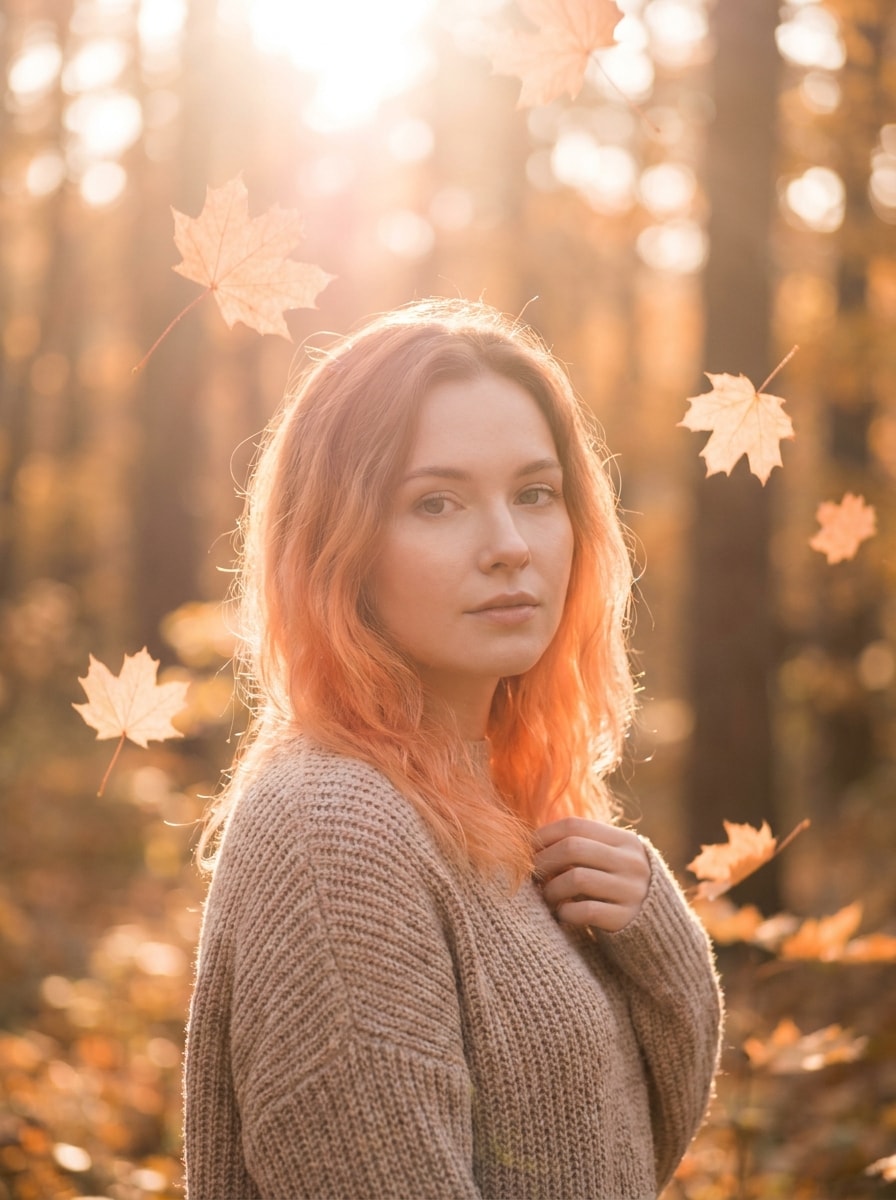
Look Sognante a Foglie d’Acero
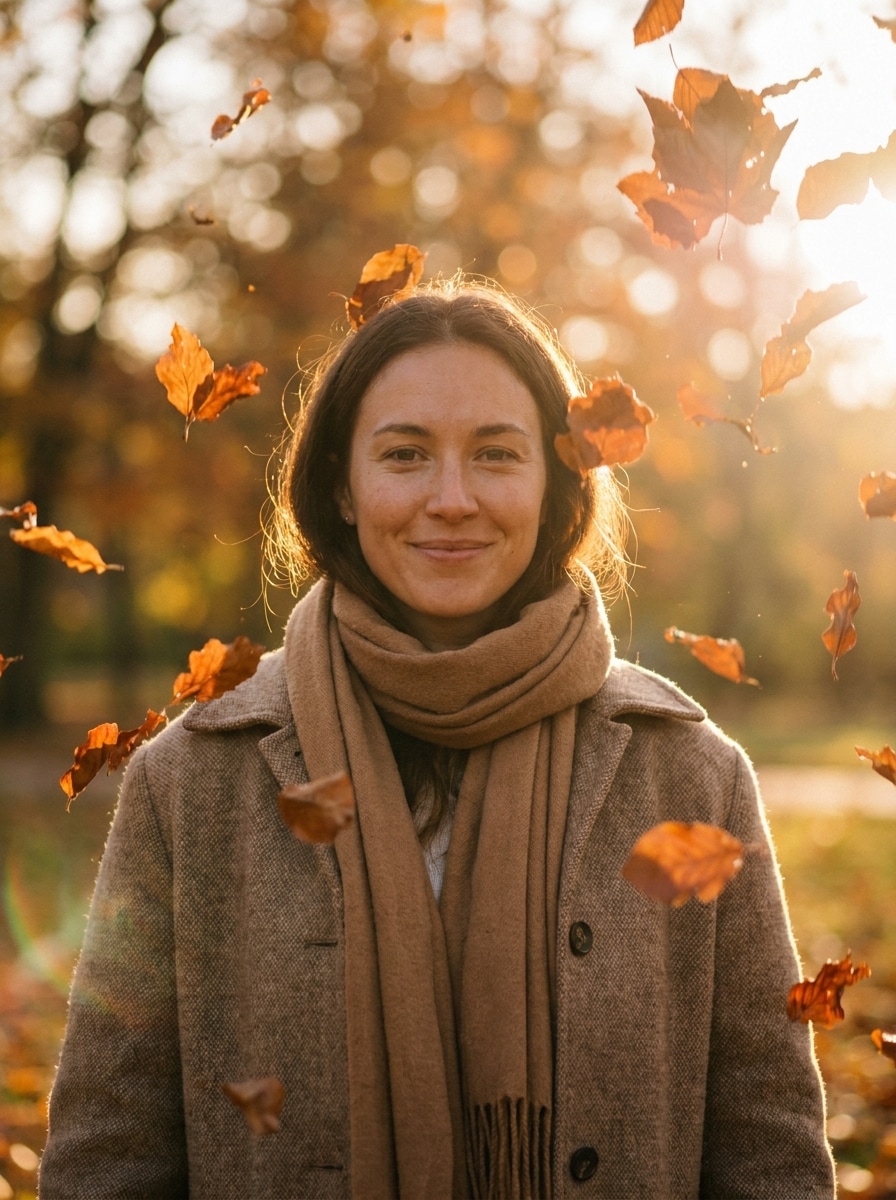
Usa l’immagine caricata come soggetto e crea una scena autunnale sognante con foglie d’acero. Aggiungi foglie d’acero che fluttuano, controluce caldo, luci pesca-arancione, profondità soft-focus, bagliore delicato e mood stagionale romantico mantenendo i tratti del viso chiari e la modifica realistica, senza eccessiva stilizzazione.
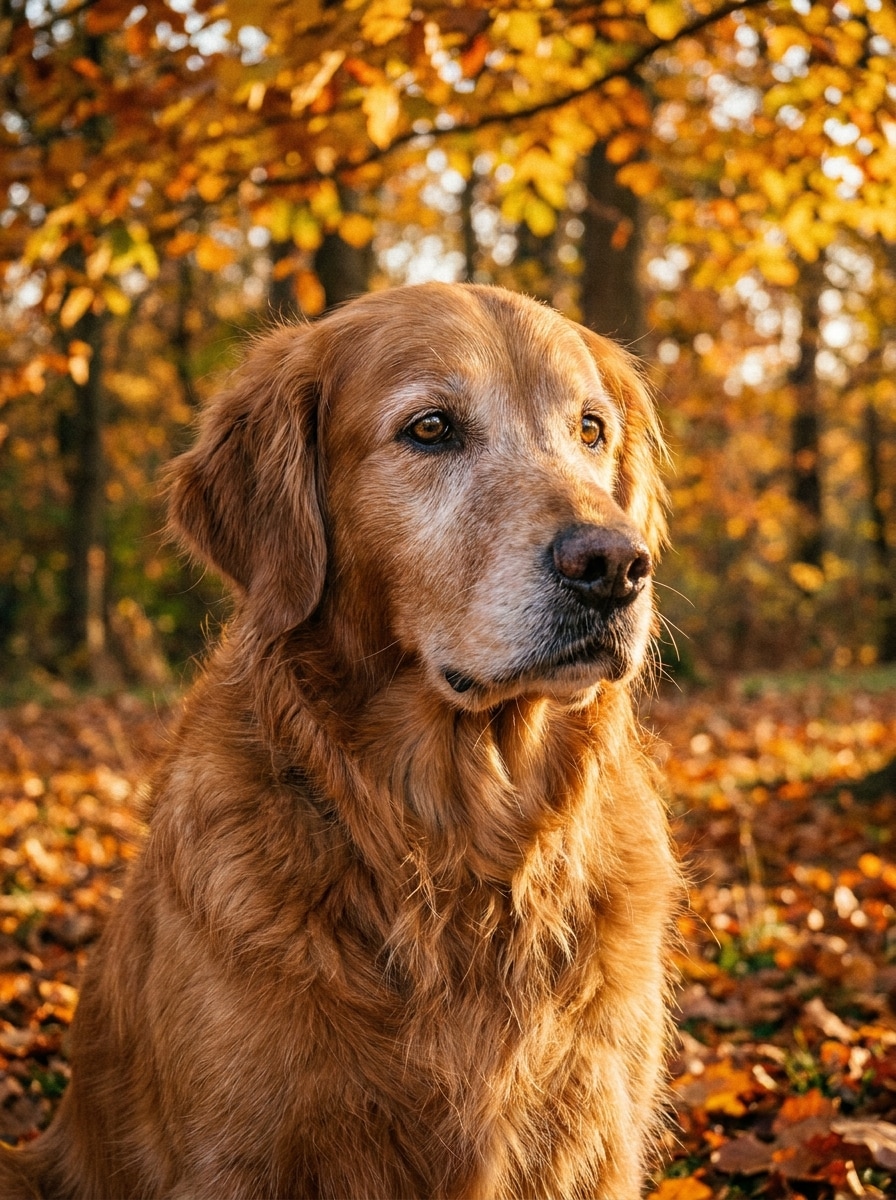
Filtro Autunnale per Animali
Usa la foto dell’animale caricata come soggetto e trasforma l’ambientazione in una scena autunnale calda. Aggiungi vegetazione dorata, foglie cadute, luce naturale soffusa, toni ambrati accoglienti e sfondo sfocato pulito mantenendo la texture del pelo, i dettagli degli occhi e l’espressione riconoscibile dell’animale.
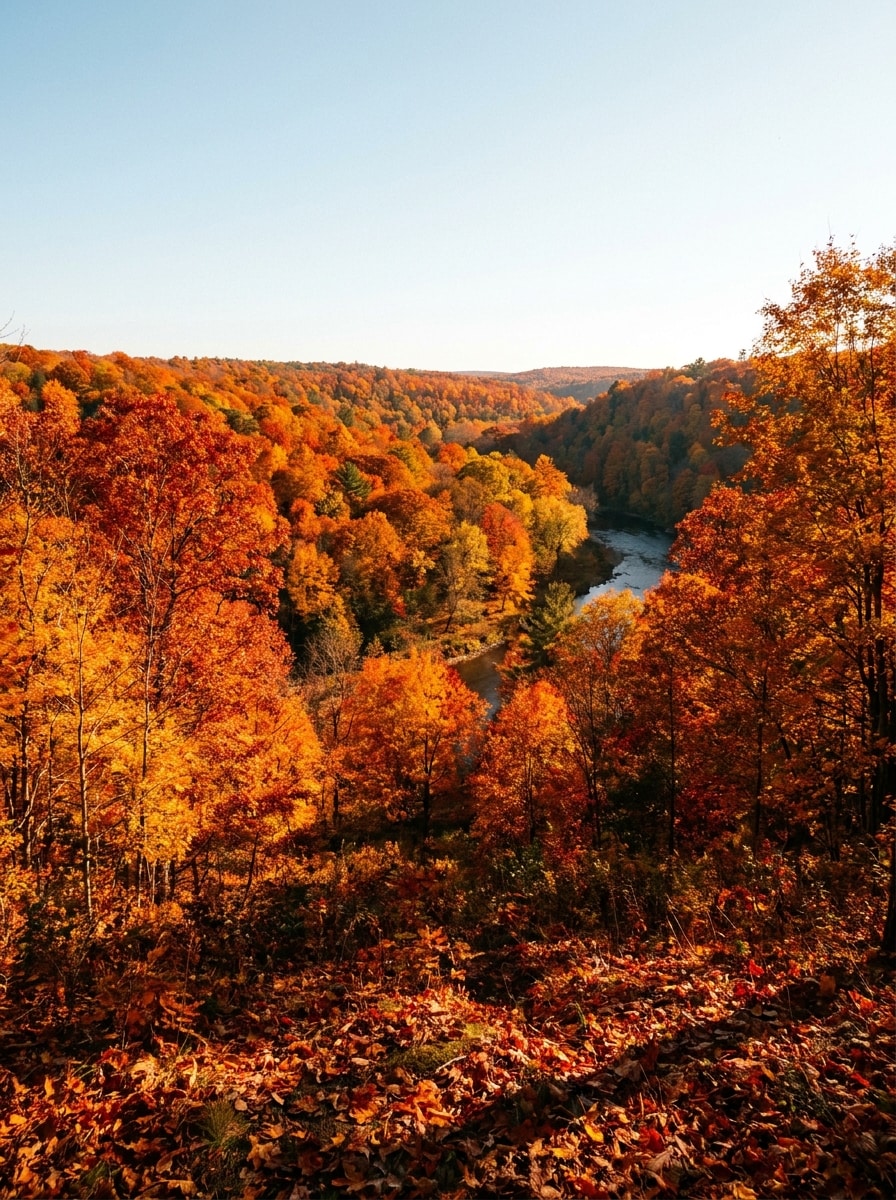
Upgrade Paesaggistico Autunnale
Usa la foto di paesaggio caricata e trasformala in una scena con colori autunnali al massimo. Cambia gli alberi in vegetazione arancione, rossa e gialla vivida, aggiungi aria naturale fresca, contrasto equilibrato, foglie testurizzate a terra e illuminazione stagionale realistica mantenendo la disposizione originale credibile e dettagliata.
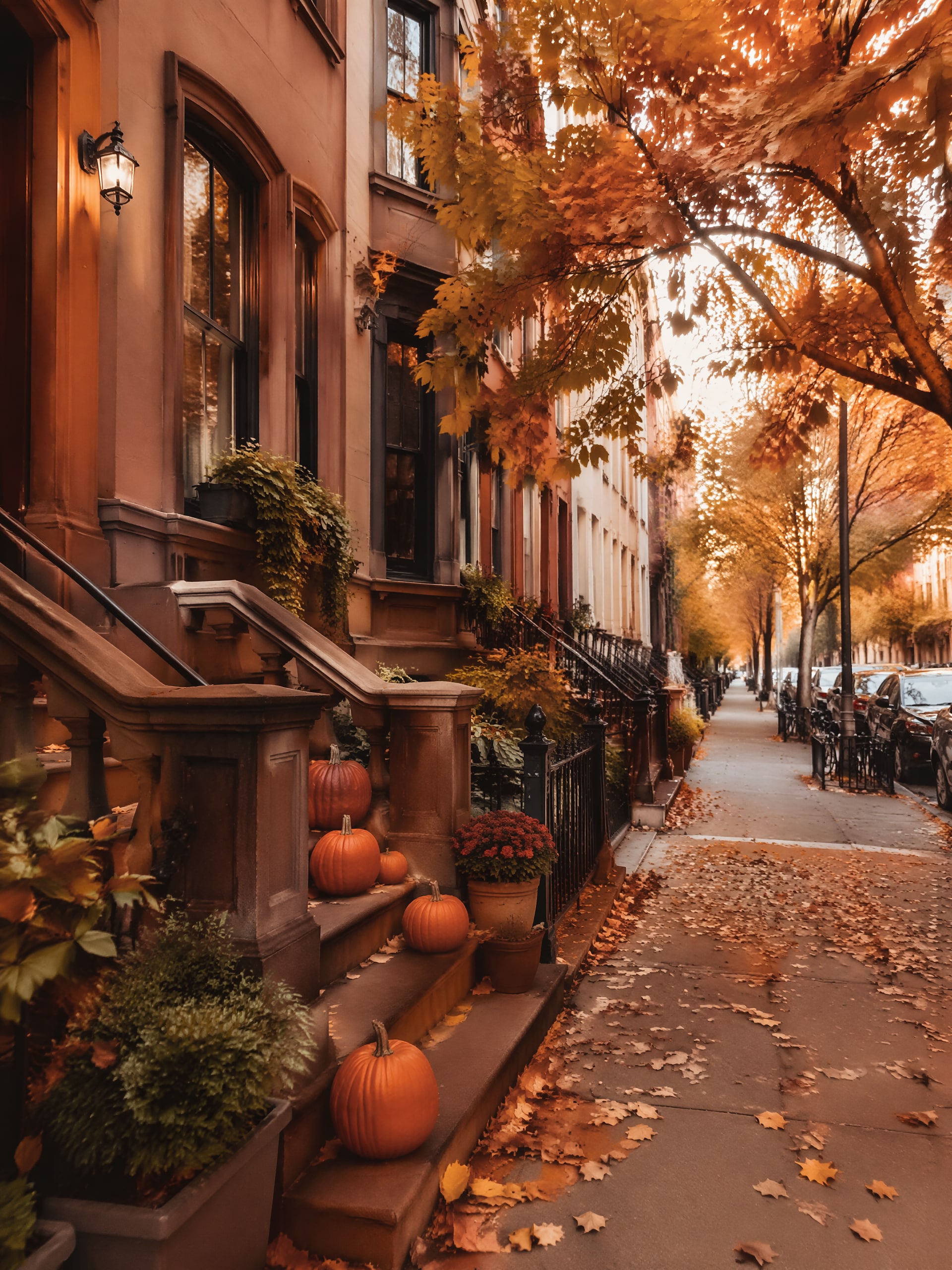
Filtro Autunnale Stile iPhone
Usa l’immagine caricata come soggetto e crea una modifica autunnale pulita e adatta ai dispositivi mobili, ispirata alla fotografia trendy da cellulare. Aggiungi gradazione arancione-marrone accogliente, bagliore soffice, nitidezza naturale, vegetazione realistica e composizione verticale rifinita, pronta per la condivisione senza perdere dettagli autentici.
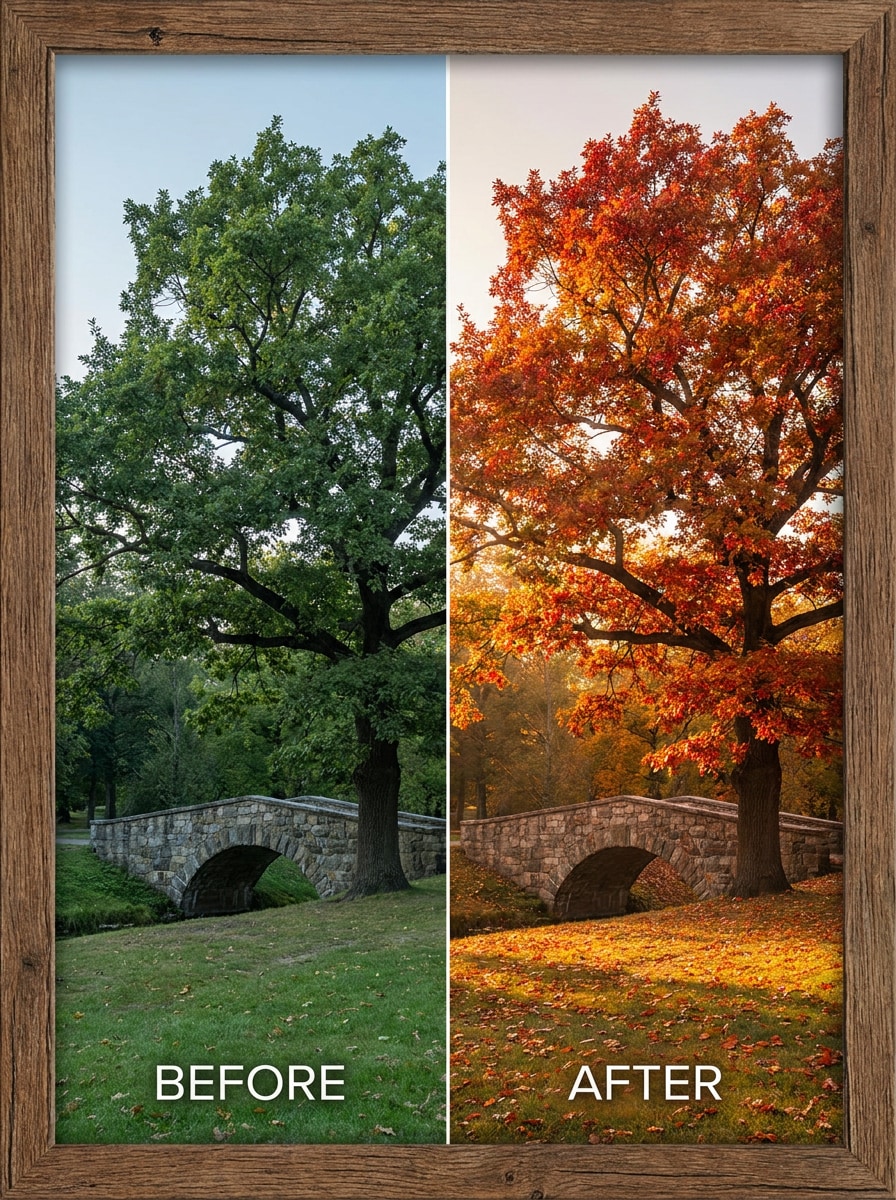
Makeover Autunnale Prima-Dopo
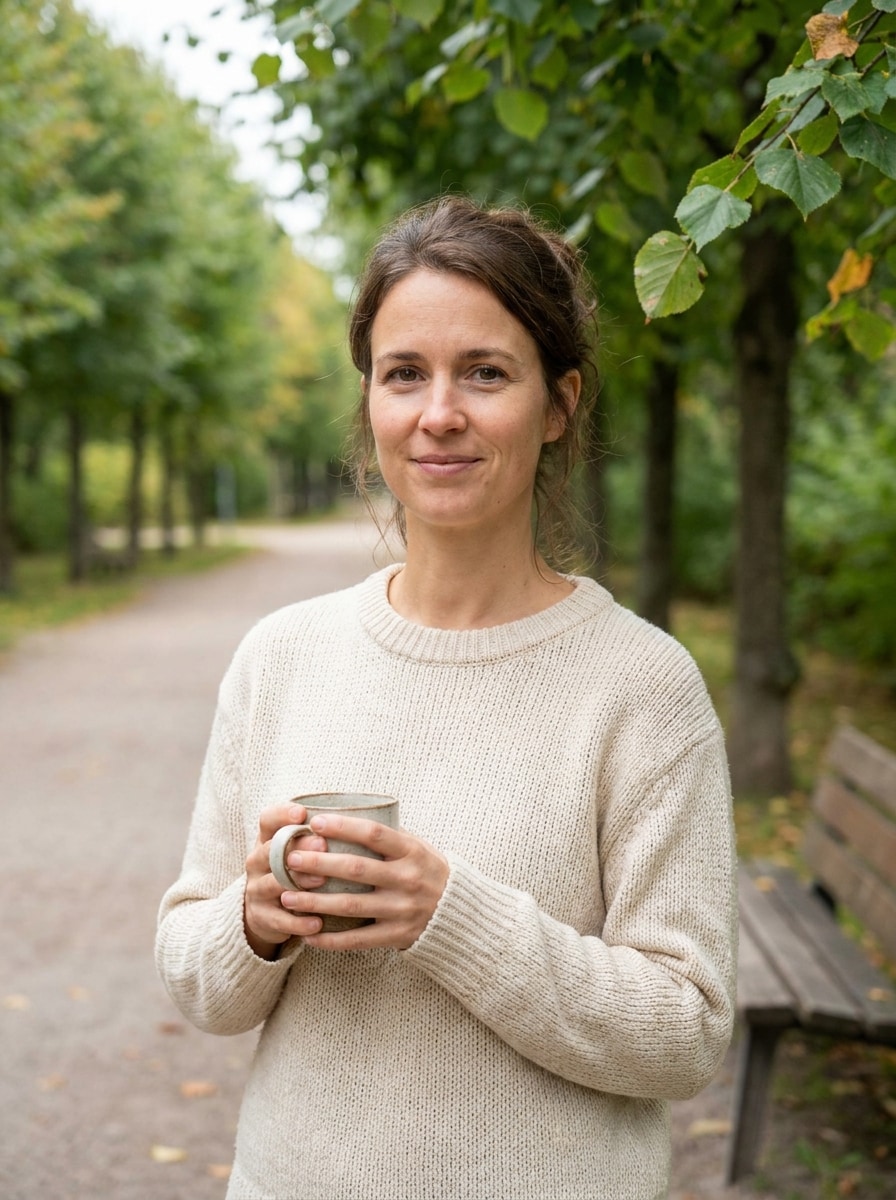
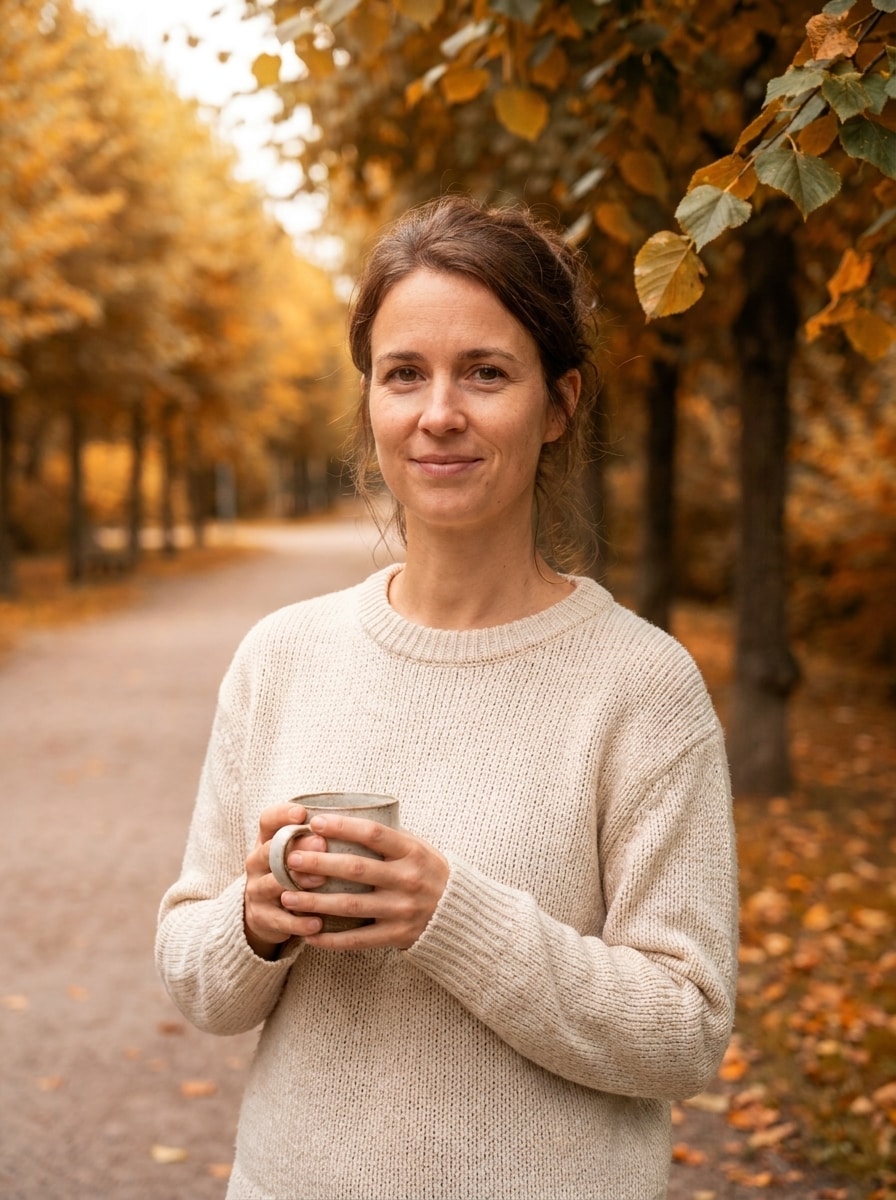
Usa un’immagine non autunnale caricata come base e trasformala in una versione autunnale convincente. Aggiungi vegetazione stagionale, luci calde, ombre delicate, toni terrosi e contrasto chiaro tra prima e dopo mantenendo il soggetto riconoscibile e la scena realistica invece che pesantemente alterata.
Perché usare Media.io per un filtro foglie autunnali AI
Mantieni il soggetto riconoscibile mentre cambia stagione
Per ritratti, animali domestici o foto di viaggio che devono restare riconoscibili, Media.io aiuta a preservare dettagli chiave di identità applicando il filtro fotografico autunnale, così l’immagine finale è stagionale senza perdere ciò che rende unico il soggetto.
Trasforma sfondi normali in scene autunnali realistiche
Quando lo stile conta nelle decisioni, Media.io ti aiuta a confrontare più interpretazioni dallo stesso filtro autunnale di base, rendendo la selezione creativa più efficiente.
Genera output più puliti fino a 4K
Alcuni risultati devono andare oltre la semplice anteprima. Media.io aiuta a generare filtri autunnali puliti con output fino a 4K, così l’immagine finale è adatta a sfondi, presentazioni e mockup.
Modifica rapidamente da telefono o desktop senza software aggiuntivo
Il lavoro creativo raramente resta su un solo schermo. Media.io mantiene il flusso di lavoro del filtro autunnale nel browser, così puoi iniziare da telefono e finire su desktop senza dover installare altro software.
Come creare un effetto filtro foglie autunnali online
Trasforma le tue parole in visual straordinari in tre semplici passi, poi continua a perfezionare il risultato se vuoi andare oltre.
Passo 1
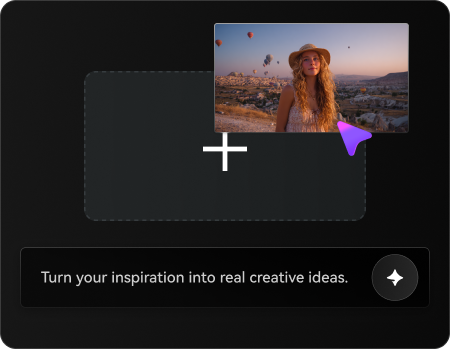
Carica la tua immagine di riferimento
Inizia con un ritratto chiaro, foto di animale, selfie o paesaggio in JPG, PNG o JPEG. Scegli un’immagine con dettagli visibili del soggetto e illuminazione pulita affinché la trasformazione autunnale sembri naturale e lo styling stagionale finale sia convincente.
Passo 2
Descrivi il cambiamento e imposta le opzioni
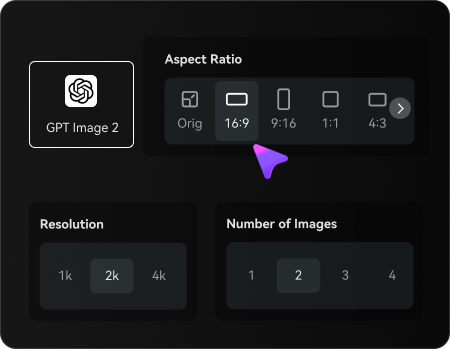
Inserisci il look autunnale desiderato, ad esempio toni caldi d’acero, mood da capanna accogliente, o una scena di parco realistica. Scegli poi il modello preferito e regola formato, numero di immagini o risoluzione per adattarli a post social, sfondi o output pronti per la stampa.
Passo 3
Genera, scarica e continua a migliorare
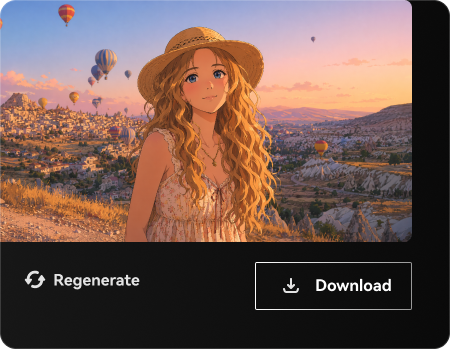
Crea le tue variazioni autunnali, confronta i risultati e scarica la versione preferita. Se necessario, perfeziona il prompt, prova un crop diverso o genera un altro passaggio per ottenere vegetazione più intensa, luce più morbida o uno sfondo stagionale più realistico.
Guarda come i creatori usano il Filtro Fotografico Autunnale per contenuti, marketing e progetti personali, poi adatta ogni idea al brief.
Rendi i ritratti più caldi e stagionali
Trasforma selfie e foto di famiglia quotidiane in modifiche autunnali accoglienti con vegetazione più ricca, luce dorata e gradazione colori valorizzata. È un modo semplice per creare un post social rifinito o un’immagine profilo stagionale più espressiva con effetto ritratto naturale autunnale.
Restyle foto di animali e ricordi all’aperto
Dai a foto di cani, gatti e viaggi un makeover autunnale credibile senza doverle rifare. Una modifica stagionale ben calibrata può aggiungere vegetazione colorata e calore soft conservando la texture del pelo, i dettagli del viso e il mood originale.
Rinfresca immagini estive per campagne autunnali
Creatori, piccole aziende e team di contenuti possono rinnovare visual più vecchi per asset stagionali da promozioni, biglietti e post lifestyle. È particolarmente utile quando serve un rapido effetto ritratto autunnale o vuoi usare un filtro foglie autunnali AI per un cambio di sfondo realistico senza organizzare un nuovo shooting.
Cosa dicono gli utenti di questo filtro autunnale
Maya R.
Creatrice lifestyle
"Perfetto per post stagionali accoglienti" Ho caricato un normale ritratto all’aperto e lo strumento l’ha trasformato in una bellissima scena autunnale con foglie calde e luce dorata soffusa. Sembrava molto più realistico rispetto a un filtro preset base.
Daniel K.
Fotografo di animali
"Ottimo nel mantenere i dettagli intatti" L’ho usato su una foto di cane e sono rimasto colpito dal fatto che pelo e volto siano rimasti nitidi mentre lo sfondo si trasformava in un parco autunnale. Il risultato sembrava naturale e pronto per essere condiviso.
Sofia T.
Marketing per e-commerce
"Utile per campagne stagionali rapide" Abbiamo aggiornato alcune vecchie foto lifestyle per una promozione autunnale senza programmare un nuovo shooting. Le opzioni di formato e il workflow rapido da browser hanno reso il processo semplicissimo.
Ethan L.
Editor di contenuti da mobile
"Facile da usare da telefono e desktop" Cercavo una modifica in stile autunno che funzionasse bene su mobile, e questa ha funzionato direttamente dal browser. La differenza tra prima e dopo era evidente, ma il soggetto era comunque simile all’originale.
Esplora i più popolari effetti video e immagini AI
1. Come posso aggiungere un filtro fotografico autunnale online?
Carica la tua immagine su Media.io, inserisci un prompt a tema autunno e genera una nuova versione con gradazione colori più calda, vegetazione stagionale o una conversione completa dello sfondo. Funziona bene se desideri una modifica autunnale online che vada oltre un semplice preset e ti dia più controllo sull’aspetto finale.
2. Questo filtro autunnale AI è gratuito?
Gli utenti gratuiti possono provare Media.io con crediti gratis. Se hai bisogno di più generazioni o vuoi scaricare immagini ad alta risoluzione senza watermark, puoi consultare la pagina dei prezzi di Media.io per le opzioni a pagamento.
3. Posso trasformare una foto estiva in una scena autunnale realistica?
Media.io supporta la modifica da immagine a immagine, così puoi caricare una foto estiva o neutra e restylarla con vegetazione calda, toni arancio-oro e sfondi più stagionali. È utile per modifiche realiste tra prima e dopo invece di applicare solo un filtro piatto.
4. Il filtro autunnale funziona per ritratti, animali e paesaggi?
Media.io può essere usato per ritratti, foto di animali, selfie e paesaggi, rendendolo flessibile per diversi obiettivi di styling autunnale.
5. Posso usare questo filtro autunnale su iPhone, Android o desktop?
Media.io è basato sul web, quindi puoi usarlo in un browser su iPhone, Android, Mac, Windows e altri dispositivi desktop o mobile. È comodo per una modifica stagionale rapida da telefono o un workflow su schermo grande desktop.
6. La mia foto manterrà il viso e i dettagli dello sfondo originali?
Media.io usa la tua immagine caricata come riferimento, aiutando a preservare dettagli riconoscibili del soggetto durante la trasformazione autunnale. Il risultato dipende dal prompt e dalla scelta del modello, ma Media.io guida il trasferimento dello stile dall’immagine originale invece di sostituirla completamente.