Creations are stored for only 7 days. Assets created after upgrading to a Membership plan will be stored permanently.
Unlock your creative potential and experience the magic of Media AI right away!
Pixel Art Filter for Turning Photos Into Retro Game-Style Art
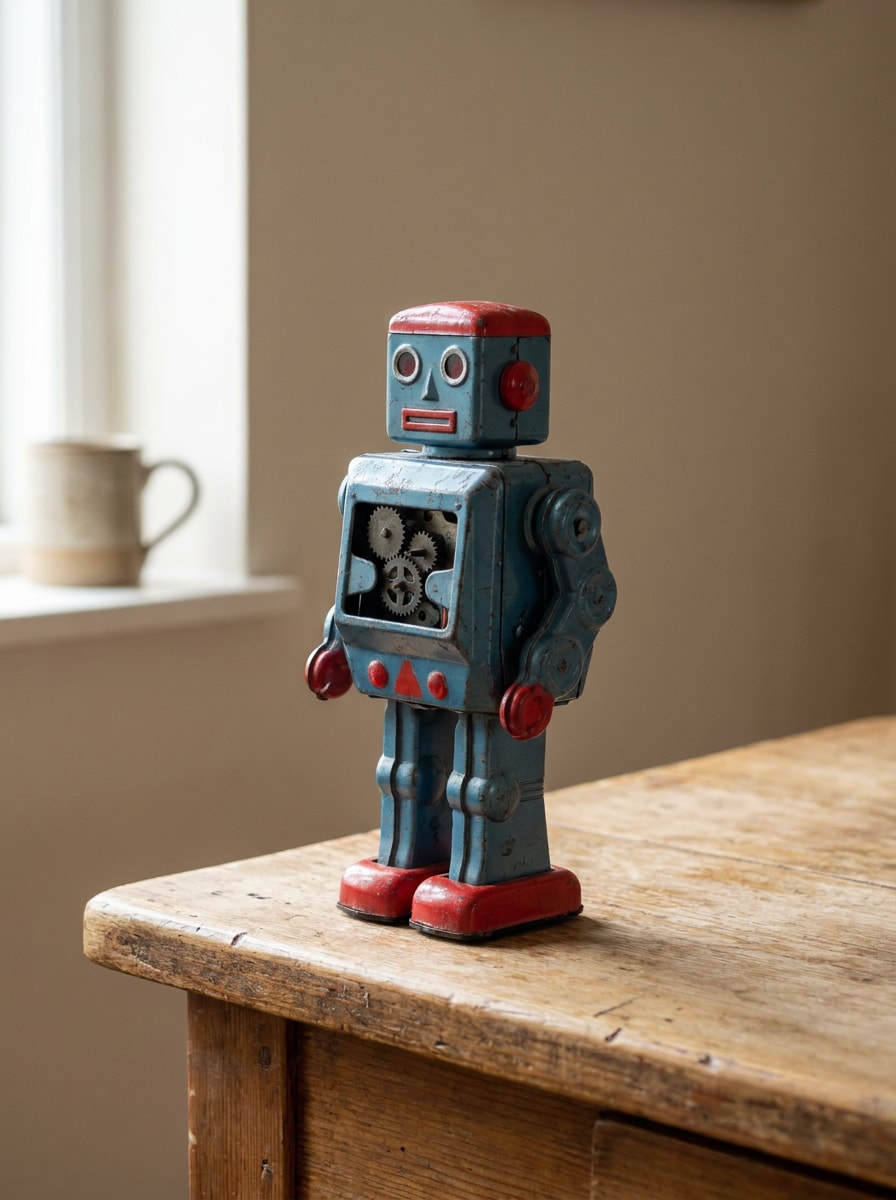
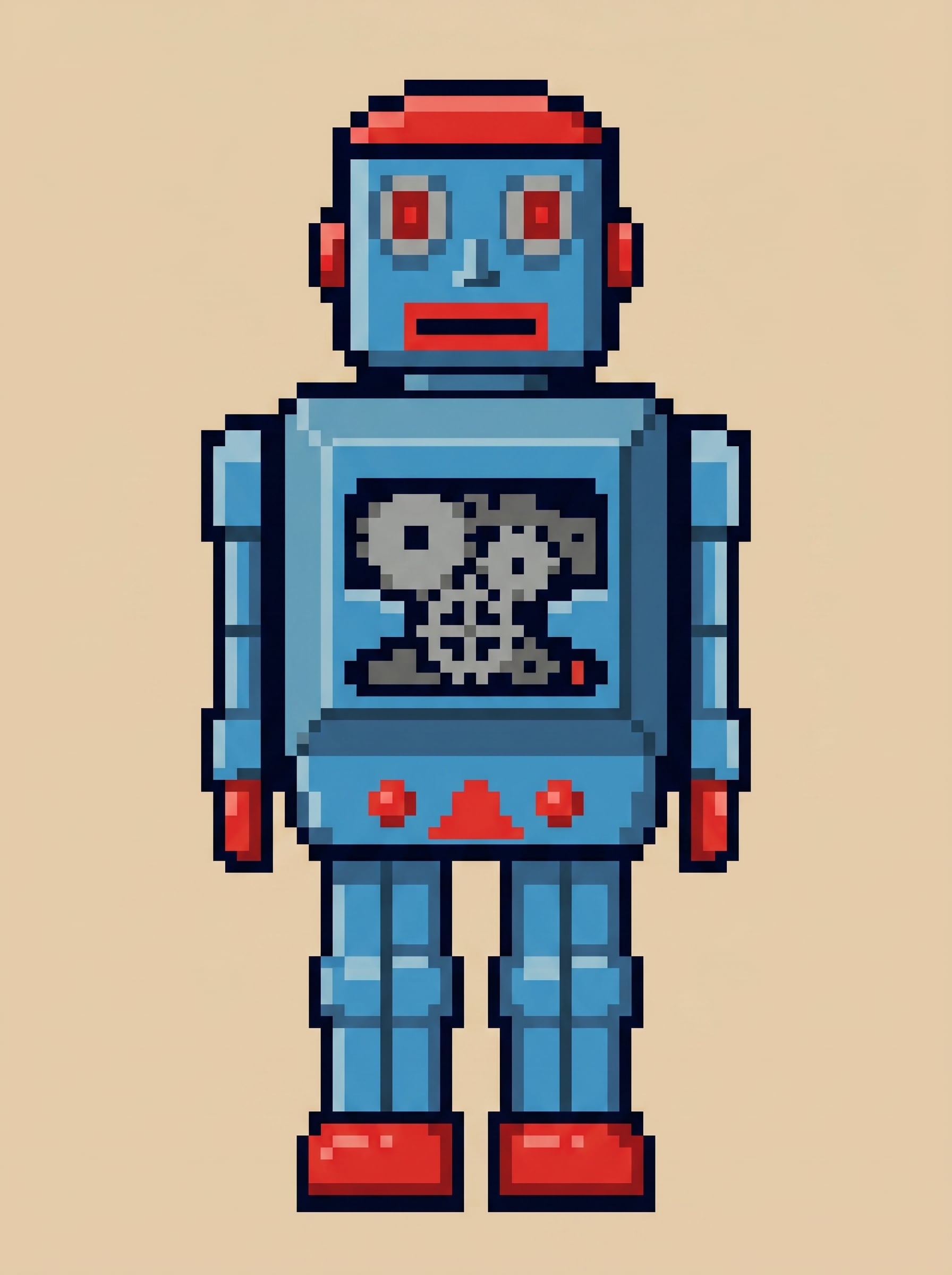
Create retro-styled artwork from your own images with Media.io’s pixel art filter. Upload a selfie, pet photo, or travel shot, apply an 8 bit filter or polished sprite look, and get crisp results fast with an easy photo to pixel art filter workflow. This setup works well for pixel art filter photoshop.
Review these example directions, then tailor the prompt details to get stronger results with this Media.io Pixel Art Filter. It also supports pixel portrait filter.
8-Bit Portrait
Use the uploaded portrait as the subject and transform it into classic 8-bit pixel art with a centered composition, blocky facial features, clean dark outline, very limited retro color palette, subtle shading, nostalgic handheld game mood, crisp edges, and a polished old-school character sprite finish.
16-Bit SNES Style
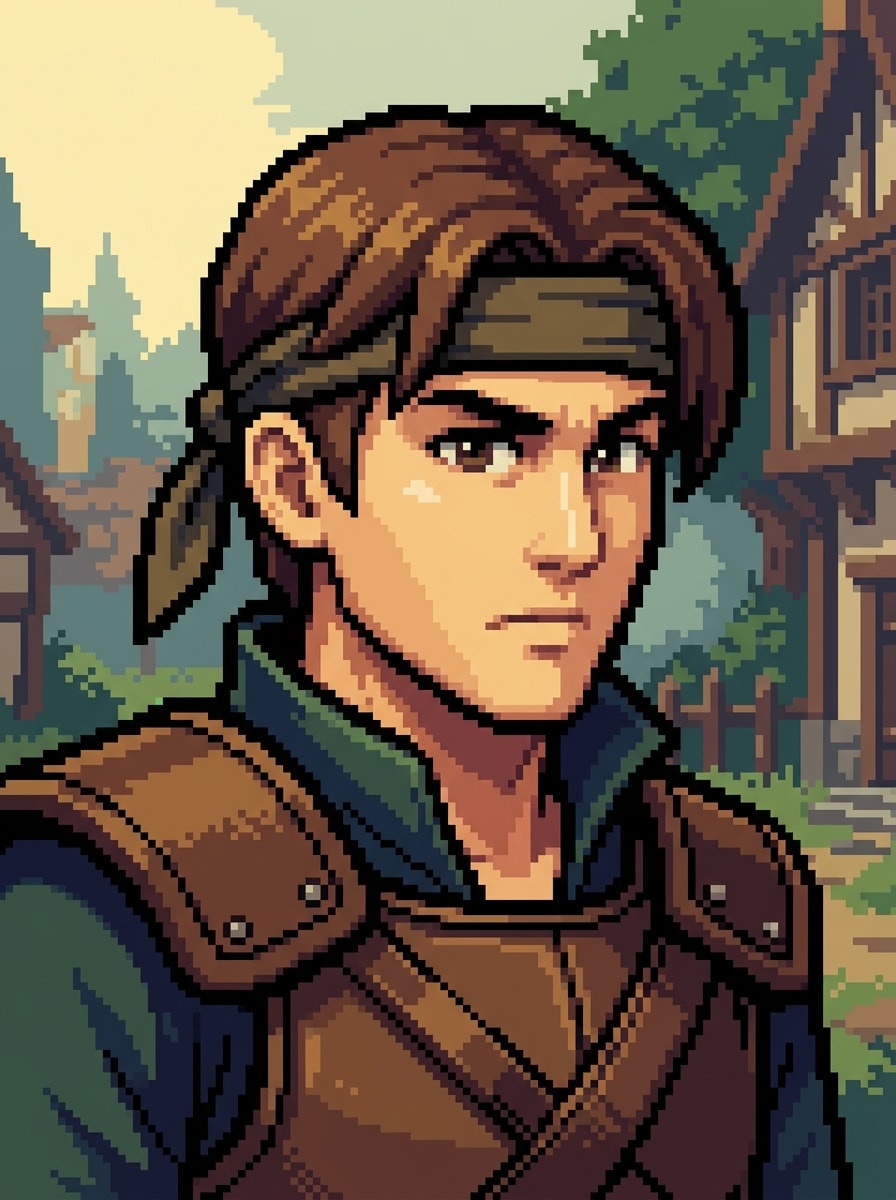
Use the uploaded image as the subject and remake it in refined 16-bit pixel art with richer shading, more detailed sprite rendering, crisp outlines, balanced skin tones, layered retro console colors, readable facial features, soft directional lighting, and a polished adventure-game character aesthetic.
Pixel Avatar
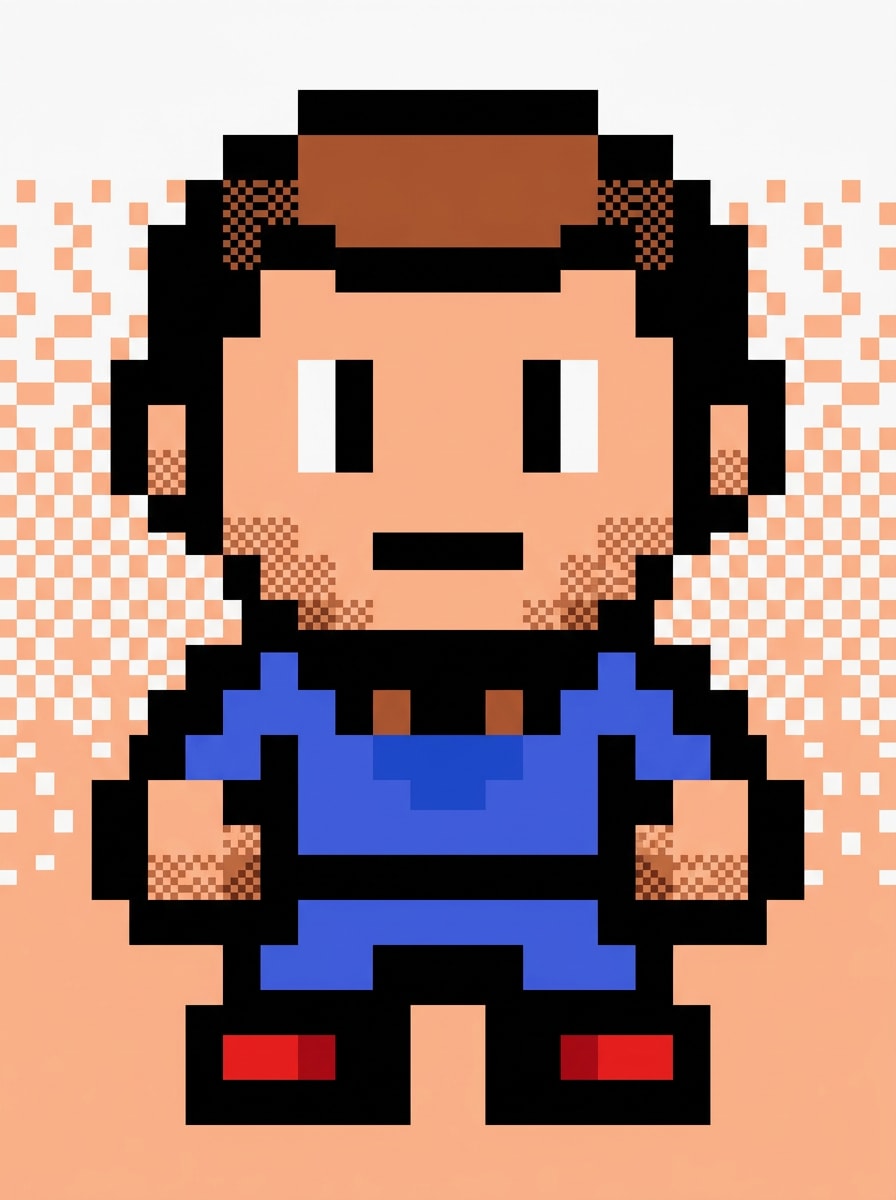
Use the uploaded selfie as the subject and create a square pixel avatar with simplified features, clear silhouette, neat outline, balanced retro colors, soft contrast, friendly game-icon mood, clean background separation, and social-profile-ready framing that keeps the person recognizable in a compact sprite style.
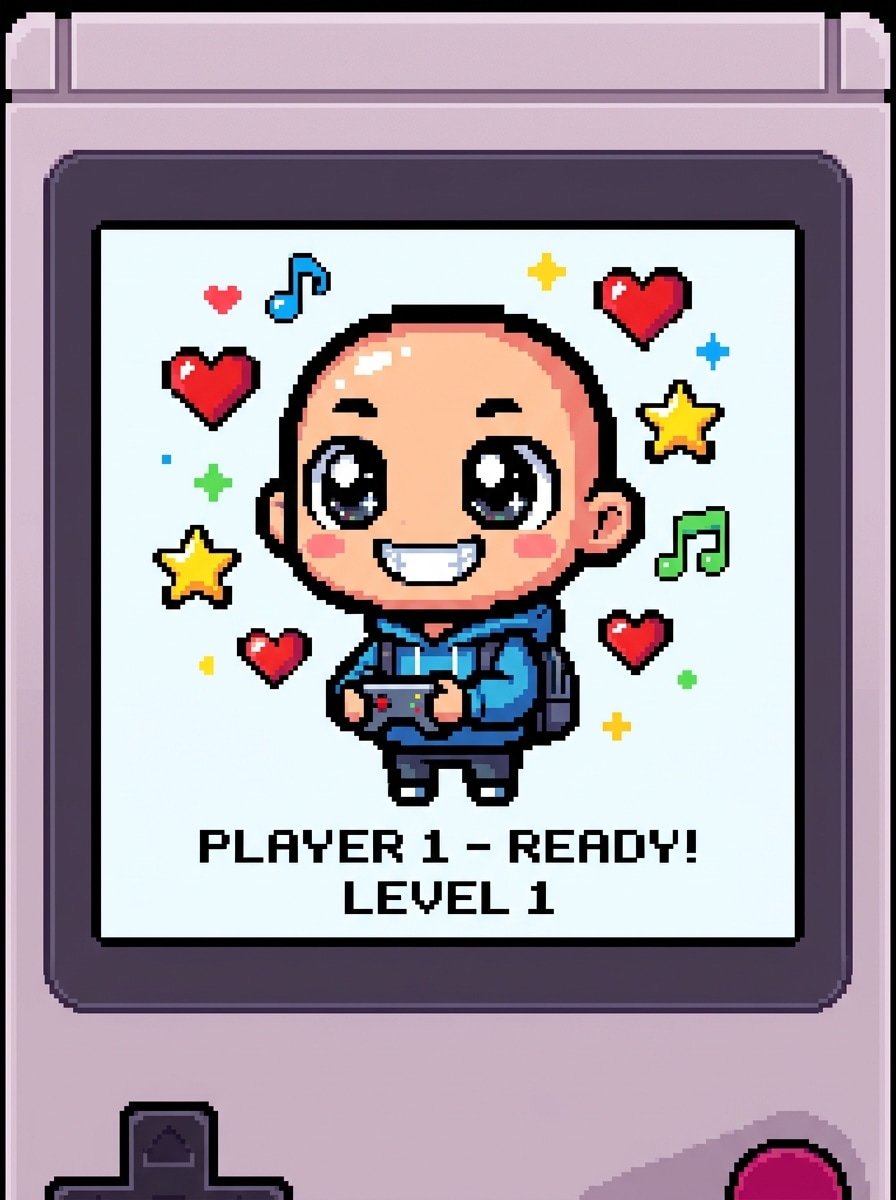
Chibi Pixel Character
Use the uploaded photo as the subject and turn it into a cute chibi pixel character with an oversized head, tiny body proportions, bright retro palette, expressive eyes, cheerful mood, simple shading, clean sprite outline, and charming handheld-game styling with readable accessories and playful energy.
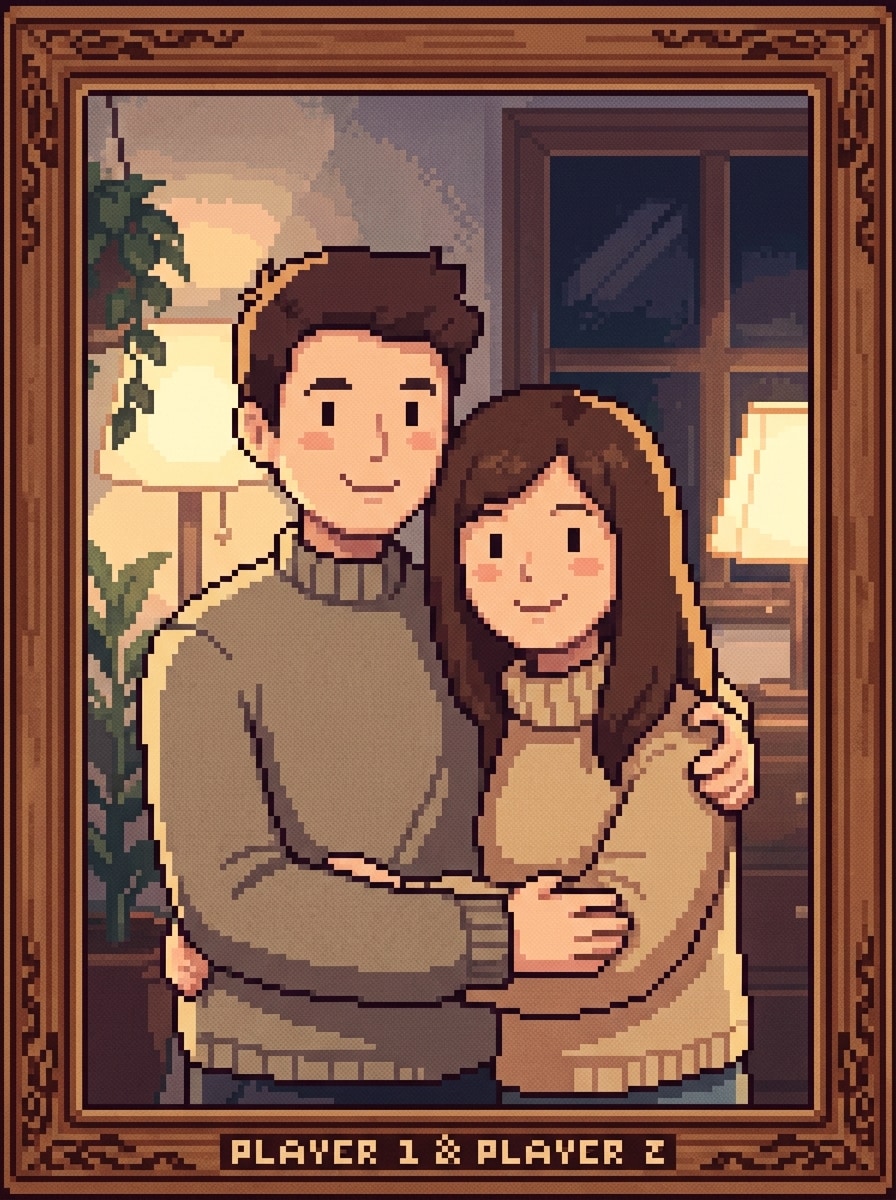
Couple Pixel Portrait
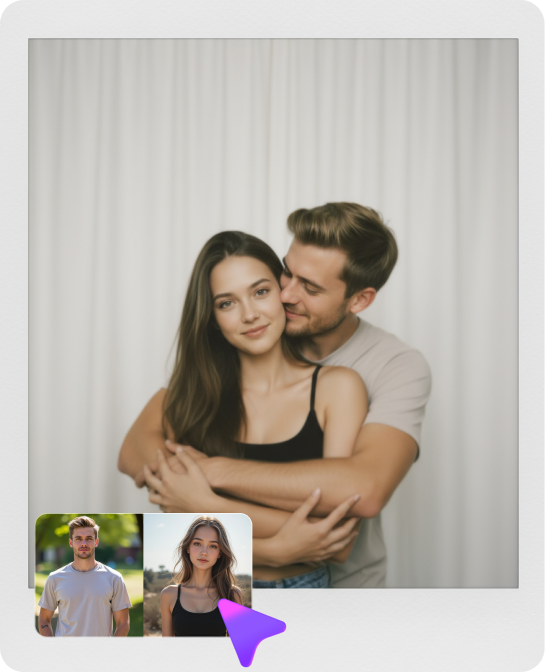
Use the uploaded couple photo as the subject and transform it into romantic pixel art with cozy retro colors, simplified but recognizable faces, gentle shading, framed two-person composition, warm ambient lighting, soft nostalgic mood, delicate background hints, and a polished indie-game scene feeling.
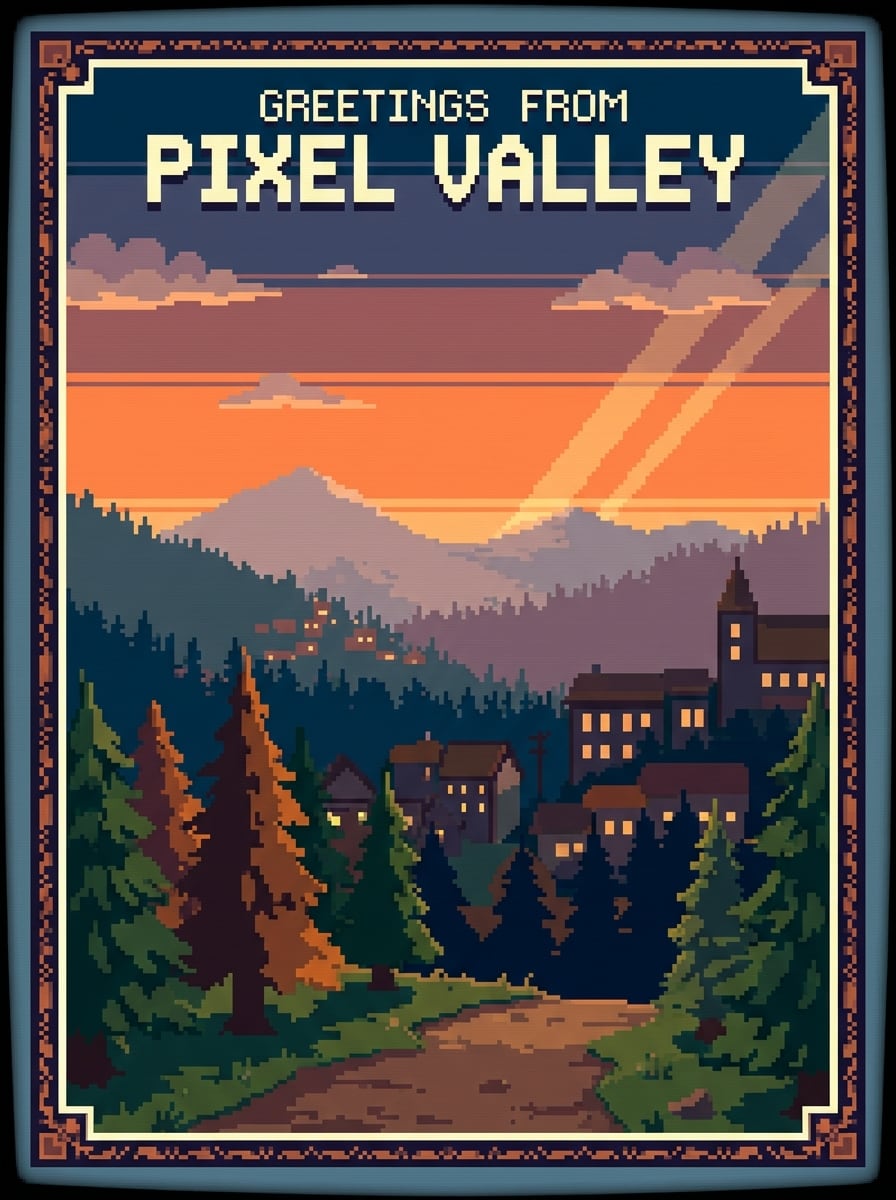
Travel Snapshot Pixel Scene
Use the uploaded travel image as the base and convert it into a scenic pixel-art environment with layered depth, vibrant but controlled palette, reduced fine detail, atmospheric lighting, postcard-like framing, retro adventure game mood, crisp tiled textures, and a richly readable landscape or city scene.
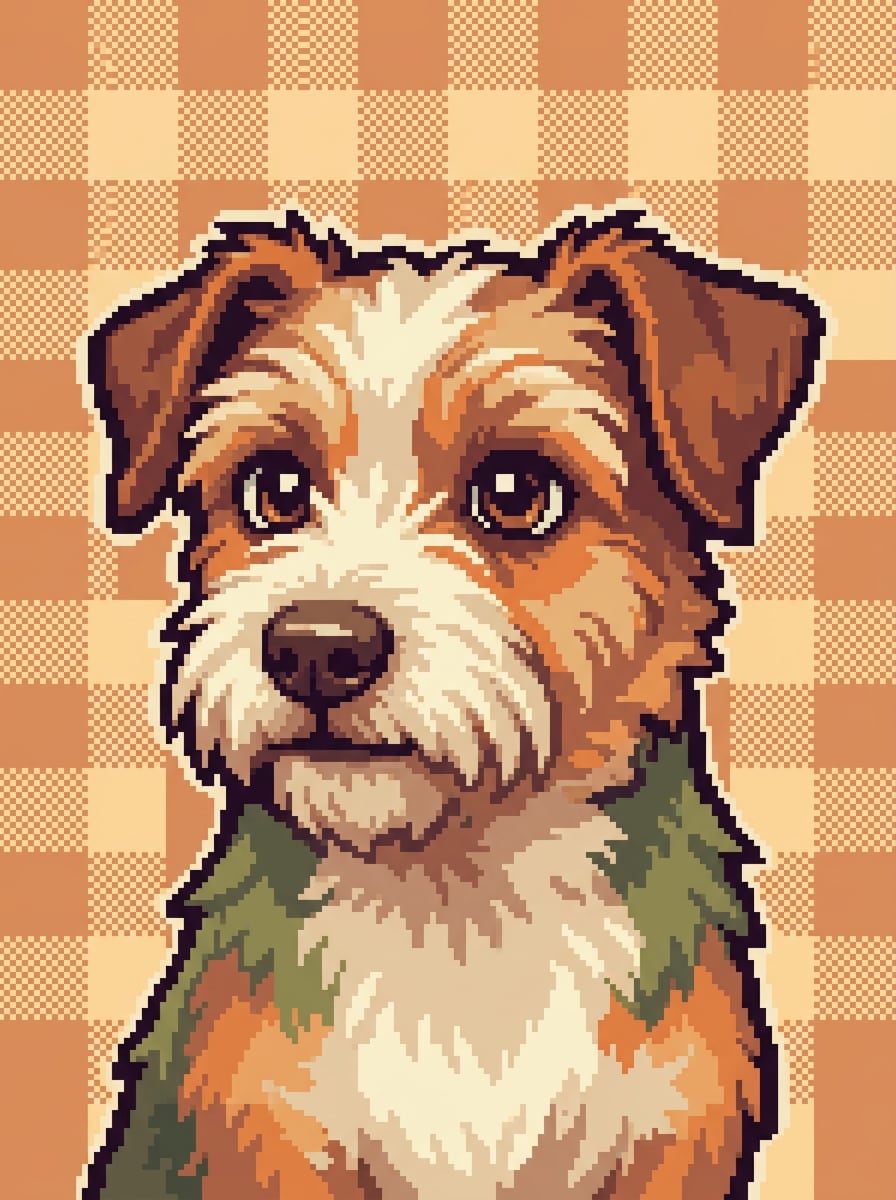
Pixel Pet Portrait
Use the uploaded dog or cat photo as the subject and create a charming pixel pet portrait with a crisp silhouette, expressive eyes, cozy color palette, soft shading, centered composition, clean background simplification, friendly retro companion-sprite mood, and sharp blocky details that keep the pet recognizable.
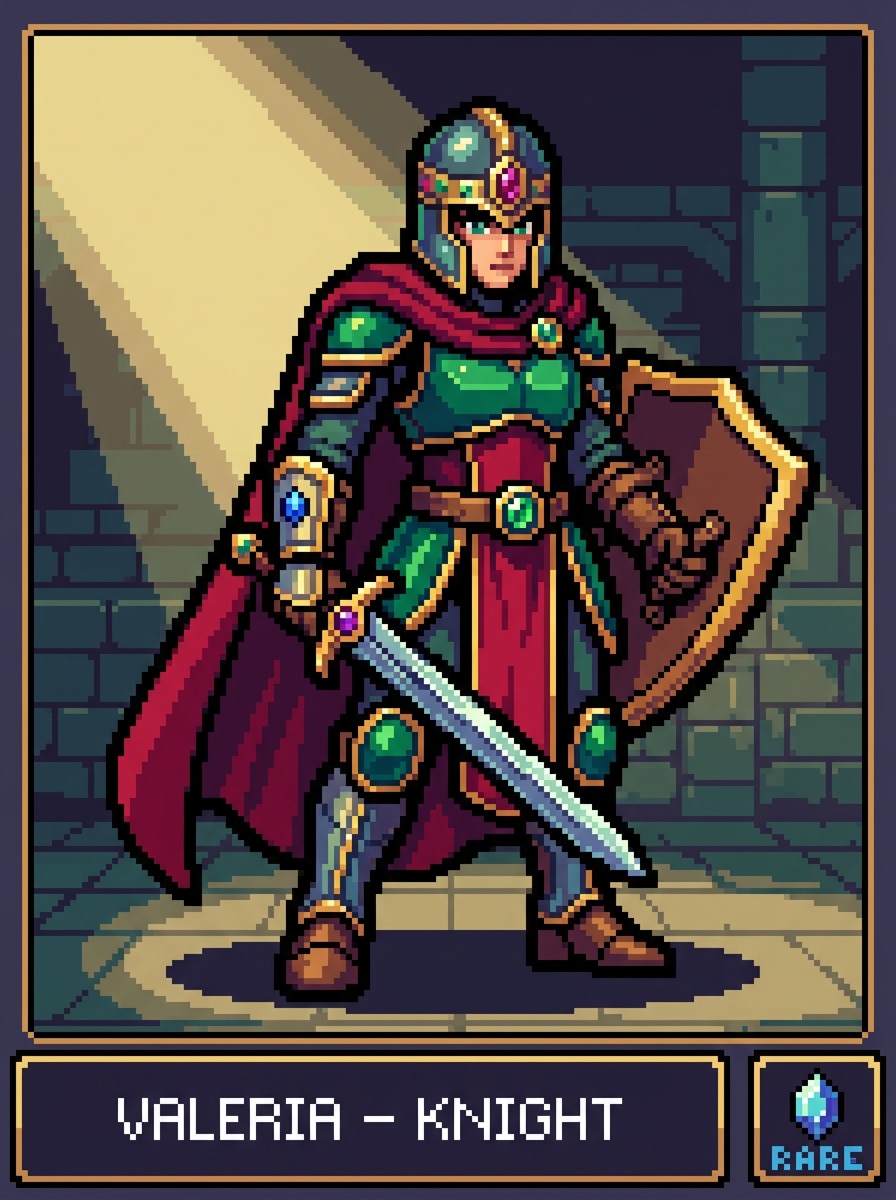
Fantasy RPG Sprite
Use the uploaded image as the subject and transform it into a fantasy RPG sprite with strong outlines, stylized outfit details, a heroic stance, retro jewel-tone palette, dramatic directional lighting, readable accessory accents, classic role-playing game mood, and crisp pixel rendering with collectible-character appeal.
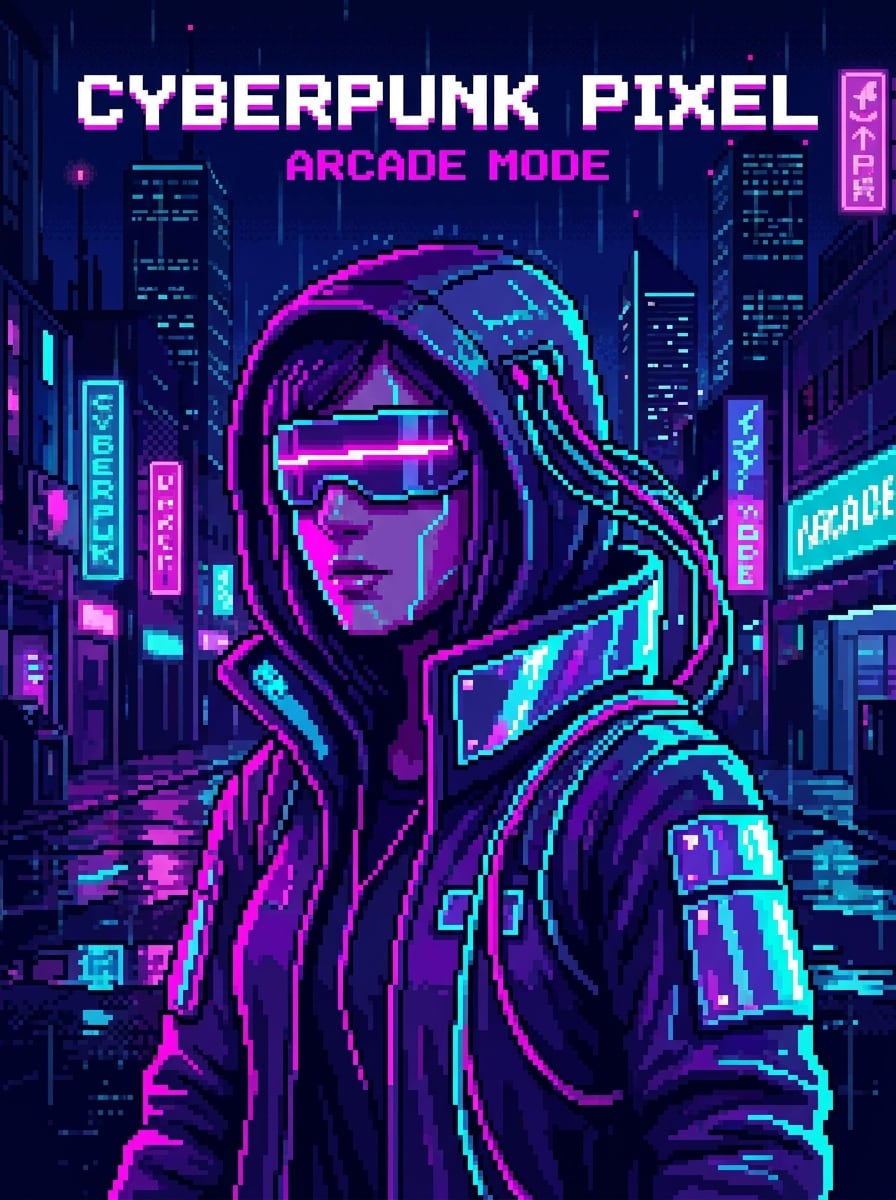
Neon Cyber Pixel Art
Use the uploaded image as the subject and apply a neon cyberpunk pixel style with glowing magenta and cyan highlights, dark moody atmosphere, reflective surfaces, high-contrast lighting, dense retro-futuristic details, clean sprite structure, and a dramatic city-night palette for a bold arcade-inspired result.
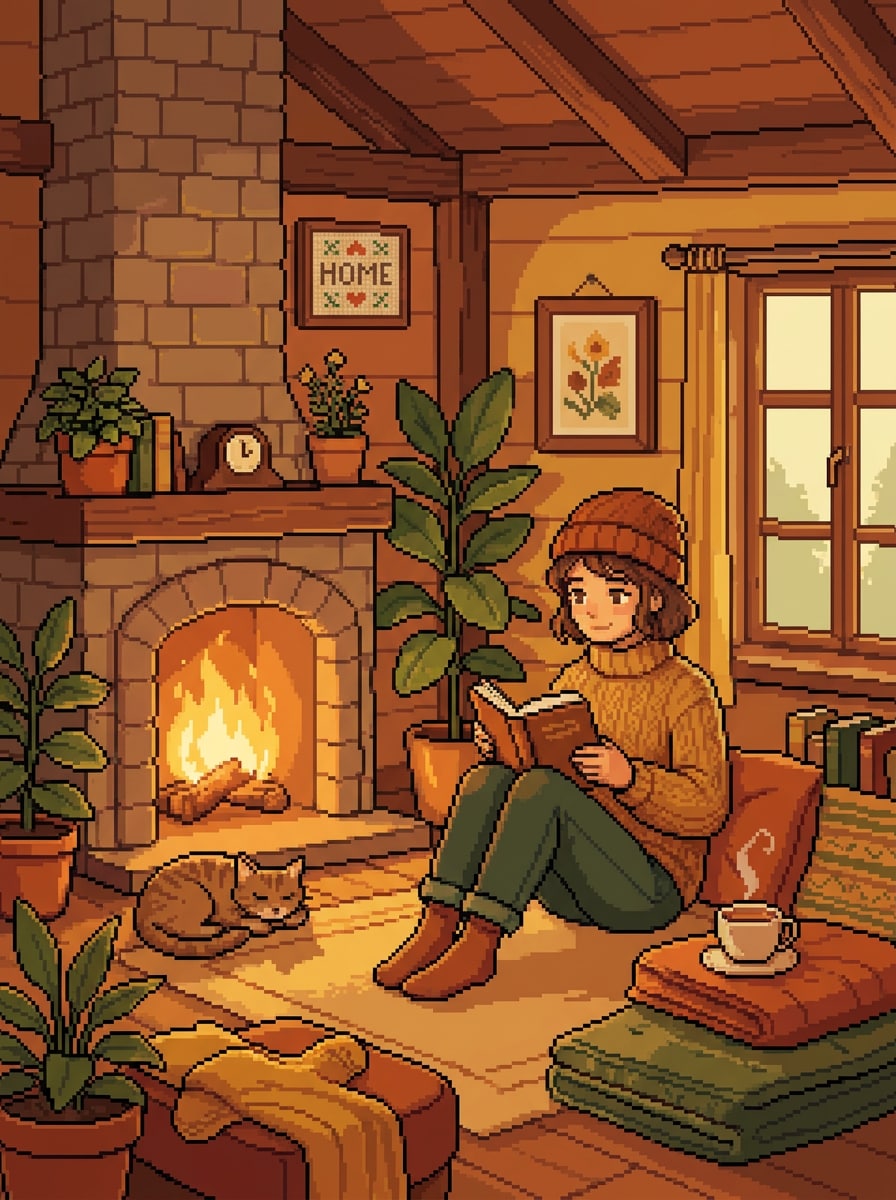
Cozy Indie Game Pixel Style
Use the uploaded image as the subject and restyle it into cozy indie-game pixel art with warm earthy colors, soft golden lighting, handcrafted sprite texture, inviting nostalgic mood, simplified forms, gentle shading, tidy composition, and a calm storybook atmosphere suited for wallpapers or social posts.
Why Use Media.io for Retro Pixel Transformations
Keep Faces and Subjects Recognizable in Pixel Form
Reference-based work needs more than a loose style shift. Media.io helps keep key identity details recognizable while reworking the pixel art filter look, so the result feels personal instead of generic.
Rework One Subject Into Multiple Styles
If the subject still needs to look like itself after the transformation, Media.io helps hold onto core identity cues while updating the final pixel art filter style for a cleaner finished result.
Adapt Visuals for More Publishing Needs
Across social posts, presentations, and promotional layouts, Media.io helps you adapt the same retro concept for different placements without starting over. This flexible pixel effect online workflow saves time while keeping the visual direction consistent.
Generate Cleaner Output Up to 4K
When a pixel art filter is headed for real publishing use, Media.io gives you sharper output up to 4K, which helps the image stay clear across presentations, backgrounds, and reused assets.
How to Apply a Pixel Art Filter Online
Turn your words into stunning visuals in three simple steps, then continue refining the result if you want to take it further.
Step 1
Upload Your Reference Image
Start with a clear selfie, couple photo, pet shot, or travel image in JPG, PNG, or JPEG. A clean, well-lit source image gives the AI stronger details to convert into a recognizable retro pixel style.
Step 2
Describe the Change and Set Options
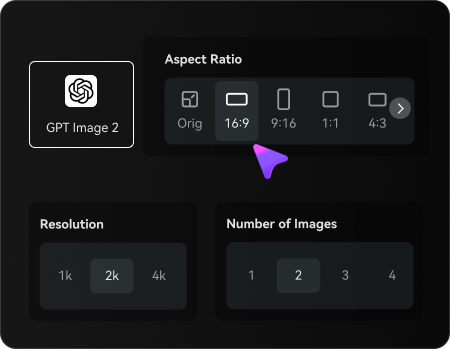
Enter the look you want, such as an 8-bit avatar, 16-bit sprite, or cozy indie-game scene. Then choose your preferred model and adjust aspect ratio, resolution, or image count to match your final use.
Step 3
Generate, Download, and Keep Improving
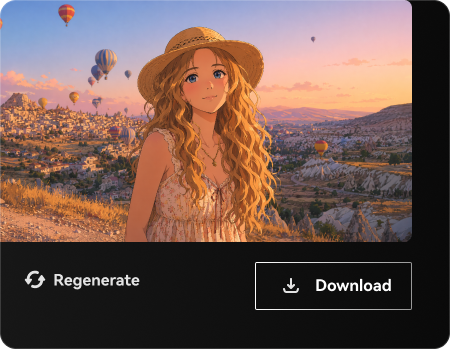
Create your pixel-art variations, compare the results, and download the one you like best. If needed, refine the prompt, try another model, or generate more versions until the retro style feels just right.
See how creators use this Media.io Pixel Art Filter for content, marketing, and personal projects, then adapt each idea to fit the brief.
Turn Selfies Into Retro Profile Icons
Convert everyday portraits into game-inspired avatars for social media, Discord, or creator branding. This is a fast way to get a custom retro look without building sprites by hand or depending on a long photoshop pixel art filter editing process.
Create Shareable Before-and-After Transformations
Upload a photo and produce stylized conversions that work well in carousels, reels, and short-form content. The visual jump from the original image to sprite-style artwork makes the change instantly clear and highly engaging.
Design Personalized Gifts, Prints, and Gaming-Themed Art
Use portraits, couple photos, or pet shots to make nostalgic artwork for posters, cards, wallpapers, or room decor. The retro style feels playful and personal, while high-resolution export helps the finished image stay clean beyond the screen.
What Users Say About This Pixel Art Tool
Maya R.
Content Creator
"Great for social avatars" I uploaded a selfie and got a polished pixel avatar in minutes. It felt much faster than trying to recreate the effect manually, and the result looked clean enough to use across my profiles.
Ethan L.
Indie Game Hobbyist
"Easy retro styling" What I liked most was how simple it was to test different retro looks from one photo. I could go from a basic 8-bit style to a more detailed console-inspired sprite without extra software.
Sofia M.
Etsy Seller
"Useful for printable art" I used it to turn a couple portrait into pixel-style wall art. The export quality was good, and the recognizable faces made the final piece feel personal instead of overly generic.
Daniel K.
Student Designer
"Good Photoshop alternative" I was searching for a quick online option because I did not want a long desktop editing workflow. This worked well for testing ideas before deciding whether I even needed Photoshop at all.
Upload a JPG, PNG, or JPEG image to Media.io, then describe the retro look you want, such as an 8-bit avatar, a sprite-style portrait, or a cozy game scene. Media.io uses your reference image to guide the transformation, so it works well if you want to turn a selfie or pet photo into pixel art online without manual editing.
2. Is this pixel art filter free to use?
Yes, Media.io offers free credits so you can try the tool before upgrading. Free users may see watermarks, while paid plans unlock more usage and watermark-free high-resolution downloads. You can compare options on the pricing page.
3. What is the difference between pixelating an image and creating pixel art?
Pixelating an image usually means enlarging square blocks across a photo, often for censorship or a simple visual effect. Creating pixel art aims for a deliberate retro style with simplified shapes, controlled color choices, sprite-like shading, and a game-inspired look, which is closer to what users expect from a photo-to-pixel-art converter.
4. Can I use this pixel art generator on mobile and desktop?
Media.io is web-based, so you can use this tool on any device with a browser, including Windows, Mac, iPhone, iPad, and Android phones or tablets. That makes it practical if you want a quick browser workflow instead of switching between apps on desktop and mobile.
5. Will the final image be high enough quality to download or print?
Media.io supports 1K, 2K, and 4K resolution options, so you can choose a size that fits social sharing, downloads, or many print uses. Free users may have watermarks.
6. How long does it take to convert an image to pixel art?
The process is designed to be fast: upload your image, enter the style prompt, choose settings, and generate. Exact time can vary depending on the model, resolution, and number of images you create, but the workflow is much quicker than building the same retro look by hand.