Vos créations sont conservées pendant seulement 7 jours. Les éléments créés après la mise à niveau de l'Abonnement seront stockés de façon permanente.
Libérez votre potentiel créatif et découvrez la magie de l'IA médiatique dès mIAntenant!
Censurer une image en ligne gratuitement - Flouter, pixéliser ou masquer les détails sensibles instantanément
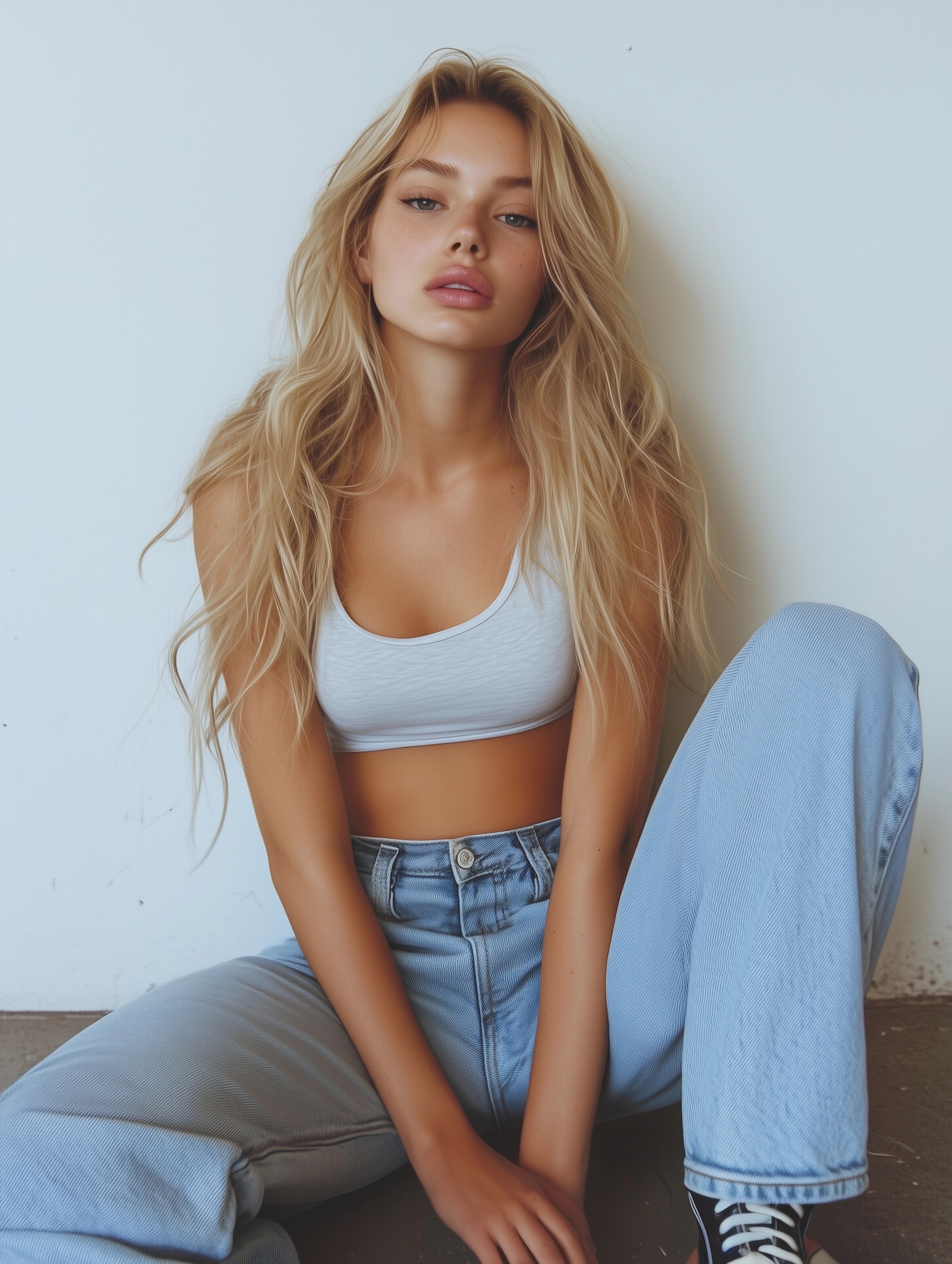
Censurez une image en ligne en quelques secondes avec Media.io. Floutez des visages, pixélisez des plaques d'immatriculation, masquez du texte ou couvrez les parties sensibles d'une photo avant de la partager sur les réseaux sociaux, dans des documents ou dans des publications publiques. C'est un moyen rapide de protéger la vie privée tout en gardant le reste de l'image net et utilisable.
Explorez notre collection sélectionnée d'idées de censure d'images
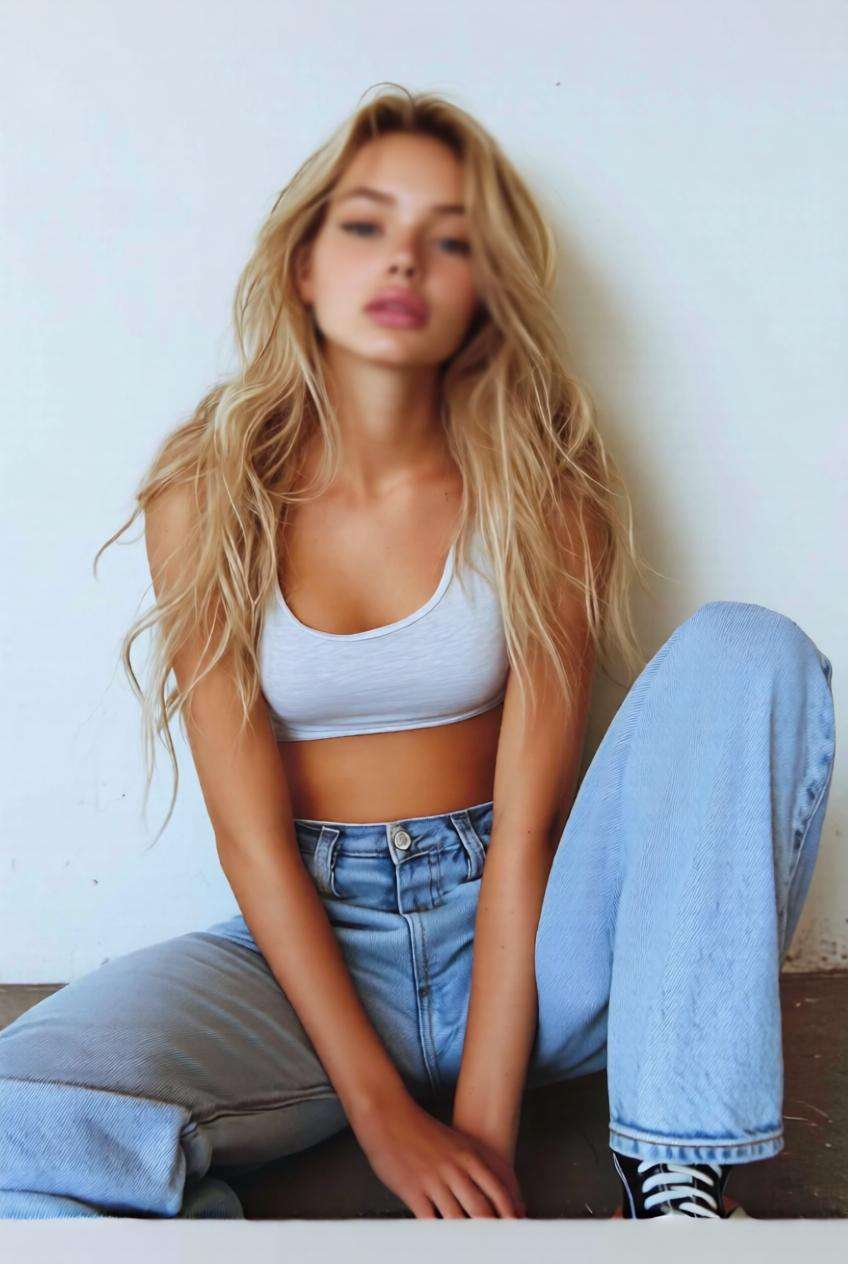
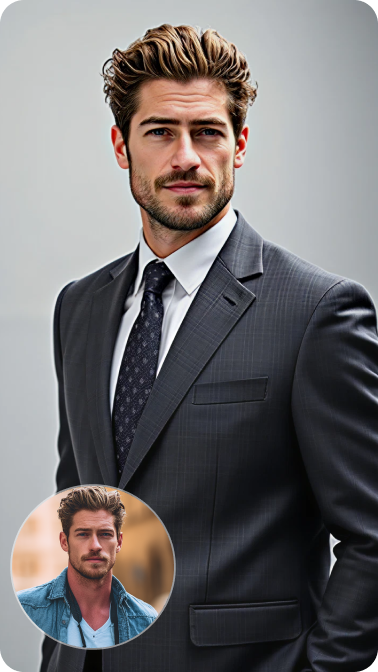
Édition de confidentialité avec floutage du visage
Utilisez l'image téléchargée comme sujet et appliquez un effet de censure propre par floutage du visage sur la personne sélectionnée tout en préservant le reste de la photo dans les moindres détails. Gardez l'éclairage, les teintes de peau, les vêtements et la composition de la scène naturels afin que l'image finale soit respectueuse de la vie privée, réaliste et prête à être partagée en ligne.
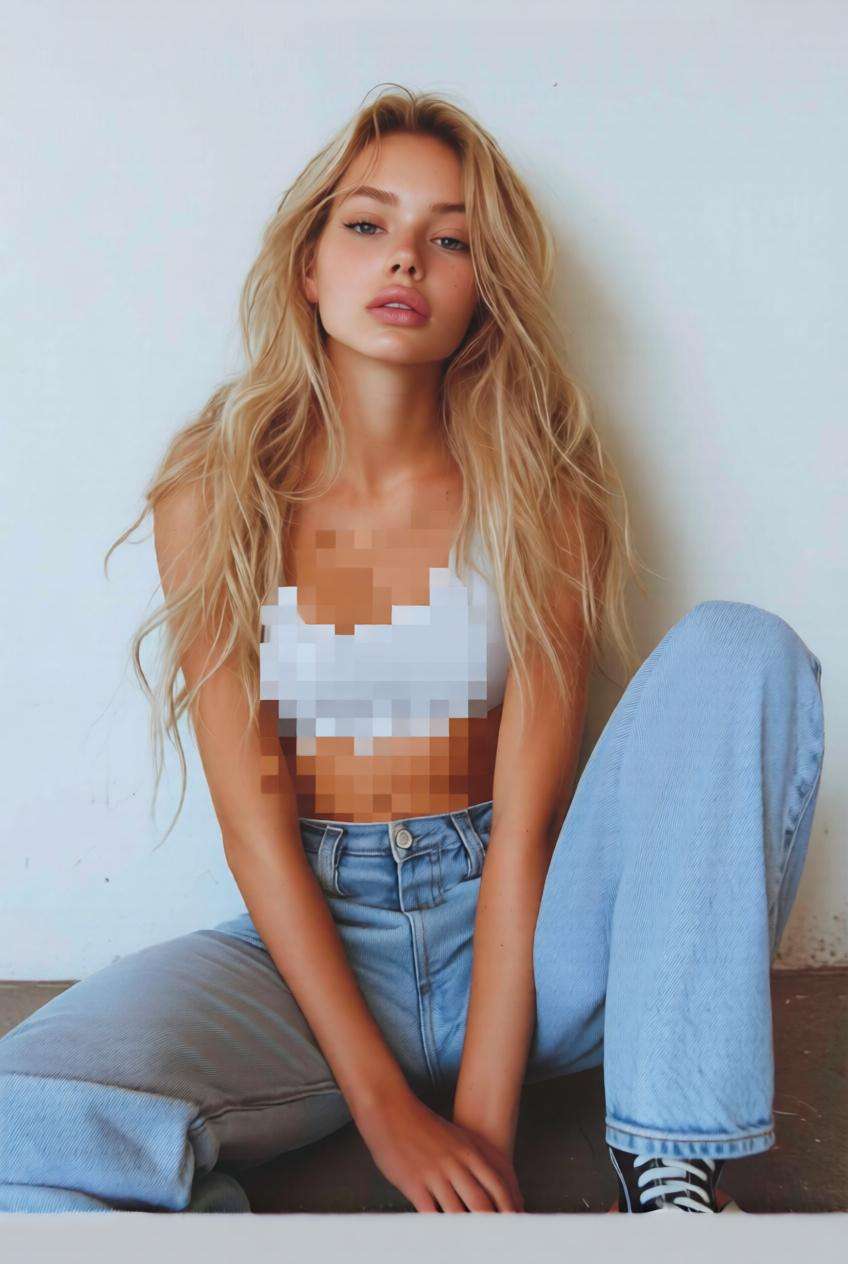
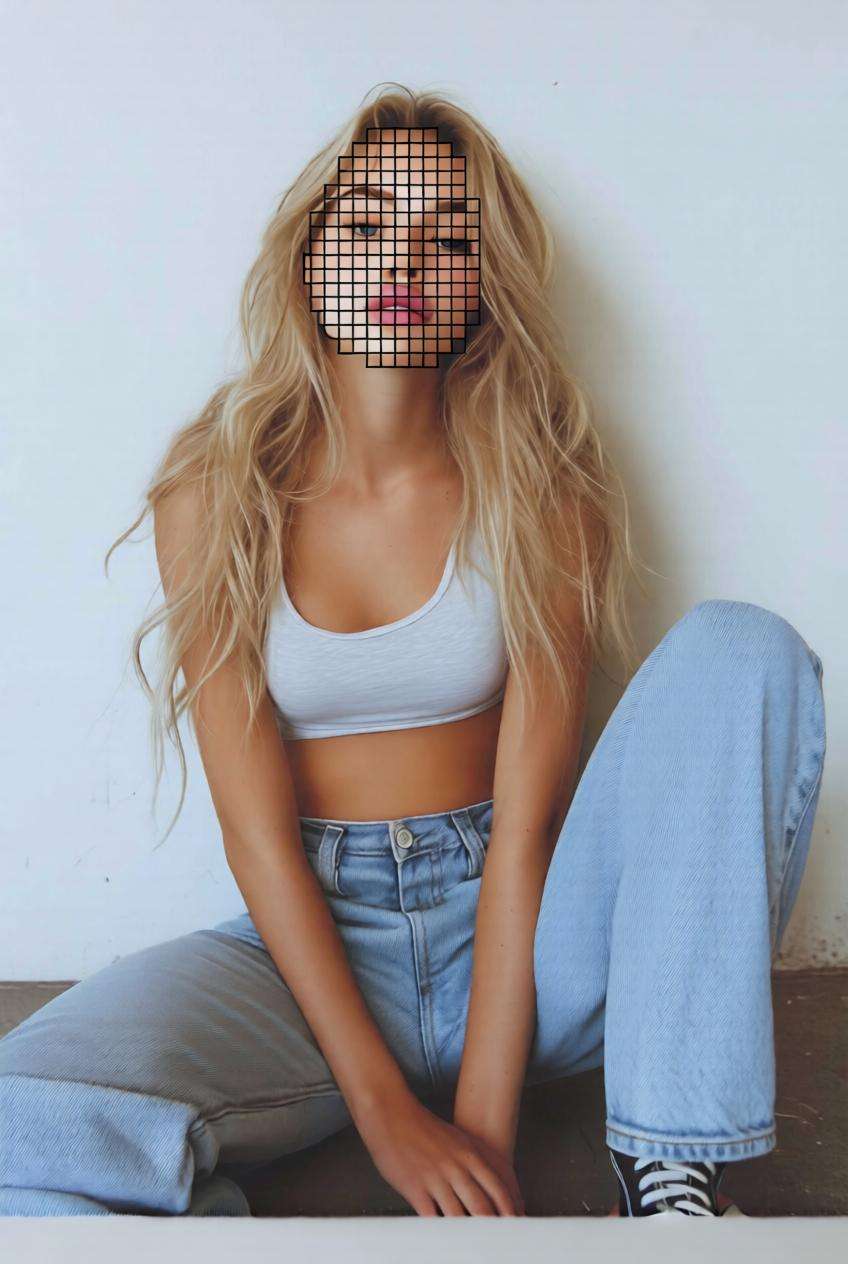
Censure du visage pixélisée
Utilisez l'image téléchargée comme sujet et convertissez le visage sélectionné en un effet de censure pixélisé soigné avec des blocs de mosaïque propres. Préservez la pose originale, l'arrière-plan et le réalisme général de l'image tout en rendant la zone censurée intentionnelle, équilibrée et visuellement soignée.
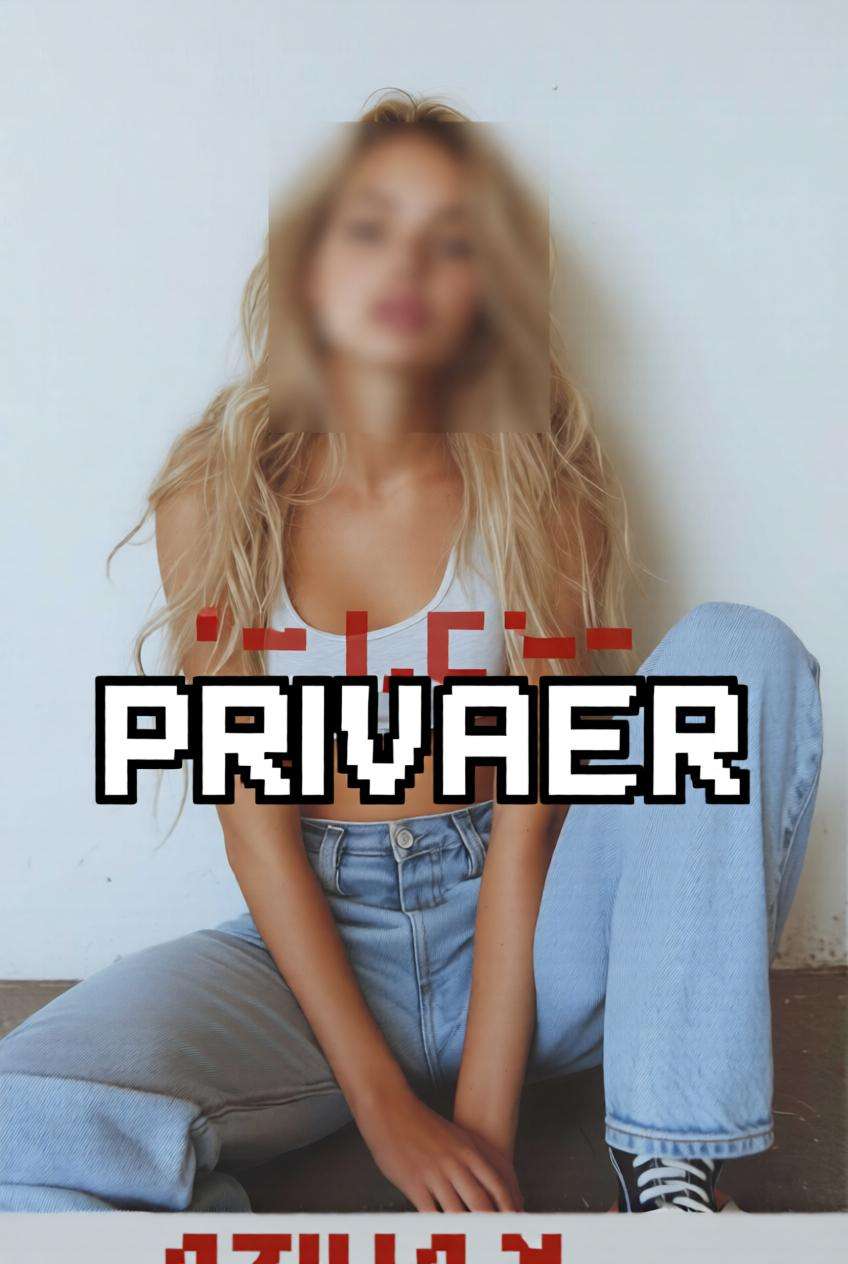
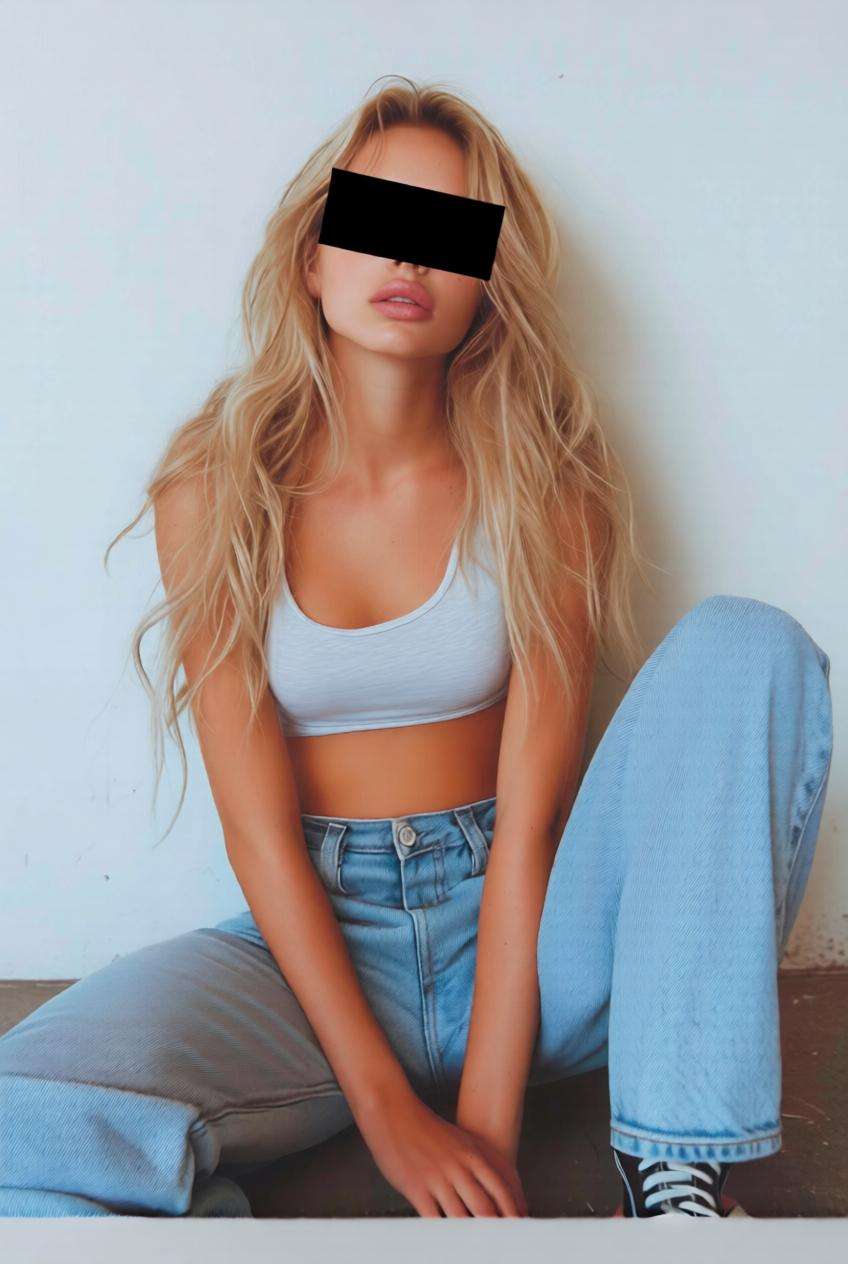
Barre de censure classique
Utilisez l'image téléchargée comme sujet et ajoutez une barre de censure noire classique sur les yeux ou la zone sensible choisie. Conservez la coiffure, le contour du visage, les proportions corporelles et la composition de l'image intacts afin que le résultat final reste expressif tout en protégeant l'identité.
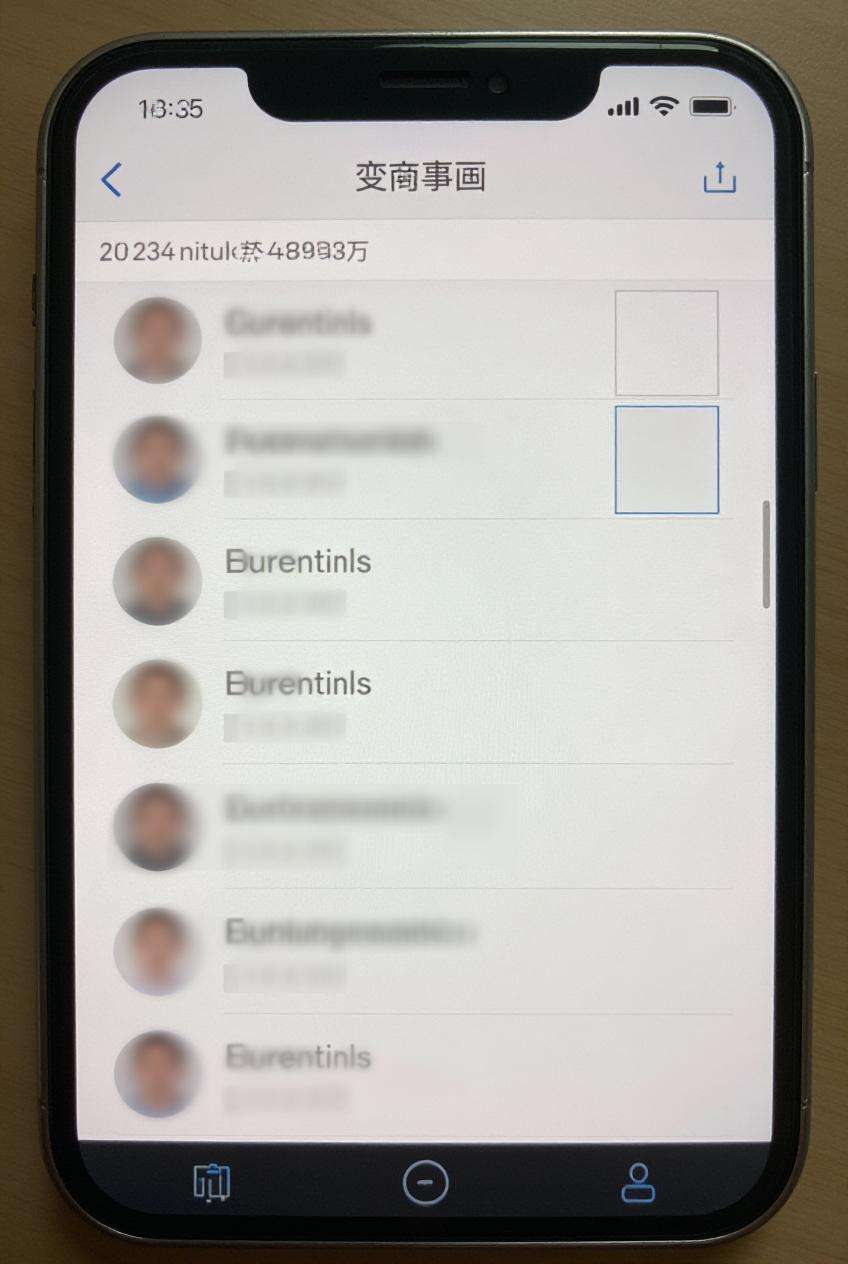
Flouter le texte privé
Utilisez l'image téléchargée comme sujet et censurez les textes sensibles tels que les noms, numéros de téléphone, e-mails ou informations de compte avec des masques de flou doux. Gardez le reste de la capture d'écran net et lisible afin que le résultat final reste utile pour les tutoriels, les rapports ou le partage.
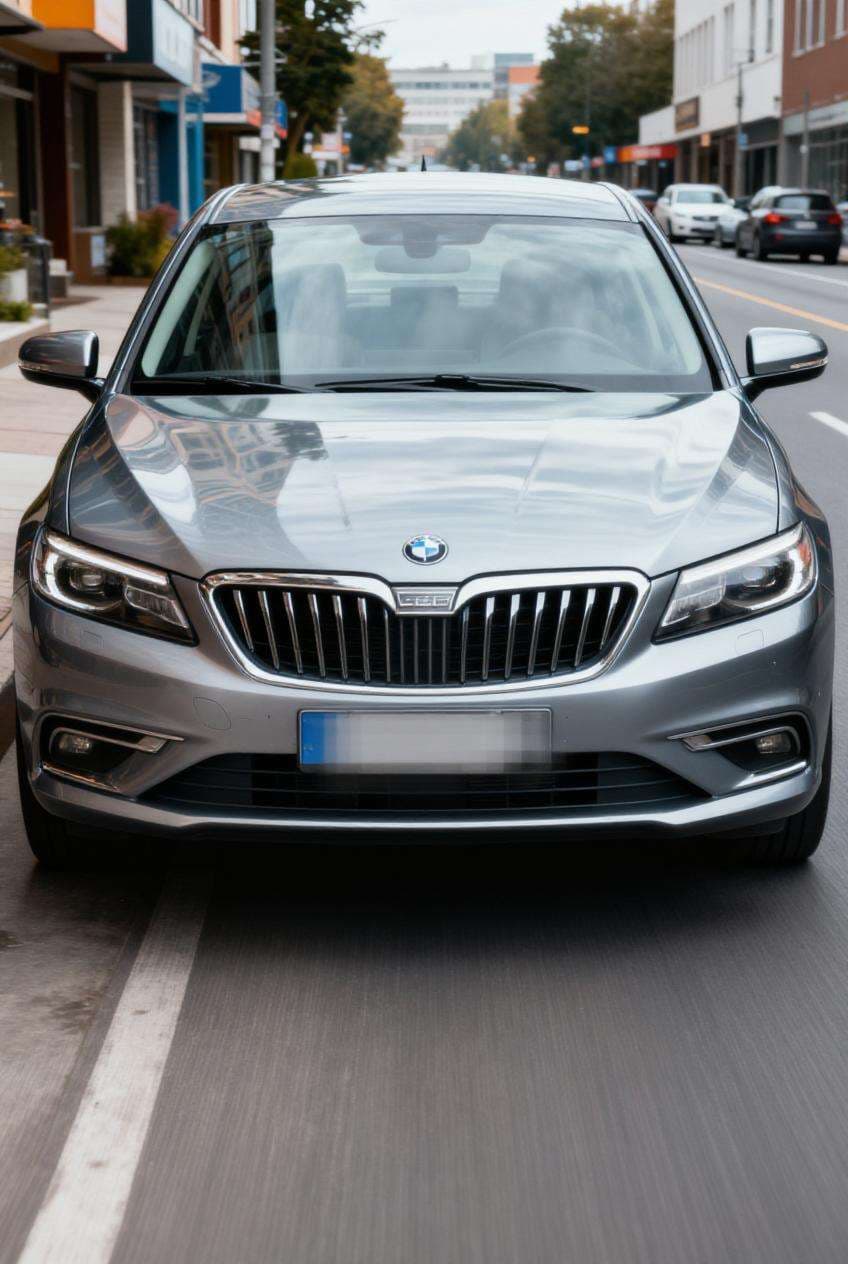
Censure de plaque d'immatriculation
Utilisez l'image téléchargée comme sujet et masquez la plaque d'immatriculation ou le numéro de rue avec un effet subtil de pixélisation ou de flou. Préservez les détails du véhicule, les reflets, l'éclairage et le réalisme de la scène tout en rendant la zone censurée claire et respectueuse de la vie privée.
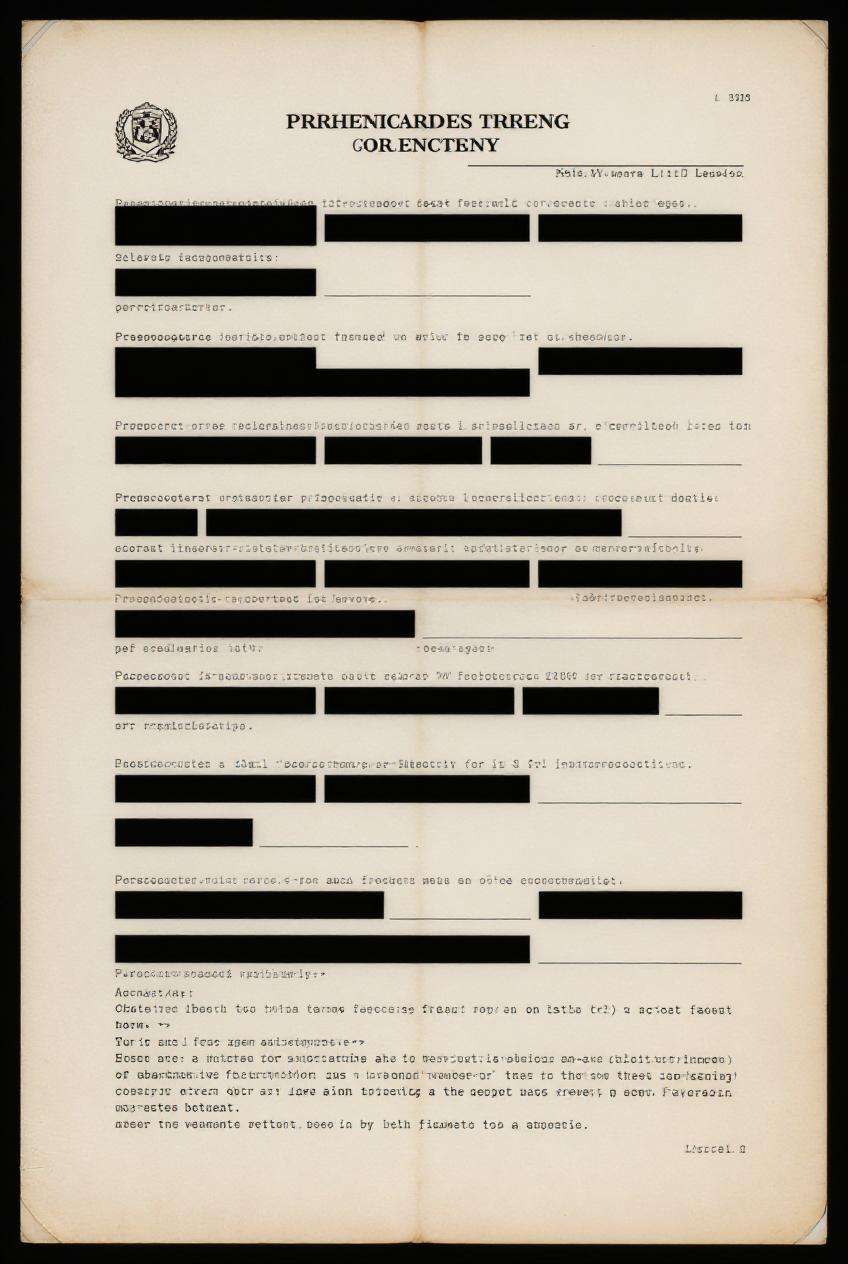
Masquage des détails de documents
Utilisez l'image téléchargée comme sujet et appliquez un effet de censure par noircissement aux détails confidentiels des documents, aux étiquettes ou aux informations de compte. Gardez la texture du papier, les marges et la mise en page générale propres afin que l'image reste professionnelle et facile à présenter.
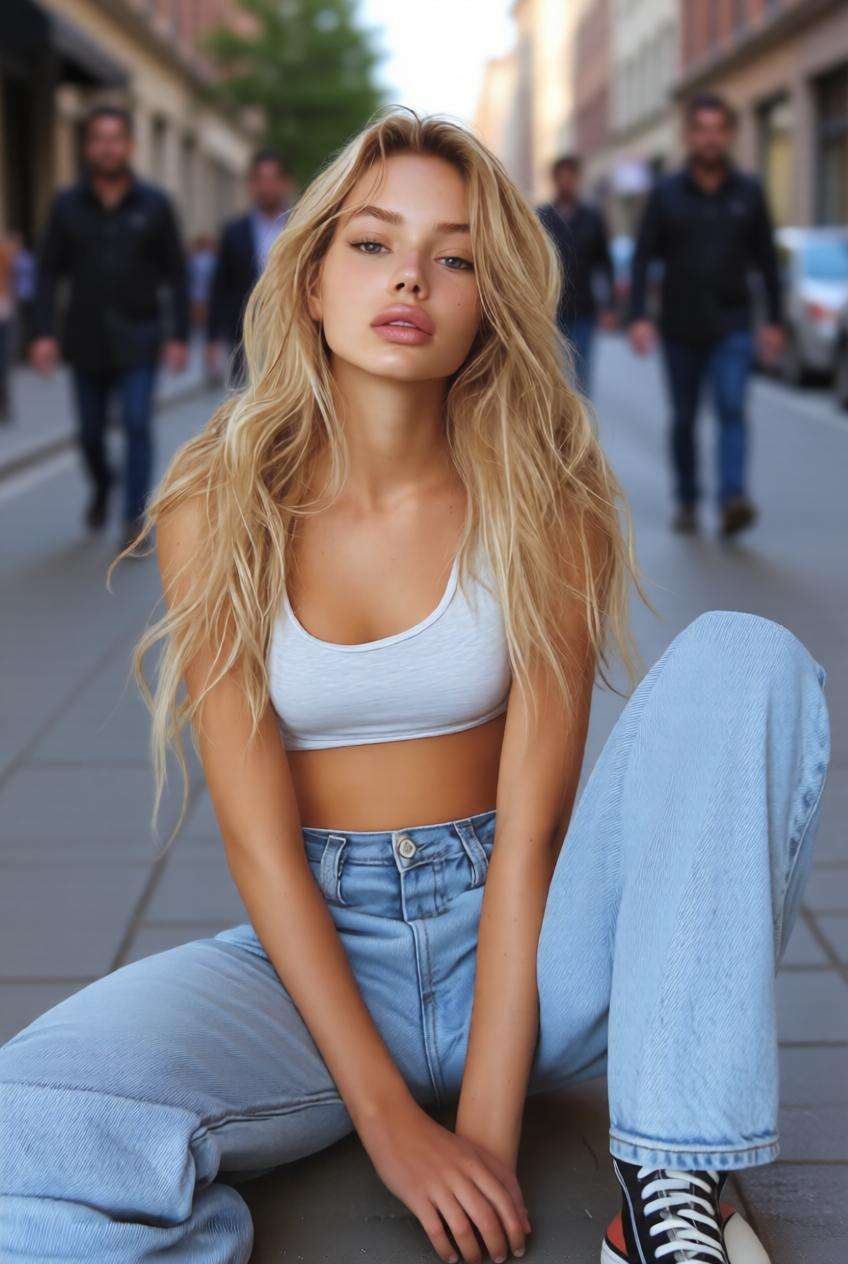
Flouter les visages en arrière-plan
Utilisez l'image téléchargée comme sujet et floutez les personnes en arrière-plan ou les passants tout en gardant le sujet principal net et clair. Préservez la profondeur naturelle, l'éclairage et l'atmosphère de la scène afin que l'image finale paraisse authentique et respectueuse de la vie privée.
Pixélisation de zones sensibles
Utilisez l'image téléchargée comme sujet et pixélisez la zone corporelle sensible sélectionnée avec une censure en mosaïque propre tout en préservant le teint de peau réaliste, les proportions corporelles, l'éclairage et la composition générale pour une image finale sûre et soignée.
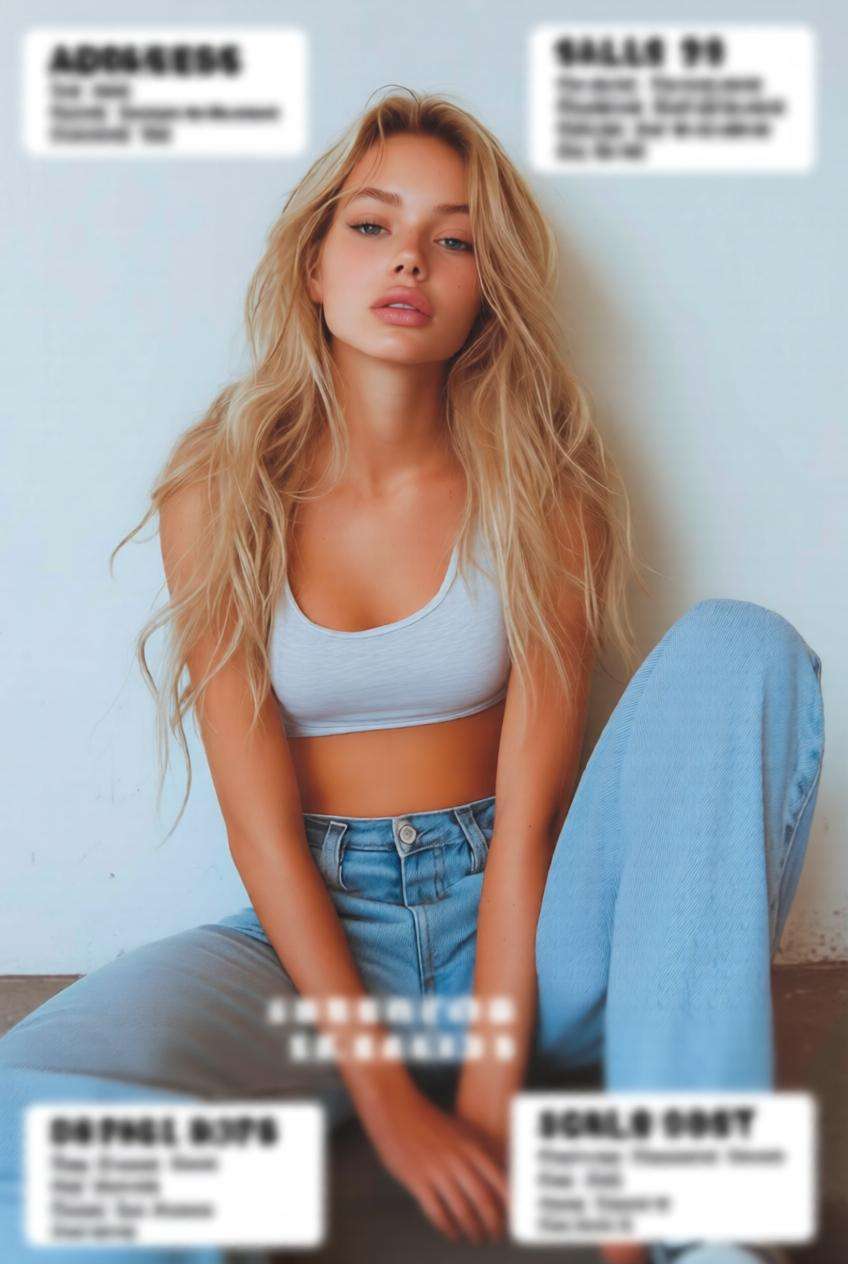
Floutage des étiquettes d'expédition
Utilisez l'image téléchargée comme sujet et floutez les étiquettes d'adresse, les numéros de suivi ou les informations du vendeur tout en gardant le produit lui-même net et attrayant. L'image finale doit paraître propre, fiable et prête pour les annonces ou le contenu d'assistance.
Censure mixte de confidentialité
Utilisez l'image téléchargée comme sujet et combinez le floutage des visages, la censure du texte et la pixélisation des objets en une seule édition de confidentialité soignée. Préservez l'histoire, les couleurs, le cadrage et l'équilibre visuel de l'image originale tout en vous assurant que toutes les zones sensibles sont sécurisées et masquées.
Pourquoi les utilisateurs ont besoin de censurer des images
Masquer les visages et protéger l'identité
Censurez une image avant de la publier publiquement en floutant les visages, en pixélisant les traits ou en ajoutant une barre de censure.
Cela est utile pour les créateurs, les parents, les journalistes et toute personne partageant des photos incluant des personnes privées.
Flouter les détails privés dans les captures d'écran
Masquez les noms, les numéros de compte, les adresses e-mail et le contenu des discussions avant de partager des captures d'écran en ligne.
Cela vous aide à conserver le contexte visuel utile tout en supprimant les informations sensibles qui doivent rester privées.
Censurer les plaques, les étiquettes et les documents
Utilisez des effets de flou, de mosaïque ou de noircissement pour masquer les plaques d'immatriculation, les étiquettes d'expédition, les numéros de maison ou les détails des documents.
Une modification rapide peut rendre une photo beaucoup plus sûre à publier, envoyer ou présenter.
Choisissez le style de censure qui vous convient
Différentes images nécessitent différentes modifications de confidentialité. Vous pouvez flouter pour une protection subtile, pixéliser pour un effet plus fort, ou utiliser une barre de noircissement pour un aspect éditorial clair.
C'est une façon flexible de rendre les photos et les captures d'écran sûres sans sur-éditer l'ensemble de l'image.
Comment censurer une image en ligne
01
Étape 1 – Ouvrez l'outil de censure d'image
Accédez à Media.io dans votre navigateur et ouvrez l'outil de censure d'image.
Aucun logiciel compliqué ni expérience en retouche manuelle n'est nécessaire pour commencer.
02
Étape 2 – Téléchargez votre image et sélectionnez la zone
Téléchargez votre photo ou capture d'écran, puis choisissez la partie que vous souhaitez masquer.
Vous pouvez censurer des visages, du texte privé, des plaques d'immatriculation, des étiquettes, des personnes en arrière-plan ou d'autres détails sensibles.
03
Étape 3 – Générez et téléchargez la version sécurisée
Cliquez sur Générer pour appliquer le flou, la pixélisation ou le noircissement en quelques secondes.
Téléchargez le résultat modifié pour les publications sur les réseaux sociaux, les documents de travail, les images de marché ou le partage respectueux de la vie privée.
Ce que les utilisateurs disent de l'outil de censure d'images Media.io
Maya
Gestionnaire des réseaux sociaux
« Retouches de confidentialité rapides » Je l'utilise avant de publier des photos en coulisses. Il est facile de masquer les visages et les étiquettes sans gâcher l'ensemble de l'image.
Daniel
Vendeur en ligne
« Parfait pour les captures d'écran » J'ai censuré les détails des commandes et les informations des clients en quelques secondes. Le résultat était suffisamment propre pour être utilisé dans les annonces et les documents d'assistance.
Ava
Rédactrice indépendante
« Simple et fiable » J'ai souvent besoin de masquer des noms et des photos de profil dans des captures d'écran de référence. Ce flux de travail est bien plus rapide que la retouche manuelle.
Découvrez Les Effets Vidéo et d'Image IA Les Plus Populaires
Foire aux questions sur les outils de censure d'images
1. Qu'est-ce qu'un outil de censure d'images ?
A censure d'image Un outil vous aide à masquer les parties sensibles d'une photo ou d'une capture d'écran avant de la partager. Vous pouvez flouter des visages, pixéliser des détails privés, ajouter une barre de censure ou noircir du contenu confidentiel tout en gardant le reste de l'image visible et utilisable.
2. Puis-je flouter des visages dans une photo en ligne ?
Oui. Avec Media.io, vous pouvez flouter des visages dans des photos en ligne pour protéger l'identité avant de publier ou de partager une image. Cela est utile pour les scènes publiques, les photos de famille, le contenu d'événements, la photographie de rue ou toute image incluant des personnes qui doivent rester privées.
3. Puis-je censurer du texte ou des informations privées dans des captures d'écran ?
Absolument. Vous pouvez masquer les noms, les adresses e-mail, les détails de compte, le contenu des messages, les numéros de suivi et d'autres textes sensibles dans les captures d'écran. Cela rend le partage de captures d'assistance, de matériaux éducatifs, de références d'équipe ou d'exemples destinés aux clients beaucoup plus sûr.
4. Quel style de censure dois-je utiliser : flou, pixélisation ou noircissement ?
Le flou est un bon choix lorsque vous souhaitez que la retouche paraisse plus douce et plus naturelle. La pixélisation crée un effet de confidentialité plus fort et est couramment utilisée pour les visages, les plaques ou les zones corporelles sensibles. Les barres de noircissement conviennent bien aux documents, aux captures d'écran et aux visuels de style éditorial où vous souhaitez que la zone masquée soit très visible.
5. Puis-je utiliser Media.io pour censurer une image gratuitement ?
Oui. Vous pouvez essayer les flux de travail de censure d'images en ligne avec Media.io pour flouter, pixéliser ou masquer des zones sensibles dans des photos et des captures d'écran rapidement. C'est une option pratique pour la protection de la vie privée, le partage sur les réseaux sociaux, la préparation à la modération et le nettoyage visuel.