Vos créations sont conservées pendant seulement 7 jours. Les éléments créés après la mise à niveau de l'Abonnement seront stockés de façon permanente.
Libérez votre potentiel créatif et découvrez la magie de l'IA médiatique dès mIAntenant!
Essai virtuel des boucles d'oreilles AI pour un Styling de Selfie réaliste
créer réalisteBoucles d'oreilles ailooks en téléchargeant un selfie et en prévisualisant les styles sur votre propre visage. Media.io faitBoucle d'oreille virtuelle Essayersimple, rapide et à l'aspect naturel, vous pouvez donc tester des cerceaux, des perles, des pièces de mariée et des designs avant de partager, de faire du shopping ou de concevoir.
Tapez votre idée-> AI la conçoit. Libre à essayer.
Examinez ces exemples d'instructions, puis adaptez les détails rapides pour obtenir des résultats plus forts avec ces boucles d'oreilles.
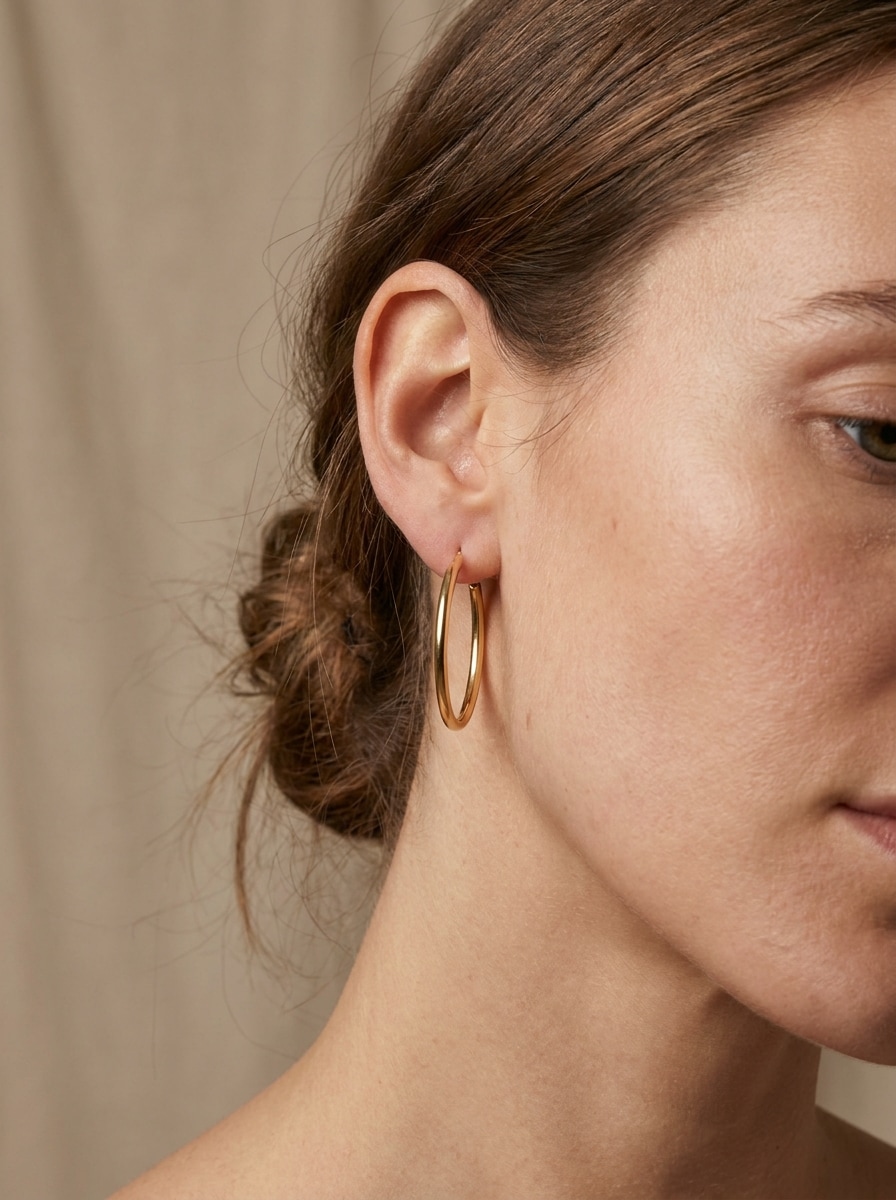
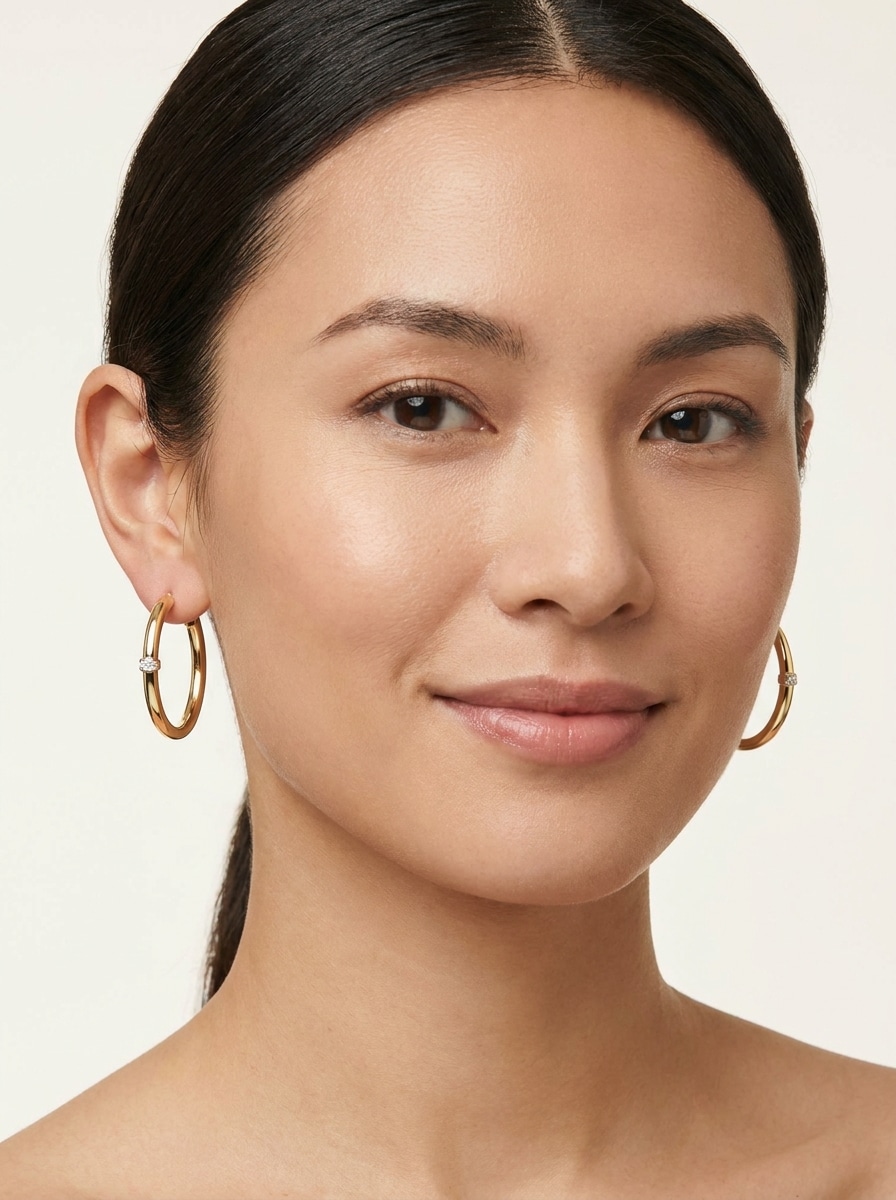
Cerceaux en or minimaliste
Utilisez l'image téléchargée comme sujet et transformez-la en un portrait de beauté réaliste au quotidien avec des boucles d'oreilles minimalistes en or poli. Gardez un placement naturel des oreilles, des proportions équilibrées, un éclairage studio doux, une texture de peau subtile, des ombres douces, un fond neutre et des détails métalliques réfléchissants pour un résultat authentique.
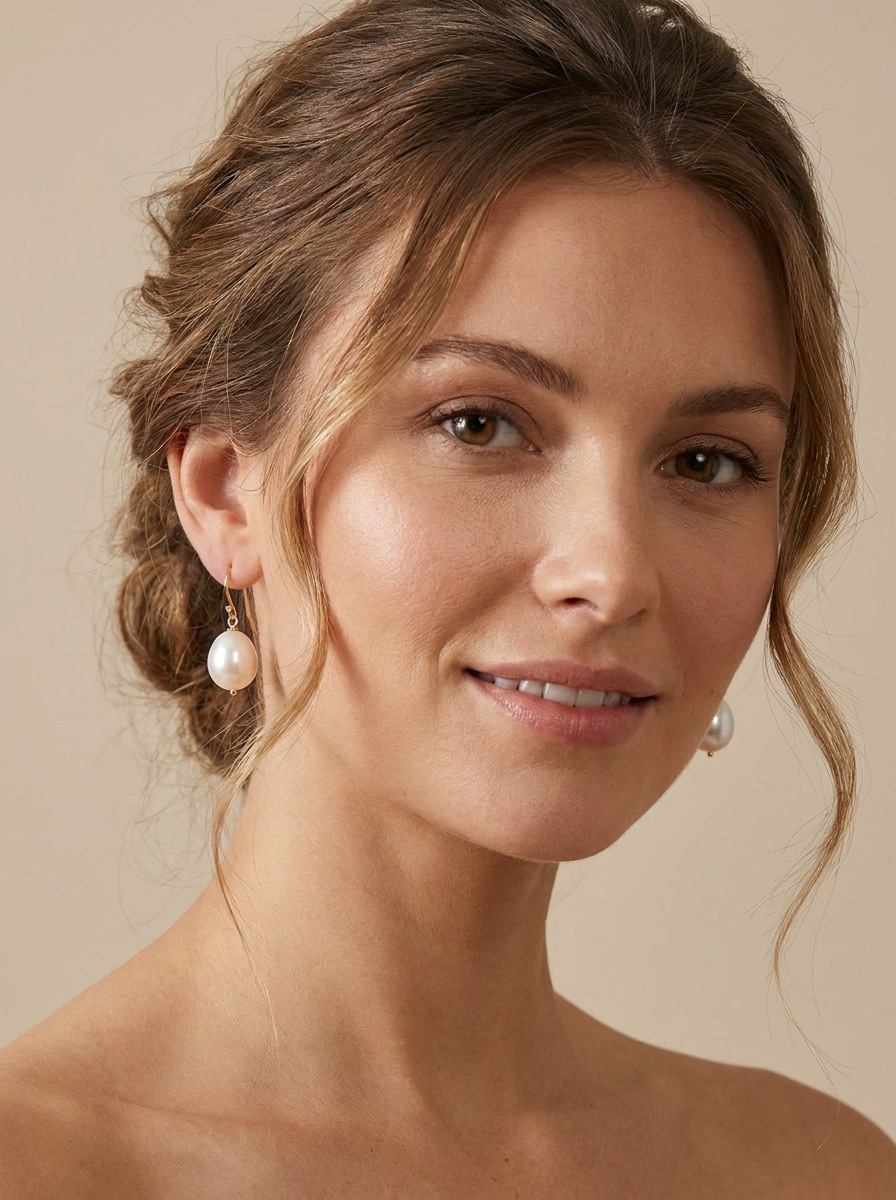
Boucles d'oreilles goutte de perle
Utilisez l'image téléchargée comme sujet et ajoutez des boucles d'oreilles élégantes pour un look raffiné et élégant. Préservez une échelle réaliste, des crochets en métal gracieux, un éclairage doux et chaud, des détails de peau lisses mais naturels, un fond propre et des reflets délicats sur les perles pour un aperçu poli d'inspiration mariée.
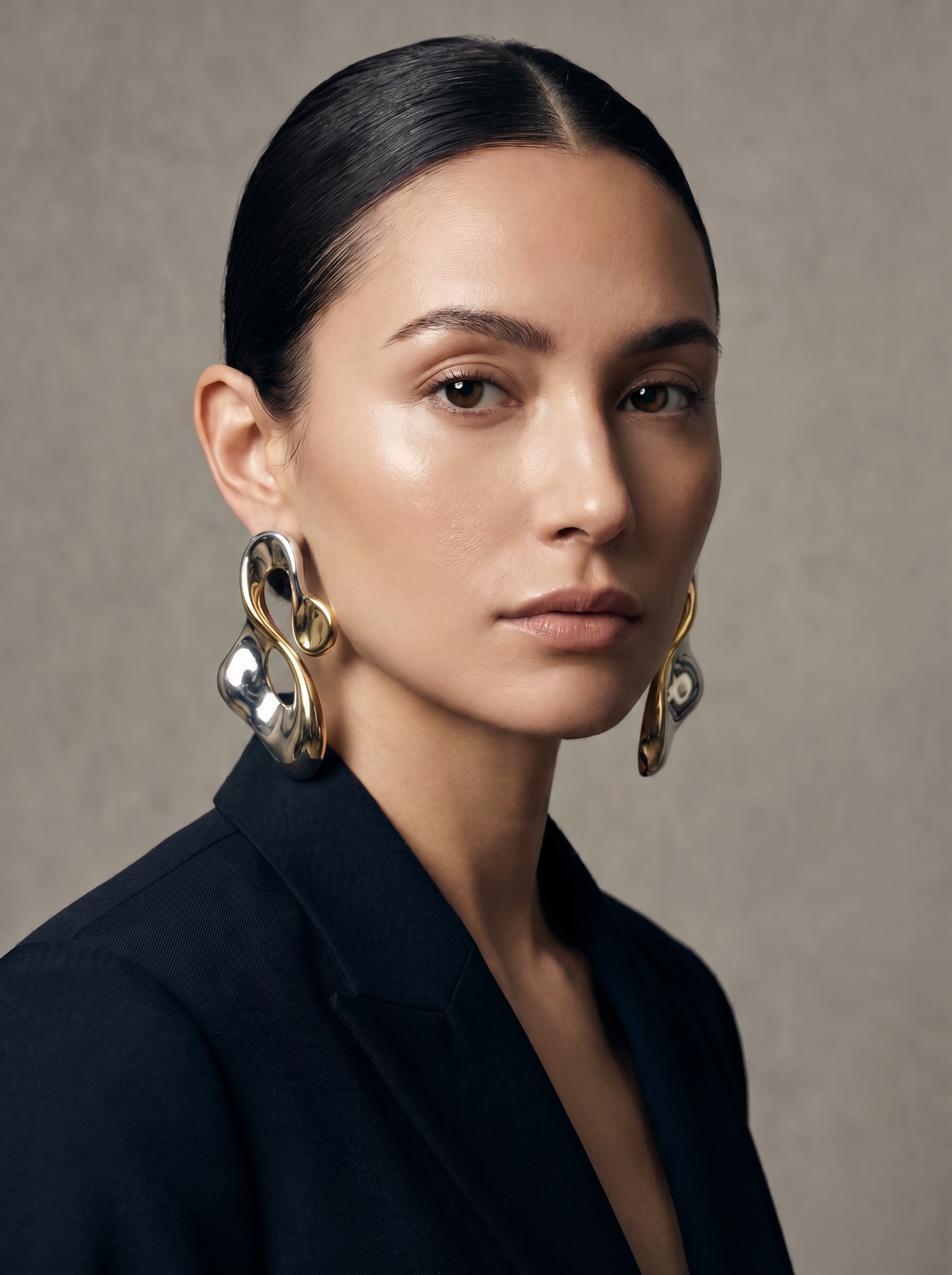
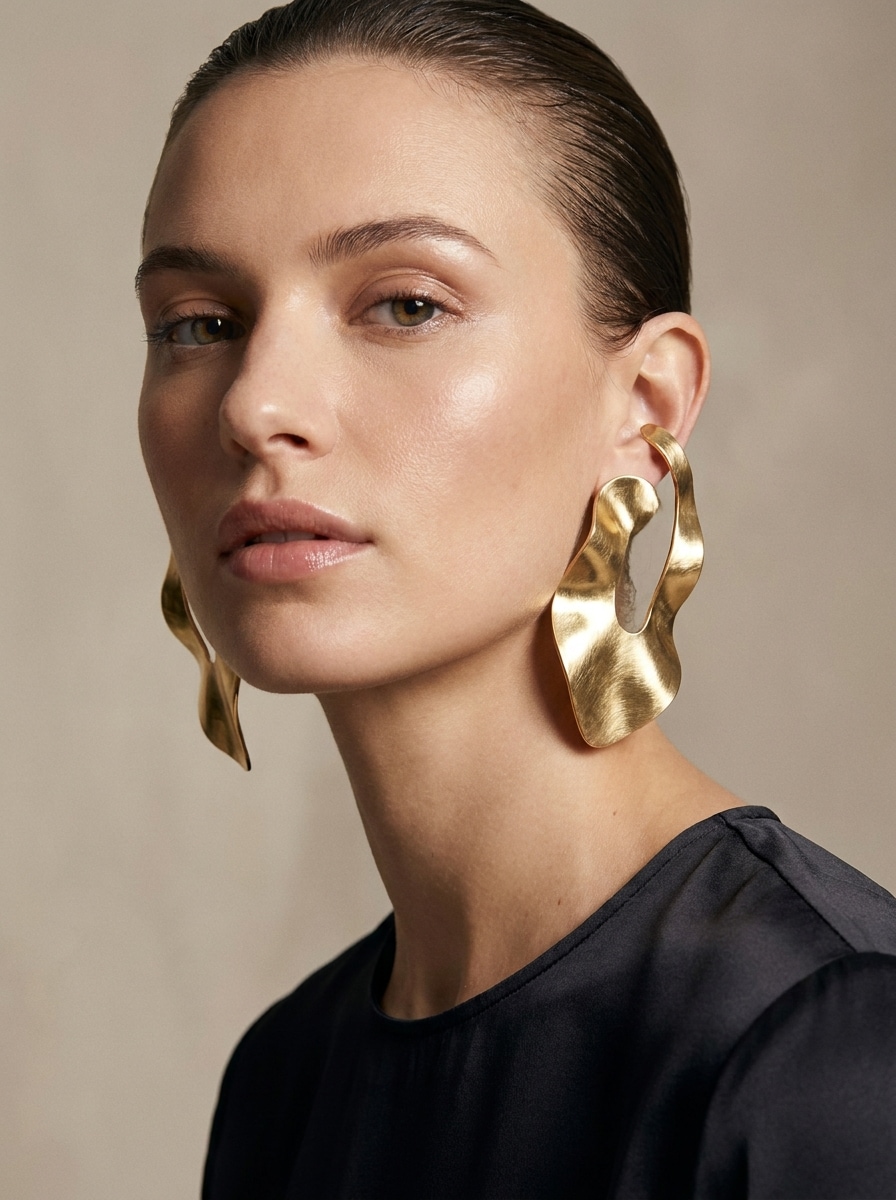
Boucles d'oreilles sculptures surdimensionnées
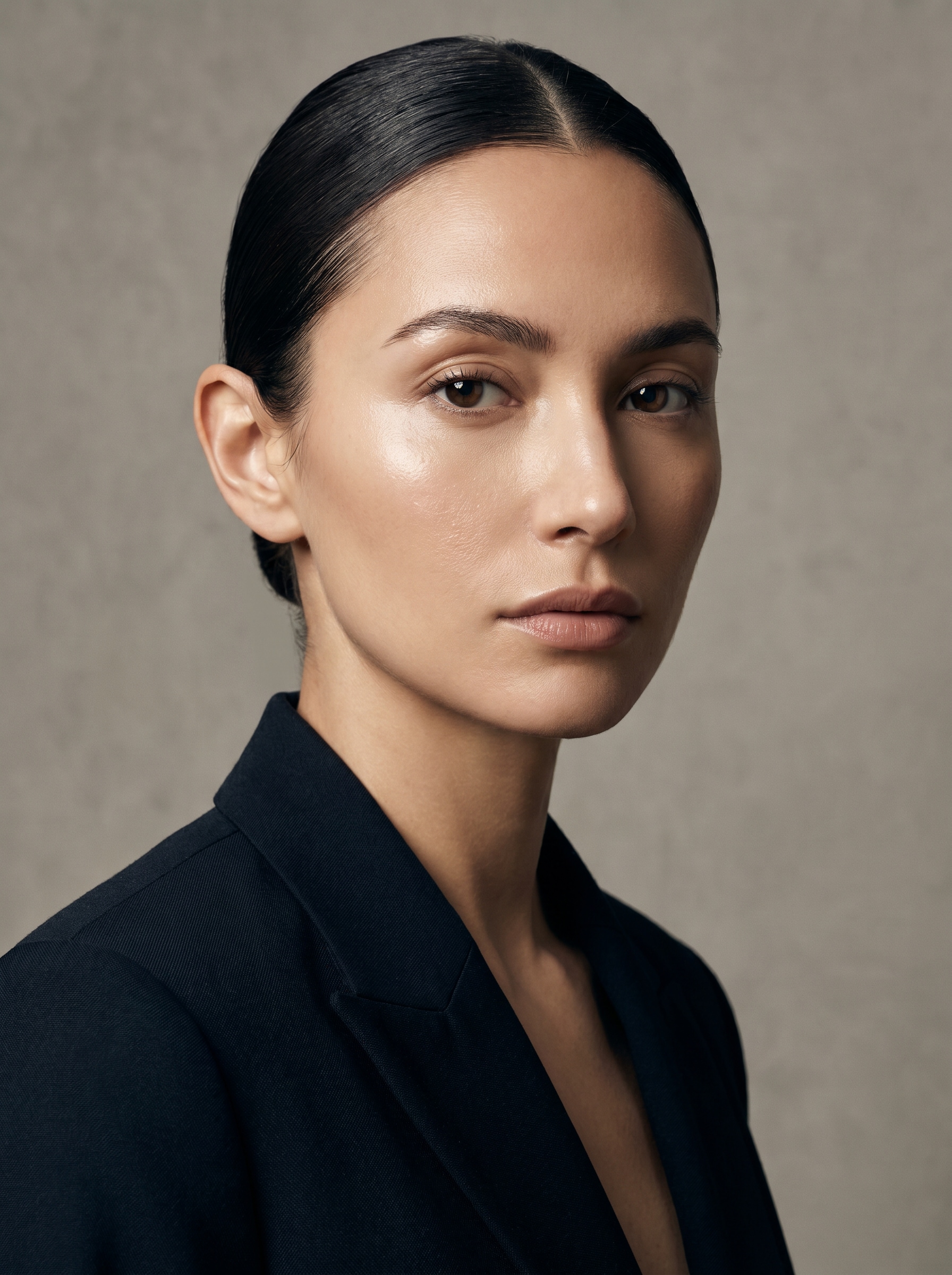
Utilisez l'image téléchargée comme sujet et transformez-la en un portrait éditorial de mode avec des boucles d'oreilles métalliques sculpturales surdimensionnées. Gardez les bijoux audacieux mais portables, avec des contours nets, un éclairage de campagne de luxe, des reflets réalistes, des reflets de pommettes définis, un fond lisse et une fixation précise à l'oreille.
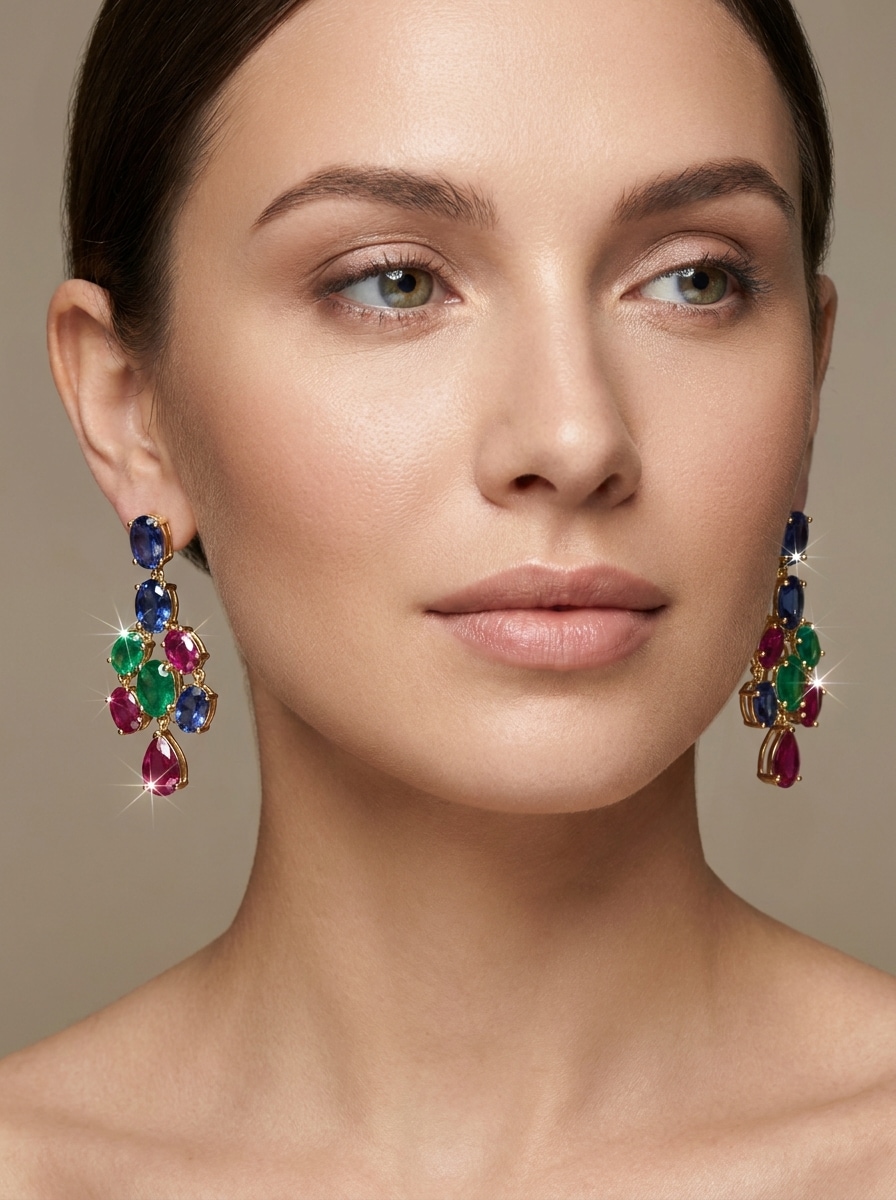
Couleur pierre précieuse dangle
Utilisez l'image téléchargée comme sujet et ajoutez des boucles d'oreilles colorées de pierres précieuses avec des tons inspirés de saphir, d'émeraude et de rubis. Gardez le mouvement naturel, l'éclat premium, la lumière de beauté flatteuse, les paramètres métalliques réalistes, le placement lisse des oreilles et une finition portrait polie adaptée aux aperçus d'achat ou aux publications sociales.
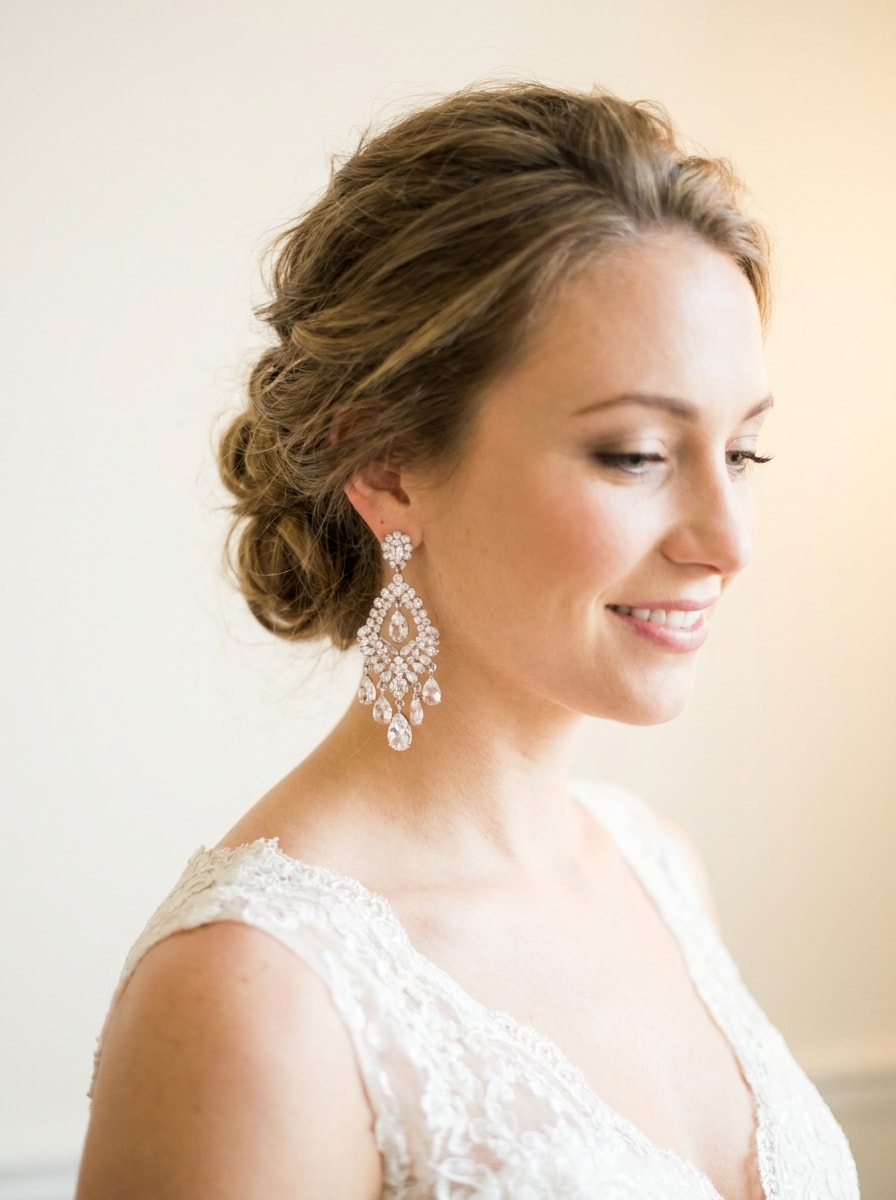
Boucles d'oreilles en cristal de mariée
Utilisez l'image téléchargée comme sujet et créez un portrait de mariée élégant avec des boucles d'oreilles de lustre en cristal. Préservez l'éclairage romantique, l'étincelle lumineuse douce, les reflets de cristal réalistes, les détails naturels de la peau, le fond propre et la longueur précise et le placement de la chute pour l'inspiration de style de mariage.
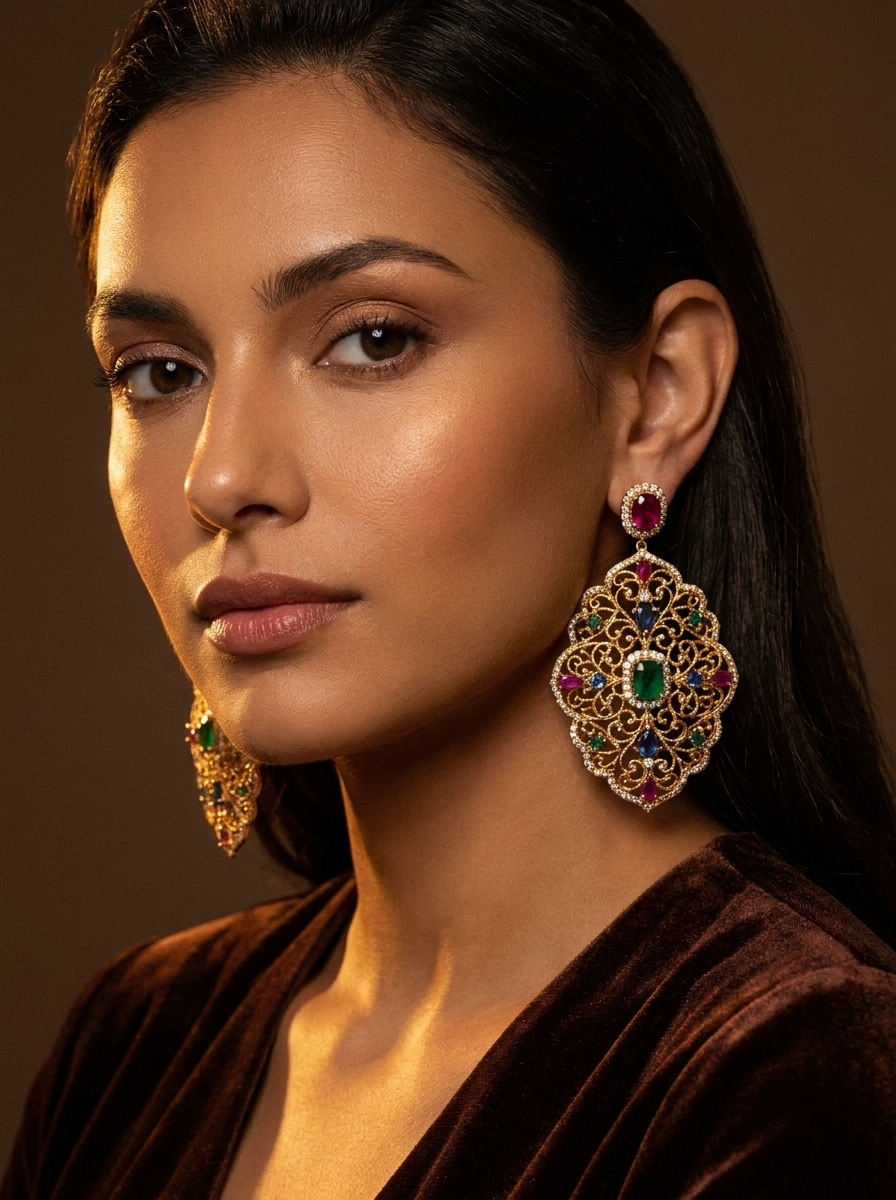
Boucles d'oreilles festives traditionnelles
Utilisez l'image téléchargée comme sujet et ajoutez des boucles d'oreilles festives ornées avec des métaux complexes et des détails de pierres précieuses. Gardez le résultat photoréaliste avec un éclairage de fête chaleureux, des textures riches, des proportions réalistes, un placement propre sur les oreilles et une ambiance de portrait élégante adaptée aux événements spéciaux.
Appariement de produits Studio
Utilisez l'image téléchargée comme sujet et générez une image d'essai de bijoux de style catalogue propre avec des boucles d'oreilles polies sur un modèle. Gardez une composition centrée, une échelle précise des bijoux, des reflets réalistes, une texture de peau lisse, un éclairage commercial doux et un fond blanc ou beige pour une présentation prête pour le commerce électronique.
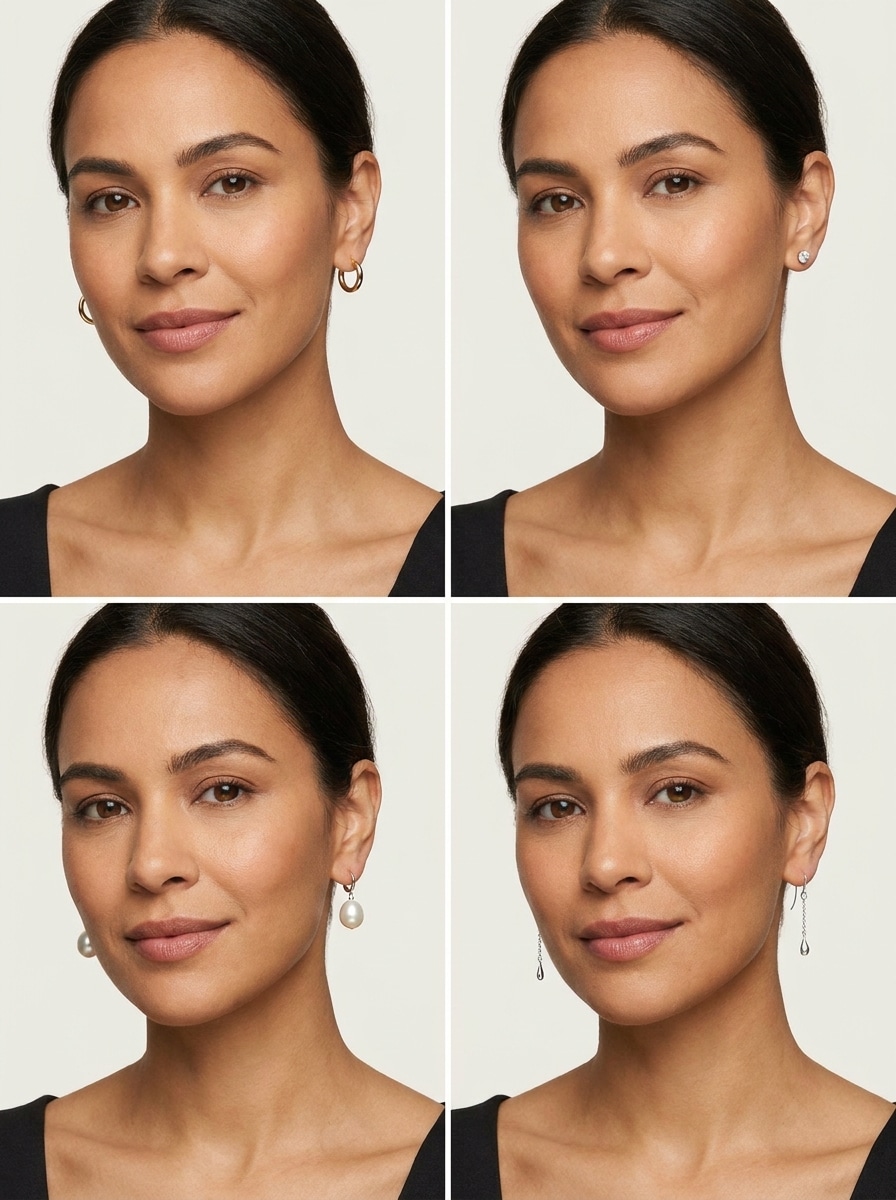
Grille de comparaison multi-styles
Utilisez l'image téléchargée comme sujet et créez une grille de comparaison montrant plusieurs styles de boucles d'oreilles sur le même visage, y compris les cerceaux, les perles, les clous et les dangles. Gardez l'angle du visage cohérent, l'éclairage uniforme, la disposition propre et chaque style réaliste pour une prise de décision rapide.
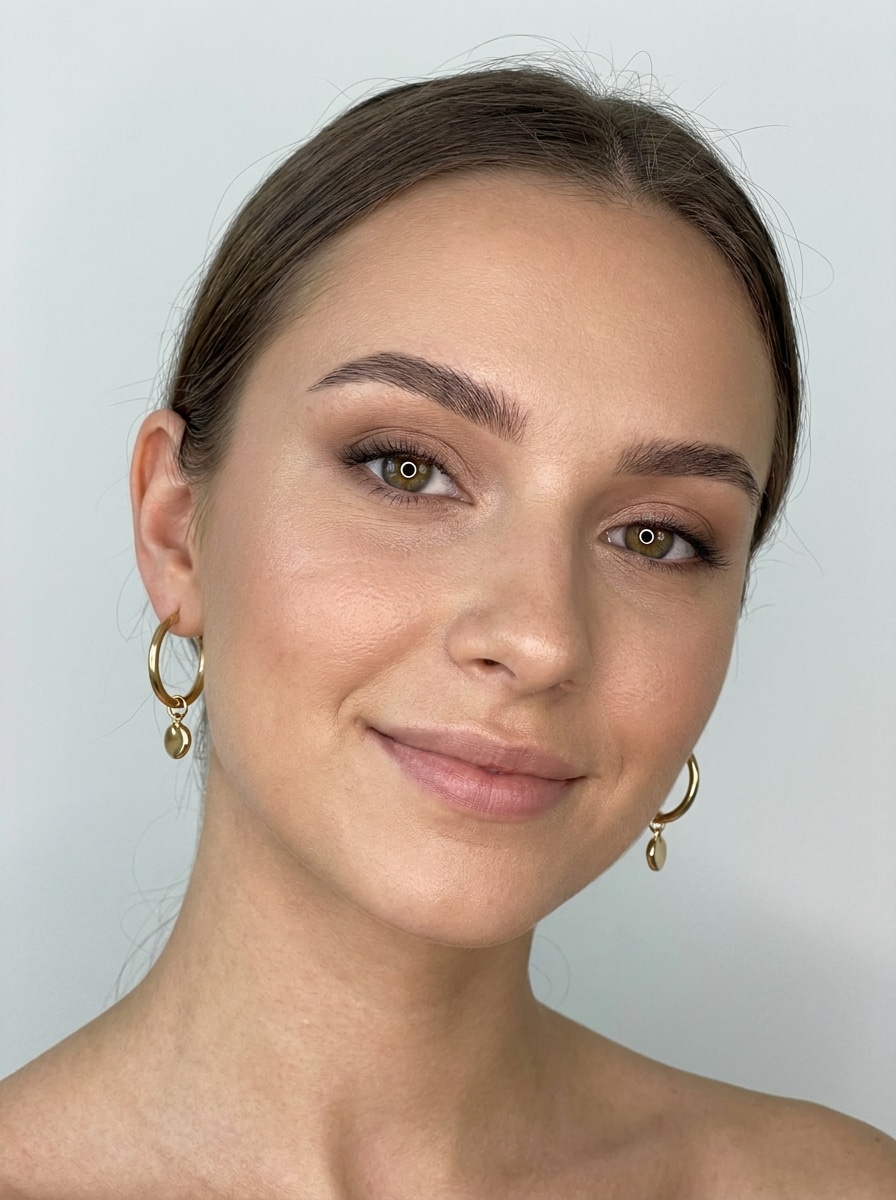
Soft Glam Selfie Modifier
Utilisez l'image téléchargée comme sujet et rehaussez-la en un selfie glam doux avec des boucles d'oreilles tendance. Gardez un éclairage flatteur de style anneau-lumière, un vernis de beauté moderne, une texture de peau réaliste, une lueur subtile, un fond propre et un placement naturel des boucles d'oreilles pour un résultat social prêt mais crédible.
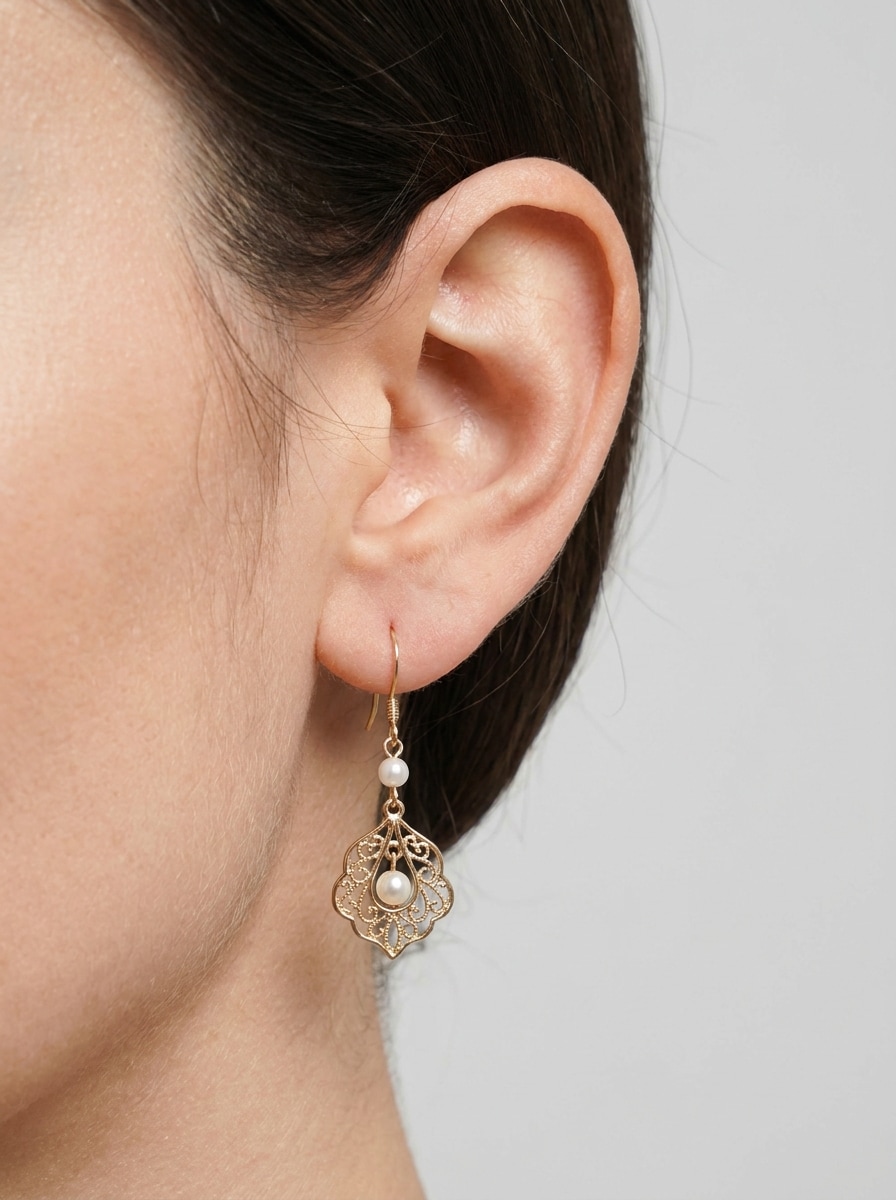
Focus d'oreille à profil latéral
Utilisez l'image téléchargée comme sujet et transformez-la en un portrait photoréaliste de profil latéral focalisé sur l'oreille afin que la forme et la taille des boucles d'oreilles soient faciles à évaluer. Maintenir une échelle précise, des ombres studio douces, un fond propre, des contours visibles et des détails de bijoux nets.
Pourquoi utiliser Media.io pourEssai virtuel sur les boucles d'oreilles
Téléchargez votre Selfie pour des éditions guidées
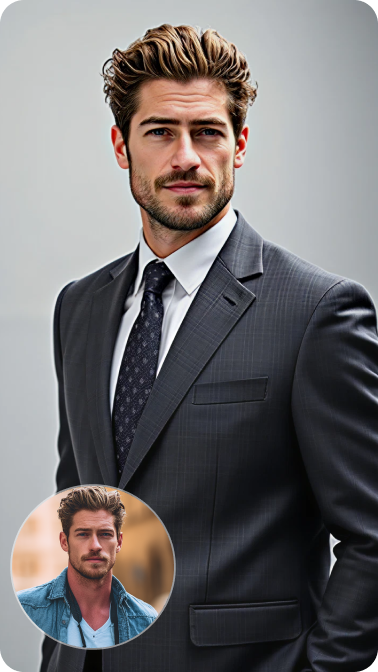
Ajoutez des boucles d'oreilles à votre propre portrait en téléchargeant une image JPG, PNG ou JPEG. La photo de référence aide Media.io à placer les bijoux plus naturellement pour un style réalisteBoucle d'oreille virtuelle Essayer surRésultat.
Placement et détails réalistes
Grâce à des modèles avancés d'image à image, Media.io aide à générer un placement crédible des boucles d'oreilles, un éclairage et une texture métallique afin que les aperçus soient polis sur des portraits de gros plans, des photos de beauté et des maquettes de produits.
Haute résolution et rapports flexibles
Créez des aperçus de boucles d'oreilles IA en qualité 1K, 2K ou 4K et choisissez parmi des rapports d'aspect tels que 3:4, 4:3, 1:1 ou 9:16. Cela facilite la préparation d'images pour les publications sociales, le commerce électronique ou les panneaux de styling.
Comparer plusieurs Looks plus rapidement
Générez 1 à 4 images en lot afin de pouvoir tester des cerceaux, des perles, des motifs de mariée et des boucles d'oreilles en un seul flux de travail. C'est un moyen pratique d'explorer des idées avant d'acheter, de publier ou de présenter des options.
Comment créer des boucles d'oreilles AI en ligne
1
2
3
1
Ouvert Media.io AI Boucles d'oreilles Outil
aller àGénérateur d'Image à Image IAEt ouvrez l'outil AI Boucles d'oreilles sous AI-> AI Image Generator. Cet outil en ligne s'exécute dans votre navigateur, vous pouvez donc démarrer sur ordinateur de bureau ou mobile sans installer de logiciels supplémentaires.
2
Téléchargez une Photo et décrivez le Style
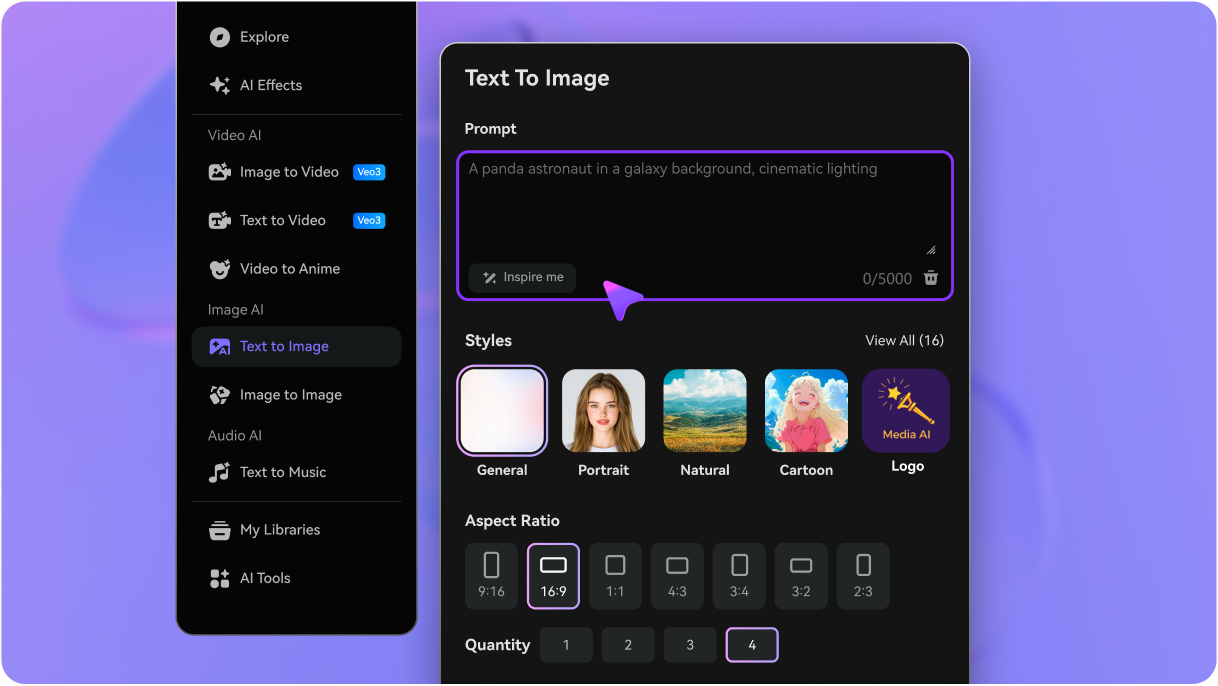
Téléchargez un selfie clair, puis entrez une invite détaillée comme: "Utilisez mon portrait et ajoutez des boucles d'oreilles élégantes avec un éclairage studio doux, un placement naturel et des reflets réalistes." Ajustez le rapport d'aspect, la résolution ou les paramètres de style pour le look que vous souhaitez.
3
Générer, affiner et télécharger
Cliquez sur Générer pour prévisualiser votre édition de boucle d'oreille. Si nécessaire, affinez l'invite pour tester différents styles de cerceaux, de perles ou de déclarations, puis téléchargez votre résultat préféré en haute résolution pour le partage, les achats ou le travail créatif.
Débloquez le potentiel de l'oreille virtuelle Essayez-le
Découvrez comment les créateurs utilisent ces boucles d'oreilles pour le contenu, le marketing et les projets personnels, puis adaptez chaque idée pour s'adapter au brief.
Aperçu des bijoux avant d'acheter
Téléchargez un selfie et testez différentes tailles, gouttes et finitions avant de commander. Cela faitEssai virtuel sur les boucles d'oreillesUtiles pour vérifier si les arceaux minimalistes, les perles ou les pièces audacieuses correspondent à la forme de votre visage et à votre style personnel.
Créez des maquettes de commerce électronique plus rapides
Créez des images de modèles polies pour des pages de produits, des publicités ou des grilles de comparaison sans organiser une séance photo complète pour chaque variante. Les équipes peuvent utiliser les éditions d'oreilles IA pour présenter clairement plusieurs styles et accélérer la production créative.
Créer du contenu Social et de Styling
Les influenceurs, les stylistes et les créateurs de beauté peuvent utiliser les flux de travail earring virtual Test on pour produire des démos avant et après, de l'inspiration mariée ou des posts de tendance avec un éclairage réaliste et des détails de bijoux qui semblent forts dans le contenu en gros plan.
Ce que les utilisateurs disent au sujet de Media.io
Maya R.
Créateur de contenu beauté
"Idéal pour tester les styles de boucles d'oreilles sur les selfies"J'ai utilisé Media.io pour prévisualiser des cerceaux, des perles et des gouttes de pierres précieuses sur mon propre portrait. Le placement semblait naturel et cela m'a gagné du temps à planifier le contenu social autour des looks de bijoux.
Elena S.
Future épouse
"Utiles pour les idées de styling de mariée"Je voulais voir des boucles d'oreilles en cristal avec mon maquillage et ma coiffure avant de faire mon shopping. Les résultats étaient assez épurés et réalistes pour comparer rapidement plusieurs options.
Jordan T.
concepteur de commerce électronique
"Utiles pour les aperçus et les maquettes de produits"Le flux de travail par lots a facilité la création de plusieurs maquettes de bijoux à partir d'un seul portrait. C'est un outil pratique lorsque vous avez besoin de visuels de style catalogue sans répéter le même shoot.
Priya K.
Styliste de mode
"Un moyen rapide de comparer les looks audacieux et subtils"J'aime la rapidité avec laquelle je peux basculer entre des boucles d'oreilles en or discrètes et des styles plus dramatiques. Il aide les clients à visualiser les options avant les événements ou les sessions photo.
Découvrez Les Effets Vidéo et d'Image IA Les Plus Populaires
1. Qu'est-ce qu'un outil de boucles d'oreilles AI et comment fonctionne-t-il?
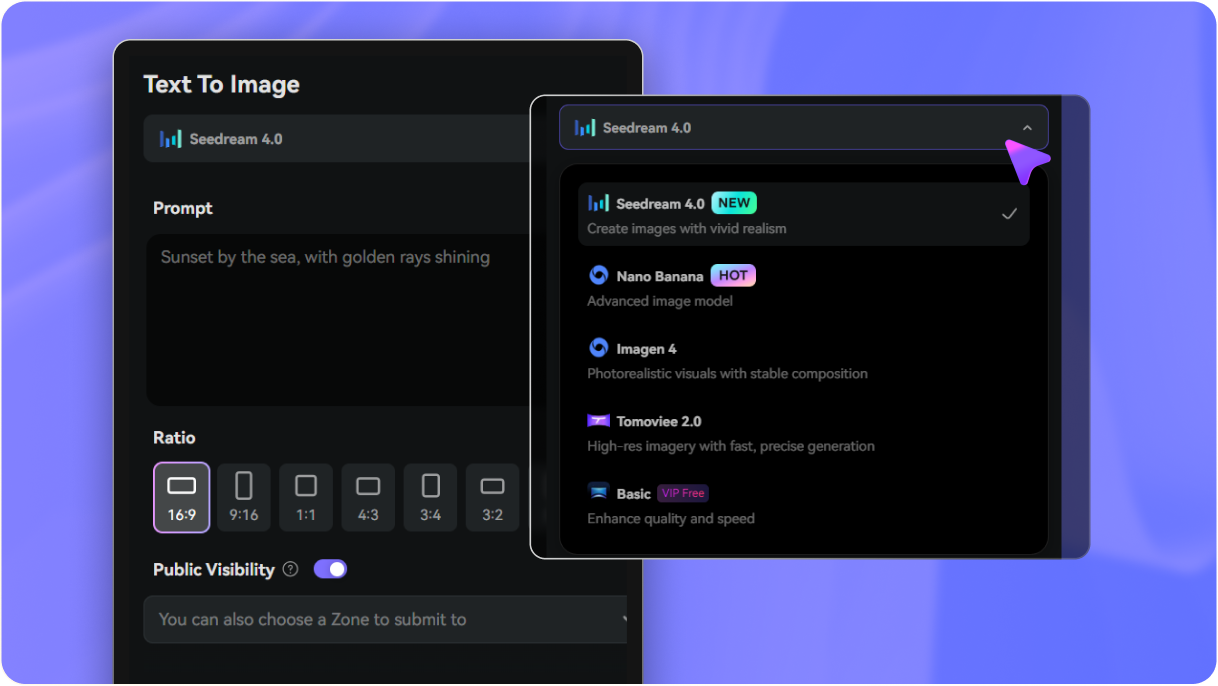
Un outil de boucles d'oreilles IA utilise la génération d'image à image pour modifier un portrait et ajouter des styles de boucles d'oreilles réalistes à la photo téléchargée. Dans Media.io, vous téléchargez un selfie JPG, PNG ou JPEG, décrivez le look de boucle d'oreille que vous souhaitez, et le système utilise des modèles avancés tels que Nano Banana Pro et Nano Banana 2 pour générer l'aperçu.
2. Puis-je essayer des boucles d'oreilles virtuellement en utilisant ma propre photo?
Media.io prend en charge les téléchargements de selfies, de sorte que vous pouvez prévisualiser différents looks de bijoux sur votre propre visage. Cela le rend utile pour un flux de travail d'essai virtuel de boucles d'oreilles lorsque vous souhaitez tester des boucles d'oreilles, des gouttes de perles, des motifs de mariée ou des boucles d'oreilles avant d'acheter ou de publier.
3. Y a-t-il un générateur de boucles d'oreilles AI gratuit ou une option d'essai?
Les utilisateurs gratuits peuvent utiliser les crédits gratuits disponibles pour essayer l'outil. Pour plus de générations, une utilisation à plus grand volume ou des téléchargements sans filigrane, vous pouvez consulter les plans sur la page Prix. Les utilisateurs gratuits peuvent utiliser des crédits gratuits. Pour plus d'utilisation, les utilisateurs peuvent s'abonner à un forfait sur la page Prix. Passez à un plan payant sur lepage de tarificationPour plus de crédits et filigrane-téléchargements haute résolution gratuits.
4. Quelle est la réalité des boucles d'oreilles sur mon visage?
Les résultats peuvent paraître très réalistes lorsque vous téléchargez un portrait clair avec des oreilles visibles. Media.io prend en charge l'édition d'images guidée avec des modèles avancés et vous permet d'affiner les invites, le rapport d'image et la résolution, ce qui vous permet de créer un placement, un éclairage et une texture de bijoux plus naturels pour les aperçus des boucles d'oreilles IA.
5. Puis-je comparer différents styles de boucles d'oreilles dans une seule image?
Vous pouvez demander à Media.io de générer des mises en page de comparaison multi-styles ou de créer plusieurs versions dans un flux de travail. La génération par lots prend en charge 1 à 4 images, ce qui est utile lorsque vous souhaitez une boucle d'oreille virtuelle rapide. Essayez la comparaison entre les cerceaux, les perles, les clous et les dangles.
6. L'outil AI Boucles d'oreilles fonctionne-t-il sur téléphone et bureau?
Media.io est basé sur le web et fonctionne dans un navigateur sur les appareils Windows, Mac, iOS et Android. Cela signifie que vous pouvez exécuter une session d'essai d'oreilles AI ou d'oreilles virtuelles sur votre téléphone et votre bureau sans installer un logiciel séparé. Media.io est un outil web qui fonctionne sur n'importe quel appareil avec un navigateur (Windows, Mac, iOS, Android).
Au-delà des boucles d'oreilles en ligne alimentées par l'IA