Deine Werke werden nur 7 Tage lang gespeichert. Assets, die nach dem Upgrade auf einen Mitgliedschaftstarif erstellt werden, werden dauerhaft gespeichert.
Entfalten Sie Ihr kreatives Potenzial und erleben Sie jetzt die Magie der Media-KI!
Halskette zum Foto hinzufügen mit KI für realistische Anprobeergebnisse
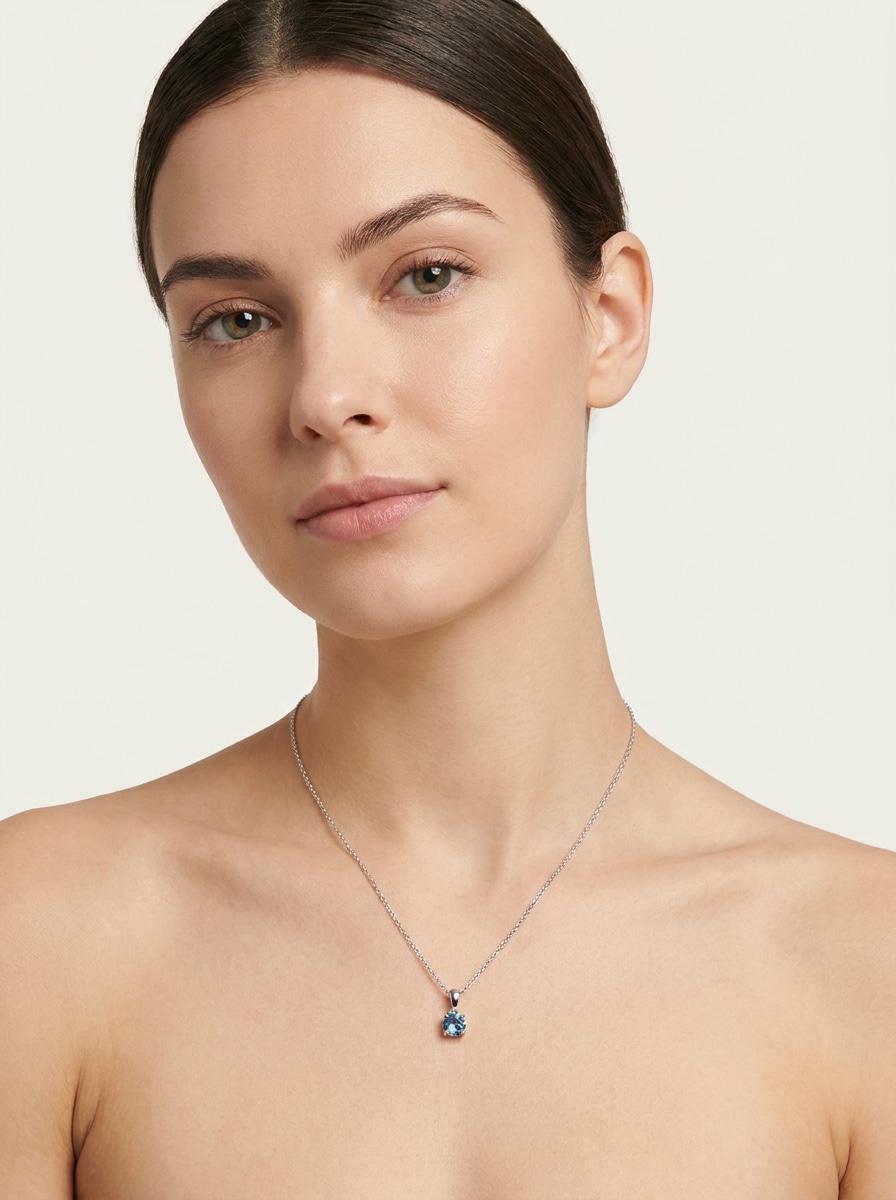
Ein Porträt hochladenHalskette zum Foto hinzufügenin Sekunden mit realistischer Platzierung, Beleuchtung und Schattenabstimmung. Media.io machtVirtuelle Halskette anprobierenEinfach für persönliches styling, Schmuckmodelle und schnelle soziale Inhalte, mit eleganten Braut-, Luxus-oder minimalistischen looks.
Geben Sie Ihre Idee ein-> KI entwirft sie. Kostenlos zu versuchen.
Überprüfen Sie diese Beispielanweisungen und passen Sie dann die Eingabedetails an, um mit Media.io bessere Ergebnisse zu erzielenHalskette probieren auf AIWerkzeug.
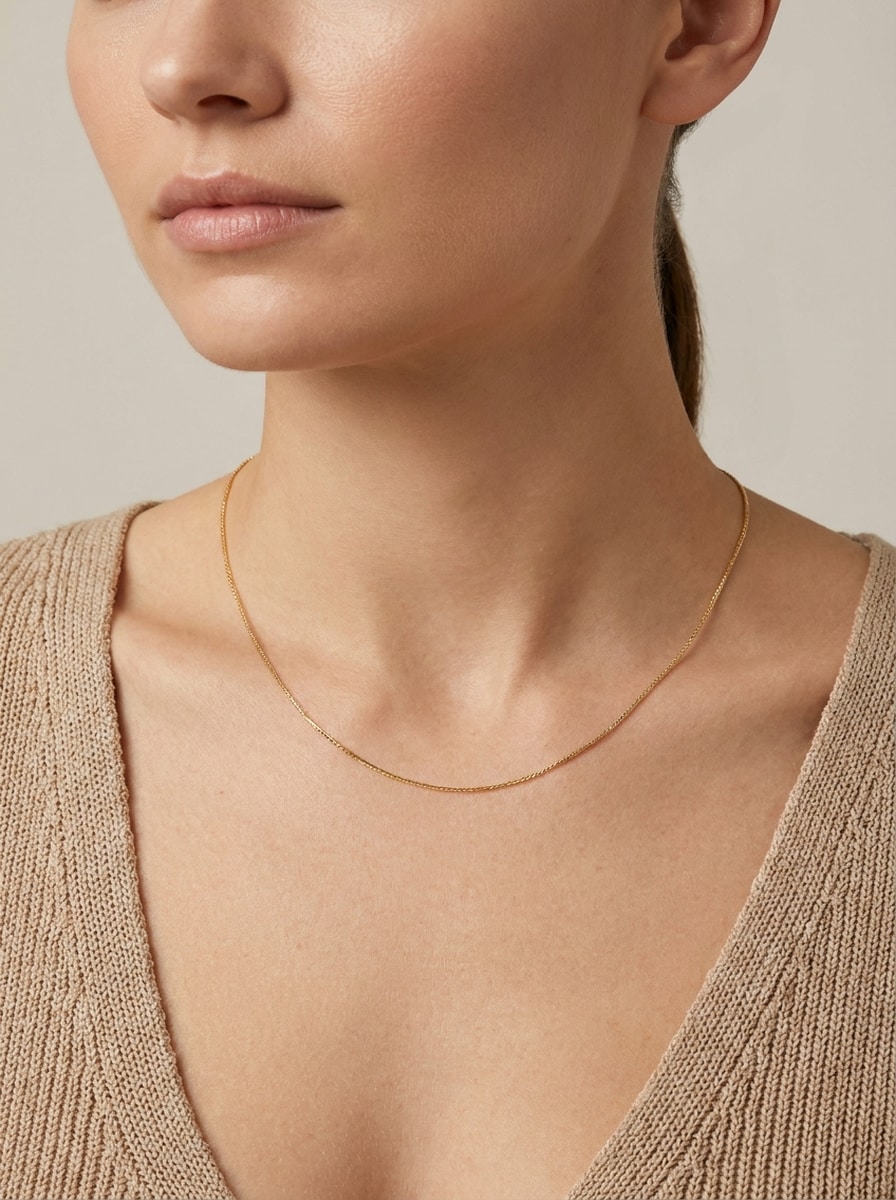
Klassische Goldkette
Verwenden Sie das hochgeladene Bild als Motiv und fügen Sie eine dünne klassische Goldkette hinzu, die dem genauen Halswinkel und der Schlüsselbeinkurve folgt. Halten Sie die Bearbeitung fotorealistisch mit weichen metallischen Reflexen, natürlichen Hautschatten, klaren Schmuckdetails, ausgewogenen warmen Tönen und eleganten Alltagsstyling.
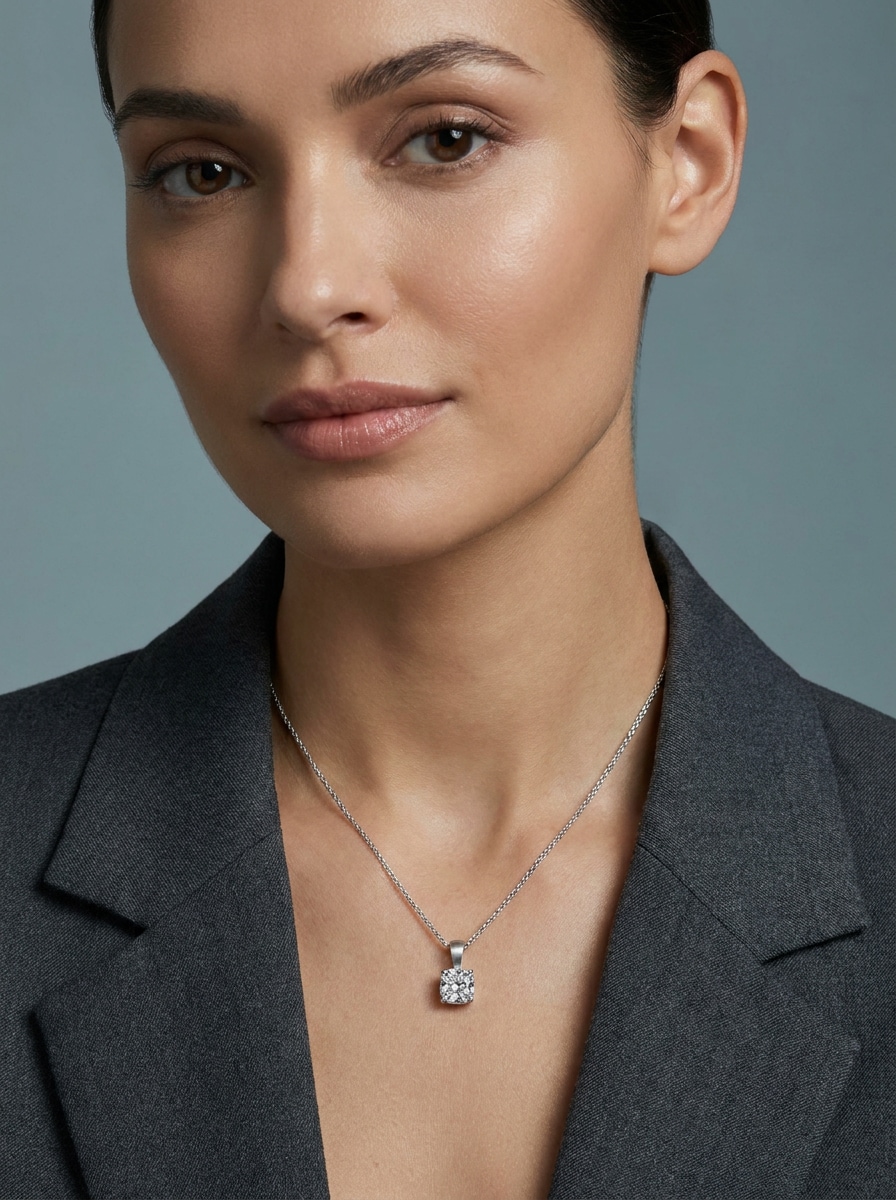
Diamant Anhänger
Verwenden Sie das hochgeladene Porträt als Basis und legen Sie eine raffinierte Diamant-Anhänger-Halskette auf der Brust. Passen Sie die Haltung, den Ausschnitt und die Lichtrichtung des Motivs an, mit realistischen Metallreflexen, subtilem Edelsteinfunkeln, zarten Kettendetails und poliertem Luxus-Porträtrealismus.
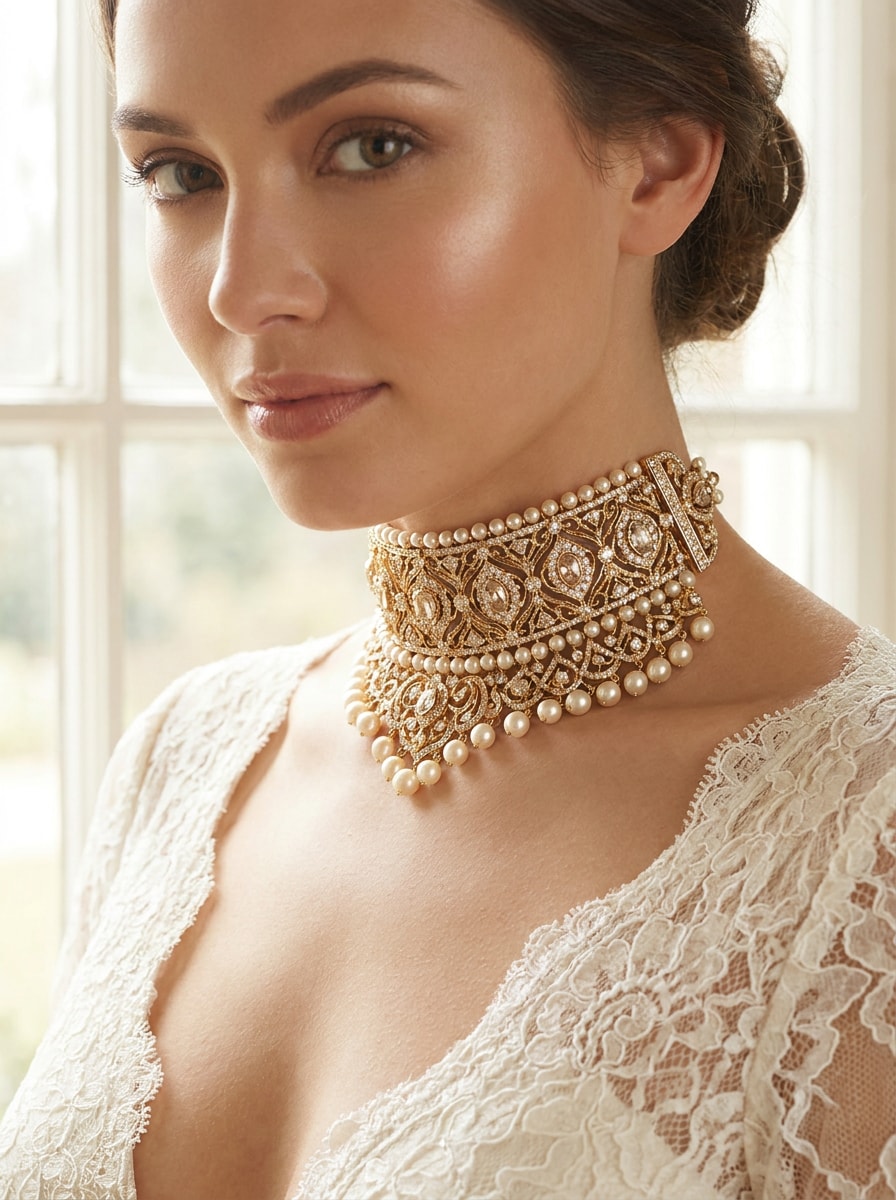
Braut Choker
Verwenden Sie das hochgeladene Bild als Motiv und verwandeln Sie den Ausschnitt mit einer verzierten Brauthalskette. Passen Sie es eng und symmetrisch um den Hals, mit detaillierten Edelsteinen, weicher Hochzeitsbeleuchtung, realistischem Glitzer, anmutigen Schatten, Elfenbein-und Goldtönen und luxuriöser zeremonieller Eleganz.
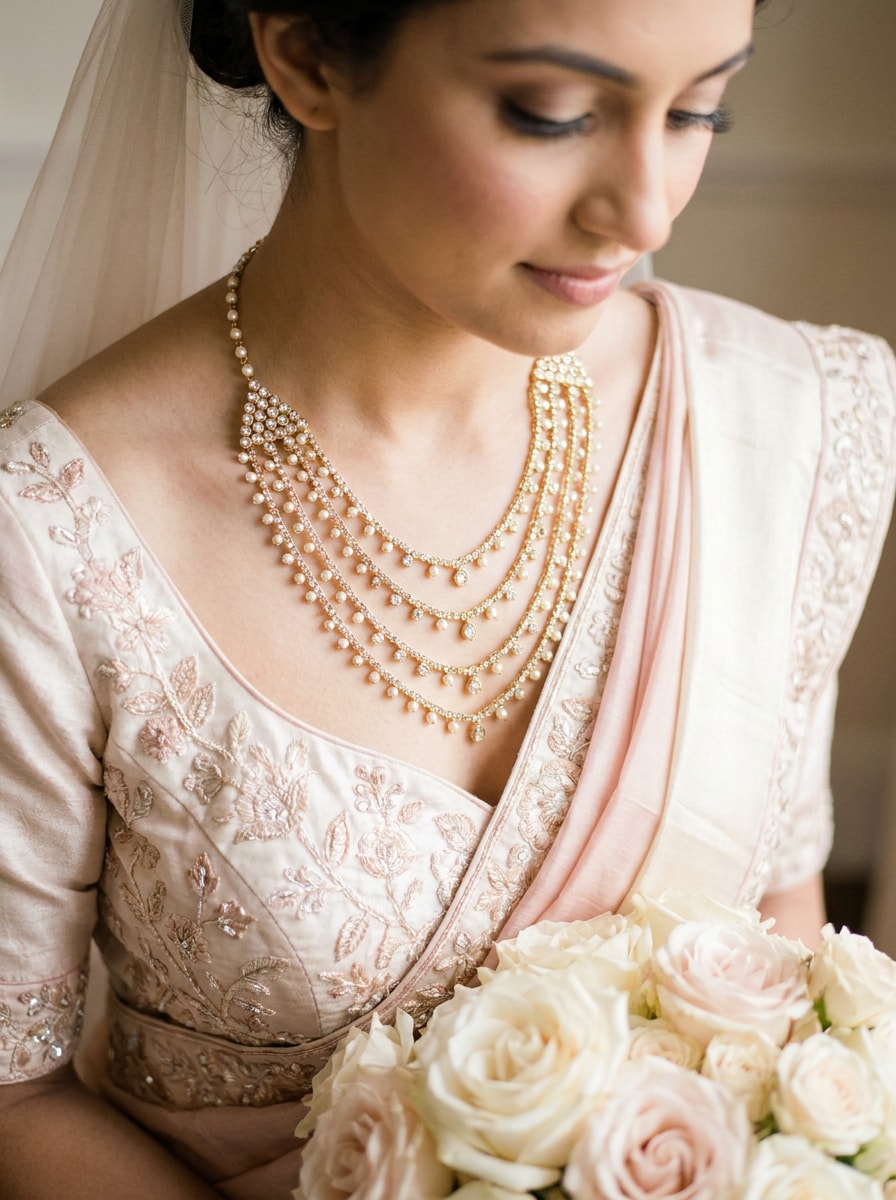
geschichtetes Hochzeitsset
Verwenden Sie das hochgeladene Porträt und fügen Sie eine geschichtete Hochzeitskette mit mehreren eleganten Strängen hinzu, die natürlich über den Ausschnitt drapieren. Bewahren Sie realistische Maßstäbe, Hautkontakt-Schatten, Edelsteinreflexionen, sanfte romantische Beleuchtung und eine erstklassige Brautstimmung mit feiner, detaillierter Handwerkskunst.
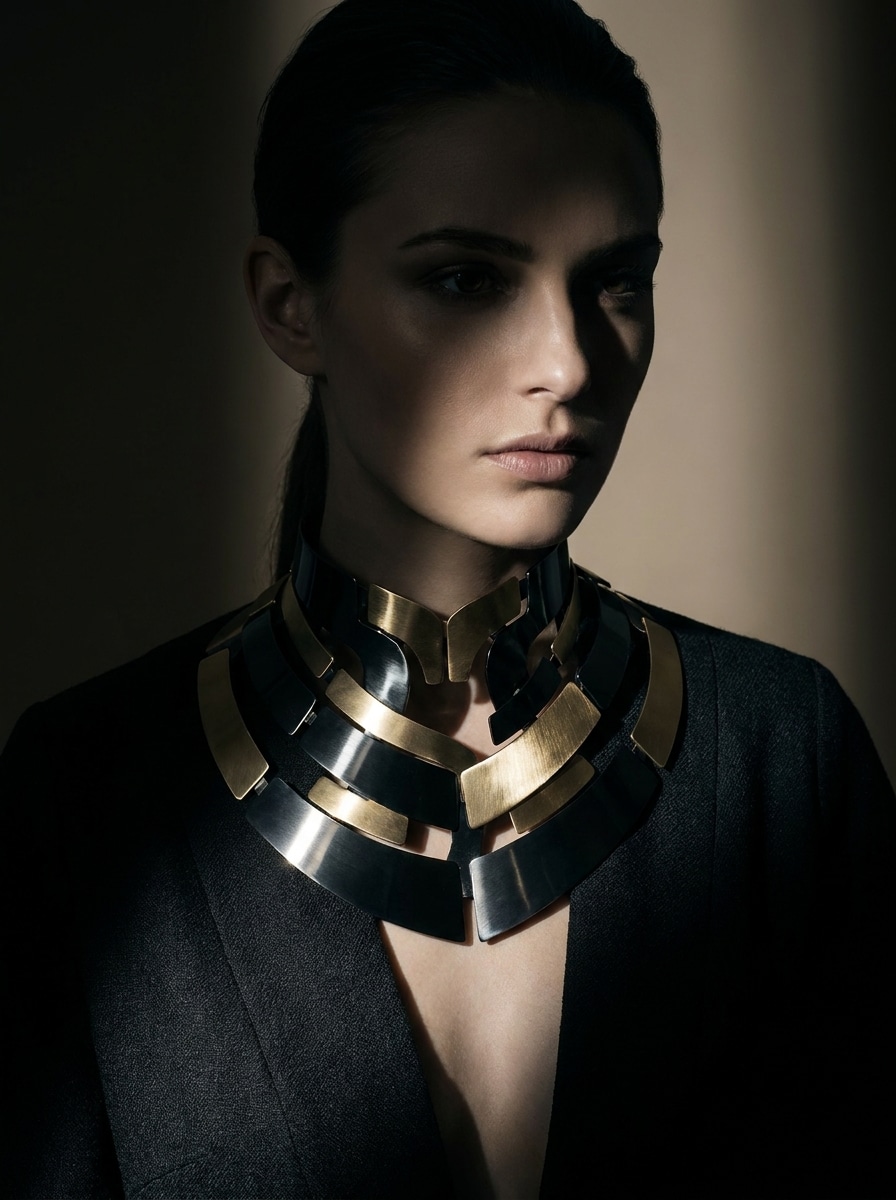
Statement Kragen Halskette
Verwenden Sie das hochgeladene Modefoto als Motiv und fügen Sie eine mutige statement Kragen Halskette hinzu, die sich mit der pose und dem Garderobe-Ausschnitt ausrichtet. Halten Sie das Ergebnis dramatisch, aber glaubwürdig mit reichhaltiger Metallstruktur, strukturierter Form, kontraststarker Beleuchtung und redaktionellem Luxus-Styling.
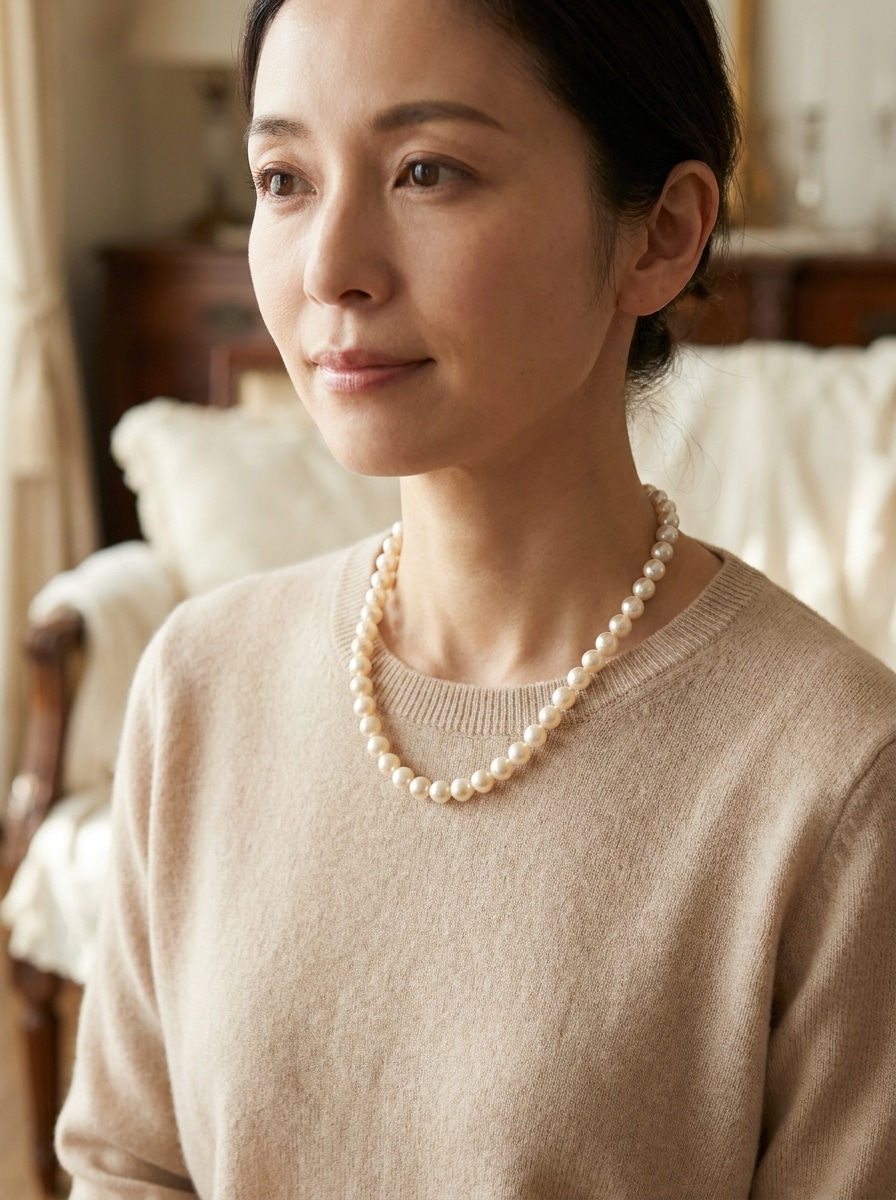
Perlen Halskette
Verwenden Sie das hochgeladene Bild und legen Sie eine klassische Perlenhalskette um den Hals des Probands mit natürlichem Abstand und weichem Glanz. Passen Sie die Beleuchtung und den Winkel des Portraits an, bewahren Sie realistischen Hautkontakt und Schatten und schaffen Sie eine ruhige Luxus-Stimmung mit cremigem Weiß und eleganter Weichheit.
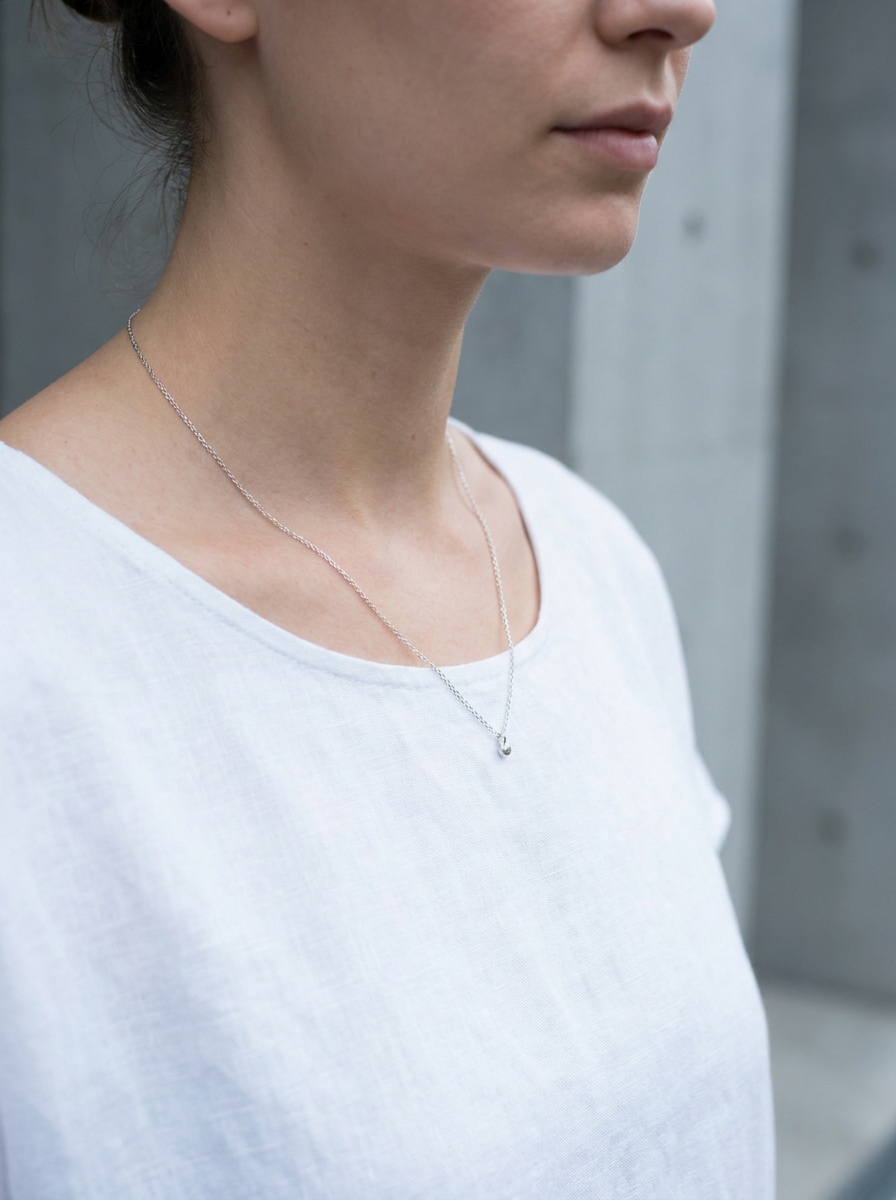
Minimale silberne Kette
Verwenden Sie das hochgeladene Porträt als Motiv und fügen Sie eine zarte minimalistische Silberkette mit zurückhaltenem Alltagsstil hinzu. Folgen Sie der natürlichen Halskontur, halten Sie die Reflexionen subtil, bewahren Sie die realistische Hautstruktur und weiche Schatten und streben Sie nach einem sauberen modernen Ergebnis mit kühlen neutralen Tönen.
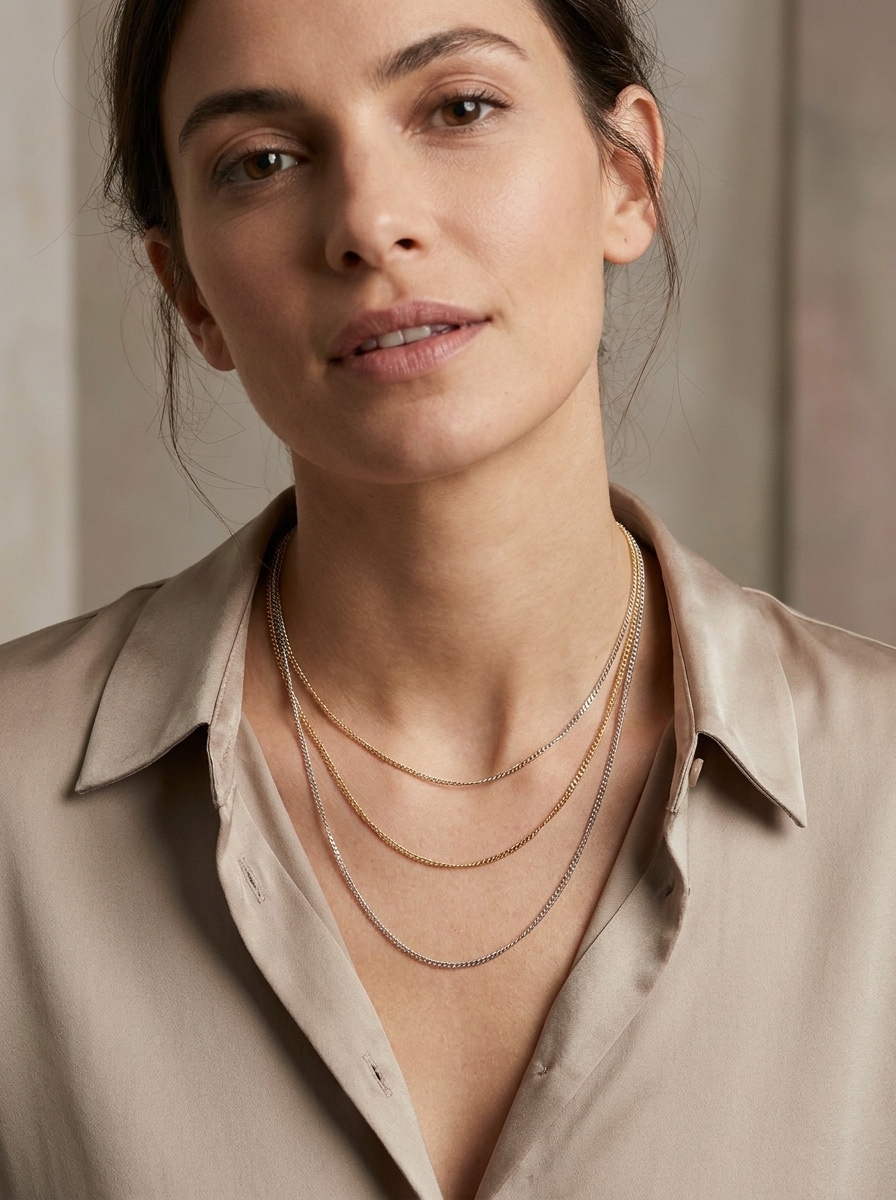
Schichtete Minimalketten
Verwenden Sie das hochgeladene Bild und fügen Sie zwei bis drei schichtige minimalistische Halsketten mit ausgewogenem Abstand und natürlichem Draperie hinzu. Halten Sie jede Kette fein und realistisch, abgestimmt auf den Winkel und die Beleuchtung des Motivs, mit subtilen Metallreflexen, einem klaren modernen Stil und polierten sozialen Details.
Katalog Try-On
Verwenden Sie das hochgeladene Modellfoto als Motiv und legen Sie ein Halskettenprodukt mit kommerziellem Realismus auf den Hals. Passen Sie Skala, Perspektive und Lichtrichtung sorgfältig an, bewahren Sie einen klaren Kataloglook und erstellen Sie polierte Schatten und Reflexionen, die für Schmuckvorschauinhalte geeignet sind.
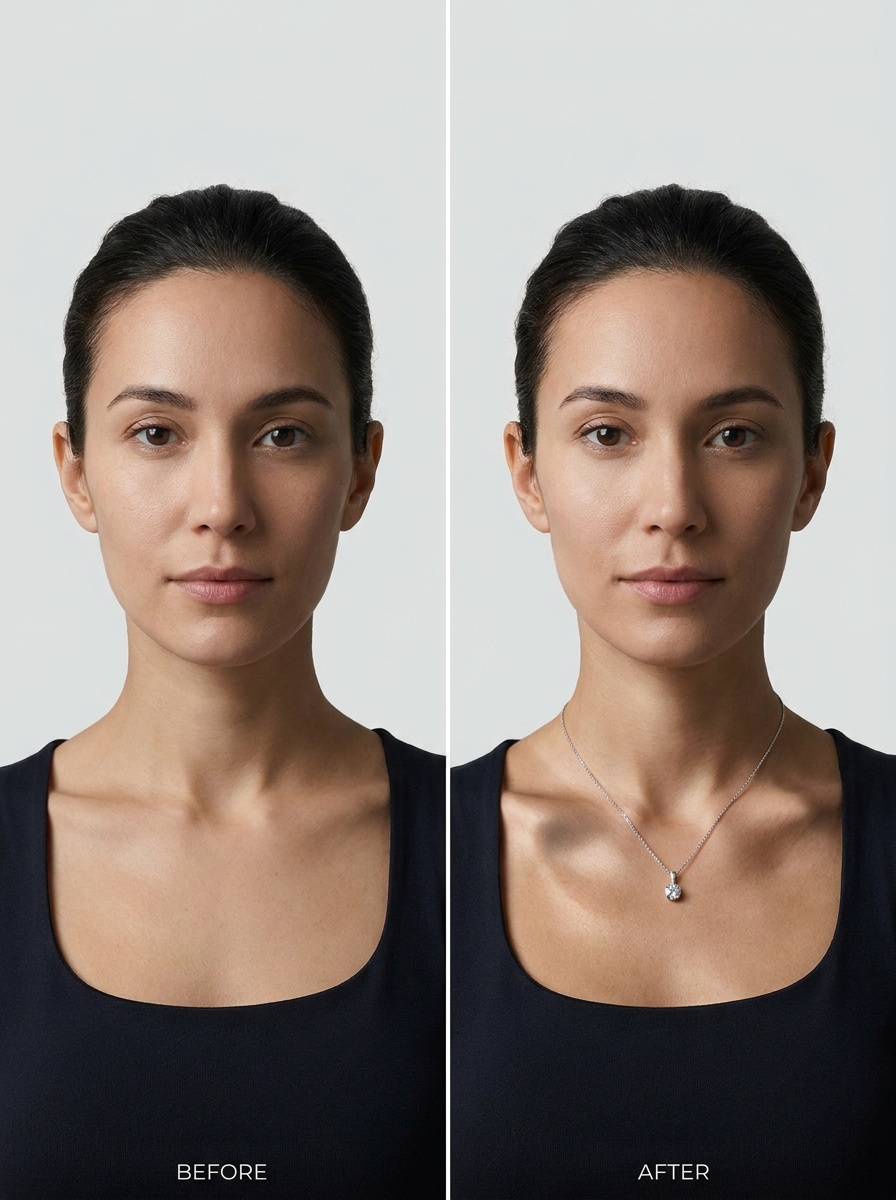
Vorher-und Nachher-Vergleich
Verwenden Sie das hochgeladene Porträt als Motiv und erstellen Sie nebeneinander ein Vorher-und-Nachher-Ergebnis, das das Originalbild neben einer realistischen Halskette-Anprobeedition zeigt. Beibehalten Sie die gleiche Rahmung und Beleuchtung, mit präziser Schmuckplatzierung, klarem Vergleichslayout und überzeugender Transformationsklarheit.
Warum verwenden Sie Media.io für Halskette-Anprobieren und Schmuck-Bearbeiten
Realistische Halskette Platzierung aus einem Porträt
Für persönliche styling oder Produktdemos können Sie mit Media.io ein einzelnes Foto hochladen und ein überzeugendes Foto erstellen.Halskette auf Foto AIErgebnis, das dem Halswinkel, der Beleuchtung und der Schattenrichtung folgt, sodass sich die fertige Bearbeitung auf natürliche Weise integriert und nicht eingeklebt anfühlt.
Bessere Kontrolle für Braut-, Luxus-oder minimalistische Styles
Unterschiedliche Ausgaben erfordern unterschiedliche Ästhetik. Media.io hilft Ihnen, verschiedene Behandlungen des gleichen Halskette zum Foto-Konzept zu erkunden, so dass das endgültige Bild schneller im richtigen Ton landet.
Halten Sie die endgültigen Bilder für echte Projekte scharf
Einige Ergebnisse müssen mehr tun, als in einer Vorschau gut auszusehen. Media.io hilft bei der Generierung sauberer Halskette zum Foto hinzufügen mit einer Ausgabe von bis zu 4K, sodass das endgültige Bild in Hintergrundbildern, decks und mockups hält.
Einfache Bearbeitung auf jedem Gerät mit flexibler Ausgabe
Die kreative Arbeit bewegt sich oft vom Telefon zum laptop und wieder zurück. Media.io ermöglicht IhnenProbieren Sie Halskette onlinePassen Sie das Ergebnis an und laden Sie es direkt im browser herunter, sodass die Produktion über alle Geräte hinweg reibungslos verläuft, ohne Ihren workflow zu unterbrechen.
Wie man eine Halskette zu einem Foto Online hinzufügt
Verwandeln Sie Ihre Worte in drei einfachen Schritten in atemberaubende Bilder und verfeinern Sie dann das Ergebnis, wenn Sie es weiter gehen möchten.
Schritt 1
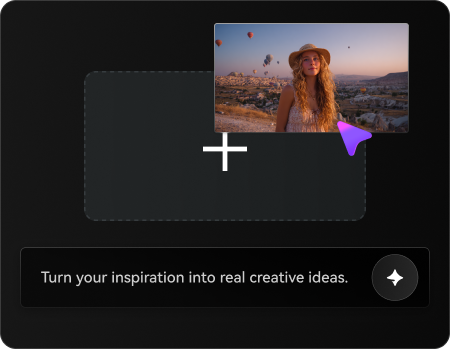
Laden Sie Ihr Referenzbild hoch
Beginnen Sie mit einem klaren Porträt, Modellfoto oder Kundenfoto, das den Hals-und Schlüsselbeinbereich gut zeigt. JPG-, PNG-und JPEG-Dateien funktionieren am besten für die Bearbeitung von Schmuck, da die KI pose, Ausschnitt und Beleuchtung genauer lesen kann.
Schritt 2
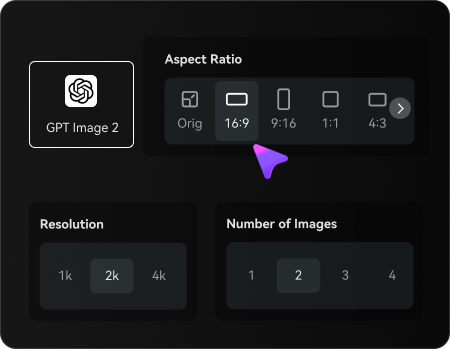
Beschreiben Sie die Änderungs-und Setzoptionen
Sagen Sie der KI, welche Halskette Sie hinzufügen möchten, wie z. B. eine Goldkette, ein Diamant-Anhänger, ein Brautchoker oder einen geschichteten minimalistischen look. Wählen Sie dann Ihr Modell und passen Sie das Seitenverhältnis, die Bildqualität oder die Anzahl der Variationen für das gewünschte Ergebnis an.
Schritt 3
Generieren, herunterladen und weiter verbessern
Erstellen Sie die Halskette-Bearbeitung, vergleichen Sie die Variationen und laden Sie Ihre Lieblingsversion herunter. Verfeinern Sie bei Bedarf die Eingabeaufforderung, wechseln Sie den Stil oder regenerieren Sie ihn, um die Platzierung, den Realismus und die Gesamtpräsentation für das persönliche styling oder Produktmarketing zu verbessern.
Freischalten Sie das Potenzial der virtuellen Halskette
Erfahren Sie, wie Schöpfer Media.io für die Bearbeitung von Halsketten in Inhalten, marketing und persönlichen Projekten verwenden, und passen Sie dann jede Idee an das brief an.
Vorschau Schmuck vor dem Kauf oder Styling
Vorschau, wie verschiedene Kettenlängen, Anhänger, Perlen oder Brautsets auf deinem eigenen Porträt aussehen, bevor du einen Kauf tätigst. Media.io hilft Ihnen, mit einer realistischen virtuellen Schmuckvorschau die balance des Ausschnitts, die Kombination von Outfits zu testen und ob ein subtiles oder statement-Stück zu Ihrem endgültigen look passt.
Erstellen Sie schnellere E-Commerce-und Verkäufermockups
Schmuckmarken und Marktplatzverkäufer können ein sauberes Modellfoto in mehrere Produktvorschauen verwandeln, ohne für jede Variante ein neues Shooting zu arrangieren. Media.io macht diese KI-Workflow für die Erstellung von Katalogen, Anzeigetests und soziale Bilder schneller, während die Präsentation konsistent bleibt.
Machen Sie soziale Inhalte vor und nach freigegeben
Schöpfer können schnelle Transformationsbeiträge erstellen, die neben einer verbesserten version ein einfaches Porträt zeigen. Media.io macht es einfach, eine Halskette-On-Photo-Bearbeitung für Walzen, tutorials und UGC-Stil-Demos zu generieren, sodass die Zuschauer sofort die Auswirkungen des Stylings verstehen.
Was Nutzer über Media.io sagen
Ava Martinez
Juweliergeschäftsinhaber
"Großartig für schnelle Produktvorschau"Ich benutzte Media.io, um Halskettenstile auf Modellfotos zu zeigen, bevor ich ein vollständiges Shooting planete. Die Platzierung sah viel natürlicher aus als einfache Überlagerungen, und es half mir, zu testen, welche designs es wert waren, zuerst zu bewerben.
Nina Brooks
Mode-Content-Ersteller
"Einfacher virtueller workflow zum Anprobieren"Ich brauchte nur ein Porträt, um mehrere Halskette-Looks auszuprobieren. Es war schnell, mobilfreundlich und nützlich für die Planung von Outfit-Inhalten. Die Brautvarianten und minimalistische Varianten kamen beide sauber und realistisch heraus.
Ria Patel
Zukünftige Braut
"Hilfreich für Hochzeitsstyling"Ich wollte verschiedene Schmuckstile mit meinem Kleid-Ausschnitt vergleichen, und dieses tool hat das einfach gemacht. Die choker und die geschichteten Optionen sahen glaubwürdig genug aus, um mir zu helfen, einzugrenzen, was ich tatsächlich tragen wollte.
Jordan Kim
Marktplatzdesigner
"Nützlich für Katalog-und Anzeigenkreative"Wir haben es für schnelle Halskette-Mockups auf Produktseiten und sozialen Anzeigen verwendet. Die Möglichkeit, mehrere Versionen aus einem Bild zu generieren, sparte Zeit, insbesondere wenn wir sowohl quadratische als auch vertikale layouts benötigten.
Entdecken Sie die beliebtesten KI-Video- und Bildeffekte
1. Wie kann ich eine Halskette zu einem Foto online hinzufügen?
Sie können ein Porträt auf Media.io hochladen, eine Eingabeaufforderung eingeben, die den gewünschten Halskettenstil beschreibt, und eine bearbeitete version mit dem Schmuck zum Bild erstellen. Um das beste Ergebnis zu erzielen, verwenden Sie ein klares Foto mit sichtbarem Hals und Schlüsselbein, damit Media.io Platzierung, Winkel und Beleuchtung genauer abgleichen kann.
2. Kann ich eine Halskette von nur einem Bild virtuell anprobieren?
Ja. Media.io unterstützt die Bild-zu-Bild-Bearbeitung von einem einzigen hochgeladenen Porträt, was es für eine virtuelle Halskette aus einem Bild geeignet macht. Ein nach vorne gerichtetes oder leicht abgewinkeltes Foto mit guter Beleuchtung liefert in der Regel das glaubwürdigste Ergebnis.
3. Gibt es ein kostenloses KI-Tool, um Schmuck zu einem Foto hinzuzufügen?
Media.io bietet kostenlose credits an, sodass Sie eine Schmuckbearbeitung testen können, bevor Sie entscheiden, ob Sie mehr Nutzung benötigen. Kostenlose downloads können ein Wasserzeichen enthalten, während kostenpflichtige Pläne wasserzeichenfreie hochauflösende Exporte freischalten. Sie können die Optionen auf der Preisseite vergleichen.
4. Wird die Halskette mit meiner pose und Beleuchtung realistisch aussehen?
Media.io ist für referenzbasierte Bearbeitung konzipiert, sodass es Ihr hochgeladenes Bild als Leitlinie für das Endergebnis verwenden kann. Mit einem klaren Quellfoto kann Media.io eine realistischere Halskette-Platzierung erstellen, indem es sichtbare pose, Ausschnittsrichtung und Lichtausfall folgt, anstatt ein generisches schwimmendes Accessoire zu erstellen.
5. Welche Fotoqualität funktioniert am besten für AI Halskette try-on?
Media.io kann hochwertige Bilder mit ausreichend Details zum Teilen, Präsentieren oder weiteren Bearbeiten erstellen. Kostenlose Benutzer können Wasserzeichen haben.
6. Kann ich eine Halskette zu einem Foto auf iPhone oder Android hinzufügen?
Media.io ist webbasiert, sodass Sie es in einem browser auf iPhone, Android, desktop oder tablet verwenden können, ohne eine separate Installation erforderlich zu sein. Das macht es bequem, ein selfie hochzuladen, eine Halskette zu testen und das Ergebnis direkt von Ihrem Gerät herunterzuladen.