Klicken oder ziehen, um hochzuladen, oder wählen Sie aus Meine HistorieKlicken Sie zum HochladenMeine Historie
Keine Ideen? Erstellen Sie zuerst ein Bild. >
Laden Sie jpg-, jpeg- oder png-Bilder bis zu 50 MB hoch, mit einer Mindestbreite/-höhe von 300 px.
AI Hair Dye Filter: Try a New Color on Your Photo
Seen the hair-dye brush reveal on TikTok and wondered how you would look with the finished shade? The viral effect is usually a short video. This AI hair dye filter is for a different job: trying new hair colors on a photo you already like. Compare deep burgundy, soft copper, platinum or a subtle color change while keeping your existing cut in view. Pick a shade for a salon conversation, profile update or playful color experiment without treating an AI preview as a real dye result.
For a clearer color comparison, use a single-person portrait with the hairline, lengths and natural light visible.
AI Hair Dye Filter Photo Prompts for 10 Color Looks
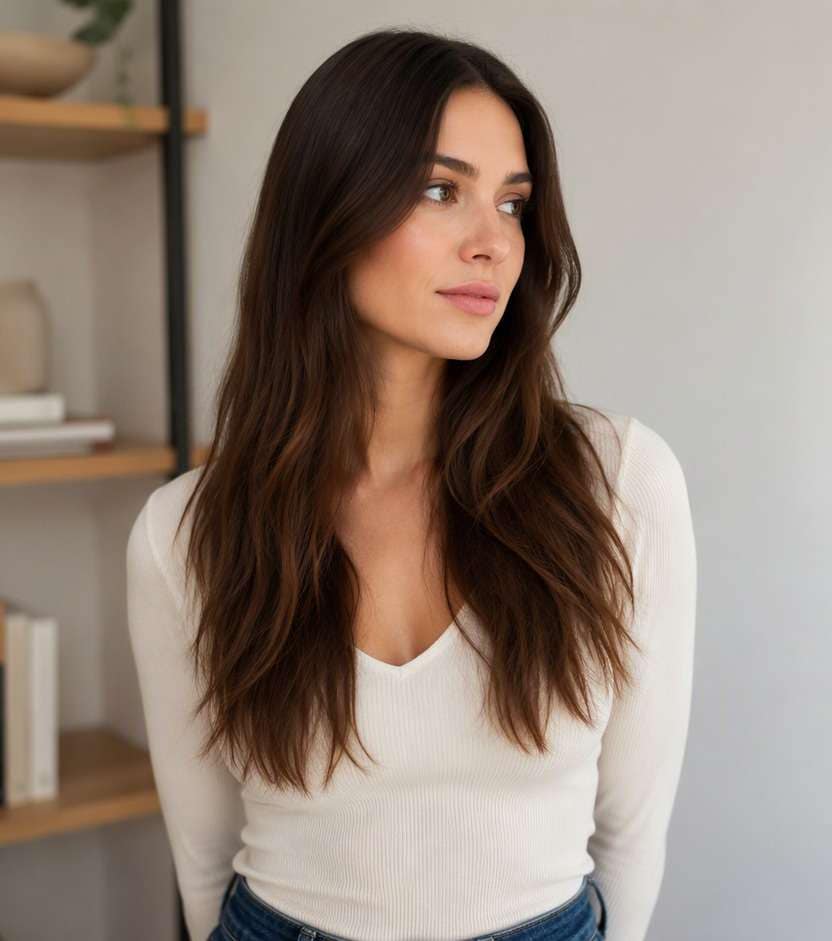
Start with your own portrait. These hair dye filter photo prompts explore full-head color, roots, and strategic face-framing streaks. Keep your haircut, skin tone, lighting and outfit fixed, then compare the changed hair areas rather than judging two unrelated photos.
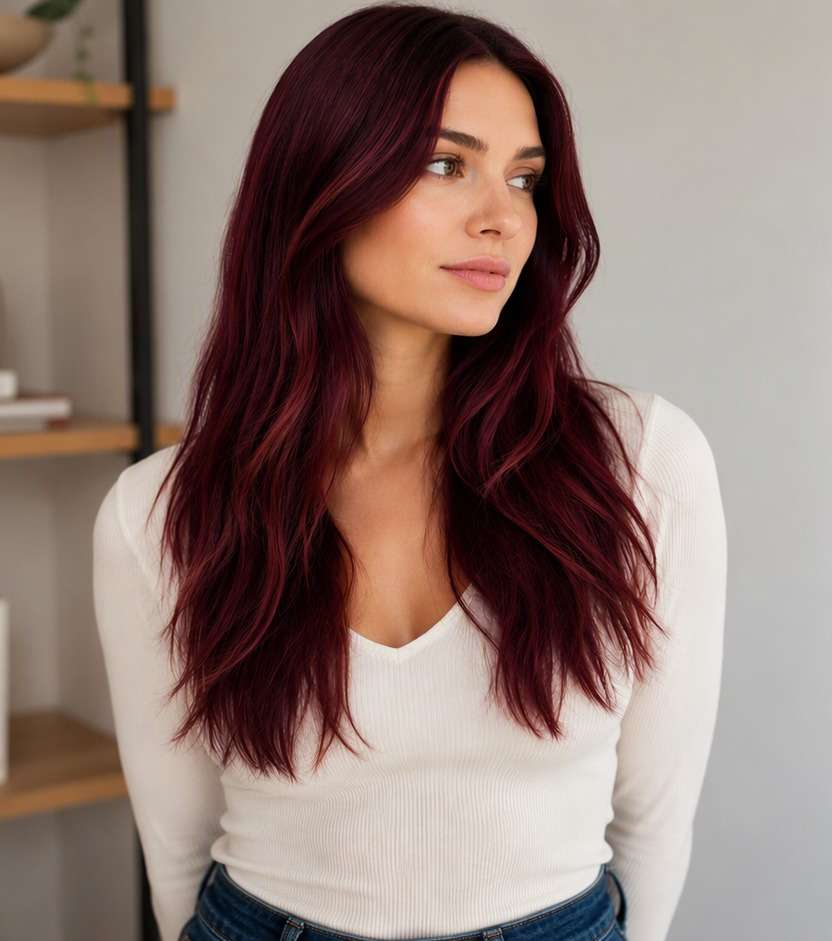
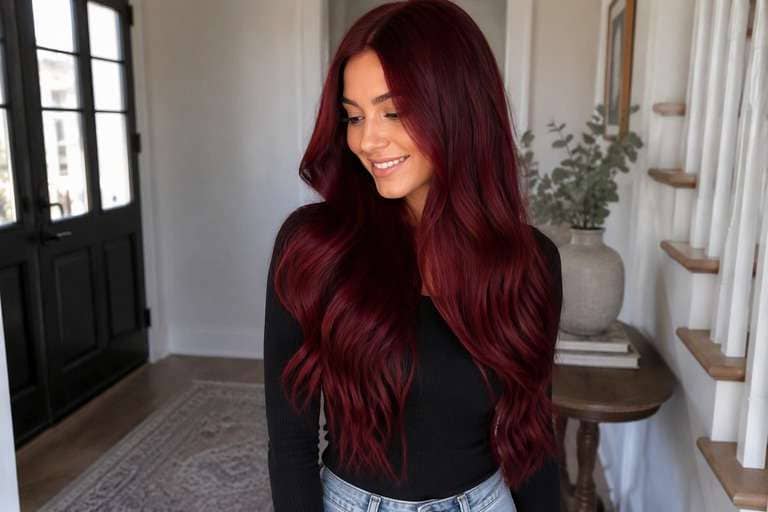
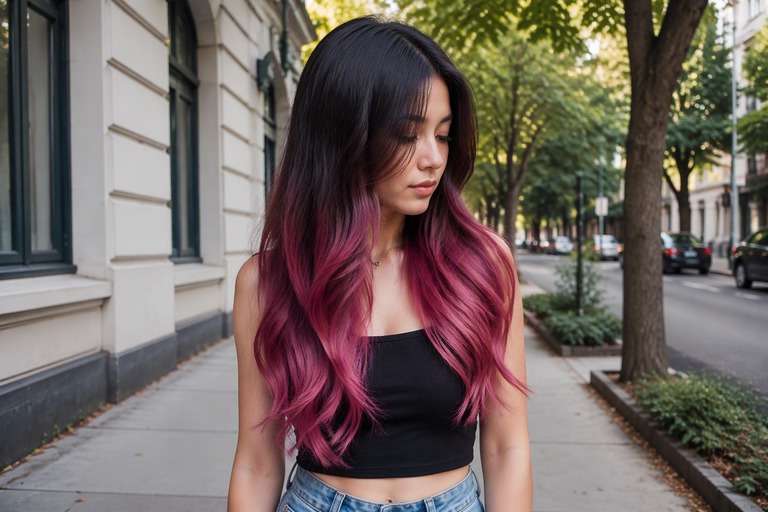
Burgundy Brush Reveal Still
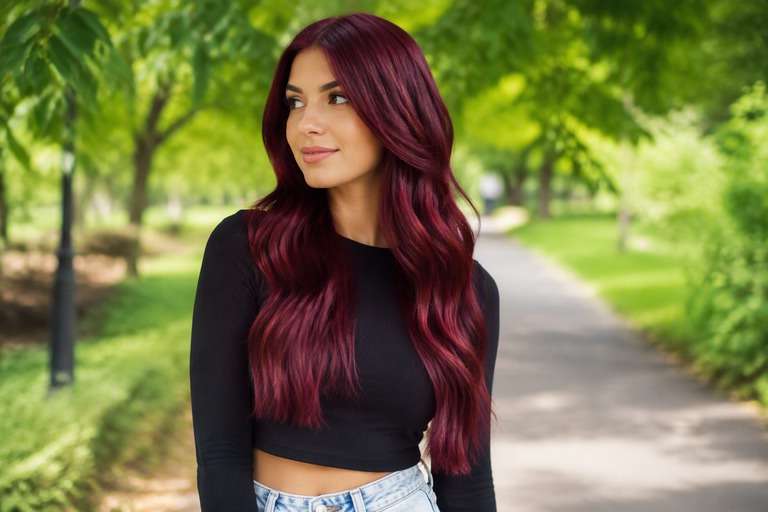
Edit my uploaded hair portrait to preview rich wine-burgundy hair from roots to tips; a believable finished-dye look, with no bowl or brush covering the hair. Change only hair pigment and intended highlight placement. Keep the identical real person, facial features, eyebrows, skin tone, hairstyle, part, length, texture, pose, outfit, background, camera angle and lighting. Retain believable individual strands, roots, shadows and reflections; do not add makeup, new hair length, logos, text, mirrors or phones. Produce one photorealistic edited still photo rather than a video.
Cherry Red Gloss
Edit my uploaded hair portrait to preview deep cool cherry red throughout the hair, with realistic red glints in daylight. Change only hair pigment and intended highlight placement. Keep the identical real person, facial features, eyebrows, skin tone, hairstyle, part, length, texture, pose, outfit, background, camera angle and lighting. Retain believable individual strands, roots, shadows and reflections; do not add makeup, new hair length, logos, text, mirrors or phones. Produce one photorealistic edited still photo rather than a video.
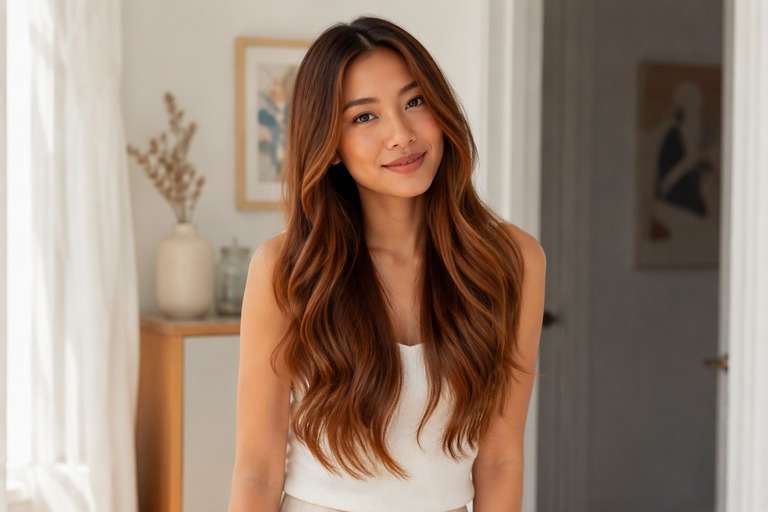
Soft Copper Dye
Edit my uploaded hair portrait to preview muted brown-copper warmth, subtle at the roots and brighter along the mid-lengths. Change only hair pigment and intended highlight placement. Keep the identical real person, facial features, eyebrows, skin tone, hairstyle, part, length, texture, pose, outfit, background, camera angle and lighting. Retain believable individual strands, roots, shadows and reflections; do not add makeup, new hair length, logos, text, mirrors or phones. Produce one photorealistic edited still photo rather than a video.
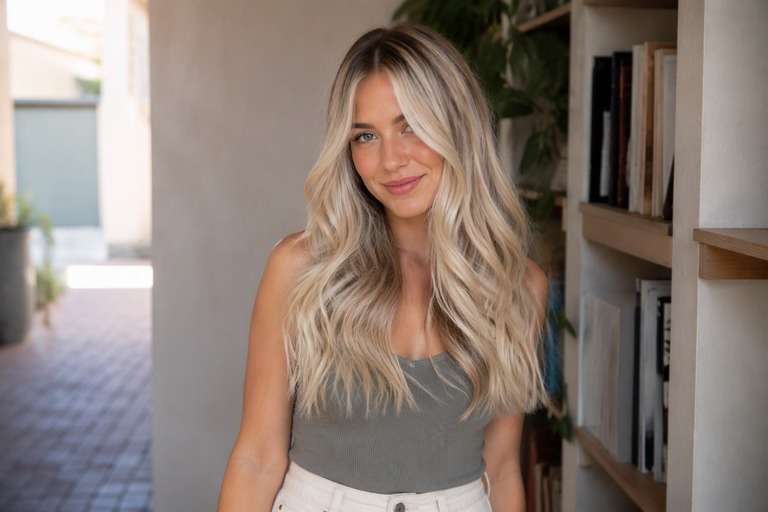
Platinum Blonde Try-On
Edit my uploaded hair portrait to preview cool pale blonde with natural root depth, not overexposed white hair. Change only hair pigment and intended highlight placement. Keep the identical real person, facial features, eyebrows, skin tone, hairstyle, part, length, texture, pose, outfit, background, camera angle and lighting. Retain believable individual strands, roots, shadows and reflections; do not add makeup, new hair length, logos, text, mirrors or phones. Produce one photorealistic edited still photo rather than a video.
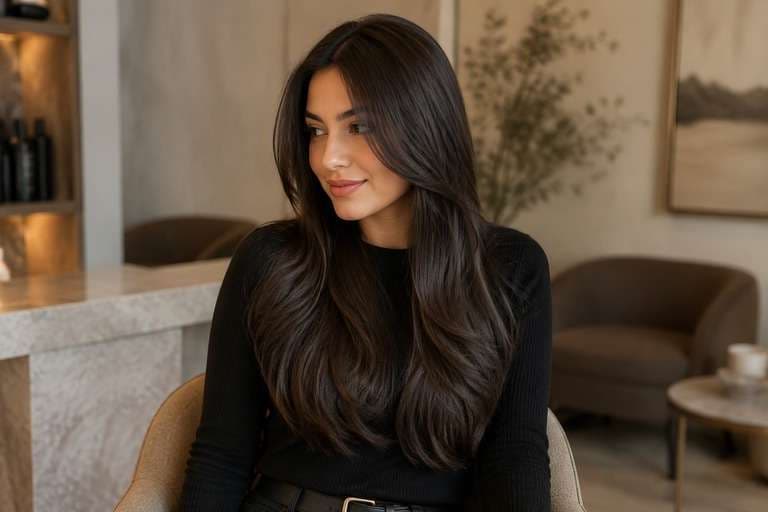
Espresso Brown Finish
Edit my uploaded hair portrait to preview rich neutral espresso brunette with gentle strand separation and healthy-looking light reflection. Change only hair pigment and intended highlight placement. Keep the identical real person, facial features, eyebrows, skin tone, hairstyle, part, length, texture, pose, outfit, background, camera angle and lighting. Retain believable individual strands, roots, shadows and reflections; do not add makeup, new hair length, logos, text, mirrors or phones. Produce one photorealistic edited still photo rather than a video.
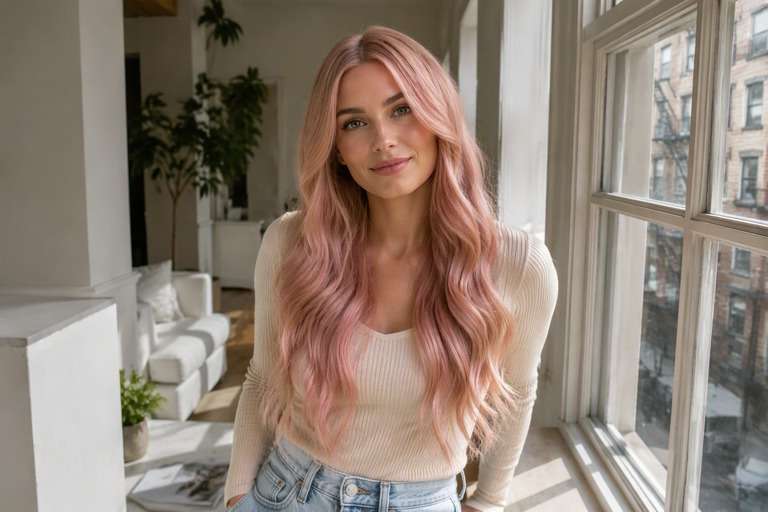
Pastel Pink Transformation
Edit my uploaded hair portrait to preview a delicate pale rose tint, evenly distributed across the visible lengths. Change only hair pigment and intended highlight placement. Keep the identical real person, facial features, eyebrows, skin tone, hairstyle, part, length, texture, pose, outfit, background, camera angle and lighting. Retain believable individual strands, roots, shadows and reflections; do not add makeup, new hair length, logos, text, mirrors or phones. Produce one photorealistic edited still photo rather than a video.
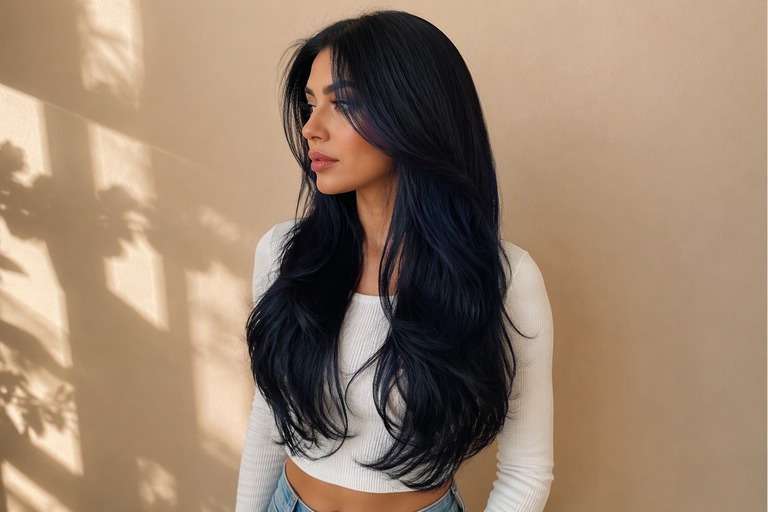
Blue-Black Hair
Edit my uploaded hair portrait to preview deep black base with restrained navy reflections visible in daylight. Change only hair pigment and intended highlight placement. Keep the identical real person, facial features, eyebrows, skin tone, hairstyle, part, length, texture, pose, outfit, background, camera angle and lighting. Retain believable individual strands, roots, shadows and reflections; do not add makeup, new hair length, logos, text, mirrors or phones. Produce one photorealistic edited still photo rather than a video.
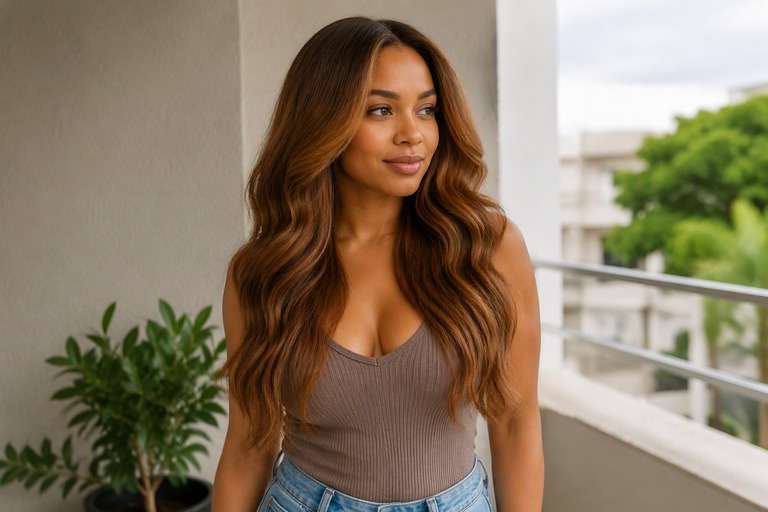
Caramel Hair Dye
Edit my uploaded hair portrait to preview warm caramel medium-brown shade with natural tonal variation. Change only hair pigment and intended highlight placement. Keep the identical real person, facial features, eyebrows, skin tone, hairstyle, part, length, texture, pose, outfit, background, camera angle and lighting. Retain believable individual strands, roots, shadows and reflections; do not add makeup, new hair length, logos, text, mirrors or phones. Produce one photorealistic edited still photo rather than a video.
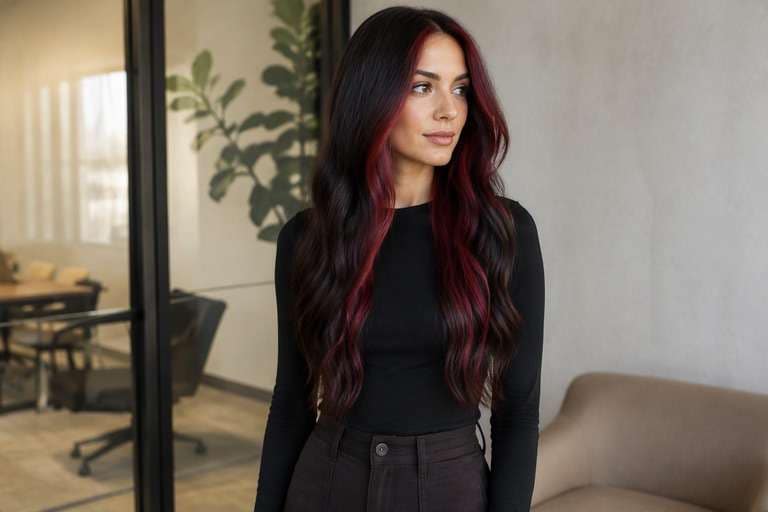
Burgundy Face Frame
Edit my uploaded hair portrait to preview dark brunette base with burgundy color confined to two front hair pieces. Change only hair pigment and intended highlight placement. Keep the identical real person, facial features, eyebrows, skin tone, hairstyle, part, length, texture, pose, outfit, background, camera angle and lighting. Retain believable individual strands, roots, shadows and reflections; do not add makeup, new hair length, logos, text, mirrors or phones. Produce one photorealistic edited still photo rather than a video.
Two-Tone Hair Color
Edit my uploaded hair portrait to preview dark roots and a soft berry-pink lower half with a deliberate clean transition. Change only hair pigment and intended highlight placement. Keep the identical real person, facial features, eyebrows, skin tone, hairstyle, part, length, texture, pose, outfit, background, camera angle and lighting. Retain believable individual strands, roots, shadows and reflections; do not add makeup, new hair length, logos, text, mirrors or phones. Produce one photorealistic edited still photo rather than a video.
What Can an AI Hair Dye Filter Show on a Photo?
The Dye-Reveal Trend vs a Photo Try-On
The trending TikTok effect typically shows an animated brush stroke and a color reveal. A static photo preview does not recreate that moving sequence. Instead, it lets you compare finished shades more carefully and save an image you can discuss with a stylist.
Keep the Haircut, Compare the Color
If one preview also straightens your hair or adds a fringe, it becomes harder to judge the dye. Ask the editor to preserve your part, texture, length and face while changing only the pigment on visible strands.
Start with a Shade Family
Choosing between copper and cherry red is a bigger decision than choosing two almost-identical reds. Test a cool red, a warm red, a brown-based red and a natural brunette first, then narrow the selection to one or two shades.
Check Roots, Edges and Light
A convincing hair color edit includes roots and fine strands without spilling onto the forehead. Review the same result in daylight and indoors. An AI image is inspiration, not a formula predicting how dye reacts to your starting hair.
How to Use an AI Hair Dye Filter on Your Photo
Choose one well-lit source photo and keep it for every color version; this makes differences easier to judge.
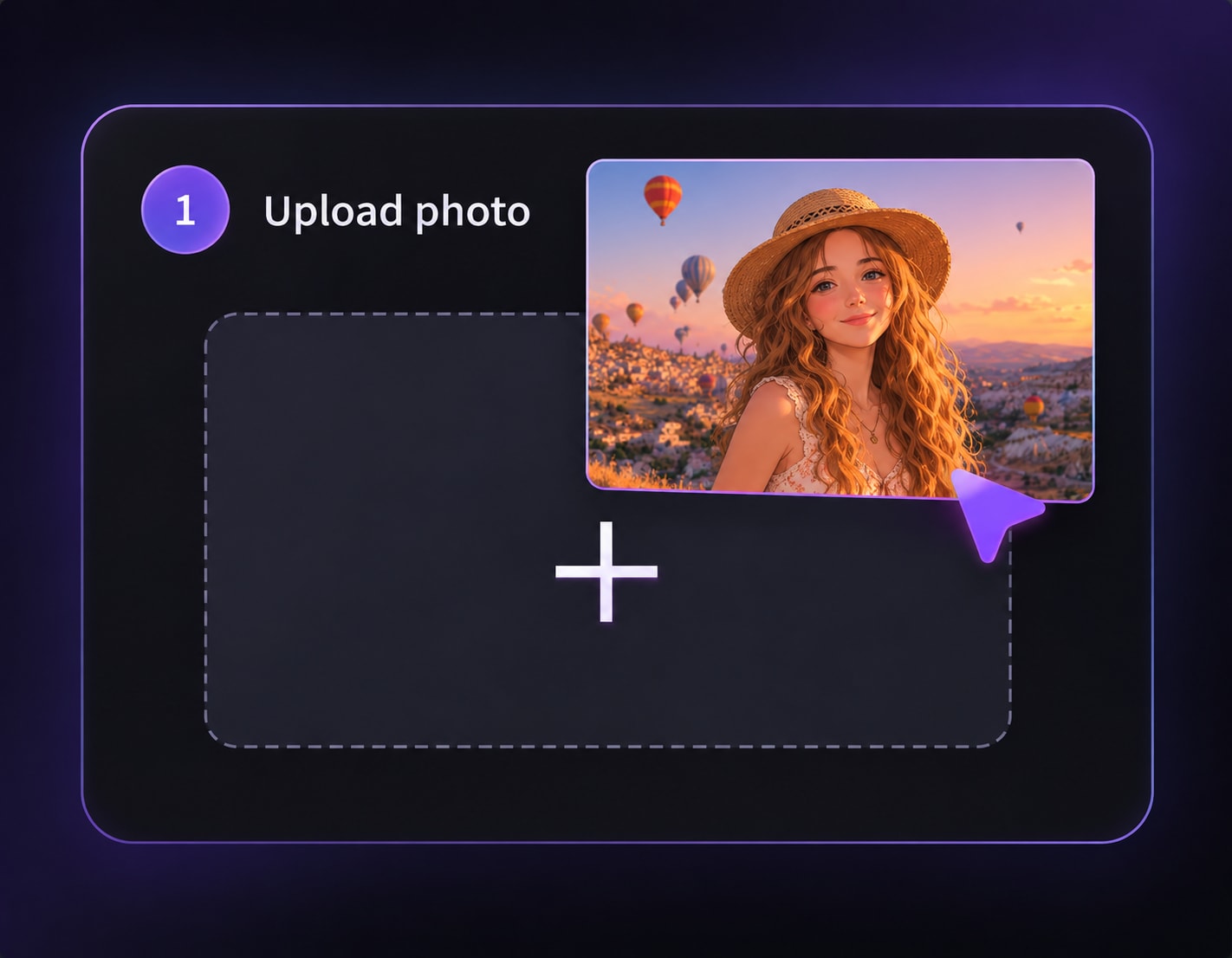
Step 1
Upload Your Photo
Upload a portrait with one face and the hair from roots to ends clearly visible. Avoid heavy beauty filters or strong color casts.
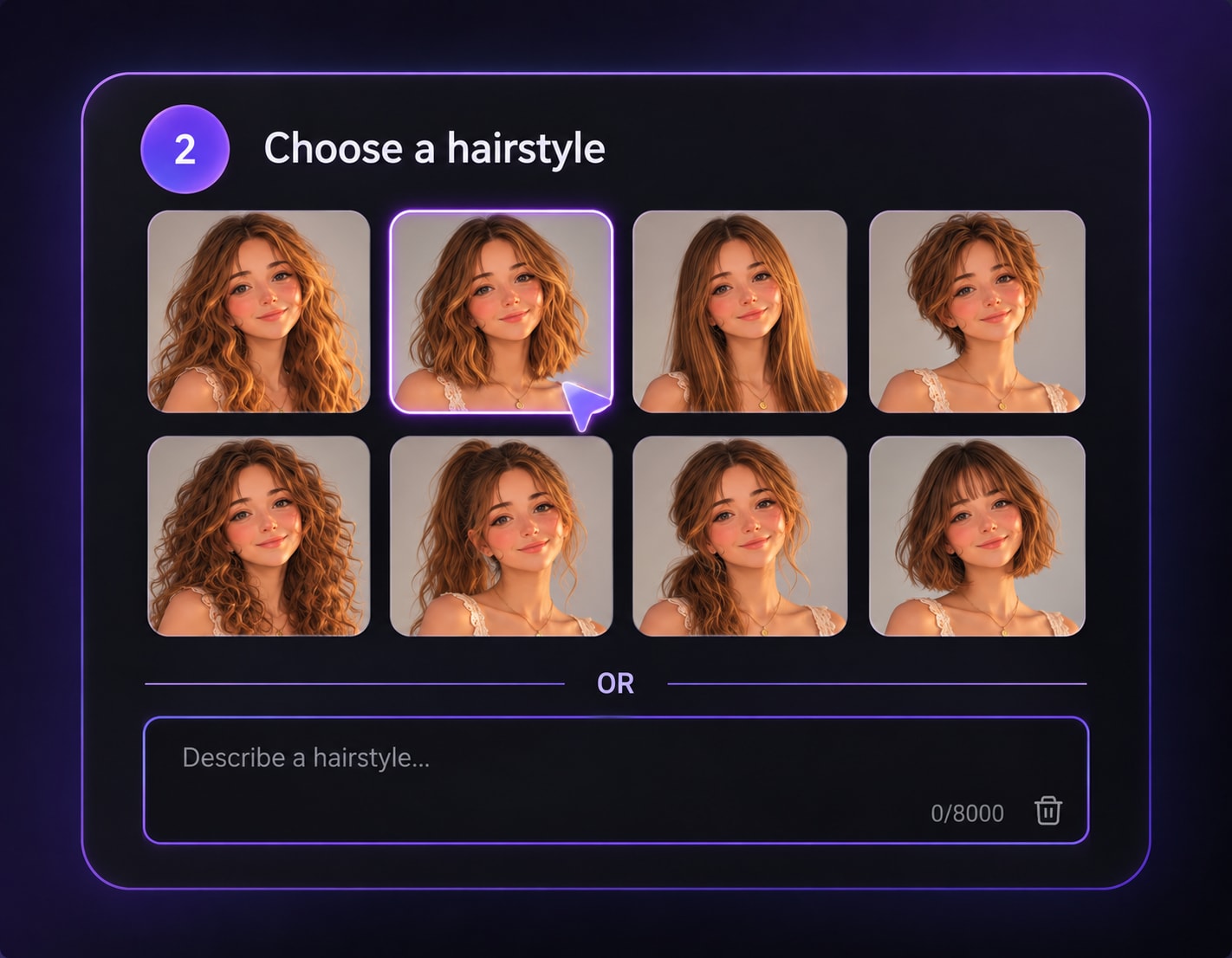
Step 2
Choose a Haircut Filter or Enter a Prompt
Use an available hair preset if it fits, or enter a custom prompt naming the dye shade and instructing the tool to keep your existing haircut unchanged.
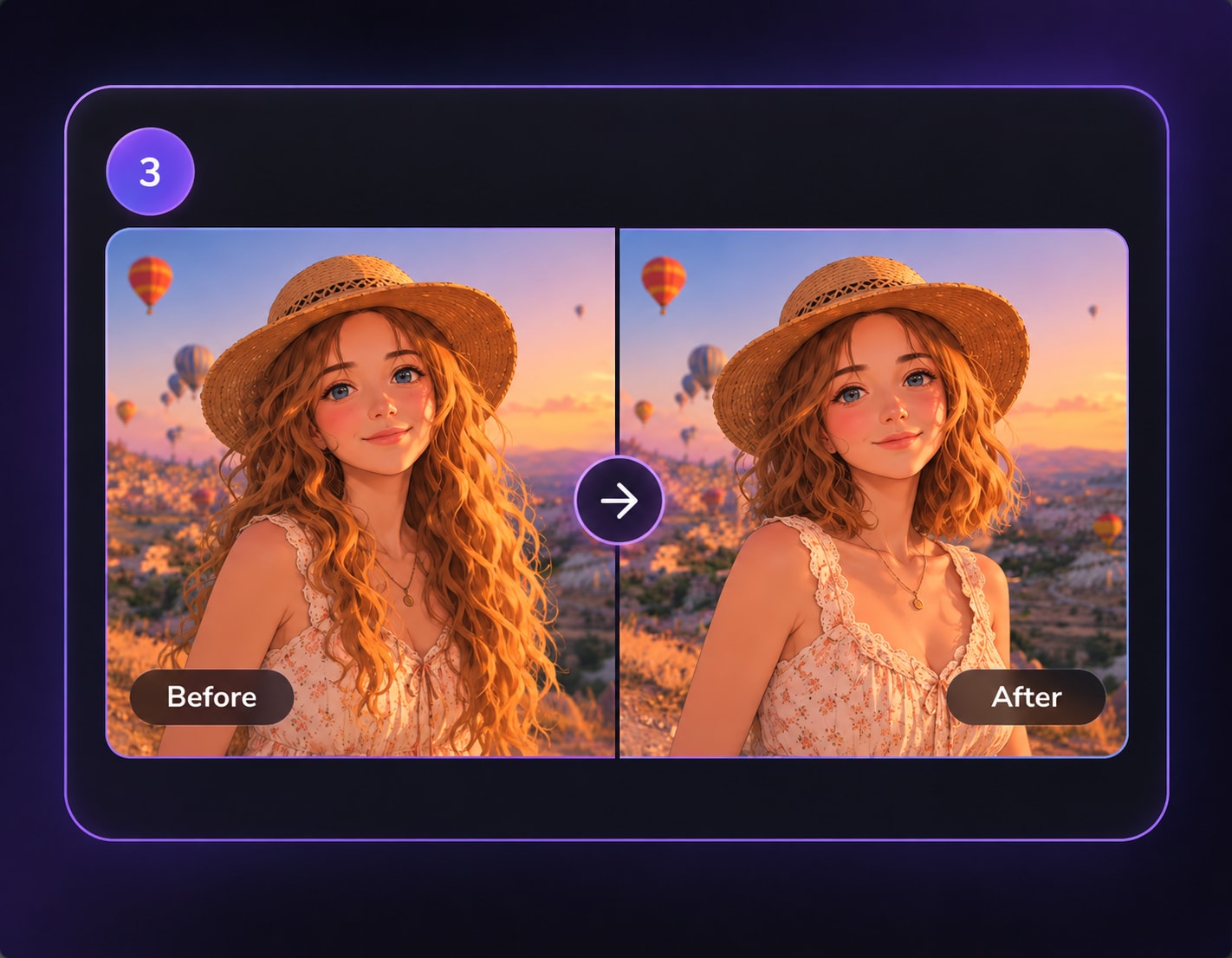
Step 3
Click Generate
Click Generate to preview the color. Check roots, temples and ends, then try a more specific shade prompt if the effect looks too warm or too bright.
A hair color preview is most useful when you know what decision it needs to support, rather than chasing a different look in every image.
Before a Real Salon Appointment
Bring a couple of edited photos that show the same cut with two different colors. Tell your colorist what you prefer about the warmth, darkness and placement, then ask what is realistic from your starting shade and hair condition.
Choosing the Color for a Social Reveal
If you are preparing a transformation post, try a burgundy and copper still first. A good static edit can help you decide the reveal shade, but it is not itself a generated dye-brush video or a live camera filter.
Testing a Friend's Bold Suggestion
That hot pink or platinum idea may sound exciting until you see it beside your eyebrows and everyday wardrobe. Preview it on the same portrait, and keep the edit only if the color complements the look you want to share.
Hair Dye Filter Photo Preview Checklist
Same Person
Identity check
Does the face still look like you?: Keep eyes, skin tone, expression and facial features unchanged across previews.
Visible Dye Area
Color placement
Did all intended strands change?: Look at hairline, temples and ends. The new color should follow hair fibers rather than tinting the background.
Same Cut
Haircut comparison
Is length and texture preserved?: The filter is for judging color, so avoid an after image that also swaps bangs, length or curls.
Salon Reality
Expectation check
Could this be a discussion reference?: The result is a visual idea. Actual dye depends on starting color, lightening, porosity and colorist technique.
1. Is the AI hair dye filter the TikTok video trend?
The October 2026 viral version often generates a short animation of dye being brushed on and the hair changing color. This Face Editor workflow makes a still photo color preview; it does not claim to recreate that video sequence.
2. How do I try a new hair dye color on a photo?
Upload a clear portrait, choose a suitable hair option if available or write a shade-specific prompt, then generate a photo preview. For a useful comparison, keep the same source image for every attempt.
3. Can I preview burgundy hair without changing my haircut?
Yes, ask the AI to change only the hair color to burgundy and preserve your current part, length, texture, face and background. Inspect the result carefully because generative edits can vary.
4. What photo works best for a hair dye filter?
Use a front or three-quarter portrait with good light and no hat, hands or phone covering the hair. The roots and most of the visible length should be in frame.
5. Can an AI hair dye filter predict my salon result?
No. A photo edit cannot reliably predict how your current pigment, previous dye or hair condition will respond to real chemical coloring. Use it as a visual reference, not a precise match.
6. Can the filter make a dye-brush transformation video?
This Face Editor page previews color in a still image. The social-media brush-stroke trend is a separate image-to-video task and needs a video generation workflow.