
Selfie Background Remover for Photos You Love
Love your selfie but wish the background looked better? Media.io's selfie background remover helps you remove distracting rooms, crowded streets, or unwanted scenery while keeping yourself in the spotlight. No complicated editing or manual cutouts needed. Simply upload your favorite selfie, let AI separate you from the background, and preview the result. Whether it's a new profile picture, an outfit post, or a fun photo collage, make the most of the shot you already love.

Why Use an AI Selfie Background Remover?
Some photos capture a moment you cannot recreate. Keep the pose and expression you like, and work on the distracting part instead.
Remove the Background Without Retaking Your Selfie
The busy café or bedroom is not what you wanted to share. Upload the shot above to remove background from selfie images without drawing around your face and shoulders. You can work with the photo you actually like—even if the location was less than ideal.
- Keep the moment - use your real expression rather than staging another shot.
- Start with your phone photo - no new camera setup needed.
- Make the image easier to use - preview a cutout for your next profile or design.

Keep Your Hair, Hands, and Outfit in the Frame
A full-length mirror selfie has more going on than a close-up portrait. If you need a full body background remover, make sure your shoes, raised hands, and sleeves are visible in the original. Then check the edges in the preview—especially loose hair, fingers, and clothing that blends into the wall.
- Full-length shots - keep the pose and outfit visible.
- Small details - review hair, hands, accessories, and shoes.
- Better cutout choices - switch to a clearer source if part of your silhouette is missing.

Make a New Selfie Scene When You Want Something Different
Want a studio color, a sunny park, or a more playful backdrop? You can explore Image to Image after background removal. It is a separate creative tool, and the generated edit may affect more than the setting, so always check your face and outfit.
- Profile photos - try a calmer look for a small avatar.
- Outfit posts - explore a setting that works with your clothes.
- Creative cards - give a birthday or event picture a different mood.
- Separate workflow - use Image to Image when you want a new scene.

How to Remove the Background from a Selfie Online
Got a selfie ready? Follow these three steps in the editor above to get a cleaner starting image.
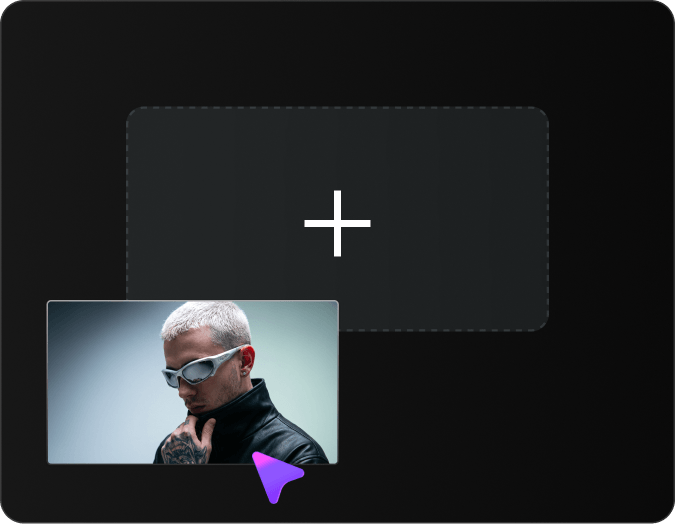
Upload the Selfie You Want to Keep
Choose a sharp photo. Leave a little room around your hair, arms, and shoes if they are visible.
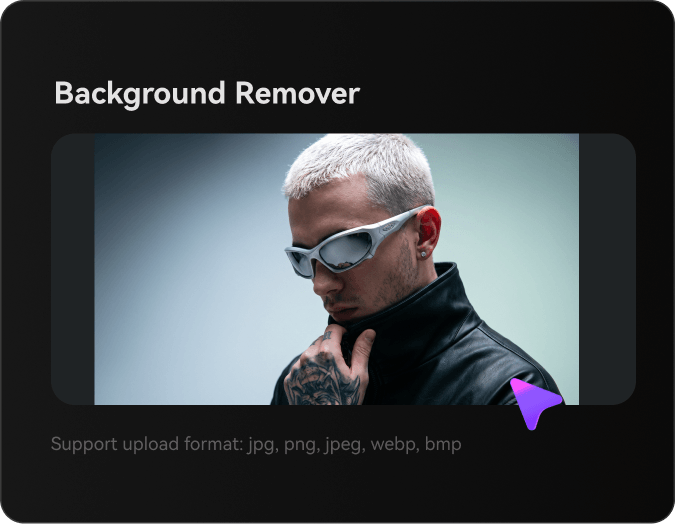
Remove the Selfie Background
Let AI separate you from the room or outdoor scene around you.
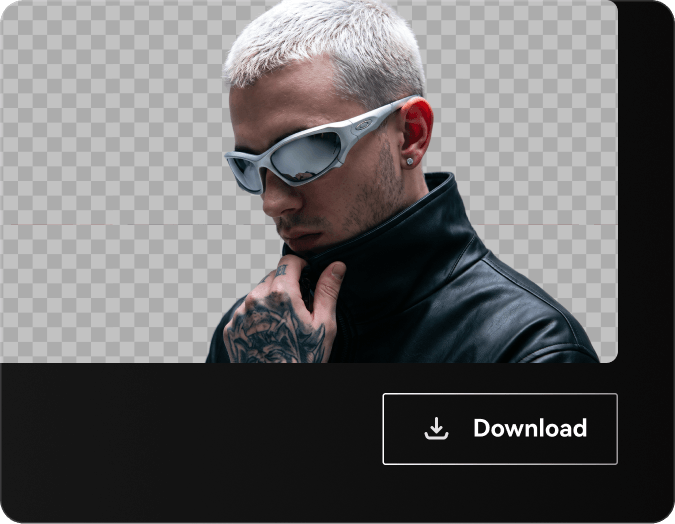
Preview Your Cutout and Download
Check your outline at full size, then save the result available with your plan.
Selfie Cutout Maker for Avatars, Outfits, and Personal Designs
Want to cut out a person from a photo for a collage or poster? A single selfie becomes more useful when you can place the subject in a design. Pick the version that fits what you want to share.
Profile Pictures
Have a selfie with the perfect smile but a crowded room? Make a cleaner starting image, then use a profile picture maker to crop it for a square or circle.
Full-Body Outfit Posts
Want to remove background from full body photo shots? Keep shoes, sleeves, and the full pose visible so the outfit is still the story when you arrange it in a lookbook.
Party Cards and Invitations
Use a selfie with a genuine laugh in a birthday card or invitation. A clearer subject gives you room for a name, date, or message without covering the face.
Moodboards and Collages
A person cutout maker is useful when you want yourself in a collage rather than a whole room. Pair the image with travel photos, color palettes, or a personal vision board.
Selfie Background Removal: What to Check Before Sharing
Hair and hands can be trickier than a simple outline. These quick checks help you spot the details that matter before the photo goes public.
| What you notice | Possible reason | What to try next |
|---|---|---|
| Loose strands look cut off | Fine hair can blend into the wall or window. | Try a sharper photo with more contrast around your head. |
| Part of a hand or shoe is gone | The original image may crop the edge or hide it in clutter. | Use a photo with the whole pose visible and some breathing room. |
| A pale outline follows your hair | The old lighting may leave a halo. | Compare the result with the original, especially around flyaway strands. |
| The phone edge looks odd | Mirror reflections can confuse the subject boundary. | Check the hands, phone, and mirror border closely. |
| The lighting looks wrong in a new scene | Your original highlights and shadows are still on you. | Choose a backdrop with similar lighting or edit the scene separately. |
Photo Tips for a Full Body Background Remover
Before uploading another selfie, try these easy fixes. You do not need special gear—just a little space and better light.
- Move away from the wall: A small gap behind you helps define hair and shoulders.
- Keep the full pose in view: Leave room around shoes, outstretched hands, and elbows.
- Use soft light: A bright window can be kinder to face and clothing edges than direct flash.
- Avoid overlapping people: Pick a solo frame when you only want yourself in the cutout.
- Check mirror reflections: Reduce glare and watch for busy objects crossing your outline.
Selfie Background Remover FAQs
Will a selfie background remover change my face?
The goal is to separate you from the surrounding scene, not reshape your facial features. Still, compare the preview with your original, particularly around hair, glasses, and skin edges.
Can I cut out my whole body, including shoes and hands?
You can try a full-length photo if everything is visible. A full body background remover needs a clear outline; inspect fingers, shoes, and loose fabric after processing.
Why does my hair look rough after the background is removed?
Tiny strands are easy to lose against a bright window or dark wall. A sharper original with more contrast can help. Check the full-size preview rather than judging a tiny thumbnail.
Can I remove someone behind me but keep the original street?
That is a different job. To keep the street and remove one person, use AI Object Remover rather than removing the entire background around you.
How do I turn a cutout selfie into a profile picture?
After processing, use a profile picture tool to adjust the crop. A head-and-shoulders crop often reads better than a full-body pose in a small profile circle.
Can I remove the background from a mirror selfie?
You can try, but reflections, the phone, and mirror borders can make the outline less clear. Check around your hands, phone, and any clothing reflected in the glass.
Can I save a transparent PNG for collages?
Not automatically. This one-click remover does not guarantee alpha transparency, even if the preview looks like a cutout. Check the downloaded image before placing it over another background.
Can I replace the room with a beach or a studio?
Yes, as a separate creative step. Use Image to Image to explore another scene, then check that your face, hairstyle, and clothing still look right.
Can I try removing a selfie background for free?
Free credits are available for trying the tool. Free-user downloads include a watermark, so check your plan before preparing a final profile photo.
What if my favorite selfie is blurry?
A background remover cannot reliably restore details that are missing from the original. Try another sharp shot or use AI Image Enhancer separately before deciding which image works best.