
Headshot Background Remover for a More Focused Portrait
A professional headshot doesn't always require a professional studio. With Media.io's headshot background remover, you can remove distracting office spaces, home interiors, or outdoor backgrounds from a portrait you already like. Upload your photo, let AI isolate your head and shoulders, and preview a cleaner image for LinkedIn, resumes, company profiles, or speaker bios. Keep your natural expression while giving your headshot a more polished presentation, without scheduling another photoshoot.

Why Use an AI Headshot Background Remover for Work Photos?
A professional photo should still feel like the person colleagues meet. Start with a genuine portrait and improve the setting, not your identity.
Remove Distracting Backgrounds from Headshots
A great portrait can happen in a hallway, at home, or between meetings. If the room behind you feels too busy, use Media.io to remove background from headshot photos without drawing around your shoulders by hand. It is a practical way to make an existing picture easier to use.
- Keep your own expression - use a familiar portrait instead of generating a new face.
- Simplify the scene - take the attention off shelves, chairs, or passing people.
- Start with what you have - upload a clear photo from your phone or camera.

Check Hair, Glasses, and Jacket Edges Before Publishing
A slightly clipped collar or bright halo around the hair can stand out in a professional profile. After using a profile picture background remover, zoom in on flyaway strands, glasses, shoulders, and blazer lapels. If an edge looks unnatural, a sharper original may work better than another round of editing.
- Recognizable appearance - keep the features people know from real life.
- Clean clothing edges - review collars, shoulders, and glasses.
- Confident final choice - compare the new image with the original before posting.

Choose a Professional Background for a New Headshot Look
Need a consistent appearance across a company team page? A subtle studio or office backdrop can help, but that is a separate step. Use Image to Image to explore a new setting. Explore free AI professional headshot prompts to get new headshot backgrounds. Check that the generated result still looks like you before you use it for work.
- LinkedIn profiles - keep the face clear at a small crop.
- Team directories - aim for similar framing without changing who people are.
- Speaker bios - choose a photo suitable for an event page.
- Separate creative edit - generate a new background only when you need one.

How to Remove Background from Headshot Photos Online
Already have a portrait you like? Use the editor above to make a cleaner version in three steps.
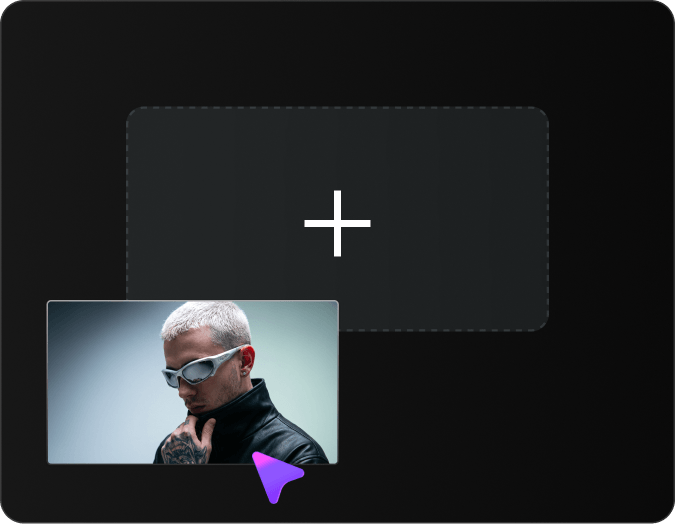
Upload a Clear Headshot
Use a well-lit photo with the full hairline and both shoulders visible.
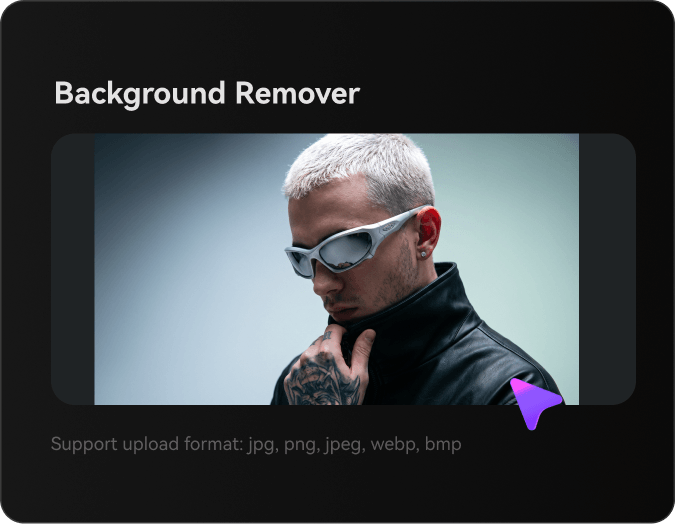
Remove the Headshot Background
Let AI separate you from the room, wall, or outdoor setting.
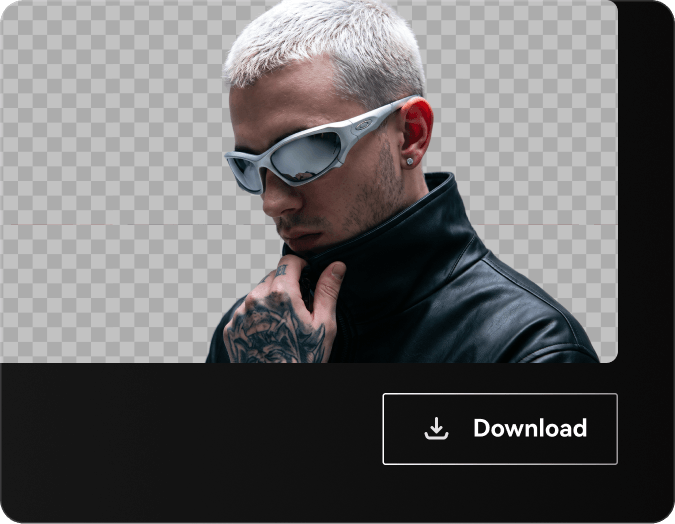
Preview the Portrait and Download
Check hair, glasses, and clothing edges, then save the result available under your plan.
Headshot Background Remover for LinkedIn, CVs, and Team Photos
Your photo may appear in a tiny profile circle or next to a long biography. Think about where it will be seen before choosing the crop.
LinkedIn Profile Photos
For a linkedin photo background remover workflow, start with a portrait where your face is clear and the expression feels natural. Adjust the final crop for LinkedIn, or explore LinkedIn headshot ideas if you want a different portrait workflow.
Resume and CV Photos
A resume photo background remover can help when you already have a suitable portrait but the setting looks distracting. Before adding a photo to your application, check whether it is customary for your region and role.
Company Team Pages
Did everyone send a headshot from a different office? Simplifying backgrounds and using similar crops can make a staff directory feel more coordinated—while keeping each person recognizable.
Speaker and Author Bios
Choose a photo that looks like the person people will meet. Keep the framing clear and let the event page, not the background, carry the design. A profile picture layout tool can help with the final crop.
Professional Headshot Background Removal: What to Check
Small image errors are more visible around faces. Use this quick checklist before you put a headshot on a public profile.
| What you notice | Possible reason | What to try next |
|---|---|---|
| Hair looks cut out too sharply | Fine strands blend into the background. | Try a sharper portrait with contrast around the head. |
| Glasses have a pale rim | Reflections may carry colors from the old scene. | Check frames and lenses at full size before publishing. |
| The blazer or collar is clipped | Clothing edges overlap similarly colored surroundings. | Use a portrait with clear shoulder outlines. |
| The image looks too artificial | The new backdrop or cutout does not match the lighting. | Choose a quieter scene and compare with the original photo. |
| The neck or scarf has a gap | Layers of clothing and hair are difficult to separate. | Review the neckline against both light and dark backgrounds. |
Better Portrait Photos for a Headshot Background Remover
If your first try looks off, the fix is often a better original—not a more complicated edit.
- Keep your hair fully visible: Leave room above the head so stray strands are not cropped.
- Stand away from busy walls: A little space behind you makes the outline easier to distinguish.
- Use even, soft light: Face a window rather than a harsh overhead light.
- Wear a contrasting top: A jacket the same color as the background can be difficult to separate.
- Keep a natural expression: Choose a photo you would be comfortable using to introduce yourself.
Headshot Background Remover FAQs
Will removing the background make my headshot look fake?
Not necessarily. A clean scene can help, but clipped hair, unnatural edges, or mismatched lighting can make a portrait feel edited. Keep the original handy and choose the version that still looks like you.
How do I remove background from profile picture photos?
Choose a clear head-and-shoulders image, use the remover above, and inspect the outline. Afterward, crop it for your profile separately; a small circle often needs a tighter crop than a full portrait.
Can I use the result for a LinkedIn profile photo?
You can prepare a photo for LinkedIn, but review how it looks at a small size. Your face should be easy to recognize, and the background should not compete with it.
Can I use a CV photo background remover for job applications?
You can use a cv photo background remover to simplify an existing portrait. Whether to include a photo on a CV depends on local hiring practices and the employer, so check those expectations first.
Can I remove people behind me without removing the office?
If you want the office to stay, you need object removal rather than a full background cutout. Use AI Object Remover for a specific distraction.
How can I make a matching set of company team headshots?
Start with similar framing, lighting, and crop sizes. This remover processes one photo at a time, so check each portrait separately instead of assuming identical results across your team.
Can I export a headshot with a transparent background?
Not automatically. The one-click workflow does not guarantee a PNG with alpha transparency. Verify the downloaded file before layering it into a design.
Can I try a headshot background remover for free?
Free credits are available for trying Media.io. Free-user downloads have a watermark; check your plan before making a public-facing profile image.
Should I use background removal or an AI headshot generator?
Choose removal when you already like your face and only want a simpler scene. A separate AI LinkedIn headshot generator creates or transforms a portrait and may change more of the image.
What if the hair or glasses look wrong after processing?
Try a sharper original with softer light and a little space behind the head. Check individual strands and lens frames at full size. If the outline is still unreliable, keep the original or refine it separately.