
LinkedIn Headshot Background Remover for Your Profile Photo
A LinkedIn photo should help people recognize you, not notice the bookshelf or office doorway behind you. Media.io's LinkedIn headshot background remover helps separate your portrait from a distracting scene while keeping the real photo you already like. Upload a clear head-and-shoulders shot, review the outline, and prepare a more focused image for your profile. A few careful edits can make a familiar face easier to see, even at a small circular crop.

Why Remove the Background from a LinkedIn Photo?
LinkedIn profiles appear in search, comments, and messages. A background should support recognition, not compete with the face.
Keep Your Real Face in a Cleaner LinkedIn Profile Photo
A good profile picture usually starts with a photo that still looks like you. Use Media.io to remove background from linkedin photo shots taken at home, at a conference, or in a shared office. This changes the surrounding scene rather than asking you to generate a different professional face.
- Stay recognizable - keep the portrait colleagues already know.
- Reuse a strong photo - no need to stage a new headshot solely because of the room.
- Lead with your face - draw attention away from signs, people, and furniture.

Check Hair and Jacket Edges Before Updating Your Profile
When a small portrait appears inside a circle, even a pale halo around your hair can look distracting. Use professional headshot background removal as a starting point, then zoom in on glasses, blazer lapels, earrings, and flyaway strands. If anything is clipped, choose a clearer original rather than hiding the issue with a filter.
- Hair and glasses - inspect fine edges that sit close to the background.
- Clothing shape - check shoulders, collars, and earrings.
- Small-size preview - look at the image at the size people see in their feed.

Prepare One Portrait for LinkedIn, a CV, or a Team Page
A business headshot can work in several places, but the crop and conventions may differ. After removing the background, try a separate LinkedIn profile picture maker for framing. If you need a different backdrop, use the separate LinkedIn headshot background changer; the remover itself does not guarantee a replacement scene.
- LinkedIn circle - keep eyes and facial features clear.
- CV or resume - check local expectations before adding a portrait.
- Team directory - match crop and lighting across colleagues.
- Separate finishing tools - crop or replace the setting only if needed.

How to Remove a LinkedIn Headshot Background Online
Already have a recent photo that looks like you? Try it in the editor above before changing your profile.
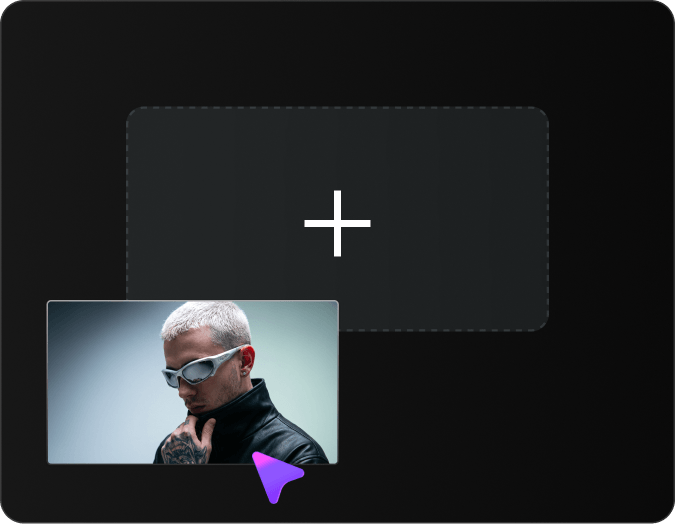
Upload a Recent Headshot
Choose a sharp, solo portrait with your face, hair, and shoulders clearly visible.
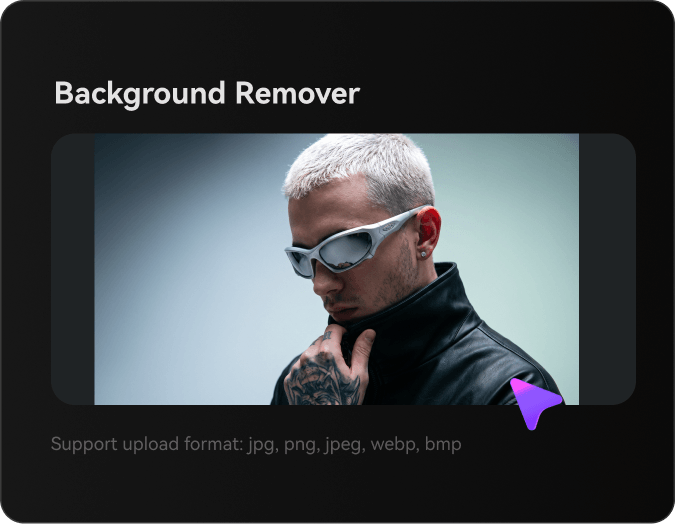
Remove the LinkedIn Photo Background
Let AI separate your portrait from the room or outdoor scene.
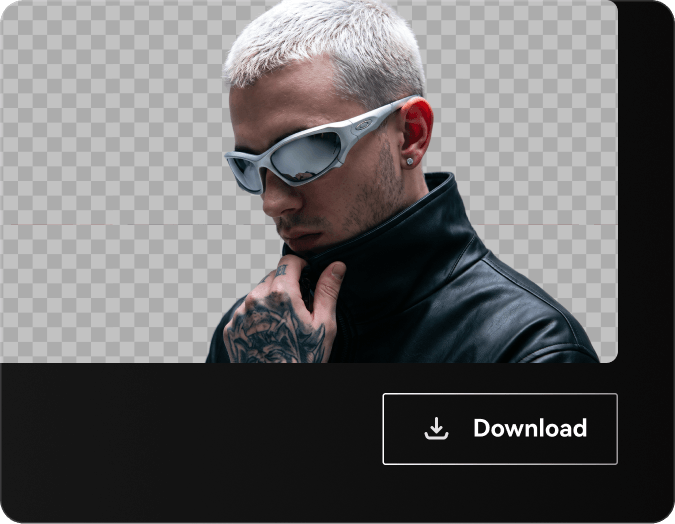
Check the Outline and Save
Inspect hair and clothing edges, then download the version available under your plan.
LinkedIn Headshot Background Removal for Real Work Profiles
Different profiles call for different crops. Make the background less distracting first, then prepare the file for where it will appear.
LinkedIn Profile Photos
A small circular crop can make a hallway or bookshelf unusually noticeable. Use a clear portrait, then adjust the crop so your face remains recognizable.
Resumes and CVs
A resume photo background remover can help clean up an existing portrait, but photographs are not customary in every job market. Check local expectations.
Company Team Directories
Keep each colleague recognizable rather than applying one heavy AI look to everyone. Match crop, camera angle, and background tone separately.
Speaker and Event Bios
Turn a strong conference portrait into a less busy bio image. Leave room around the head so organizers can crop it for their layout.
LinkedIn Photo Background Removal: What Makes a Profile Look Natural?
These are the details that tend to show up when a portrait is reduced to profile size.
| What you notice | Possible reason | What to try next |
|---|---|---|
| The face looks too small | The original includes too much room or body. | Crop after removal so your face stays readable in LinkedIn's circle. |
| Hair has a bright fringe | Backlighting or a pale wall can create a halo. | Compare the result with the original and try a better-lit shot. |
| One shoulder is missing | Another person or object overlaps your jacket. | Start with a solo headshot showing both shoulders. |
| The result feels artificial | An exaggerated replacement background mismatches the original light. | Use a simple setting; a new background is a separate workflow. |
| The portrait looks soft | The input may be a tiny screenshot or compressed download. | Use your recent camera original, not a low-resolution thumbnail. |
Photo Tips for Professional LinkedIn Headshots
The best edits start with a recognizable photo. A few small capture choices help more than extra filters.
- Pick a recent picture: Use a photo that still reflects how you look today.
- Keep one person in frame: Avoid overlapping shoulders and hands from a group shot.
- Leave room around the head: Do not cut off hair or ears before uploading.
- Use balanced light: Soft window light can reduce hard edge shadows.
- Check the final circle crop: Make sure your face does not disappear in a feed thumbnail.
LinkedIn Headshot Background Remover FAQs
How can I remove background from LinkedIn photo images?
Upload a recent solo portrait into the tool above, preview the isolated person, and inspect hair and shoulders before downloading. Crop for LinkedIn separately when needed.
Will my face change when I remove the headshot background?
Background removal is meant to separate the subject from the scene, not redesign facial features. Still compare the result with the original; artifacts can affect hair and edges.
Can I use this as a resume photo background remover?
You can prepare a cleaner portrait for a resume where a photo is appropriate. Regional hiring conventions differ, so check whether adding a photograph is expected.
Is a CV photo background remover different from a LinkedIn editor?
The background-removal step can be similar, but final cropping and usage differ. A cv photo background remover does not decide whether a photo belongs on your CV.
Will this create a professional studio background automatically?
No. This is a background-removal workflow. For a new studio-like setting, use a separate background changer and review the photo for realism.
What if glasses or wispy hair look clipped?
Try a clearer original with good light and visible space around the head. Inspect the exported image at full size before uploading it to LinkedIn.
Can I edit several team headshots at once?
The current workflow handles one photo at a time. Plan consistent framing and review each person individually rather than assuming identical results.
Can I try the LinkedIn headshot background remover for free?
You can try Media.io with available free credits. Free-user exports include a watermark, so check the output and plan before publishing a professional portrait.
Does it give me a transparent PNG?
A transparent PNG is not guaranteed by this one-click workflow. Inspect the file you download before using it in a layout that needs alpha transparency.
What is the difference between background removal and an AI headshot generator?
Removal starts with your existing portrait and changes the surroundings. An AI headshot generator can create or transform more of the image, including details of your appearance.