Glorify AI Video Ideas from Text
Describe a subject, action, setting, and camera move to generate a short clip. This is useful for social storyboards, visual tests, and creator posts.
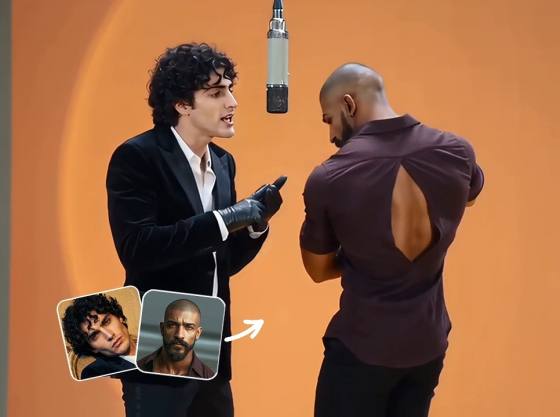
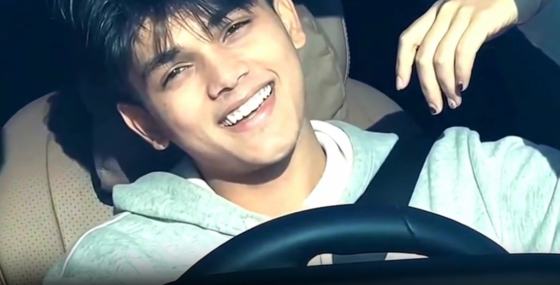
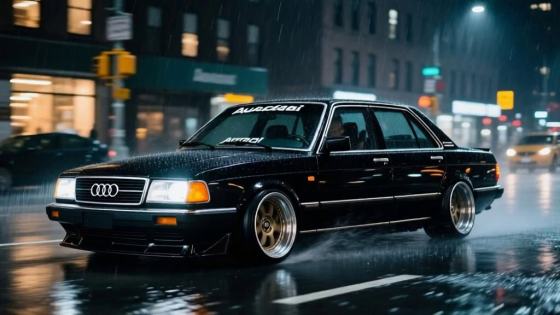
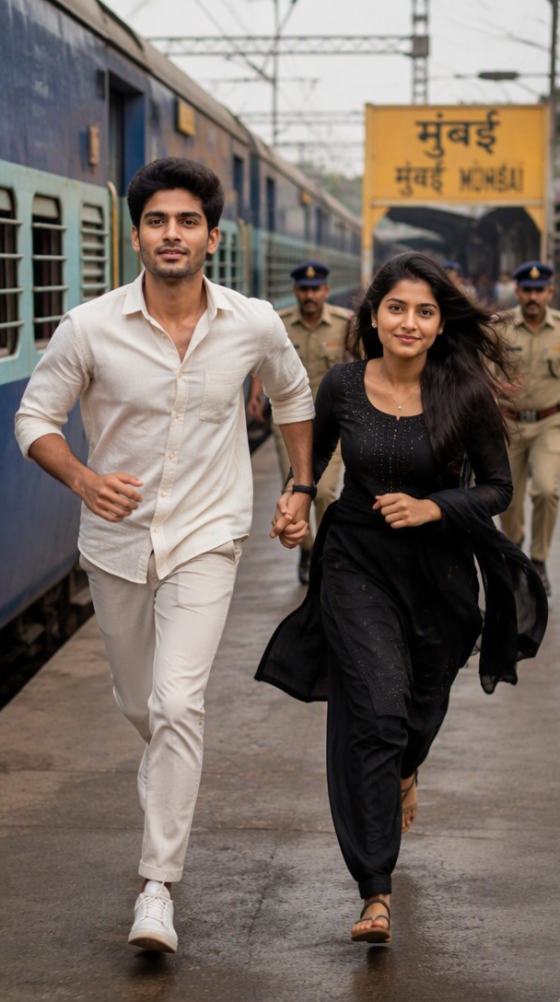
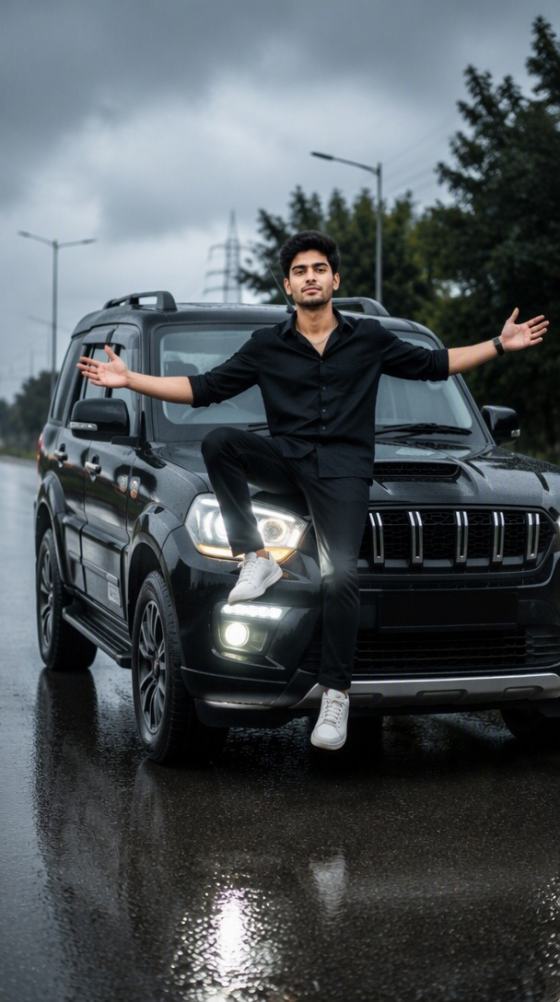
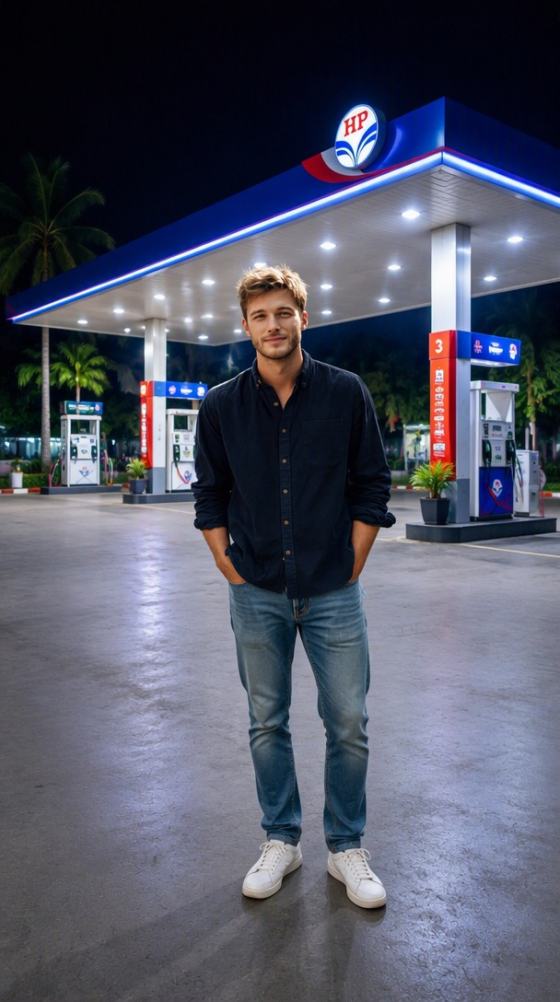
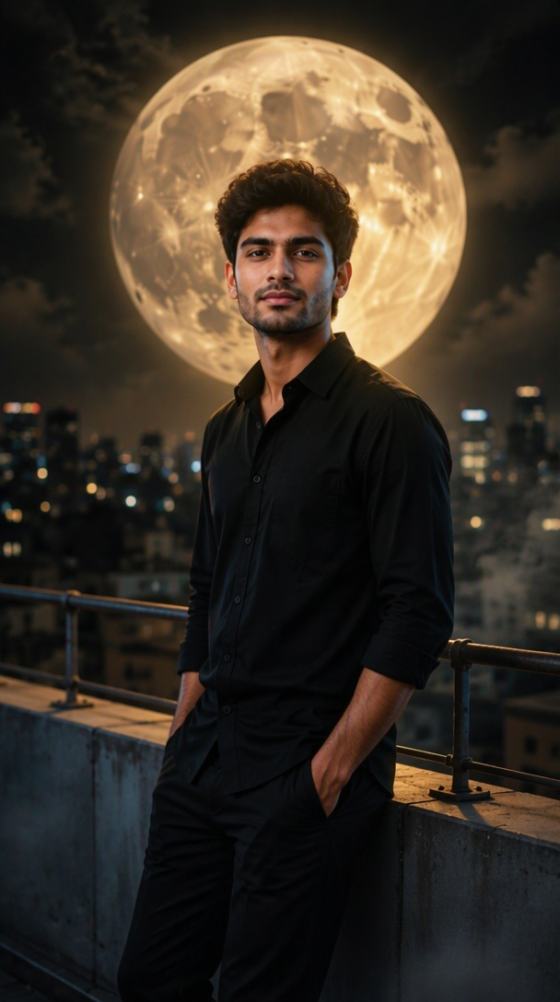
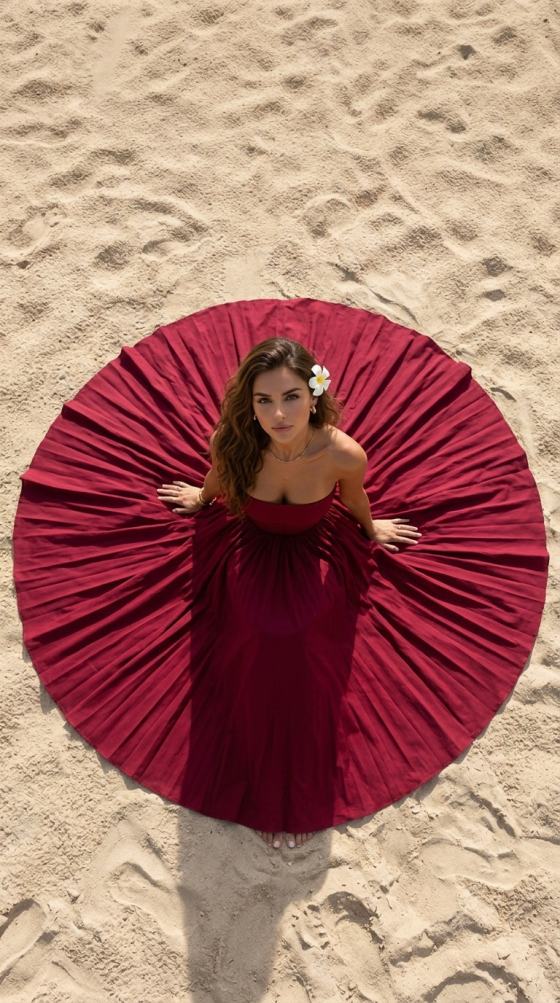
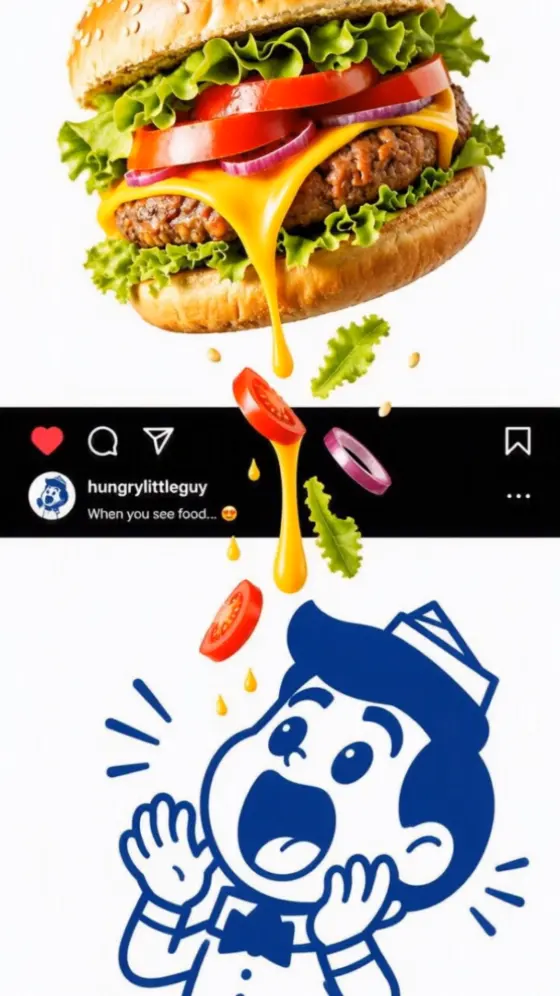
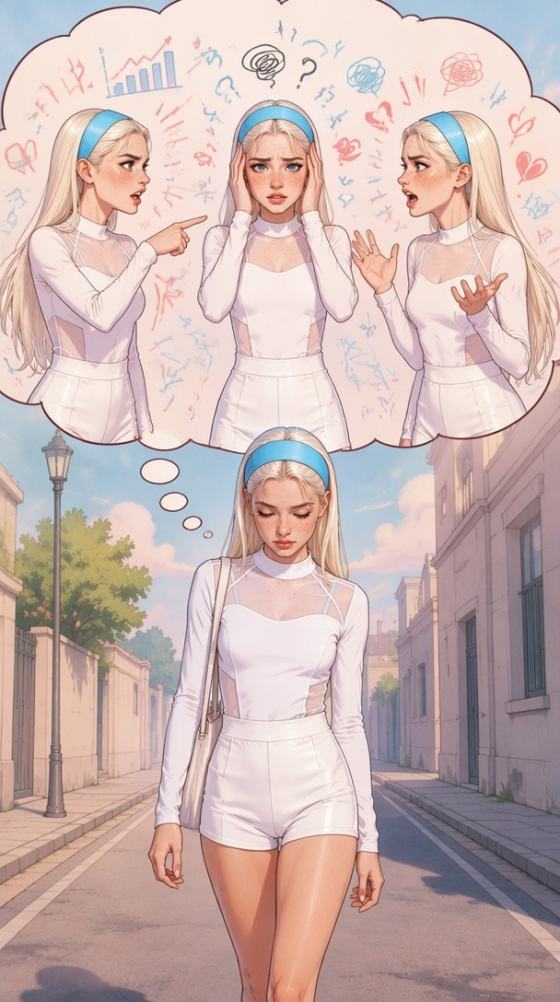
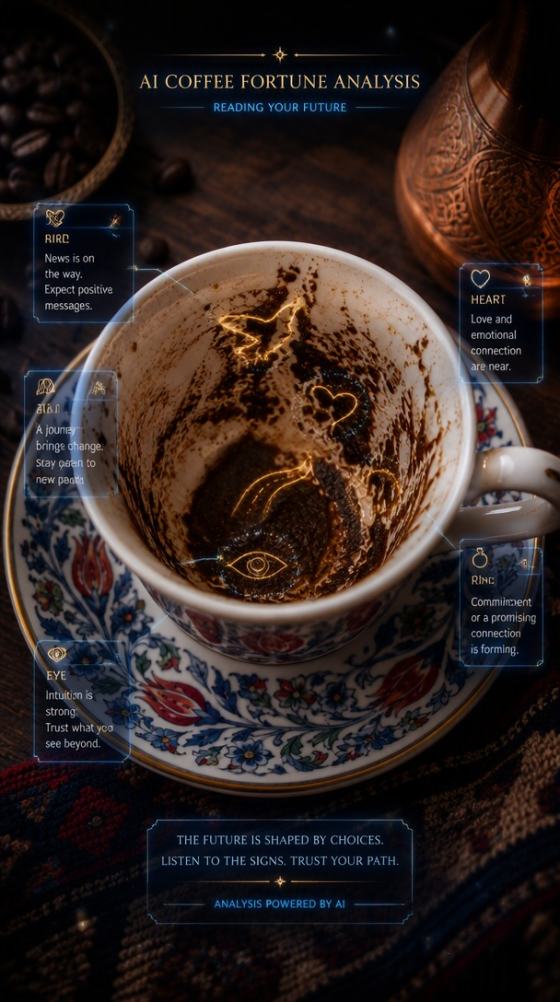
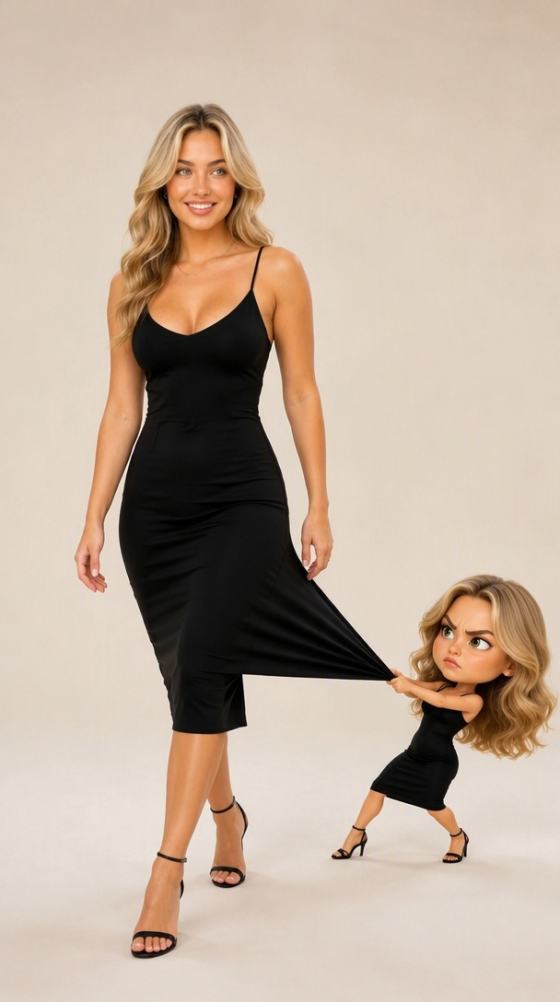
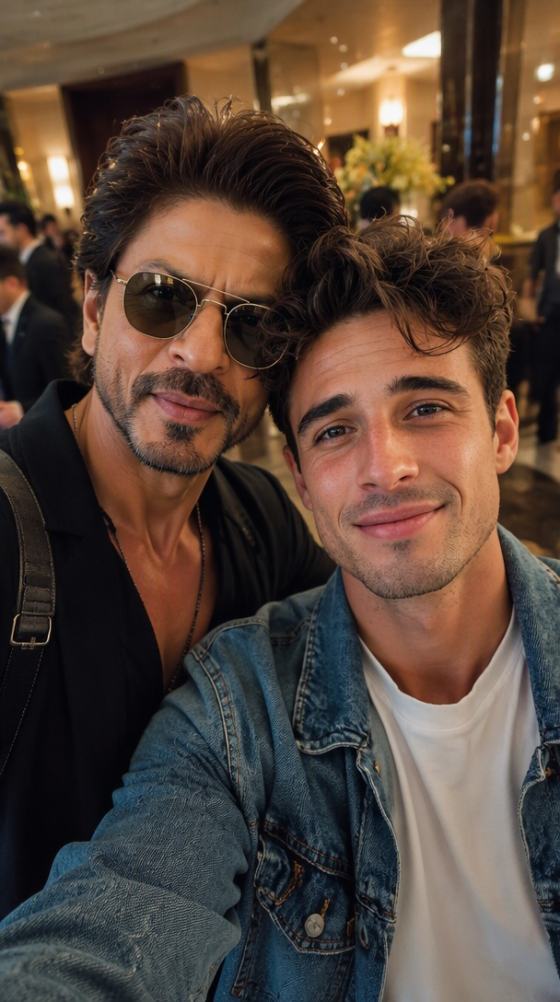

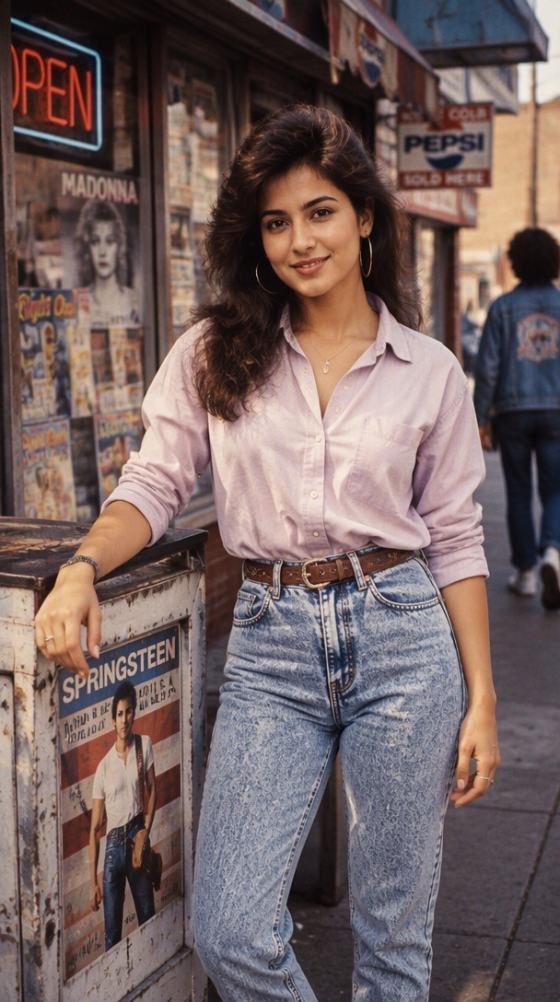

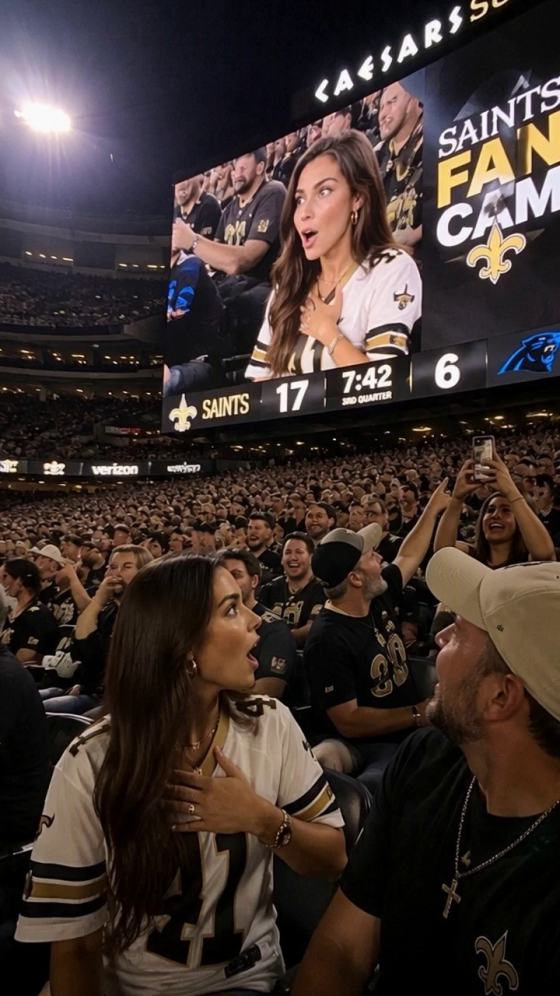
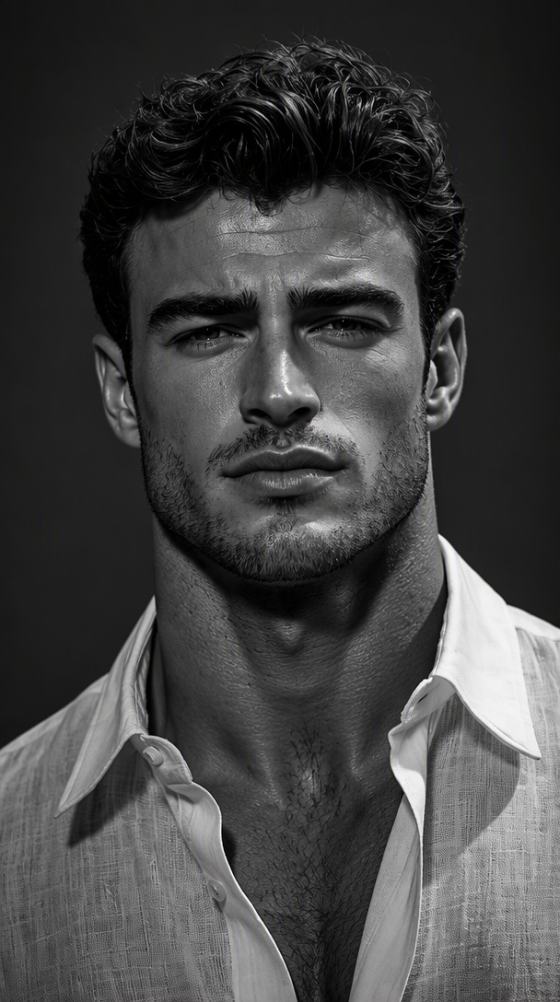
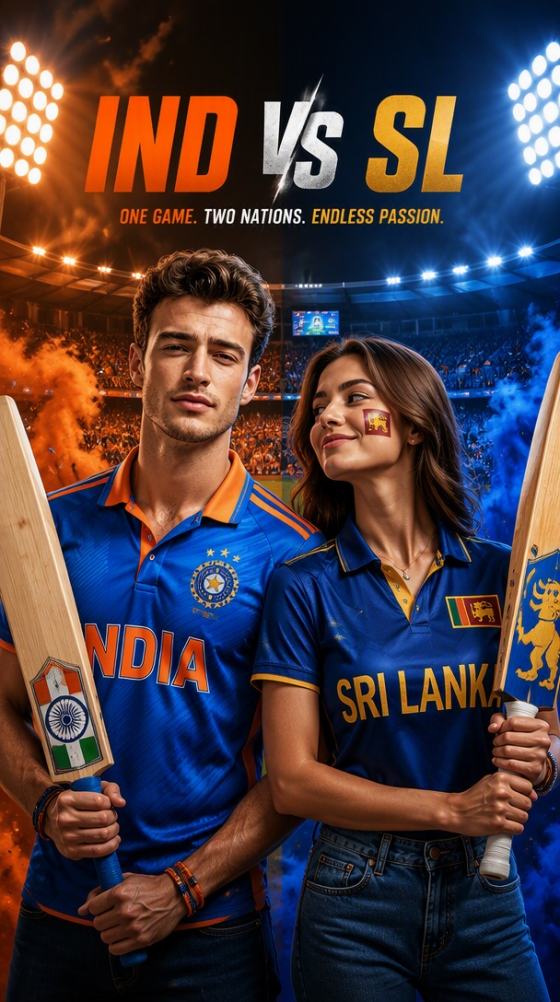
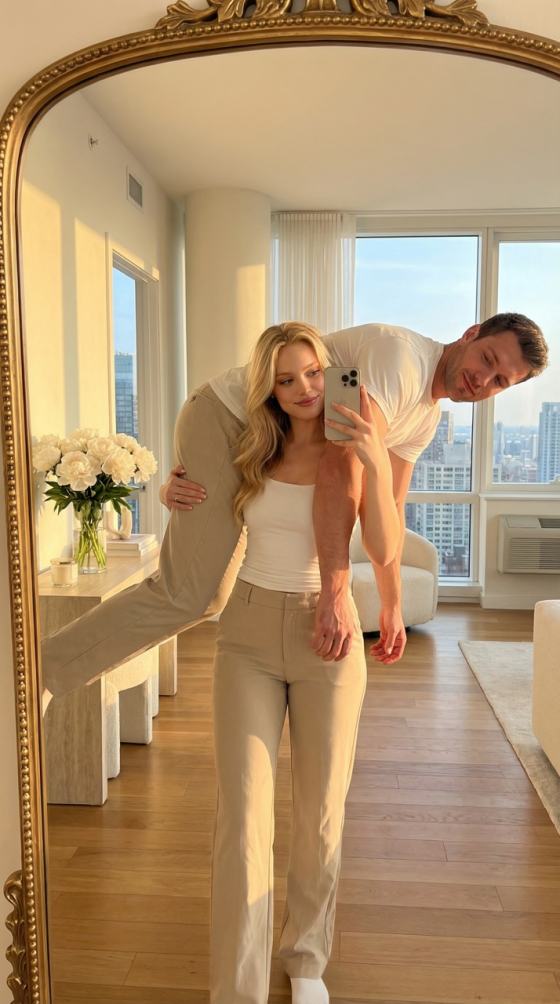
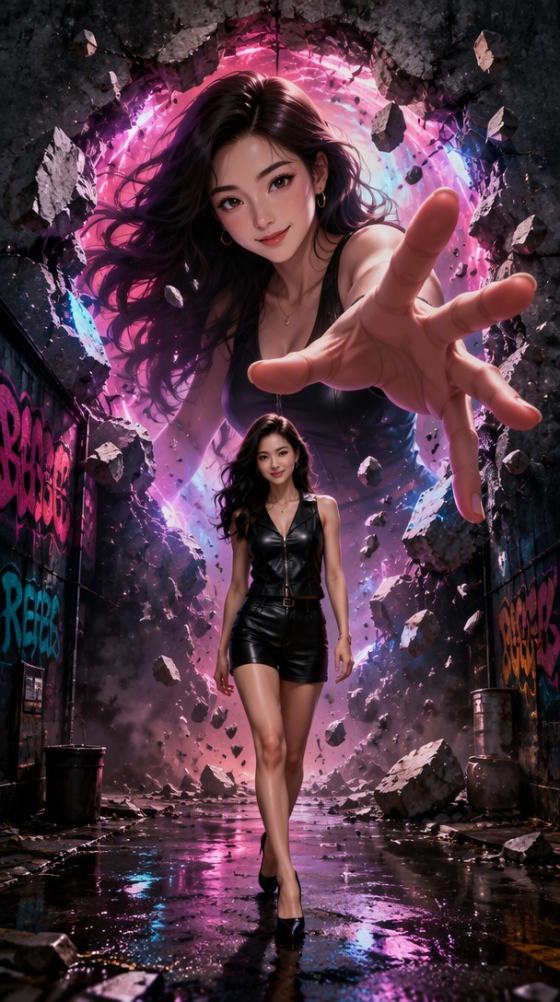
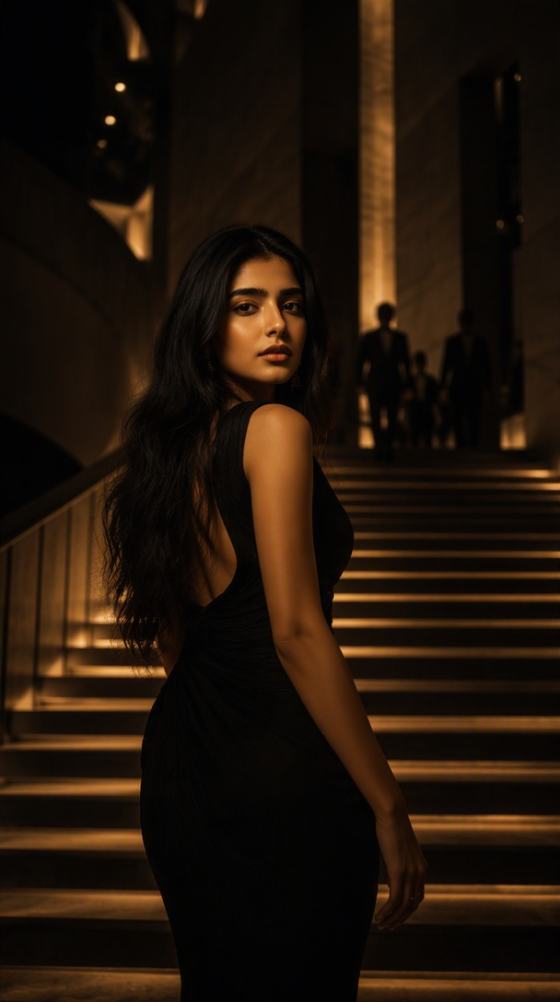
Exploring Glorify AI for video, characters, face swap, or motion control? Turn a written idea into a clip, design a reusable character, or guide movement with a reference video using Media.io. Refine and download the result. This is an independent Media.io page.
Start online with a prompt or reference image; check the current credits before generating.
Glorify.dev is a separate AI image and video platform. If you want to make a similar type of creative asset, Media.io offers direct paths for prompt-based video, character design, face swap, and reference-guided motion. Pick the input and output that match what you are actually making.
Describe a subject, action, setting, and camera move to generate a short clip. This is useful for social storyboards, visual tests, and creator posts.
Make a character image with clear details for hairstyle, clothing, silhouette, and setting. Reuse a consistent visual reference when you animate that character.
When the exact gesture or dance matters, use an image plus a reference motion video in Media.io Motion Control. Preview the result for face, hand, and body consistency.
For a face replacement task, use a dedicated face swap workflow and review each frame for artifacts. Only use photos and identities you have permission to edit.
Begin with a text idea, an image you own, or a character you created. Choose Text to Video for an idea; use Image to Video or Motion Control when a visual or movement reference matters.
Specify the subject, one main action, scene, lighting, aspect ratio, and camera direction. For motion transfer, upload a permitted reference clip and keep your text prompt focused on visual style.
Generate a draft and check continuity, hands, face, and background. Refine one instruction at a time, then download the version that meets your needs under your account’s export settings.
Use these original prompt directions as a starting point in a Media.io workflow; adjust the subject, movement, and setting for your own project.
“An original sci-fi courier in a cobalt jacket turns toward camera under rainy neon light; steady medium shot, realistic movement, vertical frame.”
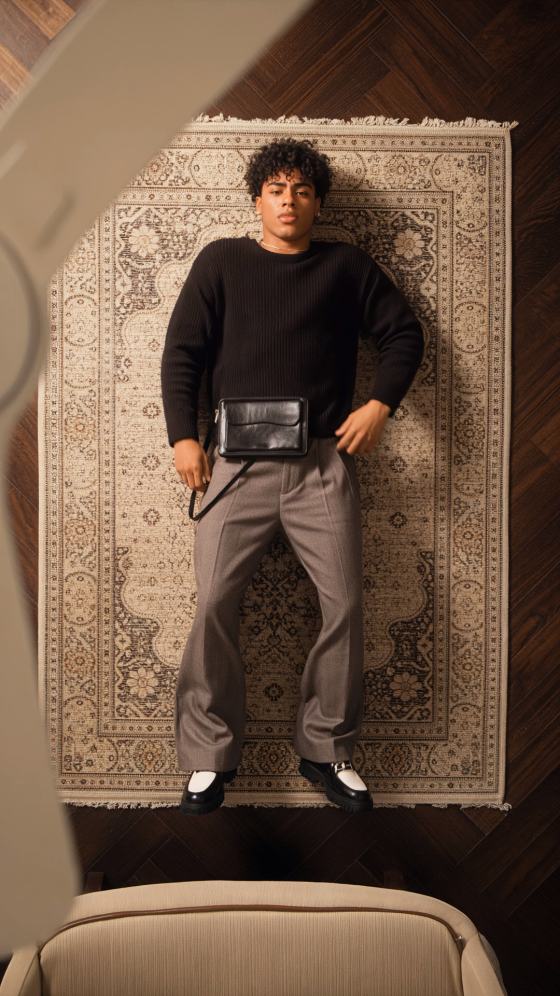
“A full-body fashion character takes three confident steps through a minimalist studio; soft side lighting, natural fabric movement, locked camera.”
“A ceramic perfume bottle on a dark reflective table; slow camera push-in, gentle light sweep across the label, elegant commercial mood.”
Test hooks and visual moods for Reels or Shorts. Make several short drafts, then select the opening and movement that best communicate your idea.
Design an original character, keep a consistent reference image, and animate a simple action before attempting a longer narrative.
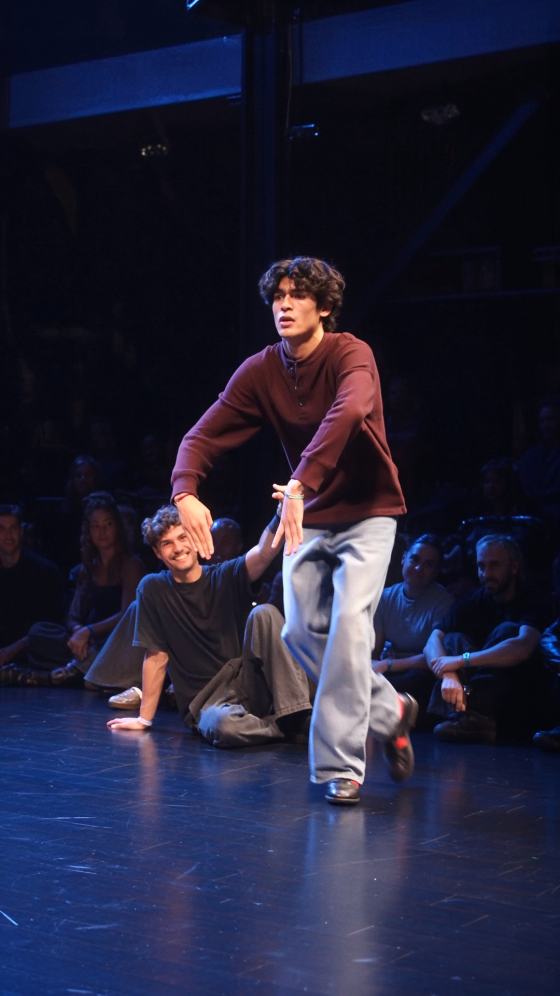
Transfer a permitted dance, walk, or gesture reference to a character image. Compare the result with your brief and refine any distorted movement.
Illustrative review copy for editorial approval. Replace with verified customer feedback before publishing.

Social Video Creator · Sample
“A clearer first video draft.” Writing one action and one camera move helped me see the concept quickly. I adjusted the lighting before keeping a version.

Character Designer · Sample
“My character had a direction.” Starting with a strong reference image made it easier to decide how the outfit and setting should look in motion.

Motion Artist · Sample
“Motion reference saved a reshoot.” I used a short gesture clip to guide the character, then checked the hands and face before sharing.
Glorify.dev describes an AI image and video generator for creators and brands. Media.io is a different platform. This independent page explains common Glorify AI-related creation needs and links to Media.io tools for video, character design, face swap, and motion control.
Start with the subject and its defining visual details, then state one action, the setting, lighting, and camera view. For a character, keep clothing and facial details consistent across prompts. For a video, avoid stacking several unrelated actions in one short shot. You can test this prompt structure in Media.io.
The tasks are different: face swap changes who appears in an existing image or video, while motion control uses a reference clip to guide a character’s movement. Choose Media.io Face Swap for an identity-editing task or Motion Control for a dance, gesture, or camera-led animation. Use people’s images only with permission.
Glorify AI here refers to the creative service at glorify.dev. Search results for “Glorify APK” can also show an unrelated devotional app with the same name. Do not treat those files as an official glorify.dev installer. Check the provider’s current website for its supported access and downloads. Media.io’s creation tools can be used through the web.
Free access, credits, output rights, and export conditions depend on each provider’s current plans and settings. Media.io lets you explore video, character, and motion workflows online; check the current generation and download screens for your account before starting. Review the finished output for identity consistency and artifacts.



