Create an Alors on Danse AI Video from Two Photos
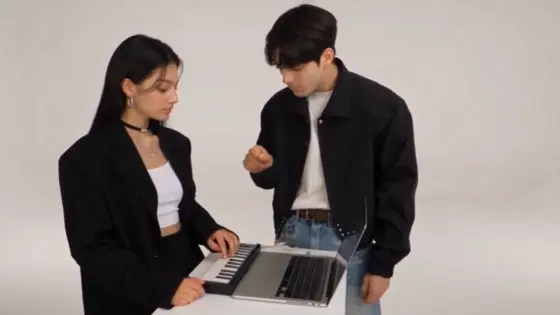
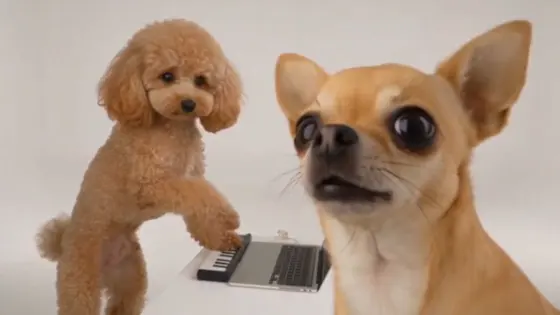
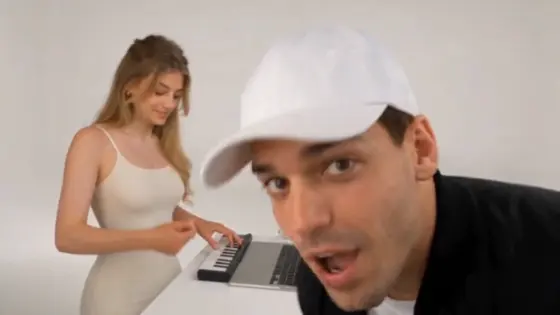
Put yourself and a friend into the Alors on Danse AI video trend. Use two character photos and a reference clip to recreate the white-studio scene inspired by Stromae and Jamel Debbouze's comedy sketch: one person works at the keyboard while the other brings the exaggerated gestures and dance. Explore Alors on Danse AI video generator workflows and copy-ready prompts that guide both identities, preserve the scene, and follow the reference performance.
Prepare two clear character photos and a reference clip for a workflow that supports video and image references. Assign one photo to each performer. Results and audio support depend on the selected model.
What Is the Alors on Danse AI Video Trend?
The Alors on Danse AI trend puts two new people into a familiar white-studio scene. The reference comes from a scripted Stromae and Jamel Debbouze comedy sketch in Made in Jamel, often shared online as an “Alors on Danse making-of.” The AI version changes the cast while keeping the keyboard setup, expressive gestures, reactions, and recognizable performance.
Two Photos, Two Fixed Roles
Assign Image 1 to the keyboard and laptop performer and Image 2 to the expressive visitor. Keep each identity attached to the same role throughout the clip, including close-ups and moments when only one person is visible.
Keep the White-Studio Scene
Use the Alors on Danse reference video to guide the white background, laptop, small keyboard, lighting, composition, and shot sequence. The familiar setting makes the character replacement easy to recognize.
How to Make an Alors on Danse AI Video from Two Photos
Step 1: Upload Two Character Photos
Choose two clear photos, with one person or character in each image. Assign Image 1 to the keyboard performer and Image 2 to the expressive visitor. Use sharp faces and visible hairstyles; include the body and outfit when you want to replace more than the face.
Step 2: Add the Reference Video and Prompt
Add an Alors on Danse reference clip in a workflow that accepts video and multiple image references. Copy a prompt below to define both roles and preserve the original gestures, reactions, studio, and camera behavior. Match the reference aspect ratio so both performers and the keyboard stay visible.
Step 3: Check Both Roles and Export
Review your Alors on Danse AI video for face consistency, correct role assignments, natural hands, and preserved performance timing. Check solo shots for any unreplaced original faces. Review the audio separately, then export your clip and add the song through an available, permitted audio workflow if needed.
Copy-Ready Alors on Danse AI Video Prompts

Two Photos + Reference Video

Classic Alors on Danse AI Video Prompt: Use the uploaded Alors on Danse clip as the reference for the white-studio scene, performance, timing, and camera behavior. Reference Image 1 replaces the keyboard and laptop performer. Reference Image 2 replaces the expressive visitor and dancing performer. Keep these role assignments in every shot, including individual close-ups. Preserve each replacement person's recognizable face, hairstyle, skin tone, and body proportions. Retain the original performers' outfits and poses while adapting them naturally to the replacement people. Keep the studio, laptop, keyboard, visible props, lighting, composition, shot order, and camera movement unchanged. Follow the keyboard performer's original hand movements and reactions. Follow the visitor's original gestures, body movements, and interactions without adding new choreography. Maintain exactly two performers. Avoid swapped identities, blended faces, unreplaced original faces, extra people, distorted hands, flickering clothing, added cuts, text, or watermarks. Match the selected reference clip's duration and aspect ratio.

Two Photos + Reference Video
Best Friends Alors on Danse AI Prompt: Recast the two performers in the uploaded Alors on Danse reference video using the two uploaded friend photos. Image 1 is the focused keyboard performer. Image 2 is the animated visitor. Replace both performers' faces, bodies, and clothing using their assigned images while preserving each friend's recognizable identity, hairstyle, proportions, and reference outfit. Keep the role mapping consistent when the camera changes or only one friend is visible. Preserve the white studio, laptop, keyboard, other visible objects, lighting, camera behavior, and reference shot sequence. Transfer the original keyboard actions, reactions, expressive gestures, and dance timing to the assigned friends. Keep the humor in the contrast between the focused musician and the lively visitor; do not add unrelated jokes, new dance moves, hugs, or extra interactions. Maintain natural hand contact with the keyboard and believable movement around the workstation. Exactly two friends. No identity swaps, duplicate people, changing outfits, warped fingers, altered props, added camera cuts, text, or watermarks. Match the source framing and selected clip duration.

Two Photos + Reference Video
Couple Alors on Danse AI Video Prompt: Use the uploaded Alors on Danse video as the scene and performance reference. Replace the keyboard performer with the adult partner in Image 1 and the expressive visitor with the adult partner in Image 2. Assign roles by the performers' actions, not by gender or screen position. Preserve both partners' recognizable faces, hairstyles, skin tones, body proportions, and outfits from their reference photos throughout the clip. Keep the white studio, keyboard, laptop, lighting, props, framing, shot order, and camera behavior from the original video. The Image 1 partner follows the original keyboard actions and restrained reactions. The Image 2 partner follows the original animated gestures and dance movements. Preserve the original interaction timing and physical spacing. Do not turn the scene into a romantic montage or add kissing, embraces, new choreography, or scene changes. Exactly two adult performers, with consistent identities in close-ups and shared shots. Avoid face blending, role reversals, extra limbs, distorted hands, wardrobe changes, text, and watermarks. Match the reference aspect ratio and selected duration.

Two Character Images + Reference
Character Duo Alors on Danse AI Prompt: Recreate the uploaded Alors on Danse white-studio clip using the two original fictional characters shown in the reference images. Character Image 1 replaces the keyboard performer. Character Image 2 replaces the expressive visitor. Keep each character's facial design, hairstyle, costume, colors, body proportions, and visual style consistent in every shot. Preserve the studio layout, laptop, keyboard, visible props, composition, lighting direction, camera behavior, and performance sequence from the reference. Adapt the original movements naturally to each character's proportions while keeping the keyboard actions, reactions, expressive gestures, dance timing, and interactions recognizable. Maintain clear separation between the two identities, including in solo shots. Do not convert illustrated characters into generic photorealistic people. Do not add new choreography, supernatural effects, extra characters, or unrelated scenes. Avoid flickering faces, changing costumes, detached hands, duplicate limbs, role swaps, text, and watermarks. Match the selected reference clip's duration and aspect ratio.
Explore the Hottest AI Features and Effects




FAQs About the Alors on Danse AI Video Generator
1. What is the Alors on Danse AI video trend?
The Alors on Danse AI video trend replaces two performers in a white-studio scene with people or characters from uploaded photos. Its source is a Stromae and Jamel Debbouze comedy sketch from Made in Jamel, rather than the official music video or a real recording-session documentary. The recognizable format pairs a focused keyboard performer with an expressive visitor.
2. How do I make an Alors on Danse AI video from two photos?
Prepare two clear photos and an Alors on Danse reference video. In a compatible reference-based video workflow, assign Image 1 to the keyboard performer and Image 2 to the expressive visitor. Add a prompt that specifies what to replace and what to preserve, then generate and check both roles. Include full-body references if you want the new characters' bodies and outfits to appear in the result.
3. Can I recreate the trend with only an Alors on Danse AI prompt?
A text prompt can suggest a two-person white-studio performance, but it may produce different gestures, staging, or camera work. For a closer recreation, use a reference video alongside both character images. The clip guides the performance and scene, while your Alors on Danse AI video prompt defines the two replacements and helps prevent identity swaps.
4. Will my Alors on Danse AI video include the song?
Audio support depends on the selected model and workflow. Uploading a reference clip or asking to preserve its sound does not guarantee that the exported video will contain the original Alors on Danse song. Check the generated audio separately. If needed, add an available, permitted version through your video editor or social platform and align it with the performance.
5. How do I stop the two characters from swapping faces?
Use one clear character per image and define both roles explicitly: Image 1 is the keyboard performer; Image 2 is the expressive visitor. Identify them by their actions rather than only by left or right position. Require the mapping to remain consistent in every shot. If identities drift, shorten the reference clip, remove conflicting instructions, and check close-ups for blended or unreplaced faces.
Explore More AI Duo Videos, Character Images, and Prompts
 4.7 (162,357 Votes)