GPT Image 2.5 Image Editor
Edit images with GPT Image 2.5 using natural-language instructions. Replace backgrounds, remove or add objects, change outfits, fix text, restyle scenes, and refine one detail while preserving the parts that should stay unchanged.
10 GPT Image 2.5 Editing Workflows to Try
From background replacement and object removal to text correction, outfit changes, relighting, and multi-turn refinement, these workflows match the image-editing intent appearing across current search results. Hover a result and copy the prompt to recreate the edit with your own image.
Why GPT Image 2.5 Works for Precise Image Editing
Preserve What Should Stay
GPT Image 2.5 is strongest when an edit clearly separates what should change from what must remain stable, helping preserve identity, composition, product details, or scene structure.
Match the Original Scene
New elements can be integrated with existing perspective, light direction, texture, reflections, and contact shadows so an edit feels native to the source image rather than pasted on.
Edit with Natural Language
Describe the edit in plain language—replace a background, remove an object, change an outfit, correct text, extend the canvas, or adjust one visible detail without manual masking.
Change One Thing at a Time
Current editing-oriented SERP pages consistently recommend bounded requests: make one meaningful change, list the protected details, review the result, then continue with the next edit.
Refine Across Multiple Turns
Images 2.5 is designed to carry visual details more consistently across follow-up edits, which makes it more useful for production workflows that require several controlled revisions.
Reference Fidelity · Focused Edits · Multi-Turn Consistency
5 High-Intent GPT Image 2.5 Editing Workflows
Start with an existing image and make the exact change you need. These five workflows map to the editing intents most commonly surfaced in current search results: background replacement, object edits, identity-preserving restyling, text correction, and iterative refinement.
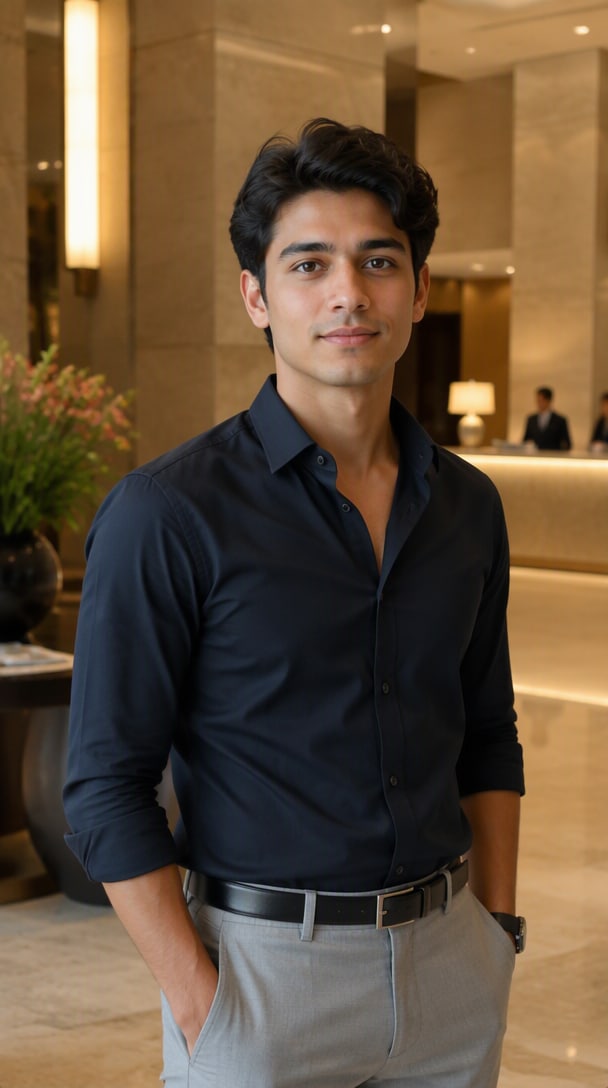
Replace the Background, Preserve the Subject
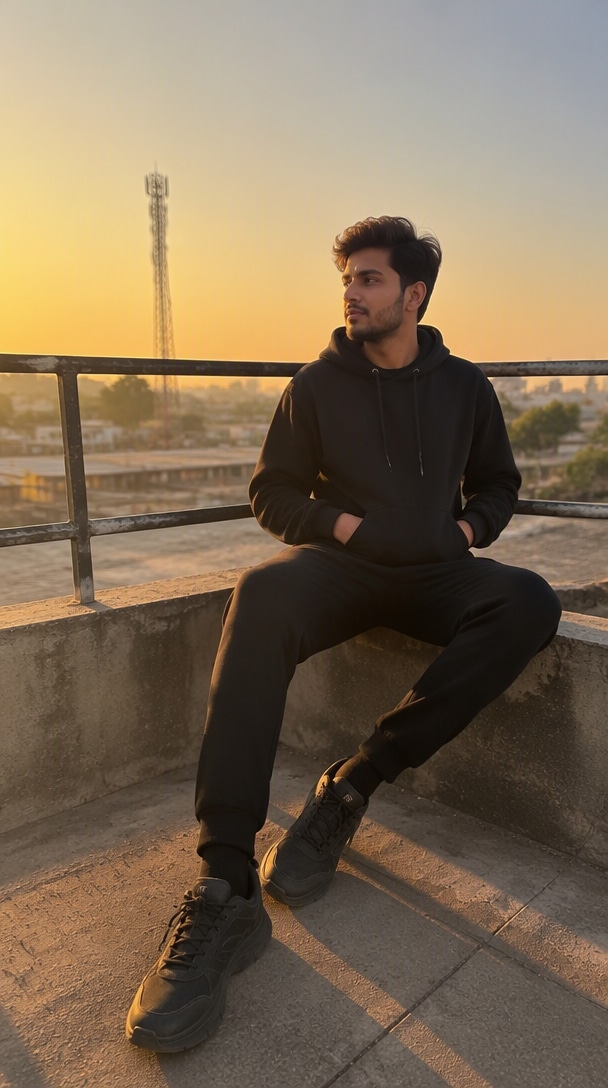
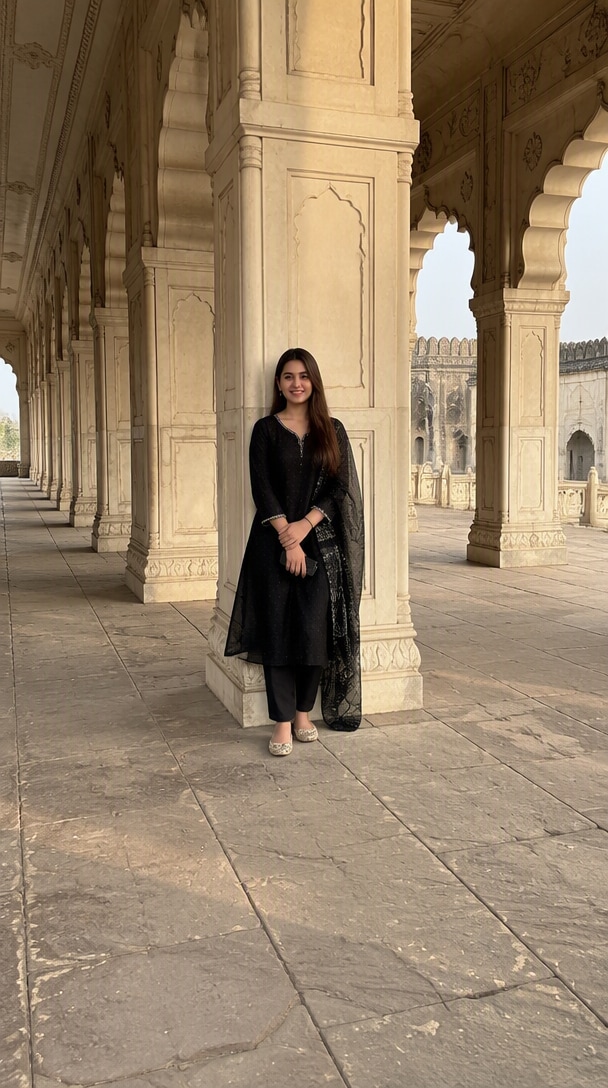
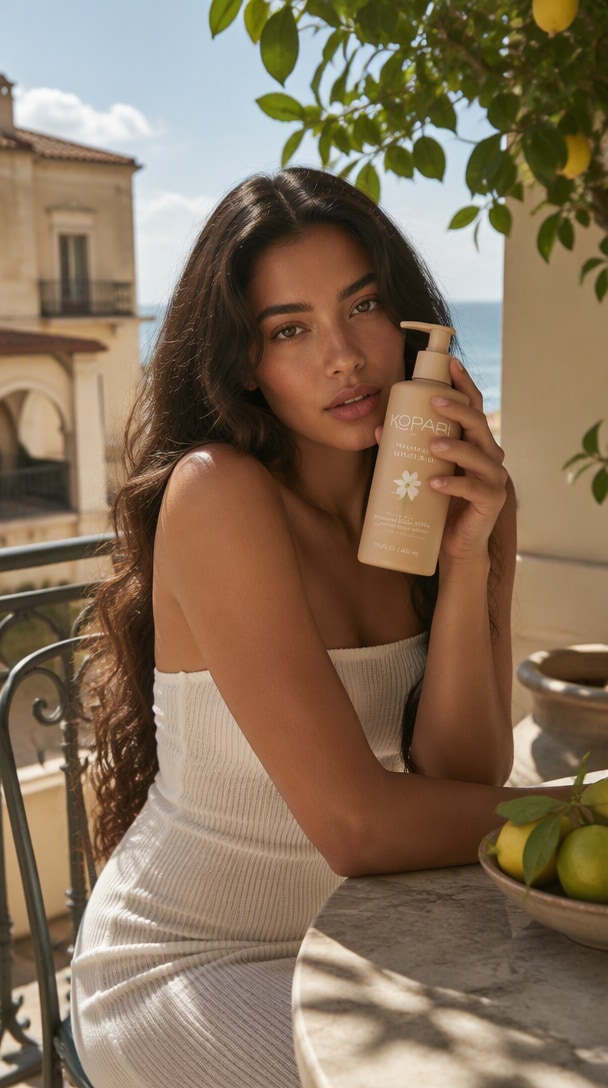
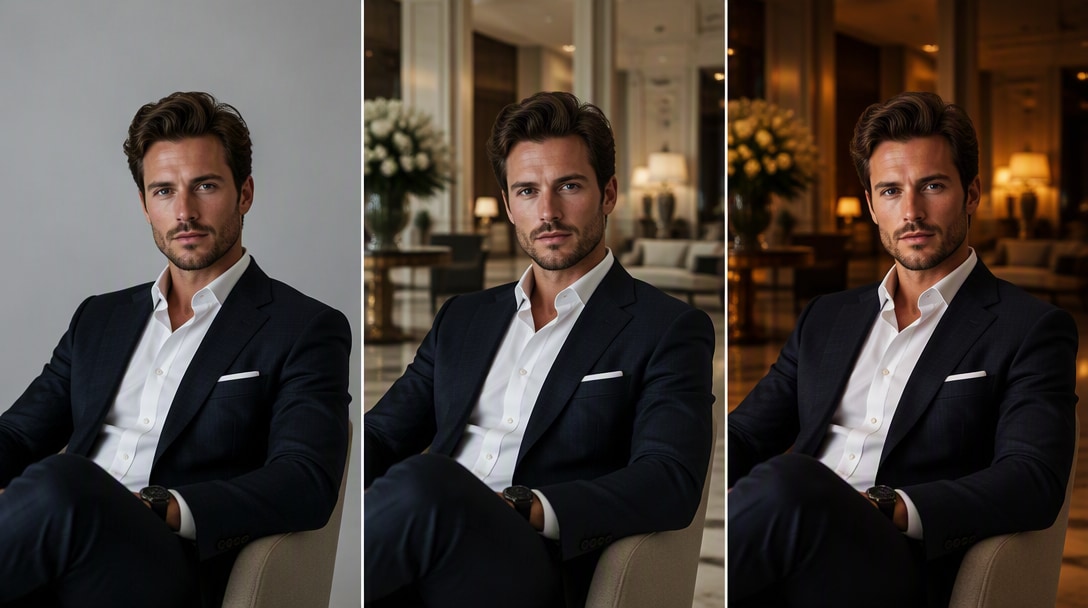
Change the environment while keeping the person or product unchanged. This is the clearest example of a bounded edit: new background, same subject, same pose, same crop, same visual identity.
Edit BackgroundAdd or Remove One Object Naturally
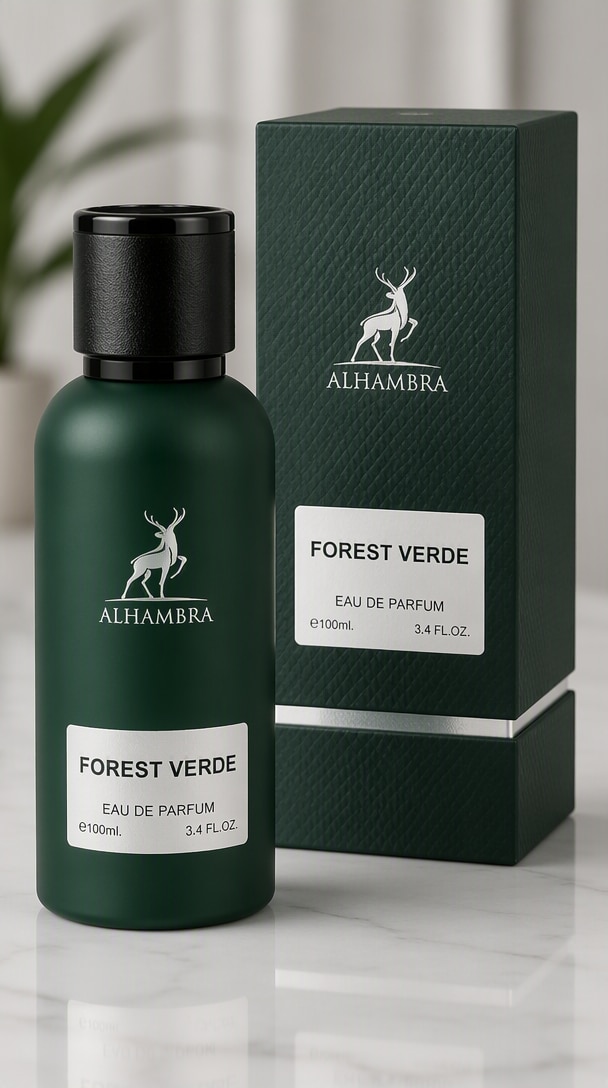
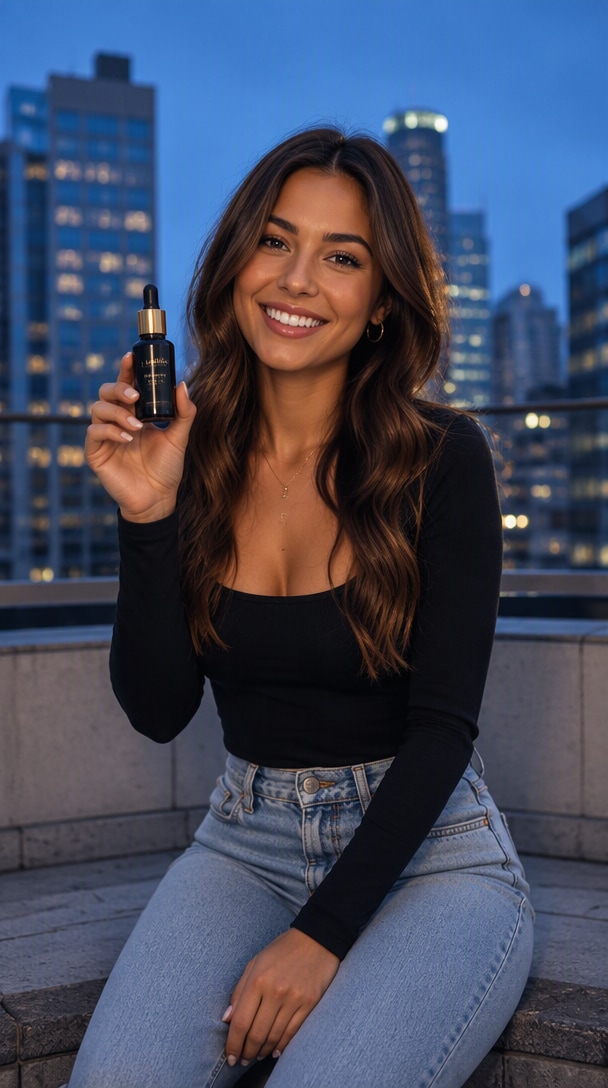
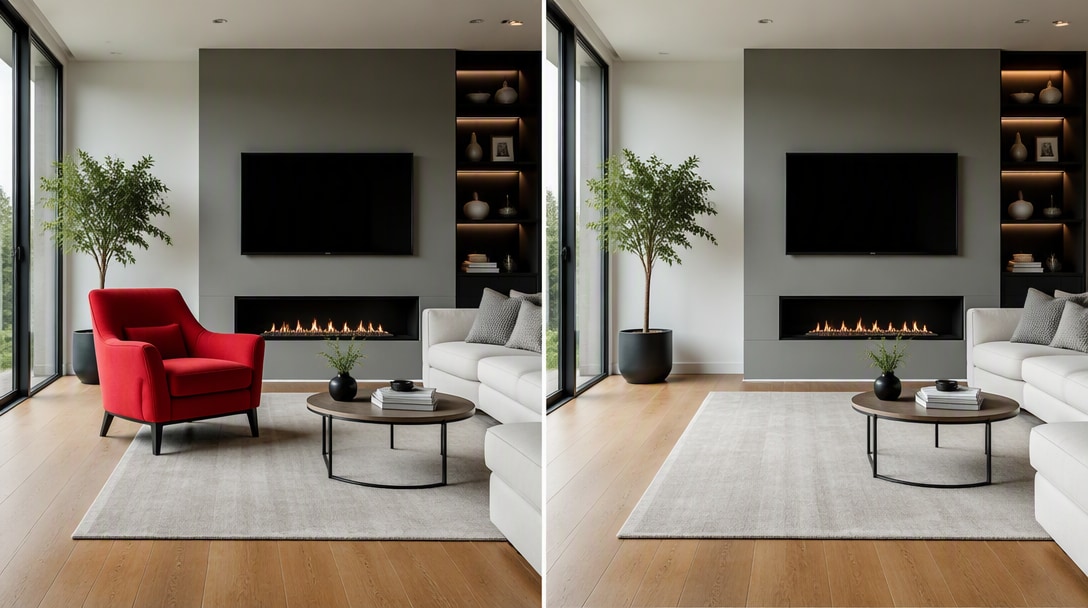
Remove distractions or add a new object while matching perspective, scale, lighting, reflections, and contact shadows so the result looks native to the original scene.
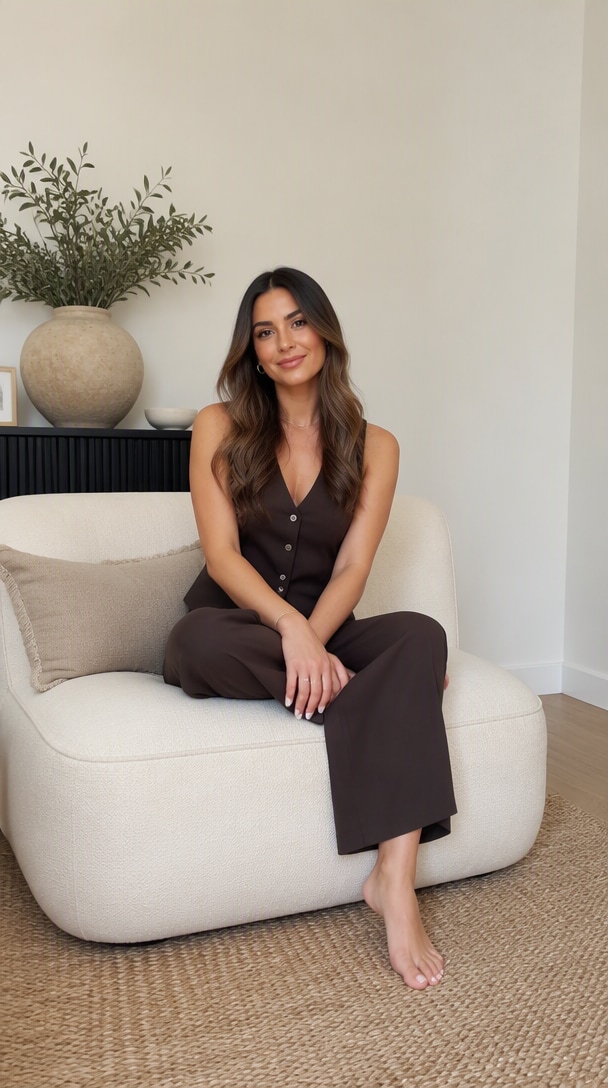
Edit an ObjectChange the Look, Keep the Person
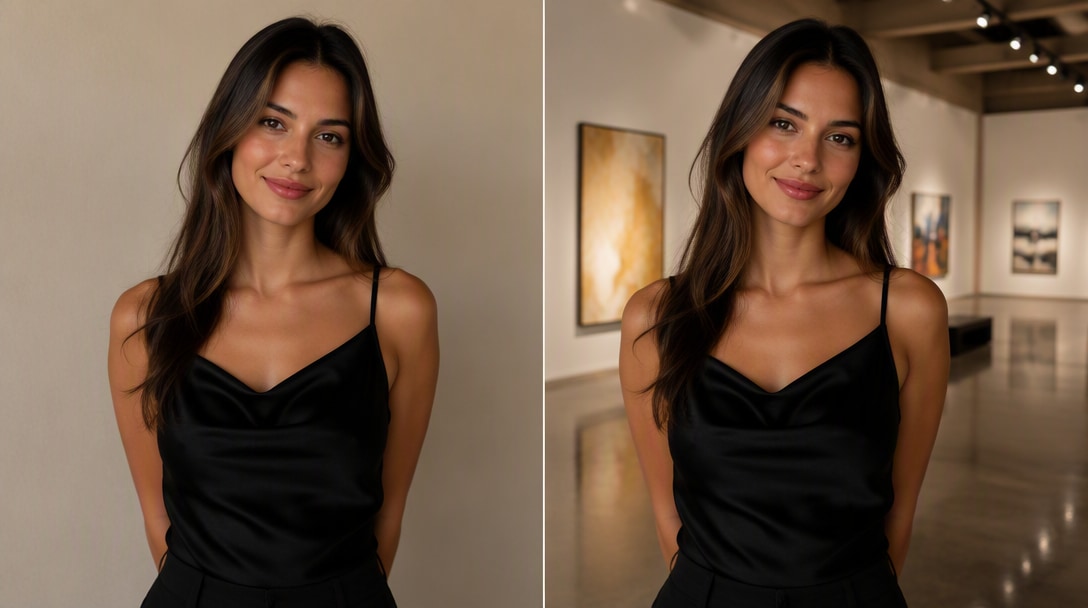
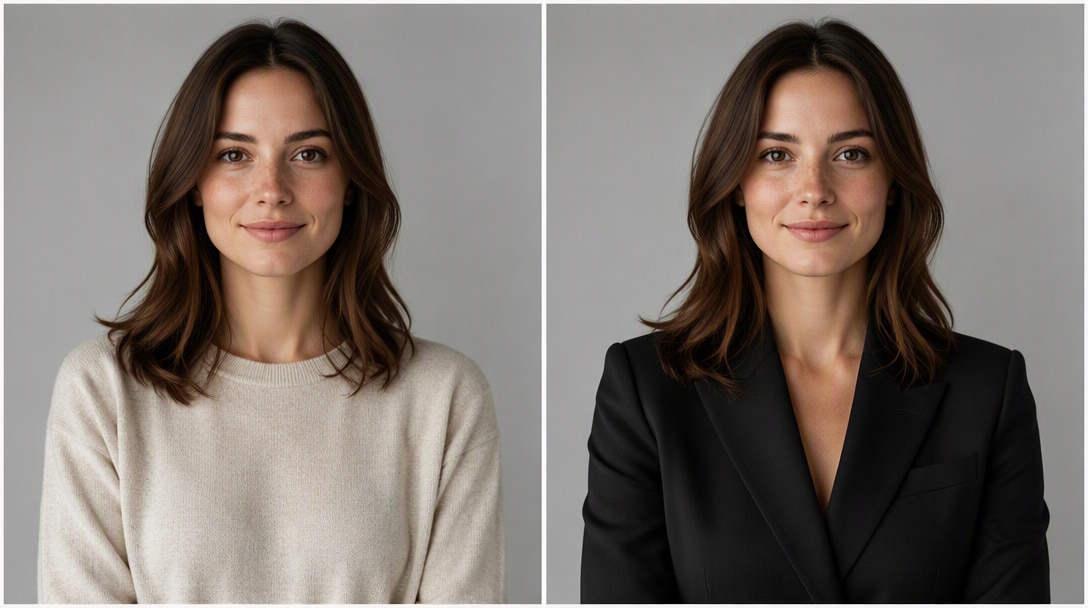
Update clothing, styling, location, or lighting while preserving recognizable facial features, proportions, pose, and expression.
Edit a PortraitCorrect Text Without Rebuilding the Design
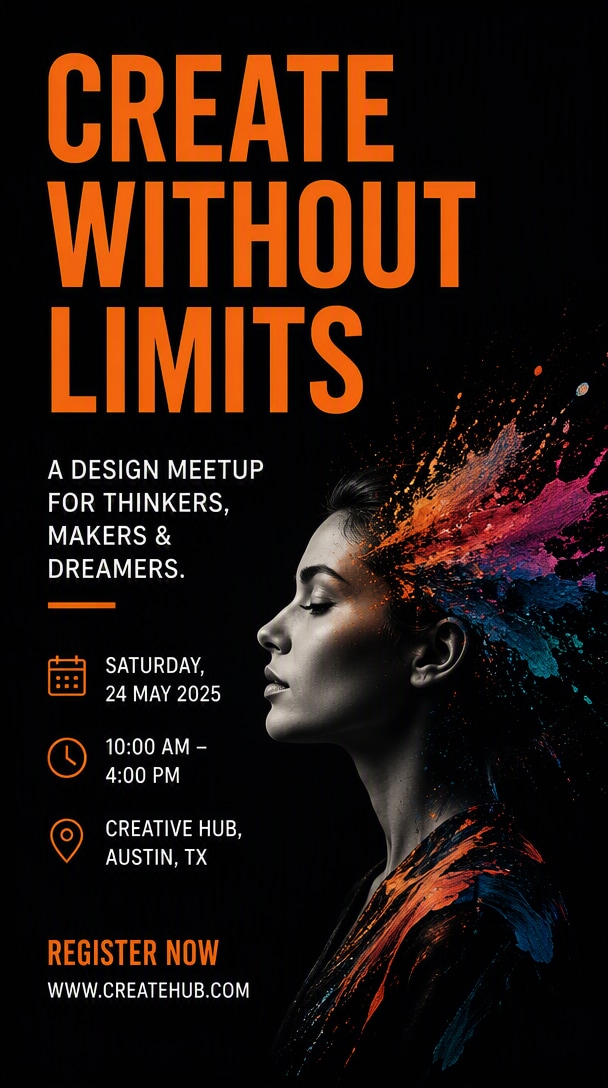
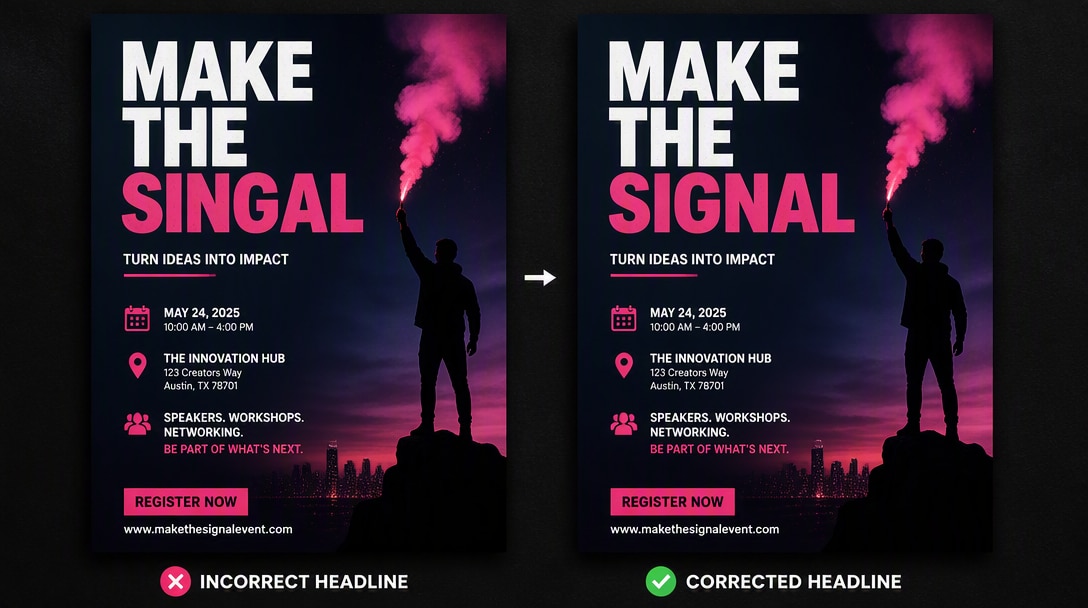
Fix a headline, label, sign, or poster copy while protecting the surrounding layout, typography style, perspective, texture, and design hierarchy.
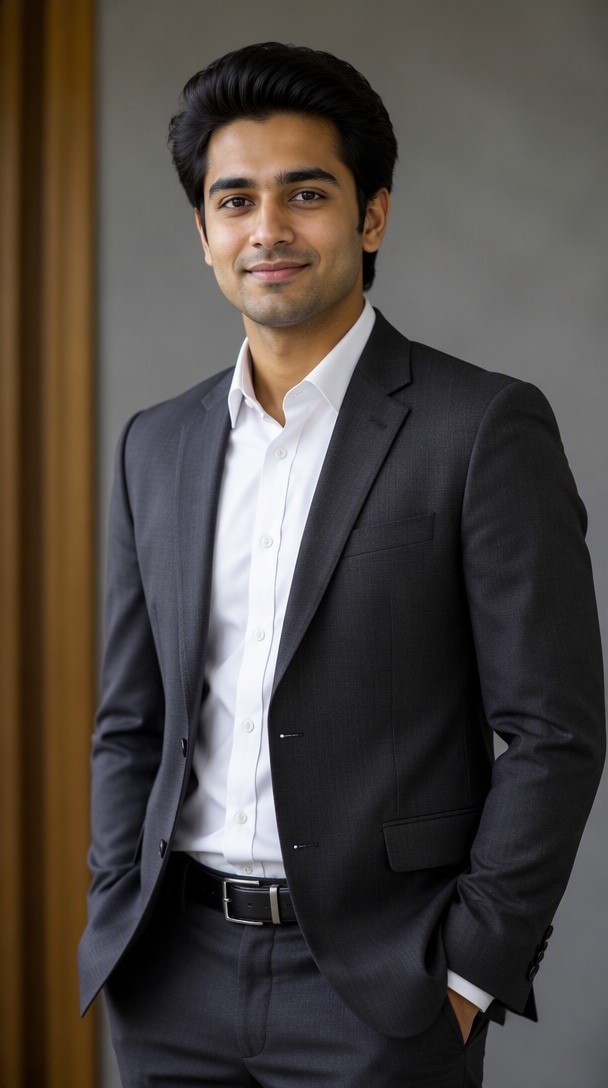
Fix Image TextKeep Previous Edits, Refine One More Detail
Continue from an approved edited image and make one additional change without losing the decisions that were already correct.
Continue EditingBuild a Better GPT Image 2.5 Editing Brief
Current image-editing pages in search results consistently emphasize bounded changes: define the edit target, list what must remain unchanged, then explain how the new element should integrate with the original image.
Edit target
Name the exact region or element to change. Keep the request focused instead of combining unrelated edits.
Preserve
List everything that must remain unchanged: identity, pose, product, crop, layout, text, background, or lighting.
Reference roles
If using multiple images, state what each reference contributes: person, product, environment, style, or layout.
Integration
Explain how the edit should match existing perspective, scale, light direction, shadows, reflections, texture, and depth.
Exclusions
State what must not be added, redesigned, moved, duplicated, or reinterpreted.
Output
Define the final aspect ratio, composition, resolution intent, and whether the result must remain suitable for further editing.
Reusable brief starter
EDIT TARGET: [what exactly should change]. PRESERVE: [identity / pose / product / layout / crop / text / lighting]. REFERENCE ROLES: [what each input image contributes]. INTEGRATION: [perspective / scale / light / shadows / reflections / texture]. EXCLUSIONS: [what must not be added, moved, redesigned, or duplicated]. OUTPUT: [aspect ratio / crop / production requirement].
How to Edit an Image with GPT Image 2.5
Step 1: Upload the Image You Want to Edit
Describe the subject, style, background, lighting, mood, camera angle, and composition. GPT Image 2.5 performs best when you give it clear visual direction.
Step 2: State the Change and What to Preserve
Use GPT Image 2.5 for fresh image creation or for refining an existing visual. This is one reason the model is gaining traction among creators and developers.
Step 3: Review the Edit and Refine One Detail
Adjust wording, style direction, or composition notes to improve the final image. Iteration is key if you want the best GPT Image 2.5 results for production use.
Where Creators Use GPT Image 2.5 Editing
GPT Image 2.5 FAQ
Find answers about GPT Image 2.5 availability, Flare and Sunburst, image editing, reference fidelity, prompt writing, image edits, portraits, and commercial creative workflows.
1. Can GPT Image 2.5 create image edits?
GPT Image 2.5 is an advanced AI image model designed for both image generation and image editing. Users rely on it to create visuals from text prompts, transform existing photos, and produce more polished results for creative and commercial projects.
In the API, OpenAI provides GPT-Image-2.5 Flare for most applications and GPT-Image-2.5 Sunburst for premium workflows that need tighter editing control.
2. Can GPT Image 2.5 keep my product consistent?
Free access to GPT Image 2.5 depends on the platform, account type, and usage limits. Some services may offer limited trials or free credits, while others may require a paid plan for higher generation volume, image editing, or exports.
That is why many users also explore alternative tools when they want a faster or simpler way to test AI image generation and image-to-image editing.
3. What should I include in a image edit prompt?
The usual workflow is simple: write a clear prompt, generate an image, then refine the output with more specific instructions or reference images.
For better results, include details such as:
- main subject
- background or setting
- style or mood
- lighting and camera angle
- composition and framing
- quality cues like cinematic, realistic, editorial, or commercial
The clearer your prompt is, the more likely GPT Image 2.5 is to produce a useful first draft.
4. Can I change only the background or lighting?
The GPT Image 2.5 API is mainly useful for developers, startups, and product teams that want to integrate AI image generation or editing into their own apps and workflows.
Common use cases include:
- AI image generation inside SaaS products
- automated marketing creative production
- product image creation and editing workflows
- design assistance inside internal tools
- custom image features in content platforms
In short, the API matters when you want AI image capabilities inside your own product rather than only inside a chat interface.
5. What image edit styles can I create?
GPT Image 2.5 is flexible enough for both creative and commercial image tasks.
Popular use cases include:
- marketing ad creatives
- social media visuals
- product hero images
- ecommerce listing graphics
- editorial portraits
- website hero banners
- design mockups and concept art
- image editing and style transfer
It is especially useful when you want images that feel polished, premium, and presentation-ready.
6. Is GPT Image 2.5 useful for ecommerce sellers?
Yes. Beginners usually get the best results by starting with simple, structured prompts instead of trying to overcomplicate the instructions.
You do not need advanced prompt engineering to begin, but adding clear details about subject, style, lighting, and background will improve the output significantly.
7. How do I reduce product distortion and unwanted changes?
A strong GPT Image 2.5 prompt usually includes:
- main subject
- background or setting
- style direction
- lighting or mood
- camera angle or framing
- quality terms such as cinematic, realistic, editorial, commercial, or minimal
For example, instead of writing “make a image edit,” try: “A premium skincare serum bottle on a reflective surface, soft studio lighting, elegant shadows, luxury beauty ad style, realistic glass texture, minimal background.”
8. Is GPT Image 2.5 better for image generation or image editing?
One of the reasons GPT Image 2.5 stands out is that it is useful for both image generation and image editing. Users often care about not only creating images from scratch, but also making variations, changing styles, refining scenes, and improving existing visuals.
In practice, it can be strong for both tasks, especially when your workflow depends on iteration and refinement rather than one-shot generation only.