Bring Back the 2016 Photo Filter Look on Your Selfie
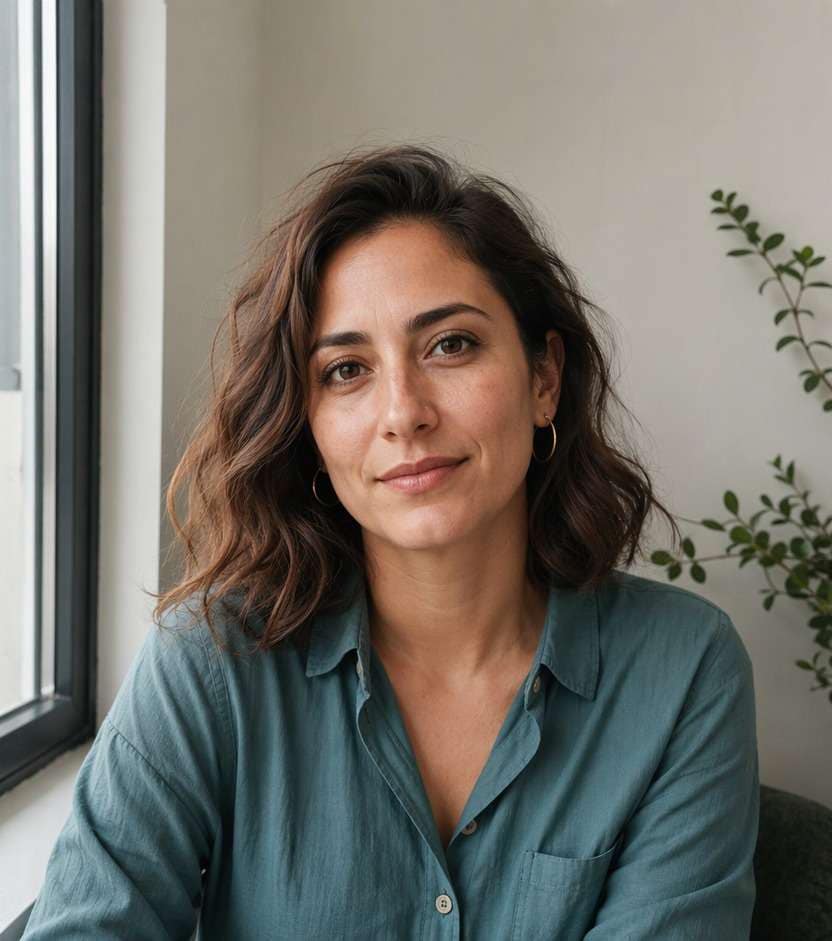
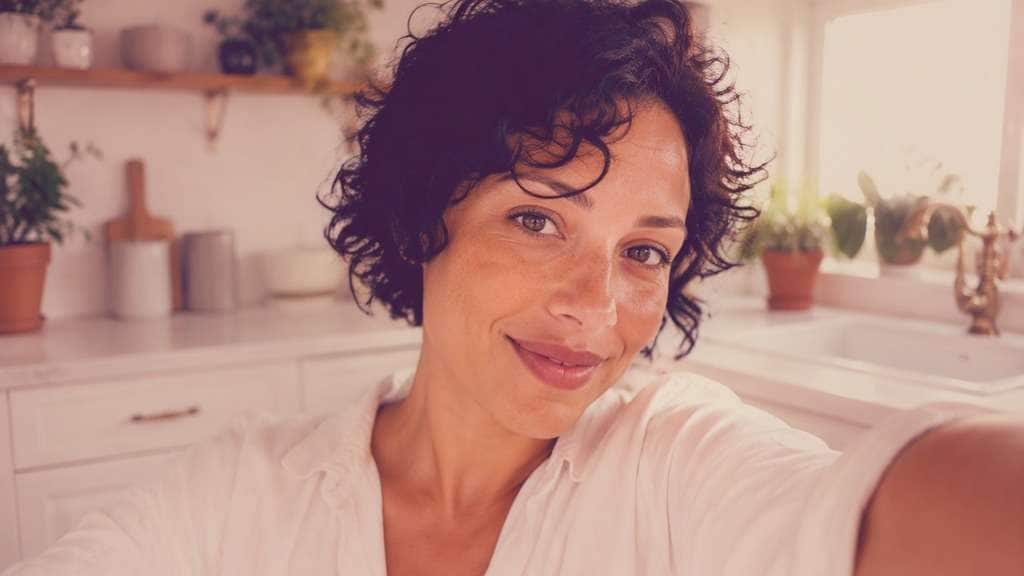
Miss the blurry pink glow, bright flash and playful face stickers from your old camera roll? Give a photo you took today a 2016 photo filter look with Media.io AI Face Editor. Upload your favorite selfie, describe the era-inspired colors or face accents you want, and compare the result with the original. Go softly nostalgic or wonderfully over-the-top - without digging up a photo from ten years ago.
For a believable throwback, keep your original expression and choose one main effect: pink haze, bright flash or playful stickers.
10 Classic 2016 Photo Filter Prompts for Throwback Selfies
From a rosy 2016 selfie to a vintage selfie photo edit with a hard flash, the details change the mood. Copy a prompt below and use your own portrait as the reference. A dog-ear or flower-crown effect should sit around your real face; a color-only edit should leave facial details untouched. Try one direction at a time so the photo still looks like your memory.
Hazy Rose Selfie
Use my uploaded selfie as the reference. Give it a classic 2016 social-photo look with a soft rose-pink cast, slightly lifted highlights, gently faded shadows and subtle digital-camera softness. Keep my real face, expression, hair, clothes, room and framing recognizable. Avoid waxy skin, painted textures, text and app interfaces.
Playful Puppy Ear Stickers
Edit my uploaded close-up portrait into a playful 2016 puppy-ear selfie. Add two small soft-brown illustrated ears above my head and a neat dark puppy nose centered on my existing nose, with lightly warm color grading. Keep my eyes, smile, facial proportions, hairstyle and background unchanged. Make the overlay feel like a fun sticker, not an animal-face transformation.
Pastel Flower Crown
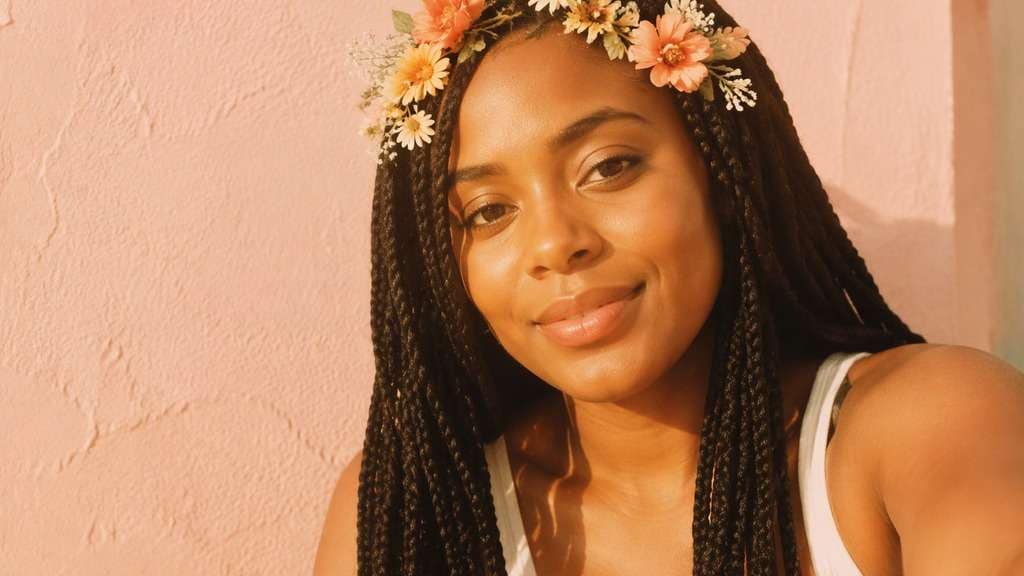
Starting with my uploaded selfie, place a delicate ring of small pastel daisies and peach flowers along my actual hairline, inspired by playful 2016 face filters. Add a lightly warm, airy tint and soft highlight glow. Leave facial structure, expression, eyes, hair length, shirt and original surroundings consistent; avoid flowers floating across my eyes.
Warm Faded Window Portrait
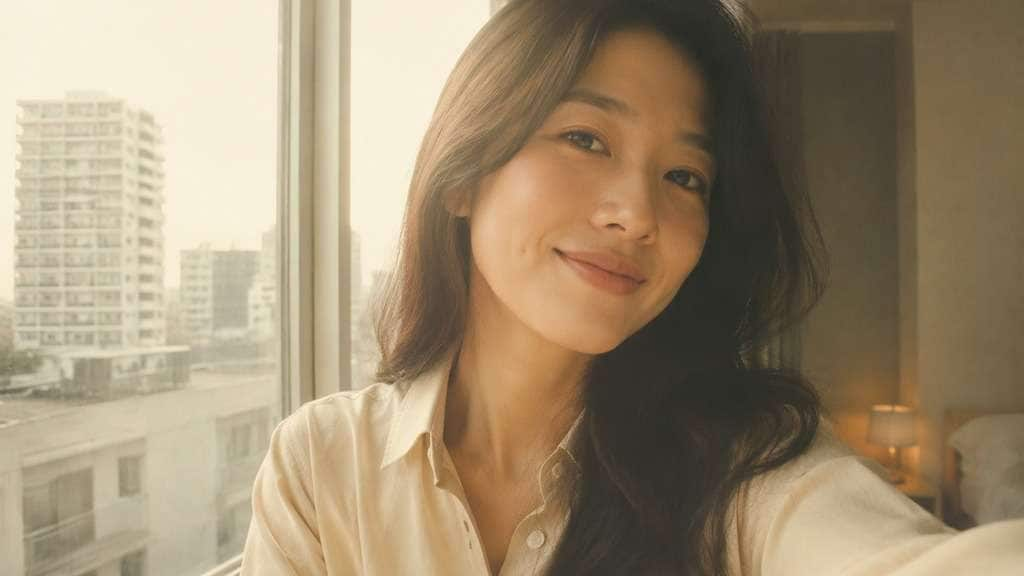
Apply a warm faded camera-filter finish to my uploaded indoor portrait. Shift whites gently toward cream, lift dark tones and add mild soft-focus bloom around the visible window, like a casual 2016 afternoon selfie. Maintain my natural skin color, face shape, hairstyle and room layout. Keep texture realistic instead of applying a heavy sepia wash.
Punchy Low-Fi Color
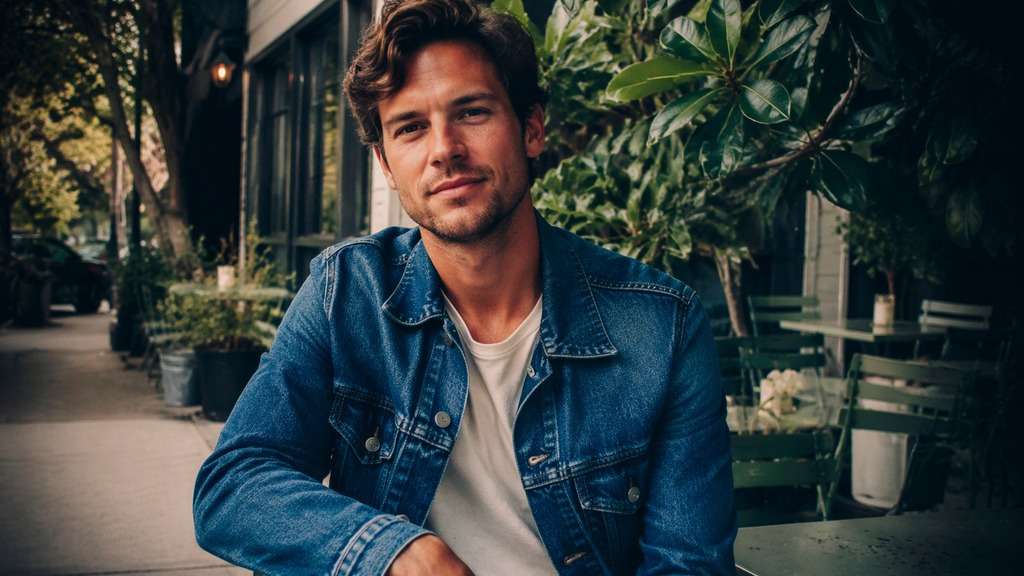
Restyle my uploaded street selfie with a punchy 2016 low-fi photo grade: stronger midtone contrast, vibrant blue denim, rich green scenery, warm skin highlights and a restrained edge vignette. Keep the same subject and street, clothing shapes and camera angle. Preserve skin texture and avoid cartoon outlines or an artificial new background.
Direct Flash Party Photo
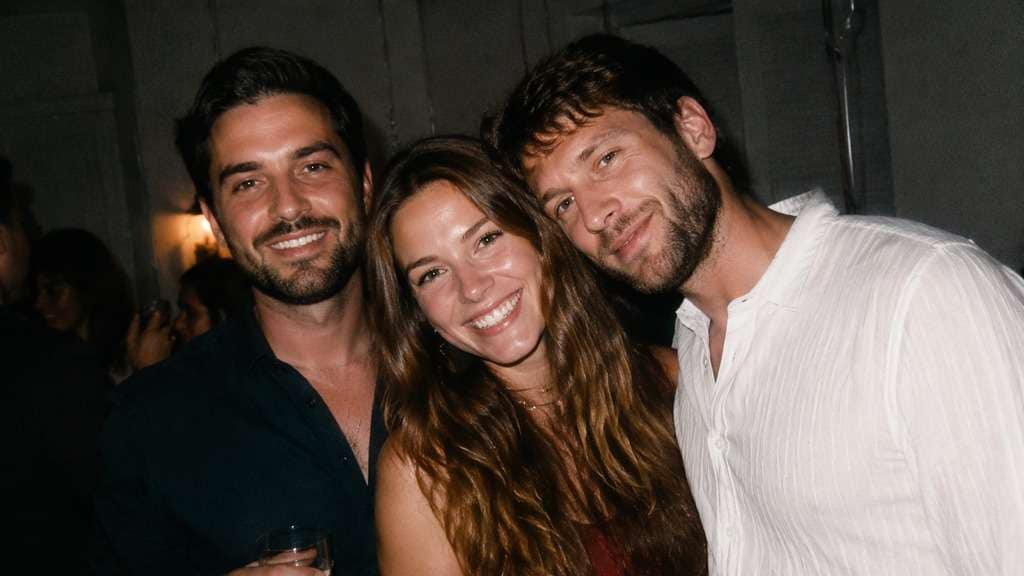
Give my uploaded evening group selfie the look of a 2016 party picture shot with on-camera flash. Add a bright but controlled flash hotspot on faces, deeper background shade, mild compact-camera noise and slightly warm white balance. Keep every person, expression, pose, outfit and the original room intact; avoid replacing faces or adding guests.
Peach-Pink Outdoor Glow
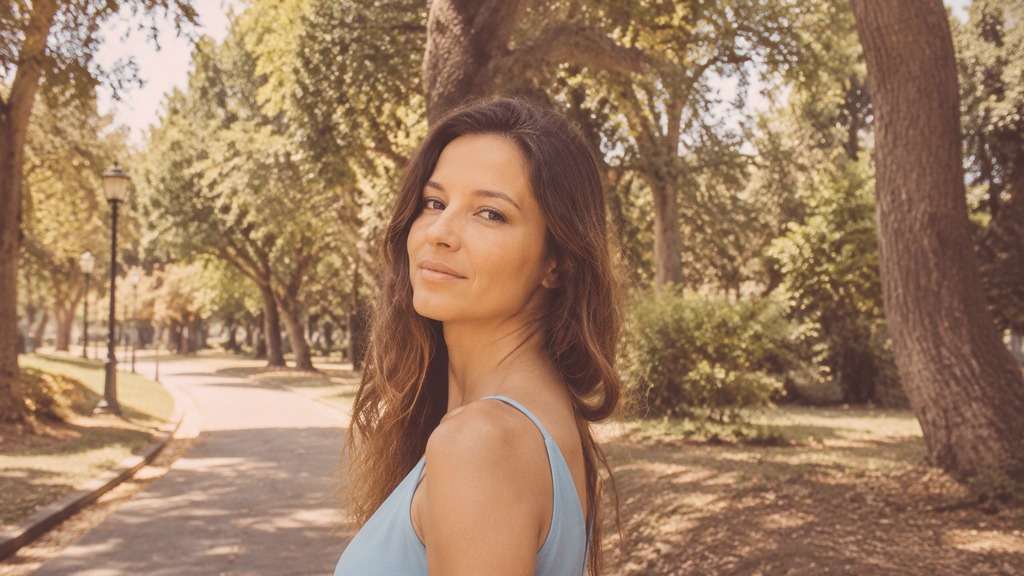
Use my uploaded outdoor portrait. Create an upbeat throwback photo treatment with faint peach-pink warmth in bright areas, a softly washed sky and slightly faded greens, reminiscent of casual 2016 social posts. Keep the horizon, trees, jewelry, hairstyle, facial features and crop recognizable. Do not replace the scene with a different sunset.
Soft Blue-Lilac Selfie
Use my uploaded selfie and apply a cooler 2016-inspired pastel grade: soft lilac shadows, slightly blue highlights, muted pink cheeks and low-contrast digital softness. Preserve the original room lighting direction, my natural eye color, facial features, hairstyle and clothing. Keep the result like a camera-era filter, not a fantasy portrait.
Heart Cheek Stickers
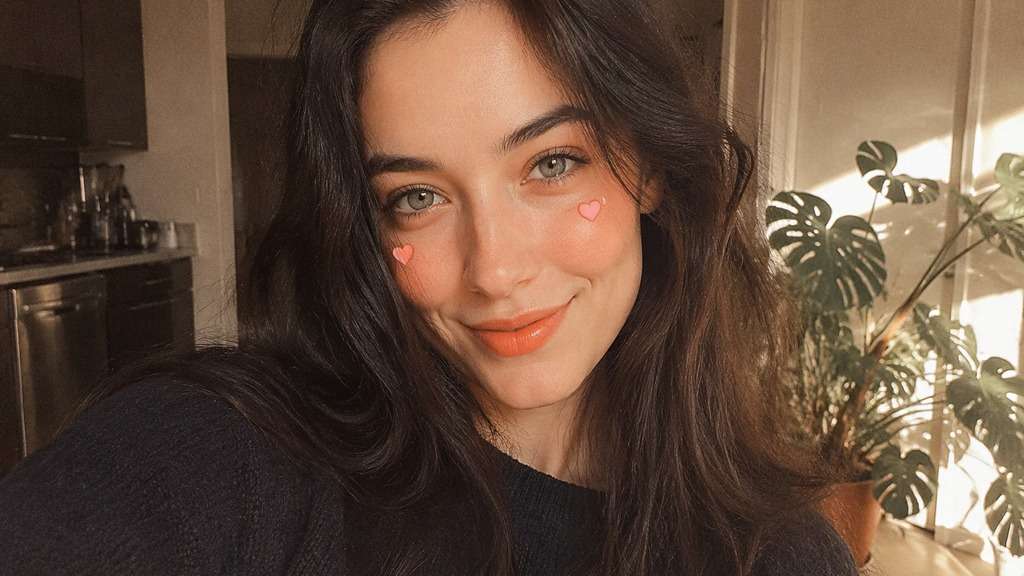
Edit my uploaded smiling selfie with two tiny playful pink heart stickers, one near each upper cheek, plus a subtle rosy 2016-era finish. Place the hearts symmetrically without covering my eyes or mouth. Keep my original skin, nose, hairstyle, smile and surroundings unchanged. The result should feel like an unmistakable but simple face-filter overlay.
Late-Night Flash and Grain
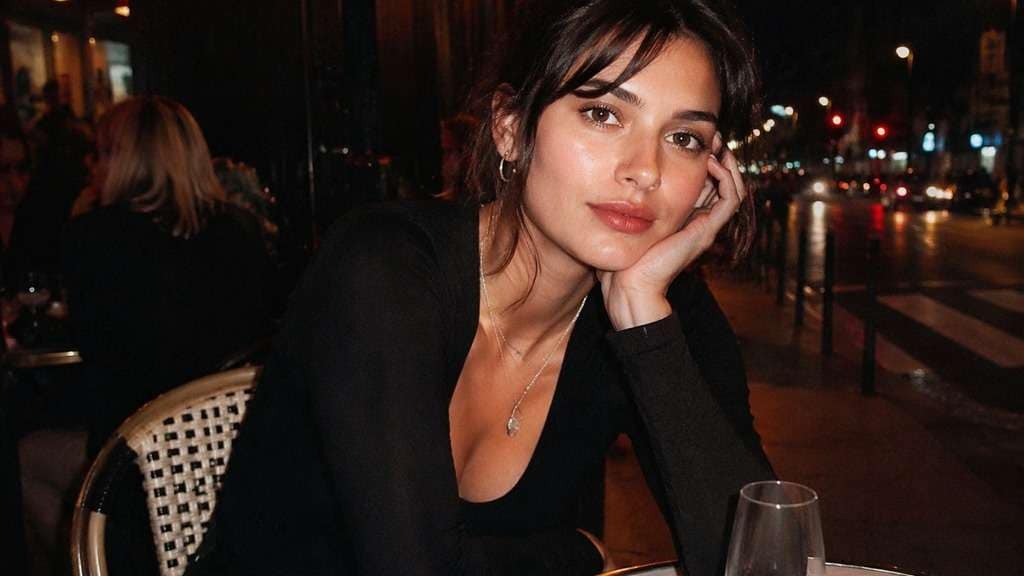
Use my uploaded nighttime cafe or street portrait as the exact reference. Keep the existing street lamps and background while adding a compact-camera flash look, fine digital noise, gentle red-pink shadows and slightly soft edges. Keep face, outfit, hair, signs and geometry consistent. Do not invent extra lights, people or text.
Make a 2016-Style Selfie That Still Looks Like You
Pick the Pink Haze or the Bold Flash
Not every 2016 photo looked the same. A bright bathroom selfie might suit washed-out rosy highlights, while a night-out picture needs direct flash and deeper shadows. Start with the lighting your original photo can support instead of putting one pink layer over everything.
Add Face Stickers Without Replacing Your Face
Want a throwback puppy nose or flower crown? Ask for a small overlay that follows your current head position. Keep the eyes, smile and face shape intact, then check the placement along your hairline and cheeks. That is the fun of a 2016 Snapchat-style selfie without needing the original lens.
Keep the Imperfections That Make a Memory
A perfectly sharpened portrait can lose the relaxed feel of an old social post. Slight softness, a warm white balance and mild digital noise help suggest the era. Keep real expressions and background details; extreme smoothing can make the picture feel newly generated instead of fondly remembered.
Build a Consistent Throwback Photo Set
Recreating a ten-year-old feed? Use one gentle color direction across a few present-day photos, then reserve stickers for one or two playful close-ups. Consistent warmth and contrast bring a carousel together, while keeping different settings and people makes it feel personal.
How to Apply a 2016 Photo Filter to a Selfie Online
Your photo does not have to be from 2016. Start with a clear selfie, choose the throwback details you remember and check that the edited portrait still matches the original.
Step 1
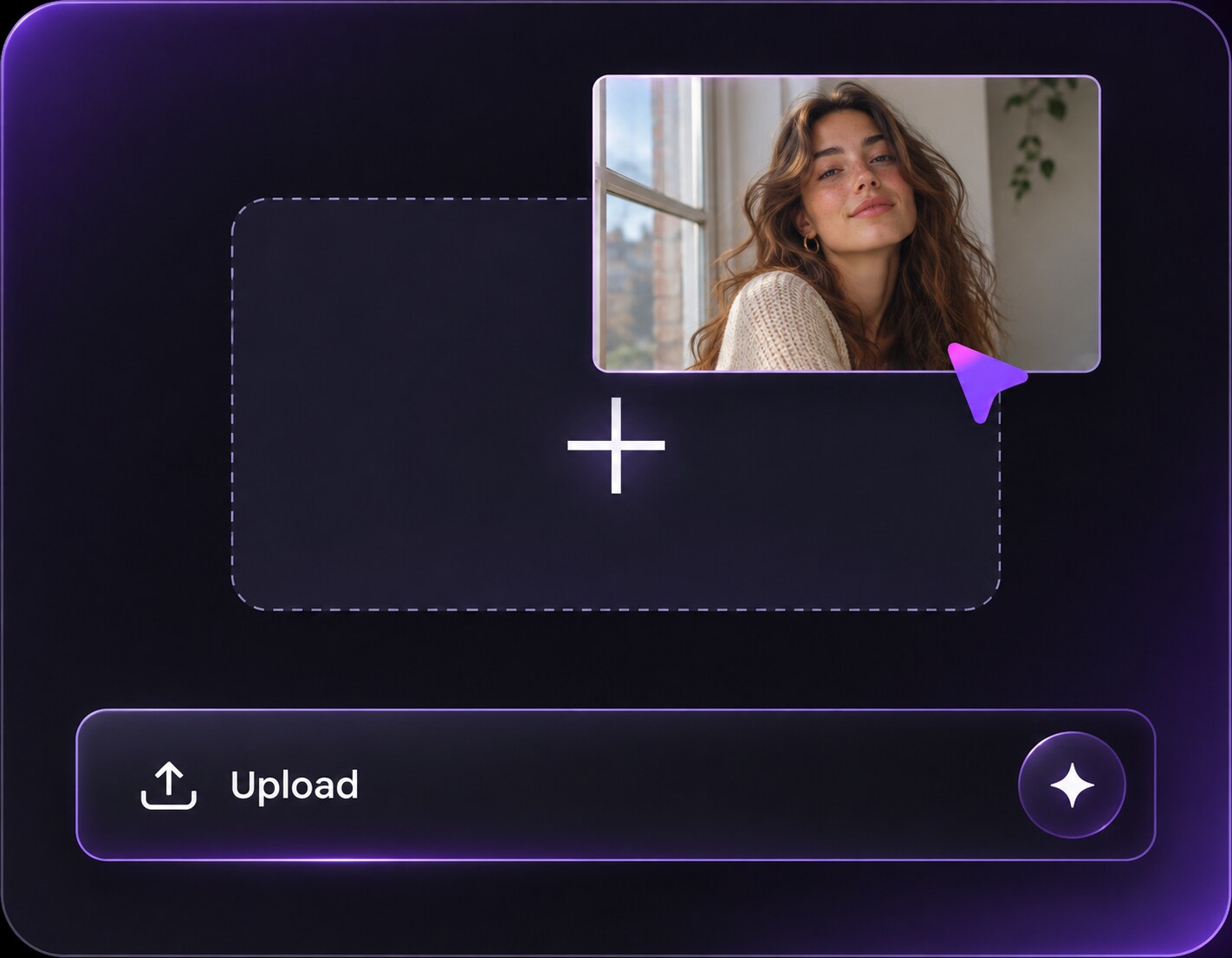
Upload a Selfie You Like
Open Media.io AI Face Editor and upload your current photo or an old favorite. A clear front-facing image works well for face stickers; a casual outdoor shot is better for color and flash edits.
Step 2
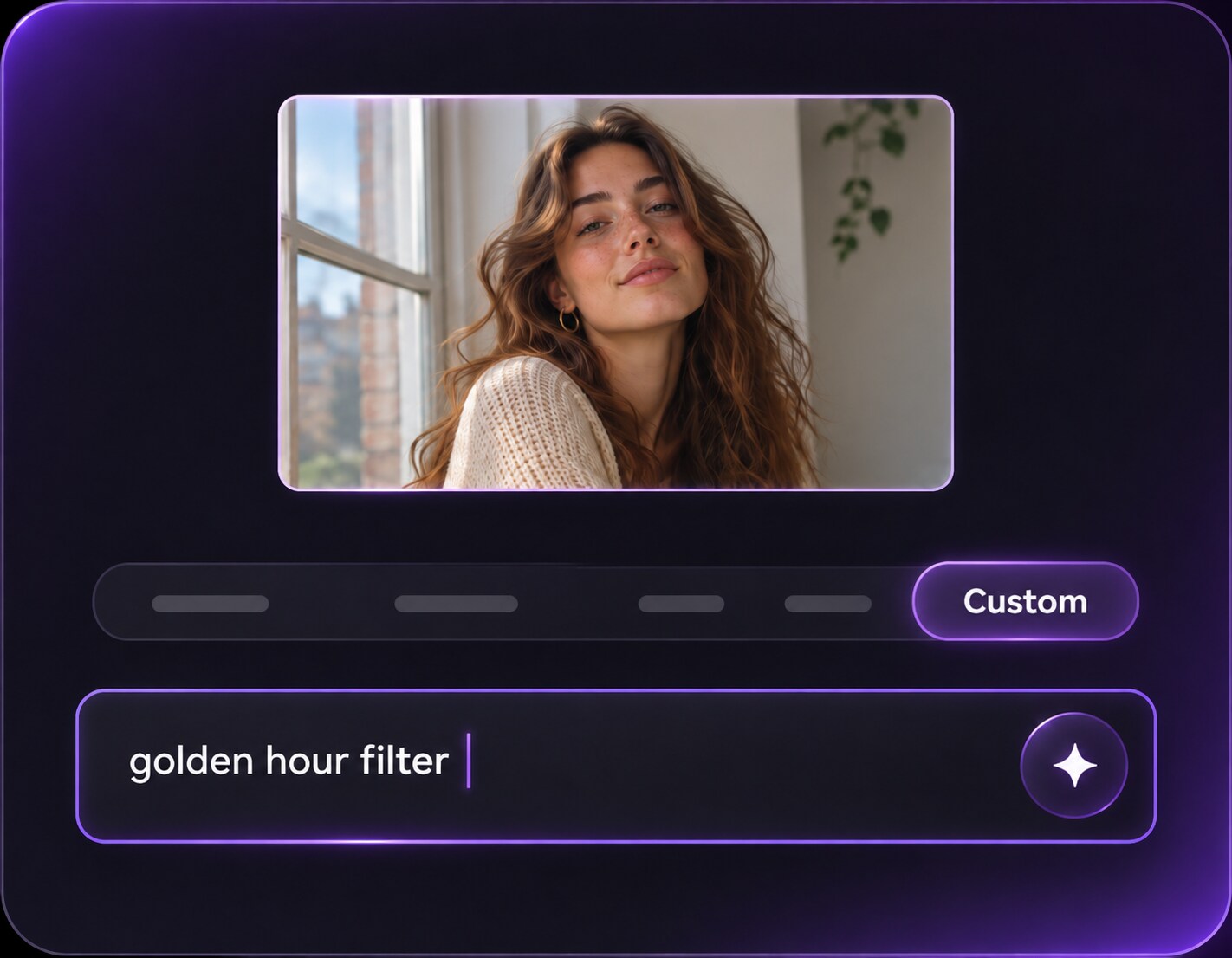
Describe Your 2016 Filter Look
Enter a prompt for a rosy faded filter, compact-camera flash or playful dog-ear stickers. Mention the exact colors and placement, and ask to preserve your face, expression, hairstyle and setting.
Step 3
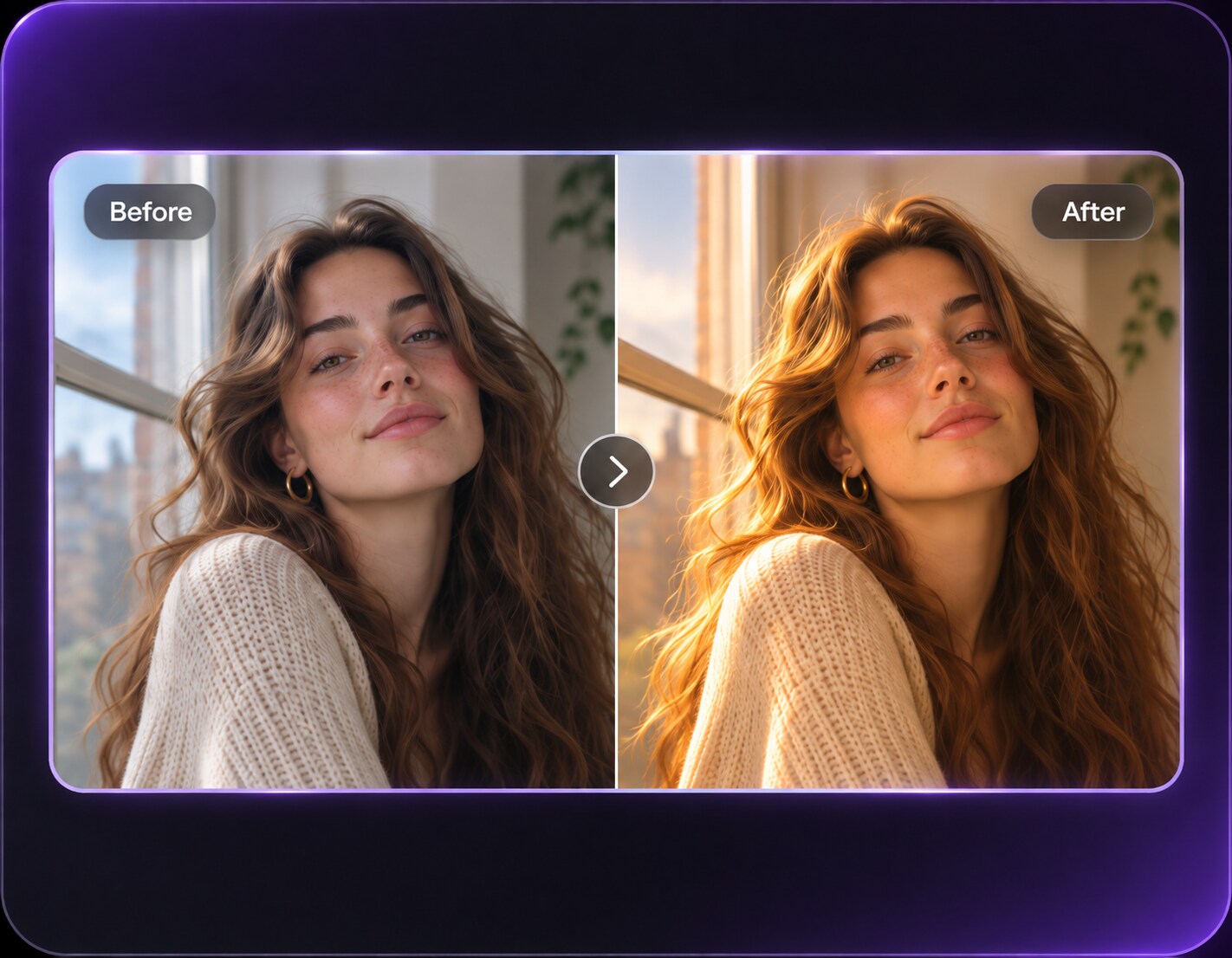
Generate and Check the Details
Click Generate and compare the output with your original. Check cheeks, hairline, eye detail and background. If the color overwhelms your face or stickers drift, refine the prompt for a softer, more precise edit.
A 2016 photo filter online edit can be subtle or silly. Match the look to the memory you want to share, rather than choosing the strongest possible effect every time.
Recreate Your Old Profile Picture Vibe
You found a 2016 profile picture but want a current version of that same energy. Upload a new portrait and ask for softly faded pink, slightly bright exposure and a casual camera finish. Keep today's face and outfit; the edit is a visual throwback, not a claim that the photo was taken years ago.
Make a Playful Friends Photo
A two-person selfie from a reunion is already fun. Try small puppy-ear or flower-crown stickers that sit naturally on both heads, or add a warm shared color grade. Ask the editor to retain both recognizable faces and the original expressions so the joke belongs to your actual moment.
Post a Then-and-Now Carousel
Pair an unedited 2026 portrait with a second image styled like an old social feed. Use the same crop so the difference reads clearly: rose warmth, a modest flash or fine grain. For a more honest comparison, label the new version as a recreated effect rather than an archival photo.
2016 Photo Filter Preview Checklist
Pink Tone
Selfie preview check
"Does the rosy color flatter rather than flatten?" Look at the whites of the eyes and the background. If everything turns magenta, request a softer tint and natural skin color.
Sticker Placement
Face overlay check
"Do the accents follow the real face?" Puppy ears belong above the head; cheek hearts should not cover the eyes. Rework the prompt if a sticker floats away from the face.
Photo Texture
Throwback finish check
"Does the softness still look photographic?" A little compact-camera noise feels nostalgic; heavy blur erases the facial expression that makes the selfie worth keeping.
Original Memory
Before-and-after check
"Can you still recognize the scene?" Compare clothing, other people and the room or street. Keep the original story while changing only the filter mood or small face accents.
It is a nostalgic reference to selfies shared around 2016, not one fixed photographic preset. Many people picture bright exposure, rosy or faded warm tones, compact-camera softness, strong low-fi contrast, or playful face stickers such as dog ears and flower crowns. Choose the part of the look that suits your source photo.
2. Can I use a new selfie for the 2016 photo trend?
Yes. Upload a current photo and request an era-inspired color grade or sticker overlay. The result is a creative recreation, not a photo from 2016. For an easy then-and-now comparison, use the same image crop and keep your expression and clothes unchanged.
3. Is this the original Snapchat 2016 dog lens?
No. These are prompt-guided reinterpretations of familiar 2016-era selfie effects, not Snapchat filters or an official Snapchat lens. If you want dog ears, describe the ear shape, nose position and how much of the original face must remain visible.
4. How do I get the pink 2016 filter without turning skin bright red?
Ask for a light rose cast in highlights, gently faded shadows and natural skin undertones. Keep the whites of the eyes and clothing neutral. If the first result is overly saturated, lower the requested pink intensity and remove any instruction for an all-over magenta overlay.
5. Which photo works best for dog ears or flower crown overlays?
Choose a sharp face photo with the full forehead and hairline visible. Leave enough space above the head for the stickers or flowers. A closely cropped head or a face hidden by hair makes it harder to place decorations convincingly; check the result for drift or distortion.
6. Will the 2016 photo filter keep my face and background unchanged?
You can request that the AI retain your features, expression, hairstyle, clothing and location, but exact consistency varies from one generation to another. Compare the generated image with your upload, especially around eyes, hands, accessories and fine background details, and refine the prompt if anything important changes.