
Group Photo Background Remover for Families and Teams
The family is finally looking at the camera, but the parking lot behind everyone steals the scene. A group photo background remover helps you keep the people together while removing that distracting setting from one shared picture. Upload a team, reunion, or friends photo above and preview the result before using it in a poster or keepsake. Pay special attention to overlapping arms, back-row faces, and any pets sharing the frame.

What Matters When Removing a Group Photo Background?
A group photo is one image, but it has many outlines. The goal is to keep the moment together rather than turning everyone into separate cutouts.
Remove the Background from a Group Photo
Whether the picture shows three friends or a large club, it is often the shared pose that matters. When you remove background from group photo images, start with a single photo containing everyone and preview how the scene is separated. This is not a bulk uploader for many independent photos, and it is not a tool for deleting one guest while keeping the rest.
- One shared frame - retain the original arrangement of people standing or sitting together.
- Real expressions - work from the moment you photographed, not reconstructed faces.
- One upload at a time - treat the photograph as one image, even if many people appear.

Check Overlapping People and Pet Fur
The tricky parts are usually between shoulders, crossed arms, hair against hair, and the space beneath a pet's tail. A family photo background remover can save you from outlining the group by hand, but the result deserves a careful look. In a photo with a person and a dog, check that the dog stays with the family and that fur is not mistaken for the scenery.
- Overlapping arms - look for missing fingers and sleeves near the middle of the group.
- Back-row faces - check small heads and hair against trees or indoor decor.
- Pets in frame - inspect ears, tails, and the gap between animal and person.

Prepare Family and Team Photo Cutouts
A group cutout can become the starting point for a sports-club poster, an employee celebration, or a family invitation. Leave enough breathing room for every face and keep the original photo available for comparison. If your design needs a completely different setting, choose a separate photo background changer after the background-removal stage.
- Event graphics - make space for a date, title, or team name.
- Family keepsakes - give the shared photograph a less distracting setting.
- Team pages - use consistent framing across club or workplace announcements.

How to Remove Background from a Group Photo Online
One group picture goes into the uploader. Review the people as a group, especially where outlines touch.
Upload One Photo with Everyone Visible
Select a clear picture showing all people, including the back row and any pets, without cutting off feet or heads.
Remove the Scene Around Your Group
Let AI identify the foreground subjects in your shared photograph and separate them from the original environment.
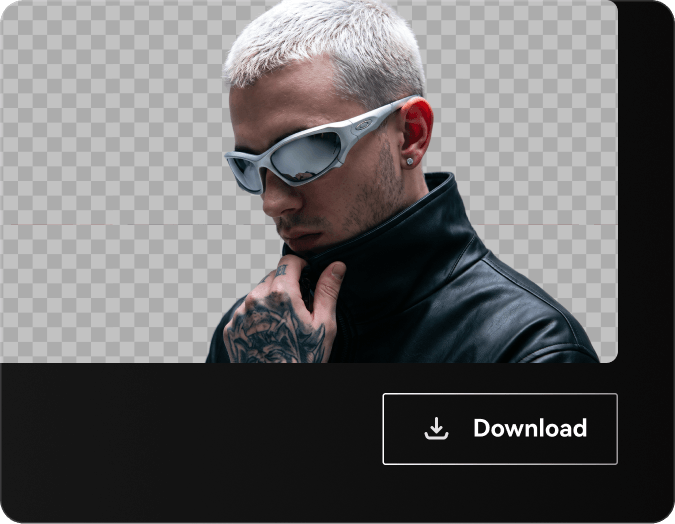
Check Each Person Before Downloading
Inspect hair, hands, gaps between people, and pet fur; then save the processed image offered by your plan.
Group Photo Background Removal for Real Shared Moments
A school photo and a company retreat photo might both be crowded, but the details worth preserving are not the same.
Create Family Reunion Invitations from Group Photos
A family photo background remover helps shift attention from picnic tables and parked cars to relatives gathered for a once-a-year picture.
Use Group Photo Cutouts on Team Pages
A team picture for an About page or anniversary post can be easier to place in a design after the busy office or trade-show venue is removed.
Design Class and Sports Club Posters
Group cutouts make useful starting assets for a tournament announcement, class farewell collage, or club banner. Keep every face visible in the final crop.
Keep People and Pets Together in One Photo
Want to remove the background from a photo of a person and their dog? Start with one clear shared frame and check the dog's ears, fur, and tail alongside the people.
What to Review in a Background-Removed Group Photo
People can overlap in ways that never happen in a single-person portrait. These are the common trouble spots to catch early.
| What you notice | Possible reason | What to try next |
|---|---|---|
| Someone in the back looks soft | The back row is small or slightly out of focus in the original. | Use the sharpest shared photo; inspect all heads, not just the front row. |
| Hands merge with clothing | Crossed arms and similarly colored sleeves hide gaps. | Zoom into the center of the group and review fingers and elbows. |
| The pet is partly missing | Fur or a tail blends into grass, a sofa, or dark clothing. | Check the animal separately before publishing the group graphic. |
| Background appears between people | Small spaces under arms or between legs are hard to segment. | Compare the cutout against the original at a close zoom. |
| A person is cut off at the edge | The original framing cropped a shoulder or foot. | Choose a wider source photo; background removal cannot restore unseen body parts. |
Tips for Better Family and Team Group Cutouts
A little planning before upload is particularly helpful when there are several faces, hands, and silhouettes.
- Include everyone fully: Avoid cutting off the person on the edge or the dog at the front.
- Keep faces at similar distances: Very small back-row heads are harder to inspect than nearby faces.
- Separate arms where possible: A little visible space between sleeves can make the outline easier to read.
- Let pets be clearly visible: Check that an animal is not hidden behind someone or blended into a sofa.
- Get permission to reuse photos: Confirm that everyone is comfortable with the planned publication or promotional use.
Group Photo Background Remover FAQs
Can a group photo background remover keep everyone in one image?
A group photo background remover is intended for a shared photograph, so you can try removing the surroundings while keeping the people together. Use one picture that shows the whole group, then inspect the first and last people in the row as carefully as the people in the center. Small or obscured subjects may need extra attention.
Why does the back row look less defined after background removal?
People farther from the camera occupy fewer pixels, so faces, hairlines, and shoulders can be harder to distinguish from the scene. A sharper source photo with visible space above the back row usually gives the remover more detail to work with. Avoid enlarging a blurry group photo and expecting new detail to appear.
What causes leftover background between arms and shoulders?
A narrow gap between two people may still show a strip of the original fence, wall, or sky. Zoom into the openings under elbows and between heads when reviewing the cutout. If a gap needs precise cleanup, finish that detail in a separate image editor instead of assuming the first automated pass caught every opening.
What if two people are holding hands or standing shoulder to shoulder?
Keep the joined hands and touching shoulders clearly visible in the source photograph. In the result, look for missing fingers, merged sleeves, or a strip of the old background along the contact point. These shared boundaries matter more than the outer silhouette when the group is posed closely together.
Can a family photo background remover keep our dog in the picture?
Try a single photograph with the family and dog together, preferably with the dog fully visible rather than hidden behind legs. After removal, check ears, fur, the tail, and the space between the pet and nearby clothing. The aim is one shared keepsake, not separate cutouts pasted into a new group.
What if a stranger is standing behind the group?
Not necessarily. A background remover separates foreground subjects from the scene; it is not a tool for selecting one particular person to delete. Someone standing close to your group may remain in the cutout. Removing that individual calls for a separate person- or object-removal workflow.
Can I use a group cutout for a school or community poster?
Yes, a shared team or class portrait can be prepared for a poster, noticeboard, or celebration graphic. Leave room around the outermost faces and place titles or dates in a separate design step. Before publishing a photo of students or other group members, confirm you have the appropriate permission to use their image.
Should I crop a group photo before removing its background?
Keep the original frame roomy enough to include outer arms, hair, feet, and anyone standing at an edge. A tight crop may remove parts of people that the background remover cannot recover. Decide on the final poster or banner crop after you have checked the complete group cutout.
Can I upload several different group photos in one batch?
The Media.io workflow here processes one uploaded source image at a time. A photograph containing several people is supported as a group-photo scenario, but that is different from batch processing several files at once. Prepare each reunion or team photo individually.
Can I add a wedding or holiday background behind the group?
Start by removing the existing setting from the shared photo. To put everyone in a wedding hall, holiday card, or another scene, continue in a separate background-changing or Image to Image workflow. Match the lighting and perspective of the new scene so the group does not look pasted on.