Deine Werke werden nur 7 Tage lang gespeichert. Assets, die nach dem Upgrade auf einen Mitgliedschaftstarif erstellt werden, werden dauerhaft gespeichert.
Entfalten Sie Ihr kreatives Potenzial und erleben Sie jetzt die Magie der Media-KI!
Roter Haarfilter für realistische Selfie-Anprobe in Sekunden
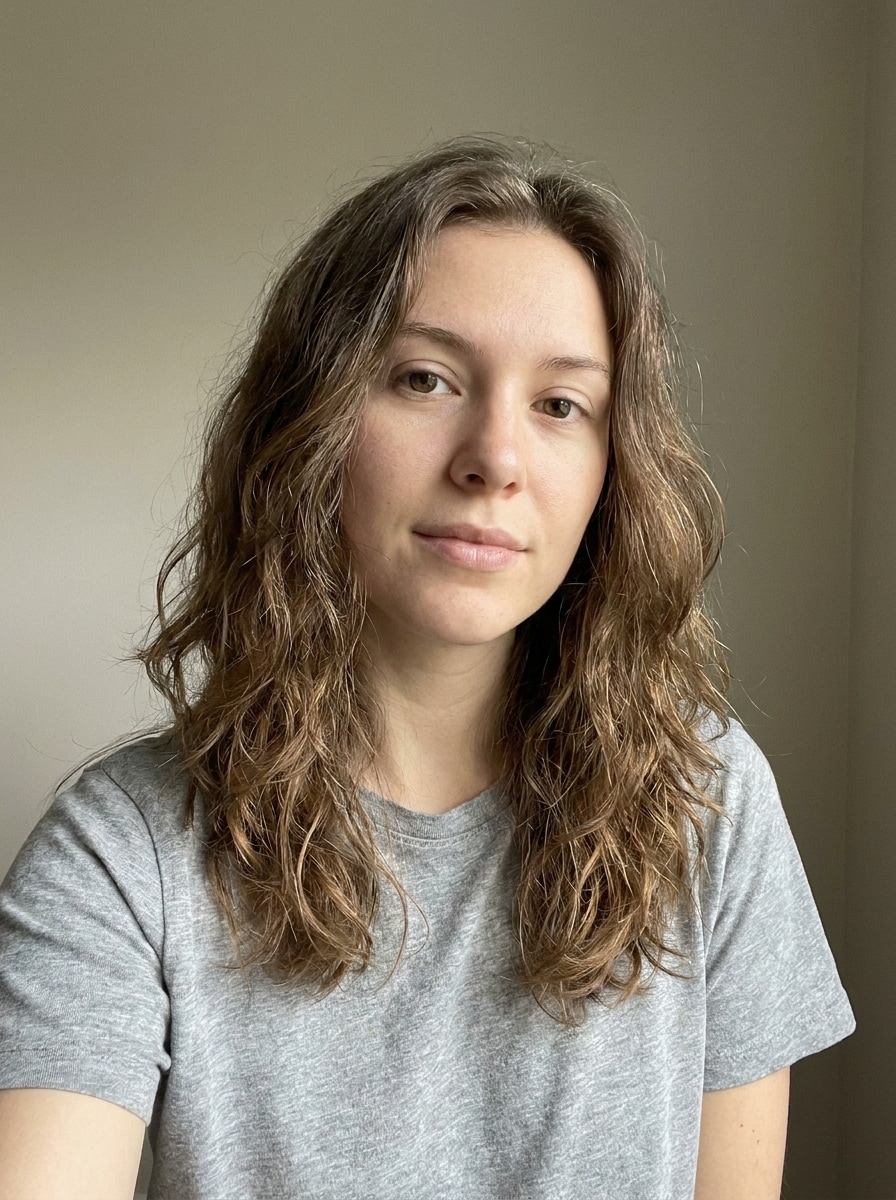
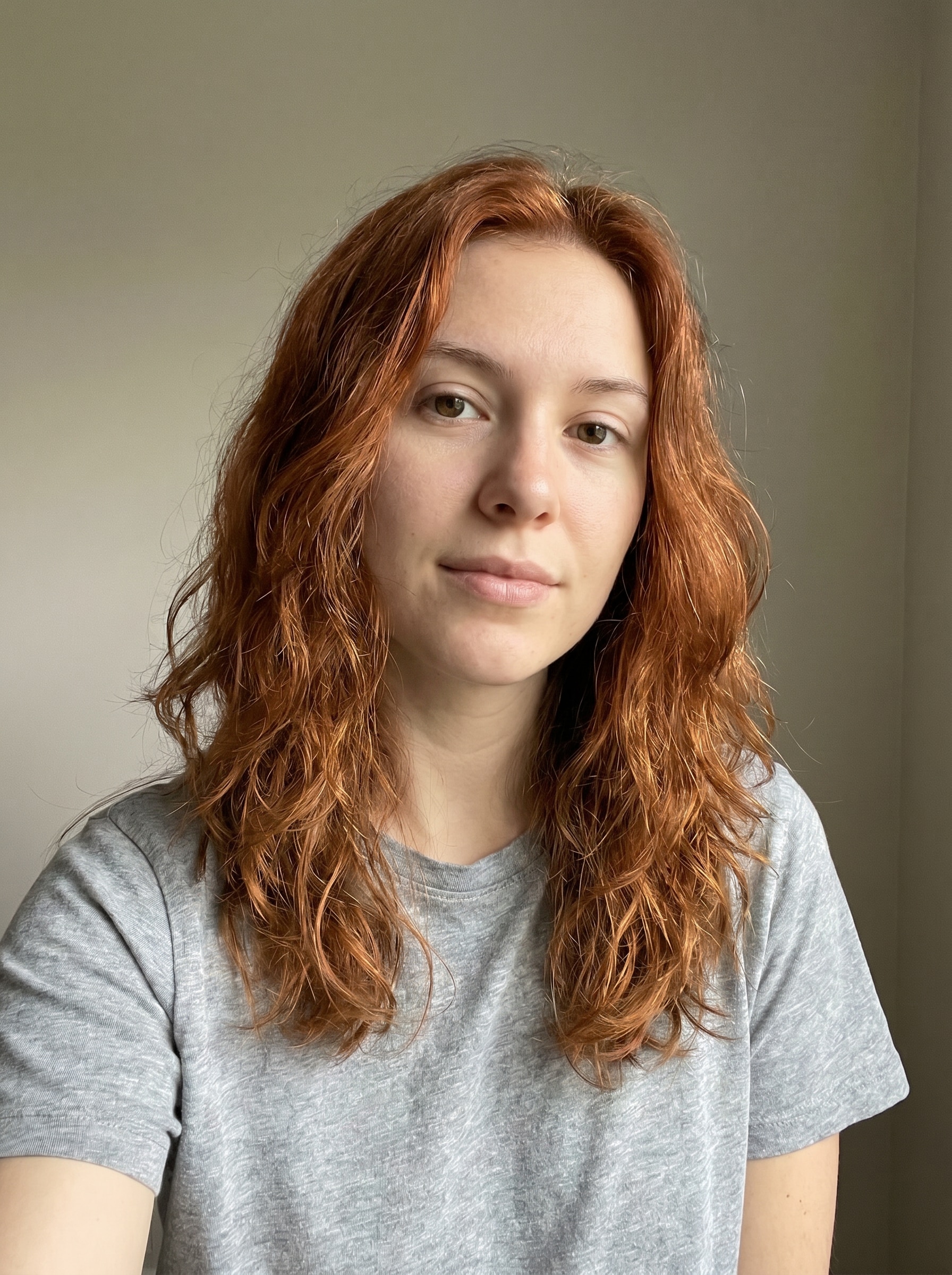
Lade ein Selfie hoch, um kupferfarbene, kastanienrote, ginger- und kirschfarbene Looks mit einem realistischen roten Haarfilter zu sehen. Media.io macht es leicht, rotes Haar online auszuprobieren mit natürlichem Licht, erhaltenen Gesichtszügen und schnellen KI-Bild-zu-Bild-Ergebnissen, die du vergleichen und speichern kannst.
Gib deine Idee ein -> KI gestaltet es. Kostenlos testen.
Sieh dir diese Beispieldirektiven an und passe dann die Eingabedetails an, um bessere Ergebnisse mit diesem roten Haarfilter zu erzielen.
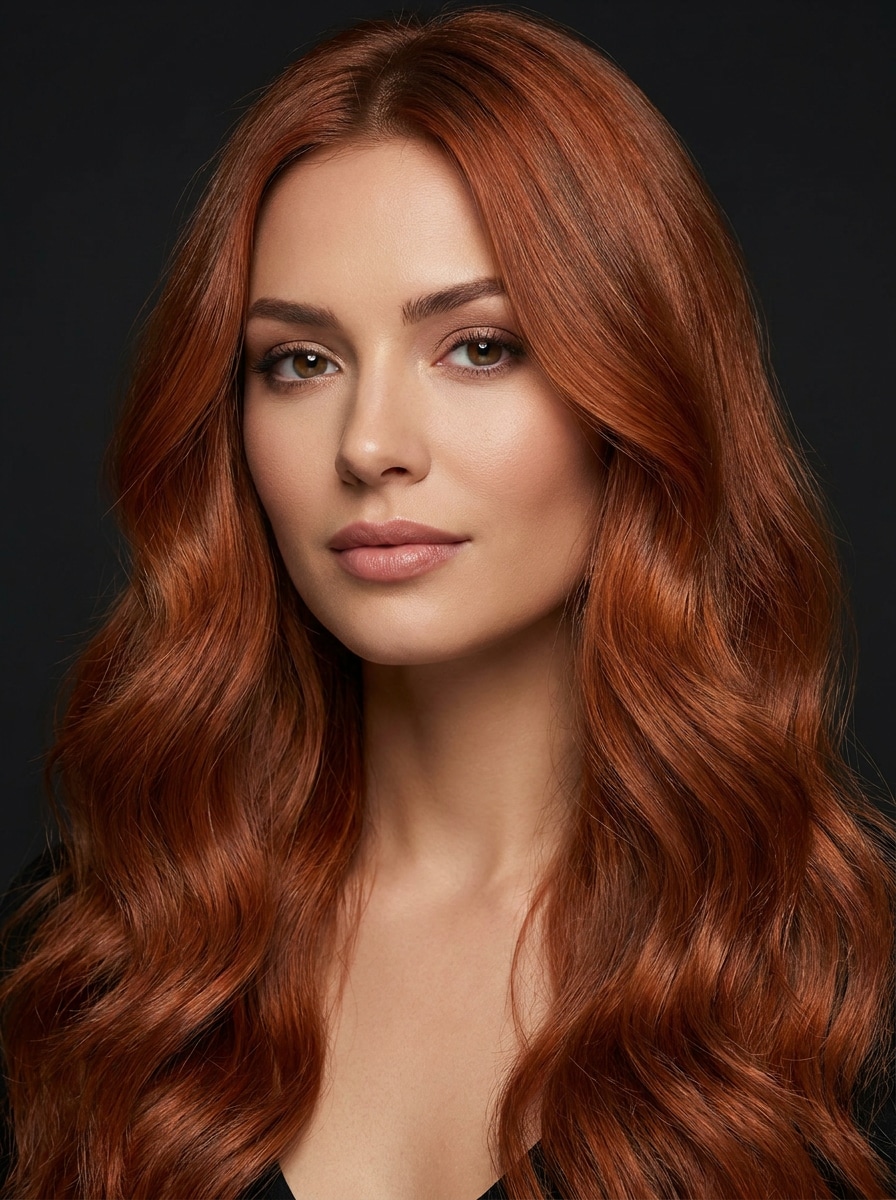
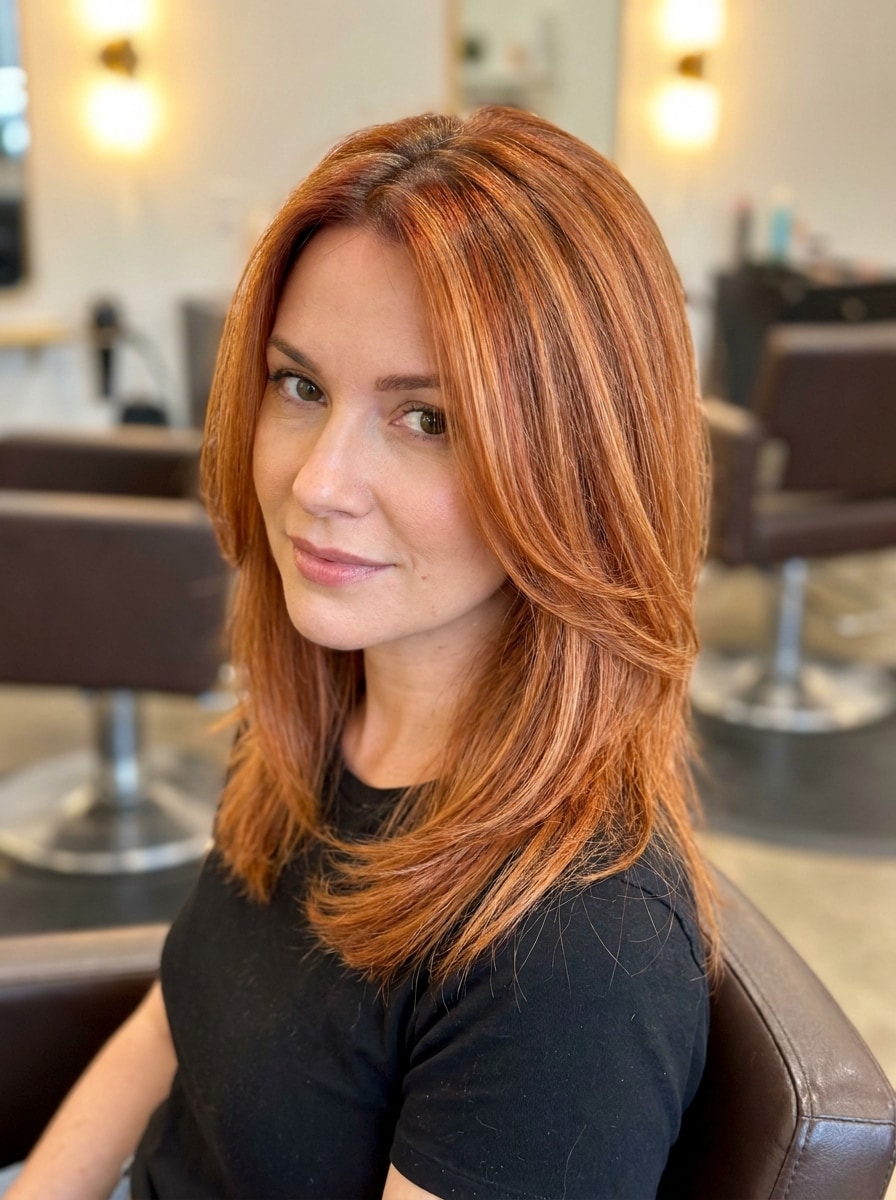
Kupferrot
Nutze das hochgeladene Porträt als Motiv und verwandle das Haar in einen natürlichen kupferroten Salon-Ton. Erhalte den Originalhaarschnitt, Gesichtszüge, Hautfarbe und Hintergrund, mit weichem Tageslicht, dezenter Ansatz-Tiefe, glänzenden Strähnen, warmen orange-roten Untertönen, realistischer Textur und sauberer Haaransatz-Übergabe.
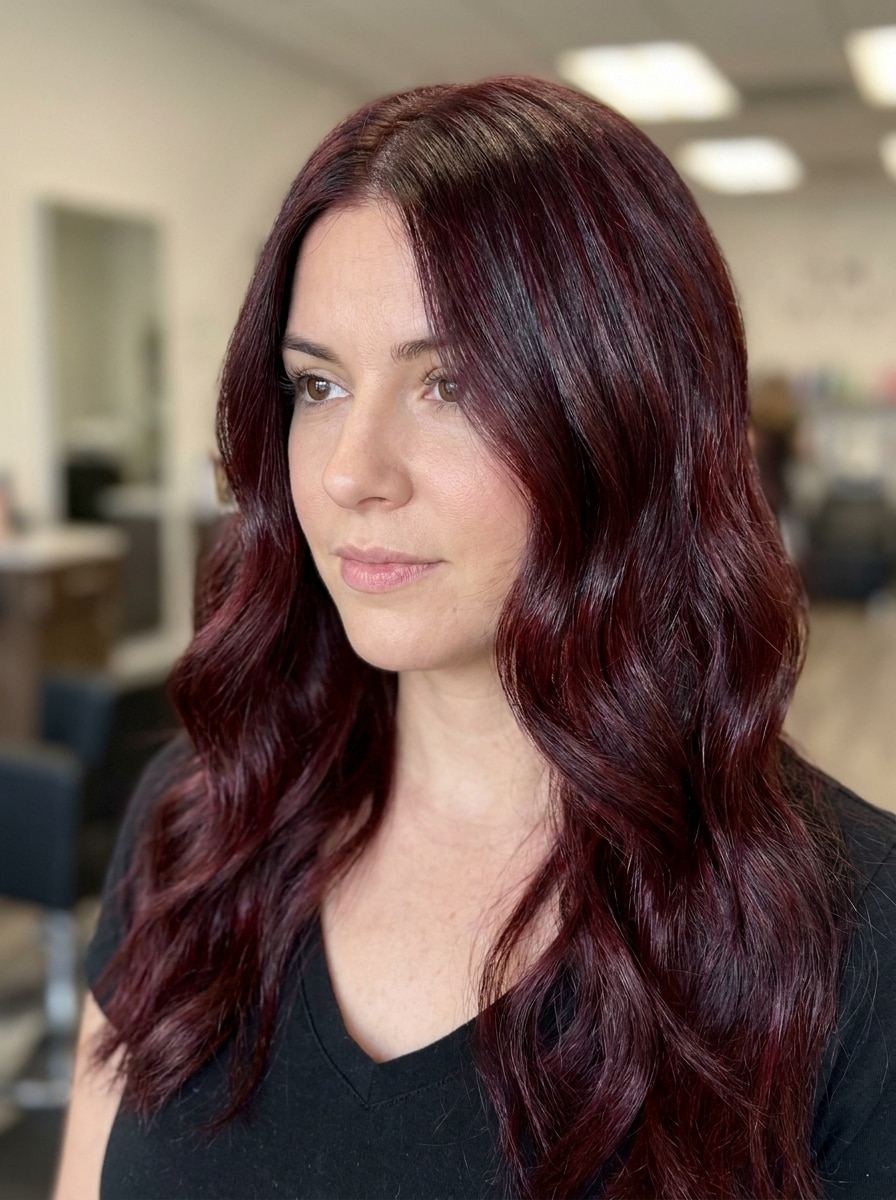
Kastanienrot
Nutze das hochgeladene Bild als Motiv und färbe das Haar in einen satten kastanienroten Ton um. Frisur, Gesichtproportionen und Beleuchtung bleiben unverändert, während weiche braunrote Tiefe, sanfte Schatten, gesunder Glanz, natürliche Ansätze, realistische Strähnen-Trennung und ein poliertes Salon-Vorschau-Finish hinzugefügt werden.
Gingerrot
Nutze das hochgeladene Selfie als Motiv und wende eine natürliche Ginger Rot Haarverwandlung an. Gesicht, Frisur und Umgebungslicht bleiben erhalten, während sanfte gold-rote Töne, dezente Highlights, realistische Ansätze, luftige Textur, geschmeidige Farbübergänge und ein frischer, schmeichelhafter Alltagslook hinzugefügt werden.
Kirsch-Cola-Rot
Nutze das hochgeladene Porträt als Basis und färbe das Haar in ein tiefes Kirsch-Cola Rot um. Gesichtszüge, Frisur, Pose und Hintergrund bleiben gleich, während glänzende dunkelrote Dimensionen, dezente burgunderrote Untertöne, definierte Strähnen, sanfte Reflexionen und eine elegante, moderne Atmosphäre hinzugefügt werden.
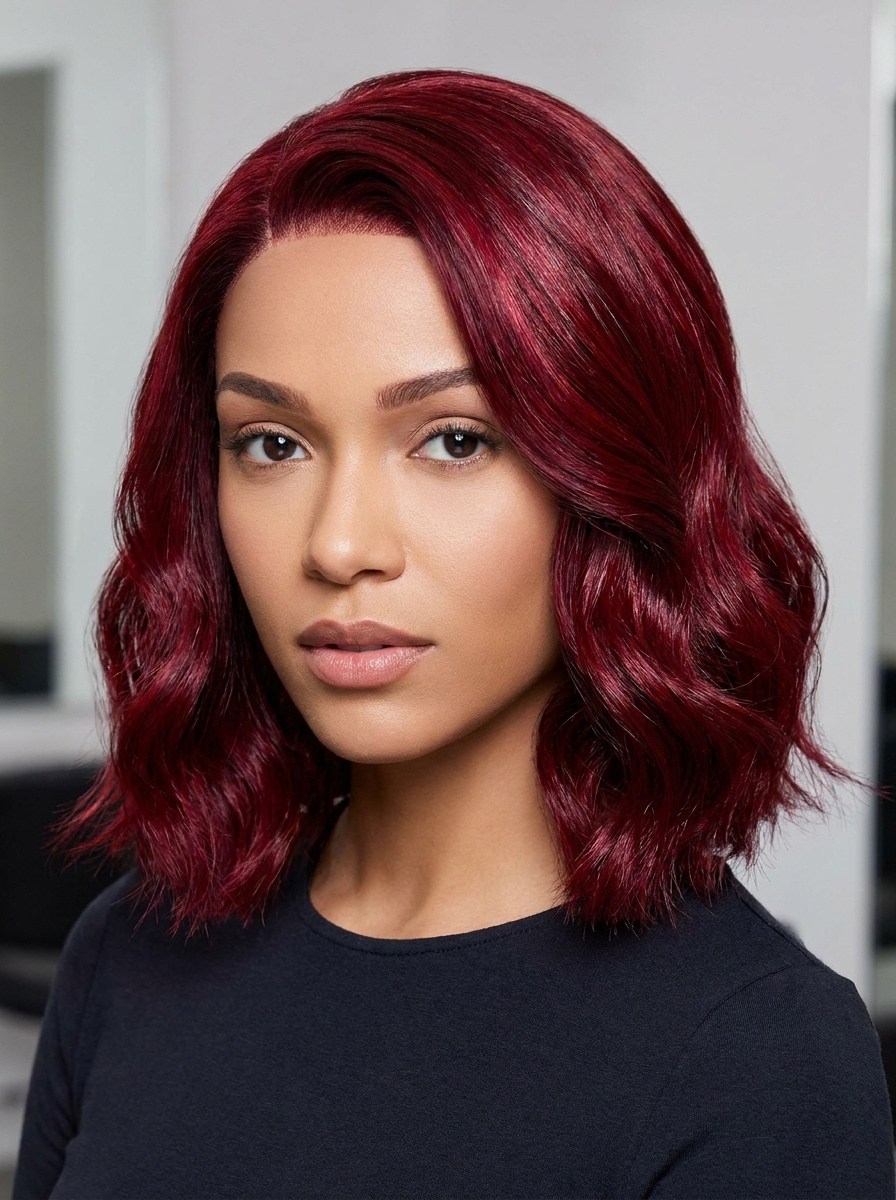
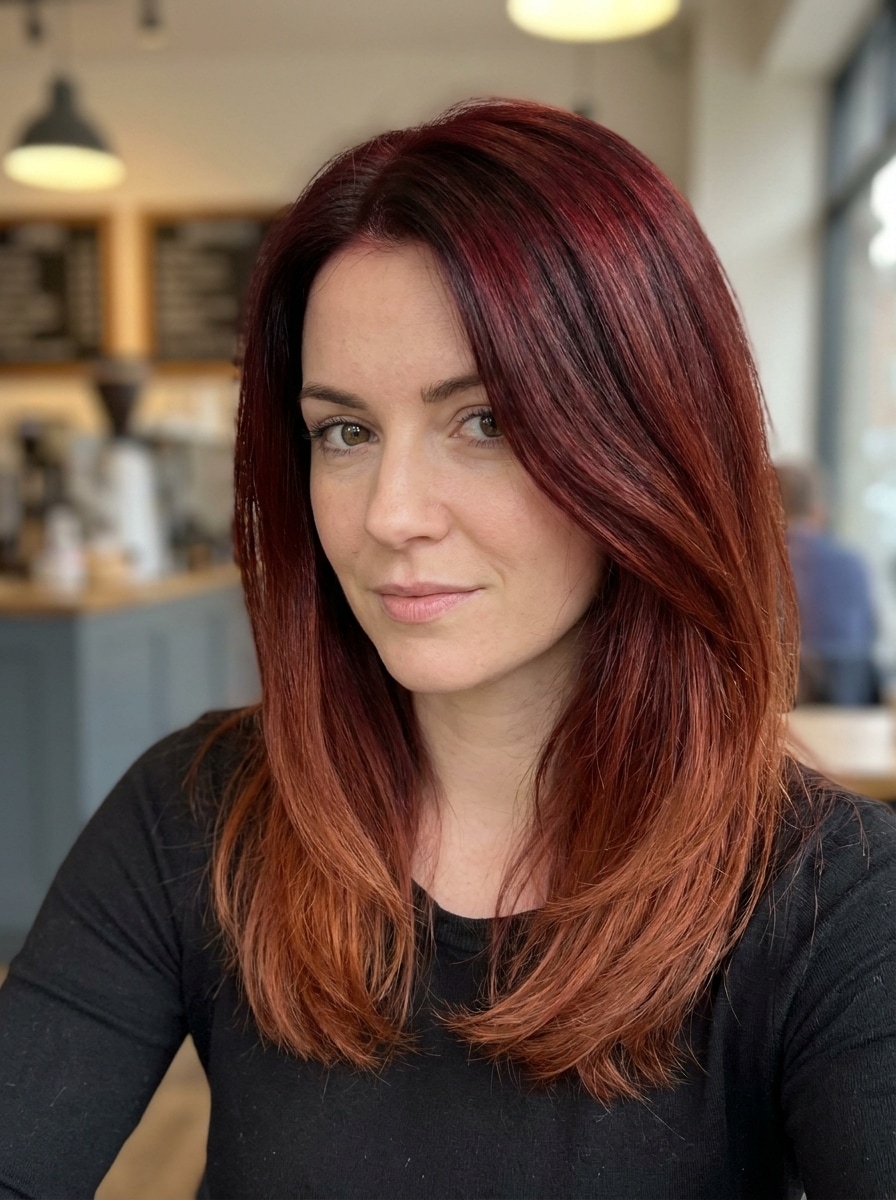
Karmesinrot
Nutze das hochgeladene Foto als Motiv und wende eine lebendige karmesinrote Haarfärbung an. Der Haarschnitt, das Gesicht und die Beleuchtung bleiben erhalten, mit hellen gesättigten Rottönen, klaren Kanten am Haaransatz, glänzender Textur, ausgewogenen Highlights, kontrolliertem Kontrast und einem auffälligen, aber glaubwürdigen Fashion-Finish.
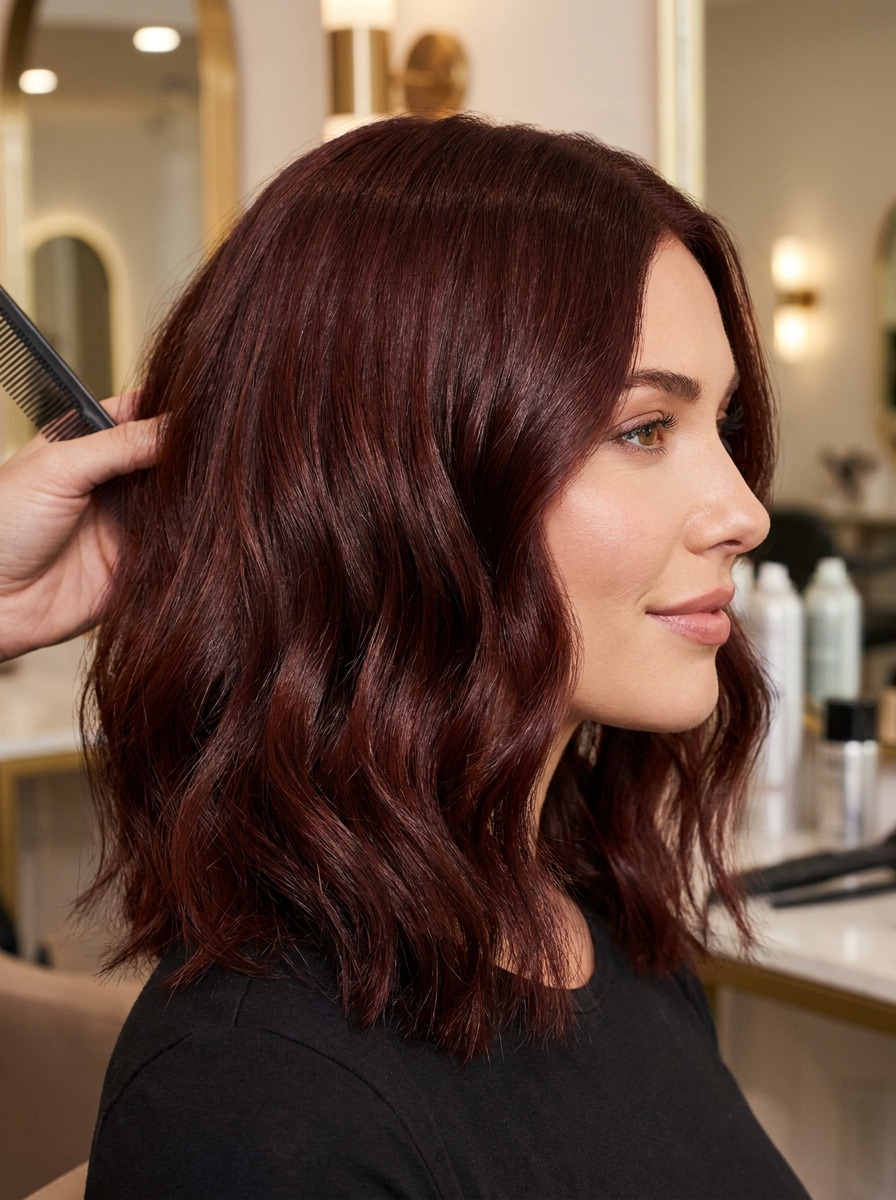
Mahagonirot
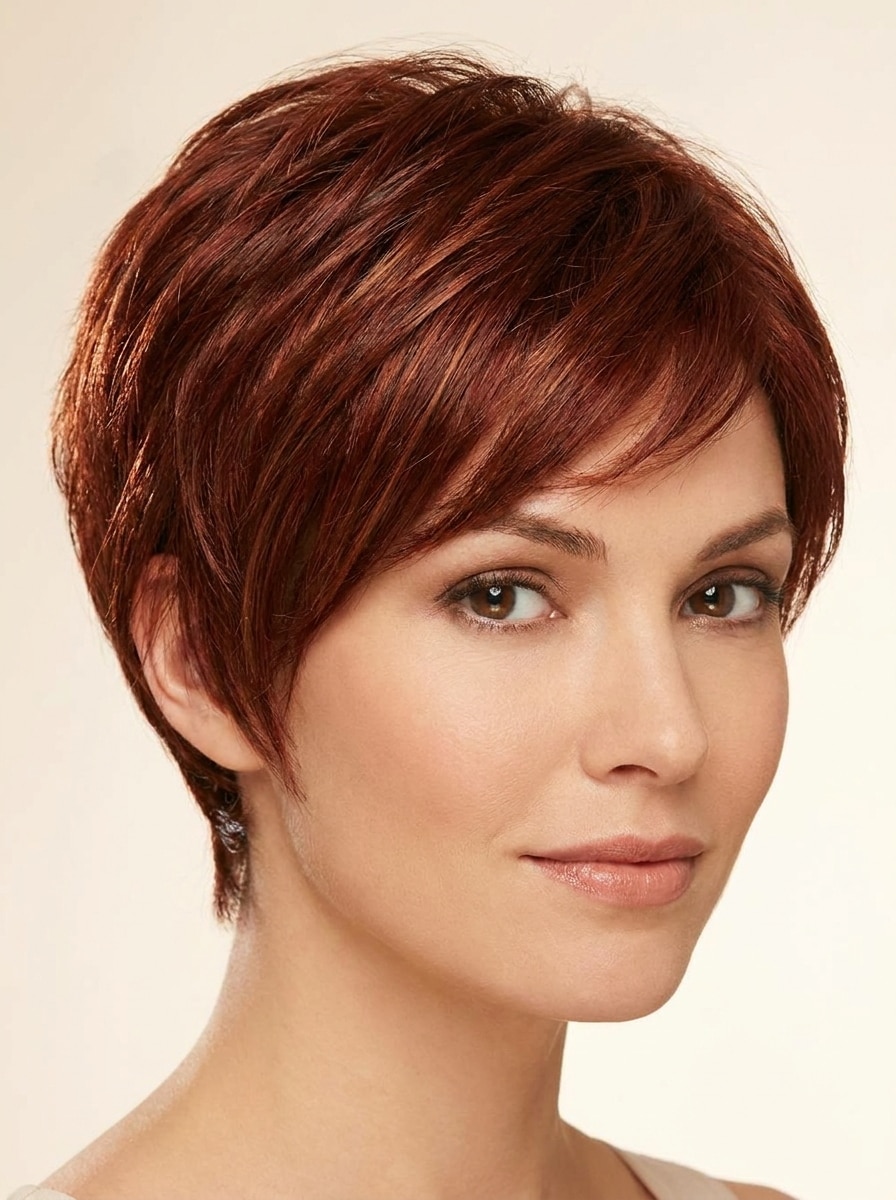
Nutze das hochgeladene Porträt und wandle das Haar in einen dunklen Mahagonirot-Ton um. Die Identität, das Styling und die Umgebung der Person bleiben erhalten, während tiefe rotbraune Nuancen, sanfte Ton-Schichten, zarter Glanz, natürliche Ansätze, realistische Strähnentextur und ein hochwertiges, saloninspiriertes Ergebnis hinzugefügt werden.
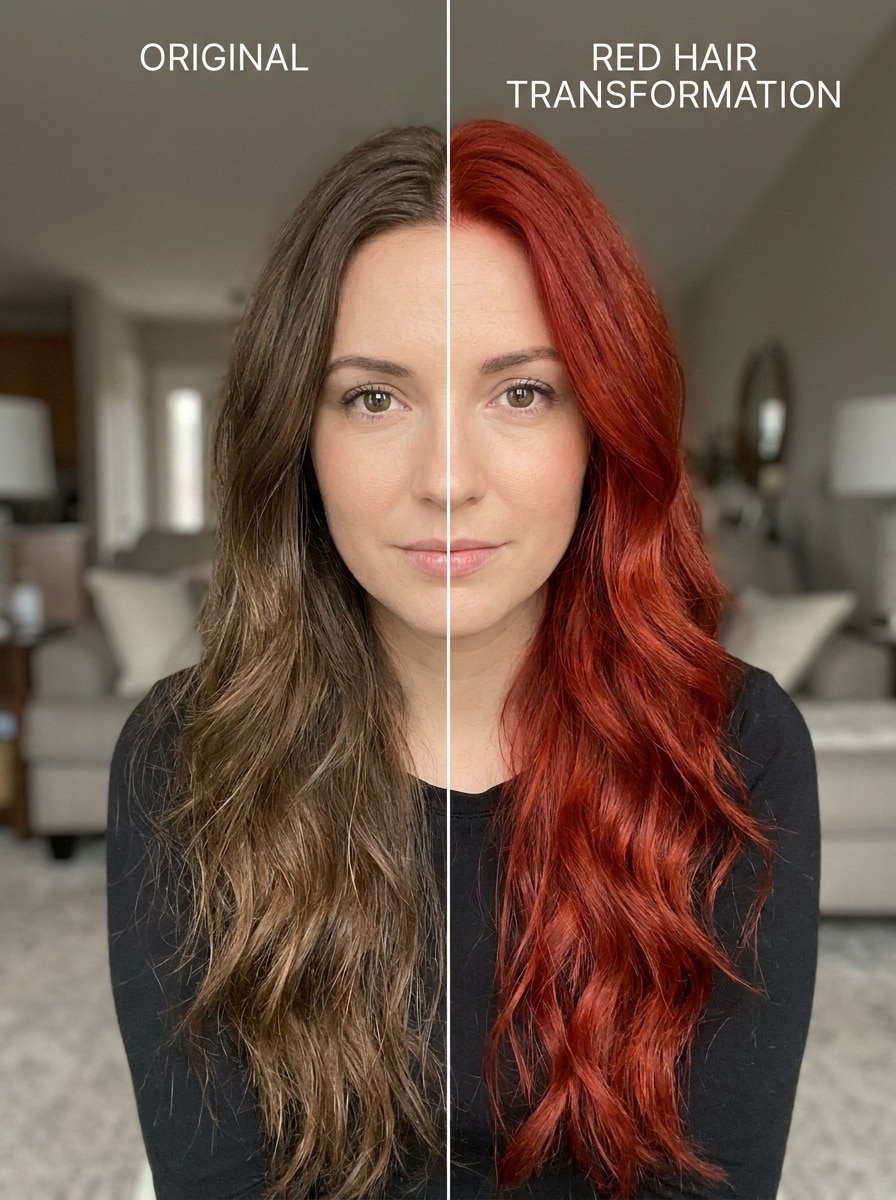
Vorher-Nachher-Vergleich
Nutze das hochgeladene Porträt, um eine geteilte Bildschirmansicht zu erstellen: Originalhaar auf der einen Seite und eine realistische Rote-Verwandlung auf der anderen. Winkel, Ausdruck und Beleuchtung bleiben identisch, mit sauberer vertikaler Trennung, Salon-Stil-Bearbeitung, natürlicher Farbübergabe, glänzender Textur und einfacher visueller Vergleichbarkeit.
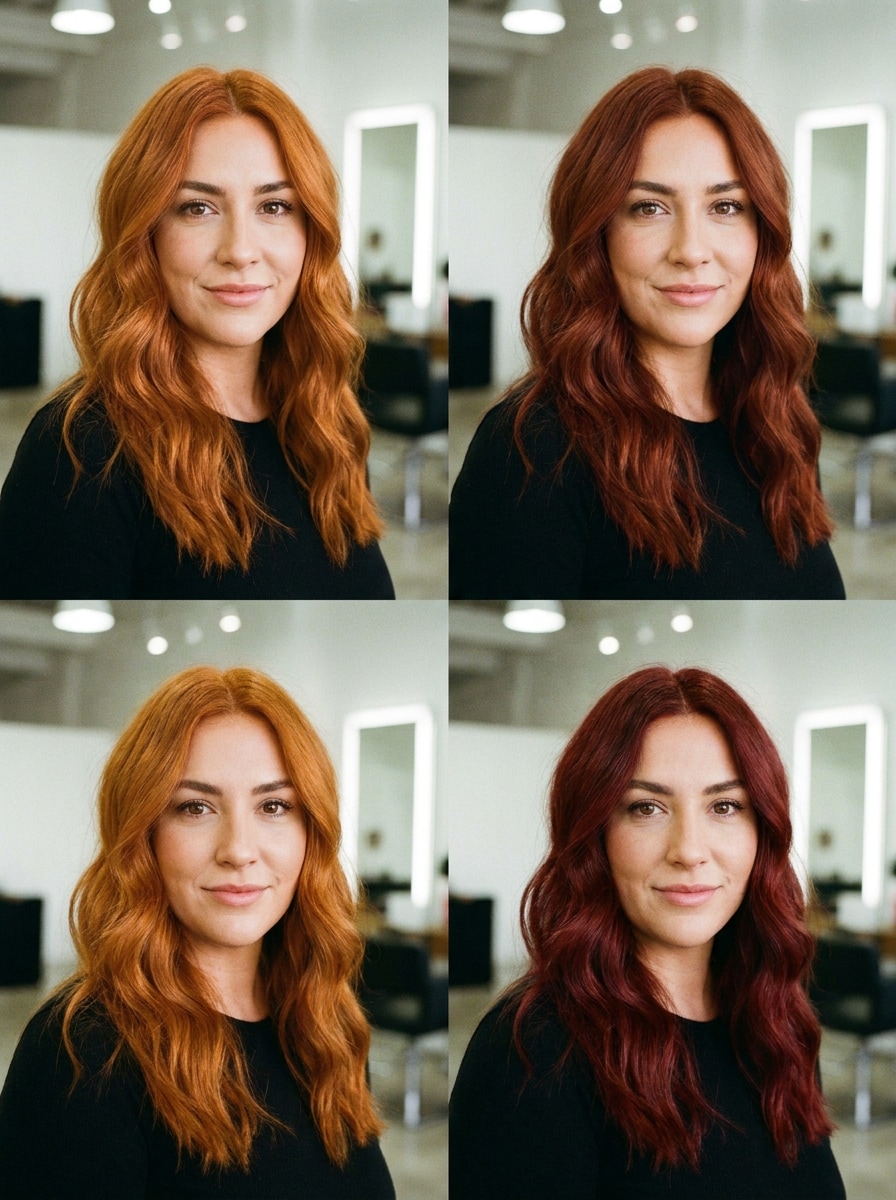
Multi Shade Grid
Nutze das hochgeladene Selfie, um ein Raster mit vier Panels und verschiedenen realistischen Rottönen zu erzeugen: Kupfer, Kastanie, Ginger und Kirsch-Cola. Das Gesicht, die Frisur, Pose und Beleuchtung sind in jedem Panel identisch, mit konsistentem Rahmen, polierter Strähnendetail und klarer nebeneinandergestellter Farbvergleich.
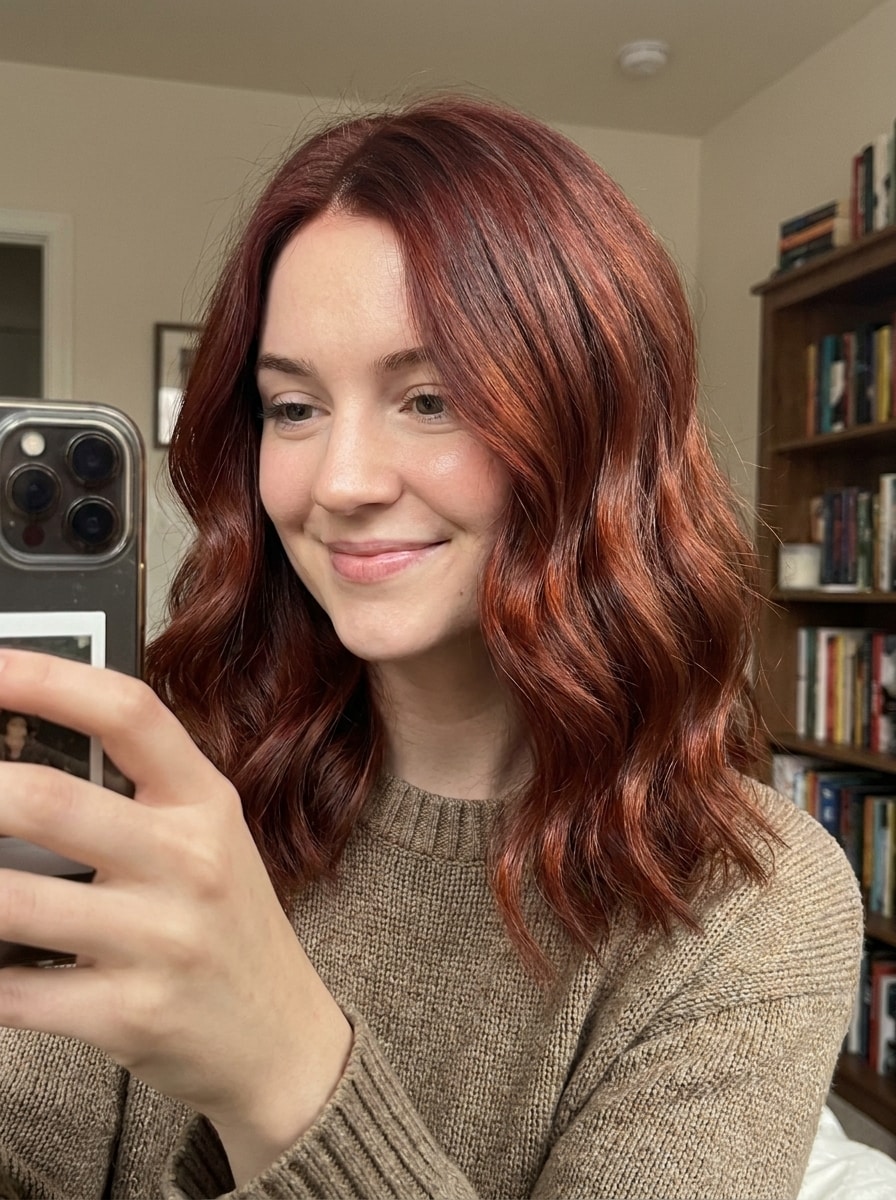
Soft Glam Selfie
Nutze das hochgeladene Selfie als Motiv und erschaffe eine sanfte Glamour-Rot-Haarverwandlung, optimiert für ästhetische Beauty-Inhalte. Gesichtsform, Frisur und Hintergrund bleiben erhalten, während geschmeidige Rotton-Übergänge, gesunder Glanz, sanfte Highlights, warme Farbharmonie und polierte, realistische Selfie-Ästhetik ergänzt werden.
Live-Kamera-Anprobe-Look
Nutze das hochgeladene Porträt, um eine realistische virtuelle Haarfarb-Vorschau zu simulieren, wie bei einer Live-Beauty-Anprobe. Hintergrund, Gesichtszüge und Frisur bleiben erhalten, mit präzisem Haarmasking, glaubwürdiger Farbverteilung vom Ansatz bis zu den Spitzen, natürlichen Reflexionen und sauberer Salonstil-Realität.
Warum Media.io für eine KI-Rot-Haar-Anprobe verwenden
Ergebnisse um eine Referenzperson personalisieren
Media.io verwandelt ein einfaches Porträt in eine personalisierte KI-Rot-Haar-Anprobe, sodass du Kupfer-, Kastanien-, Ginger- oder Kirsch-Töne auf deinem tatsächlichen Haarschnitt und deiner Gesichtsform anzeigen kannst, statt dich auf generische Haarfarbbilder zu verlassen.
Looks schnell vergleichen und das Beste verfeinern
Eine einzelne Idee benötigt oft mehr als einen Look. Media.io hilft, den gleichen roten Haarfilter-Visual in unterschiedlichen Stilen neu zu interpretieren, damit jede Variante besser zum Projektbrief passt.
Erzeuge hochauflösende Bilder für reale Nutzung
Wenn ein rotes Haarfilter-Visual für reale Veröffentlichung genutzt wird, bietet Media.io schärfere Ausgaben bis zu 4K, was dafür sorgt, dass das Bild in Präsentationen, Hintergründen und wiederverwendeten Assets klar bleibt.
Bearbeite auf jedem Gerät und exportiere schärfere Ergebnisse
Manche roten Haarfilter-Konzepte werden unterwegs entworfen und später am Schreibtisch fertiggestellt. Media.io hält diesen Prozess online, sodass du zum gleichen Workflow zurückkehren kannst, ohne zusätzliche Installationen oder Setup.
Wie du den roten Haarfilter auf deinem Foto anwendest
Verwandle deine Worte in atemberaubende Visuals in drei einfachen Schritten und verfeinere das Ergebnis weiter, wenn du möchtest.
Schritt 1
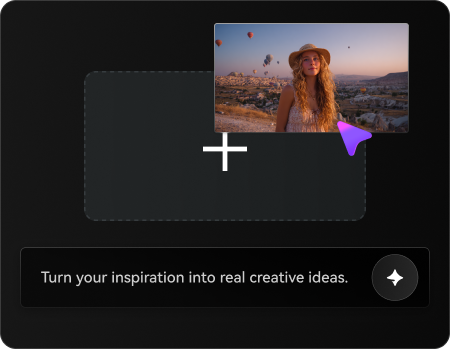
Lade dein Referenzbild hoch
Beginne mit einem klaren Selfie oder Porträt im JPG-, PNG- oder JPEG-Format. Frontalfotos mit sichtbarem Haar, ausgewogener Beleuchtung und einfachem Hintergrund geben meist das realistischste virtuelle Haarfarb-Vorschau-Erlebnis.
Schritt 2
Beschreibe die Veränderung und stelle Optionen ein
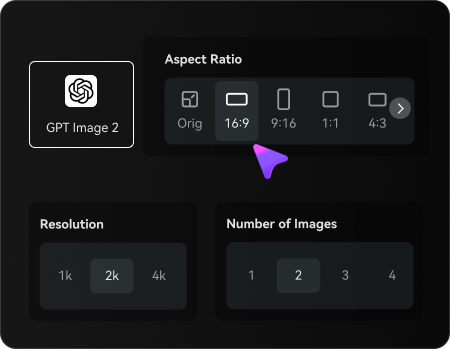
Gib den gewünschten Rotton ein, z.B. Kupfer, Kastanie, Ginger oder Kirsch-Cola und wähle Modell und Bildeinstellungen. Du kannst Seitenverhältnis, Qualität und die Anzahl der Varianten einstellen, um verschiedene Looks zu testen.
Schritt 3
Erstellen, herunterladen und weiter optimieren
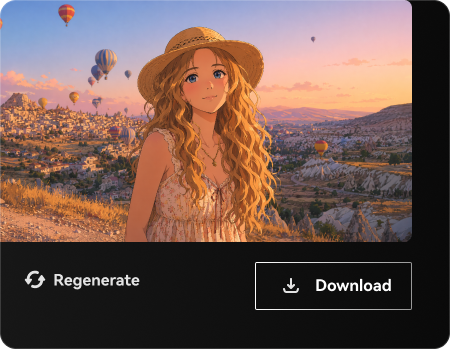
Erstelle deine Verwandlung, vergleiche die Ergebnisse und lade die Version herunter, die dir am besten gefällt. Bei Bedarf kannst du den Prompt bearbeiten, einen anderen Farbton ausprobieren oder neue Varianten generieren, bis die Farbe auf deinem Porträt natürlich wirkt.
Sieh, wie Creator diesen Rot-Haarfilter für Content, Marketing und persönliche Projekte verwenden und passe jede Idee an den Brief an.
Teste einen neuen Farbton vor dem Salonbesuch
Vorschau auf warmes Kupfer, sanfte Kastanie oder tiefere Kirsch-Töne auf deinem eigenen Porträt, bevor du einen Termin buchst. Das erleichtert Farbbesprechungen mit Stylisten und hilft, einen Look zu finden, der zu Hautton und Haarschnitt passt.
Erstelle teilbare Hair-Makeover-Inhalte
Nutze Selfie-Verwandlungen, Vergleichsmöglichkeiten oder Multi-Farb-Raster für Social Posts, Beauty Mood Boards oder Creator Content. Eine realistische Verwandlung ist viel hilfreicher als ein Gag-Filter, wenn du polierte Ergebnisse willst, die sich die Leute wirklich vorstellen können.
Erkunde mutige Veränderungen ohne Verpflichtung
Wenn du neugierig bist, aber nicht bereit bist, deine Haare zu färben, lade ein Foto hoch und experimentiere sicher. Media.io bietet einen schnellen Weg, rotes Haar online auszuprobieren und natürliche Rottöne mit auffälligeren Fashion-Nuancen zu vergleichen, bevor du eine echte Entscheidung triffst.
Was Benutzer sagen
Mia R.
Beauty-Content-Creator
"Realistische Rottöne aus einem Selfie" Ich wollte eine glaubwürdige Kupfer-Vorschau, keine Spielerei. Dieses Tool hielt mein Gesicht und meinen Haarschnitt intakt und die Farbe sah überraschend natürlich in verschiedenen Rotnuancen aus.
Jasmine L.
Salon-Kundin
"Nützlich vor meinem Farbttermin" Ich habe es genutzt, um Kastanie, Ginger und Kirsch-Cola zu vergleichen, bevor ich meine Stylistin traf. Die nebeneinander dargestellten Ergebnisse machten es viel einfacher zu erklären, welche Art von Rot ich wirklich wollte.
Noah T.
Social Media Designer
"Schneller Workflow auf dem Handy" Ich habe ein Handy-Selfie hochgeladen, einen schnellen Prompt eingegeben und in wenigen Minuten brauchbare Vorschauen erhalten. Es fühlte sich wie eine praktische virtuelle Anprobe an – nicht wie ein zufälliger Gesichtsfilter.
Elena P.
Lifestyle-Bloggerin
"Gut für dezente oder auffällige Looks" Am meisten hat mir die Flexibilität gefallen. Ich konnte sowohl sanfte, natürliche Rottöne als auch auffälligere Fashion-Töne testen, ohne Licht und Textur im Originalfoto zu verlieren.
Entdecken Sie die beliebtesten KI-Video- und Bildeffekte
1. Wie kann ich mich online mit roten Haaren sehen?
Du kannst bei Media.io ein klares Selfie hochladen und einen Bild-zu-Bild-Prompt verwenden, um dein Haar in realistischen Rottönen zu färben. Das funktioniert gut, wenn du Kupfer-, Kastanien-, Ginger- oder Kirsch-Töne vorschauen und sehen möchtest, wie sie auf deinem Gesicht, deiner Frisur und Beleuchtung aussehen.
2. Ist dieser rote Haarfilter kostenlos nutzbar?
Ja, kostenlose Nutzer können das Tool mit Gratis-Credits testen. Wenn du mehr Generierungsvolumen oder hochauflösende Downloads ohne Wasserzeichen möchtest, besuche die Preisseite von Media.io für mögliche Tarife. Kostenlose Nutzer verwenden Gratis-Credits. Für mehr Nutzung kann ein Plan abonniert werden. Für weitere Credits und wasserzeichenfreie Downloads in hoher Auflösung kannst du auf der Preisseite upgraden.
3. Kann ich verschiedene Rotnuancen wie Kupfer, Kastanie und Ginger ausprobieren?
Du kannst Media.io so anweisen, mehrere Rotvarianten zu erstellen, darunter Kupfer, Kastanie, Ginger, Mahagoni oder Kirsch-Töne. Das ist praktisch, wenn du eine neutrale KI-Rot-Haar-Anprobe möchtest statt auf einen festen Markenton beschränkt zu sein.
4. Bleiben mein Hairstyle und mein Gesicht natürlich erhalten?
Media.io ist für referenzbasierte Bildbearbeitung konzipiert und verwendet dein hochgeladenes Foto für die Orientierung. Das hilft, Frisur, Gesichtszüge, Hautfarbe und Gesamtbeleuchtung beim Farbwechsel zu erhalten, weshalb die Vorschau realistischer aussieht als ein generischer Overlay.
5. Muss ich ein Selfie hochladen oder kann ich meine Kamera nutzen?
Dieser Workflow basiert auf dem Hochladen eines Referenzbildes. Ein klares Selfie oder Porträt eignet sich in der Regel am besten für eine KI-Rot-Haar-Anprobe Vorschau, besonders wenn Haaransatz und aktuelle Frisur bei guten Lichtbedingungen sichtbar sind.
6. Wie lange dauert es, eine Rot-Haar-Vorschau zu erstellen?
Meist dauert es nur eine kurze Zeit, um nach dem Hochladen, Eingeben des Prompts und der Auswahl der Einstellungen eine Vorschau zu erstellen. Die Geschwindigkeit kann je nach Modell und gewählten Generierungsoptionen variieren, aber der Workflow ist auf schnelle Tests und Vergleiche ausgelegt.