Deine Werke werden nur 7 Tage lang gespeichert. Assets, die nach dem Upgrade auf einen Mitgliedschaftstarif erstellt werden, werden dauerhaft gespeichert.
Entfalten Sie Ihr kreatives Potenzial und erleben Sie jetzt die Magie der Media-KI!
Zahnaufhellungsfilter für natürlich wirkende Lächel-Bearbeitung auf Fotos
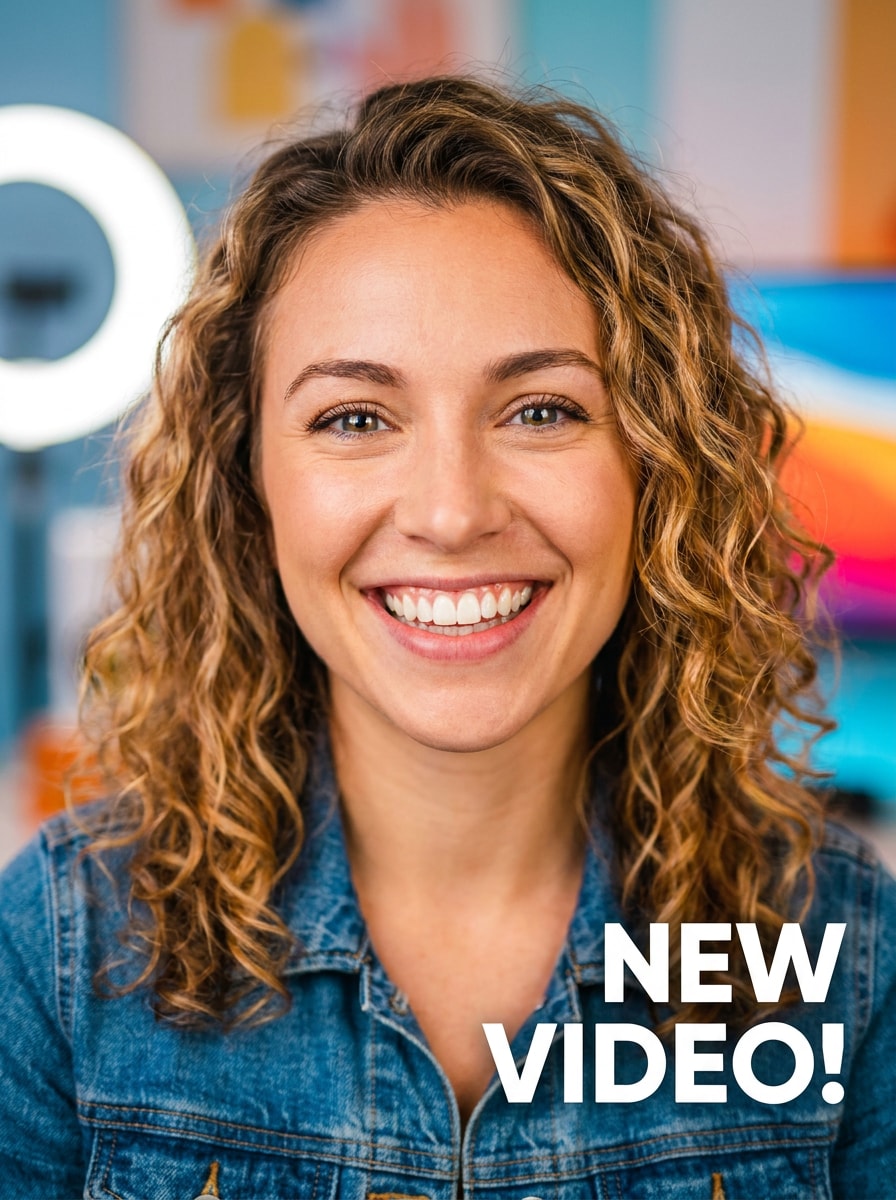
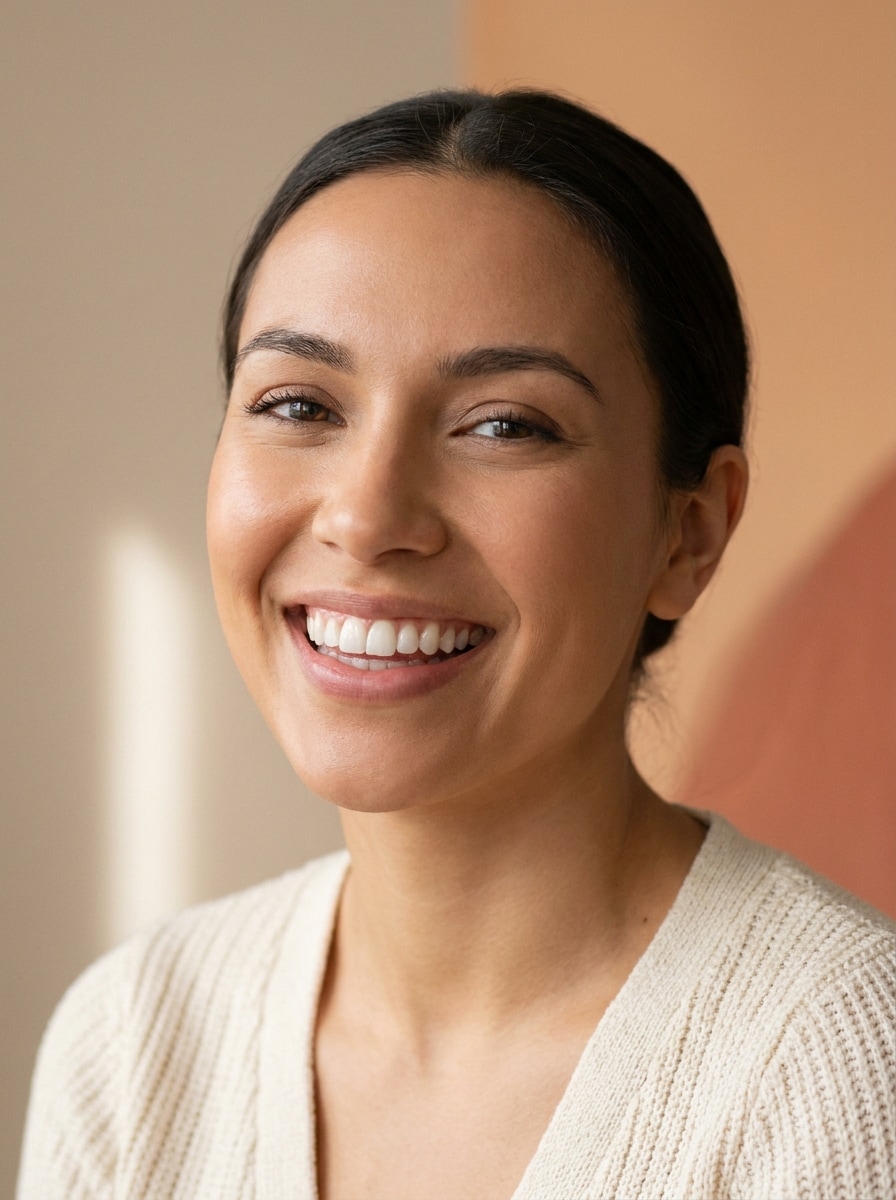
Verwenden Sie diesen Zahnaufhellungsfilter, um auf Selfies, Porträts und Gruppenfotos mit realistischen Ergebnissen ein strahlenderes Lächeln zu erzeugen. Media.io funktioniert als Zahnaufhellungs-Fotoeditor und weißer Zähne Filter, mit dem Sie gelbliche Farbtöne online schnell retuschieren können, ohne eine App herunterladen zu müssen. Kreative nutzen ihn häufig für eine KI-Vorschau zur Zahnaufhellung.
Geben Sie Ihre Idee ein -> KI gestaltet sie. Kostenlos testen.
Überprüfen Sie diese beispielhaften Anweisungen und passen Sie die Prompte an, um mit diesem Media.io Zahnaufhellungs-Editor online stärkere Resultate zu erzielen. Dieser Ablauf ist besonders nützlich zum virtuellen Ausprobieren weißer Zähne.
Sanftes Aufhellen des Lächelns auf Selfies
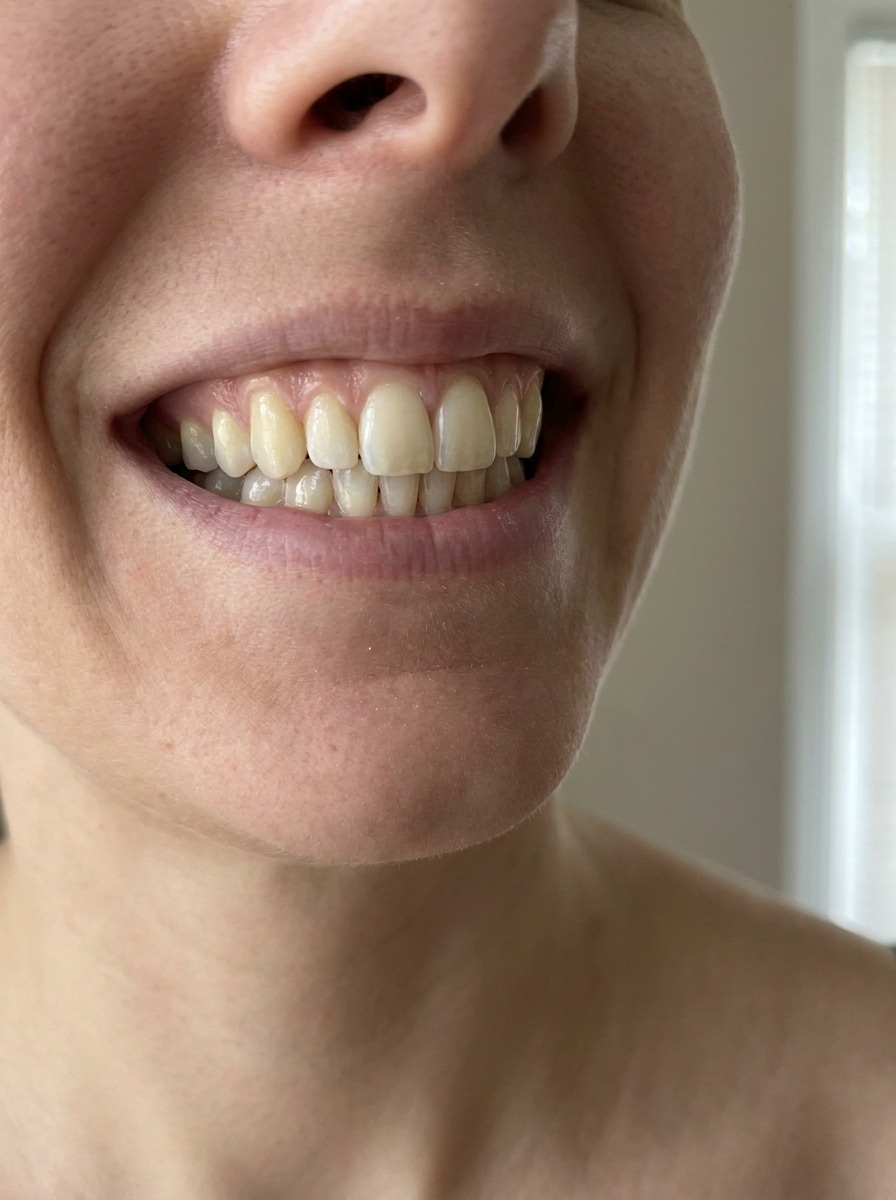
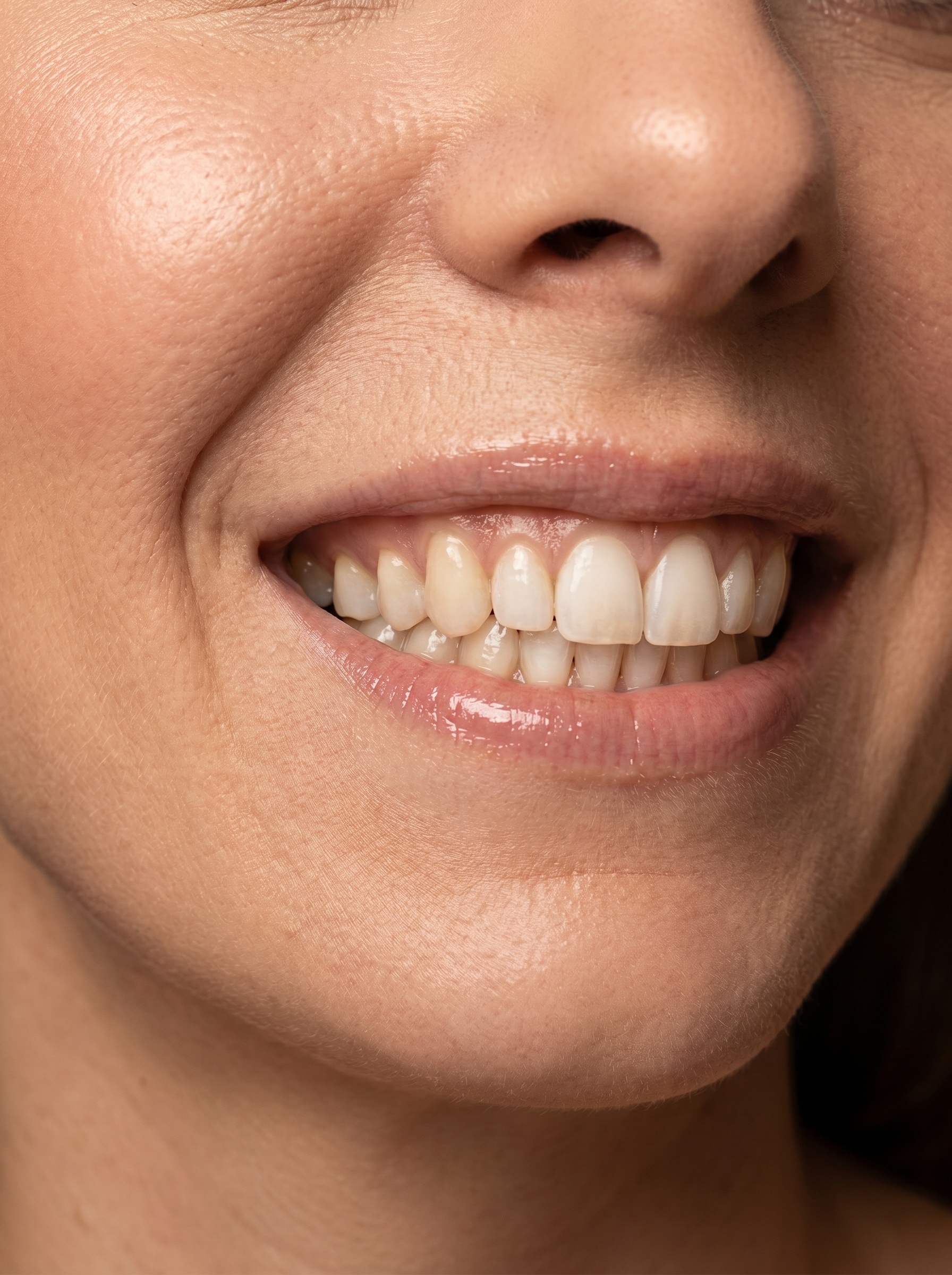
Nutzen Sie das hochgeladene Bild als Grundlage und hellen Sie subtil die sichtbaren Zähne auf diesem Nahaufnahme-Selfie auf. Die Struktur des Zahnschmelzes, natürliche Schatten und die ursprüngliche Lippenfarbe bleiben erhalten; das Tageslicht wirkt weich, die Hauttöne sind sauber, der Kontrast realistisch und das Ergebnis frisch und glaubwürdig.
Sauberes Bewerbungsfoto-Aufhellen
Nutzen Sie das hochgeladene Bild und hellen Sie nur die sichtbaren Zähne für ein professionelleres Bewerbungsfoto auf. Erhalten Sie natürliche Zahnkonturen, Gesichtsdetails, Stofftexturen und Studiobeleuchtung, während das Lächeln gepflegt, ausgewogen und realistisch bleibt – ideal für LinkedIn, Lebenslauf oder Business-Profile.
Influencer Glam-Lächeln bearbeiten
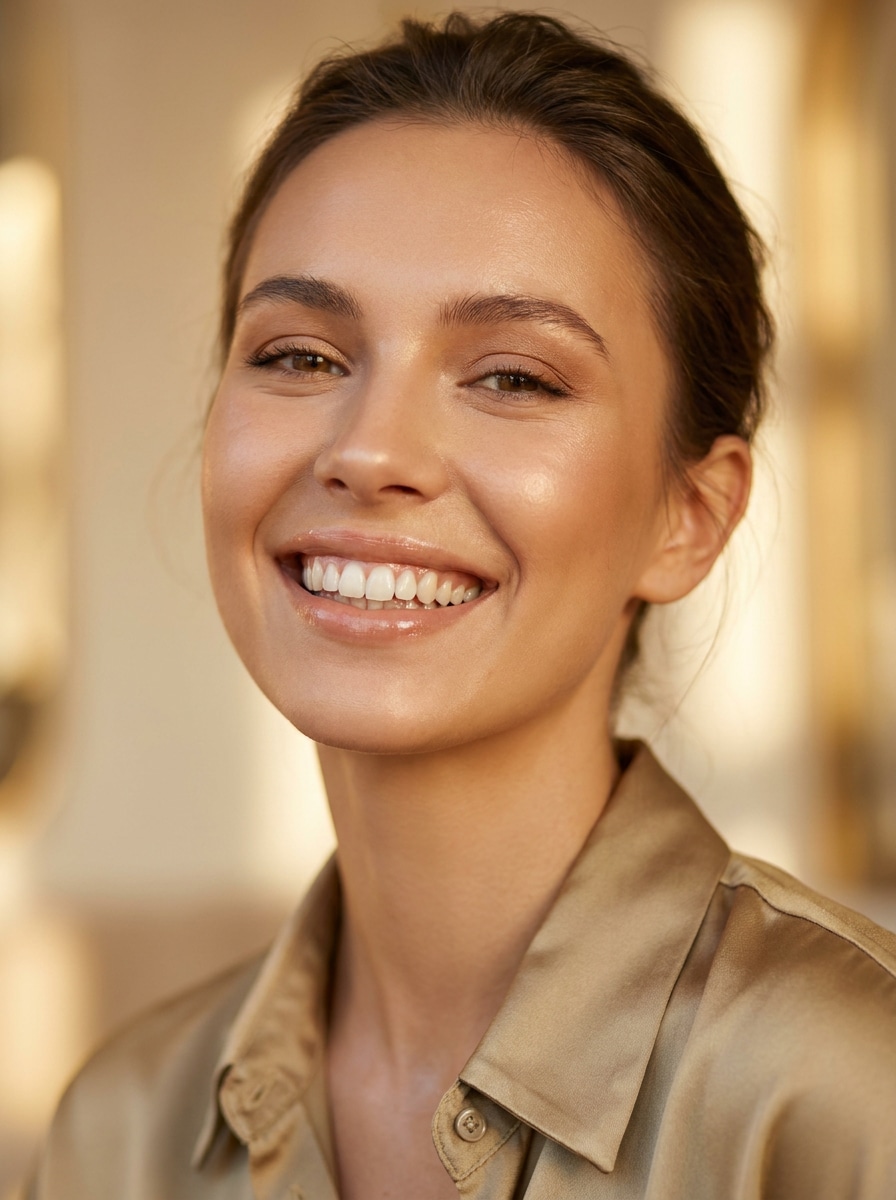
Nutzen Sie das hochgeladene Porträt als Basis und erstellen Sie eine Beauty-Retusche mit sanft aufgehellten Zähnen und elegantem Glam-Finish. Realistische Gesichtszüge, glatte, aber natürliche Hautstruktur, glänzende Lippen, vorteilhafte Highlights, warmes Editorial-Licht und ein erstklassiger Social-Look ohne Überaufhellung bleiben erhalten.
Date Night Glow-Up
Bearbeiten Sie das hochgeladene Bild und hellen Sie das Lächeln für ein schmeichelhaftes Date-Night-Porträt natürlich auf. Abendliche Umgebungsfarben, warme Haut, Augendetails und sanftes Bokeh bleiben erhalten, während das Gesicht insgesamt frischer, strahlender und authentisch wirkt.
Lächeln-Retusche für Hochzeiten
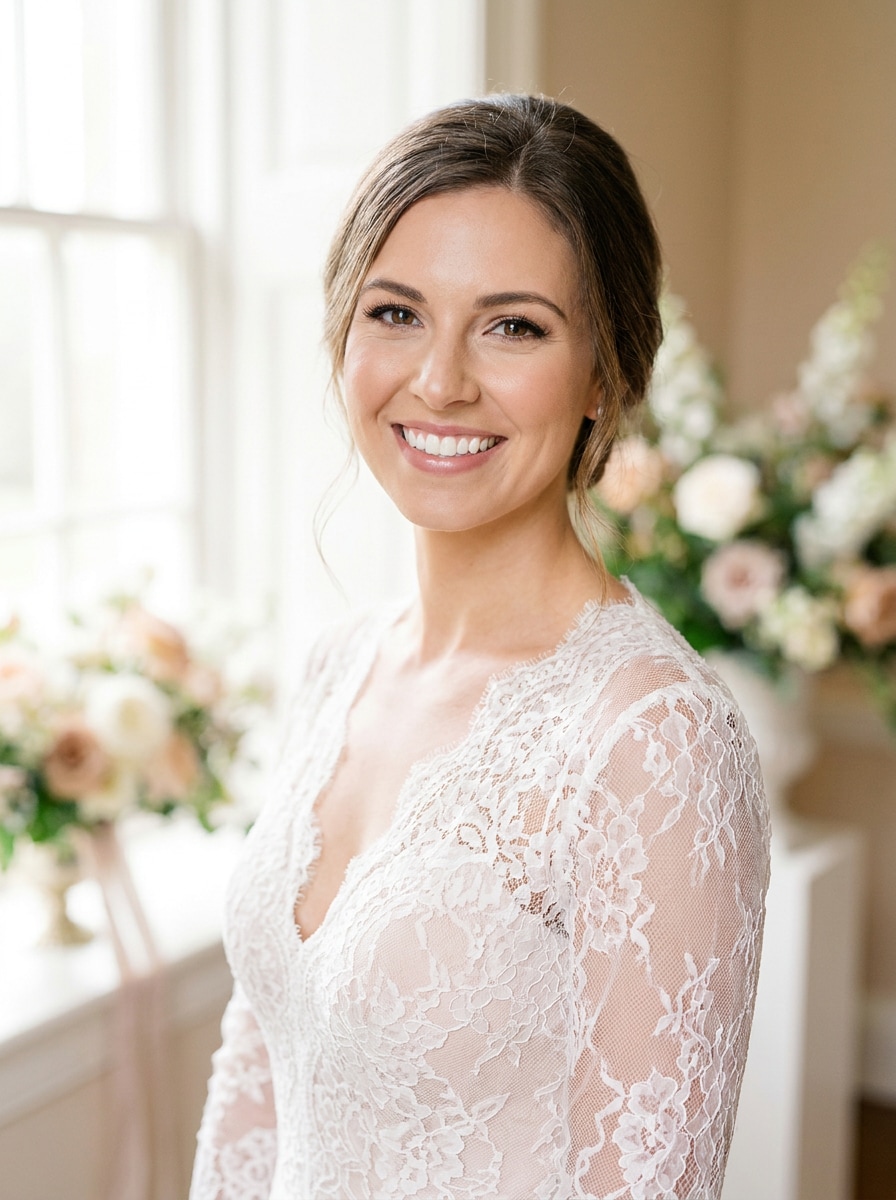
Verwenden Sie das hochgeladene Hochzeitsfoto und hellen Sie sanft sichtbare Zähne auf, damit das Lächeln strahlend und dennoch elegant wirkt. Spitze, Blumenstraußdetails, Hauttöne, Kleiderweiß und natürliches Licht bleiben erhalten, mit realistischen Zahnkonturen und einem zeitlosen, eleganten Finish für Alben, Drucke und Social Media.
Abschlussfoto-Auffrischung
Nutzen Sie das Abschlussfoto als Vorlage und verbessern Sie das Lächeln mit moderater Zahnaufhellung. Hut, Talar, Haardetails und Außenlicht bleiben natürlich, während die Gesichtsklarheit optimiert wird für ein sauberes, selbstbewusstes Abschlussfoto – ideal für Familie oder zum Drucken.
Thumbnail Smile Pop
Nutzen Sie das hochgeladene Bild und lassen Sie das Lächeln für ein Thumbnail mehr hervorstechen, indem die sichtbaren Zähne leicht aufgehellt werden. Die Gesichtserkennung, Hautstruktur und das Licht bleiben realistisch, trotzdem erhöhen Sie Klarheit, Kontrast und Fokus, sodass das Lächeln auch auf kleinen Bildschirmen deutlich sichtbar ist.
Reel Cover Beauty Polish
Verwenden Sie das hochgeladene Porträt und wenden Sie eine moderne Beauty-Retusche mit klarer, natürlicher Zahnaufhellung an. Originalität, Lippenfarbe und Hautrealismus bleiben erhalten, während Kontrast, Schärfe und Farbabstimmung für ein stilvolles Reel-Cover verfeinert werden, das gepflegt, aber nicht überbearbeitet aussieht.
Casual-Foto Lächeln-Korrektur
Verwenden Sie Ihr lockeres Foto und reduzieren Sie gelbe Farbtöne in sichtbaren Zähnen, ohne dass die Bearbeitung auffällt. Umgebung, Kleidungsstruktur und natürliches Licht bleiben unverändert, mit realistischen Schattierungen, weichem Kontrast und einem zurückhaltenden, frischen Alltags-Finish.
Gruppenfoto-Lächeln im Einklang
Nehmen Sie das hochgeladene Gruppenfoto als Vorlage und hellen Sie gezielt nur das gewünschte Lächeln auf, passend zum Umgebungslicht. Alle anderen bleiben unverändert, der Rest des Bildes bleibt unberührt, während Zahndetails, Farbbalance und das Bearbeitungsergebnis nahtlos in das Foto übergehen.
Warum Media.io für Lächel-Retuschen verwenden?
Laden Sie ein echtes Foto hoch und retuschieren Sie nur das Wesentliche
Referenzbasierte Arbeiten erfordern mehr als einen groben Stilwechsel. Media.io hilft, wichtige Identitätsdetails erkennbar zu halten, während das Erscheinungsbild des Zahnaufhellungsfilters überarbeitet wird. So wirkt das Ergebnis persönlich statt generisch.
Einen Motiv in verschiedene Stile verwandeln
Wenn das Motiv nach der Umwandlung noch wie es selbst aussehen muss, hilft Media.io, Kernmerkmale zu bewahren und den Zahnaufhellungs-Look für ein sauberes Endergebnis zu aktualisieren.
Finale Bilder scharf für echte Projekte behalten
Ist ein Zahnaufhellungsfilter-Bild für die echte Veröffentlichung vorgesehen, liefert Media.io eine Ausgabe bis zu 4K, sodass das Bild in Präsentationen, Hintergründen und wiederverwendbaren Assets klar bleibt.
Schnelles Bearbeiten im Browser am Handy oder PC
Oft wird auf einem Gerät begonnen und auf einem anderen weiter gearbeitet – Media.io hält den Workflow im Browser. So bleiben Sie flexibel, auch wenn Sie zwischen Smartphone und Desktop wechseln.
So nutzen Sie den Zahnaufhellungsfilter online
Verwandeln Sie Ihre Worte in beeindruckende Bilder in nur drei einfachen Schritten und verbessern Sie das Ergebnis danach weiter, falls gewünscht.
Schritt 1
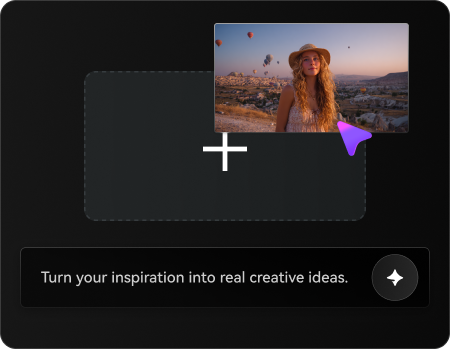
Laden Sie Ihr Referenzbild hoch
Beginnen Sie, indem Sie ein klares Selfie, Porträt, Bewerbungs- oder Gruppenfoto als JPG, PNG oder JPEG hochladen. Wählen Sie ein Bild mit sichtbarem Lächeln, damit das Tool die Zahnfarbe gezielter anpasst.
Schritt 2
Beschreiben Sie die Änderung und stellen Sie Optionen ein
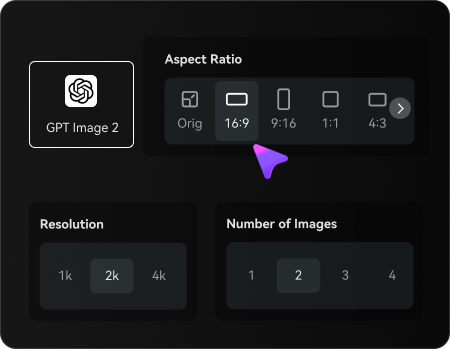
Beschreiben Sie der KI, wie die Bearbeitung aussehen soll – zum Beispiel dezentes Aufhellen, Reduzieren gelber Töne oder ein poliertes Beauty-Finish. Wählen Sie dann Ihr Modell und passen Sie Seitenverhältnis, Auflösung und Bildanzahl an.
Schritt 3
Erstellen, herunterladen und weiter verbessern
Erstellen Sie Ihre Lächel-Bearbeitung, vergleichen Sie Varianten und laden Sie Ihre Lieblingsversion herunter. Falls nötig, verfeinern Sie den Prompt, generieren Sie eine sanftere Variante oder führen Sie weitere Porträt-Retuschen fort.
Entdecken Sie das Potenzial des Zahnaufhellungs-Fotoeditors
Sehen Sie, wie Kreative diesen Zahnaufhellungsfilter für Content, Marketing und private Projekte nutzen, und passen Sie jede Idee an Ihren Zweck an.
Selfies vor dem Posten auffrischen
Eine kleine Lächel-Retusche macht alltägliche Selfies frischer, ohne unnatürlich zu wirken. Verwenden Sie Media.io als Online-Weißzahn-Editor, um matte oder gelbe Zahnfarben vor dem Posten von Geschichten, Datingfotos oder Social Updates zu mildern.
Professionelle Bewerbungs- und Profilbilder veredeln
Für LinkedIn, Lebensläufe, Speaker-Bios oder Teamseiten sorgt dezente Aufhellung für eine gepflegtere Wirkung. Media.io ermöglicht eine realistische Lächel-Retusche mit natürlichem Ausdruck, sodass das Bewerbungsfoto strahlender und souveräner wirkt.
Hochzeits-, Event- und Gruppenbilder schnell verbessern
Wichtige Fotos benötigen oft nur kleine Korrekturen statt starker Retusche. Egal, ob Sie einen Gelbzahn-Filter online für ein Lächeln einsetzen oder kostenlose Zahnaufhellung online ausprobieren, mit Media.io wirken Eventbilder sauberer – ideal für Alben, Ankündigungen und Teilen.
Was Nutzer sagen
Alyssa M.
Lifestyle-Creatorin
"Natürliches Selfie-Retouching" Ich wollte hellere Zähne auf meinen Selfies ohne diesen künstlich weißen Look. Dieses Tool hat das Lächeln realistisch gehalten und direkt im Browser schnell gearbeitet.
Daniel R.
Marketingberater
"Ideal für Bewerbungsbilder" Ich habe es bei einem professionellen Kopfporträt genutzt und das Ergebnis war sauber, nicht überbearbeitet. Viel einfacher als eine komplette Foto-Retusche-Software zu lernen.
Priya S.
Bald-Braut
"Perfekt für Eventfotos" Ich habe ein paar Hochzeitsfotos ausprobiert und das Lächel-Upgrade war perfekt eingepasst. Haut- und Kleiderdetails blieben erhalten, das Foto wirkte einfach polierter.
Marcus T.
YouTube-Creator
"Hilfreich für Thumbnails" Für Thumbnails und Reel-Cover macht ein dezentes Lächel-Plus den Unterschied. Schön, dass ich mein eigenes Foto hochladen und verschiedene Looks ausprobieren kann, ganz ohne Software-Download.
Entdecken Sie die beliebtesten KI-Video- und Bildeffekte
1. Wie kann ich Zähne auf einem Foto online aufhellen?
Laden Sie Ihr Selfie, Porträt oder Gruppenfoto bei Media.io hoch und geben Sie eine Beschreibung der gewünschten Bearbeitung ein, zum Beispiel sanftes Aufhellen oder weniger Gelbstich bei sichtbaren Zähnen. Media.io nutzt Ihr Foto als Referenz, so können Sie eine schnelle, natürlich wirkende Lächel-Retusche direkt im Browser erstellen.
2. Ist dieser Zahnaufhellungsfilter kostenlos nutzbar?
Ja, Sie können Media.io mit kostenlosen Credits testen – ideal, um den Zahnaufhellungs-Workflow zu erproben, bevor Sie ein Abo abschließen. Für mehr Credits oder hochauflösende Downloads ohne Wasserzeichen finden Sie kostenpflichtige Pläne auf der Preisseite.
3. Lässt der KI-Zahnaufhellungsfilter mein Lächeln natürlich aussehen?
Ja, vor allem wenn Sie eine subtile Aufhellung anfordern statt einen extrem weißen Effekt. Media.io eignet sich gut für ein realistisches Ergebnis, da Ihr hochgeladenes Foto als Basis dient und Zahnstruktur, Licht und Gesichtsmerkmale erhalten bleiben.
4. Kann ich Zähne auf Selfies, Bewerbungsfotos und Gruppenbildern aufhellen?
Media.io unterstützt JPG-, PNG- und JPEG-Bilder, so können Sie Nahaufnahmen, professionelle Porträts, Abschlussfotos, Hochzeitsfotos und Gruppenbilder damit bearbeiten. Die Bearbeitung ist referenzbasiert – ideal, wenn Sie gezielte Lächelkorrekturen und keine Komplettänderung wollen.
5. Funktioniert der Zahnaufhellungs-Editor auf iPhone, Android und Desktop?
Ja, Media.io ist webbasiert und funktioniert auf allen Geräten mit Browser – inklusive iPhone, Android, Mac und Windows. Damit eignet es sich auch für einen mobilen Workflow, den Sie später am Desktop fortsetzen können.
6. Wie lange dauert es, Zähne auf einem Bild aufzuhellen?
Die meisten Bearbeitungen sind in kurzer Zeit erledigt – einfach hochladen und Prompt eingeben. Je nach Auflösung, Modell und Bildanzahl variiert die Geschwindigkeit, aber Media.io ist für schnelle Lächel-Optimierungen gedacht, nicht für langsame manuelle Retusche.
Mehr als nur KI-gesteuerter Online-Zahnaufhellungsfilter