Deine Werke werden nur 7 Tage lang gespeichert. Assets, die nach dem Upgrade auf einen Mitgliedschaftstarif erstellt werden, werden dauerhaft gespeichert.
Entfalten Sie Ihr kreatives Potenzial und erleben Sie jetzt die Magie der Media-KI!
Probiere einen Ginger Hair Filter mit realistischen KI-Fotomakeovers
Lade ein Selfie hoch, um natürliche Ingwer-Farbtöne in Sekundenschnelle zu sehen. Media.io hilft dir, Kupfer-, Kastanienbraun- und sanfte Rottöne mit einem realistischen Ginger Hair Filter-Workflow zu testen, der für spontane Selfies, professionelle Porträts und sogar Ginger Hair Filter TikTok-Style Vorher-Nachher-Bearbeitungen funktioniert.
Tippe deine Idee ein -> KI entwirft sie. Kostenlos testen.
Lies diese Beispielsanweisungen und passe die Details des Prompts an, um bessere Ergebnisse mit diesem Ginger Hair Filter zu erzielen.
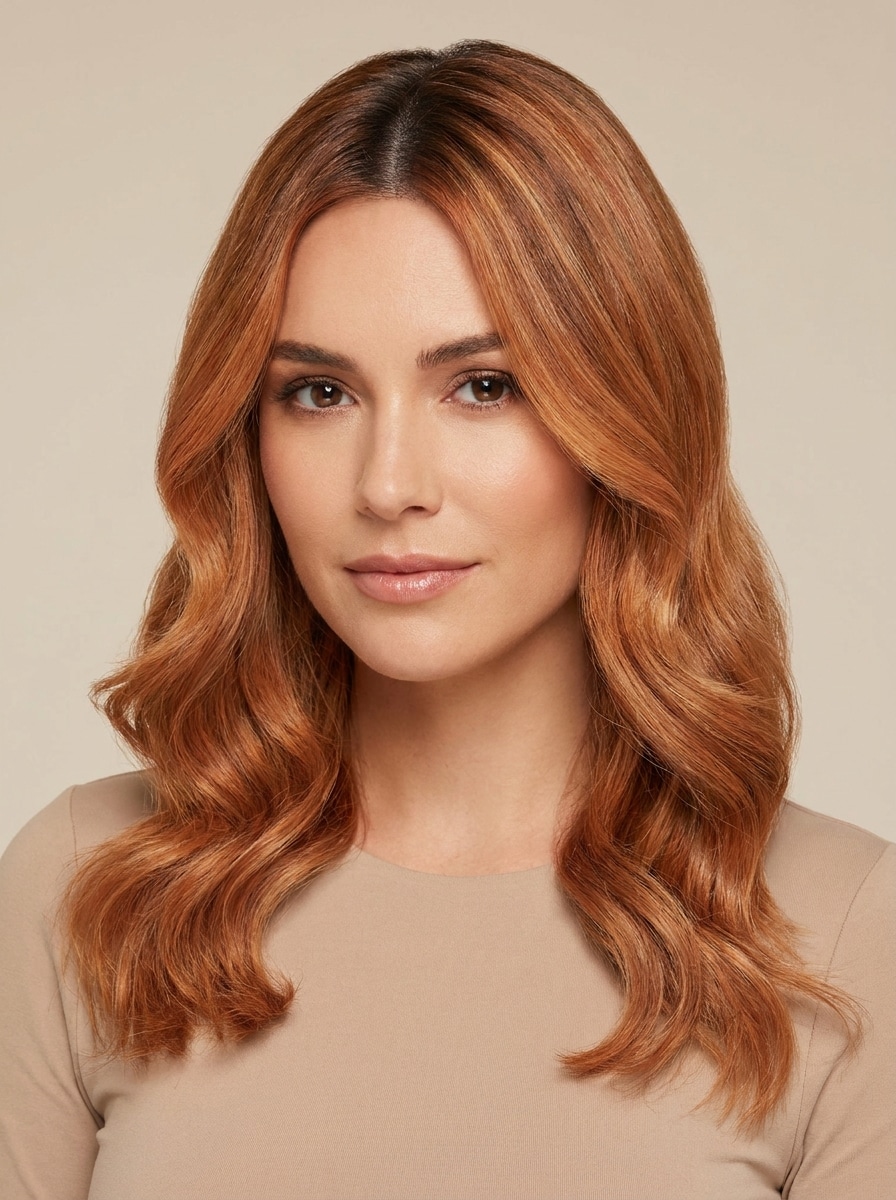
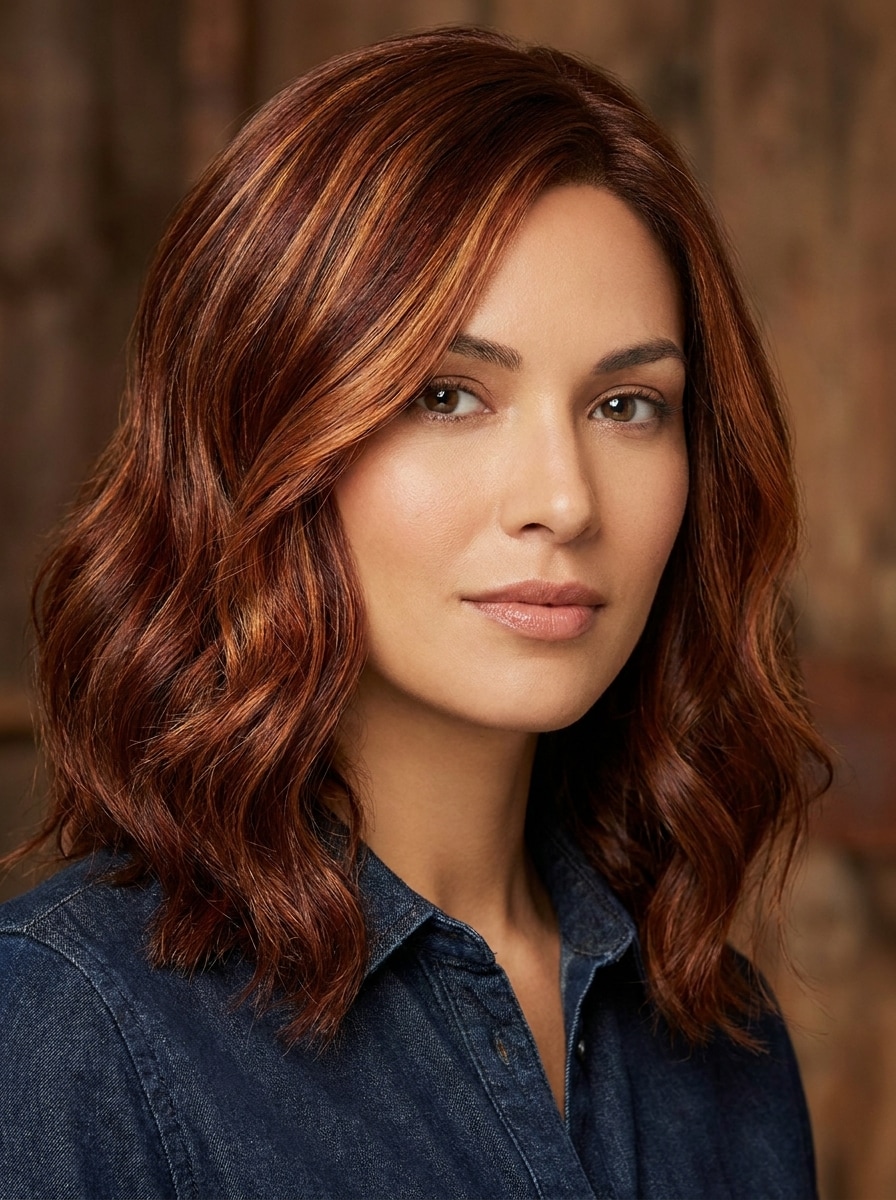
Sanftes Kupfer-Ingwer
Verwende das hochgeladene Porträt als Motiv und verwandle das Haar in weiches Kupfer-Ingwer mit subtiler goldener Wärme, natürlicher Ansatz-Tiefe, glänzendem Salon-Finish und realistischer Strähnendefinition. Halte die Gesichtszüge unverändert, bewahre den Hautton, wähle weiches gleichmäßiges Licht und erstelle ein makellos fotorealistisches Beauty-Edit-Ergebnis.
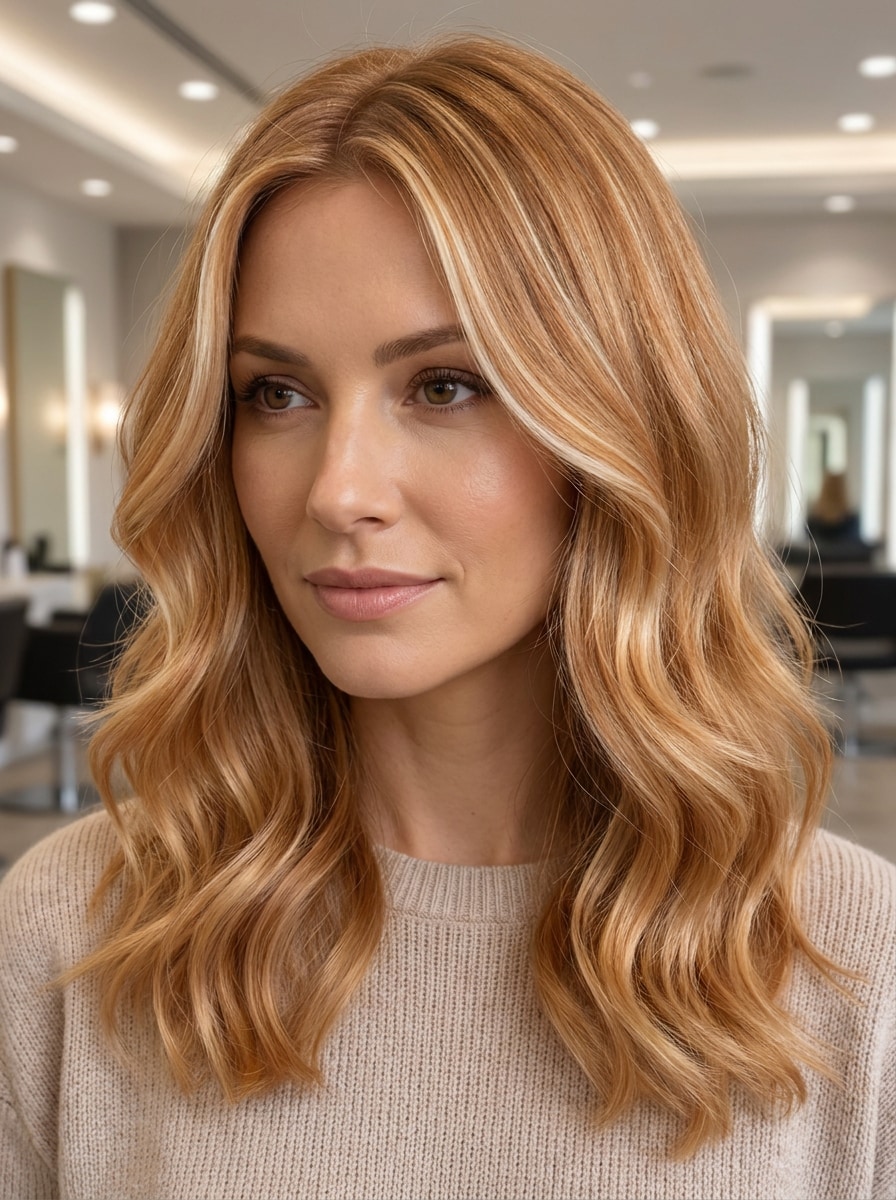
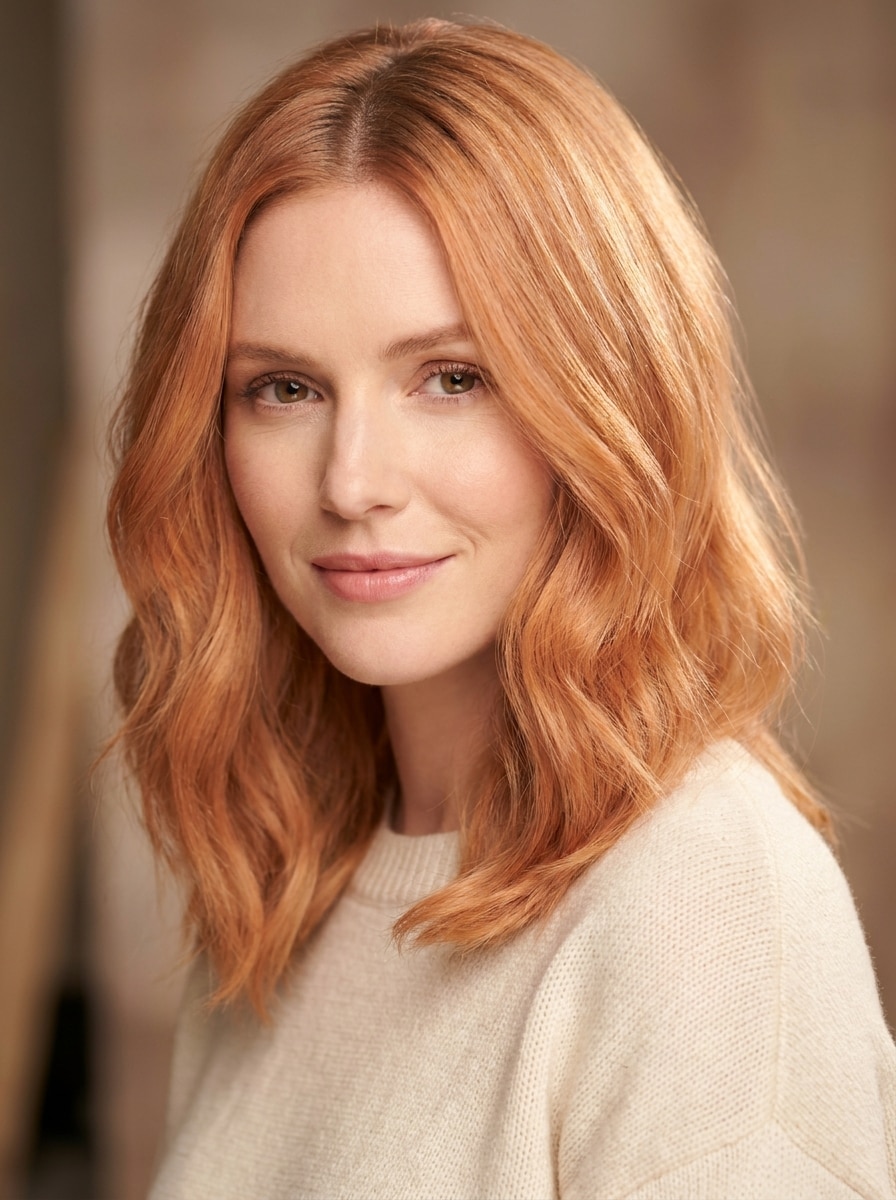
Helles Ingwerblond
Verwende das hochgeladene Bild als Motiv und färbe das Haar in helles Ingwerblond mit luftigen gold-kupfernen Tönen, sanften dimensionalen Highlights, natürlicher Textur und zartem Glanz. Erhalte Gesicht, Haarform und Hintergrund und halte das Ergebnis hell, tragbar, fotorealistisch und schmeichelnd bei ausgewogener Porträtbeleuchtung.
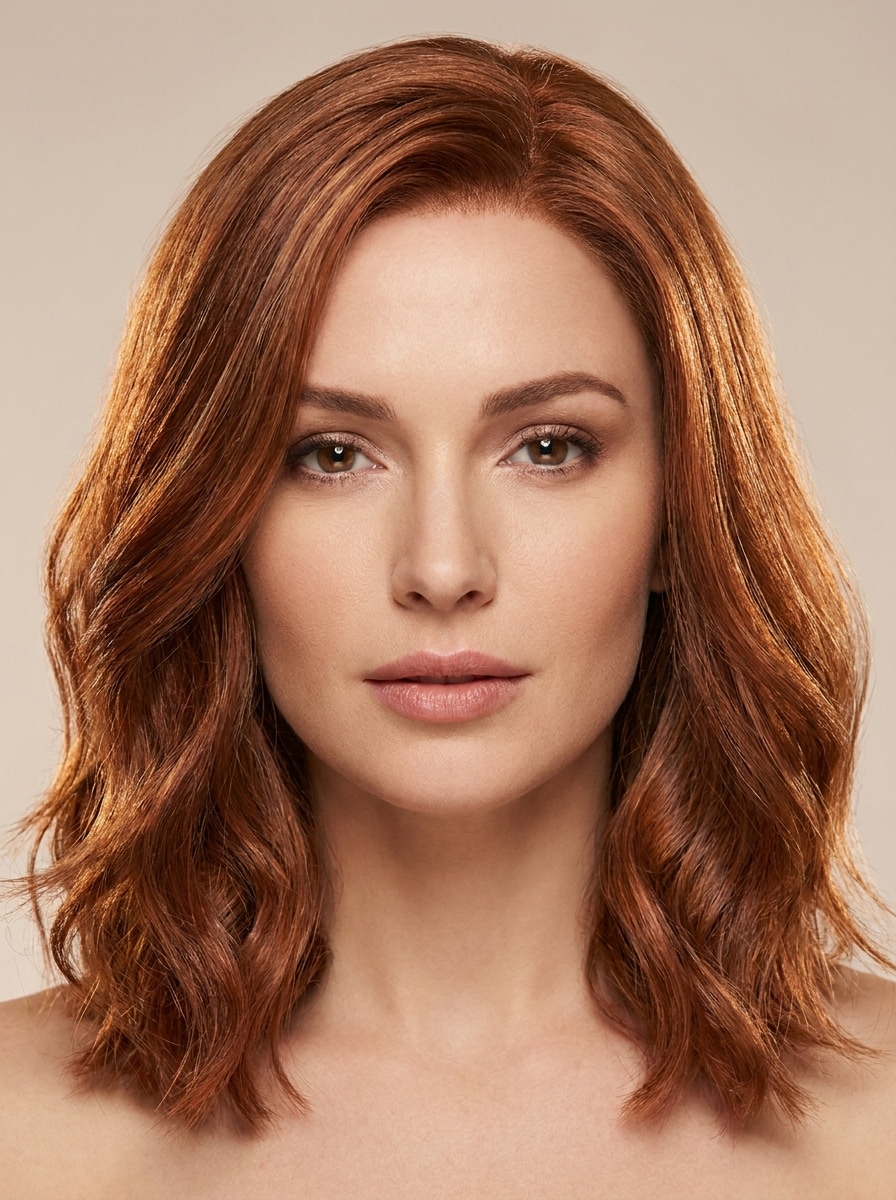
Klassisch Kastanien-Ingwer
Verwende das hochgeladene Porträt als Motiv und füge klassisches kastanienbraunes Ingwerhaar hinzu mit ausgewogenen rot-braunen Tönen, sanfter Tiefe am Ansatz, dimensionalen Highlights und einer gleichmäßig reflektierenden Textur. Halte das Gesicht erkennbar, erhalte die Frisur und erzeuge eine raffinierte, salon-realistische Vorschau mit sauberer Beleuchtung und natürlichen Farbverläufen.
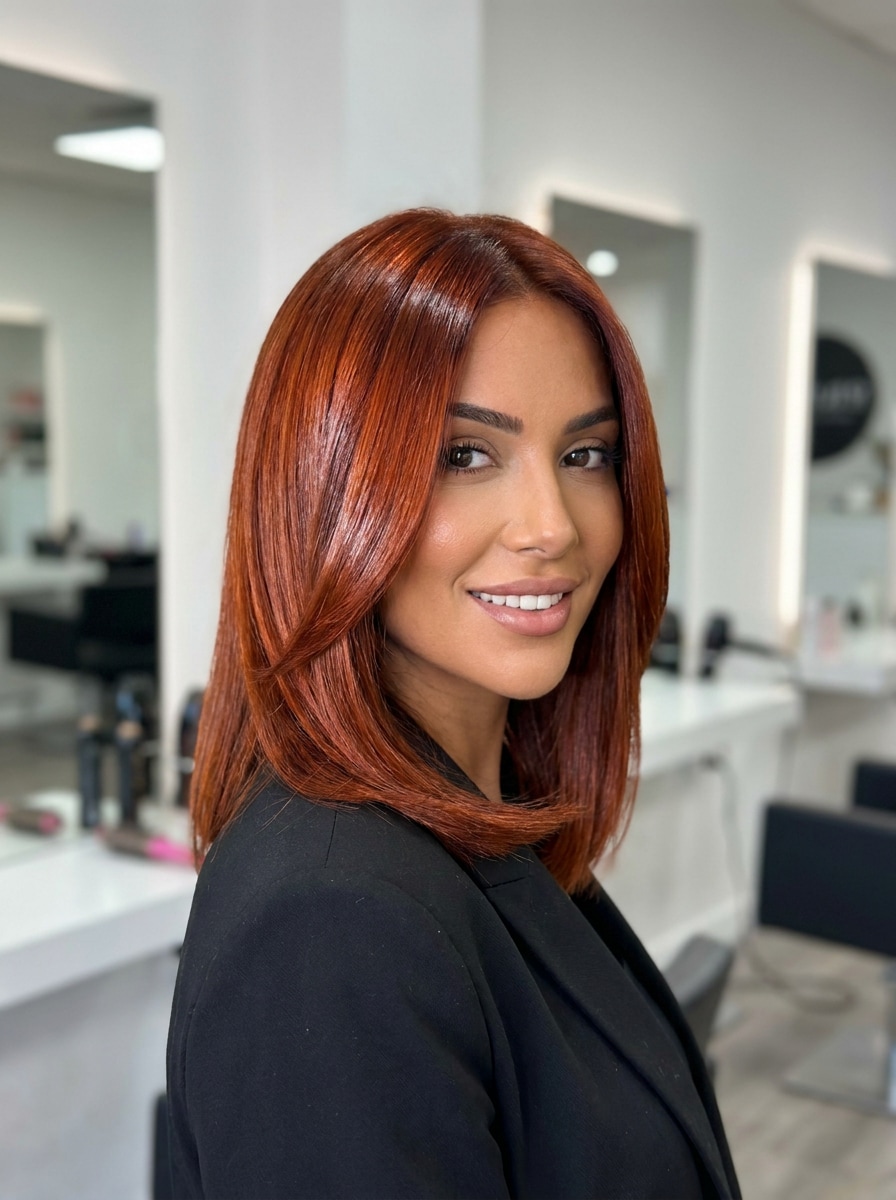
Helles Kupferrot
Verwende das hochgeladene Selfie als Motiv und mache das Haar leuchtend kupferrot mit lebendiger Wärme, glänzendem Glanz, sauberer Haaransatz-Übergängen und hohem, aber glaubwürdigem Farbkontrast. Halte die Gesichtszüge unverändert und lasse das Ergebnis wie eine virale Vorher-Nachher-Aufnahme hervorstechen – realistisch und tragbar.
Cowboy Copper
Verwende das hochgeladene Bild als Motiv und verwandle das Haar in Cowboy-Kupfer, indem warme Kupfer- und sanfte Brauntöne mit satter Dimension, natürlicher Tiefe und glänzender Salon-Textur kombiniert werden. Erhalte Gesicht, Haarbewegung und realistische Beleuchtung und kreire einen trendigen, aber glaubwürdigen Farb-Test für den Alltag.
Zimt-Ingwer
Verwende das hochgeladene Porträt als Motiv und färbe das Haar in Zimt-Ingwer mit warmen rötlich-braunen Tönen, sanften Kupfer-Highlights, natürlicher Schattentiefe und gesundem Glanz. Halte Gesicht und Haarstruktur der Person und gestalte ein dezentes, tragbares Makeover, das edel, gemütlich und fotorealistisch wirkt.
Ingwer für helle Haut
Verwende das hochgeladene Selfie und wähle einen schmeichelnden Ingwer-Ton für helle Haut, der pfirsich-kupfrige Wärme mit sanfter natürlicher Tiefe, realistischen Ansätzen und leuchtendem Glanz ausbalanciert. Halte das Gesicht unverändert und gestalte ein personalisiertes, salonähnliches, tragbares und natürlich gemischtes Try-on.
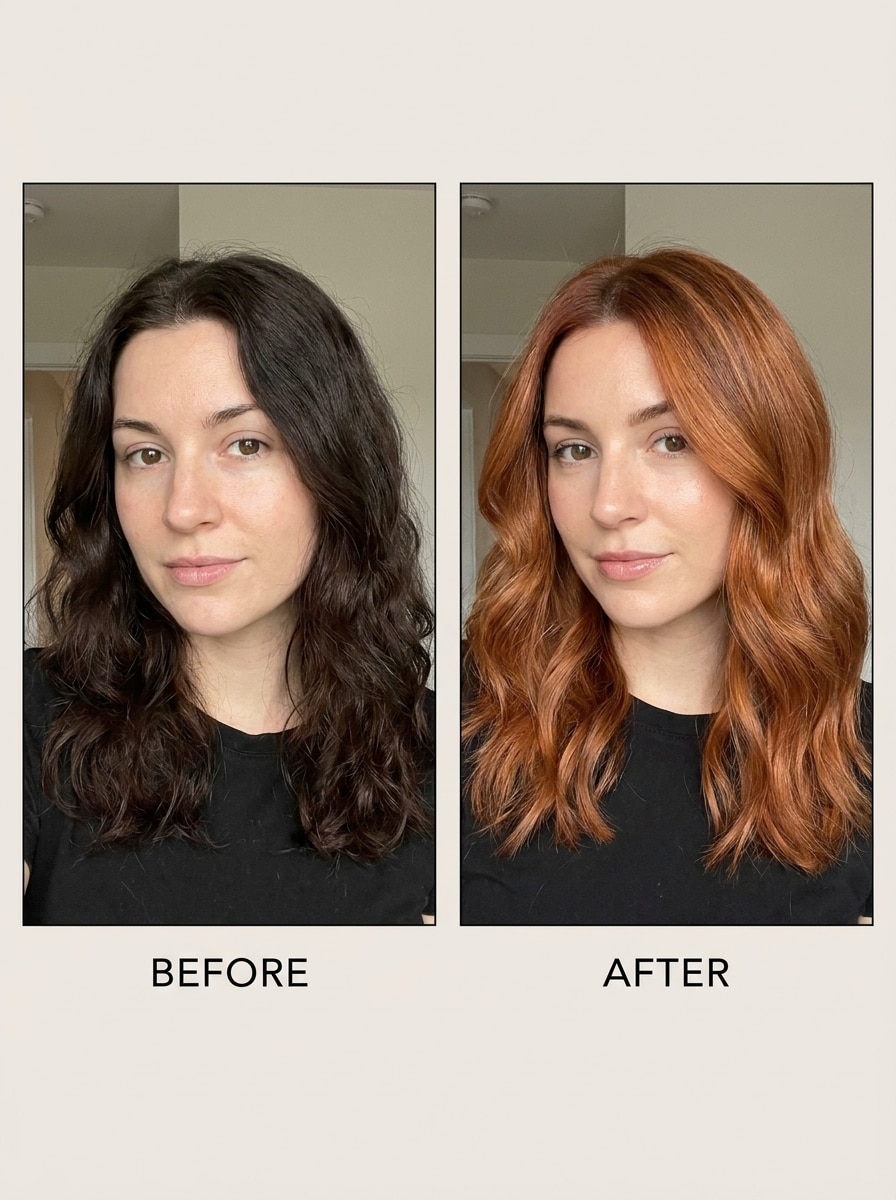
Dunkles Haar zu Ingwer
Verwende das hochgeladene Foto und verwandele dunkles braunes Haar in realistisches Ingwer mit sichtbarer Aufhellung, warmem Kupferton, erhaltener Struktur und Salon-Dimension. Halte die Gesichtszüge und Frisur unverändert und zeige einen glaubwürdigen Farbübergang, der dabei hilft, zu testen, ob ein dunkleres Ausgangshaar für Ingwertöne geeignet ist.
Lockiges Ingwerhaar
Verwende das hochgeladene Bild mit lockigem Haar und wende eine realistische Ingwerfarbe an, während die Lockendefinition, Sprungkraft, Volumen und Struktur erhalten bleiben. Füge dimensionale Kupfer-Highlights, natürliche Tiefe und sanften Salon-Glanz hinzu, halte das Gesicht erkennbar und das finale Porträt sauber, schmeichelnd und stark fotorealistisch.
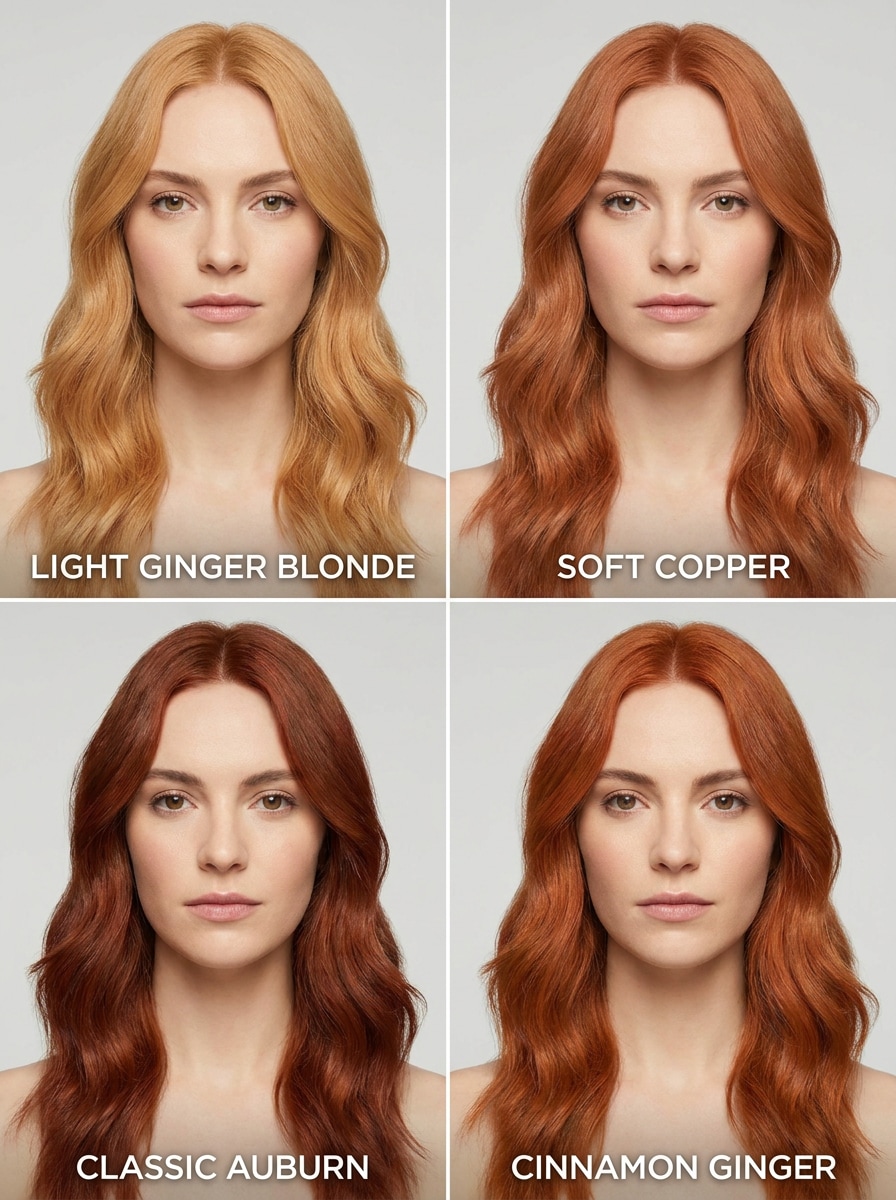
Multi-Ton-Ingwer-Vergleich
Verwende das hochgeladene Porträt als Motiv und erstelle einen Side-by-Side-Vergleich mit mehreren Ingweroptionen, zum Beispiel helles Ingwer, Kupfer, Kastanienbraun und Zimttöne. Halte Gesicht, Pose und Licht in allen Panels konsistent, sodass Benutzer Untertöne, Tiefe und Eignung auf einen Blick vergleichen können.
Warum Media.io für einen Ginger Hair Try-On verwenden?
Mehrere Looks mit einem Upload erstellen
Wenn die Person nach der Verwandlung weiterhin sich selbst ähneln soll, hilft Media.io dabei, die wichtigsten Identitätsmerkmale zu bewahren und dabei den finalen Ginger Hair Filter Stil für ein saubereres Ergebnis zu aktualisieren.
Feinabstimmung für realistische Haarbearbeitung
Unterschiedliche Ergebnisse erfordern verschiedene Ästhetiken. Media.io ermöglicht es dir, verschiedene Varianten des gleichen Ginger Hair Filter-Konzepts zu erkunden, damit das Bild schneller in den richtigen Ton passt.
Hochauflösende Bilder für den echten Einsatz erstellen
Manche Ergebnisse müssen mehr können als nur in der Vorschau gut aussehen. Media.io generiert saubere Ginger Hair Filter-Visuals in einer Auflösung bis zu 4K, sodass das finale Bild auch für Hintergründe, Präsentationen und Mockups hochqualitativ bleibt.
Einfach am Handy oder Desktop testen
Der Gerätewechsel soll deinen Ablauf nicht bremsen. Media.io lässt dich Ginger Hair Filter-Visuals direkt im Browser erzeugen, bearbeiten und herunterladen – damit du beim Wechsel zwischen Geräten produktiv bleibst.
So verwendest du den Ginger Hair Filter
Verwandle deine Worte in beeindruckende Visuals in drei einfachen Schritten – und feile dann weiter am Ergebnis, falls gewünscht.
Schritt 1
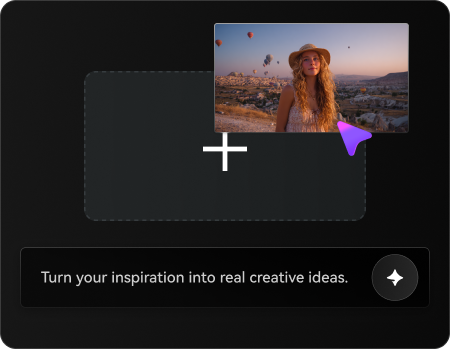
Referenzbild hochladen
Starte mit einem klaren Selfie oder Porträt im JPG, PNG oder JPEG Format. Ein frontal aufgenommenes Bild mit sichtbarem Haar, gleichmäßiger Ausleuchtung und einfachem Hintergrund liefert meist das realistischste virtuelle Ergebnis.
Schritt 2
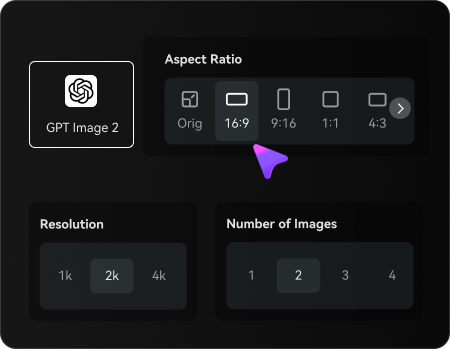
Die Veränderung beschreiben und Optionen wählen
Gib den gewünschten Ingwerton ein, zum Beispiel Soft Copper, Auburn, Cinnamon oder Bright Copper Red. Wähle dann dein bevorzugtes Modell und passe Seitenverhältnis, Auflösung oder die Anzahl an Variationen zum Vergleichen an.
Schritt 3
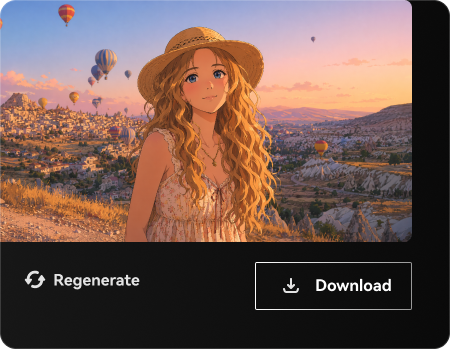
Erstellen, herunterladen und weiter verbessern
Erzeuge die Vorschau, vergleiche die Ergebnisse und lade deine Lieblingsversion herunter. Wenn nötig, passe den Prompt erneut an, teste einen anderen Ton oder erzeuge weitere Varianten, bis Haarfarbe und Hautton zu deinem Stil passen.
Entdecke das Potenzial des Ginger Hair Filter TikTok
Sieh dir an, wie Creator diesen Ginger Hair Filter für Content, Marketing und persönliche Projekte nutzen. Passe jede Idee an deinen Bedarf an.
Salonideen testen, bevor du dein Haar färbst
Sieh, wie Kupfer-, Kastanien- oder Erdbeertöne auf deinem eigenen Porträt aussehen, bevor du einen Termin buchst. So kannst du ein passgenaues Referenzbild zu deinem Stylisten bringen, statt dich auf Beispielbilder zu verlassen, die nicht zu dir passen.
Vorher-Nachher-Social-Posts, die ins Auge fallen
Erstelle professionelle Makeover-Bilder für Reels, Kurzvideos und teilbare Transformationen. Wenn dir der virale Look eines dieses Workflow TikTok Trends gefällt, kannst du sauberere, realistischere Vorschauen erzeugen, die trotzdem natürlich und schmeichelhaft wirken.
Finde den schmeichelhaftesten Unterton
Probiere verschiedene warme Nuancen am gleichen Selfie, um Helligkeit, Tiefe und Harmonie zum Hautton einzuschätzen. Besonders hilfreich bei der Entscheidung zwischen natürlichem Ingwer, kräftigem Kastanienbraun oder leuchtendem Rot-Finish für den Alltag oder Content-Projekte.
Das sagen die Nutzer
Chloe M.
Beauty Content Creator
"Realistische Farb-Vorschauen" Ich wollte Kupfertöne testen, ohne auf einen Zufalls-App-Filter zu setzen. Das hier lieferte mir eine viel glaubwürdigere Vorschau auf meinem echten Selfie – Glanz und Struktur sahen überraschend natürlich aus.
Vanessa R.
Haarfarben-Kundin
"Hilfreich vor dem Friseurbesuch" Ich habe es genutzt, um Kastanien- und hellere Ingwertöne vor meinem Termin zu vergleichen. Mehrere Varianten des gleichen Fotos haben es meinem Stylisten viel leichter gemacht, meine Wünsche zu verstehen.
Tia L.
TikTok-Lifestyle-Creatorin
"Ideal für Makeover-Content" Ich suchte ein Rot-Haar-Try-on, das hochwertig genug für Social Media war. Die Ergebnisse eignen sich super für Vorher-Nachher-Content und wirken realistischer als die meisten schnellen Filter.
Erin K.
Studentin
"Einfach am Handy" Ich habe es vom Handy aus mit einem Selfie benutzt und schnell mehrere Ingweroptionen bekommen. Es war ganz leicht, den Prompt anzupassen und mehrere Varianten zu testen, bis ich einen Ton fand, der zu meinem Hautton passt.
Entdecken Sie die beliebtesten KI-Video- und Bildeffekte
1. Wie kann ich einen Ginger Hair Filter auf mein Foto anwenden?
Lade ein klares Selfie oder Porträt bei Media.io hoch und gib dann den Ingwerton ein, den du testen möchtest – zum Beispiel Kupfer, Kastanie oder ein natürlicheres Rot. Das Tool nutzt Bild-zu-Bild-KI, um dein Foto realistisch zu verwandeln und deine Gesichtserkennung zu erhalten, damit du Ingwerhaar mit realistischer Vorschau testen kannst.
2. Gibt es einen kostenlosen KI-Ginger-Hair-Filter online?
Media.io bietet Neukunden kostenlose Credits, um den KI-Ginger-Hair-Filter online zu testen, bevor man ein Upgrade kauft. Für mehr Generationen oder professionelle Nutzung kannst du die Preisseite prüfen. Gratisnutzer sehen eventuell Wasserzeichen, während Bezahlpläne Downloads in hoher Auflösung ohne Wasserzeichen bieten. Für mehr Nutzung kann man einen Tarif auf der Preisseite buchen.
3. Welcher Ingwerton wirkt bei mir am natürlichsten?
Das hängt meist von deinem Hautton, deiner aktuellen Haartiefe und deinem Mut-Faktor ab. Weiche Kupfer- und helle Ingwertöne sehen bei heller Haut oft besonders natürlich aus, während Kastanie, Zimt und Cowboy-Kupfer auf dunkleren Basen gut funktionieren. Media.io hilft dir, mehrere Varianten am eigenen Porträt zu vergleichen, statt von Vorlagen zu raten.
4. Kann ich dunkles Haar realistisch zu Ingwer machen?
Media.io verwendet das hochgeladene Porträt als Referenz und generiert ein realistisches Dunkel-zu-Ingwer-Ergebnis mit erhaltener Frisur, Struktur und Gesichtszügen. Ein gut sichtbares Foto hilft der KI, eine glaubwürdige Vorschau zu erstellen – besonders, wenn du warme Kupfer- oder Kastanientöne auf dunklem Haar testen willst.
5. Funktioniert der Ginger Hair Filter auf iPhone und Android?
Media.io ist webbasiert und funktioniert auf iPhone, Android, Tablets, Mac und Windows – alles im Browser. Perfekt, wenn du schnell am Handy testen oder am Desktop bearbeiten willst. Media.io ist ein Webtool und läuft auf jedem Gerät mit Browser (Windows, Mac, iOS, Android).
6. Wie lange dauert ein Ginger Hair Try-On?
Nach dem Hochladen deines Bilds und dem Absenden des Prompts geht es meist sehr schnell, je nach Modell und Einstellungen. Weil der Ablauf browserbasiert und auf schnelle Bildbearbeitung ausgelegt ist, eignet er sich hervorragend für Selfie-Tests mit mehreren Vergleichstönen.
Mehr als ein KI-basierter Online-Ginger-Hair-Filter