Saved gaming clips
Review a locally saved clip for soft edges, motion artifacts, or low-resolution detail.

Give blurry Discord clips a clearer finish. Upload a saved video or screen recording to improve soft details, reduce visible noise, and prepare the file before sharing it again.
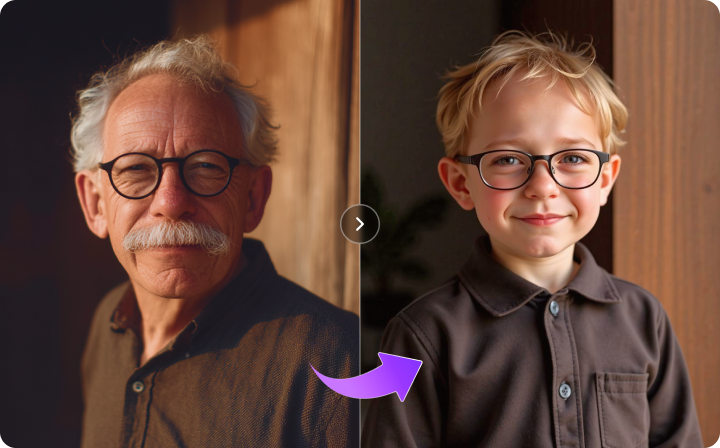
Before vs After: Upgrade low-quality footage into sharper, cleaner, more detailed 4K video with Media.io
Enhance saved clips, attachments, and screen recordings. Upload a local file, not a Discord call or chat link.
Review a locally saved clip for soft edges, motion artifacts, or low-resolution detail.
Improve the appearance of a saved recording and inspect small text at its intended viewing size.
Work on an attachment after saving the video file to your device; the enhancer does not access Discord messages.
Compare the enhanced file with the original before sending it back to a server or friend.
Separate file quality from the way a video appears in a preview, call, or screen share. If the saved file is clear locally but a Discord preview looks soft, a file enhancer cannot change Discord delivery or real-time call quality.
Enhance the saved video itself, then compare its detail and motion with the original.
Check the original file and viewing conditions. Media.io does not alter Discord previews, calls, or screen-sharing quality.
That is a file-size problem rather than a clarity problem. Use a video compressor when you need a smaller upload.
Use a video attachment, game clip, or screen recording available on your device and that you are authorized to edit.
Open Media.io Video Enhancer and upload the local file. Choose from the available enhancement options for your task.
Review small interface text, faces, and moving scenes. Download the version you prefer; if only a Discord preview looked soft, keep the original file.
Only upload videos you own or have permission to process.
Enhancement changes the uploaded file only. Preview the final export before sharing or publishing.
If the saved file itself is blurry or noisy, upload that local file to a video enhancer, review the result, and download the version you prefer. If only a preview or call looks soft, a file enhancer will not change Discord playback.
The source file, a compressed copy, a preview, or real-time call conditions can each affect what you see. Compare the video saved on your device with the Discord preview before choosing a fix.
Yes, if the video file is on your device and you have permission to edit it. Upload the saved file to Media.io; it does not connect to Discord chats or fetch message attachments.
You can upload a saved recording and inspect the enhanced result. Check small text, cursor edges, and motion for artifacts.
No. Media.io processes an uploaded video file. It does not change Discord call settings, live screen sharing, or the quality of a preview.
Enhance when the picture needs improvement; compress when the file needs to be smaller. They solve different problems, and compression alone does not make a soft image clearer.