
Amazon Product Background Remover for Cleaner Listing Photos
A first listing photo has one job: show shoppers exactly what they're buying. Media.io's Amazon product background remover helps separate a real item from a workbench, shelf, or tabletop so you can prepare a cleaner product image. Upload a clear shot and inspect small details, including labels and shiny edges. Before using it as your Amazon main image, check the final background, framing, and file against Amazon's rules; removal alone does not guarantee a compliant white background.

Why Use a Background Remover for Amazon Product Photos?
Sellers need a clear photo, but they also need an accurate one. Background removal is part of preparation, not a substitute for listing checks.
Separate the Product from Tables, Shelves, and Props
A photo taken on a packing table can be useful, but the tape dispenser and spare boxes have no place in a focused product view. A background remover for amazon products helps isolate the photographed item so you can work toward a simpler composition. Keep an untouched image nearby to confirm that shape and color stay true.
- Remove visual clutter - start with the item rather than the workbench.
- Keep the real item - do not replace what a buyer will receive with an invented object.
- Use one photo at a time - review each angle separately before uploading.

Inspect Labels, Glass, and Accessories Before You List
Small text and reflective packaging can be affected by imperfect edges. When you remove background for amazon listing preparation, zoom in on ingredient labels, bottle caps, fine chains, and corners. A clean-looking thumbnail can still contain a missing accessory or inaccurate reflection at full size.
- Packaging details - check the label against the source photo.
- Clear or reflective products - review bottles, glass and metal carefully.
- Included accessories - make sure the image shows what is actually sold.

Check Main-Image Rules Before Publishing on Amazon
Amazon's main-image guidance calls for a pure white background (RGB 255, 255, 255), accurate product depiction, and the product occupying most of the frame. The Media.io remover does not guarantee pure white output or Amazon approval. If you need a specific white scene, try a separate Amazon product background changer and verify the finished file.
- Pure white means pure white - visually clean and RGB 255/255/255 are not the same.
- Fit the whole item - do not crop off product parts.
- Know the main-image rules - lifestyle props usually belong in secondary images.
- Review the final download - check dimensions and actual background color.

How to Remove Background from Amazon Product Photos
Have a sharp photo of the actual product? Start with the background-removal step above, then verify listing requirements.
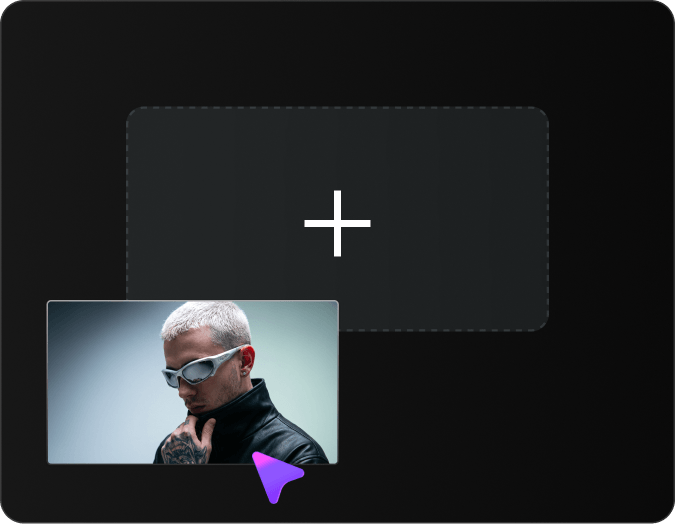
Upload the Real Product Photo
Choose one well-lit product image with its full outline visible.
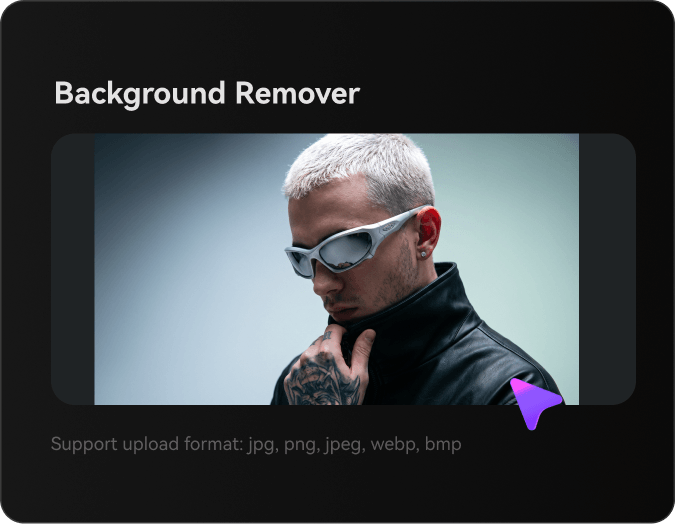
Remove the Product Photo Background
Let AI isolate the item from the surrounding counter, wall, or props.
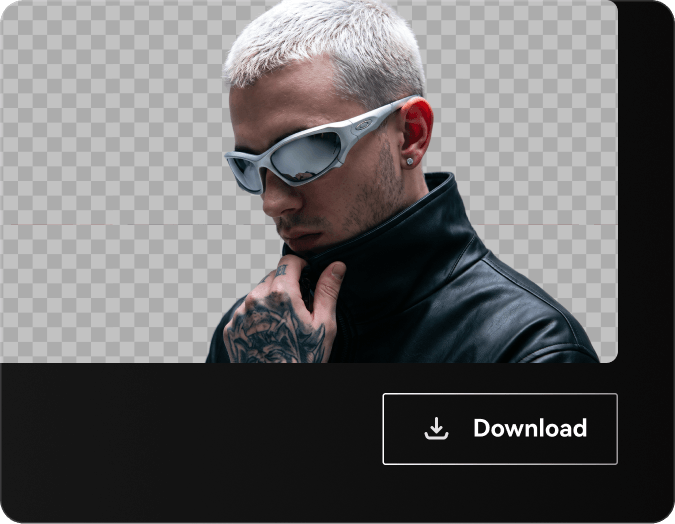
Review the Result for Listing Use
Inspect details and background color, then save the file available under your plan.
Where Amazon Product Photo Background Removal Helps Sellers
For Amazon product photo background removal, the main image and the rest of the gallery have different jobs. Start with the product, then plan each placement.
Amazon Main Image Preparation
For a white background for Amazon product photos, a clean cutout is only the starting point. Confirm RGB color, product fill, crop and category rules.
Additional Listing Angles
Prepare clean side and detail shots of the same product. Keep scratches, finishes and included accessories accurately represented.
A+ Content and Product Stories
A separate product background generator can explore a lifestyle scene for non-main-image placements; check for changed item details.
Small Seller Catalogs
If you manage ten handmade items, clean up each actual product photo individually rather than expecting a batch edit from this tool.
Amazon Product Background Removal: Checks Before You Upload
These quality checks matter more than an attractive preview because the listing must still show the real product.
| What you notice | Possible reason | What to try next |
|---|---|---|
| The background is off-white | Background removal does not guarantee RGB 255,255,255. | Measure or replace the background in a separate editor before using it as MAIN. |
| The item is cropped | Part of the item is missing from the original frame. | Reshoot with space around the entire product. |
| Small text disappears | The label overlaps reflections or background color. | Compare fine print to the original photograph. |
| Glass edges look cloudy | Transparent surfaces are difficult to separate cleanly. | Inspect the rim, contents and reflections at full size. |
| A prop appears in the image | Extra objects can misrepresent what ships with an order. | Remove props in a separate workflow or reshoot the product alone. |
How to Photograph Products for Easier Amazon Background Removal
A clearer input photo reduces cleanup later, especially for glass, glossy finishes, and small accessories.
- Photograph the full product: Leave a little margin on all four sides.
- Use even, realistic lighting: Avoid blown-out white packaging and harsh edge shadows.
- Separate the item from the wall: A little distance creates a clearer outline.
- Capture labels sharply: Use the camera original instead of a compressed catalog screenshot.
- Keep a truth reference: Store one untouched photo for color and product-detail checks.
Amazon Product Background Remover FAQs
Does Media.io automatically make Amazon-compliant main images?
No. Removing the scene is one step. Check Amazon requirements for pure white background, accurate product depiction, framing, and your category before using the finished image as a main listing photo.
Can I get a white background for Amazon product photos?
You can start by removing the background, but this workflow does not guarantee a pure-white RGB 255,255,255 result. A separate background changer may be needed; verify the downloaded file.
How much of the frame should my Amazon main image occupy?
Amazon Seller Central guidance says the item should fill at least about 85% of the image area and the whole product should remain visible. Consult current category rules before publishing.
Does Amazon allow lifestyle scenes in the main listing image?
Amazon generally expects the main image to show the actual item on white without unrelated props. Lifestyle scenes are usually better suited to additional images; check category-specific exceptions.
Will AI preserve labels and product colors?
It may, but you should inspect them. Reflective packaging, glass, fine chains, and small labels can produce imperfect cutouts. Keep an original photo as a reference.
Can I use this for Amazon product photo background removal in bulk?
This Media.io editor handles one image at a time. If you have many SKUs or multiple angles, plan them as individual tasks.
Can I remove a hand holding the item instead of the whole background?
That is a targeted object-removal job, not full background removal. Try AI Object Remover in a separate workflow or reshoot the item without the hand.
Will the result be a transparent PNG?
Not necessarily. The current background-removal workflow does not guarantee an alpha-transparent PNG; inspect your actual downloaded file.
Can I try an Amazon product background remover for free?
You can test Media.io with available free credits. Free-user downloads include a watermark, which is not suitable for an Amazon main image.
Should I keep the original Amazon listing photos?
Yes. Original images are useful for verifying size, color, accessories, and labels and for resolving any discrepancy caused by an AI edit.