
AI Face Cutout: Make a Cleaner Portrait from Your Photo
A funny expression makes a great sticker, but the wall and people behind it usually don't belong in the design. Media.io's AI face cutout workflow helps separate the person in your photo from the surrounding scene, giving you a cleaner place to start. Upload a clear portrait, inspect the hairline and jaw, then crop it for an avatar, reaction graphic, or personal collage. For a face-only crop without the shoulders, use a separate cropping step after removal.

What Can You Make with an AI Face Cutout Online?
A clean subject outline makes a face photo easier to reuse, but the exact amount of head and shoulders you want depends on the design.
Separate a Face Portrait from a Distracting Scene
A busy kitchen, party crowd, or classroom can make a portrait hard to reuse. With an ai face cutout online workflow, start by removing the surroundings from a clear photo. The result may include the head, neck, or shoulders depending on the source; it is not a guarantee of an exact face-only mask.
- Use your real expression - keep the smile or reaction that makes the image fun.
- Reduce scene clutter - focus on the person, not the background.
- Check the original framing - avoid faces hidden behind hands or people.

Inspect Hair, Ears, and Jaw Edges Before Making a Sticker
A free ai face cutout trial is a useful way to see whether your photo has the detail a sticker needs. Zoom in on flyaway hair, ears, and the jawline. Fine edges can disappear when hair blends into the wall or the photo is compressed; try another source if the shape looks wrong. Free-user exports include a watermark.
- Hair and ears - check the recognizable silhouette.
- Sharp expression - use a well-lit photo rather than a tiny screenshot.
- Sticker-ready review - inspect the outline before adding a border elsewhere.

Crop the Head for Reaction Images and Profile Pictures
Need a circular avatar or an oversized head for a birthday card? After removal, crop and place the image with a separate profile picture maker or a dedicated face cut-out effect. Cropping, selecting only one face from a group, and face swapping are different tasks from standard background removal.
- Avatars - center the face for a square or circle.
- Reaction images - use an authentic expression and clear outline.
- Party designs - place the cropped portrait in a card or collage.
- Separate editing steps - crop or swap only when your design actually needs it.

How to Make a Face Cutout from a Photo Online
Start with a face you can see clearly, then decide how tightly to crop the finished design.
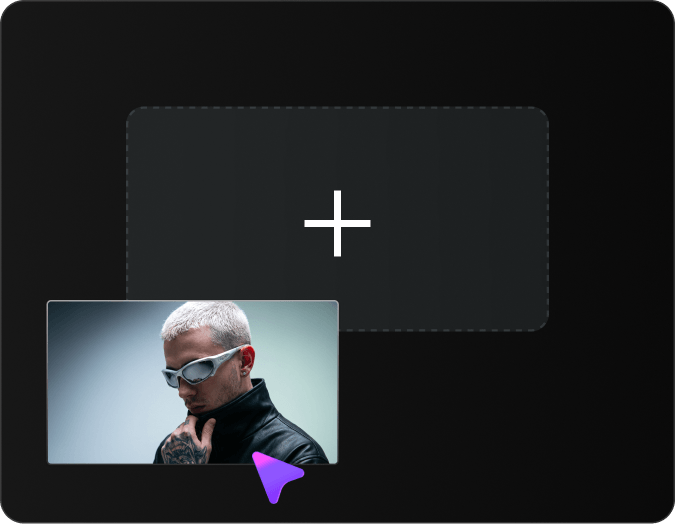
Upload a Clear Portrait
Choose a photo with visible hair, face, and ears, preferably without overlapping people.
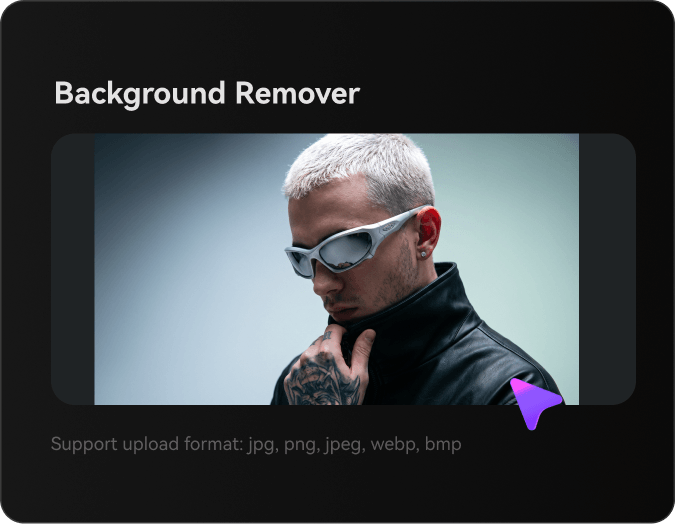
Remove the Photo Background
Let AI isolate the person from the surrounding room or crowd.
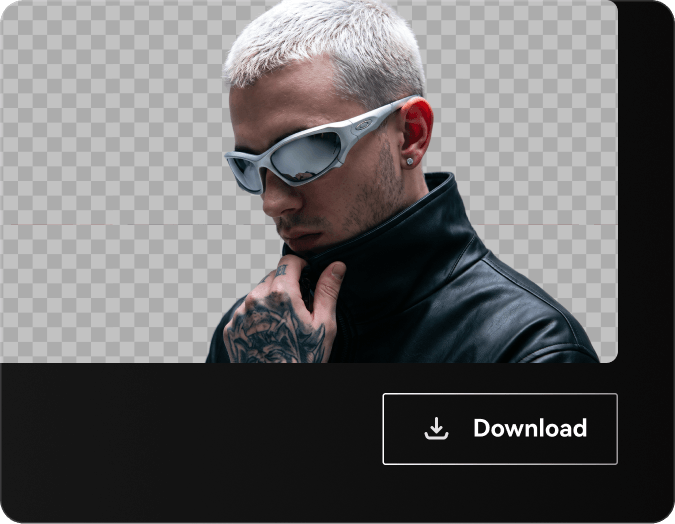
Review and Save the Portrait
Inspect hair and jaw edges; crop to a face-only shape separately if required.
Face Cutout Ideas for Avatars, Memes, and Personal Projects
The best use is often the one that matches the expression already captured in your photo.
Reaction Stickers
A raised eyebrow or wide smile makes a memorable reaction image. Leave enough space around the hair before creating the sticker outline.
Birthday and Graduation Cards
Make a playful oversized head graphic from a portrait, then crop and position it in your card design. Ask permission before editing someone else's face.
Profile Pictures
Create a cleaner starting portrait, then use a profile picture editor for the circular crop. Keep face details readable at small sizes.
Moodboards and Collages
Cutting a head out of a photo online often means placing a face in a larger composition. Separate the portrait first; use a dedicated crop to isolate only the head.
Face Cutout Checks: Hair, Jawline, and Cropping
A face-only look can require more than removing the background. Use these checks before assembling your final design.
| What you notice | Possible reason | What to try next |
|---|---|---|
| The cutout includes shoulders | Standard background removal may isolate the entire visible person. | Crop the head separately in a dedicated image editor. |
| Hair looks chopped | Strands blend into the background or fall outside the frame. | Try a sharper photo with more space around the head. |
| One ear or jaw edge is missing | A hand, another person, or deep shadow overlaps the face. | Choose a clear solo portrait without occlusion. |
| The sticker has a white rectangle | The downloaded file may not have transparency. | Verify alpha separately before adding a sticker border. |
| Faces overlap in a group shot | The remover may not isolate exactly one chosen person. | Crop to one person first or use a specialized selection tool. |
Tips for a Cleaner AI Face Cutout
Good hair and skin edges come from a clear original. The most useful improvement may be choosing a different frame.
- Choose a solo photo: Avoid overlapping faces, shoulders, and hands.
- Leave hair fully visible: Do not crop off the top of the head.
- Avoid harsh shadows: Soft light can make ears and jaw easier to distinguish.
- Use the original image: Small screenshots introduce compression around edges.
- Plan the final crop: Decide whether you need face-only, head-and-neck, or a full portrait.
AI Face Cutout FAQs
What is an AI face cutout?
It is a photo-editing workflow used to separate a face or portrait from distracting surroundings. Standard background removal may keep head, neck and shoulders together rather than making a precise face-only crop.
Can I cut out just the face without the shoulders?
You can remove the scene first, but a tight face-only selection or crop is a separate editing task. This background remover does not guarantee a precise face-only mask.
Can I use an AI face cutout online for stickers?
Yes, you can prepare an isolated portrait as a starting point. Check the outline and then crop, add a border or arrange it in a sticker-design tool as needed.
Can the tool choose one face out of a group photo?
Not reliably as a specific-person selection feature. A clear solo portrait is best; use separate cropping or specialized selection if multiple people overlap.
Will the face cutout change my expression?
The intention is to remove the background, not to generate a new expression. Check the preview against your original photo to catch any unwanted edge changes.
Can I try a free AI face cutout?
You can test Media.io with available free credits. Free-user downloads include a watermark; do not assume a free trial means a watermark-free final sticker.
Can I use the cutout as a profile photo?
Yes, prepare the portrait and then crop it for the platform. Profile photos may use a circle or square and should keep the face recognizable.
Will I get a transparent background behind the face?
Not automatically. A true alpha-transparent PNG is not guaranteed by this workflow. Inspect the downloaded file before layering it in a design.
Why did a strand of hair disappear?
Very fine strands can blend into a similar-colored background. Try a sharper original with some contrast around the head and inspect at full size.
Is face cutout the same as face swap?
No. A face cutout separates the portrait from its surroundings; face swap replaces one face with another. They are different editing tasks with different expectations.