Give Soft Footage a Clearer Starting Point
Use the Media.io AI video enhancer to improve a soft source clip before publishing. Review edges, textures, and moving subjects in the processed result.

Give your Facebook Reels a clearer starting point. Upload a blurry or noisy clip to Media.io, enhance it with AI, and review the result before posting.
Start with your original video file.
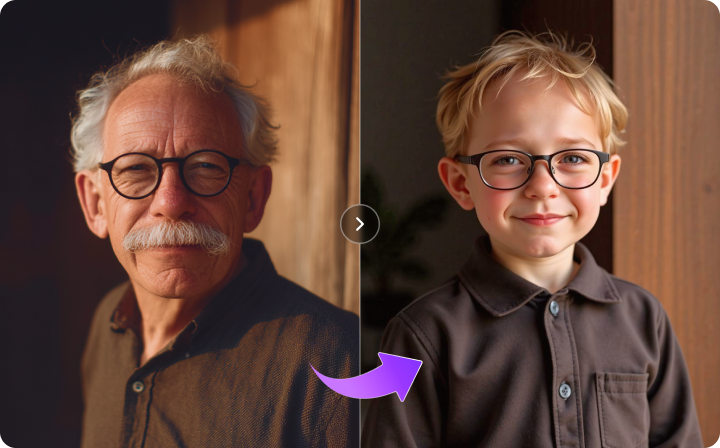
Enhancement example: Compare the original and processed clip. This demo shows file enhancement, not Facebook upload or playback quality. Results vary by source.
Use the Media.io AI video enhancer to improve a soft source clip before publishing. Review edges, textures, and moving subjects in the processed result.
A Facebook video enhancer works on the file you upload. Try enhancement on a low-resolution recording, then compare the result with your original; a larger output cannot guarantee recovery of missing detail.
For talking-head Reels, tutorials, and product demos, inspect facial features, small lettering, and close-up textures after enhancement. Keep the version that looks clearer and natural.
Grainy indoor recordings and evening clips can benefit from noise reduction. Compare shadow areas and moving details before downloading so that cleanup does not hide useful texture.
Facebook Reels losing quality after upload can come from the source file, platform encoding, or the version selected for playback. Facebook creates video versions at different bitrates and adapts playback to connection conditions. Fine textures, foliage, and fast movement may show compression artifacts even when the local export looks clear.
As Meta explains in its video engineering overview, adaptive playback helps videos load across different connections. A blurry published Reel does not automatically mean your original needs AI enhancement.
| What you see | What to check | Where enhancement helps |
|---|---|---|
| The original is already soft, noisy, or low-resolution | Play the original locally and inspect faces, edges, and shadows. | Enhance the source file and compare the processed result before posting. |
| The original is clear, but the uploaded Reel is pixelated | Allow time for processing, retry playback on a stable connection, and compare another device. | Enhance only if the source also has visible defects. AI cannot control Facebook encoding. |
| The same file looks clearer on Instagram | Compare the same file under similar viewing conditions; each platform may encode and serve it differently. | Keep a clean master file. Enhancement does not force matching playback quality across platforms. |
| An old Reel or archived Story now looks blurry | Check playback conditions and find the best original file you still have. | Enhance an available file for a new upload; the tool cannot change an existing Facebook post. |
Choose the best original recording or edited master you have. Upload the video file to Media.io rather than a Facebook post URL; avoid a downloaded or repeatedly compressed copy when an original is available.
Use the enhancement options available in the tool for your clip. Process the file to improve visible softness or noise, rather than trying to change Facebook playback settings.
Compare the enhanced result with your original, especially faces and motion. Download the version you prefer, upload it to Facebook, and check the published Reel after processing.

Creator scenario: tutorials and commentary
Illustrative use case
Start with a soft camera recording. Enhance the source, then compare eyes, hair, and facial edges before posting your Facebook Reel.

Creator scenario: small-business videos
Illustrative use case
Make product details easier to inspect. Try enhancement on soft close-ups, then check labels, materials, and moving hands for a useful result.

Creator scenario: revisiting saved footage
Illustrative use case
Work from your best available copy. A low-resolution saved clip may benefit from enhancement, but heavily compressed footage can limit the detail in the result.

Creator scenario: low-light recordings
Illustrative use case
Check noise without losing the atmosphere. Compare dark areas and moving subjects after processing. Choose a result that reduces distracting grain while retaining useful texture.
For a full-screen vertical Reel, prepare a 9:16 composition. A 1080 × 1920 export is a practical starting point when your source supports it; this is preparation advice, not a guarantee of Facebook playback resolution.
These steps also help you prepare a Facebook Story. Upscaling alone cannot prevent compression, and a higher-resolution file does not guarantee a sharper published video.
Facebook encoding, processing, and adaptive playback can make a clear source look softer after upload. First compare your local file with the published Reel, retry on a stable connection, and allow time for processing. Enhance the file when the original itself is blurry or noisy.
Start with your best original file, inspect it locally, and enhance visible source defects before posting. Review the enhanced clip, export a clean master, and check the published Reel after processing. A Facebook Reels video enhancer improves your uploaded file; it does not set Facebook playback quality.
Facebook encodes uploads into multiple video versions to support playback across devices and connections. Compression can soften fine detail, while adaptive streaming can show a lower-quality version when bandwidth is limited.
No. An AI video enhancer can improve the source file, but it cannot prevent Facebook from compressing or re-encoding an upload. It also cannot force viewers to receive a particular resolution or bitrate.
Enhance before uploading when the source has visible softness, noise, or low-resolution detail. If the local file already looks clear, investigate processing and playback first. Compare the processed file with the original and keep the version that looks better.
Instagram and Facebook can encode and deliver the same file differently, and viewing conditions may also differ. Compare both on similar connections and devices. Improving the source cannot guarantee that the two platforms will display identical quality.
A blurry Facebook Story can result from a soft source, compression, or playback conditions. Check the original video and try another connection or device. If an archived Story looks worse later, find your original file; Media.io can enhance an available video file, but cannot alter the archive.
You can enhance an original or available saved video file and upload a new version. Media.io cannot modify the video inside an existing Facebook post. Use the highest-quality copy available, since downloaded copies may already contain compression artifacts.
 Share your rating