

MV Agent
Загрузить аудио
Upload
Загрузите аудиофайл продолжительностью от 1 секунды до 3 минут.
Upload Image
Click or drag to upload, or choose from My History
No ideas? Generate an image first >
Support upload format: jpg, png, jpeg.
Prompt
0/2000
Tip: Use English prompts for the better outcome.
720P
16:9
Sample Image

WAV to Music Video Converter for Fast AI Visuals

Turn your audio into a polished visual with a WAV to music video converter designed for creators who already have a finished track. Upload your WAV file, add a scene image, portrait, or MV cover, and optionally type a prompt to guide the mood, motion, and style. Media.io then generates a themed AI music video that matches your sound and gives you something ready to share. It is a practical way to create teaser clips, cover-based visuals, and short-form promo videos without starting from scratch.

Convert WAV to Video

Use a clear cover image and a short style prompt for stronger scene direction.

Reference Inputs
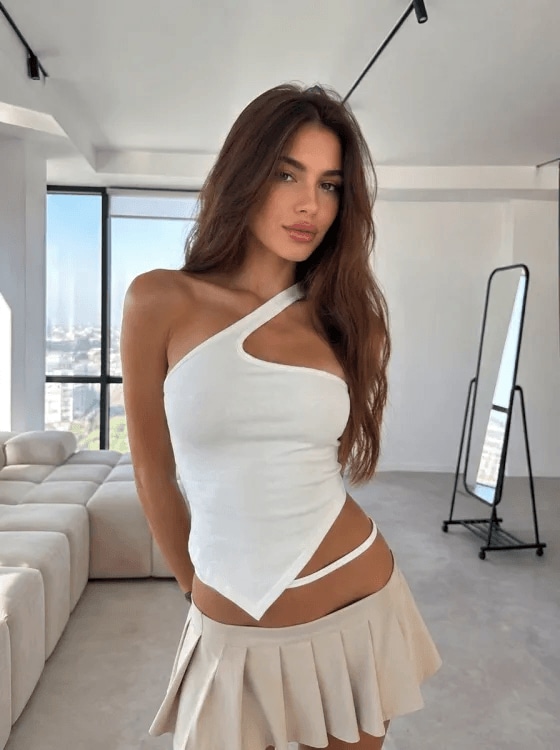
AI music video portrait input 2
Audio Reference
wave
wave
0:14
Generate MV ↗
AI Music Video Demo — Portrait + Music to Lyric Video
Reference Inputs
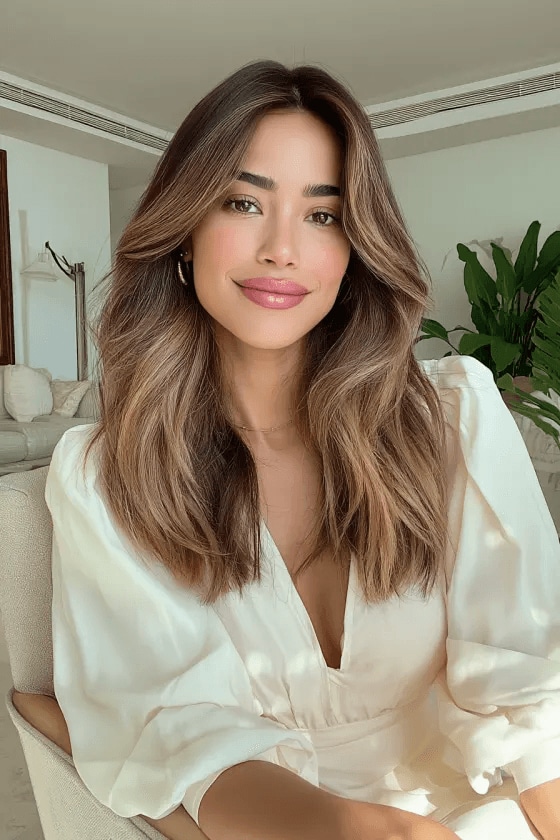
AI music video portrait input 1
Audio Reference
wave
wave
0:14
Generate MV ↗
AI Music Video Demo — Portrait + Music to Lyric Video
Reference Inputs
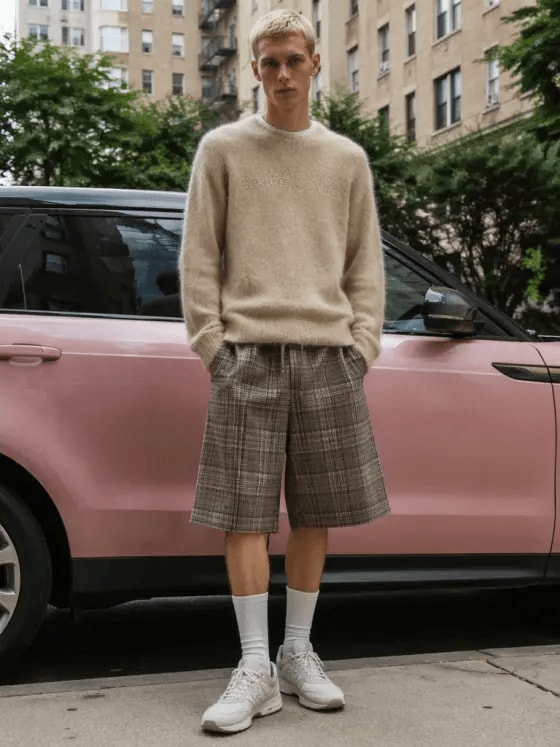
AI music video portrait input
Audio Reference
wave
wave
0:09
Generate MV ↗
AI Music Video Demo — Portrait to Cinematic MV
Reference Inputs
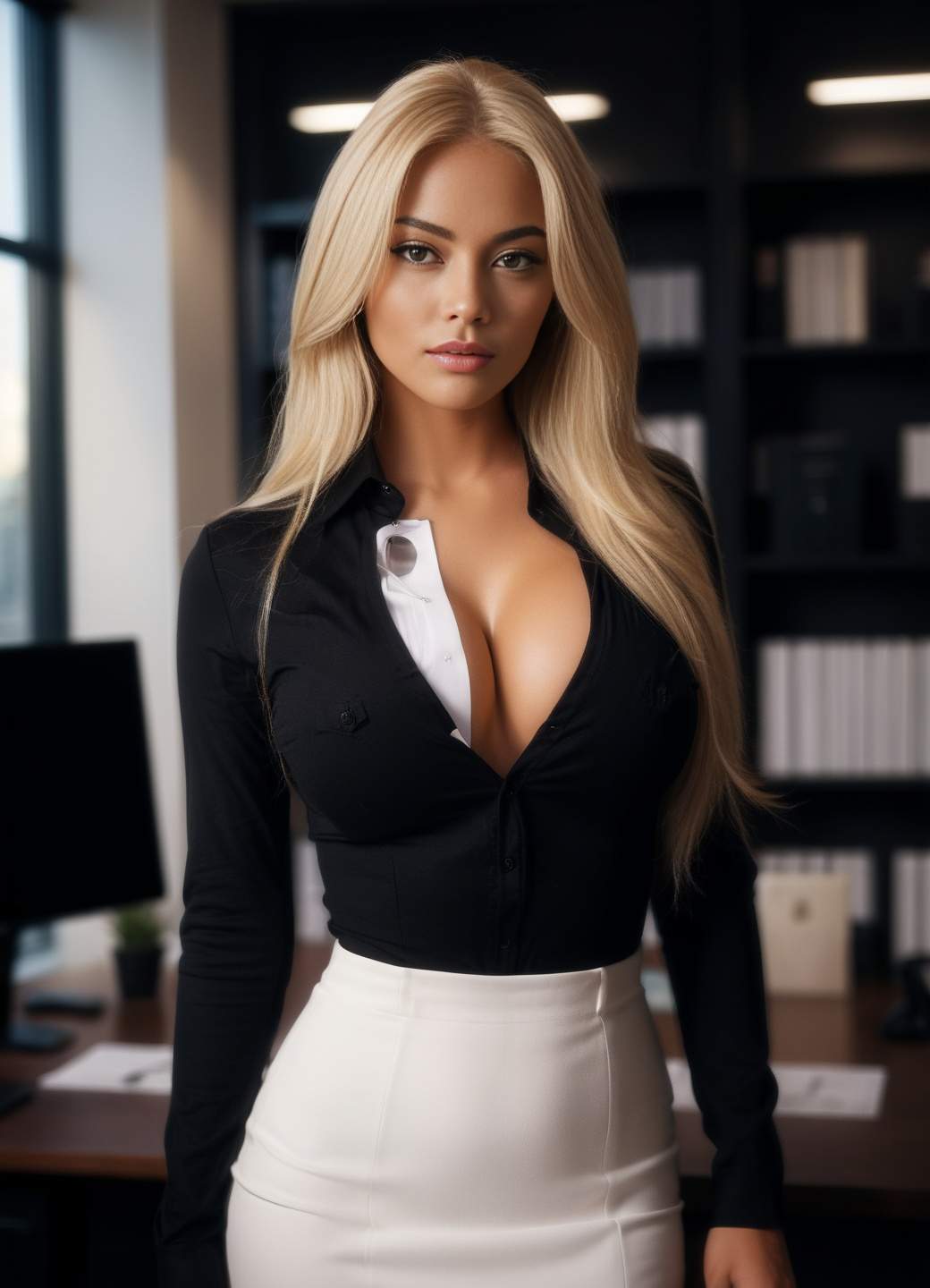
AI music video portrait input 3
Audio Reference
wave
wave
0:11
Generate MV ↗
AI Music Video Demo — Portrait + Music to Lyric Video
✓ Upload WAV Audio ✓ Add Cover or Portrait ✓ Optional Style Prompt ✓ Export Social-Ready Video

Why Use a WAV-To-Video Workflow

Built Around Your Finished Audio

A WAV file usually means your song, instrumental, or master is already prepared for release. This workflow lets you keep that audio at the center instead of rebuilding a project inside a full editor. You simply upload your track, then pair it with a still image, artist portrait, or MV cover to create motion around the sound. That makes the process efficient for releases, previews, and campaign assets.

Create a Distinct Visual Style Fast

Different songs call for different visuals, from dreamy neon motion to cinematic dark scenes or clean pop artwork. With Media.io, your uploaded image acts as the visual anchor while an optional prompt helps shape the theme. This approach is useful when you want a consistent brand look across singles, EPs, and social posts. It gives you more control than a generic template while staying simple enough for quick production.

Made for Social Promotion and Distribution

A short AI music video can help a track travel better across TikTok, YouTube, Instagram, and Reels. Instead of posting static artwork, you can publish motion content that better holds attention in crowded feeds. This is especially helpful for independent artists, producers, podcasters, and music marketers who need frequent promotional assets. The result is a lightweight way to extend one WAV file into more formats for discovery.

Easy for Non-Editors and Small Teams

Not every creator has time for keyframing, compositing, or learning a full video suite. A simple upload-based workflow lowers the barrier by keeping the steps focused and clear. You bring your own audio and visual asset, then let AI generate a themed video from those materials. That makes it practical for solo musicians, label assistants, agency teams, and content managers working on tight schedules.

How to Turn WAV into an AI Music Video

01

Upload a WAV File and Visual Asset

Start by uploading your own WAV song, beat, mix, podcast excerpt, or audio promo. Then add a scene image, artist portrait, or MV cover that should guide the overall look of the video. Choose a visual that reflects the tone of the track so the generated result feels more cohesive.

02

Add an Optional Prompt for Style Direction

If you want a more specific outcome, enter a short prompt that describes the atmosphere, movement, colors, or genre-inspired aesthetic. You might ask for cinematic lighting, anime energy, moody club visuals, or dreamy performance vibes. This helps the generator shape motion and theme around your supplied media.

03

Generate and Export Your Music Video

Click generate to create a themed AI music video based on your uploaded WAV and image. Review the result, then export the clip for social posting, audience previews, release campaigns, or channel artwork motion. You can use the finished video as a quick promo asset without building an edit manually.

What Creators Say

user
Maya R.

Indie Singer-Songwriter

starstarstarstarstar

"A Simple Way to Promote New Singles" I needed a wav to video maker for a presave campaign and did not want to edit from scratch. I uploaded my mastered track and a portrait from the cover shoot, then added a short prompt about soft neon motion. The result felt aligned with the song instead of looking like a random stock animation. It gave me a clean teaser I could post before the full release.

user
Jalen T.

Beat Producer

starstarstarstarstar

"Useful for Beat Drops and Snippets" As a producer, I was looking for a wav music video generator that could turn loop previews into better visual posts. The workflow was direct because I only had to upload the WAV and my cover art. I liked that I could guide the look with a prompt instead of settling for one preset style. It made my beat uploads look more intentional on YouTube and Instagram.

user
Priya S.

Music Marketing Coordinator

starstarstarstarstar

"Good for Fast Campaign Assets" We often need to convert wav to ai video for short announcements, artist intros, and track previews. This tool works well when the label already has approved audio and a campaign visual but no time for a full motion edit. The generated clips are strong enough for social testing and audience warm-up content. It helps our small team move faster during release week.

user
Leo C.

Electronic Artist

starstarstarstarstar

"Great for Cover-Led Visual Motion" I wanted a wav album cover video maker that could animate the mood of my release without changing the artwork too much. After uploading my WAV and sleeve image, I used a prompt focused on dark atmospheric movement. The output worked especially well as an ai wav visualizer video for short promo loops and channel posts. It gave the track more presence before I commissioned a full MV.

FAQ

1. How Does This WAV to Music Video Converter Work?

The process starts with your own WAV audio file, which can be a song, instrumental, snippet, or promo track. You then upload a scene image, portrait, or MV cover that acts as the visual foundation for the generated video. If you want more control, you can add a prompt to describe the mood, style, or movement. Media.io uses those inputs to generate a themed AI music video that is ready for sharing or export.

Yes, that is a core part of the workflow. You can upload a cover image, portrait, or any scene visual you want the video to be based on. This helps the output feel more on-brand and more connected to your song or campaign. For the best result, use a clear image with a strong subject, recognizable color palette, or defined visual mood.

No, a prompt is optional, so you can still create a video using only your audio and image. However, adding a brief prompt often helps refine the style, such as cinematic, dreamy, energetic, retro, or dark pop. It is especially useful when you want motion that supports a specific genre or audience. If you are unsure what to write, start with a short phrase focused on mood, lighting, and movement.

This workflow is useful for musicians, producers, DJs, podcasters, labels, and social media teams. Many creators use it to build release teasers, animated cover visuals, lyric-friendly backgrounds, or promo clips for TikTok and YouTube. It is also a helpful option for independent artists who have finished audio but do not have time for traditional MV production. Because the setup is simple, it fits both solo creators and fast-moving content teams.

A strong WAV file and a visually clear image usually produce the best starting point. Try to use audio that reflects the final section you want audiences to hear, especially if you are making a preview or social clip. On the visual side, choose a portrait, cover, or scene image with a distinct focal point and a mood that matches the track. If needed, add a prompt that mentions atmosphere, camera feel, color, or genre to make the output more consistent.

Media.io Online AI Tools Quality Rating:
vote 4.7 (162,357 Votes)






