Creations are stored for only 7 days. Assets created after upgrading to a Membership plan will be stored permanently.
Unlock your creative potential and experience the magic of Media AI right away!
Добавьте заячьи ушки на фото онлайн с милыми стилями ИИ
Загрузите любое селфи, портрет или фотографию питомца, чтобы добавить заячьи ушки на фото за считанные секунды. Media.io поможет вам добавить кроличьи ушки на фото с реалистичными ободками, пастельными образами и пасхальными правками прямо в браузере — без навыков дизайна. Это отлично подходит для фильтра пасхального кролика.
Введите вашу идею -> ИИ создаст её. Бесплатно для пробного использования.
Ознакомьтесь с примерами описаний, затем настройте детали для получения лучших результатов с инструментом Media.io для заячьих ушек на фото.
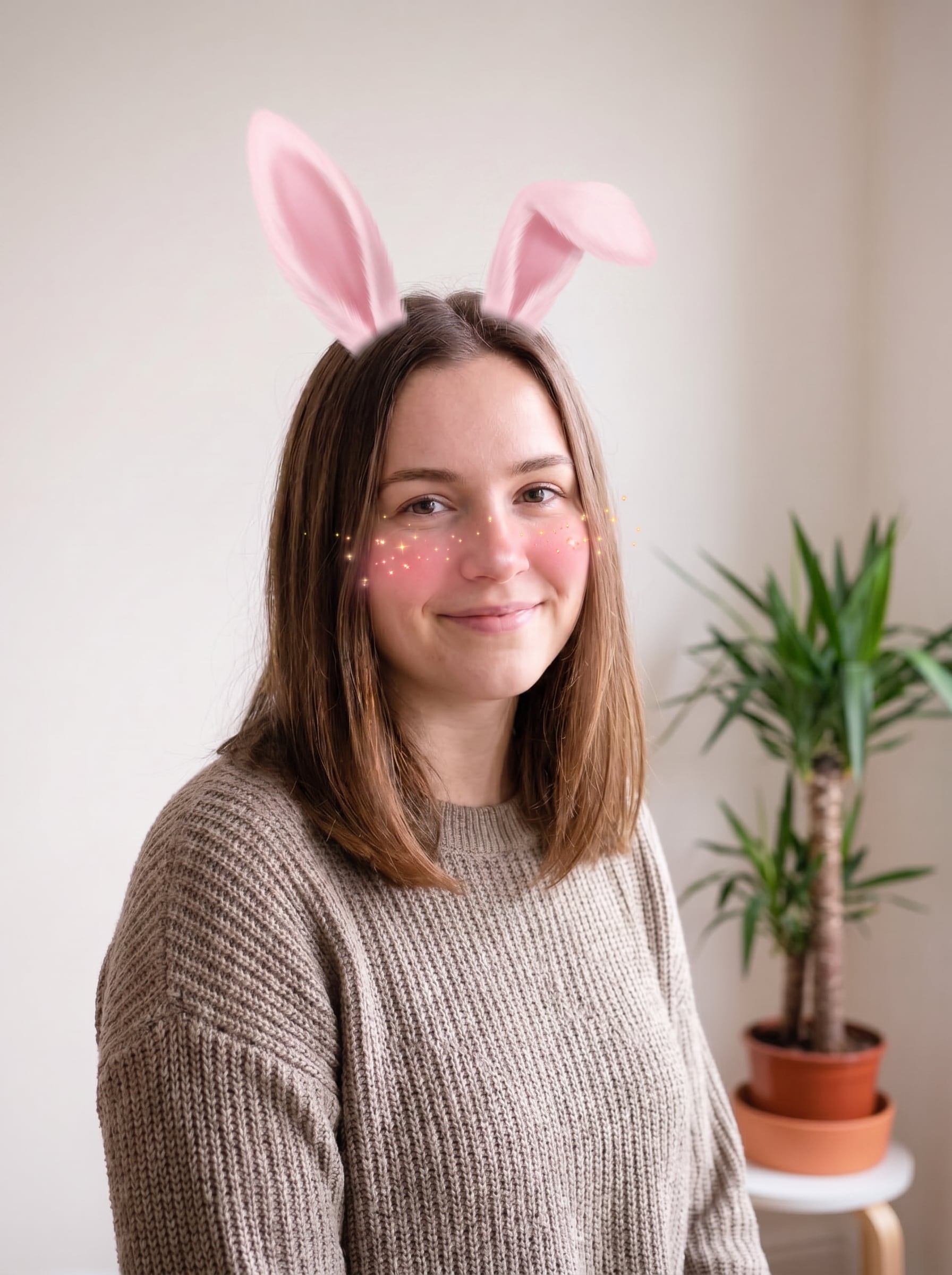
Мягкий розовый AR-фильтр зайчика
Используйте загруженное изображение в качестве объекта и преобразуйте его в игривый фильтр зайчика для социальных сетей. Добавьте мягкие розовые заячьи ушки, естественно выровненные по углу головы, нежный румянец, крошечные блёстки, сияние гладкой кожи, чистое портретное освещение, пастельные блики и отполированную эстетику мобильного фильтра с чёткими деталями лица.
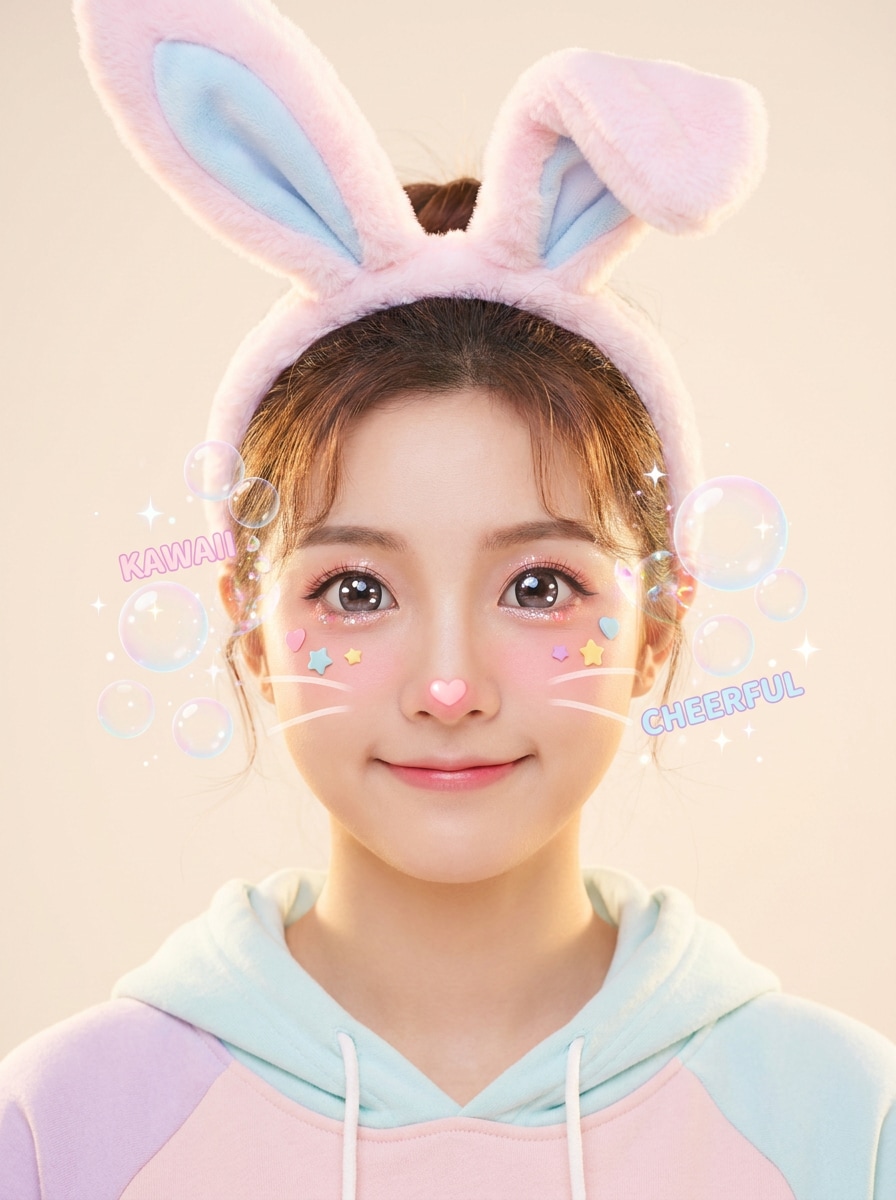
Наложение лица каваи-зайчика
Используйте загруженный портрет в качестве объекта и превратите его в милое фото с фильтром зайчика каваи. Добавьте увеличенные пастельные заячьи ушки, маленький розовый носик, мягкие усики, блестящие глаза, яркое мягкое освещение, тона румянца, конфетно-пастельные акценты и весёлое аниме-наложение, сохраняя узнаваемость человека.
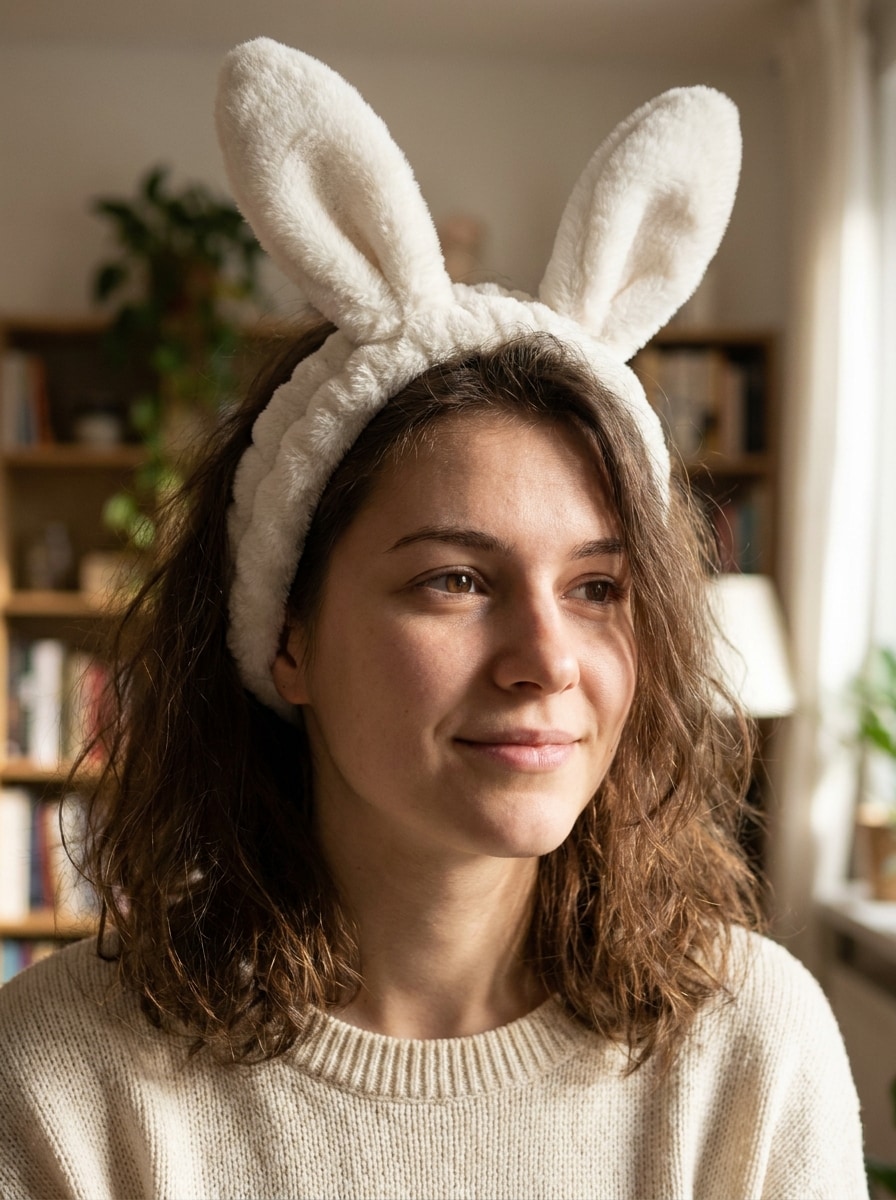
Фотореалистичный ободок с заячьими ушками
Используйте загруженное изображение в качестве объекта и добавьте фотореалистичный ободок с белыми заячьими ушками. Сопоставьте оригинальный угол камеры, положение волос и направление света с правдоподобной текстурой ткани, мягкими тенями, реалистичной глубиной и бесшовным смешиванием, чтобы правка выглядела как настоящая костюмная фотография.
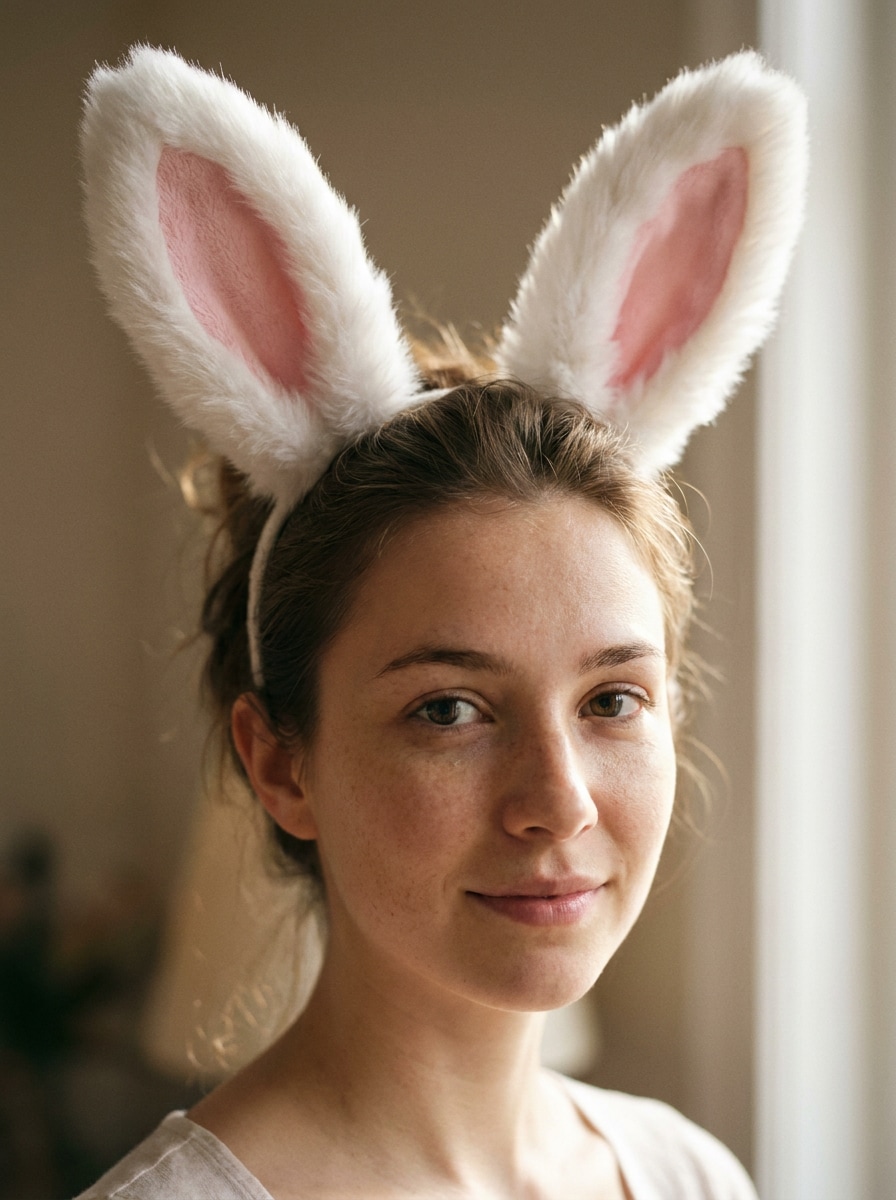
Пушистые белые кроличьи ушки
Используйте загруженный портрет в качестве объекта и разместите на голове мягкие пушистые белые кроличьи ушки с розовой внутренней подкладкой. Сохраните детали лица, сопоставьте перспективу и источник света, сохраните естественную текстуру кожи и создайте очаровательную реалистичную правку с мягким контрастом и чистой портретной отделкой.
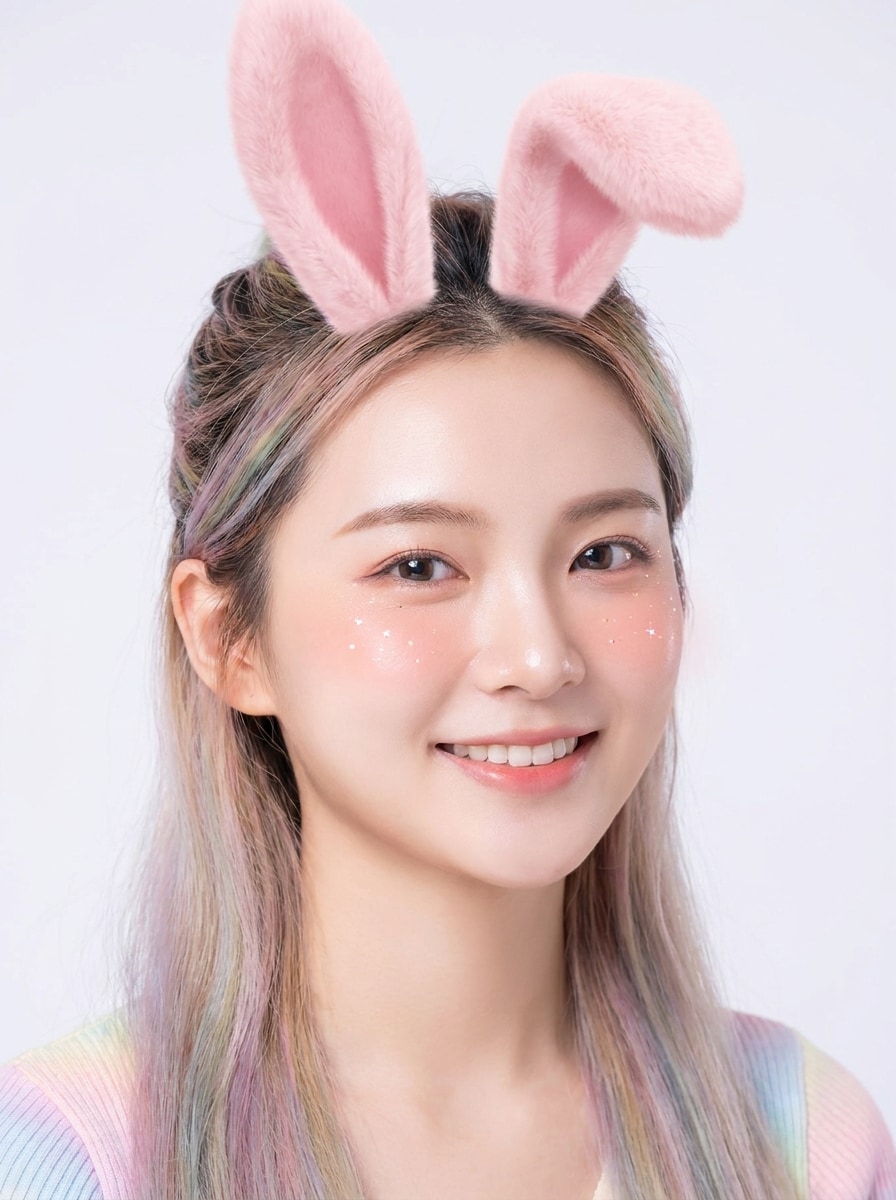
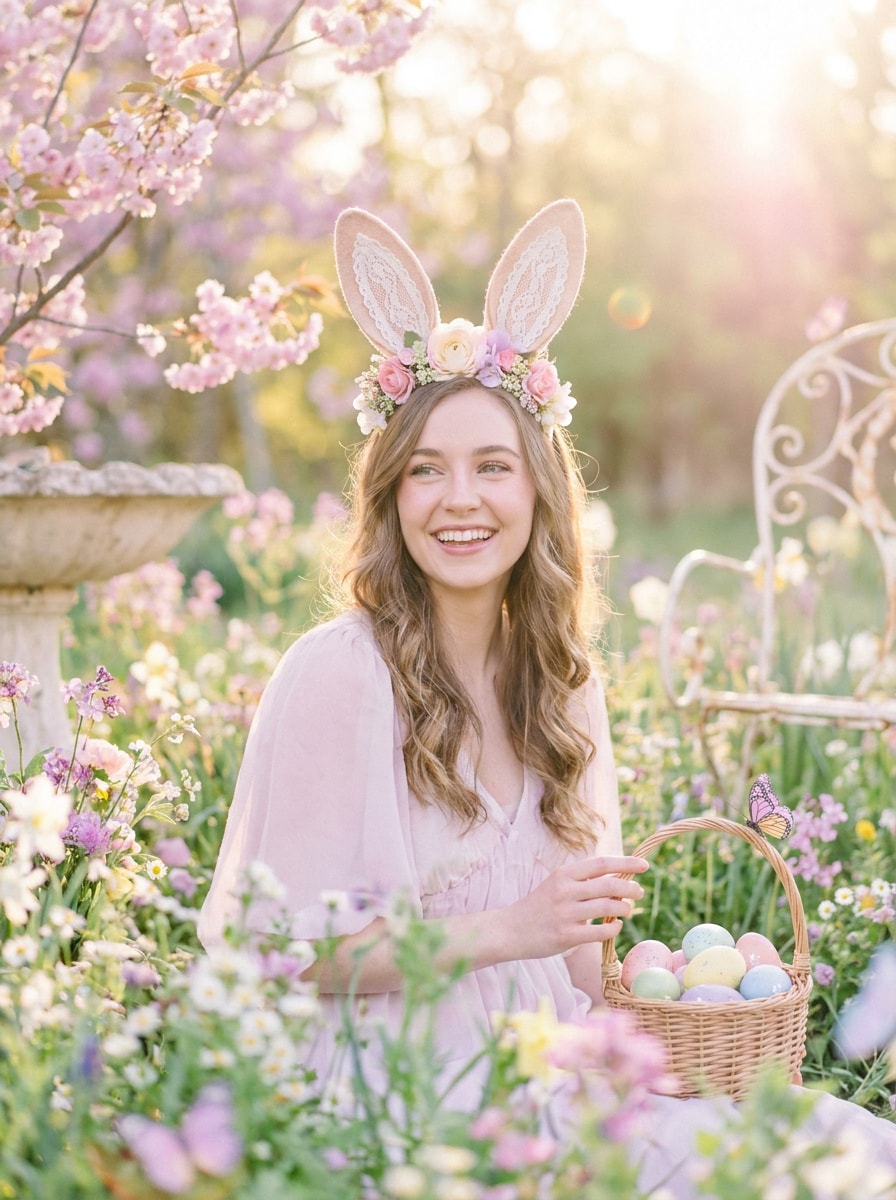
Пастельный пасхальный портрет кролика
Используйте загруженное изображение в качестве объекта и преобразуйте его в яркий пасхальный портрет. Добавьте изящные заячьи ушки, нежные цветочные акценты, мягкий весенний солнечный свет, пастельные розовые, лавандовые и мятные тона, нежное боке и радостное сезонное настроение, сохраняя личность объекта чёткой и естественной.
Весенний садовый образ зайчика
Используйте загруженное фото в качестве объекта и создайте причудливый весенний образ зайчика. Добавьте милые заячьи ушки, цветочное боке, воздушную пастельную цветовую гамму, мягкий солнечный свет, свежее садовое настроение, тонкое свечение и лёгкий сезонный стайлинг, идеально подходящий для публикации в социальных сетях к Пасхе или весне.
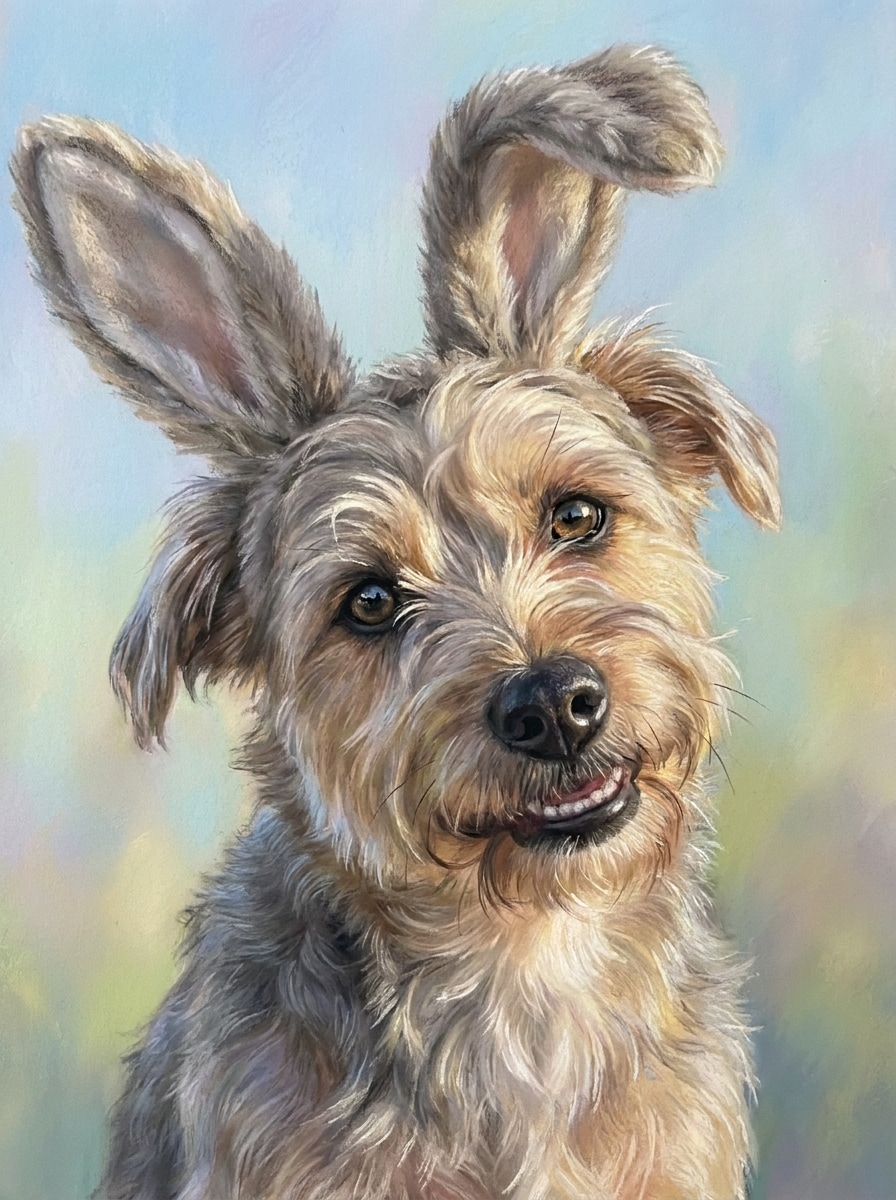
Милые заячьи ушки для собак
Используйте загруженное фото собаки в качестве объекта и добавьте очаровательные заячьи ушки, пропорционально подобранные к размеру головы питомца. Смешайте ушки с текстурой шерсти и положением головы, сохраните оригинальное освещение, сохраните детали глаз и создайте игривый портрет питомца с мягкими пастельными тонами и чистой отполированной отделкой.
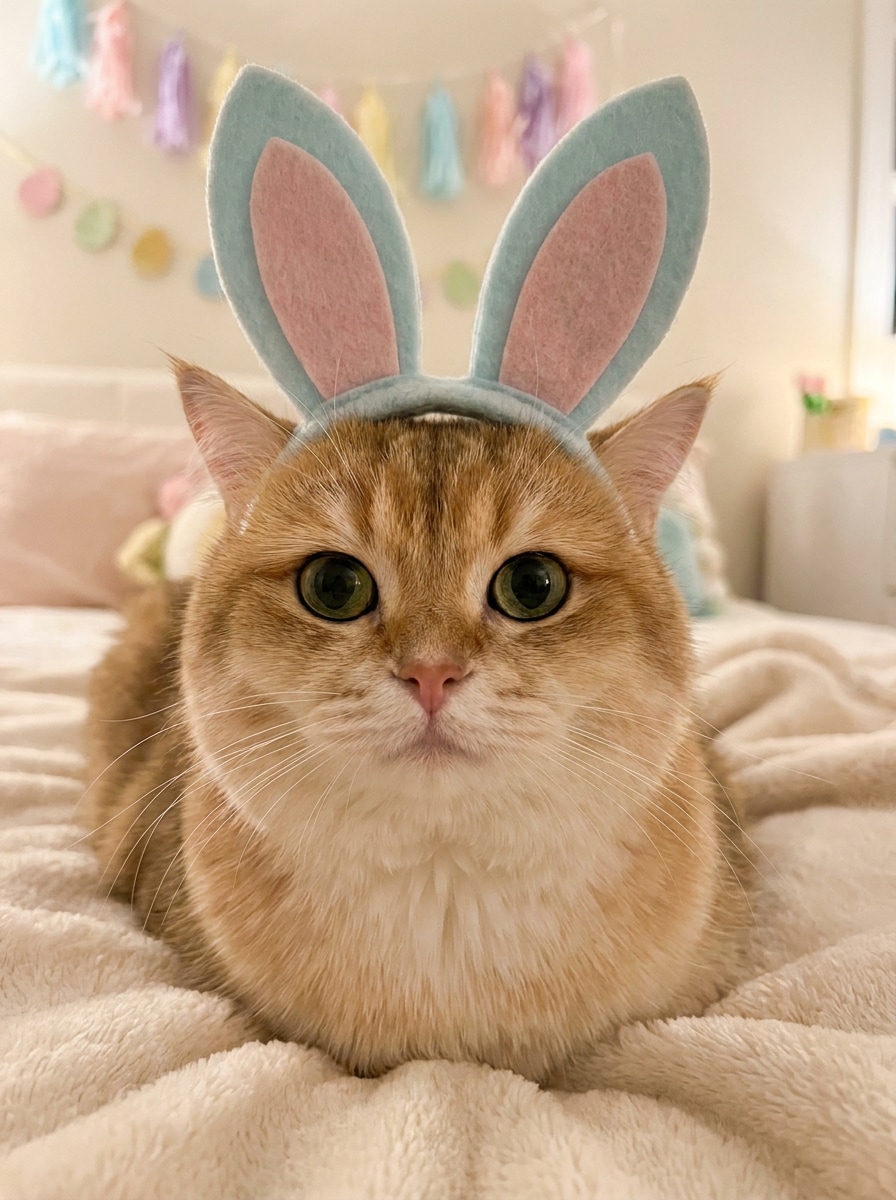
Редактирование костюма кролика для кошки
Используйте загруженное фото кошки в качестве объекта и создайте очаровательный эффект костюма кролика. Добавьте мягкие заячьи ушки, выровненные по форме головы кошки, сохраните усики и детали шерсти, сопоставьте перспективу и тень, введите нежные пастельные тона и сделайте финальное изображение милым, чистым и легко распространяемым.
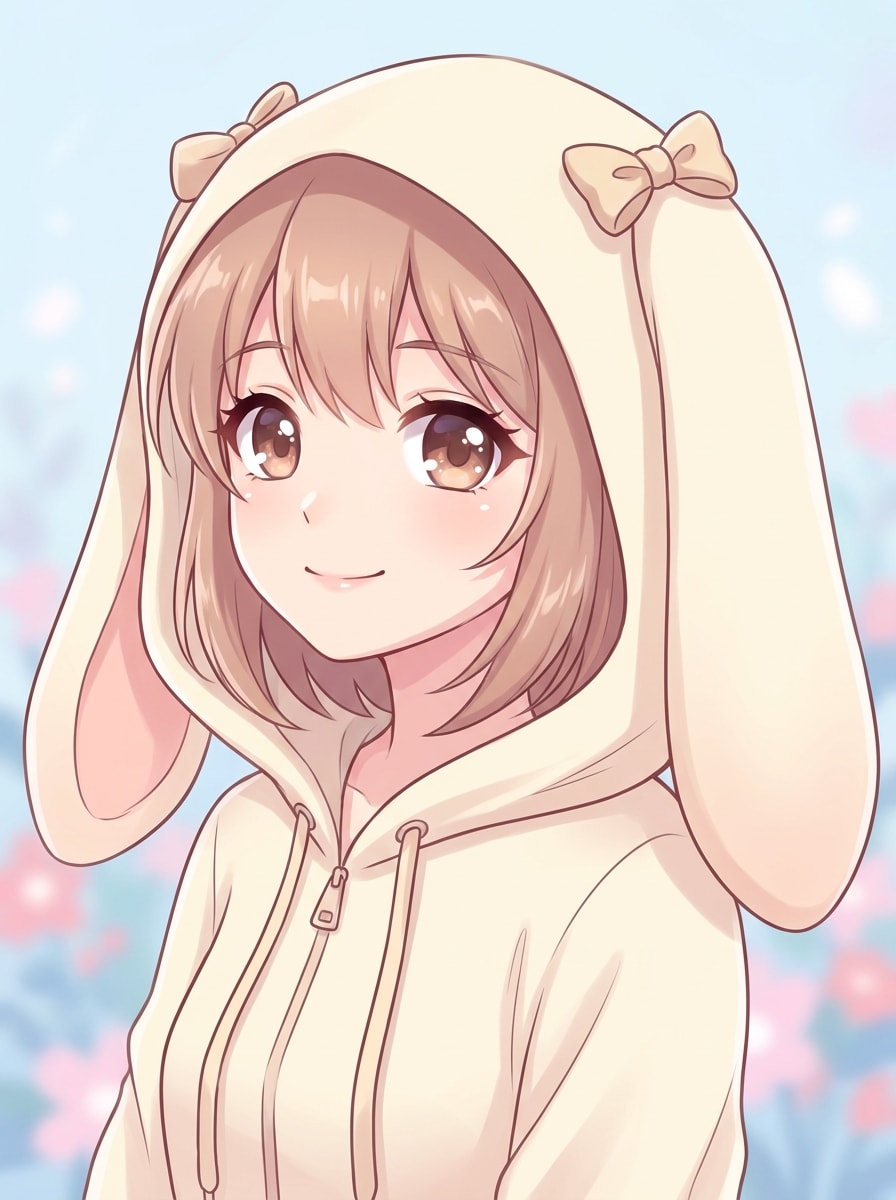
Аниме-портрет кролика
Используйте загруженное изображение в качестве объекта и преобразуйте его в аниме-портрет кролика. Сохраните оригинальную позу и кадрирование, добавьте стильные заячьи ушки, выразительные глаза, чистую сел-шейдинговую раскраску, мягкие пастельные тона, гладкие линии и отполированную иллюстрированную отделку с ярким, но мягким освещением.
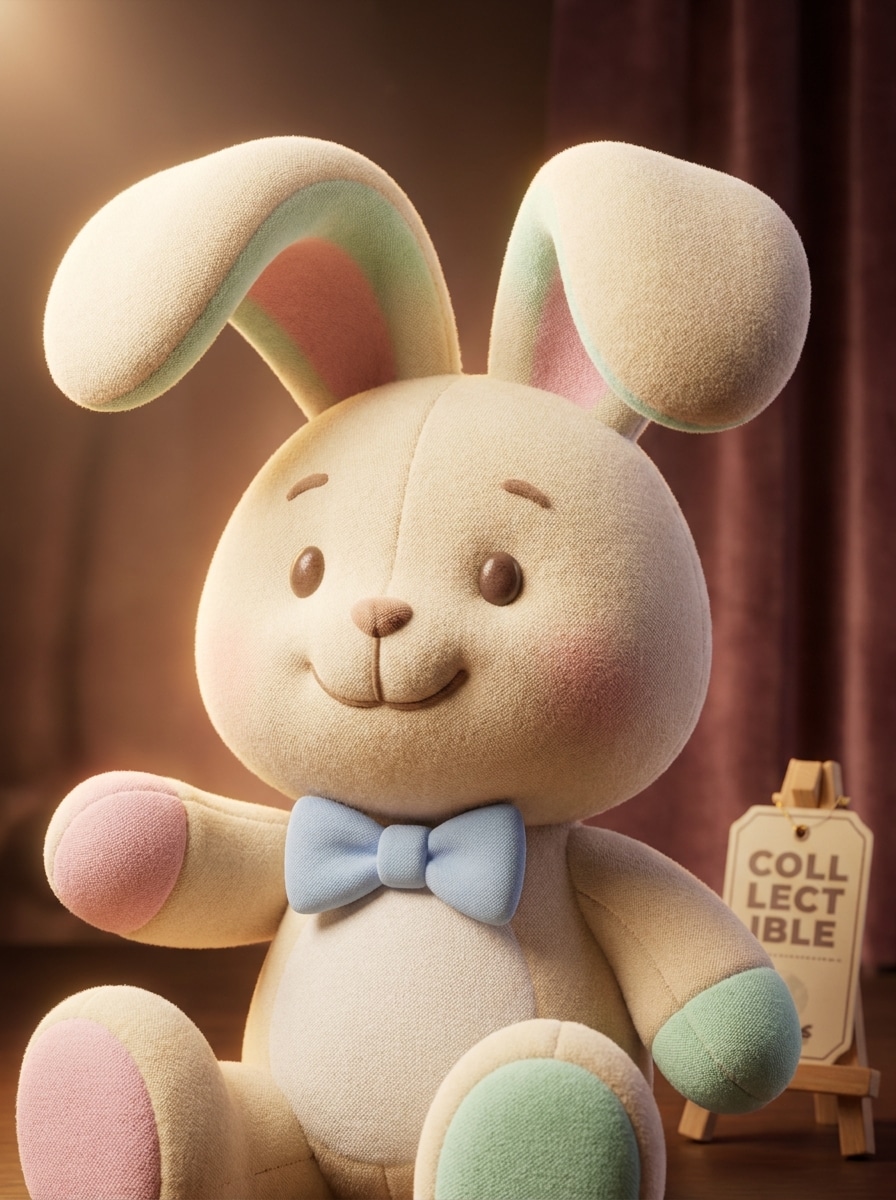
3D персонаж плюшевого кролика
Используйте загруженное изображение в качестве объекта и переосмыслите его как отполированного 3D-персонажа кролика. Добавьте плюшевые заячьи ушки, округлые мягкие текстуры, кинематографическое студийное освещение, игрушечную детализацию поверхности, пастельные цветовые акценты и игривое настроение коллекционного персонажа, сохраняя оригинальную позу и узнаваемое выражение лица.
Почему стоит использовать Media.io для добавления заячьих ушек на фото
Сохраняйте узнаваемость объекта в новых стилях
Исследовать открытые творческие идеи проще с Media.io, поскольку вы можете попробовать несколько вариантов в рамках одной концепции добавления заячьих ушек на фото и быстро сравнить стили, прежде чем выбрать подходящий для вашей публикации или проекта.
Исследуйте разные образы, не теряя направления
Когда художественное направление ещё открыто, Media.io позволяет тестировать несколько образов в рамках одной идеи добавления заячьих ушек на фото, что упрощает поиск правильного стиля без необходимости начинать всё с нуля.
Генерируйте более чёткий результат вплоть до 4K
Когда фото с заячьими ушками предназначено для реальной публикации, Media.io обеспечивает более чёткий результат вплоть до 4K, что помогает изображению оставаться чётким в презентациях, фонах и повторно используемых материалах.
Работайте на любых устройствах без дополнительных установок
Media.io сохраняет рабочий процесс в браузере, поэтому вы можете начать редактирование на компьютере и просмотреть его позже на телефоне без лишних усилий. Это делает процесс практичным, когда вы не привязаны к одному устройству.
Как добавить заячьи ушки на фото в Media.io
Превратите ваши слова в потрясающую визуализацию за три простых шага, а затем продолжайте улучшать результат, если хотите пойти дальше.
Шаг 1
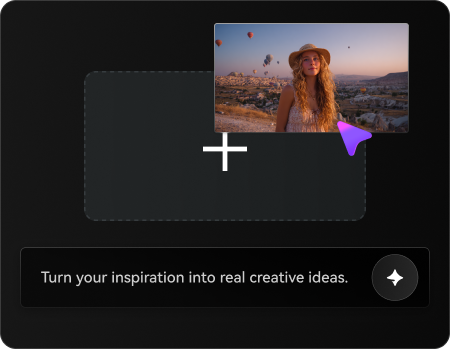
Загрузите своё референсное изображение
Начните с чёткого селфи, портрета, детского фото или изображения питомца в формате JPG, PNG или JPEG. Фотография анфас с видимой верхней частью головы облегчит добавление заячьих ушек на фото и сохранит естественность финального эффекта.
Шаг 2
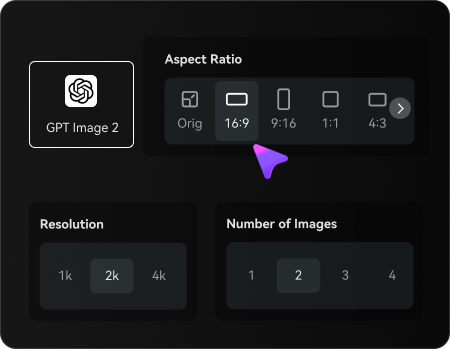
Опишите изменение и задайте параметры
Введите желаемый образ, например реалистичный ободок, пастельный весенний портрет или фильтр пасхального кролика ИИ. Затем выберите предпочтительную модель и настройте соотношение сторон, качество и количество вариантов изображений для генерации.
Шаг 3
Генерируйте, скачивайте и продолжайте улучшать
Сгенерируйте несколько версий, сравните расположение и стиль и скачайте понравившийся вариант. При необходимости уточните подсказку, чтобы добавить кроличьи ушки на фото сделать изображение более реалистичным, попробовать более милое наложение или создать свежие варианты для разных целей.
Раскройте потенциал добавления заячьих ушек на фото
Посмотрите, как авторы используют Media.io для создания фото-правок с заячьими ушками для контента, маркетинга и личных проектов, затем адаптируйте каждую идею под свою задачу.
Сделайте селфи более игривыми для публикации в социальных сетях
Превратите повседневные портреты в милые изображения, готовые для историй, с мягкими ушками, румянцем и блестящим стайлингом. Это быстрый способ добавление заячьих ушек на фото для фотографий профиля, рилсов, мемов или сезонных публикаций без изучения полноценного дизайн-приложения.
Создавайте пасхальные портреты для открыток и семейных публикаций
Придайте весенним фотографиям праздничное обновление с пастельной цветовой гаммой, цветочными акцентами и весёлым костюмным образом. Если вам нужен фильтр пасхального кролика ИИ для приглашений, поздравительных открыток или публикаций пасхального завтрака, Media.io делает рабочий процесс простым и быстрым.
Редактируйте фотографии питомцев в милый праздничный контент
Собаки и кошки могут получить такое же весёлое оформление с ушками, подобранными по размеру и текстуре шерсти. Это особенно полезно, когда вы хотите тематическое редактирование с кроликом для анонсов питомцев, тематических альбомов или очаровательного контента для распространения с телефона.
Что говорят пользователи
Рейчел Ким
Лайфстайл-креатор
«Милые результаты без ручного редактирования» Мне был нужен быстрый способ добавить заячьи ушки на фото для Instagram Stories, и это сработало намного лучше, чем я ожидала. Ушки выровнялись естественно, и я получила отполированный результат без использования сложных слоёв или стикеров.
Даррен Лопес
Владелец аккаунта с питомцами
«Отлично подходит для фотографий собак и кошек» Я протестировал его на своей собаке и кошке, и правки питомцев получились очаровательными. Эффект хорошо совпал с углом головы, поэтому это выглядело больше как настоящая костюмная съёмка, а не наклеенная графика.
Нина Патель
Родитель и создатель DIY-открыток
«Идеально для пасхальных открыток» Я использовала его для создания пасхальных портретов своих детей для семейных открыток. Пастельные стили были милыми, но не чрезмерными, а экспорт изображений был простым. Это сэкономило мне много времени по сравнению с ручным редактированием всего.
Маркус Рид
Мобильный редактор контента
«Удобно прямо из браузера телефона» Мне понравилось, что я мог использовать его прямо с телефона без загрузки чего-либо. Если вам нужно быстро добавить заячьи ушки на фото для публикации или шуточного изображения, рабочий процесс очень прост.
Часто задаваемые вопросы о добавлении кроличьих ушек на фото
1. Как добавить заячьи ушки на фото онлайн?
Загрузите изображение в Media.io, введите подсказку с описанием нужного стиля заячьих ушек и сгенерируйте отредактированный результат в браузере. Этот рабочий процесс хорошо подходит для селфи, портретов, пасхальных снимков и фотографий питомцев, когда вы хотите добавить заячьи ушки на фото онлайн без ручного графического редактирования.
2. Есть ли бесплатный редактор фотографий с заячьими ушками?
Media.io предлагает бесплатные кредиты, чтобы вы могли протестировать редактор фотографий с заячьими ушками перед обновлением. Бесплатное использование может включать водяные знаки, тогда как платные планы открывают больше кредитов и загрузки в высоком разрешении без водяных знаков. Вы можете сравнить варианты на странице тарифов.
3. Могу ли я добавить заячьи ушки на фото с телефона?
Media.io работает через браузер, поэтому вы можете использовать его на iPhone, Android, планшетах или настольных устройствах при наличии браузера. Это позволяет легко добавить заячьи ушки на фото с телефона без переключения на компьютер.
4. Будут ли заячьи ушки выглядеть реалистично на селфи и портретах?
Они могут выглядеть очень естественно, если загрузить чёткое изображение с видимой головой и использовать реалистичную подсказку. Поскольку Media.io редактирует по вашему референсному фото, результат может лучше соответствовать оригинальному углу, положению волос и освещению, что помогает заячьим ушкам более убедительно вписываться в селфи и портреты.
5. Можно ли добавить заячьи ушки на фото питомцев?
Media.io также поддерживает редактирование по референсному изображению для фотографий питомцев, поэтому вы можете добавить заячьи ушки собакам или кошкам, сохраняя при этом более узнаваемыми детали шерсти и форму головы. Это практичный вариант, если вы хотите добавить заячьи ушки на фото для праздничных публикаций с питомцами или тематических портретов.
6. Сколько времени занимает создание фото-правки с заячьими ушками?
Обычно требуется совсем немного времени, чтобы загрузить изображение, ввести подсказку и сгенерировать несколько вариантов. Точная скорость может варьироваться в зависимости от сложности изображения и настроек, но Media.io разработан для быстрого рабочего процесса в браузере, когда вам нужна быстрая фото-правка с заячьими ушками.
Помимо ИИ-инструмента для добавления ушек кролика к фото онлайн