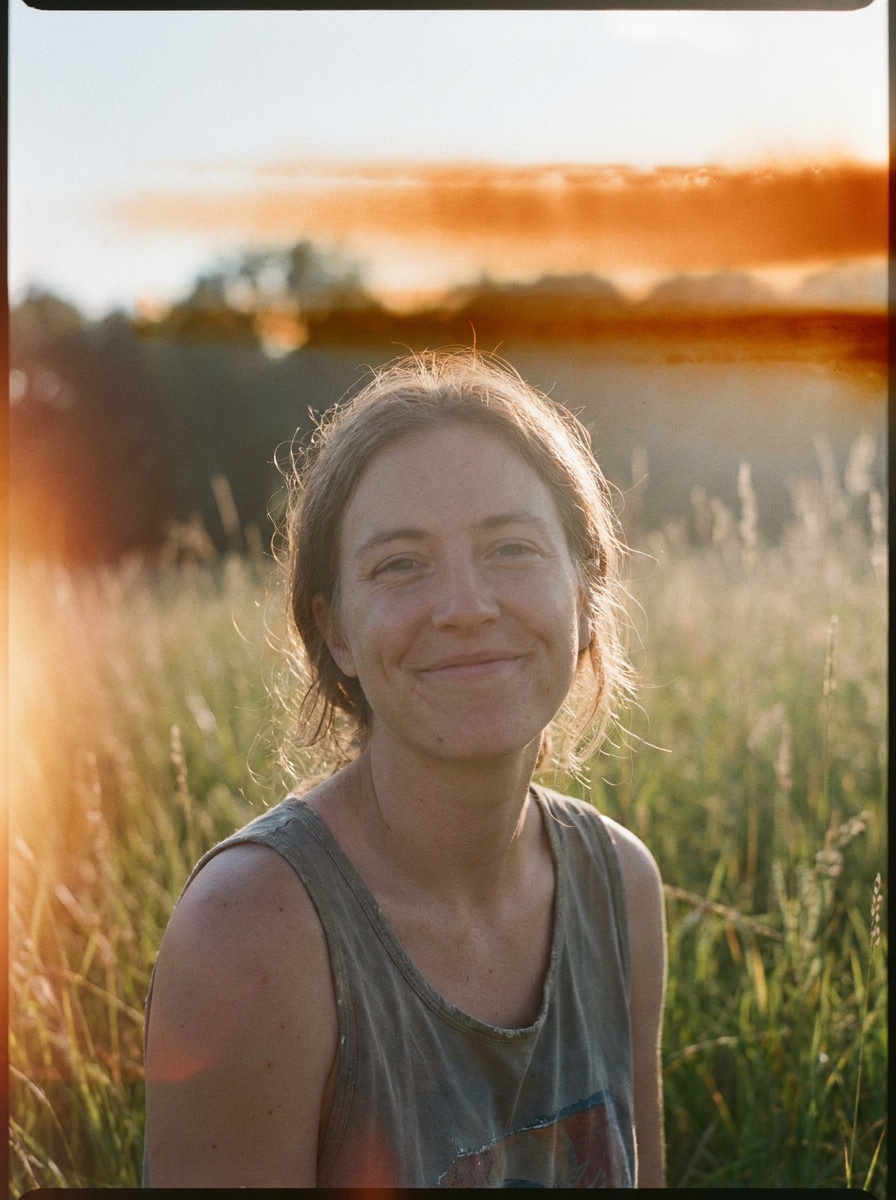
따뜻한 오렌지 엣지 번
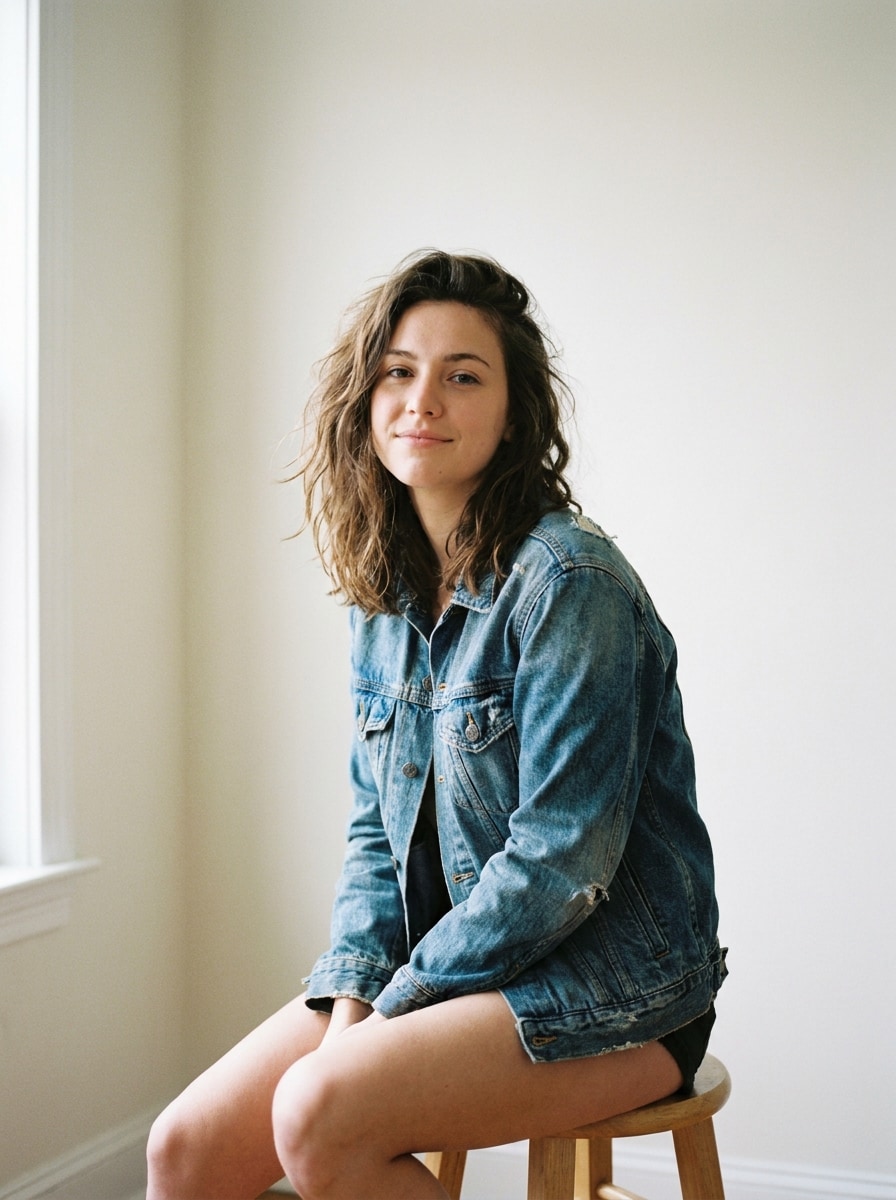
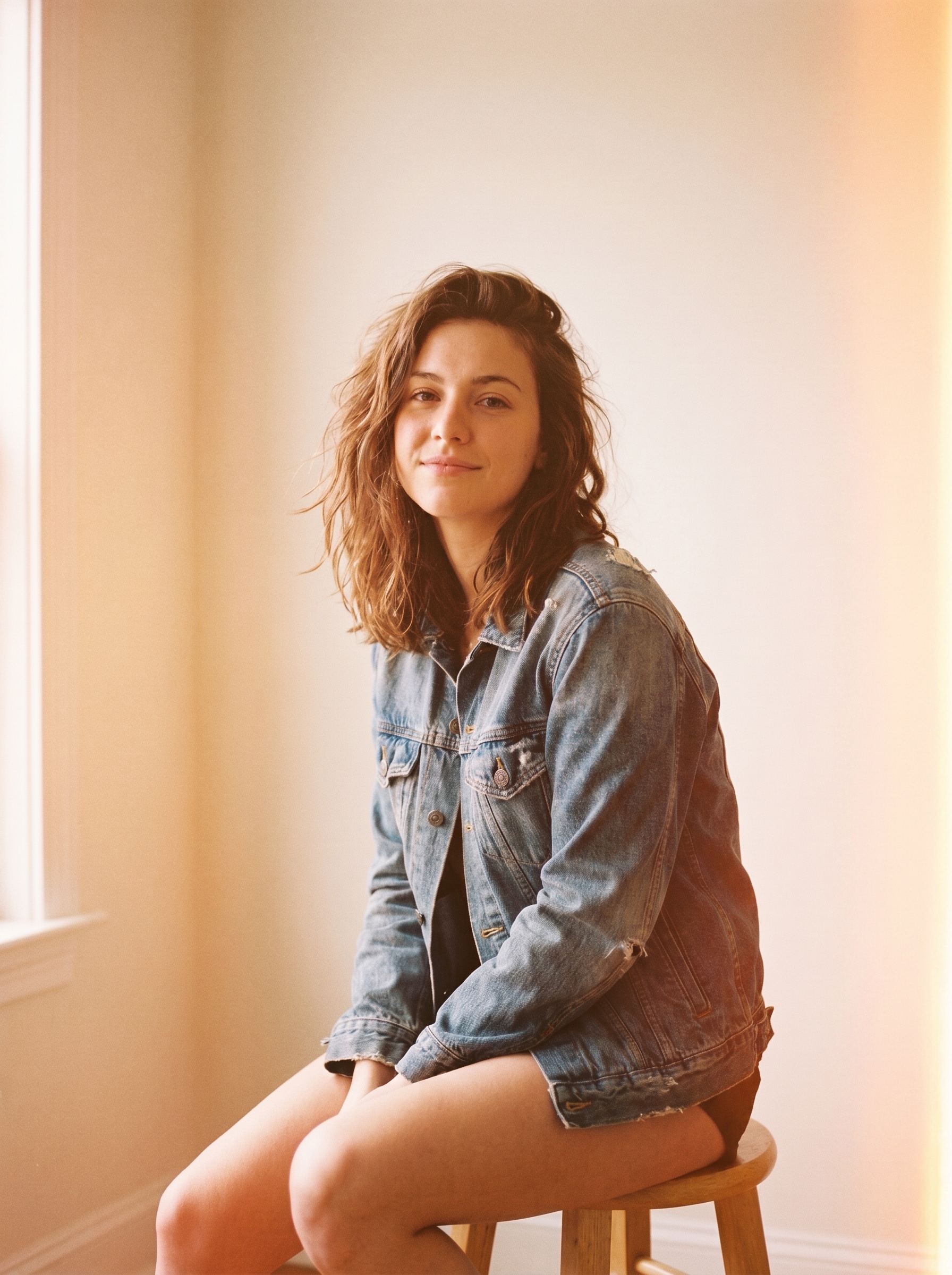
업로드한 이미지를 주요 피사체로 사용하고 사실적인 따뜻한 오렌지 필름 번 필터로 변환하세요. 한쪽 면에 부드러운 앰버 엣지 노출, 은은한 헤이즈, 가벼운 아날로그 그레인, 살짝 페이드된 대비, 얼굴 또는 장면 디테일 유지, 자연스러운 색상 균형의 감성적인 일회용 카메라 무드를 추가하세요.
 Nano Banana Pro
 창의적 잠재력을 풀고 미디어 AI의 마법을 즉시 경험하십시오!














업로드한 사진을 필름 번 필터로 감성적인 아날로그 편집물로 변환하세요. Media.io는 따뜻한 엣지 플레어, 레드 필름 번 톤, 그레인, 페이드, 그리고 실감 나는 필름 번 효과를 몇 초 만에 추가할 수 있으며, 별도의 소프트웨어 설치가 필요하지 않습니다. 번트 필름 효과도 지원합니다.
아이디어를 입력하면 → AI가 디자인합니다. 무료로 체험해 보세요.
아래 예시 방향을 참고한 후, 프롬프트 세부 내용을 조정하여 Media.io 필름 번 필터로 더 강력한 결과물을 얻고 원하는 필름 번 스타일을 완성하세요.
업로드한 이미지를 주요 피사체로 사용하고 사실적인 따뜻한 오렌지 필름 번 필터로 변환하세요. 한쪽 면에 부드러운 앰버 엣지 노출, 은은한 헤이즈, 가벼운 아날로그 그레인, 살짝 페이드된 대비, 얼굴 또는 장면 디테일 유지, 자연스러운 색상 균형의 감성적인 일회용 카메라 무드를 추가하세요.
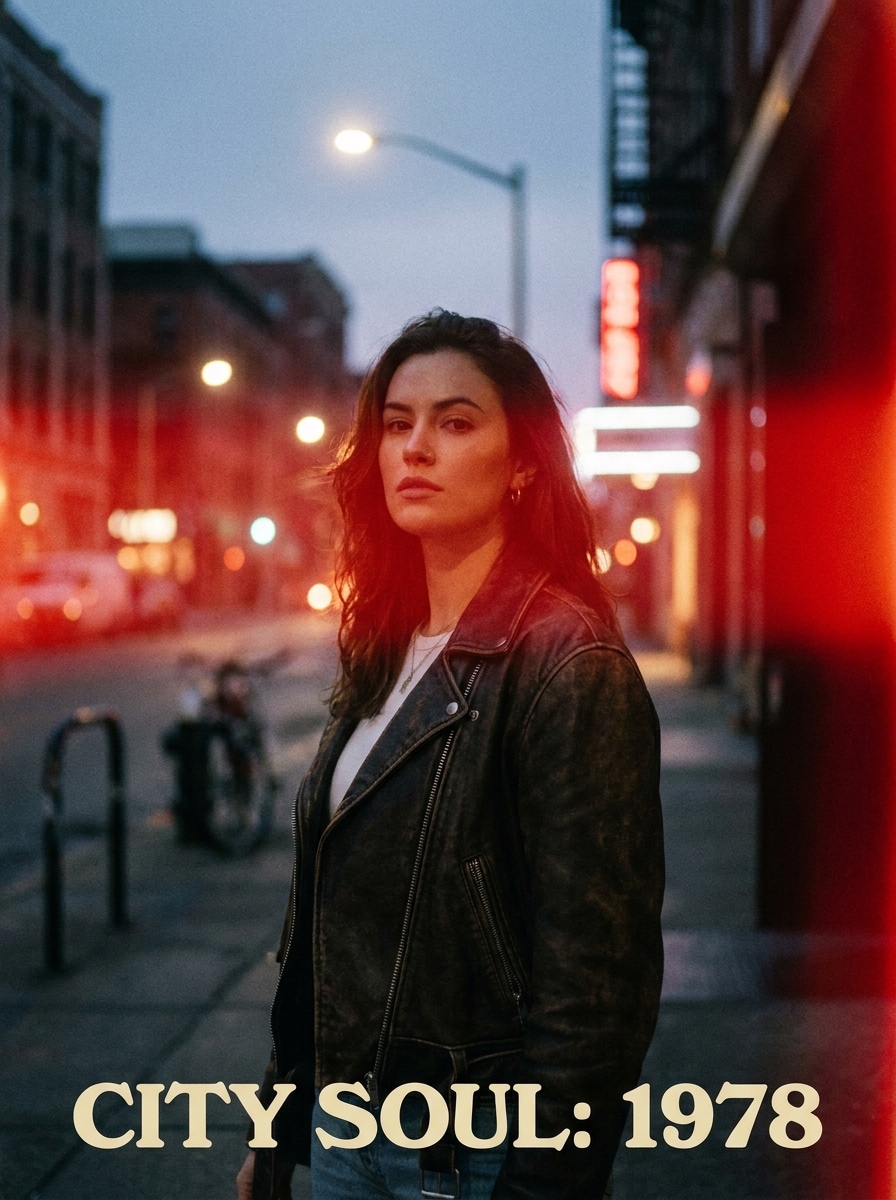
업로드한 이미지를 피사체로 사용하고 한쪽 가장자리에 크림슨 누출을 더한 강렬한 레트로 스타일을 적용하세요. 한쪽 엣지를 따라 사실적인 레드 필름 번을 만들고, 프레임 안으로 부드럽게 번지는 효과, 은은한 그레인, 약간의 대비 페이드, 아날로그 텍스처, 그리고 피사체를 알아볼 수 있는 무드 있는 에디토리얼 마감을 추가하세요.
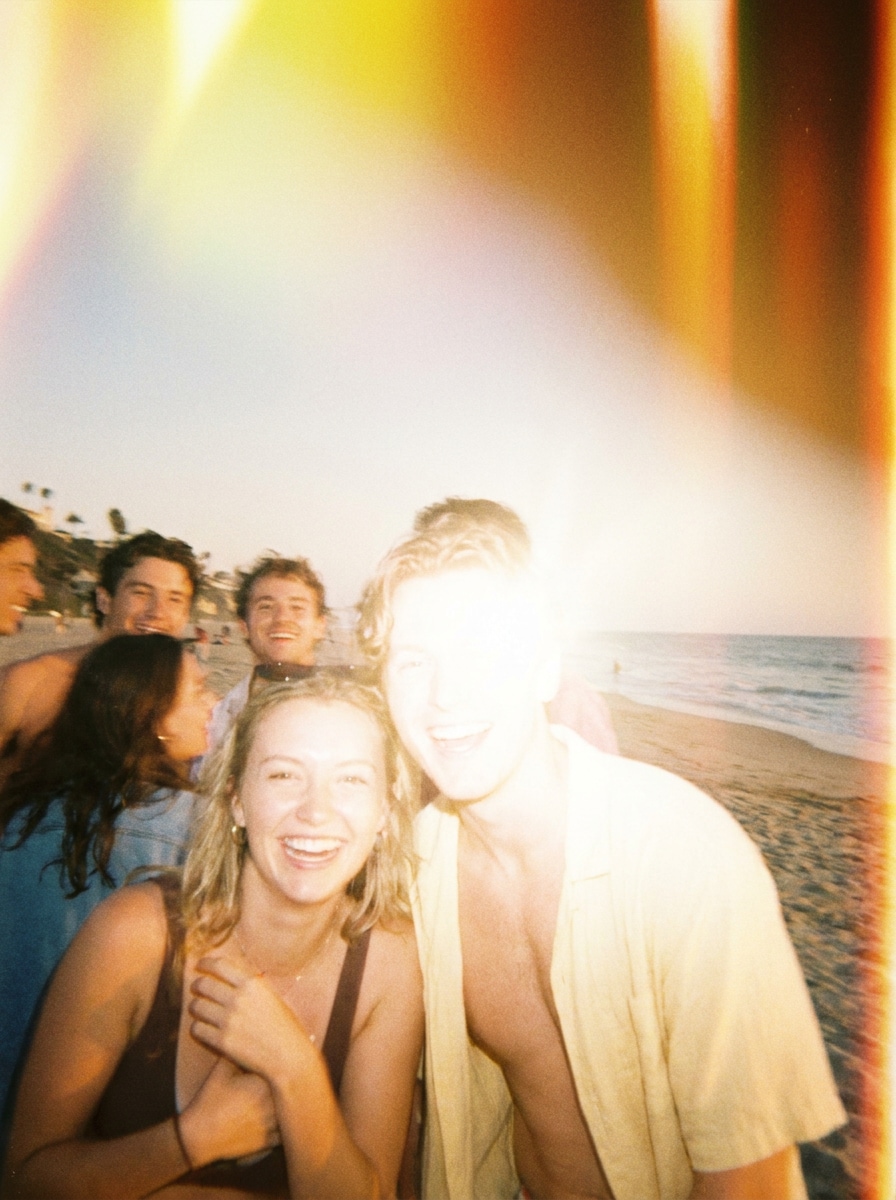
업로드한 이미지를 참고하여 밝고 생동감 있는 포인트 앤 슛 스타일 사진으로 변환하세요. 코너 주변에 옐로우-오렌지 필름 번을 추가하고, 직접 플래시 느낌, 밝게 번진 하이라이트, 파인 그레인, 약간의 블러, 활기찬 여름 에너지, 따뜻하고 감성적인 색감의 진정성 있는 스냅샷 미학을 표현하세요.
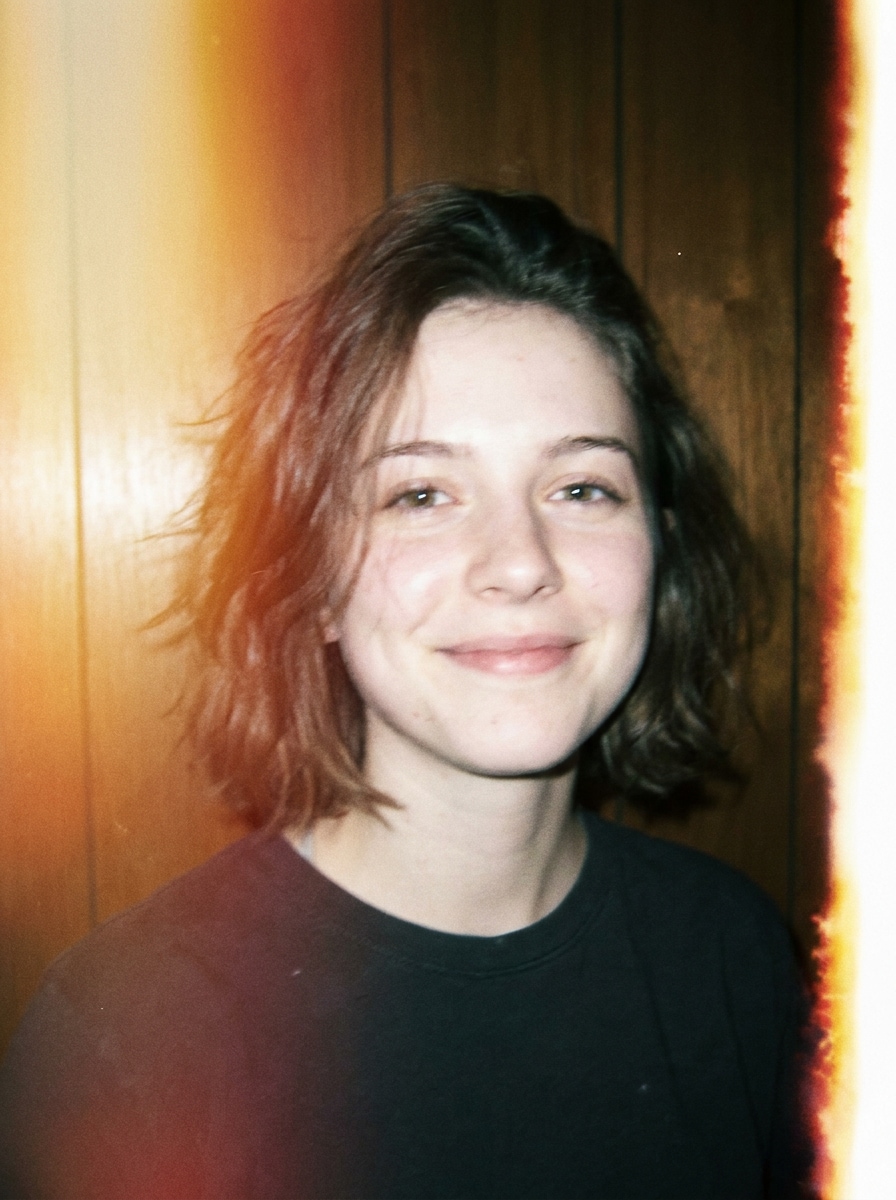
업로드한 사진에 빈티지 사이드 번을 더한 감성적인 포인트 앤 슛 스타일을 연출하세요. 따뜻한 라이트 누출 헤이즈, 페이드된 톤, 파인 그레인, 약간의 부드러움, 소형 카메라 플래시 무드, 그리고 오래된 기억 같은 사진 마감을 위한 은은한 아날로그 불완전함을 추가하세요.
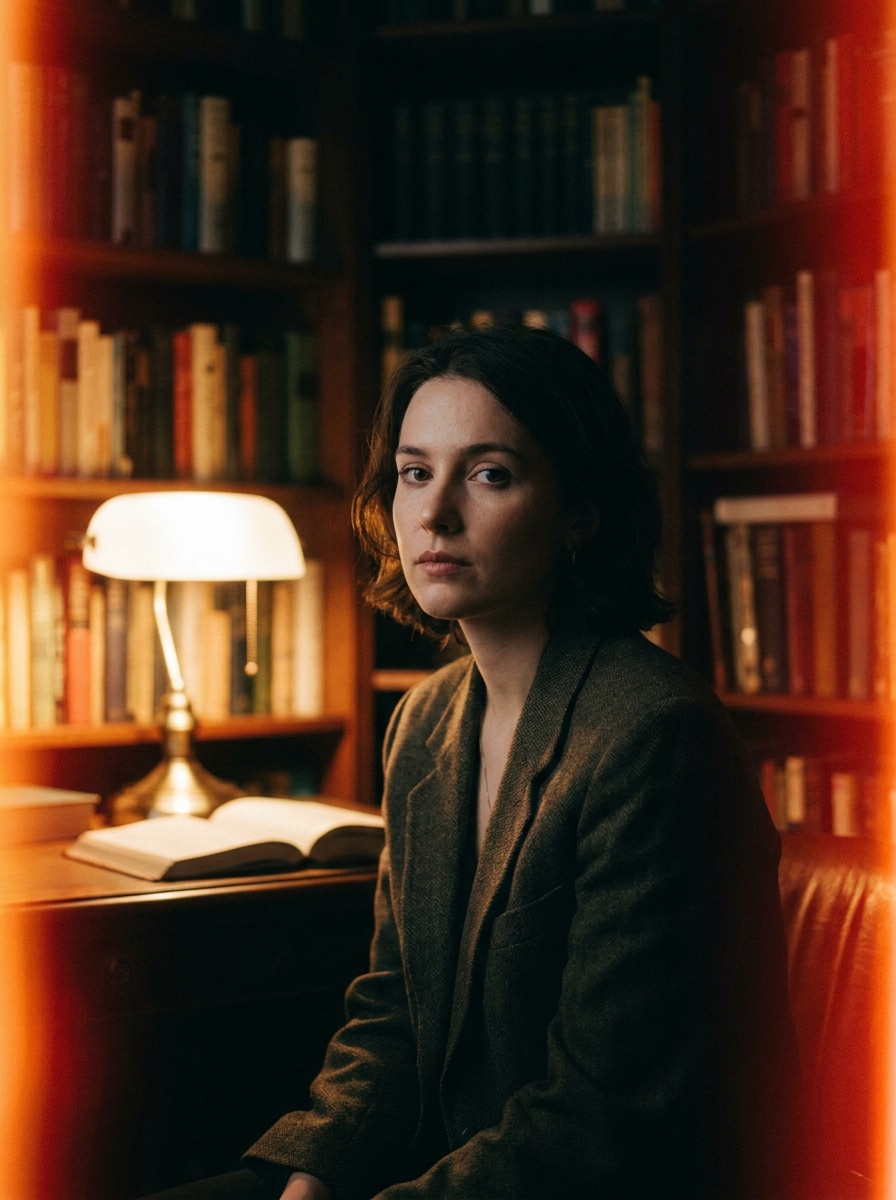
업로드한 이미지를 베이스로 사용하여 시네마틱한 35mm 스타일의 번트 필름 효과를 만드세요. 따뜻한 엣지 스트릭, 부드러운 할레이션, 적절한 그레인, 깊은 섀도우, 은은한 색상 페이드, 그리고 드라마틱하고 텍스처감 있으며 진정한 아날로그 느낌의 세련된 에디토리얼 무드를 추가하세요.
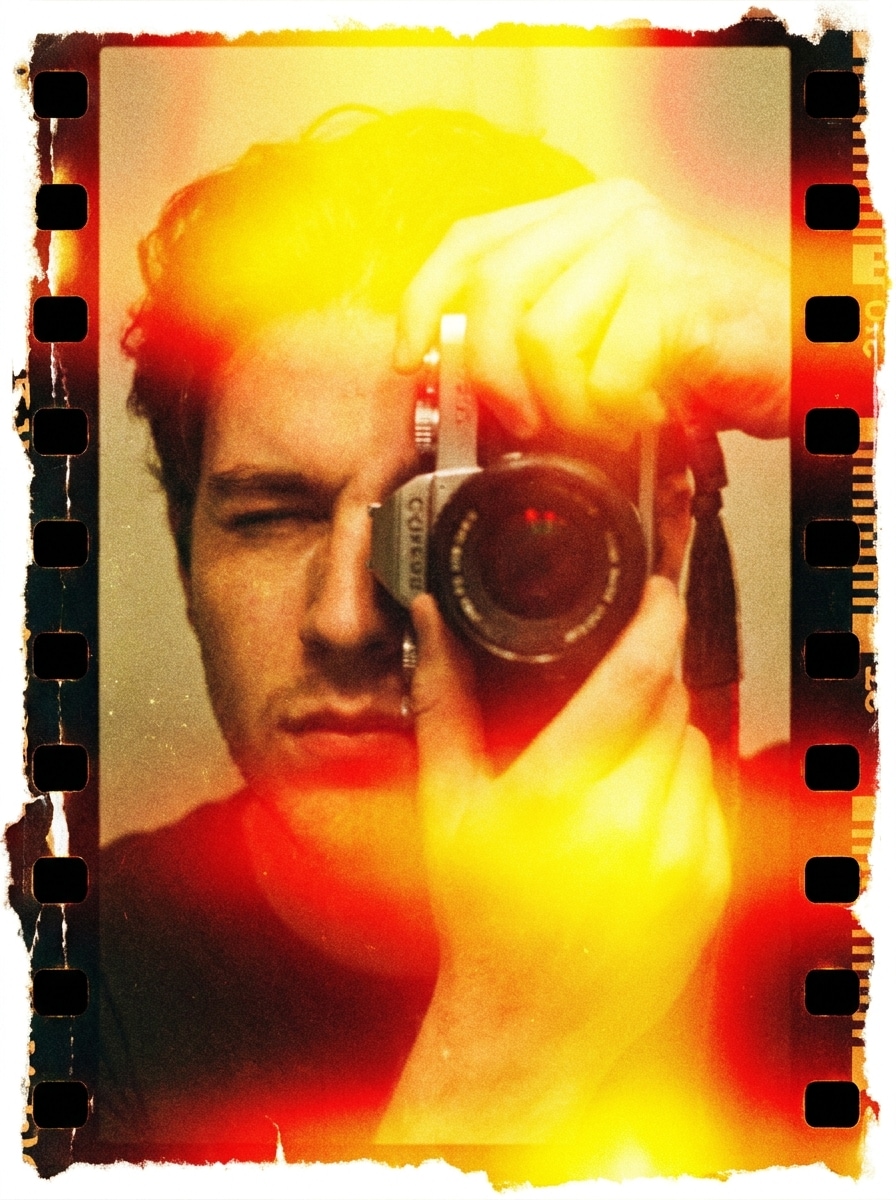
업로드한 이미지에 프레임 일부를 씻어내는 고강도 필름 번 효과를 적용하세요. 밝은 옐로우-레드 노출 블룸, 유기적인 엣지 손상, 텍스처감 있는 아날로그 헤이즈, 강한 그레인, 그리고 중앙 피사체를 유지하면서 창의적인 트랜지션 스타일 마감을 추가하세요.
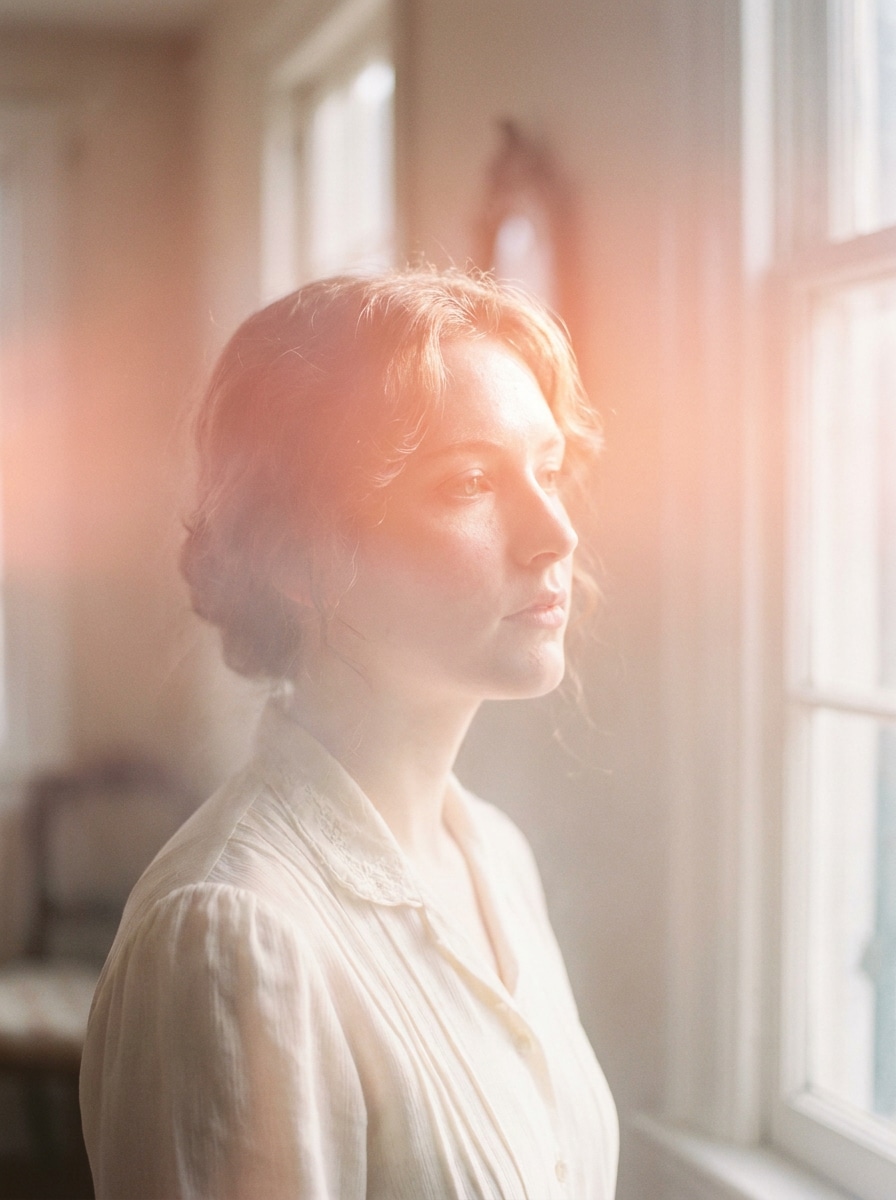
업로드한 이미지를 피사체로 사용하여 파스텔 라이트 누출이 있는 부드럽고 몽환적인 편집물로 변환하세요. 핑크-오렌지 글로우, 가벼운 헤이즈, 낮은 대비, 부드러운 그레인, 따뜻하고 아름다운 느낌, 그리고 섬세하고 감성적인 필름 번 마감의 차분한 로맨틱 무드를 블렌딩하세요.
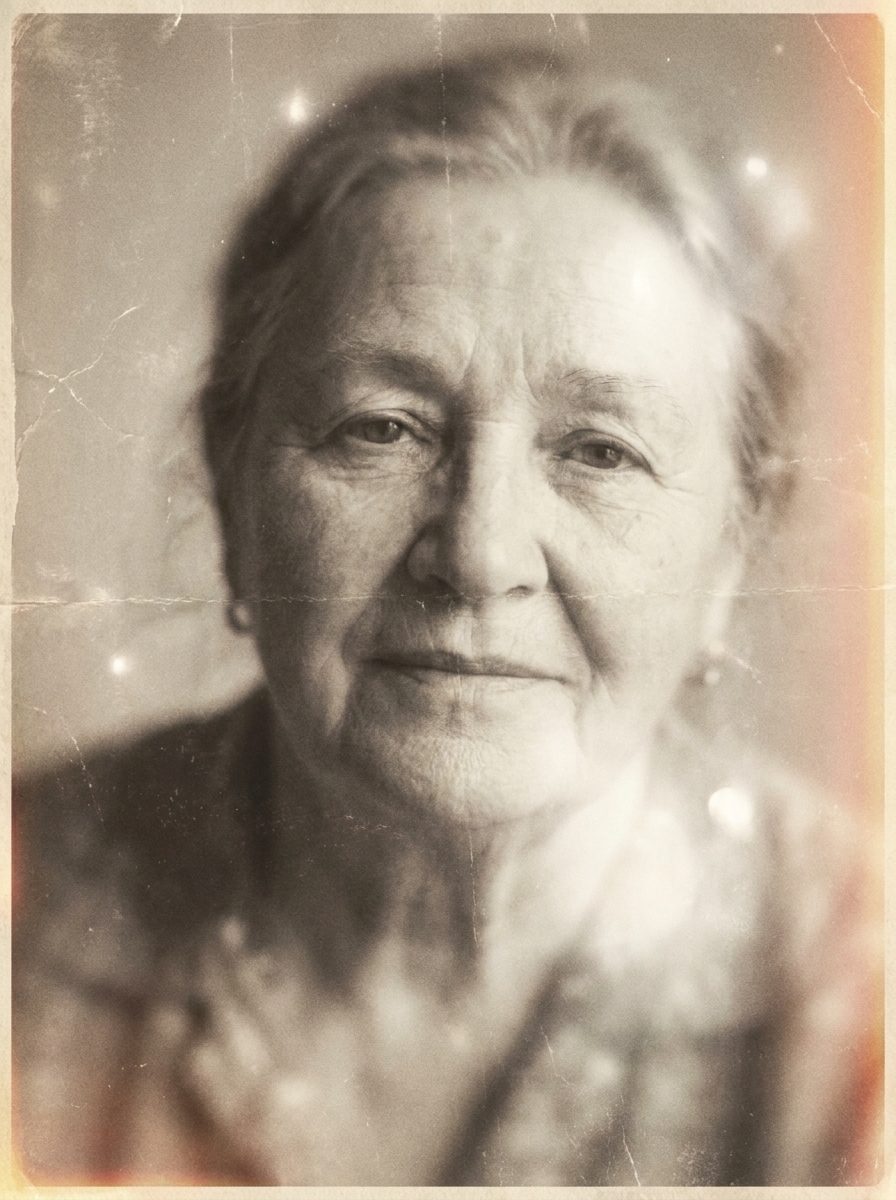
업로드한 이미지에 페이드된 기억 스타일의 필름 번을 만드세요. 채도가 낮은 따뜻한 톤, 은은한 엣지 노출, 섬세한 그레인, 약간의 블러, 낡은 사진 텍스처, 그리고 과도하게 스타일화되지 않고 자연스럽게 오래된 느낌의 감성적인 올드 포토 무드를 추가하세요.
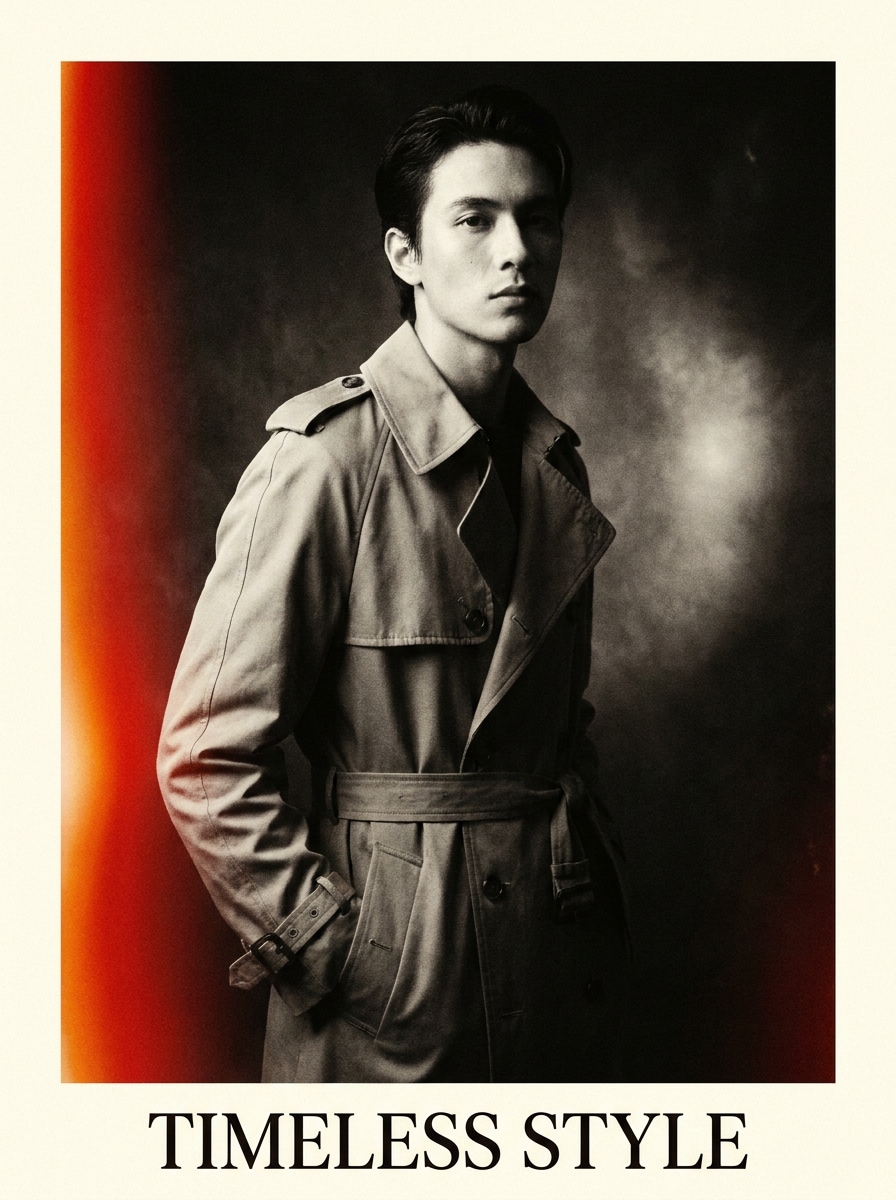
업로드한 이미지를 주요 피사체로 사용하여 강렬한 번으로 드라마틱한 에디토리얼 연출을 만드세요. 레드-오렌지 라이트 누출, 선명한 대비, 정제된 그레인, 프리미엄 패션 무드, 컨트롤된 하이라이트 블룸, 그리고 강렬한 인물 사진이나 소셜 커버에 어울리는 세련된 아날로그 마감을 추가하세요.
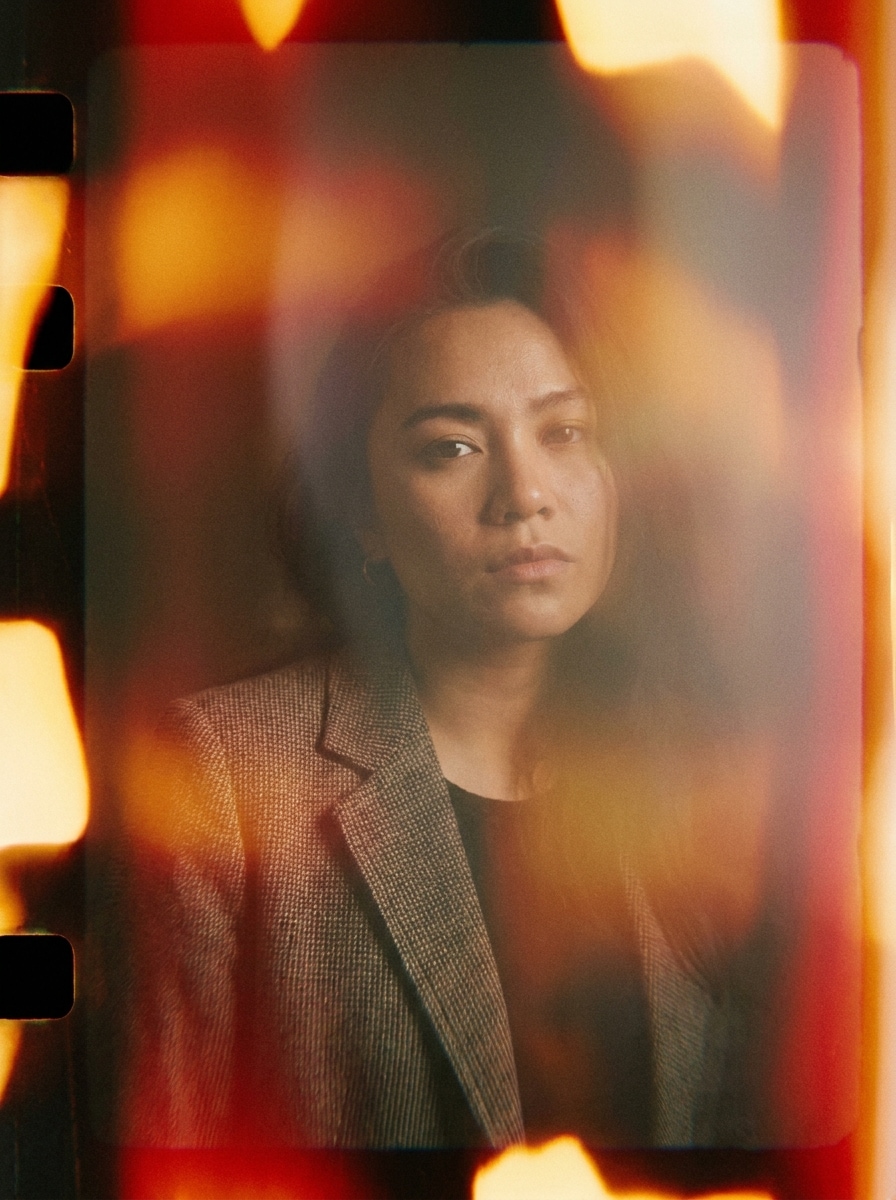
업로드한 이미지에 불규칙한 엣지 플레어의 아티스틱 필름 번 오버레이를 적용하세요. 앰버-레드 그라디언트, 레이어드 라이트 누출 텍스처, 약간의 왜곡, 부드러운 헤이즈, 적절한 그레인, 그리고 원본 피사체를 유지하면서 사진을 표현적으로 만드는 모던-레트로 크리에이티브 스타일을 블렌딩하세요.
업로드 기반 편집에서 Media.io는 레퍼런스 피사체를 시각적으로 일관되게 유지하면서 최종 필름 번 필터 방향을 조정하여, 개인화된 결과물을 더욱 자신 있게 활용할 수 있도록 합니다.
하나의 크리에이티브 아이디어는 여러 가지 스타일이 필요한 경우가 많습니다. Media.io는 동일한 필름 번 필터 스타일을 다양한 미학으로 재해석할 수 있어, 원하는 아날로그 무드를 유지하면서 각 버전이 특정 요구 사항에 맞도록 합니다.
필름 번 필터 비주얼을 실제 퍼블리싱에 활용할 때, Media.io는 최대 4K의 선명한 출력을 제공하여 프레젠테이션, 배경, 재사용 자산 전반에서 이미지가 선명하게 유지되도록 합니다.
Media.io 브라우저에서 빠른 빈티지 테스트를 간편하게 진행할 수 있습니다. 특정 기기에 구애받지 않고 프로세스를 실용적으로 유지하는 데 도움이 됩니다.
세 가지 간단한 단계로 멋진 비주얼을 만들고, 원하는 경우 결과물을 계속 다듬어 보세요.
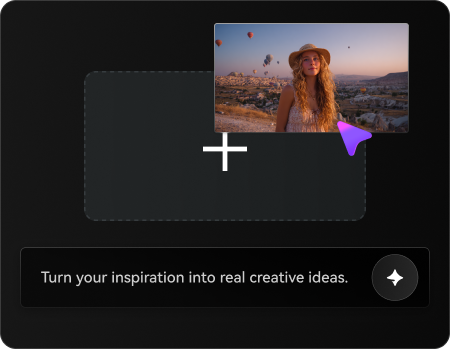
선명한 JPG, PNG, 또는 JPEG 형식의 인물 사진, 여행 사진, 제품 이미지, 또는 라이프스타일 사진으로 시작하세요. 잘 조명된 원본 이미지는 AI가 사실적인 엣지 번, 빈티지 헤이즈, 아날로그 스타일 라이트 누출을 위한 강력한 기반을 갖추도록 합니다.
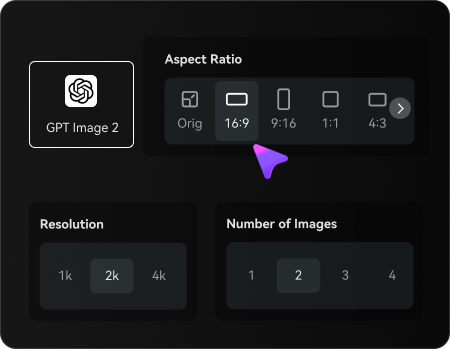
따뜻한 오렌지 누출, 은은한 빈티지 페이드, 또는 드라마틱한 레드 엣지 노출과 같이 원하는 스타일을 입력하세요. 그런 다음 모델을 선택하고 프로젝트에 맞게 화면 비율, 해상도, 생성할 변형 수를 조정하세요.
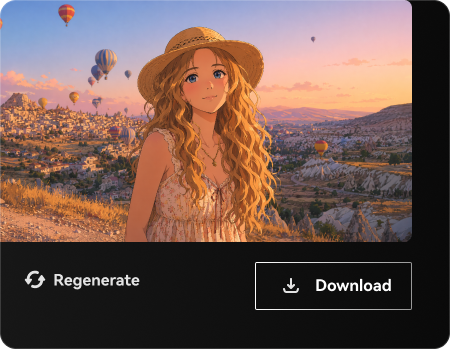
여러 결과물을 생성하고, 번의 위치와 무드를 비교한 후, 마음에 드는 버전을 다운로드하세요. 편집이 만족스러울 때까지 더 부드러운 누출, 강한 그레인, 또는 더욱 시네마틱한 마감을 위해 프롬프트를 계속 수정할 수 있습니다.
크리에이터들이 콘텐츠, 마케팅, 개인 프로젝트를 위해 Media.io의 필름 번 필터를 어떻게 활용하는지 살펴보고, 각 아이디어를 자신의 프로젝트에 맞게 응용해 보세요.
셀피, 에디토리얼 인물 사진, 커플 사진에 수동 레이어링 없이 빈티지 카메라의 따뜻함을 더하세요. Media.io는 사실적인 누출, 부드러운 그레인, 페이드된 대비를 추가하여 깔끔한 디지털 이미지를 감성적인 기억 속 한 장면으로 변환할 수 있습니다.
해변 사진, 로드트립 장면, 일몰 사진에 엣지 플레어, 화려한 헤이즈, 감성적인 색감을 추가하세요. Media.io에서 이 스타일은 짧은 포스트나 커버 이미지를 자연스럽고 시네마틱하며 덜 인위적으로 보이게 하고 싶을 때 특히 효과적이며, 강렬한 필름 번이나 은은한 따뜻한 글로우를 포함합니다.
무료 필름 번 소스나 스톡 필름 번 푸티지를 찾아 헤매는 대신, Media.io에서 직접 내 이미지를 변환할 수 있습니다. 이를 통해 앨범 스타일 커버, 프로모션 그래픽, 무드 보드를 위한 커스텀 비주얼을 더욱 독창적인 아날로그 감성으로 쉽게 만들 수 있습니다.

콘텐츠 크리에이터

"소셜 포스트를 위한 빠른 레트로 편집" 복잡한 편집 소프트웨어를 배우지 않고도 빈티지 일회용 카메라 느낌을 원했습니다. Media.io 덕분에 인물 사진에 따뜻한 엣지 누출과 그레인을 쉽게 추가할 수 있었고, 결과물이 정적인 오버레이보다 훨씬 자연스러워 보였습니다.

여행 사진작가
"감성적인 여행 사진에 탁월" 로드트립과 일몰 이미지에 사용했는데 번의 위치가 인위적이지 않고 자연스럽게 느껴졌습니다. 브라우저 작업 흐름이 빠르고, 여러 변형을 생성할 수 있어 은은한 헤이즈와 드라마틱한 플레어 사이의 적절한 균형을 찾는 데 도움이 되었습니다.

소셜 미디어 매니저
"커버 및 캠페인 비주얼에 유용" 음악 테마 캠페인을 위한 레트로 감성 에셋이 필요했습니다. 이 도구 덕분에 부드러운 노스탤지어부터 강렬한 에디토리얼 번까지 다양한 스타일을 테스트할 수 있었고, 최종 이미지가 소셜 커버와 프로모션 그래픽에 잘 어울렸습니다.

프리랜서 디자이너
"무작위 오버레이 다운로드보다 훨씬 나아" 필름 번 팩을 찾는 대신 이미지를 업로드하고 원하는 스타일을 설명하기만 했습니다. 시간이 절약되었고 특히 무드 보드와 빈티지 스타일 클라이언트 컨셉을 위해 더욱 커스터마이즈된 결과물을 얻을 수 있었습니다.
필름 번 필터는 너무 많은 빛이나 열에 노출된 아날로그 필름의 모습을 재현하는 이미지 효과입니다. 일반적으로 따뜻한 엣지 플레어, 헤이즈, 페이드, 그레인, 불완전한 색상 변화를 추가하여 디지털 사진을 더욱 빈티지하고, 시네마틱하며, 감성적으로 보이게 합니다.
JPG, PNG, 또는 JPEG 이미지를 Media.io에 업로드하고, 원하는 스타일을 설명한 후 브라우저에서 편집을 생성하세요. 은은한 누출, 강렬한 레드 필름 번, 또는 따뜻한 레트로 헤이즈로 결과물을 유도하고, 변형을 비교한 후 원하는 버전을 다운로드하세요.
무료 사용자는 무료 크레딧으로 Media.io를 체험할 수 있으며, 업그레이드 전에 효과를 테스트해 보고 싶을 때 유용합니다. 더 많은 크레딧, 더 많은 사용량, 워터마크 없는 고해상도 다운로드를 원하시면 요금제 페이지에서 업그레이드하실 수 있습니다.
필름 번 필터는 업로드한 사진을 직접 변환하므로, 이미지와 더 자연스럽게 통합된 느낌을 줍니다. 라이트 누출 오버레이는 위에 얹는 별도의 그래픽인 경우가 많습니다. 실제로 Media.io는 더 유기적이고 아날로그적인 필름 번 효과를 만드는 데 도움이 되며, 오버레이는 더 고정적이거나 반복적으로 보일 수 있습니다.
스타일 자체는 텍스처, 헤이즈, 또는 페이드를 추가하지만, Media.io는 1K, 2K, 4K를 포함한 고해상도 출력 옵션을 지원합니다. 이를 통해 사진에 사실적인 빈티지 텍스처와 라이트 번 스타일을 부여하면서도 이미지 선명도를 유지할 수 있습니다. 무료 사용자에게는 워터마크가 표시될 수 있습니다.
Media.io는 웹 기반이므로 브라우저가 있는 휴대폰, 태블릿, 또는 컴퓨터에서 이 효과를 적용할 수 있습니다. 별도의 소프트웨어를 설치하지 않고도 iOS, Android, Mac, 또는 Windows에서 인물 사진이나 여행 사진을 손쉽게 편집할 수 있습니다.
 4.7 (162,357 투표)