AI Candy Filter for Sweet, Glossy Photo Transformations Online
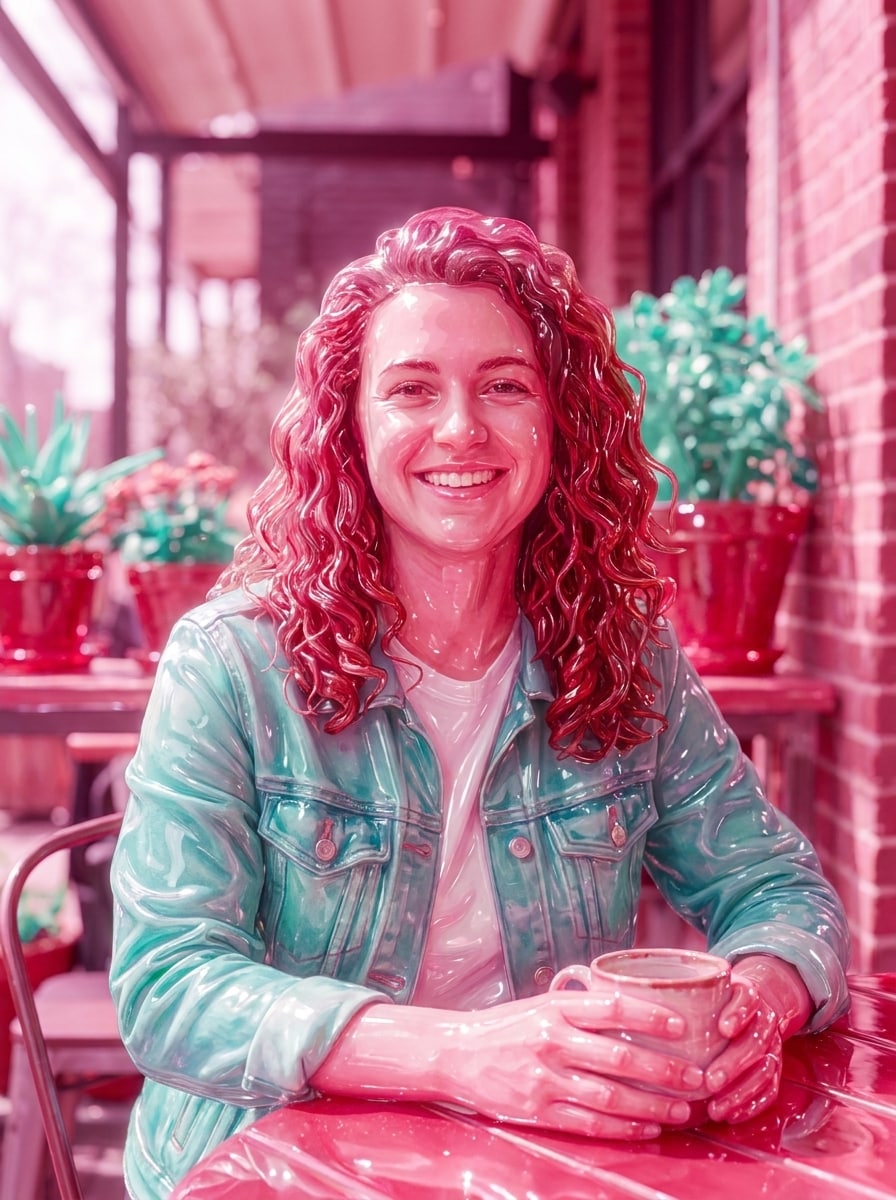
Create playful candy-style portraits and dreamy dessert-inspired edits from your own image. This AI candy filter helps you make a sweet candy portrait, apply a candy photo filter, or even turn photo into candy art with glossy, pastel, gummy, and candyland filter-inspired looks.
Review these example directions, then tailor the prompt details to get stronger results with this Media.io Candy Filter.
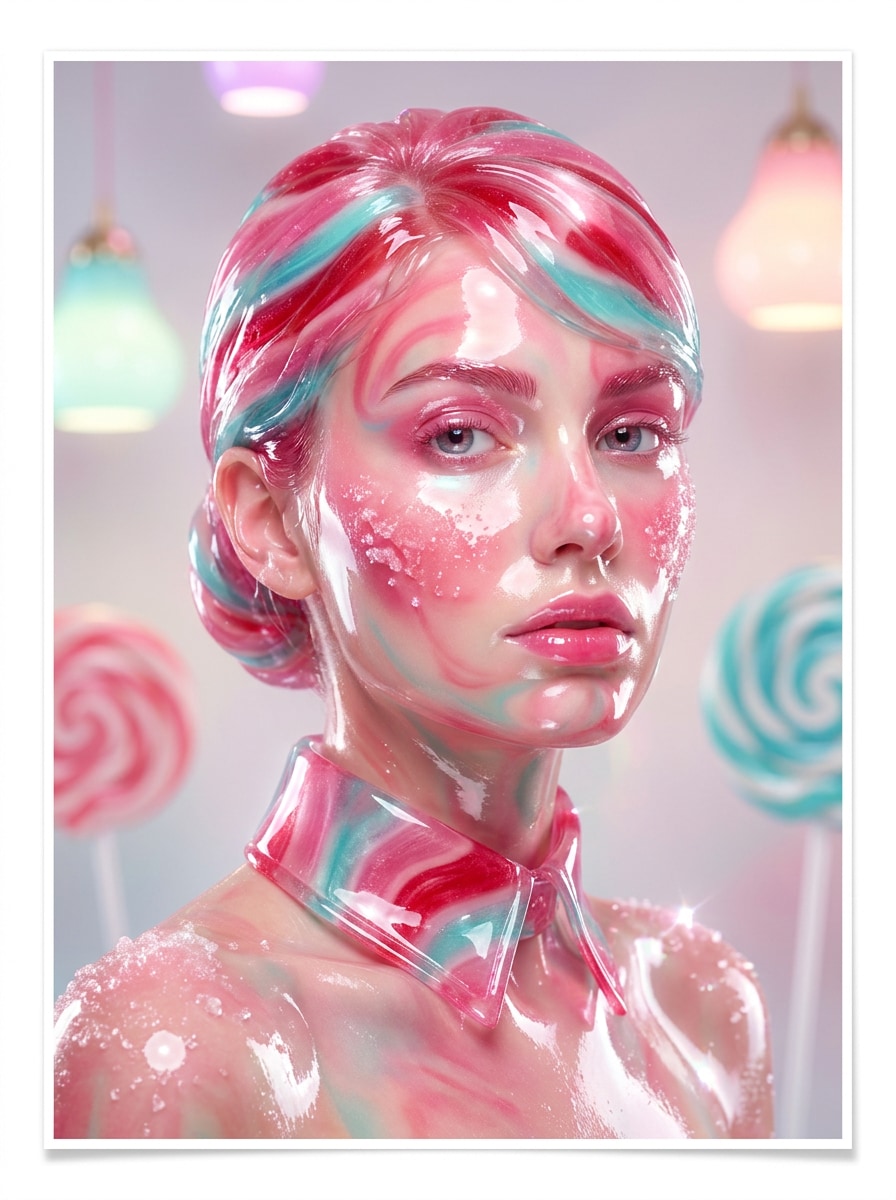
Glossy Hard Candy Portrait
Use the uploaded image as the subject and transform it into a glossy hard-candy portrait with glass-like sugar shine, reflective highlights, vibrant pink, cherry red, and aqua accents, smooth candy-coated textures, dreamy studio lighting, crisp facial detail retention, and a polished editorial composition.
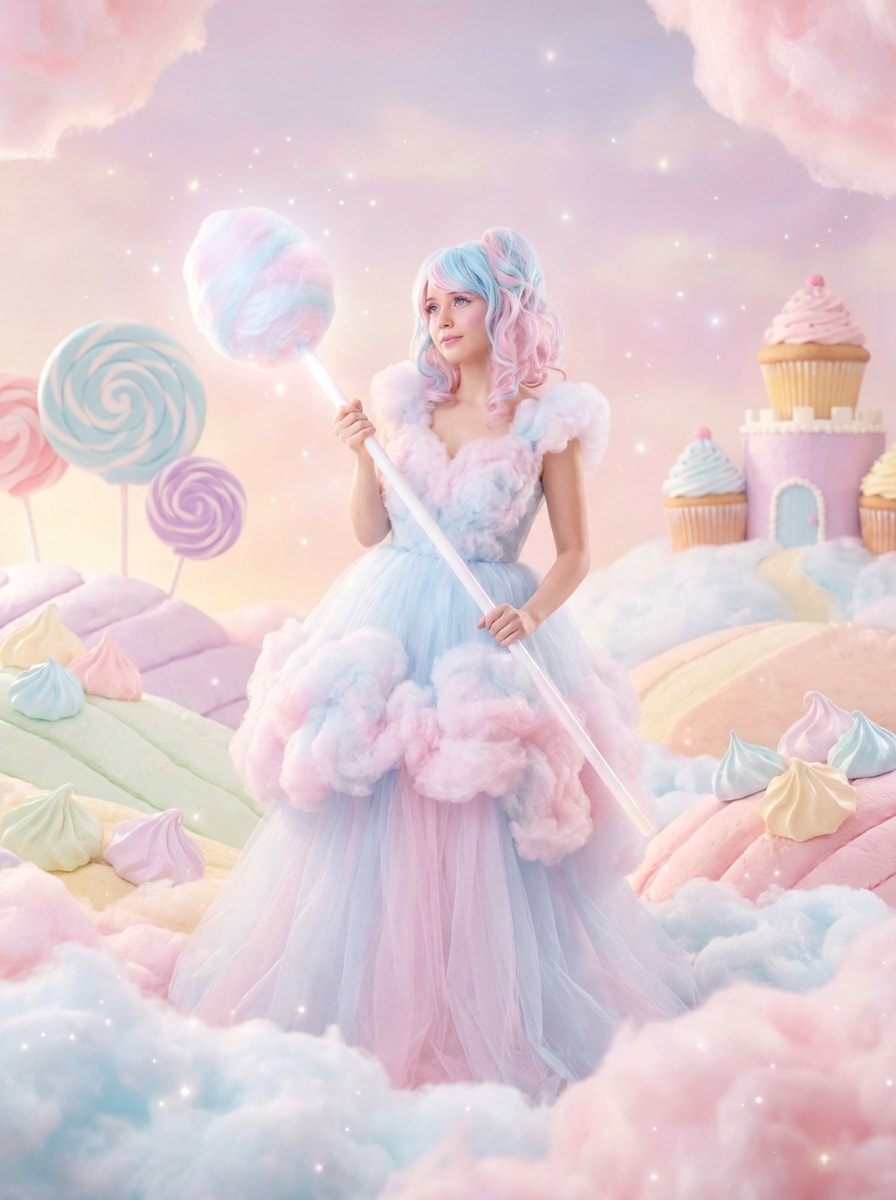
Pastel Cotton Candy Look
Use the uploaded photo as the main subject and restyle it into pastel cotton candy art with fluffy cloud-like textures, soft pink and baby blue gradients, airy glow, gentle contrast, sweet dreamy mood, subtle sparkle details, and a whimsical dessert fantasy background while keeping the subject recognizable.
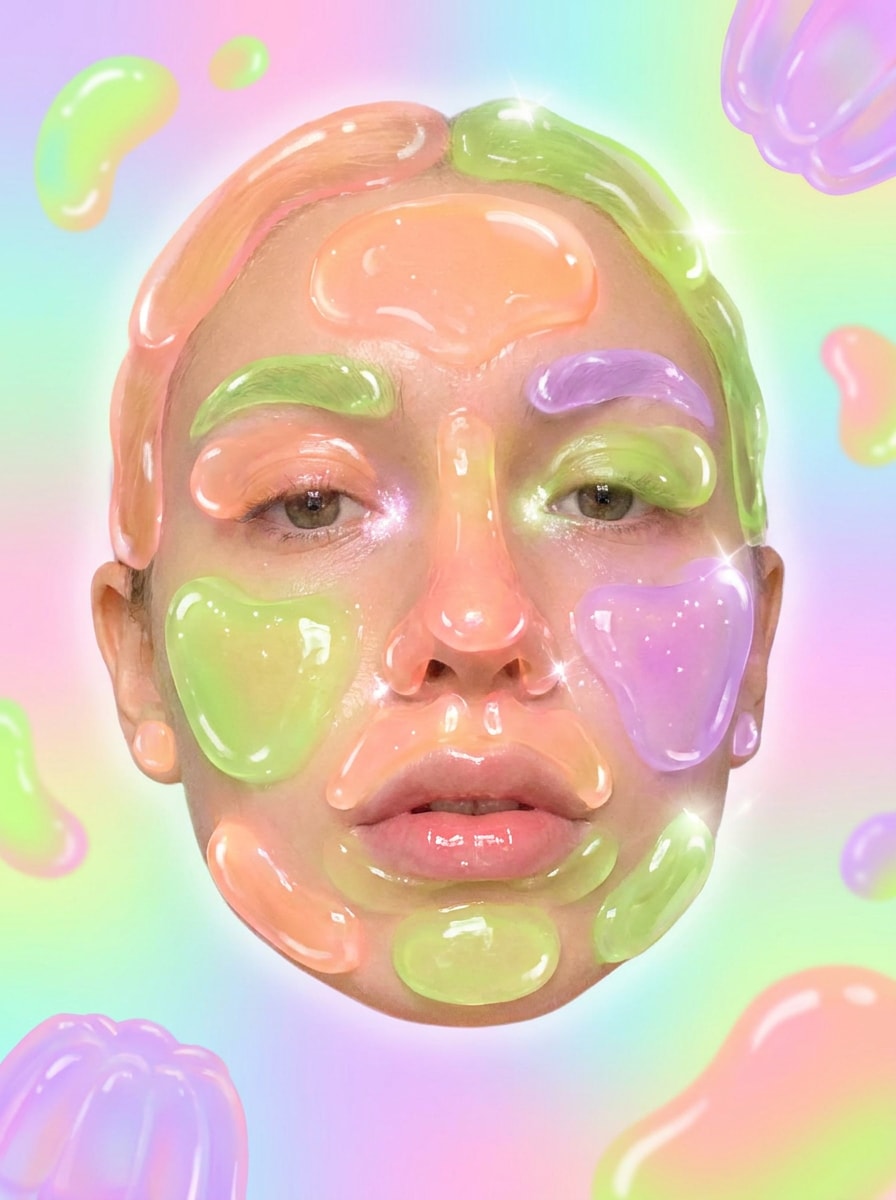
Gummy Jelly Portrait
Use the uploaded portrait as the base and apply a gummy jelly effect with translucent candy textures, rounded glossy forms, soft neon peach, lime, and lilac tones, jelly-like highlights, playful surreal mood, smooth background blur, and strong preservation of the original face, pose, and expression.
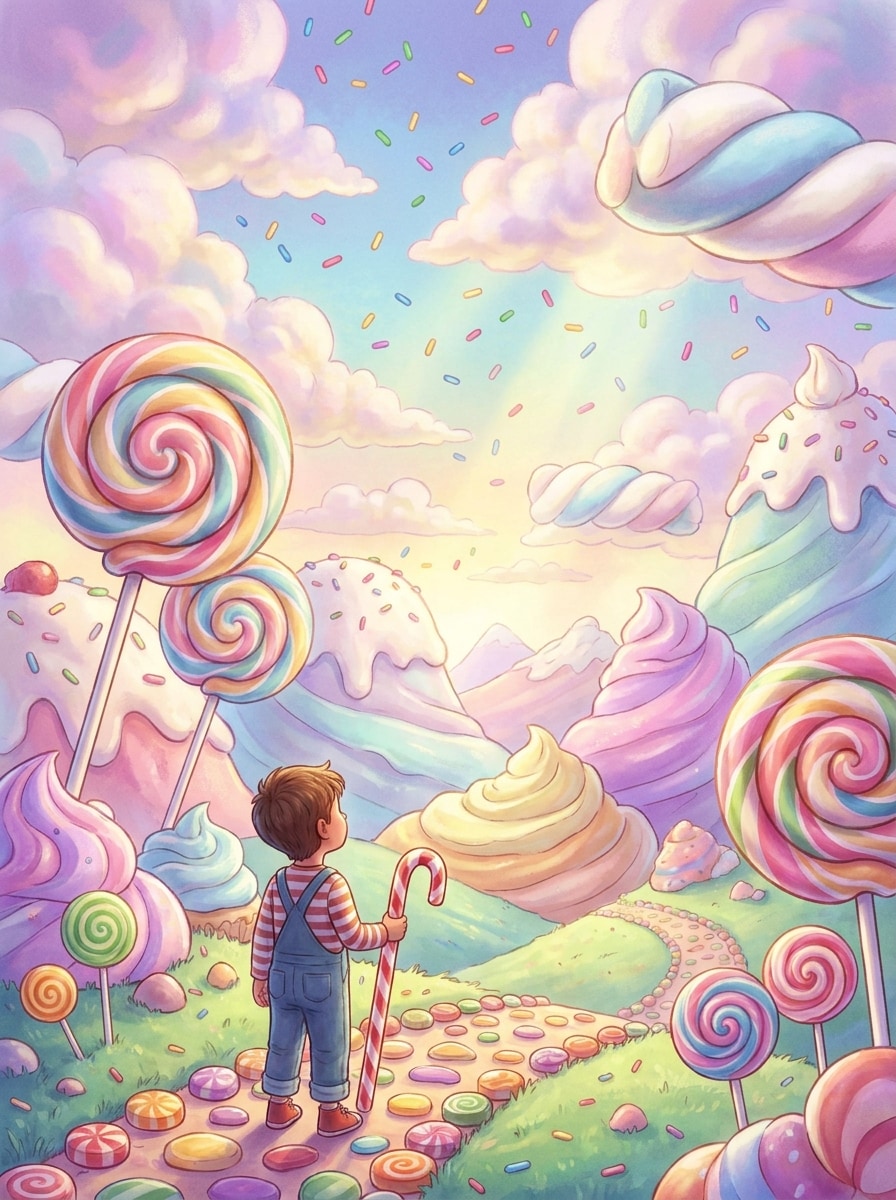
Candyland Background Swap
Use the uploaded image as the subject and place it inside a whimsical candyland filter scene with oversized lollipops, frosting hills, marshmallow clouds, sprinkle details, saturated pastel lighting, cinematic depth, and playful fantasy styling while keeping the person or pet clear and naturally integrated.
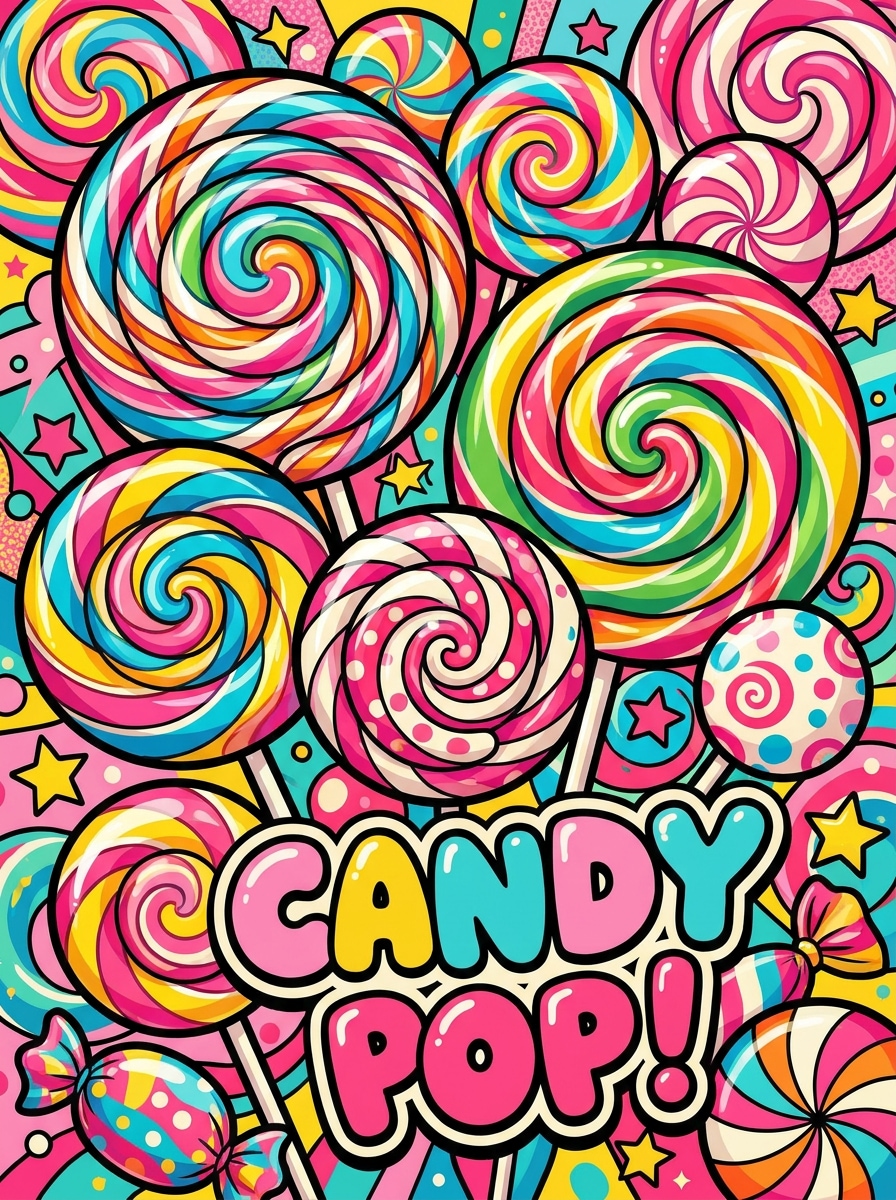
Lollipop Pop Art
Use the uploaded image as the subject and transform it into bold lollipop pop art with graphic outlines, candy swirl patterns, bright magenta, yellow, cyan, and red tones, poster-like composition, glossy accents, retro energy, and a clean separation between subject and background for a punchy social graphic.
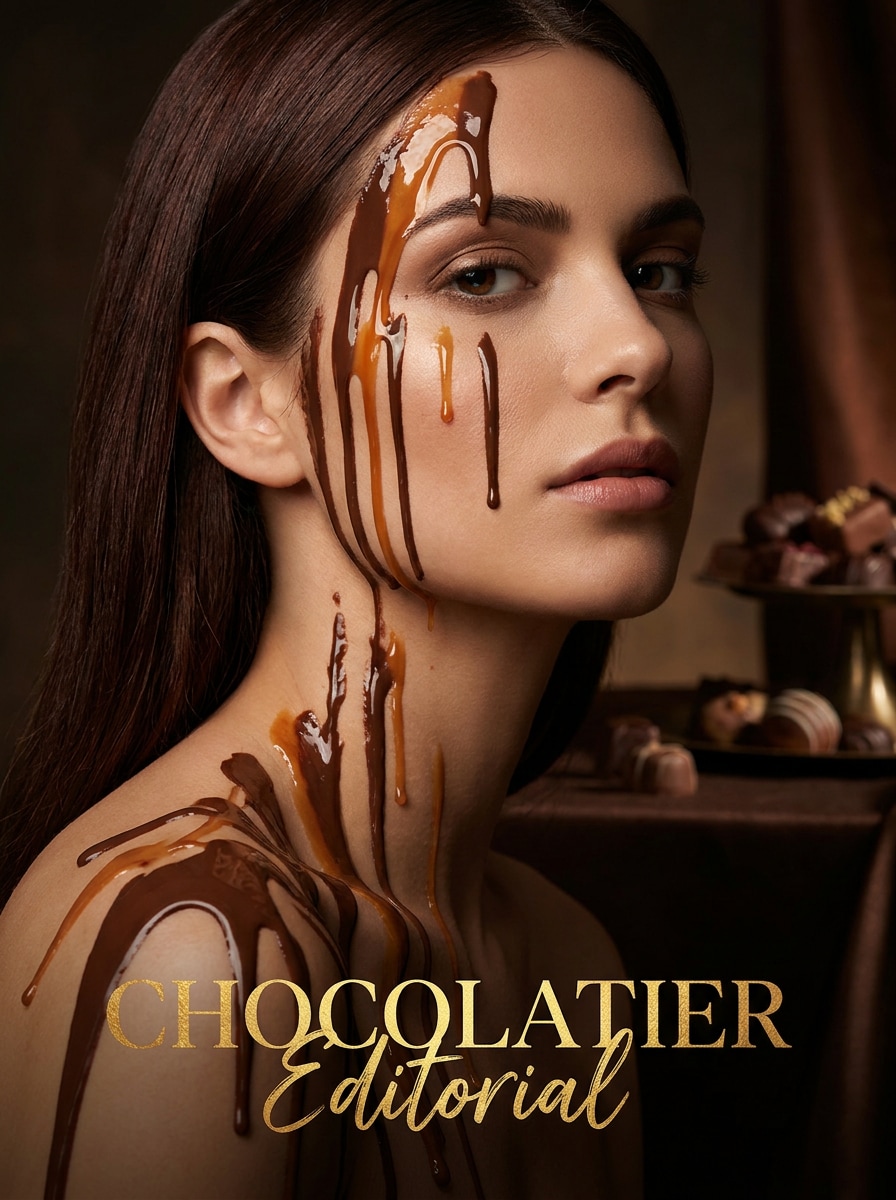
Chocolate Drip Editorial
Use the uploaded portrait as the base and restyle it into a chocolate drip editorial image with rich cocoa and caramel tones, glossy melted textures, elegant fashion lighting, refined shadows, luxurious magazine mood, smooth high-end finish, and preserved facial likeness for a dramatic sweet-fashion look.
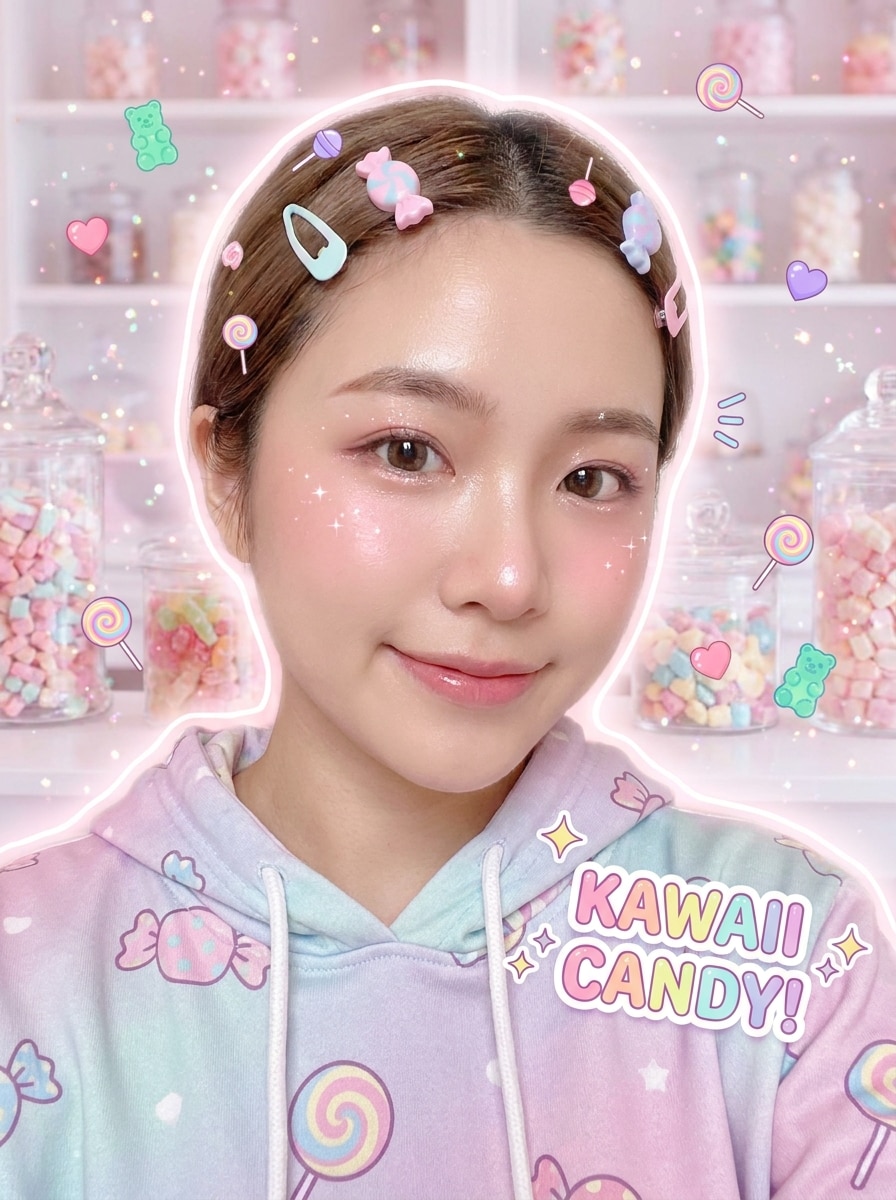
Kawaii Sweet Filter
Use the uploaded selfie as the subject and give it a kawaii sweet makeover with pastel candy colors, tiny candy icons, sparkles, soft blush tones, gentle glow, cute sticker-like details, clean skin texture, and cheerful Japanese-inspired charm while keeping facial features recognizable and polished.
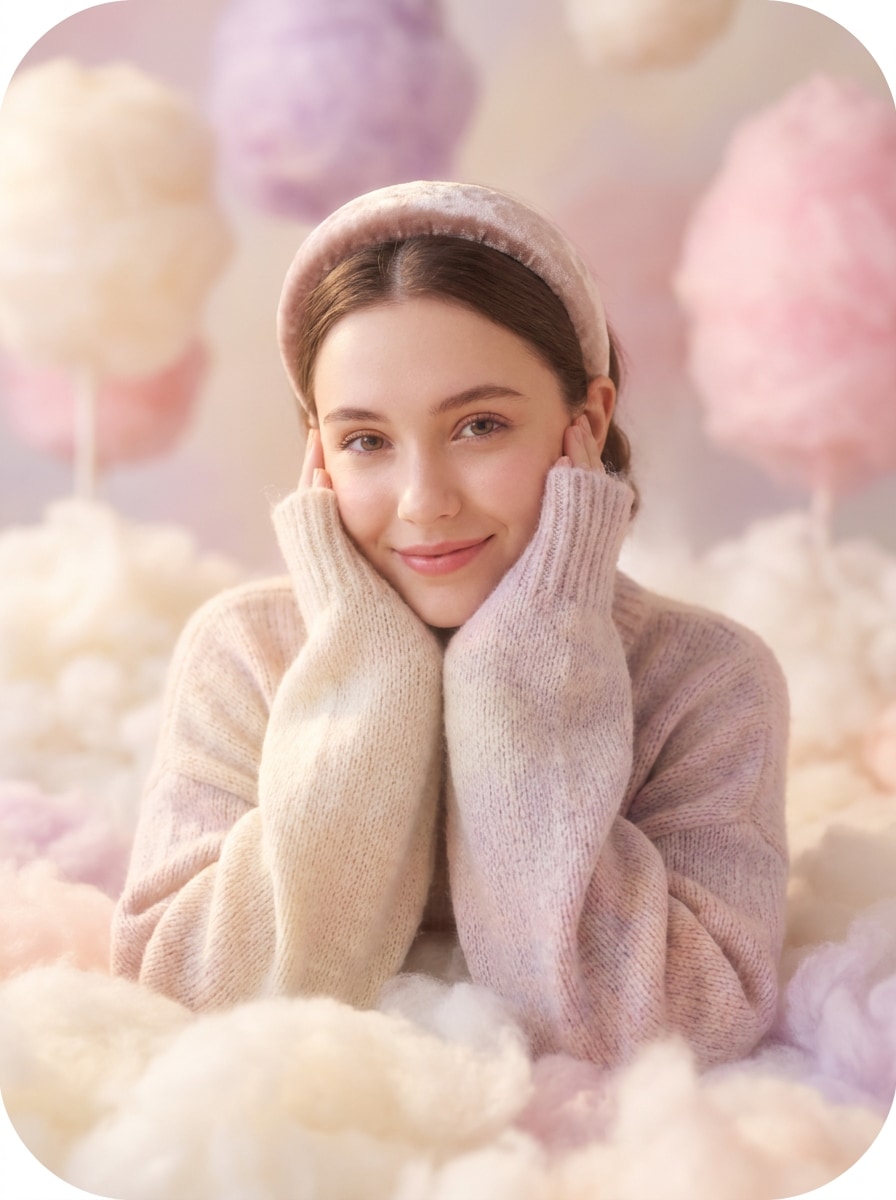
Marshmallow Soft Glow
Use the uploaded image as the subject and transform it into a marshmallow-soft scene with pillowy textures, creamy pastel ivory, blush, and lavender tones, luminous glow, smooth edges, cozy sweet mood, gentle depth of field, and natural face detail preserved for a dreamy airy finish.
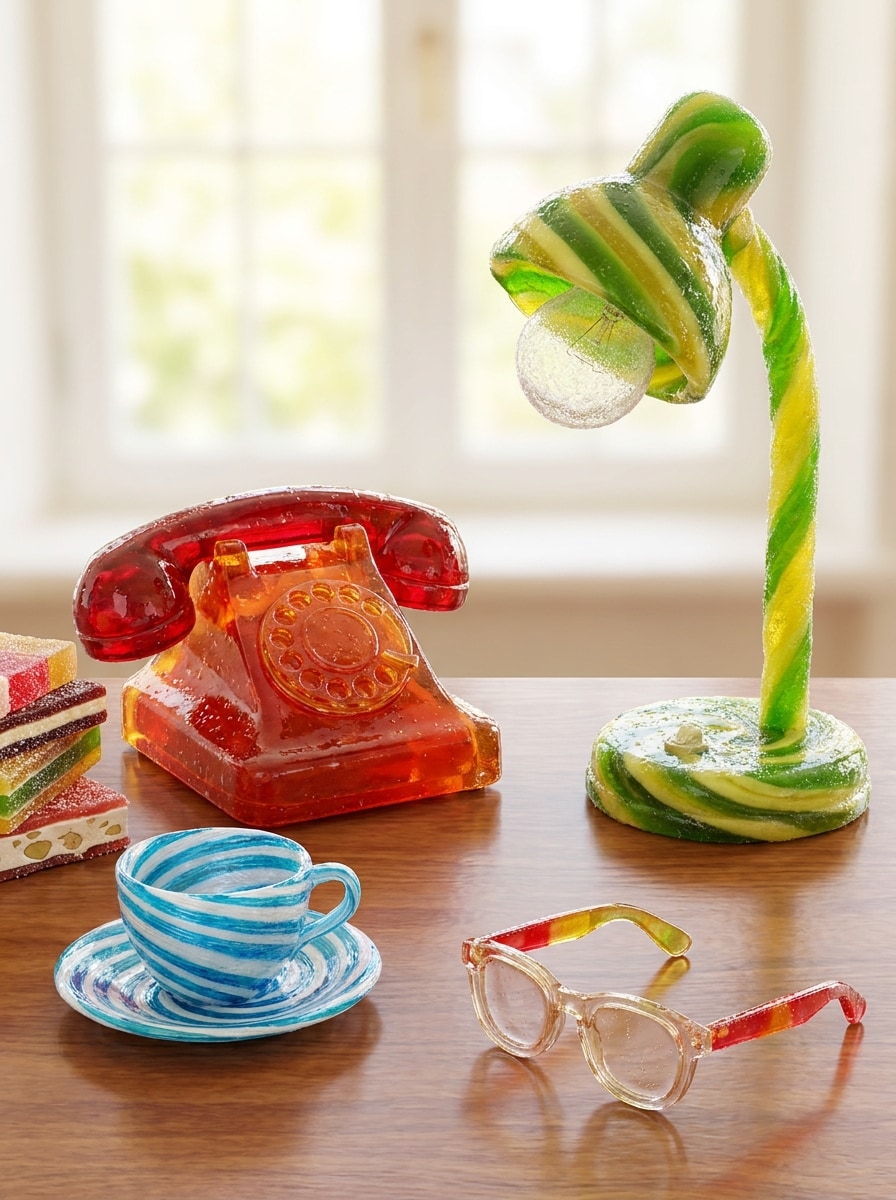
Candy Material Swap
Use the uploaded photo as the source and convert key objects, accessories, or clothing accents into realistic candy materials with glossy sugar coating, jelly translucency, bright fruit-inspired colors, believable reflections, surreal but clean texture replacement, and high detail retention across the original composition.
Sweetcore Outfit Restyle
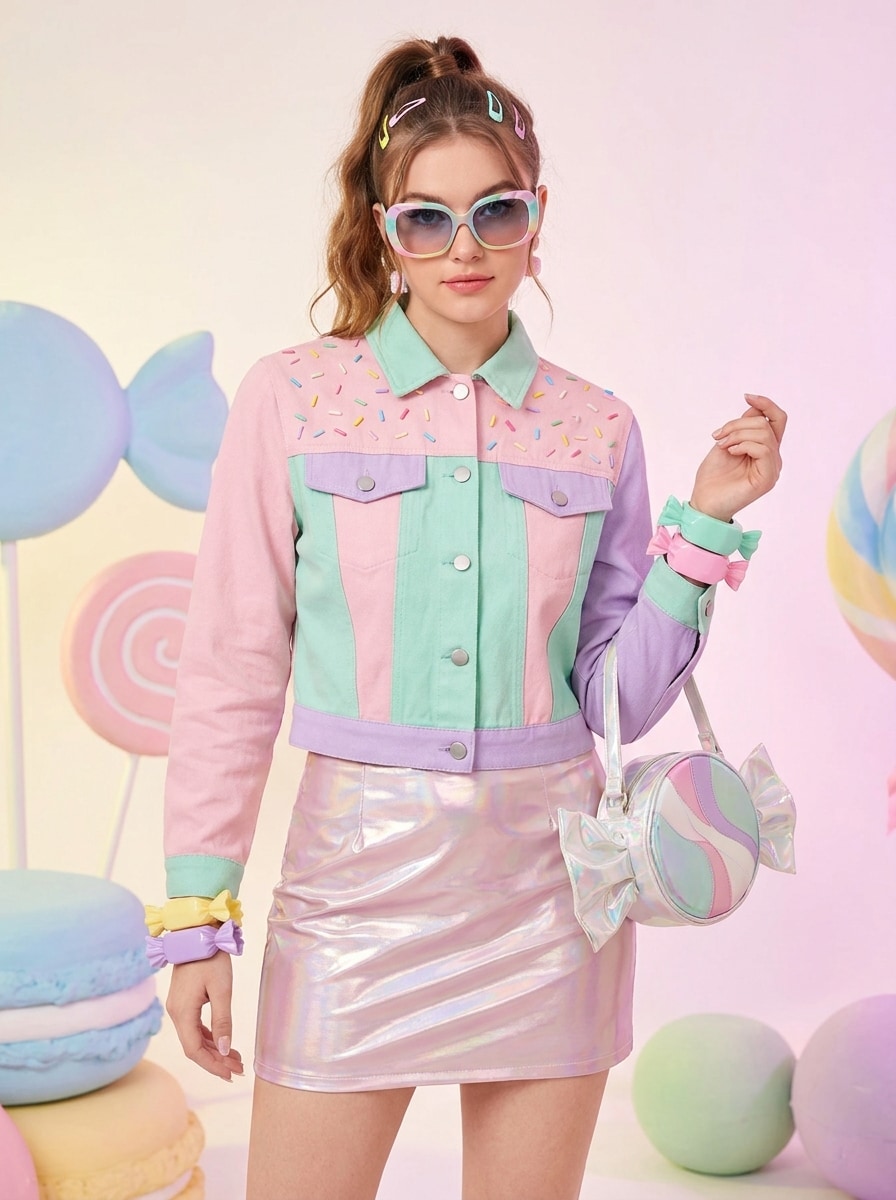
Use the uploaded fashion photo as the subject and restyle the outfit into a sweet candycore look with pastel pink, mint, and lavender tones, sprinkle-inspired accents, glossy accessories, playful fabric shine, youthful styling, crisp fashion composition, and strong identity retention for a trendy candy-glam image.
Why Use Media.io for Candy-Style Photo Effects
Preserve Identity While Changing the Look
Selfies, couple shots, and pet portraits can all be restyled with Media.io into playful candy art while keeping recognizable facial structure, pose, and key details, so the final image feels imaginative without losing who or what is in the photo.
Switch Between Glossy, Gummy, and Pastel Looks Easily
Creative choices are easier to evaluate with Media.io because you can compare multiple looks from the same candy-inspired visual base, helping you refine the direction faster and choose the version that best fits the project.
Keep Final Visuals Sharp for Real Projects
When a candy filter visual is headed for real publishing use, Media.io gives you sharper output up to 4K, which helps the image stay clear across presentations, backgrounds, and reused assets.
Work Across Devices Without Extra Installs
Projects often move between devices, and Media.io keeps the candy filter workflow in the browser so you can begin on a phone and finish on a desktop without installing extra software.
How to Use the AI Candy Filter
Turn your words into stunning visuals in three simple steps, then continue refining the result if you want to take it further.
Step 1
Upload Your Reference Image
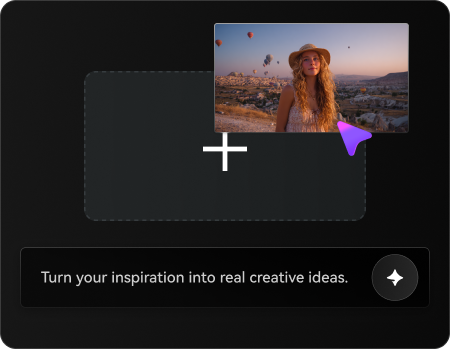
Start with a clear selfie, portrait, pet photo, or product image in JPG, PNG, or JPEG format. Choose a photo with visible details and simple lighting if you want the candy-style transformation to stay recognizable and clean.
Step 2
Describe the Change and Set Options
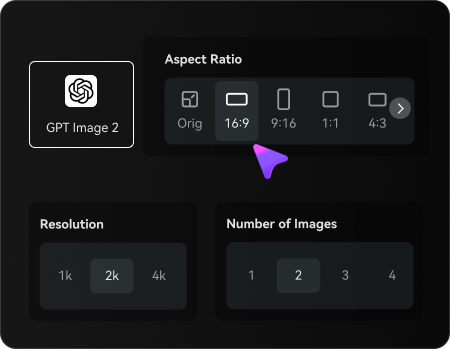
Enter a prompt describing the candy look you want, such as glossy sugar shine, gummy texture, pastel cotton candy tones, or a candyland fantasy background. Then choose your preferred model and adjust aspect ratio, quality, or image count as needed.
Step 3
Generate, Download, and Keep Improving
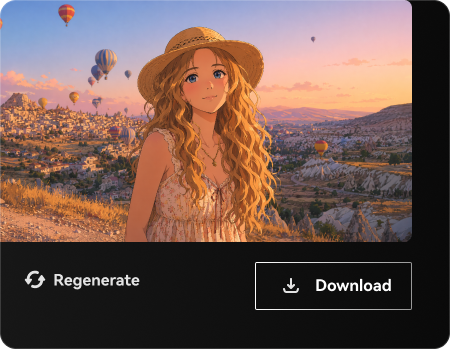
Generate your edited image, compare the variations, and download the version you like best. You can refine the prompt, try a different candy aesthetic, or create more versions to better match social posts, avatars, or creative design ideas.
See how creators use this Media.io Candy Filter for content, marketing, and personal projects, then adapt each idea to fit the brief.
Upgrade Selfies for Social Profiles
Turn an ordinary portrait into a glossy, pastel, or gummy-style image that stands out in profile photos, story posts, and creator branding. Media.io makes it easy to create a polished dessert-inspired look without losing the original expression.
Create Playful Pet and Couple Portraits
Candy-inspired styling works especially well for fun pet photos, friendship shots, and couple pictures. With Media.io, a bright sweet-themed makeover can add personality, color, and a shareable fantasy feel while still keeping the subject easy to recognize.
Restyle Product Shots and Promo Visuals
Use sugary textures, candy-colored palettes, and surreal dessert backgrounds to refresh accessories, beauty items, or themed campaign images. Media.io gives you a fast way to build scroll-stopping visuals for seasonal launches, mood boards, and creative social content.
What Users Say About This Candy Effect
Mia R.
Lifestyle Creator
"Perfect for dreamy pastel portraits" I wanted a soft candy-style edit for Instagram, and this tool gave me glossy and cotton-candy results that actually looked polished. My face stayed recognizable, which is what most filters get wrong.
Jordan K.
Small Business Owner
"Fun product visuals without a full photoshoot" I used it on dessert-themed product shots and got bright, playful images fast. The candy textures looked creative but still clean enough to use in social promos and mood boards.
Lena P.
Student Designer
"Easy way to test multiple sweet aesthetics" I tried gummy, chocolate, and candyland looks from the same upload. It saved time because I could compare different styles quickly instead of rebuilding the concept from scratch.
Chris D.
Pet Content Creator
"Cute results for pet portraits" I uploaded a photo of my dog and got a really fun pastel candy edit that still kept his face and fur details clear. It worked well on mobile, which made the whole process even easier.
An AI candy filter is an image-to-image effect that transforms an uploaded photo into sweet, dessert-inspired artwork. With Media.io, you can restyle portraits, pets, or objects into glossy, gummy, pastel, or candy-themed visuals while keeping the original subject visible and recognizable.
2. How do I turn a photo into candy-style art with AI?
Upload a JPG, PNG, or JPEG image to Media.io, then describe the candy look you want, such as a glossy sugar finish, gummy texture, or pastel candyland scene. After that, choose your model and image settings, generate the result, and download the version that best matches your creative idea.
3. Is this AI candy photo filter free to use?
Yes, Media.io offers free credits so you can try this candy photo filter before upgrading. Free users may see watermarks on downloads, while paid plans unlock watermark-free high-resolution exports and more credits. You can compare options on the pricing page.
4. Can I use the candy filter on selfies, pets, and product photos?
Media.io supports uploaded reference images for a wide range of subjects, so you can use the effect on selfies, couple portraits, pets, accessories, and product photos. That flexibility makes it useful for personal edits, themed content, and playful brand visuals.
5. Will the AI candy filter keep my face and details recognizable?
In many cases, yes. Media.io is built for reference-based editing, so it can preserve important facial structure, pose, clothing cues, and subject details while applying a candy-style transformation. Results can vary by prompt and image quality, but clear source photos usually help maintain stronger identity retention.
6. What image quality and resolution can I download?
Media.io supports multiple output options, including 1K, 2K, and 4K resolution. You can also choose aspect ratios such as 1:1, 9:16, 16:9, 4:3, and 3:4, which makes it easier to create candy-themed visuals for profile pictures, social posts, covers, and other design uses. Free users may have watermarks.