Deine Werke werden nur 7 Tage lang gespeichert. Assets, die nach dem Upgrade auf einen Mitgliedschaftstarif erstellt werden, werden dauerhaft gespeichert.
Entfalten Sie Ihr kreatives Potenzial und erleben Sie jetzt die Magie der Media-KI!
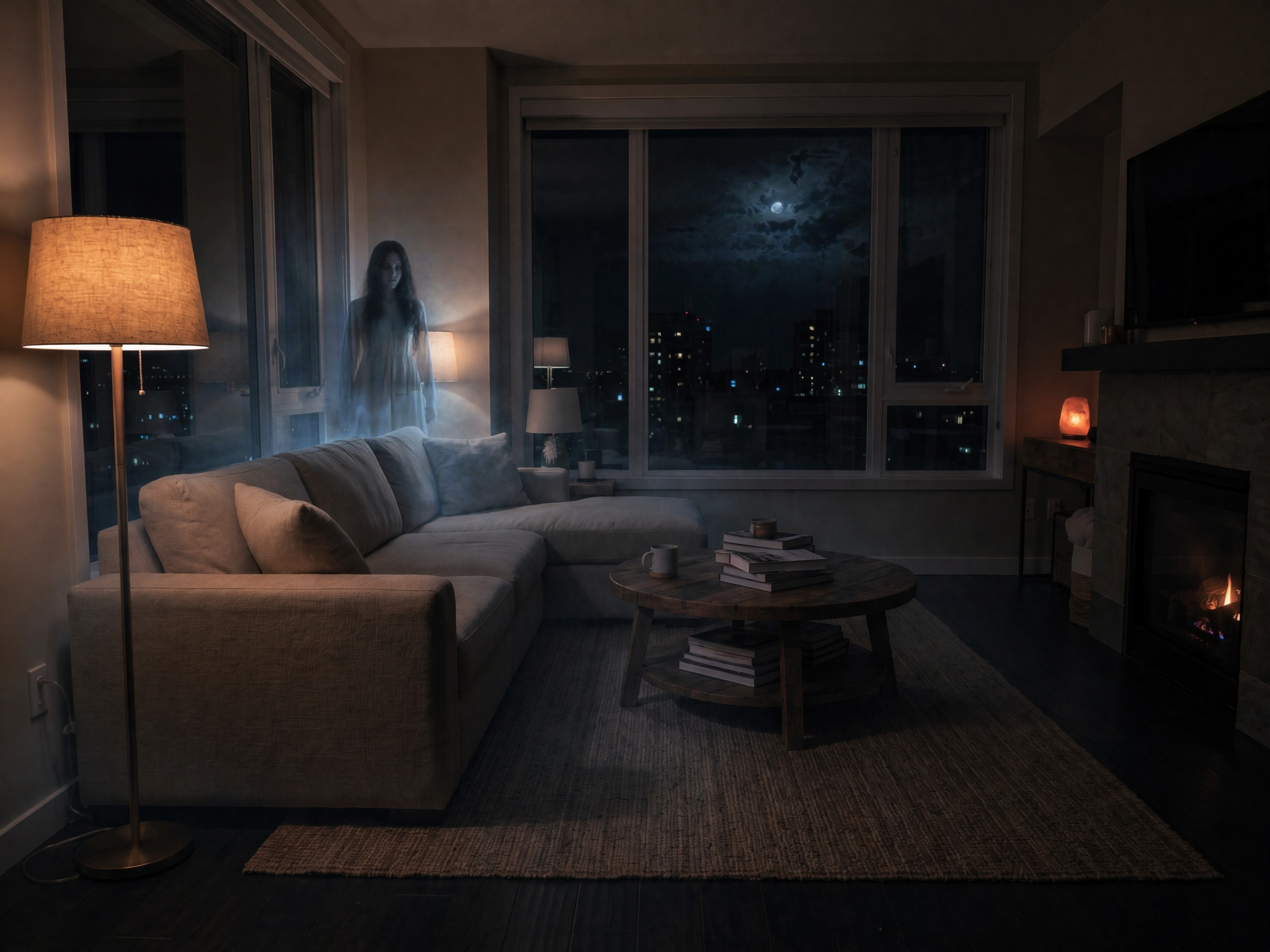
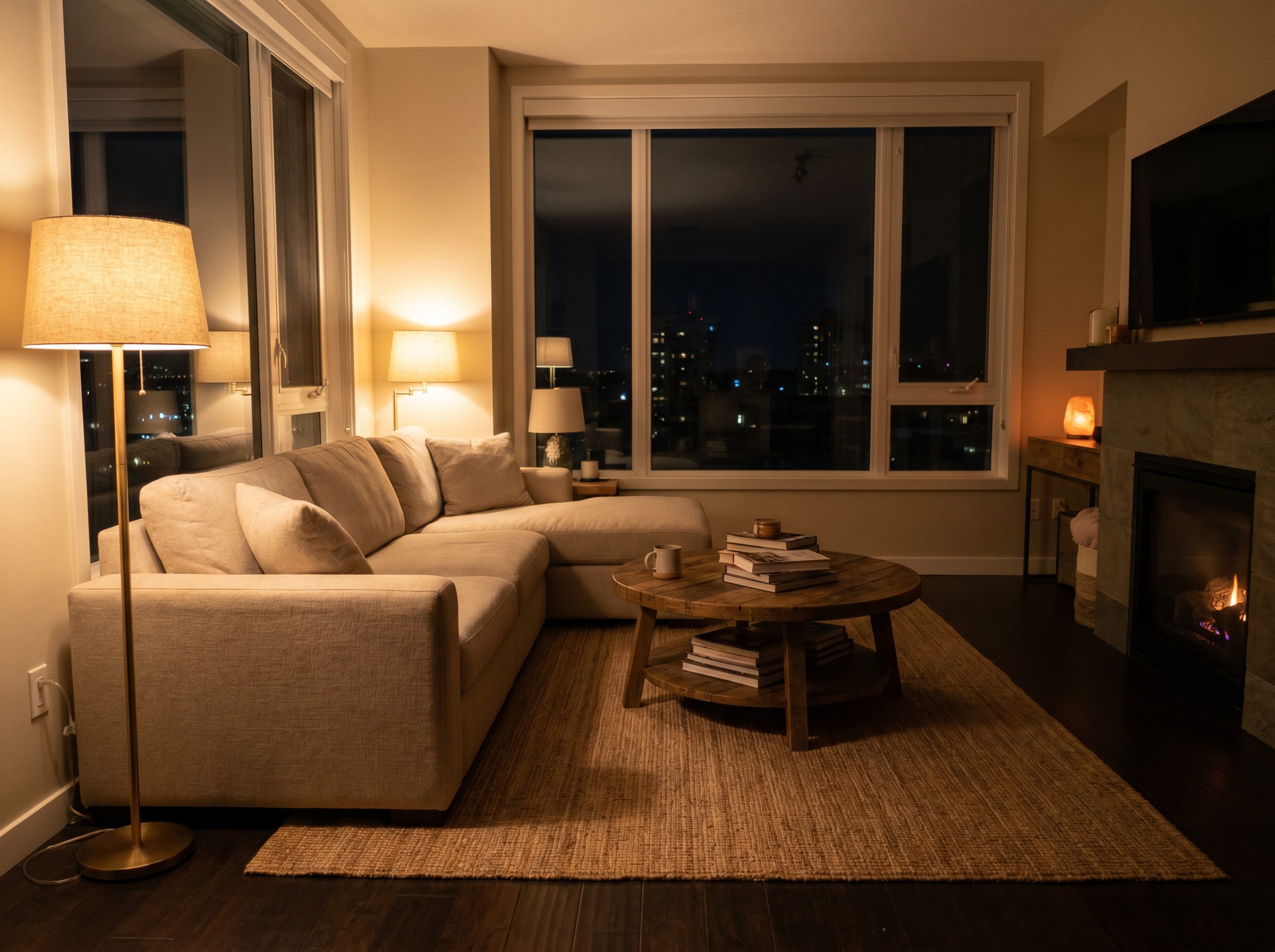
Add Ghost to Photo With Realistic AI Haunted Effects
Before
After
Use Media.io to add ghost to photo scenes with believable transparency, shadows, and spooky placement. Upload any image, describe the haunted look you want, and create a polished AI ghost image for Halloween edits, pranks, or cinematic horror posts in minutes.
Review these example directions, then tailor the prompt details to get stronger results when you use Media.io to add ghost to a picture or refine a haunted photo edit.
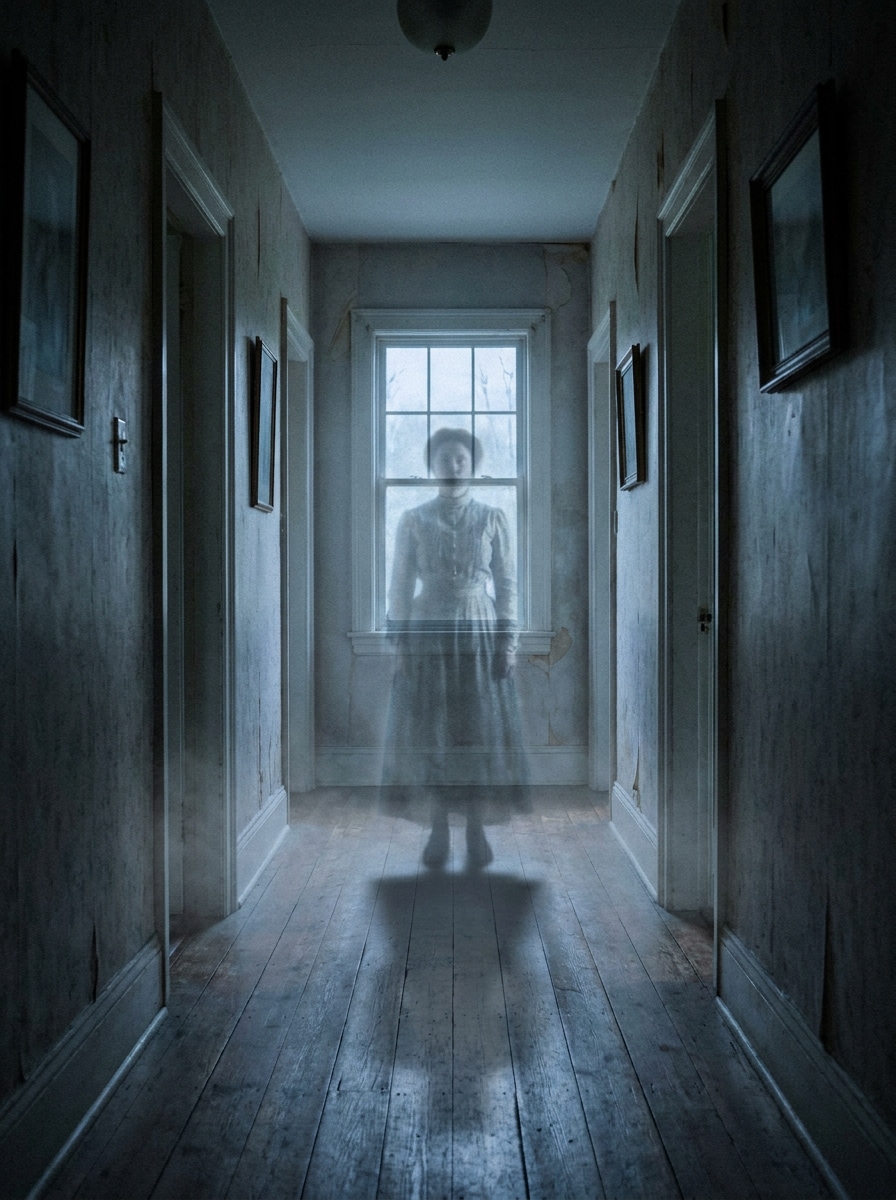
Translucent Hallway Ghost
Use the uploaded image as the base scene and transform it by adding a semi-transparent human ghost standing at the end of the hallway. Match the room perspective and floor shadows, add a faint cold glow, thin mist near the ground, blue-gray cinematic lighting, subtle film grain, and a realistic paranormal mood.
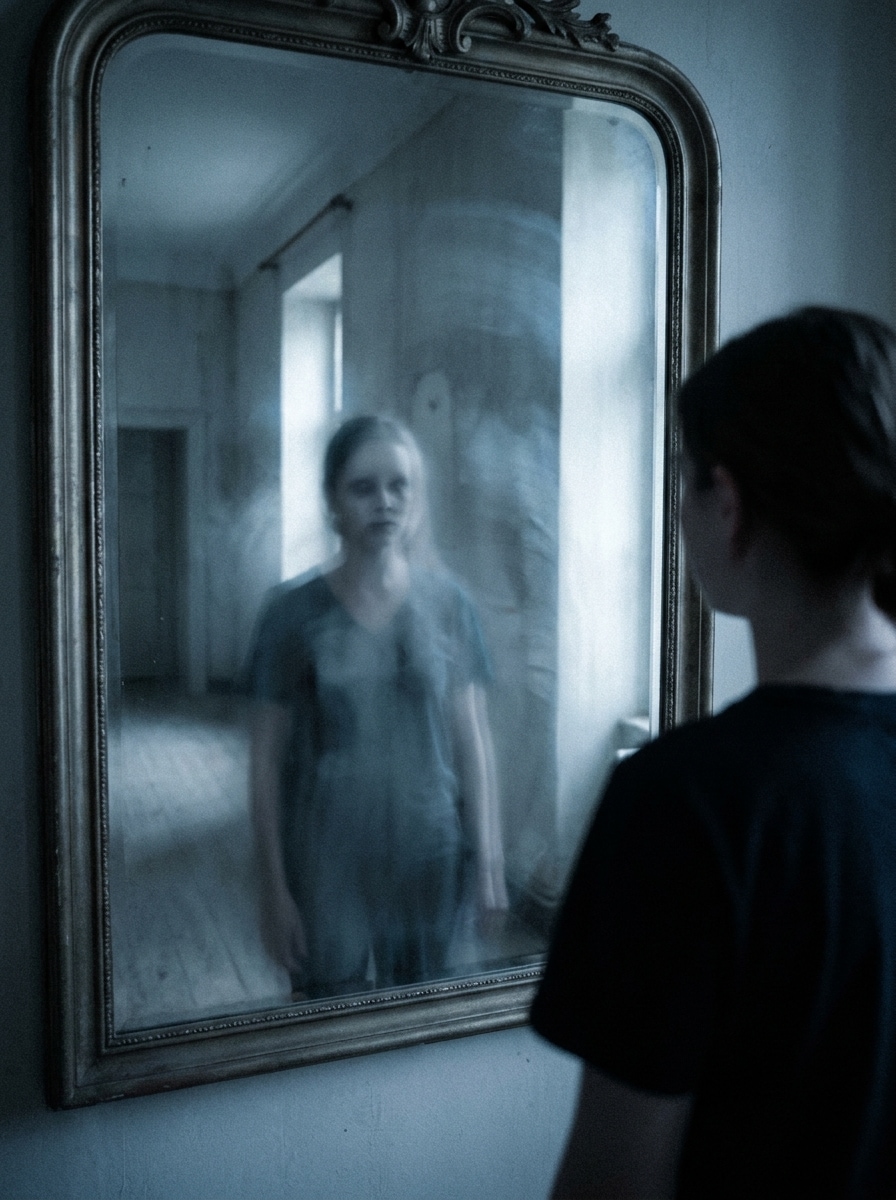
Mirror Apparition
Use the uploaded photo as the source and place a ghostly figure visible only inside the mirror reflection. Keep the real room unchanged, but add a pale translucent apparition in the reflected space with realistic mirror behavior, soft blur, cool highlights, muted tones, and a tense cinematic horror feeling.
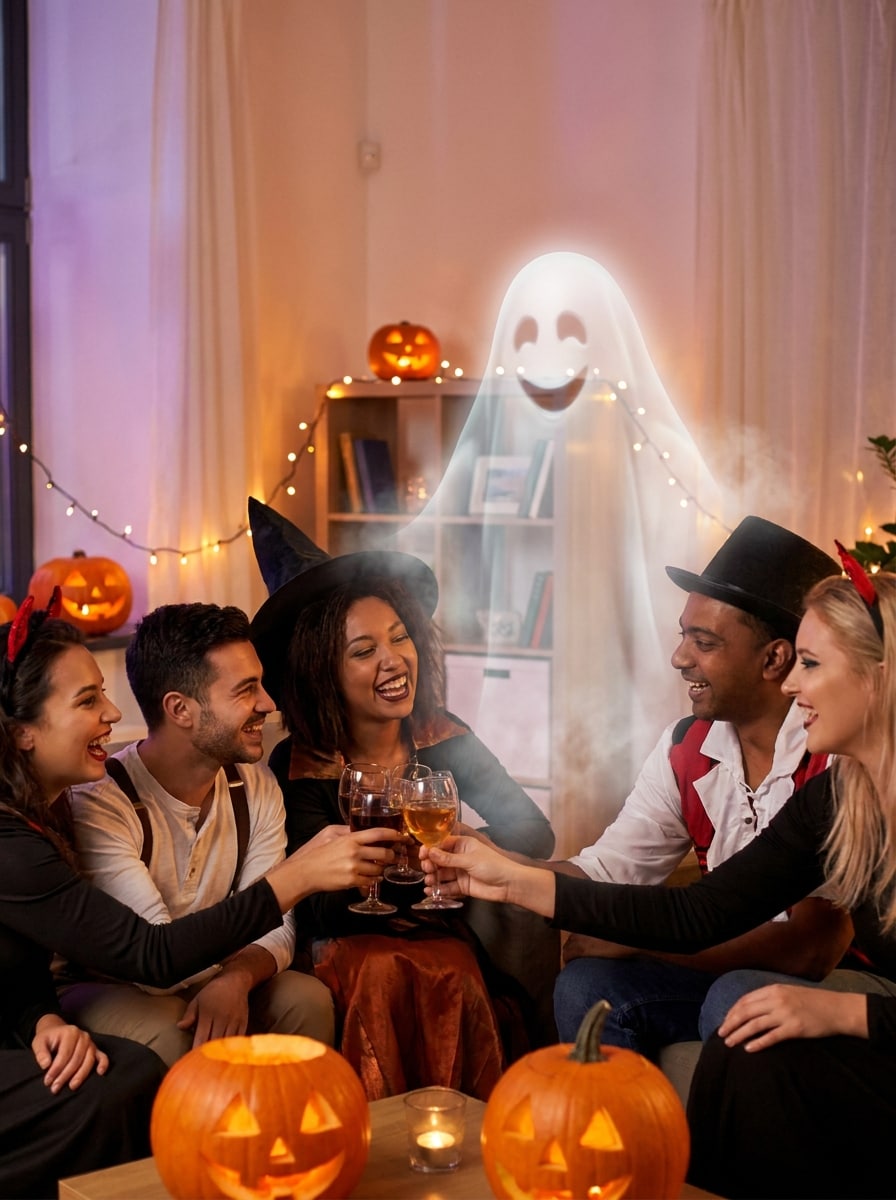
Friendly Spooky Guest
Use the uploaded party or group photo as the subject and add a friendly translucent ghost standing slightly behind the people. Blend scale and spacing naturally, add a soft white glow, light floating mist, gentle transparency, warm Halloween ambiance, and clear facial separation so the effect feels playful yet polished.
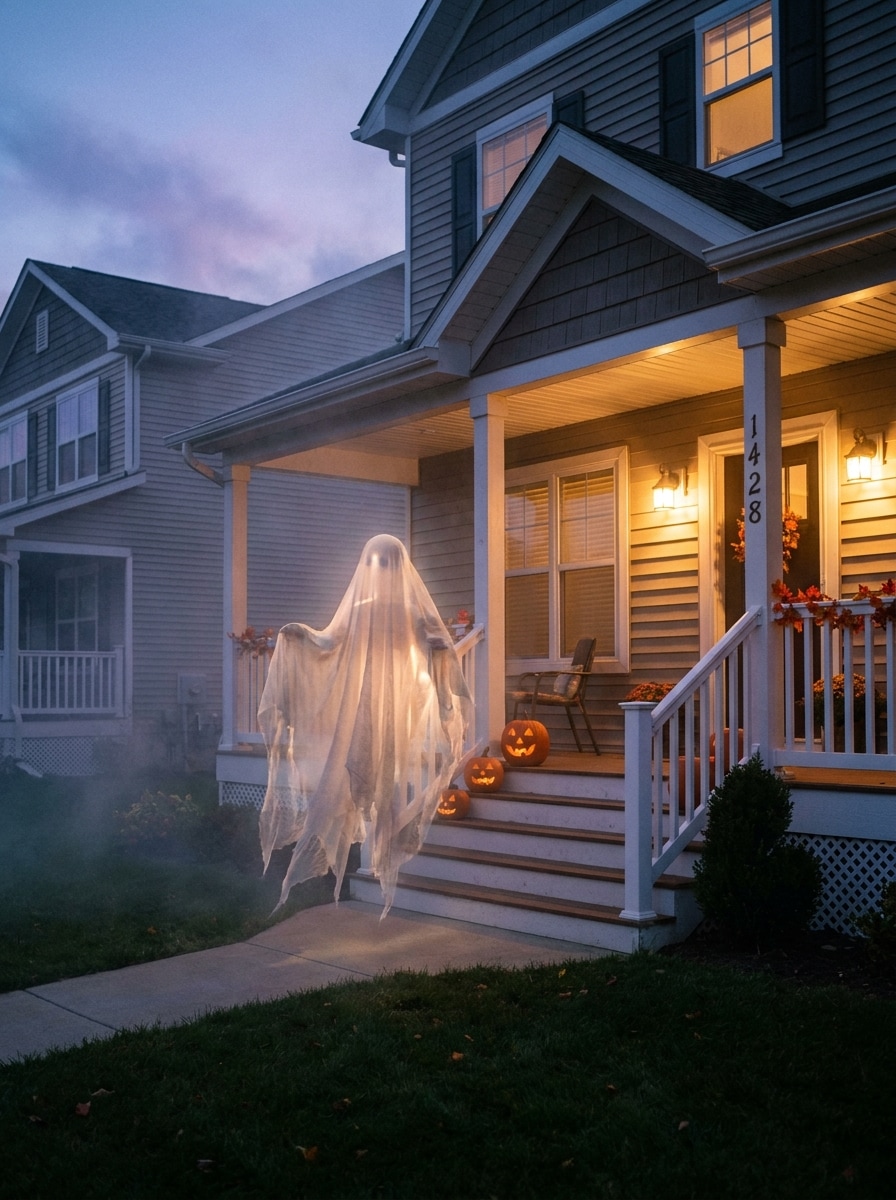
Porch Ghost Decoration Look
Use the uploaded house or porch image and transform it by adding a floating ghost near the front porch. Make the figure semi-transparent with a fabric-like shape, soft ambient glow, dusk lighting, realistic depth and distance, subtle fog, and a seasonal Halloween atmosphere that still feels grounded in the original photo.
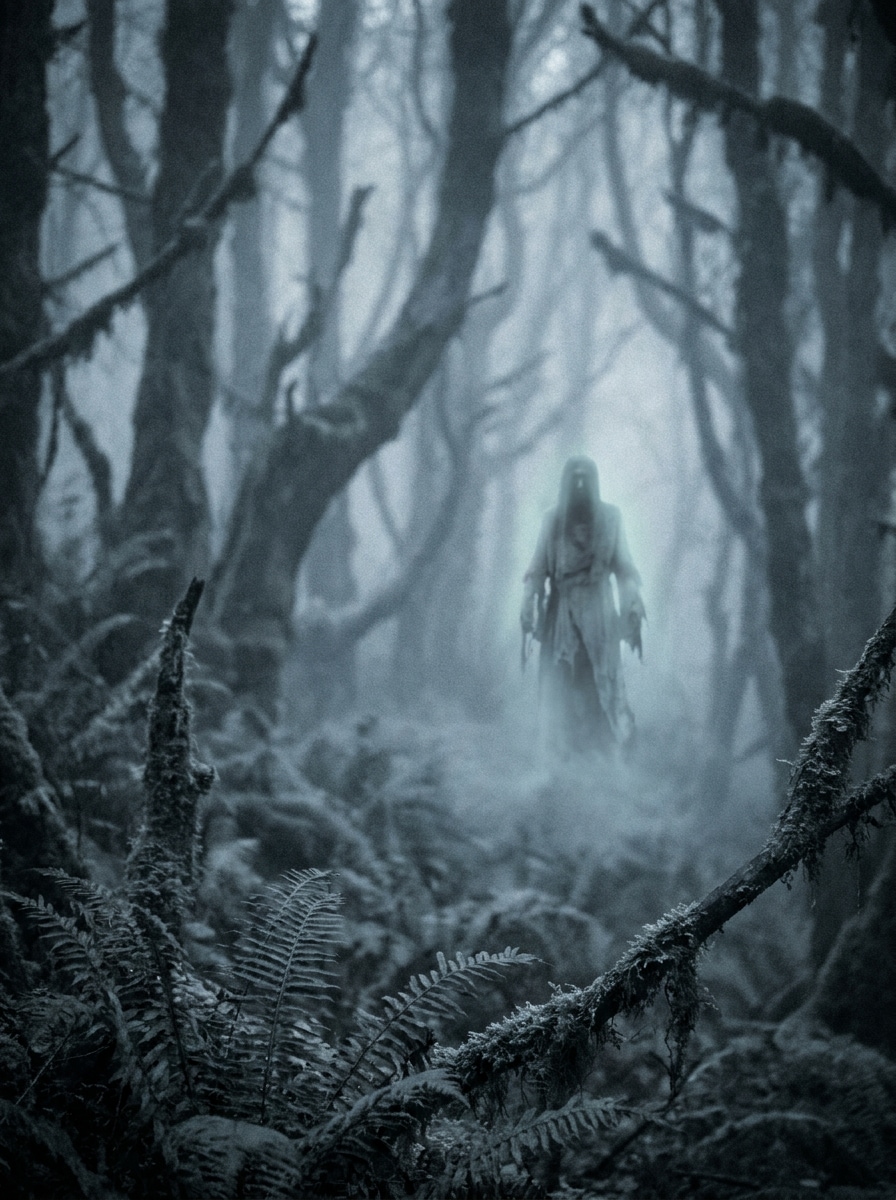
Foggy Forest Spirit
Use the uploaded outdoor image and add a distant spirit in the background of the forest. Match the depth of field and perspective, keep the figure partly hidden by volumetric mist, use desaturated blue-gray tones, soft edge diffusion, subtle translucency, and cinematic horror styling for a believable supernatural reveal.
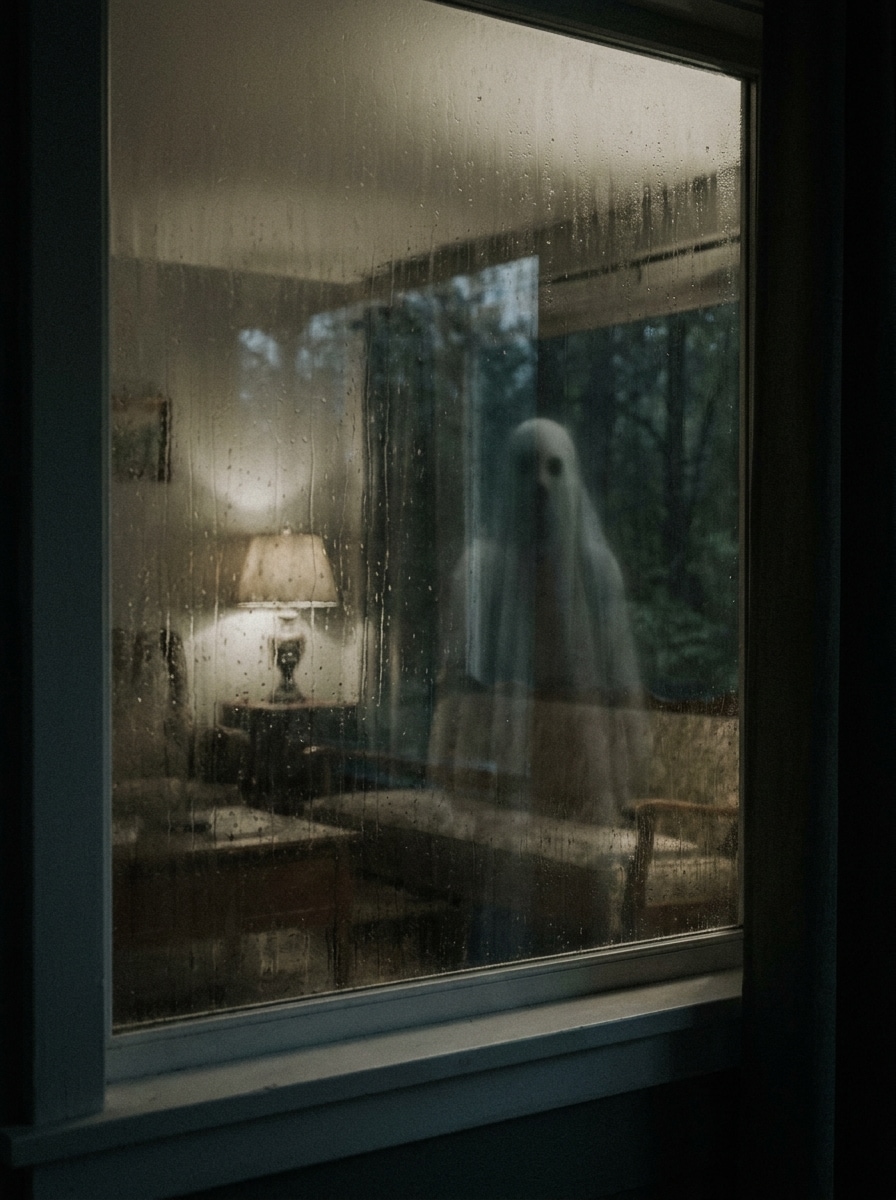
Window Silhouette Ghost
Use the uploaded building or room photo and place a faint ghost silhouette behind the window glass. Keep the silhouette understated, with soft diffusion through the glass, dim interior lighting, realistic framing, a suspenseful composition, and subtle contrast so the effect looks eerie rather than like a sticker.
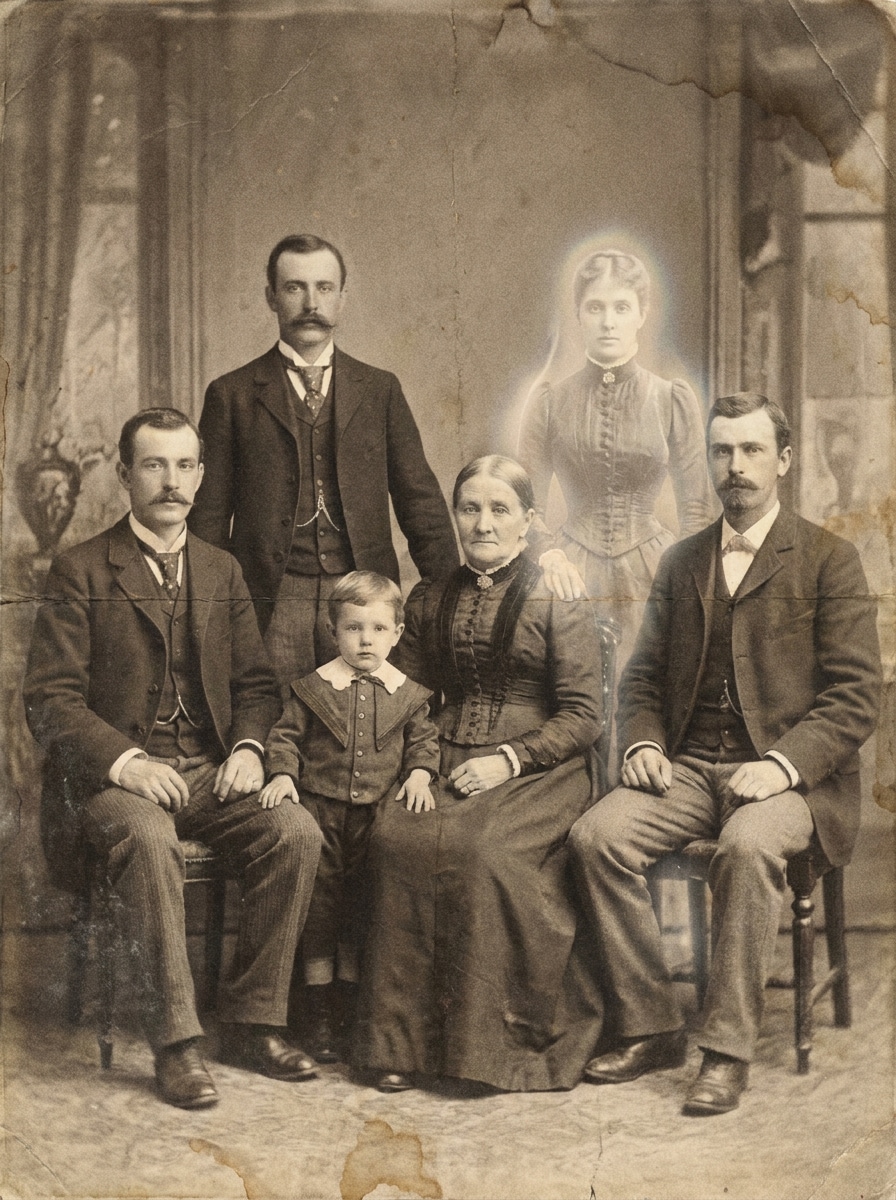
Old Family Portrait Ghost
Use the uploaded portrait or family photo and blend in a translucent Victorian-style ghost near the group. Match the pose and camera angle, add faded sepia tones, authentic film grain, aged paper texture, soft edge blending, and a restrained haunting effect that looks like part of an old photograph.
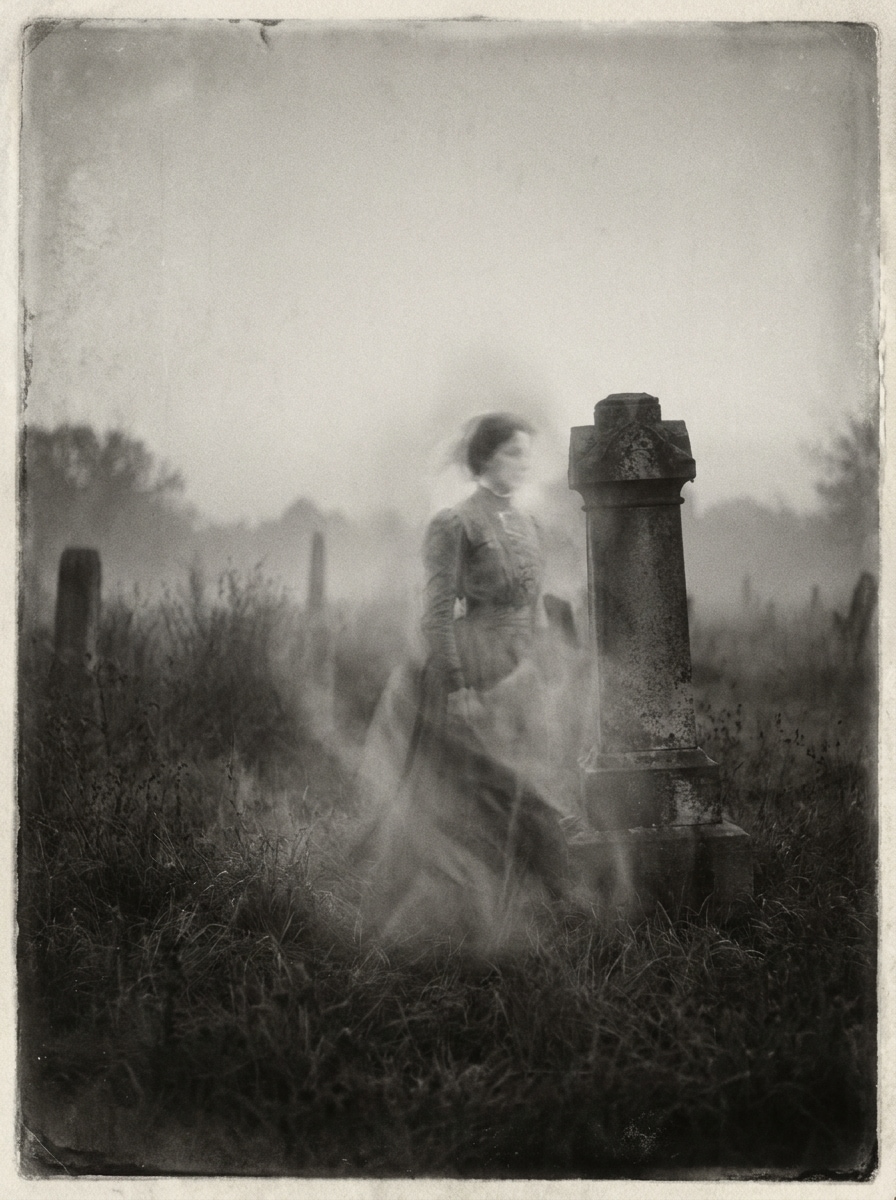
Black and White Apparition
Use the uploaded image and convert it into a classic black-and-white haunted photo with a misty apparition. Keep the ghost integrated into the scene with low-contrast glow, old-camera softness, fine grain, gentle haze, and realistic composition for an authentic vintage paranormal photograph look.
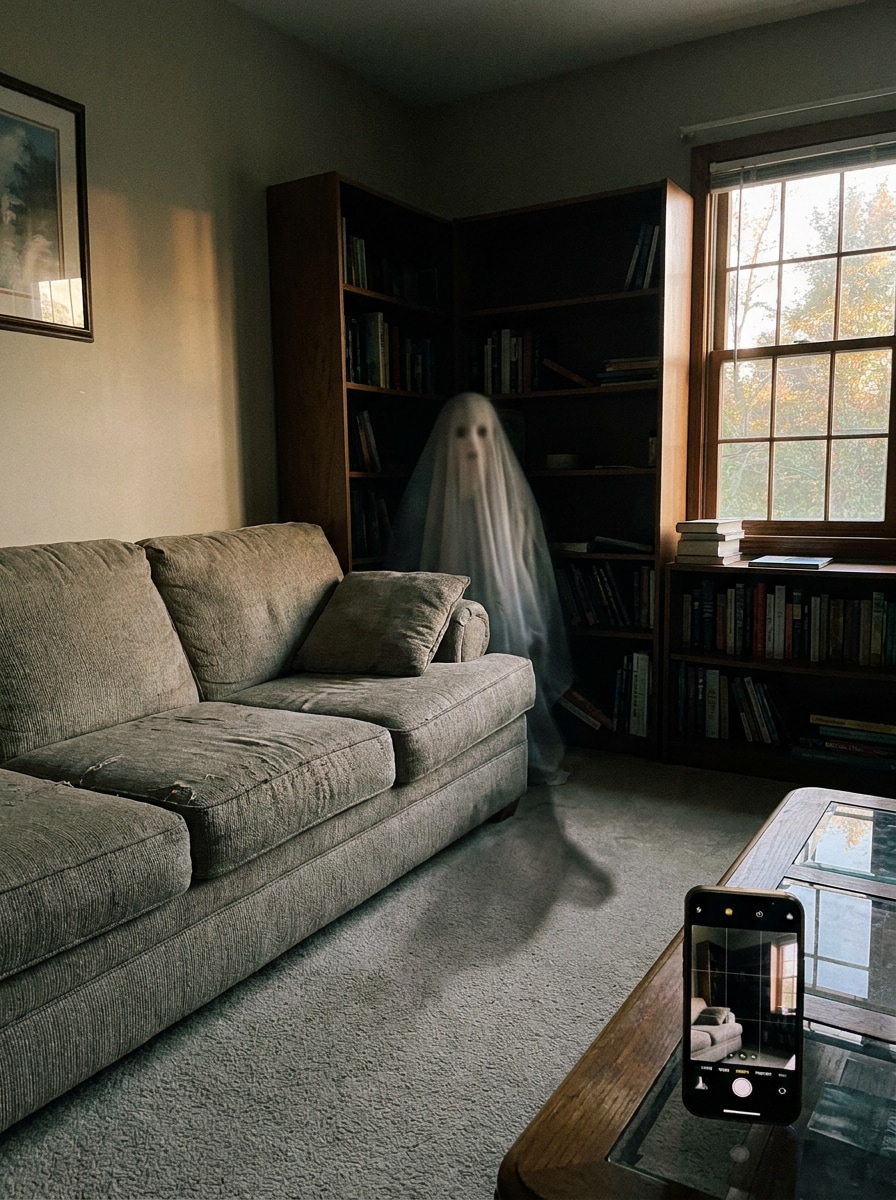
Ghost Behind the Couch
Use the uploaded living room photo and add a creepy ghost peeking from behind the couch. Keep the figure partially hidden, with natural indoor lighting, believable size, subtle transparency, soft shadowing, and mild grain so the result works as a realistic prank edit instead of a cartoon effect.
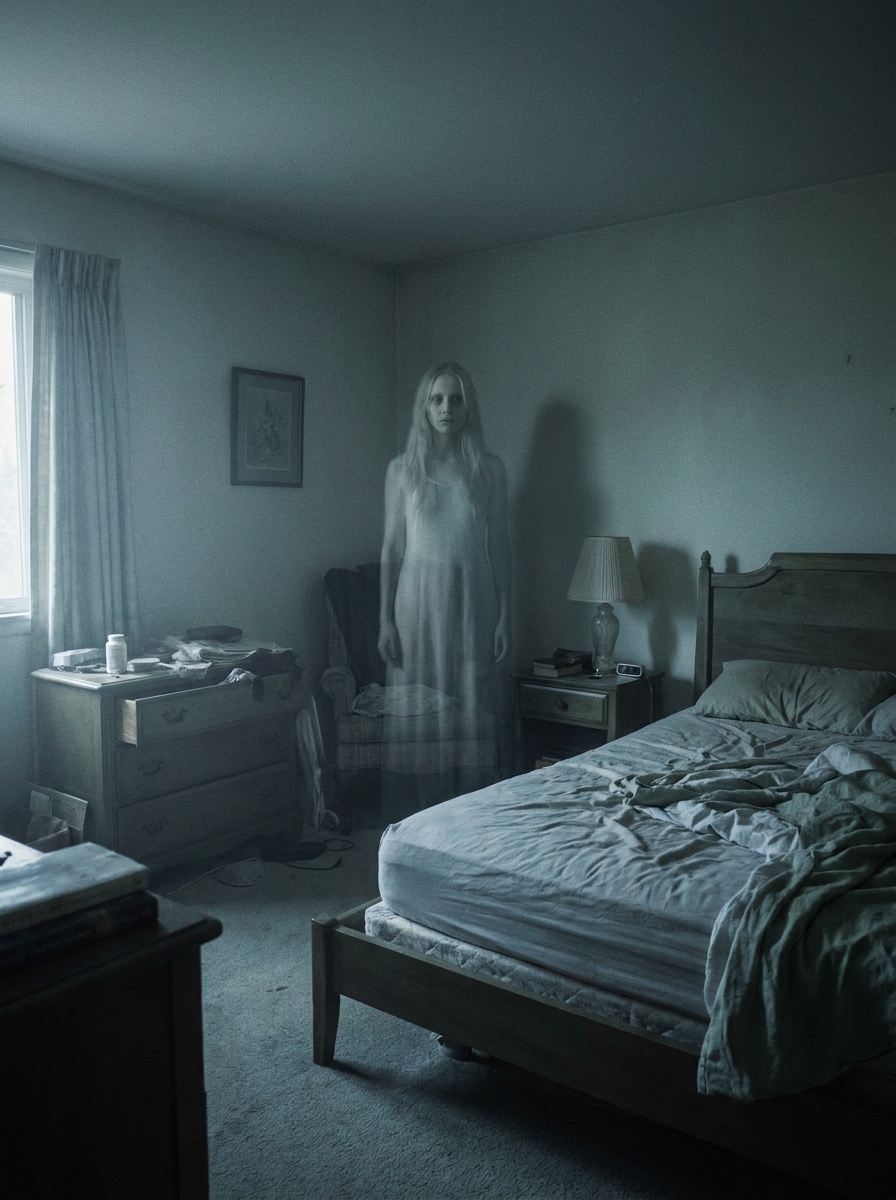
Bedroom Corner Ghost
Use the uploaded bedroom image and place a pale translucent ghost standing in the corner. Match the room scale and low-light conditions, add soft shadowing, gentle grain, cool muted tones, slight haze, and realistic body proportions to create an eerie but believable haunted-room effect.
Why Use Media.io to Add a Ghost to a Picture
More Believable Haunted Edits From Your Real Photo
For Halloween posts, prank reveals, or eerie storytelling, Media.io lets you upload your own image and guide the transformation with a detailed prompt, helping the ghost fit the scene more naturally so the final effect feels far more convincing.
Control the Mood From Playful Pranks to Cinematic Horror
If the creative direction is still wide open, Media.io makes it easy to explore multiple looks from the same add ghost to picture concept, so you can compare styles quickly without starting over each time.
Keep Final Visuals Sharp for Real Projects
When a add ghost to photo is headed for real publishing use, Media.io gives you sharper output up to 4K, which helps the image stay clear across presentations, backgrounds, and reused assets.
Fast Browser-Based Editing Without Installing an App
Media.io runs in the browser, so you can create a spooky edit on a computer or wrap one up on your phone. That makes it easier to stay productive when the work moves across screens.
How to Add a Ghost to Photo Online
1
2
3
1
Step 1: Open Media.io AI Image Generator
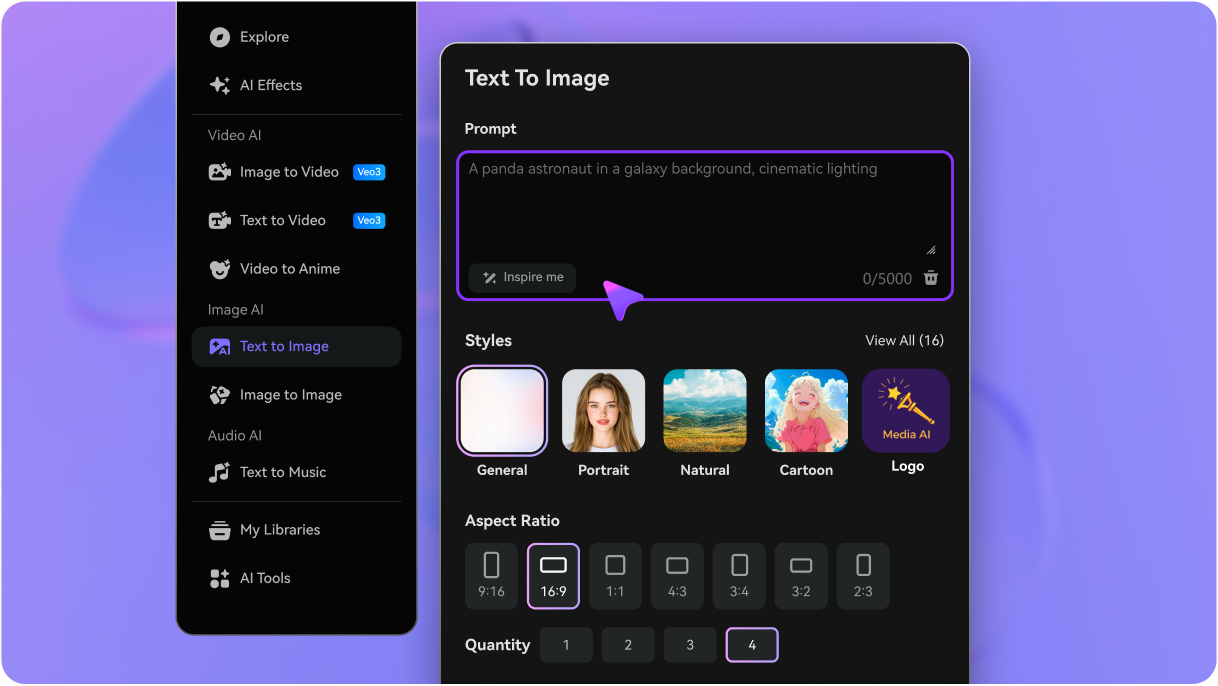
Go to AI Image to Image Generator and open the AI Image Generator under AI -> Image Generator. This online tool runs in your browser, so you can start editing on desktop or mobile without installing extra software.
2
Step 2: Upload a Photo and Enter Your Prompt
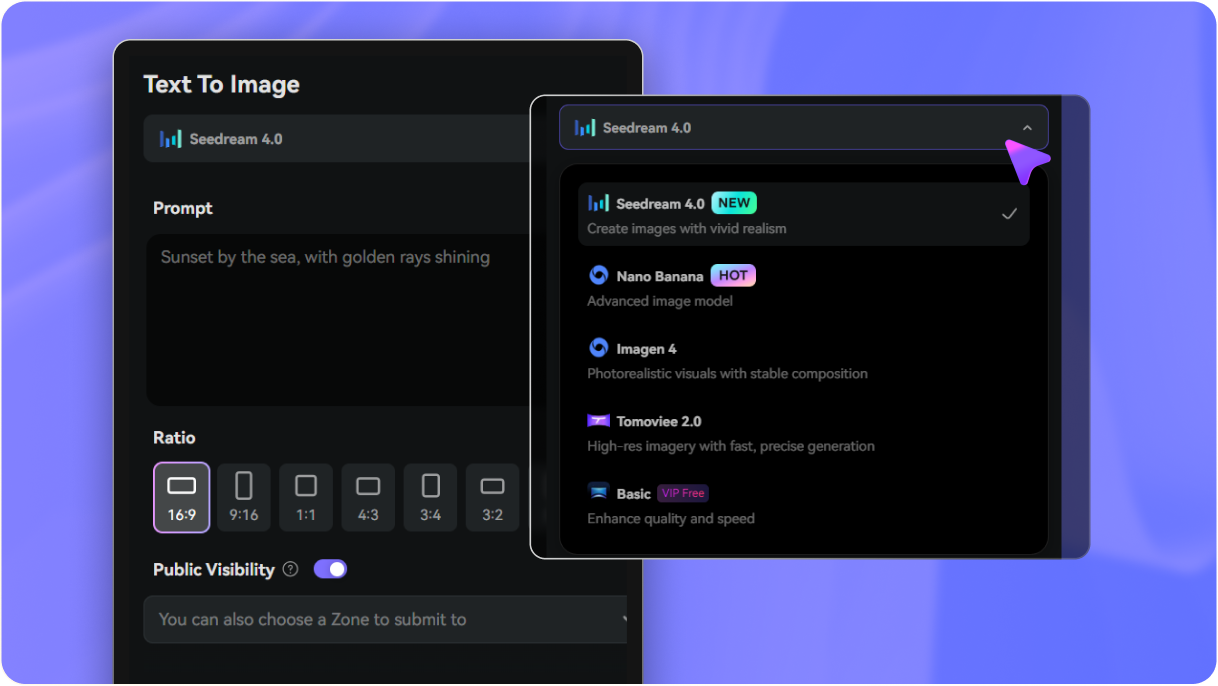
Upload your JPG, PNG, or JPEG image, then type a detailed prompt like: “Use the uploaded image as the base scene and add a semi-transparent ghost in the hallway with realistic shadows, light fog, and blue-gray cinematic lighting.” Adjust style, aspect ratio, and resolution if needed.
3
Step 3: Generate, Refine & Download
Click Generate. Review the result, tweak your prompt if you want a softer, scarier, or more realistic paranormal effect, then download the final image in high resolution for social posts, Halloween cards, or shareable haunted edits.
See how creators use Media.io’s add ghost to photo workflow for content, marketing, and personal projects, then adapt each idea to fit your brief.
Create Halloween Posts That Look Surprisingly Real
Turn an ordinary hallway, porch, or party snapshot into a spooky visual for stories, reels, and invitations. With Media.io, a well-placed apparition with subtle haze and shadow feels more shareable than a flat sticker effect and helps seasonal content stand out.
Make Fun Prank Edits for Friends and Family
Add a hidden figure in a mirror, bedroom corner, or behind the couch to create playful before-and-after reveals. Media.io makes it easy to build a believable paranormal scene from your uploaded photo without complex manual editing.
Design Vintage or Cinematic Horror Scenes
Use old portraits, black-and-white conversions, or moody forest backgrounds to build an atmospheric AI ghost image. Media.io helps you shape a polished haunted aesthetic for mood boards, short-form horror content, themed posters, and other creative projects.
What Users Say
Maya R.
Social Content Creator
"Much more realistic than sticker apps" I wanted to add a ghost to a photo for a Halloween reel, and this gave me a way better result than basic overlay apps. The transparency and placement looked natural, especially in mirror and hallway scenes.
Jordan P.
Event Planner
"Great for party invites and spooky promos" We used it to create haunted porch and group-photo edits for our October event materials. It was fast, easy to use in the browser, and the exports looked sharp enough for both social posts and printed cards.
Elena T.
Casual Photo Editor
"Easy even without editing experience" I’m not a designer, but I was able to upload a bedroom photo and generate a believable ghost effect in minutes. The prompt-based workflow made it simple to adjust the mood from creepy to playful.
Chris D.
Short-Form Video Maker
"Perfect for before-and-after horror edits" This is great when you need a quick haunted image to use as a reveal in TikTok-style content. I liked that I could work from my own scene and get a more cinematic result instead of a generic ghost sticker.
Open Media.io’s browser-based AI image generator, upload your JPG, PNG, or JPEG photo, and enter a prompt describing the ghost effect you want. Media.io uses an image-to-image workflow to transform your original scene into a haunted edit with more natural placement and better style control.
2. Can I add a ghost to a photo for free?
Media.io offers free credits, so you can try a ghost photo effect without paying upfront. If you need more generations, extra downloads, or watermark-free high-resolution exports, you can check the pricing page for plan options.
3. How can I make a ghost look realistic in a picture?
The most convincing results come from matching the ghost to the scene’s lighting, angle, and depth. In Media.io, upload the real photo you want to edit, then describe details like transparency, soft shadows, fog, reflection behavior, or distance blur so the ghost blends into the environment instead of looking pasted on.
4. Can I use this ghost photo editor on iPhone or Android?
Media.io is web-based, so you can use this ghost photo editor on iPhone, Android, Mac, or Windows with a browser. That makes it easy to start an edit on mobile and finish it later on a larger screen.
5. Do I need editing skills to create a ghost image?
You do not need advanced design skills to make a ghost image in Media.io. The upload-plus-prompt workflow lets you describe the effect in plain language, and Media.io generates the edited version from your original photo.
6. How long does it take to generate a ghost photo effect?
It usually takes only a short time to generate a result after you upload your image and submit the prompt. Total time depends on your settings and how many variations you create, but Media.io is designed for quick online editing so you can test and refine spooky looks efficiently.