As criações são armazenadas por apenas 7 dias. Os recursos criados após o upgrade para um plano de assinatura serão armazenados permanentemente.
Desbloqueie seu potencial criativo e experimente a magia da IA de mídia hoje!
Adicione Flores a Fotos com IA para Edições de Retratos Realistas
Use IA para adicionar flores a retratos, selfies, fotos de casamento e fotos criativas em segundos. O Media.io ajuda você a criar um efeito de foto com flores natural, desde flores suaves no cabelo até um efeito completo de pétalas caindo, com mesclagem realista no celular ou desktop.
Digite sua ideia -> A IA a cria. Gratuito para experimentar.
Revise estes exemplos de direções e, em seguida, personalize os detalhes do prompt para obter resultados melhores com esta ferramenta de adicionar flores à foto.
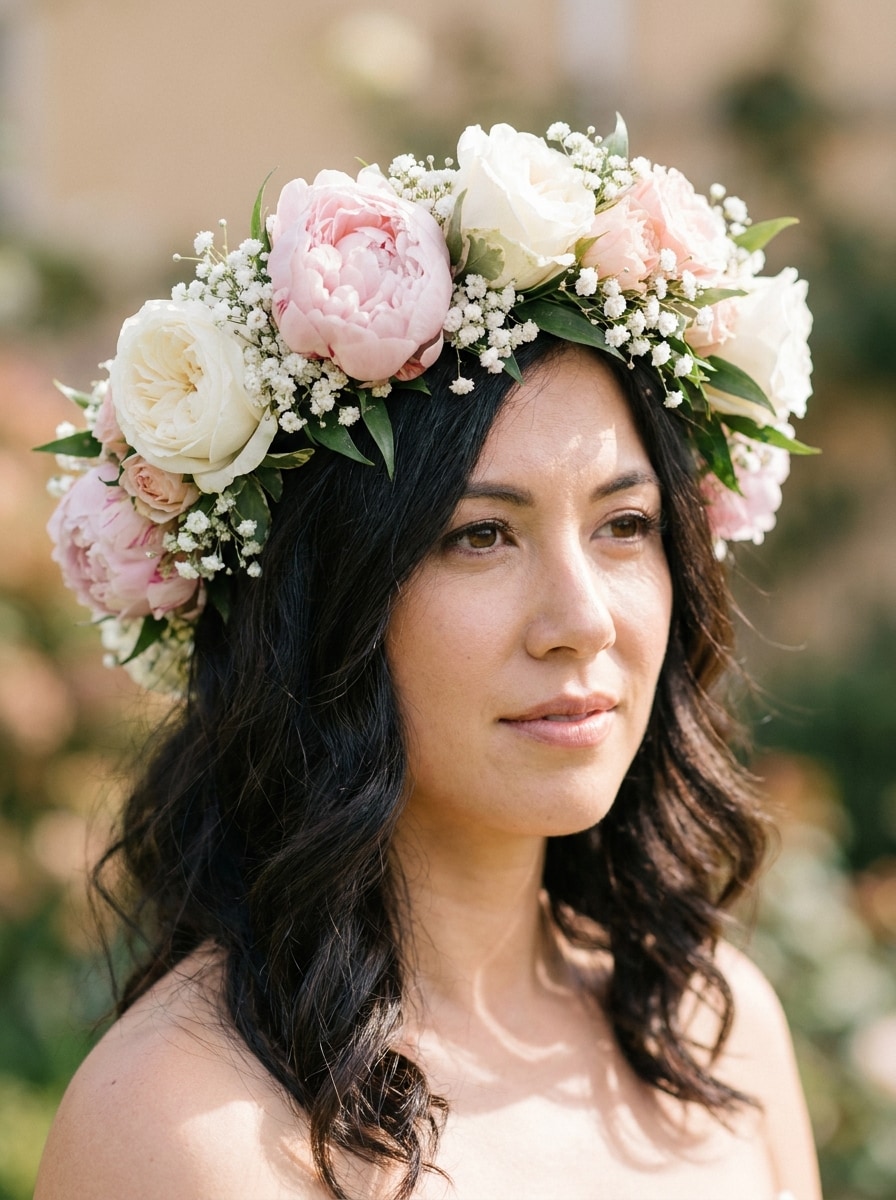
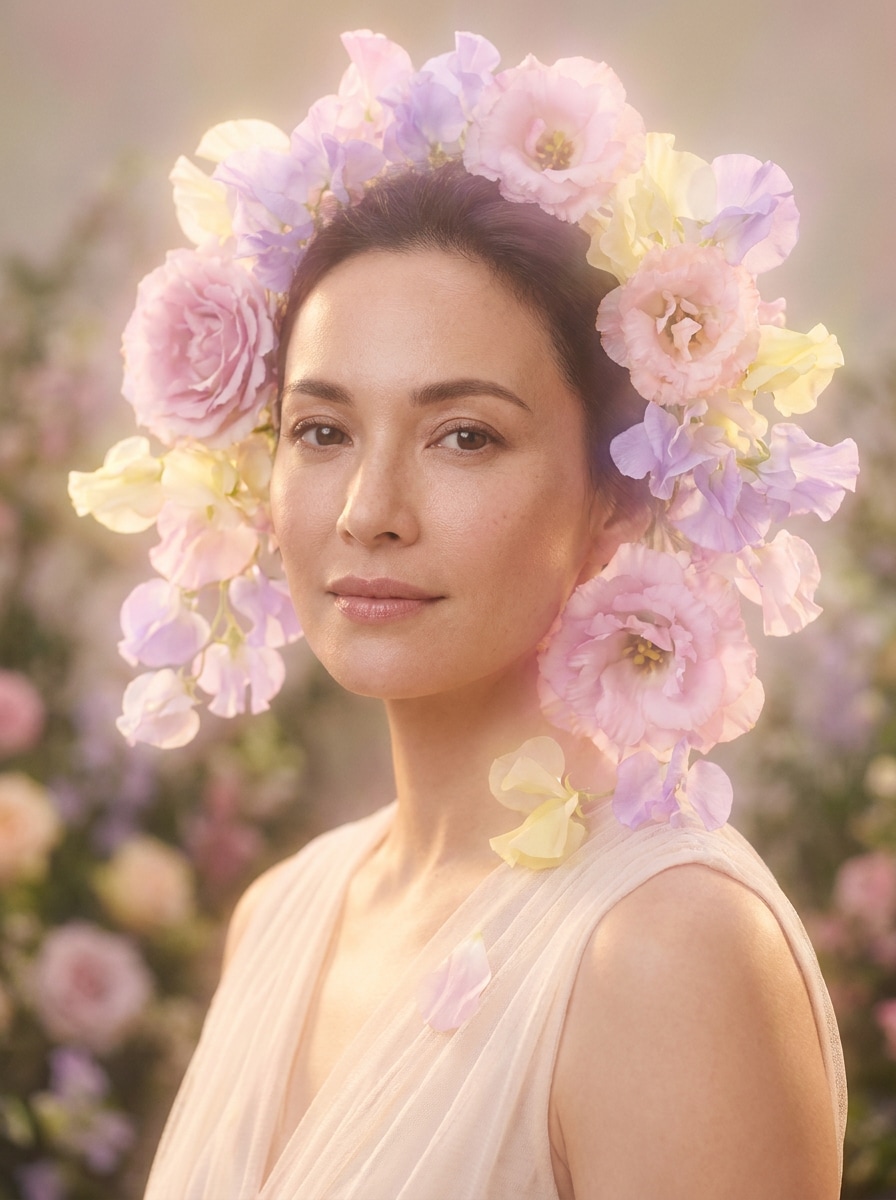
Retrato com Coroa de Flores
Use a imagem enviada como sujeito e adicione uma coroa de flores realista feita de peônias rosa-claro, rosas brancas e mosquitinhos. Combine a textura original do cabelo, o ângulo da cabeça e o tom de pele, com luz natural suave do dia, qualidade elegante de retoque de beleza, profundidade de campo suave e um clima editorial romântico.
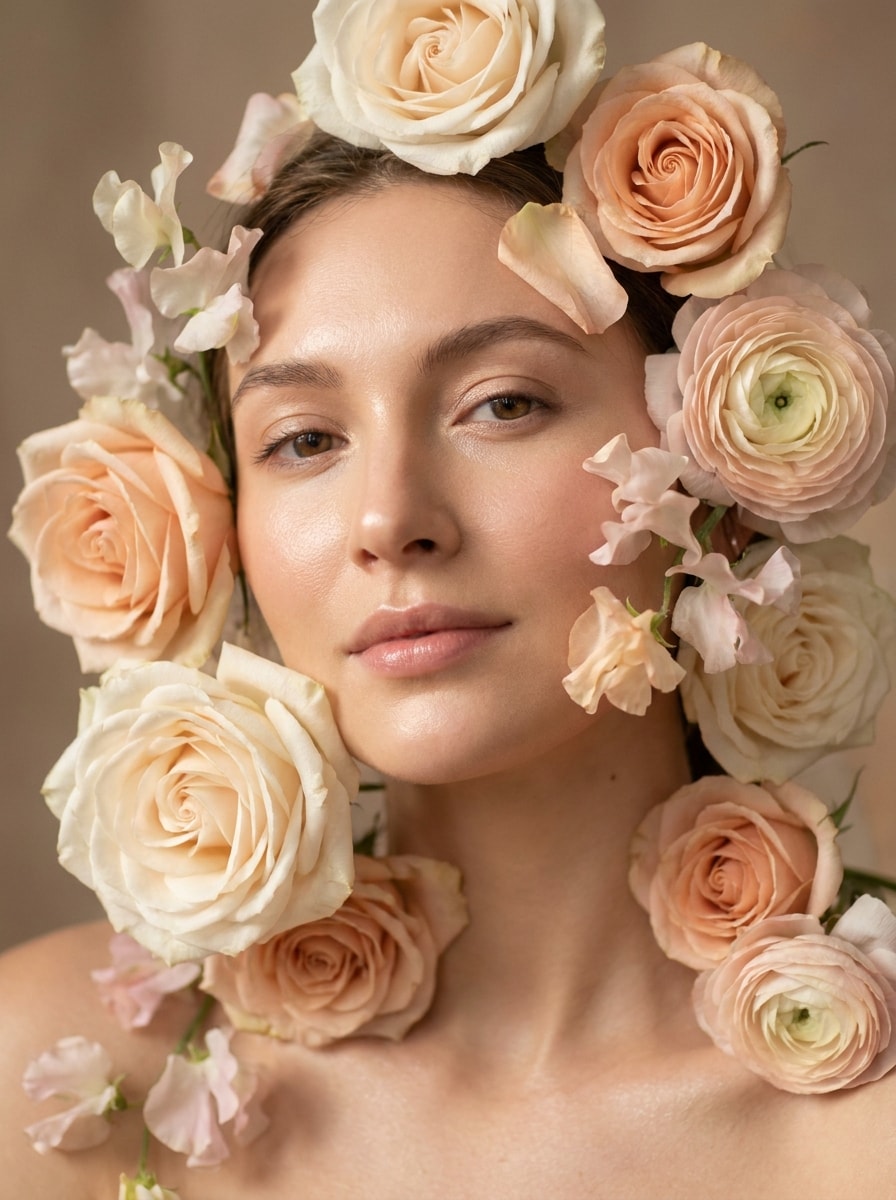
Flores ao Redor do Rosto
Use o retrato enviado como base e envolva o rosto com flores delicadas em flor em tons suaves de marfim, pêssego e rosa-pálido. Mantenha os traços faciais totalmente nítidos, misture as pétalas naturalmente com a iluminação, adicione um clima editorial de beleza sonhador, textura sedosa, destaques suaves e desfoque sutil de fundo.
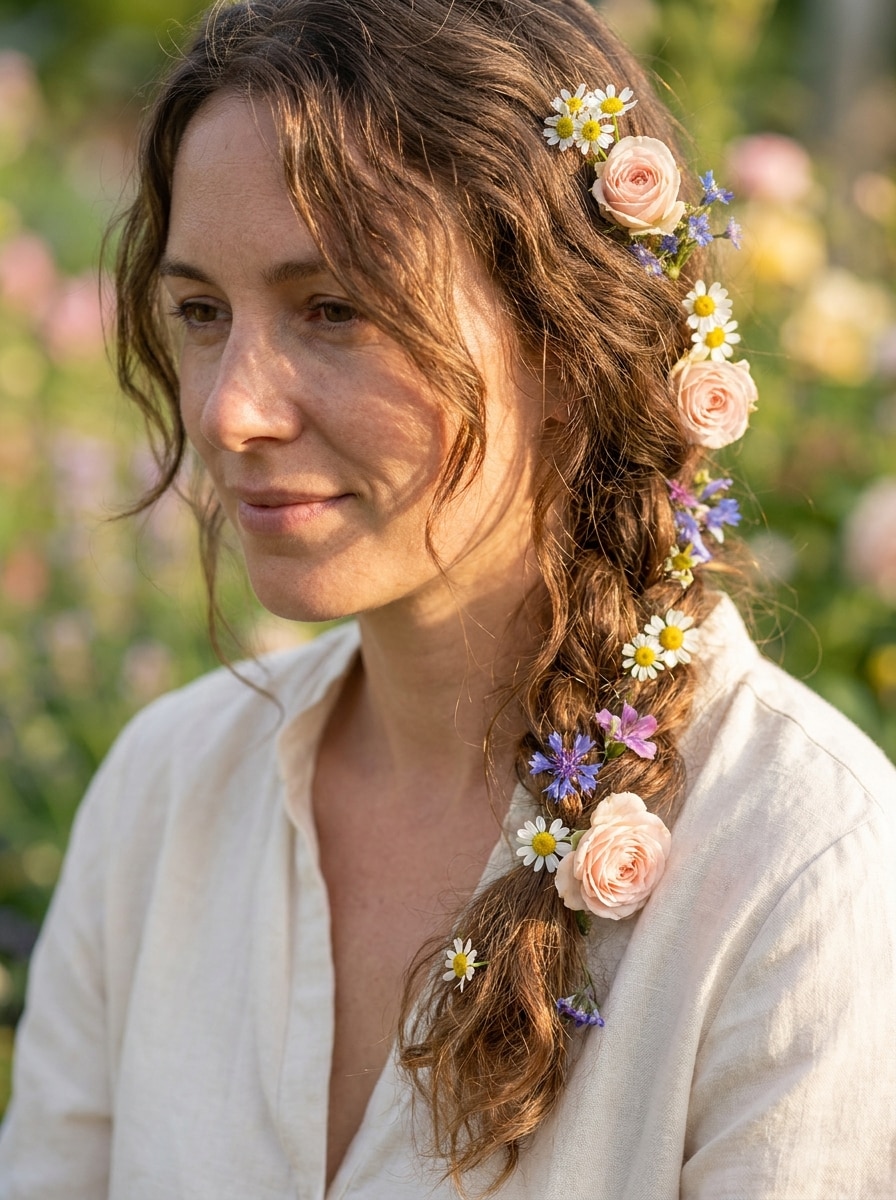
Flores no Cabelo
Use a imagem enviada como sujeito e coloque flores frescas presas no cabelo, misturando pequenas rosas, margaridas e flores silvestres. Siga a direção natural do penteado, preserve mechas soltas e sombras, use luz quente do horário dourado, cores pastéis suaves e um acabamento romântico mas fotorrealista.
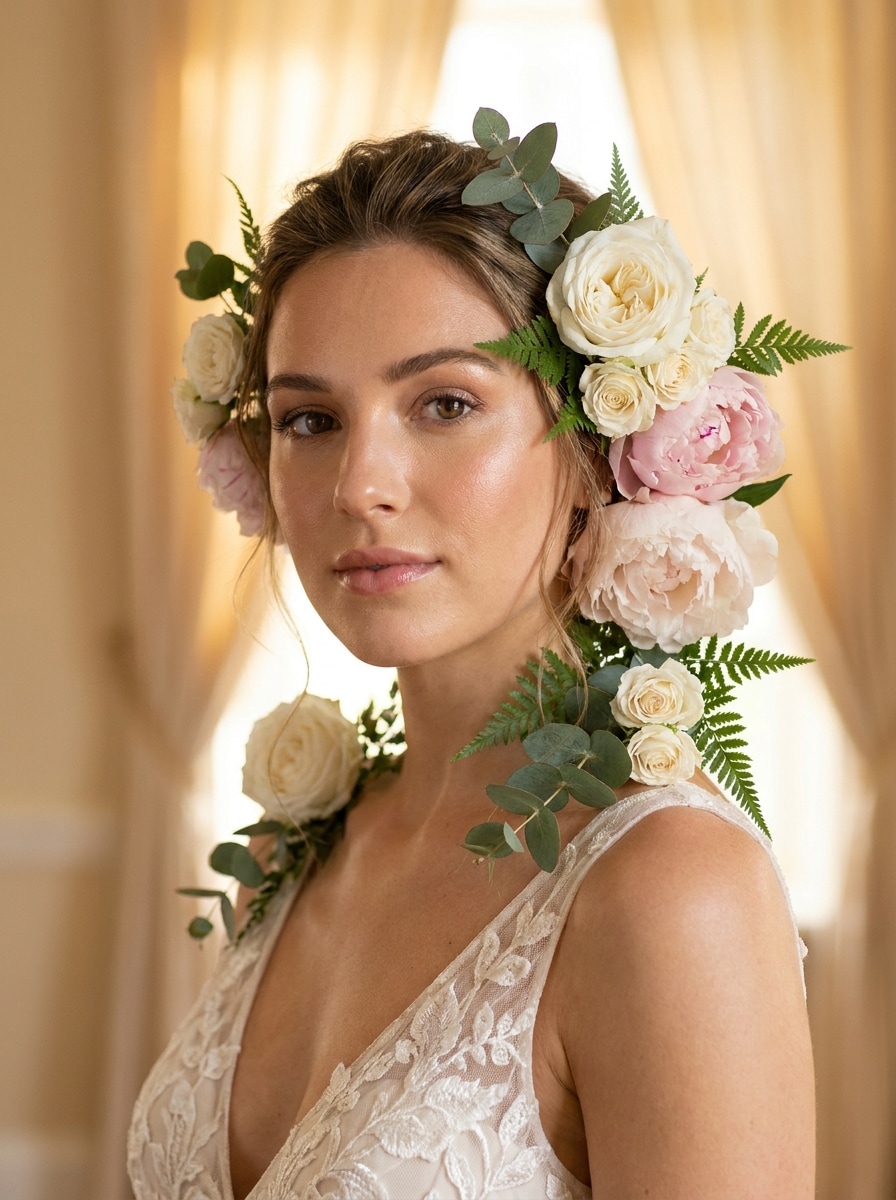
Glamour Floral de Noiva
Use a foto enviada e aprimore-a com florais refinados de noiva em rosas brancas, peônias rosadas e vegetação delicada ao redor da linha do cabelo e dos ombros. Combine a iluminação de foto de casamento, mantenha os tons de pele luminosos e naturais, adicione texturas de luxo suaves e crie um retrato romântico polido e sofisticado.
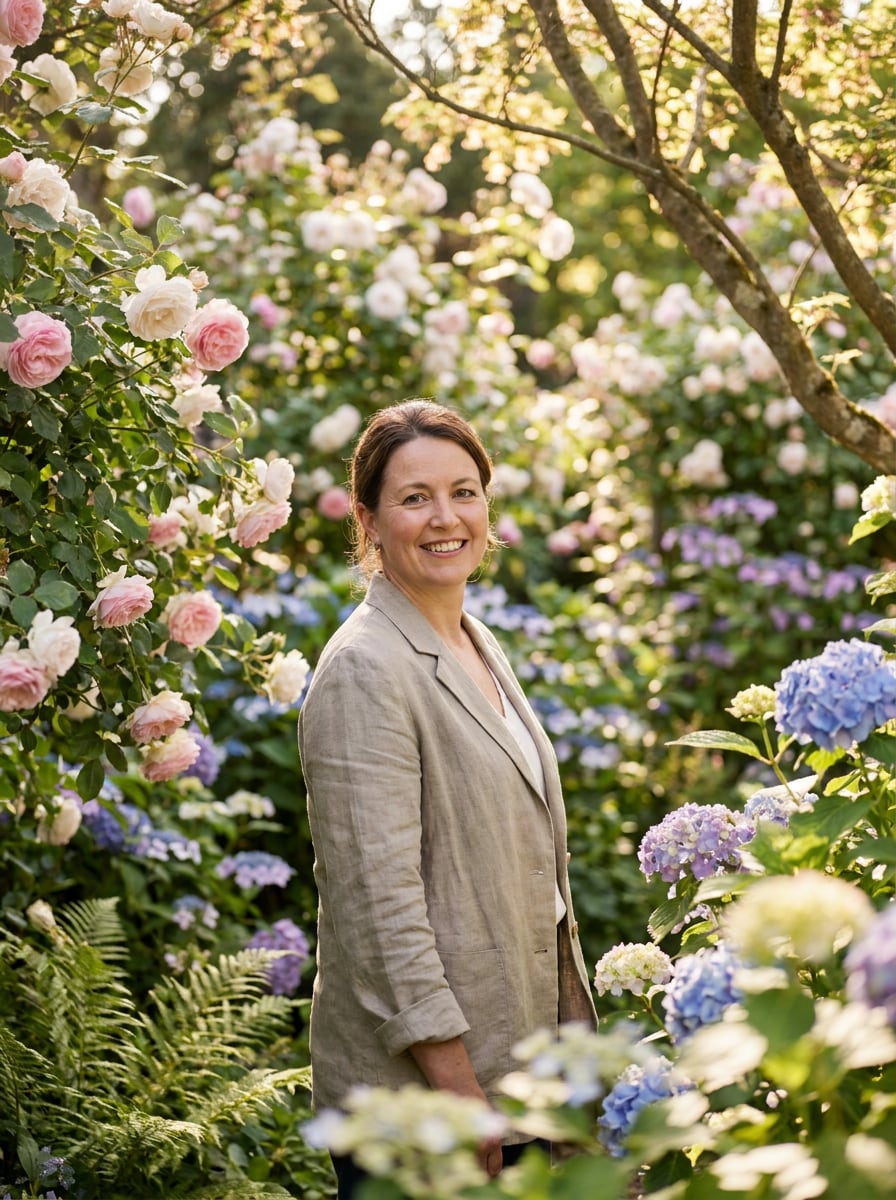
Fundo de Jardim Florido
Use a imagem enviada como sujeito e transforme o fundo em um jardim florido exuberante repleto de rosas, hortênsias e vegetação suave. Mantenha a pessoa nítida e realista, adicione profundidade floral em camadas, luz solar filtrada, cores frescas de primavera e uma atmosfera externa cinematográfica.
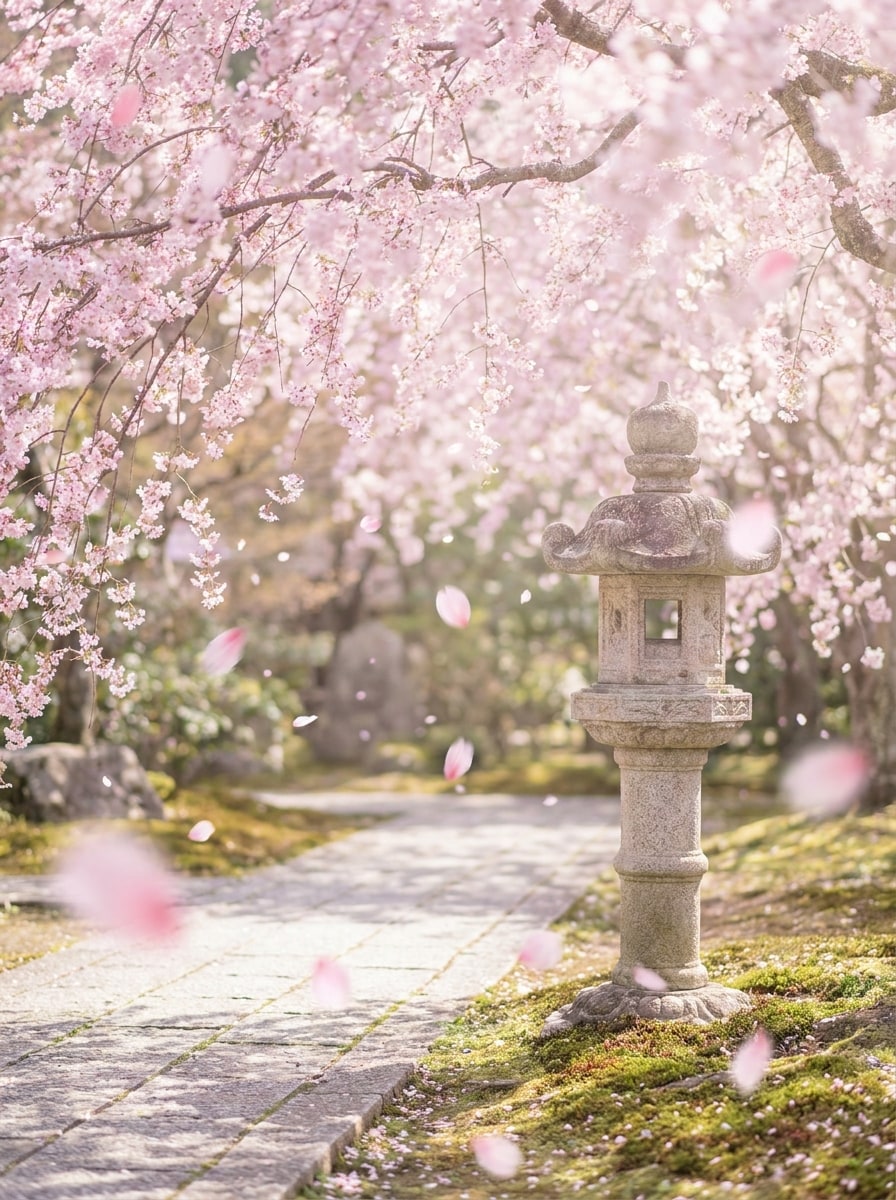
Cena de Flor de Cerejeira
Use a foto enviada como base e adicione galhos de cerejeira e pétalas cor-de-rosa à deriva ao redor da cena. Combine o ângulo da câmera e a luz ambiente, preserve o sujeito com clareza, use cores arejadas de primavera, destaques suaves, movimento gentil e uma atmosfera de sakura sonhadora mas realista.
Edição de Aura Floral
Use o retrato enviado como sujeito e crie uma aura floral suave e brilhante ao redor do corpo com flores em tons pastéis, pétalas translúcidas e bloom de luz sutil. Mantenha o rosto desobstruído, misture o efeito naturalmente com a iluminação original e busque um clima de fantasia editorial etéreo.
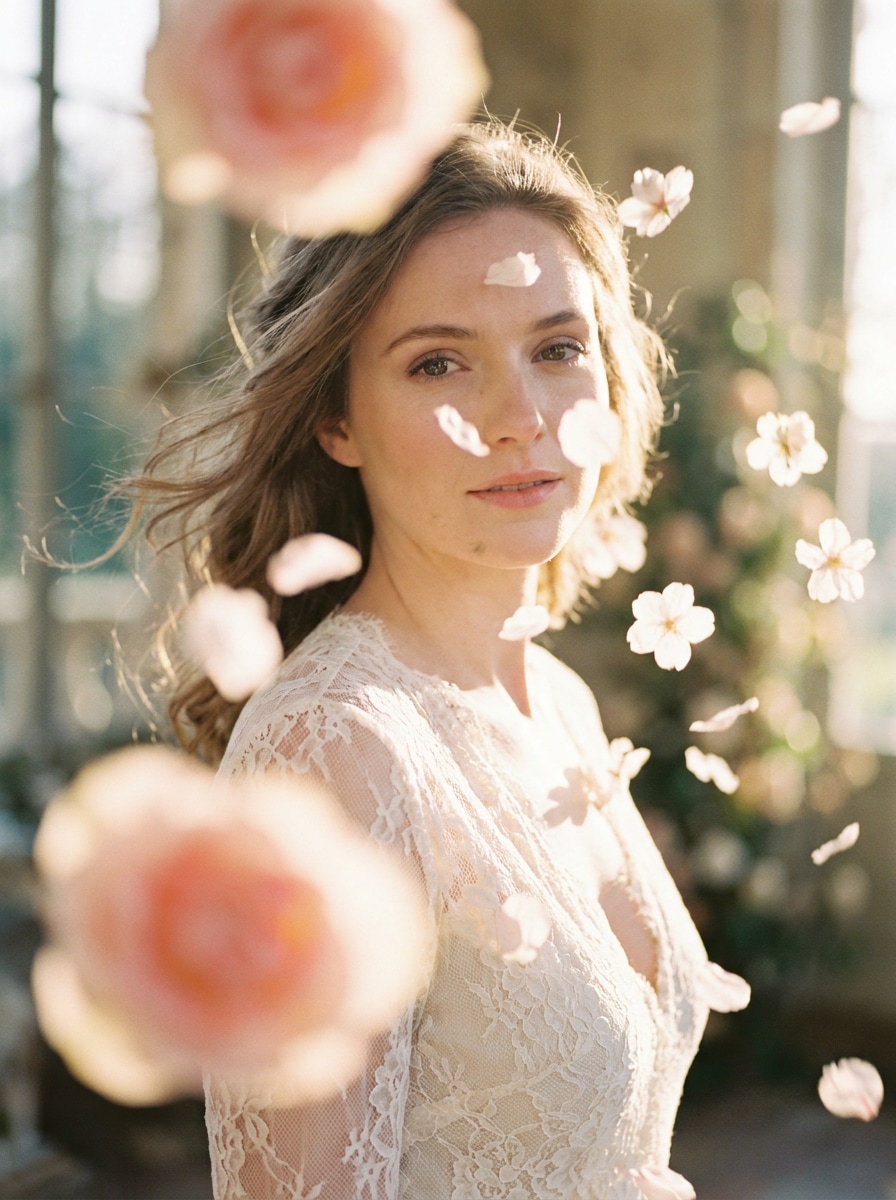
Retrato com Sobreposição de Pétalas
Use o retrato enviado e adicione pétalas de flores flutuantes no primeiro e segundo plano, com movimento realista, profundidade e sombras suaves. Mantenha o sujeito nítido, use iluminação cinematográfica romântica, tons de rosa e marfim, e crie um visual elegante de editor de fotos com pétalas de rosa sem cobrir o rosto.
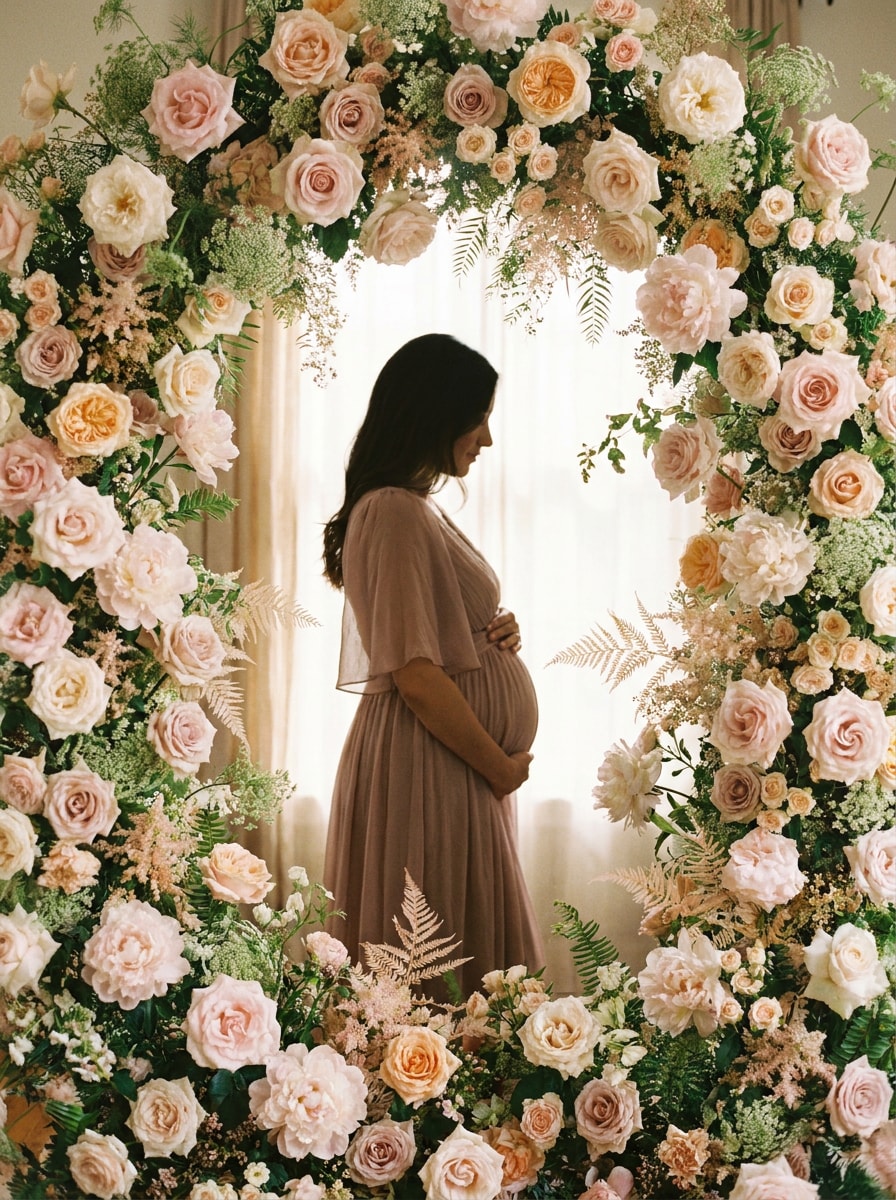
Retrato Floral de Maternidade
Use a foto de maternidade enviada como base e adicione flores pastéis suaves ao redor do sujeito, emoldurando a silhueta com rosas, peônias e vegetação leve. Mantenha a pose graciosa, a iluminação gentil e natural, a paleta quente e terna, e a imagem final íntima e elegante.
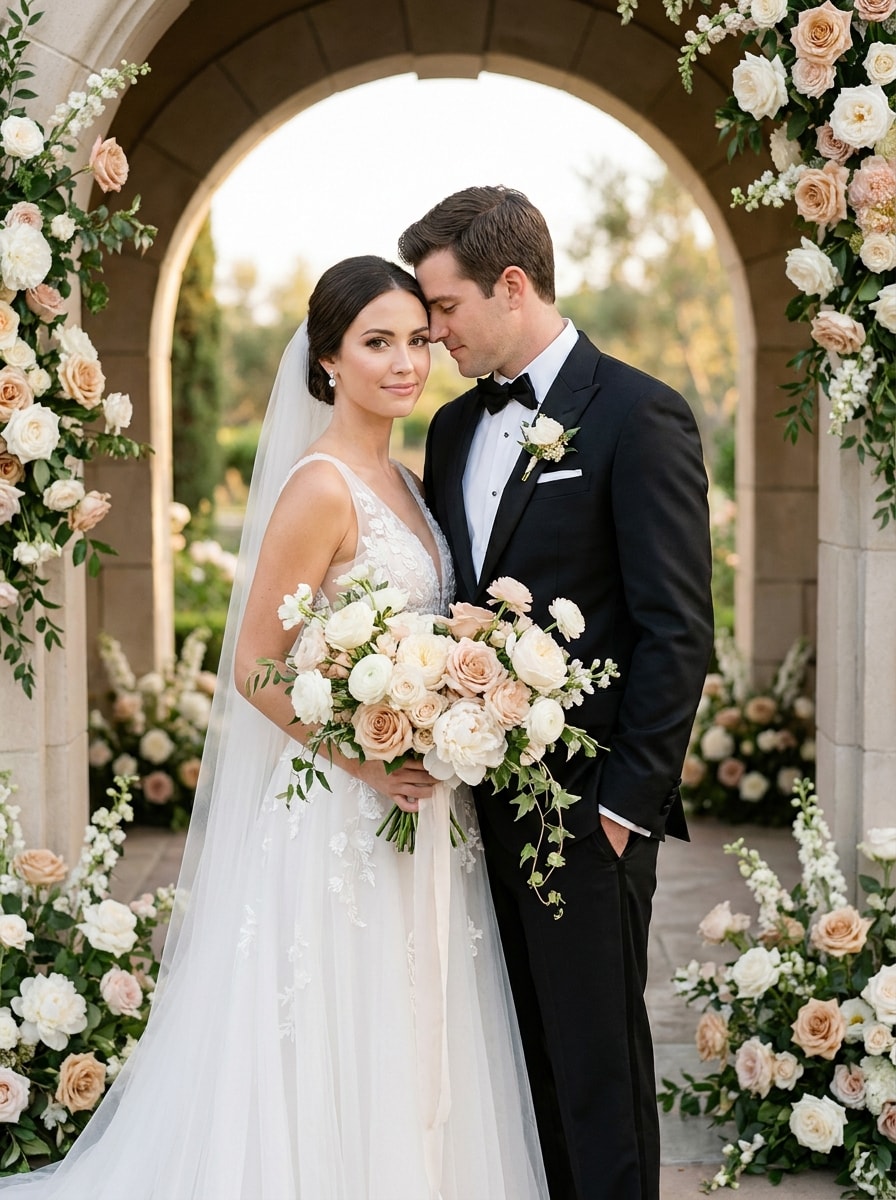
Aprimoramento Floral de Casamento
Use a foto de casamento enviada e adicione florais elegantes ao buquê, às bordas do enquadramento ou ao fundo usando flores brancas, rosadas e champanhe. Combine a iluminação e a harmonia de cores da imagem, preserve os detalhes de rostos e roupas, e crie um acabamento editorial premium e realista de casamento.
Por Que Usar o Media.io como Editor de Fotos Floral com IA
Edições Baseadas em Referência Mantêm Rostos e Identidade Reconhecíveis
Para publicações em redes sociais, visuais de marca ou mockups que ainda precisam parecer a pessoa original, o Media.io ajuda a preservar características reconhecíveis enquanto aplica um estilo de adicionar flores à foto que permanece alinhado ao sujeito.
Controle Fácil sobre Qualidade, Recorte e Variações
Diferentes resultados exigem diferentes estéticas. O Media.io ajuda você a explorar tratamentos variados do mesmo conceito de adicionar flores à foto para que o visual final chegue ao tom certo mais rapidamente.
Mantenha os Visuais Finais Nítidos para Projetos Reais
Alguns resultados precisam fazer mais do que parecer bons em uma prévia. O Media.io ajuda a gerar fotos com flores mais nítidas com saída de até 4K para que a imagem final se sustente em papéis de parede, apresentações e mockups.
Crie no Navegador em Qualquer Dispositivo
Para criadores que alternam entre celular e desktop, o Media.io mantém a criação de adicionar flores à foto no navegador para que o fluxo de trabalho permaneça prático onde quer que você esteja trabalhando.
Como Adicionar Flores a uma Foto em Minutos
Transforme suas palavras em visuais impressionantes em três etapas simples e continue refinando o resultado se quiser ir mais longe.
Etapa 1
Envie Sua Imagem de Referência
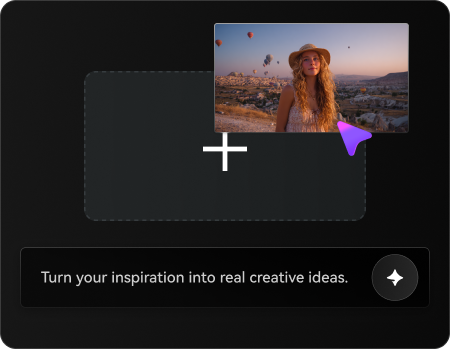
Comece com um retrato claro, selfie, imagem de casamento, foto de maternidade ou foto de produto em JPG, PNG ou JPEG. Uma referência limpa e bem iluminada ajuda o Media.io a posicionar flores, pétalas e detalhes florais de forma mais natural ao redor do seu sujeito.
Etapa 2
Descreva a Mudança e Configure as Opções
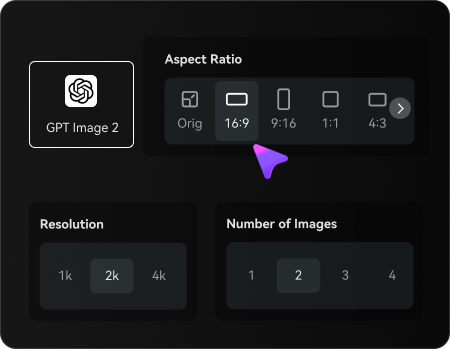
Digite o que você deseja criar, como adicionar flores a uma foto, colocar rosas no cabelo, criar uma coroa de flores ou aplicar um filtro de pétalas de sakura. Em seguida, escolha seu modelo e ajuste a proporção, qualidade e o número de variações de imagem.
Etapa 3
Gere, Baixe e Continue Melhorando
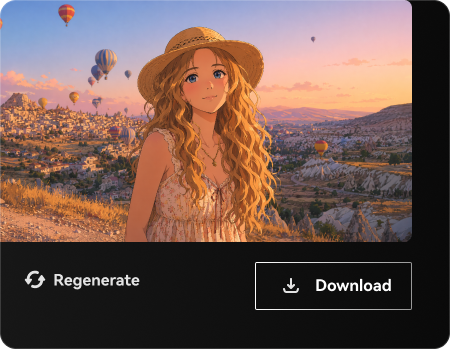
Crie sua imagem editada, compare versões e baixe o resultado que mais gostar. Você pode refinar o prompt, gerar novamente com um estilo floral diferente ou continuar editando até que as flores, as cores e a composição pareçam perfeitas.
Descubra o Potencial de Adicionar Flores a uma Foto
Veja como criadores usam este efeito de adicionar flores à foto para conteúdo, marketing e projetos pessoais e, em seguida, adapte cada ideia para se adequar ao briefing.
Aprimoramentos de Retratos Românticos para Perfis Sociais
Transforme selfies do dia a dia em retratos de beleza polidos com flores no cabelo, flores suaves ao redor do rosto ou uma aura floral sonhadora. Isso é ideal se você quiser adicionar flores a uma foto para Instagram, fotos de perfil, branding de criador ou conteúdo sazonal de primavera.
Fotos de Casamento e Maternidade com Estilo Floral mais Suave
Aprimore imagens de momentos especiais sem organizar uma nova sessão de fotos. O Media.io permite adicionar pétalas a cenas fotográficas, criar um visual de adicionar moldura floral à foto ou criar uma atmosfera de jardim romântico que pareça elegante e pessoal.
Visuais Criativos de Produtos e Eventos Sem Retoque Manual
Use o Media.io como um editor de fotos floral com IA para convites, campanhas de beleza, mockups de presentes ou fotos de produtos boutique. Ele ajuda você a adicionar flores, pétalas decorativas, uma sobreposição inspirada em rosas ou até mesmo um filtro leve de pétalas de sakura mais rapidamente do que a edição manual camada por camada em softwares de design tradicionais.
O Que os Usuários Dizem Sobre a Edição de Fotos Floral do Media.io
Lena Park
Criadora de Lifestyle
"Retratos florais bonitos de forma rápida" Usei para adicionar flores ao redor do meu rosto para uma foto de perfil de primavera, e o resultado pareceu muito mais natural do que um aplicativo de adesivos. A iluminação combinou muito bem com minha selfie.
Marissa Cole
Fotógrafa de Casamentos
"Útil para aprimoramentos rápidos de casamento" Às vezes um cliente quer um fundo floral mais suave após a sessão. O Media.io facilitou adicionar flores e pétalas extras mantendo o casal e os tons de pele realistas.
Tia Nguyen
Proprietária de Pequeno Negócio
"Ótimo para imagens promocionais e cartões" Usei para criar visuais de produtos florais e arte para cartões-presente. Alterar a proporção para diferentes publicações foi simples, e obtive várias versões utilizáveis em uma única rodada.
Avery Brooks
Editor de Conteúdo Mobile
"Fácil no celular e no desktop" Queria uma edição rápida de flor de cerejeira no meu celular e terminei em minutos. Depois reabri o projeto no desktop para um download de maior qualidade, o que se encaixou perfeitamente no meu fluxo de trabalho.
Explore os efeitos de vídeo e imagem de IA mais quentes
Perguntas Frequentes Sobre Adicionar Flores a Fotos
1. Como posso adicionar flores a uma foto com IA?
Envie sua imagem para o Media.io e, em seguida, insira um prompt descrevendo a mudança floral que você deseja, como adicionar uma coroa de flores, flores no cabelo, um fundo floral ou uma sobreposição suave de pétalas. O Media.io usa sua foto original como referência, para que a edição permaneça alinhada ao seu sujeito, pose e composição geral.
2. Posso adicionar flores a uma foto gratuitamente?
Usuários gratuitos podem experimentar o Media.io com créditos gratuitos para testar edições florais e variações. Se precisar de mais gerações ou downloads extras, consulte a página de preços. As exportações gratuitas podem incluir marca d'água, enquanto os planos pagos suportam downloads de alta resolução sem marca d'água.
3. Posso colocar flores no cabelo ou fazer uma coroa de flores a partir de uma foto?
Sim. O Media.io funciona bem para edições como colocar flores no cabelo, criar uma coroa de flores realista ou construir um visual semelhante a um editor de fotos com pétalas de rosa ao redor do rosto e dos ombros. Envie um retrato claro, descreva o tipo de flor e o posicionamento que deseja e gere algumas variações para encontrar o resultado mais favorável.
4. A edição de flores vai parecer realista ou como um adesivo?
Depende da imagem de origem e do prompt, mas o Media.io é projetado para edição de imagem para imagem que segue a iluminação, o ângulo e os recursos visíveis no seu envio. Isso ajuda o Media.io a misturar elementos florais de forma mais natural do que ferramentas simples de sobreposição, especialmente quando você deseja adicionar flores a cenas fotográficas que pareçam parte da imagem original.
5. Posso adicionar flores a retratos, fotos de casamento ou selfies?
Você pode usar o Media.io em retratos, fotos de casamento, selfies, imagens de maternidade e até fotos de produtos. Funciona bem para adicionar flores ao redor de uma pessoa, transformar um fundo simples em um cenário florido, aplicar uma moldura floral ou criar um efeito suave de pétalas caindo para imagens de ocasiões especiais.
6. Este editor de fotos com flores funciona no iPhone, Android e desktop?
O Media.io é um editor baseado na web que funciona em navegadores modernos no iPhone, Android, Windows e Mac. Isso facilita iniciar uma edição floral rápida no celular e, em seguida, revisitar o mesmo projeto no desktop para comparar os resultados ou baixar uma versão final em alta resolução.