As criações são armazenadas por apenas 7 dias. Os recursos criados após o upgrade para um plano de assinatura serão armazenados permanentemente.
Desbloqueie seu potencial criativo e experimente a magia da IA de mídia hoje!
Add Lightning to Photo for Dramatic Storm Edits in Seconds
Create realistic storm scenes, cinematic portraits, and sky strikes with Media.io. This browser-based tool helps you add lightning to photo uploads fast while keeping your subject recognizable, making it a simple alternative to a photoshop lightning effect workflow on desktop or mobile.
Review these example directions, then tailor the prompt details to get stronger results with this Add Lightning To Photo tool in Media.io.
Single Lightning Strike
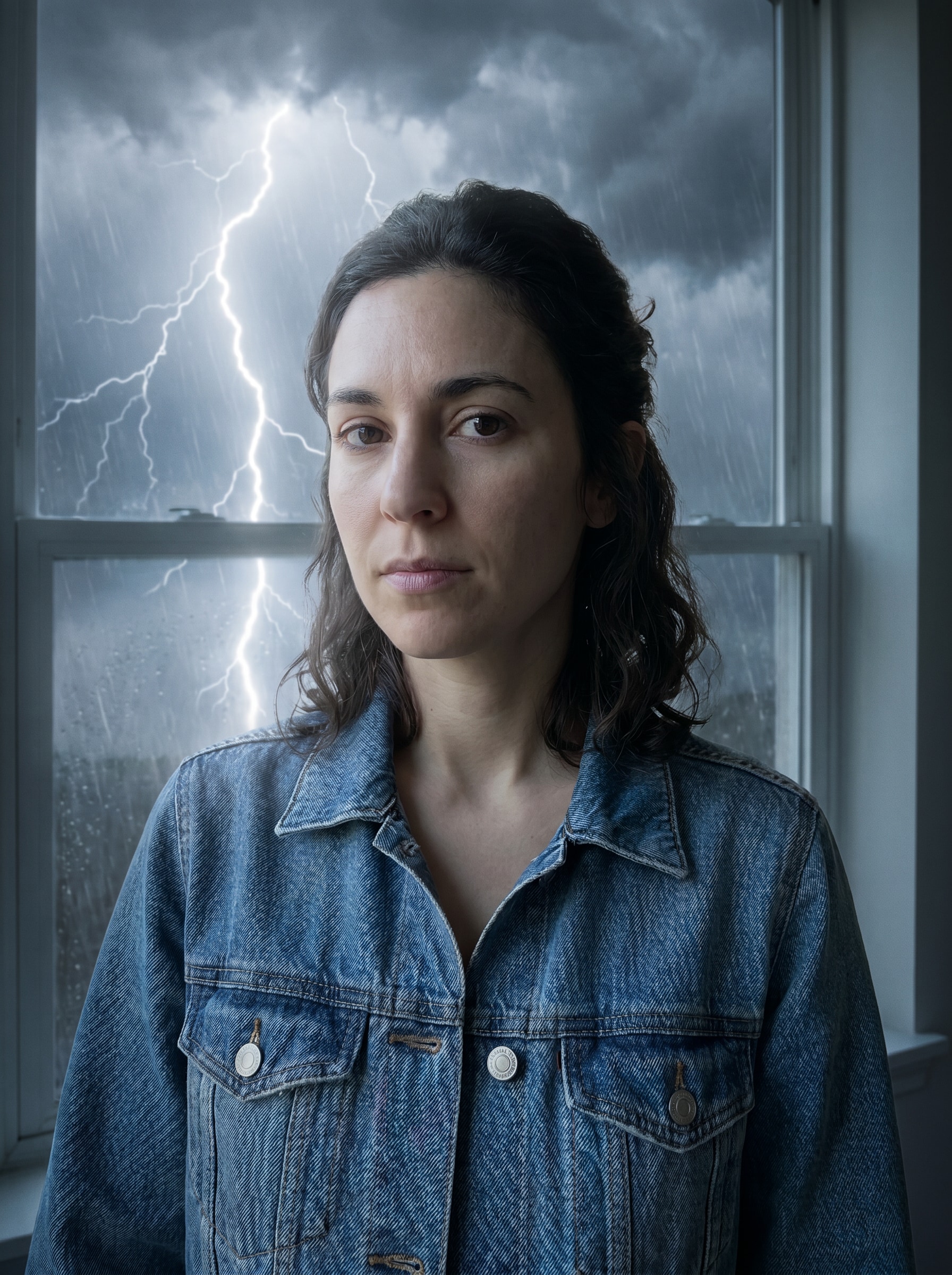
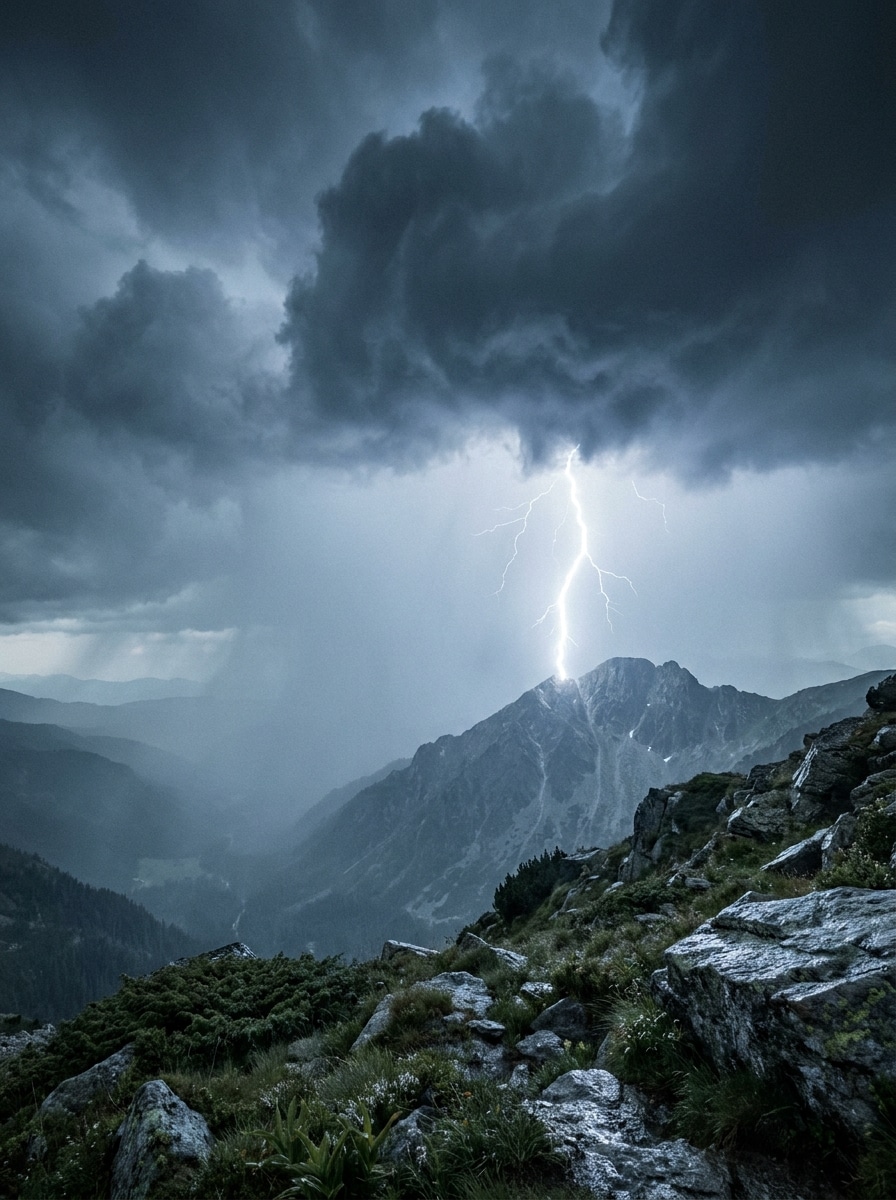
Use the uploaded landscape photo as the base and transform the sky into a dramatic thunderstorm with one bright, realistic lightning bolt descending from dense storm clouds. Preserve the terrain and horizon, add soft rain haze, cool blue-gray grading, natural light bloom, wet atmosphere, and cinematic contrast.
Multi-Bolt Thunderstorm
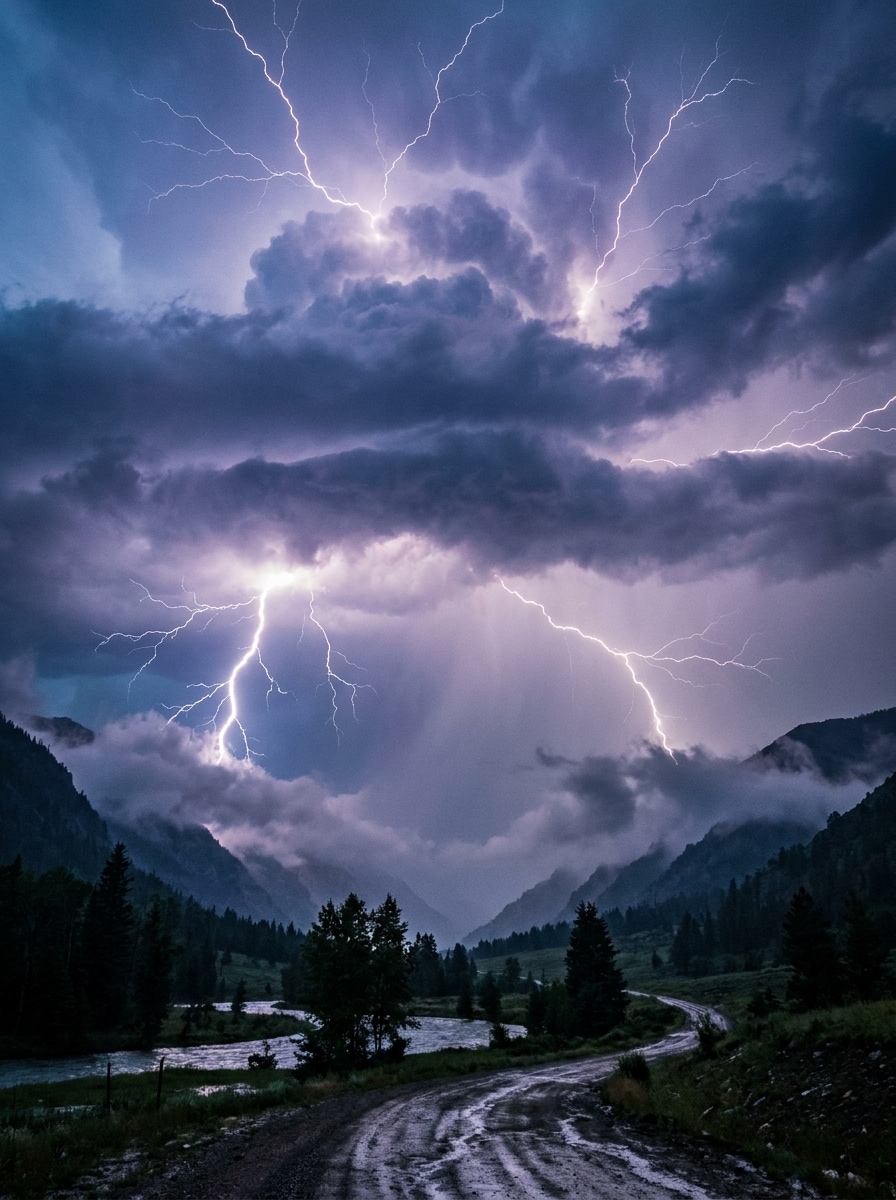
Use the uploaded outdoor scene and turn it into a severe thunderstorm with multiple realistic lightning bolts branching across the sky. Keep the original environment clear, add layered storm clouds, blue-purple storm tones, faint rain mist, natural reflections, and strong but believable contrast for a powerful lightning photo effect.
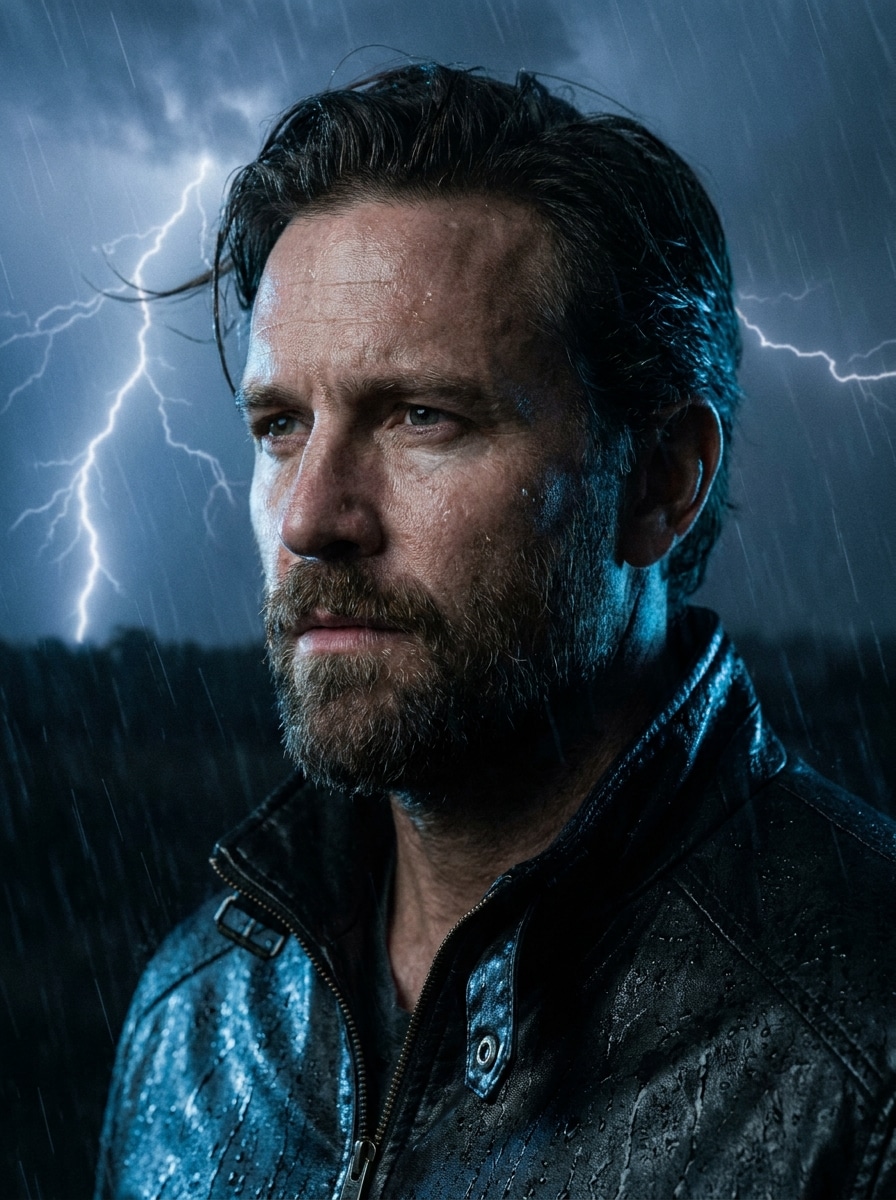
Electric Portrait Background
Use the uploaded portrait as the subject and add realistic lightning in the background behind the person. Preserve facial features, skin texture, hair detail, and pose while introducing dark storm clouds, cool electric highlights, moody contrast, subtle atmosphere, and cinematic depth without overwhelming the face.
Blue Energy Rim Light
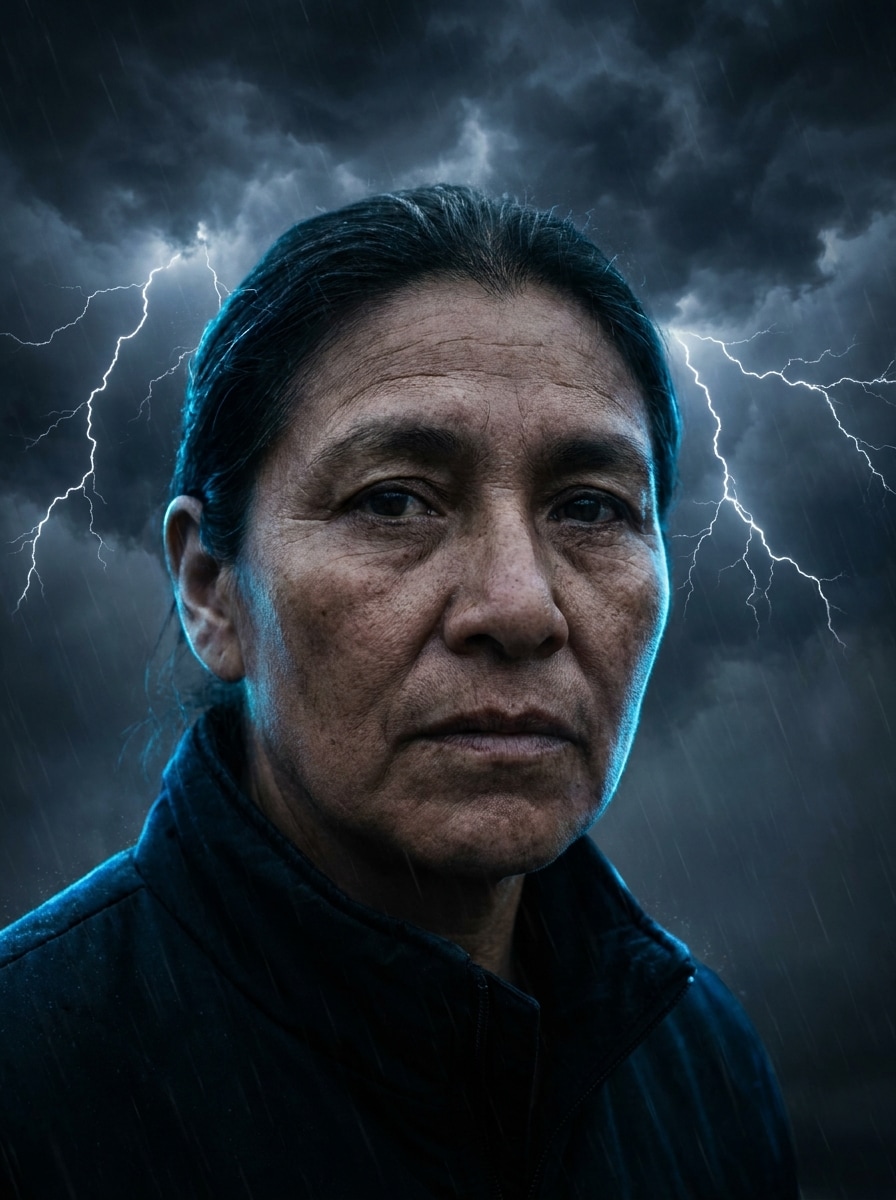
Use the uploaded portrait and transform it with a distant lightning storm plus subtle blue electric rim lighting around the subject. Keep the face clear and natural, enrich shadows, add moody storm atmosphere, cool highlights, crisp texture, and a polished cinematic finish that feels dramatic but realistic.
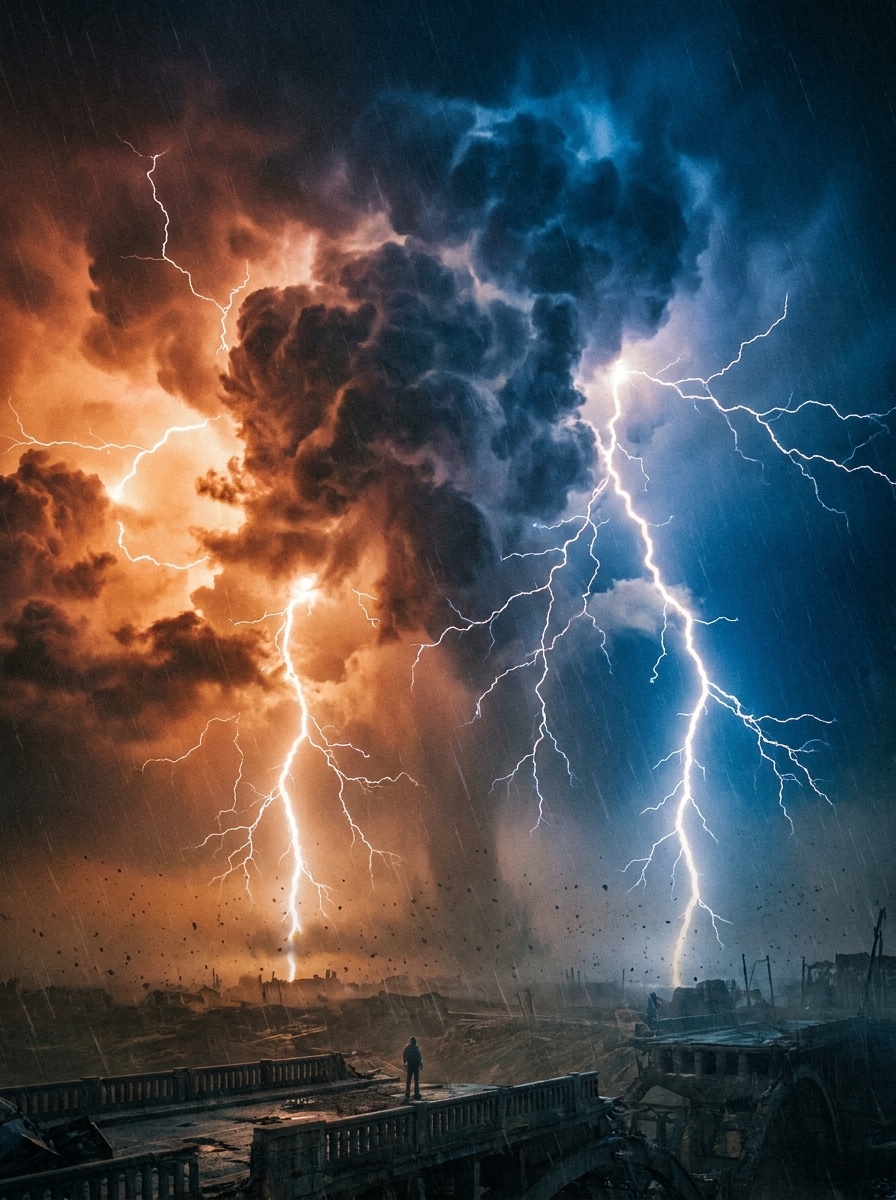
Apocalyptic Sky
Use the uploaded scene and remake the sky into an epic storm with oversized branching lightning, towering dark clouds, and dramatic orange-blue contrast. Preserve the ground, buildings, or landscape details while increasing depth, atmosphere, tension, and cinematic scale for a bold fantasy-inspired weather transformation.
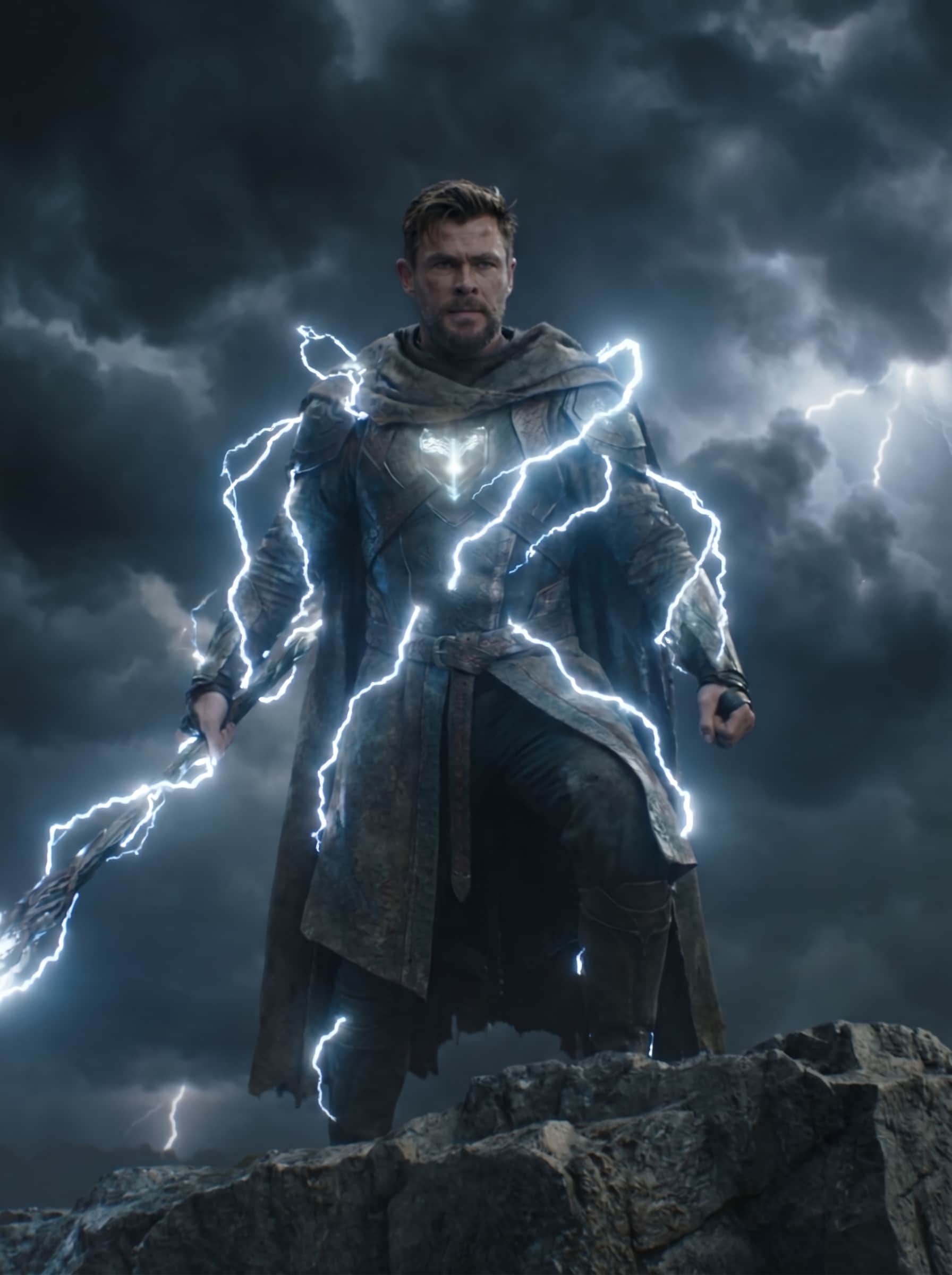
Fantasy Power Aura
Use the uploaded subject image and surround the person with stylized but semi-realistic electric arcs and glowing storm energy. Keep the subject recognizable, preserve facial and clothing details, add dark atmospheric clouds, luminous blue-white sparks, enhanced contrast, and a heroic cinematic mood with controlled visual intensity.
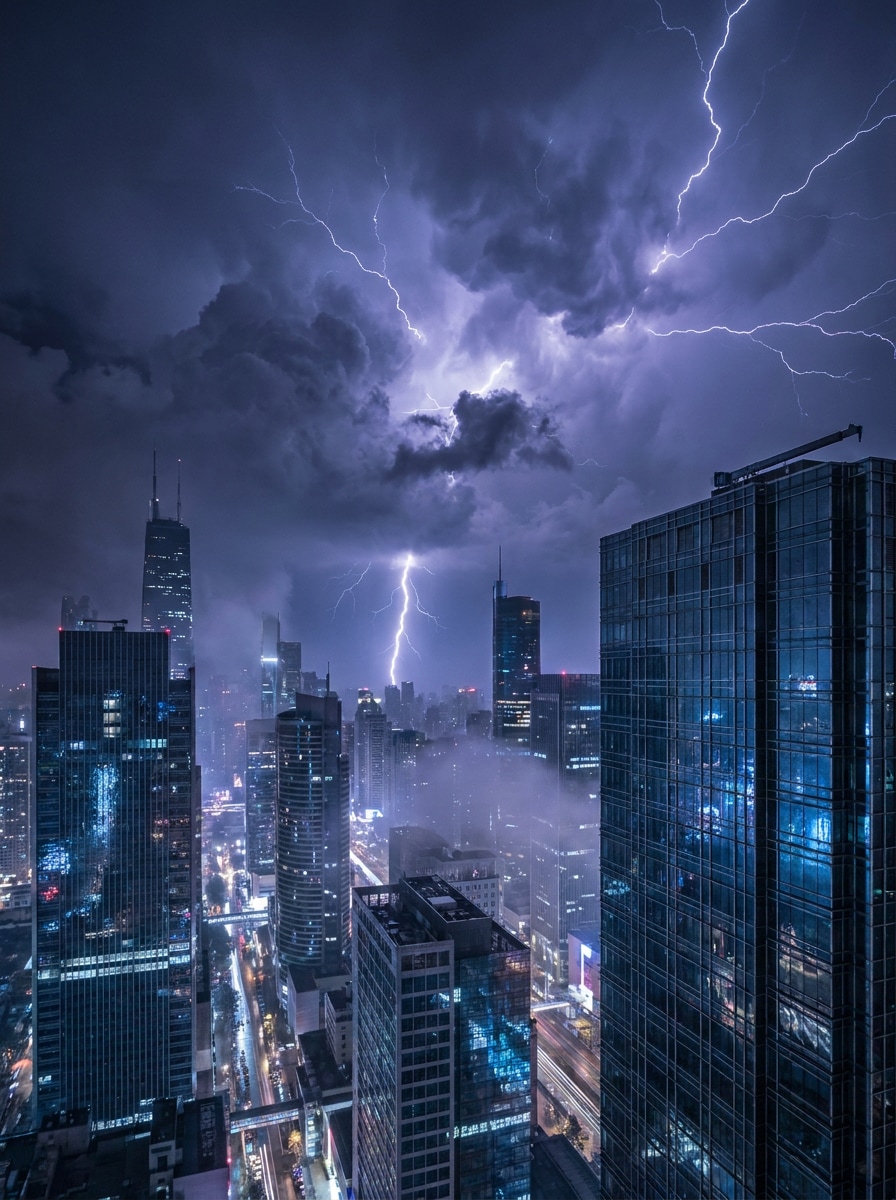
City Skyline Strike
Use the uploaded city photo and add realistic lightning above the skyline at night. Preserve building shapes, windows, and perspective while introducing storm clouds, reflective highlights on glass, atmospheric haze, cool storm color tones, and crisp nighttime contrast for a polished AI lightning effect.
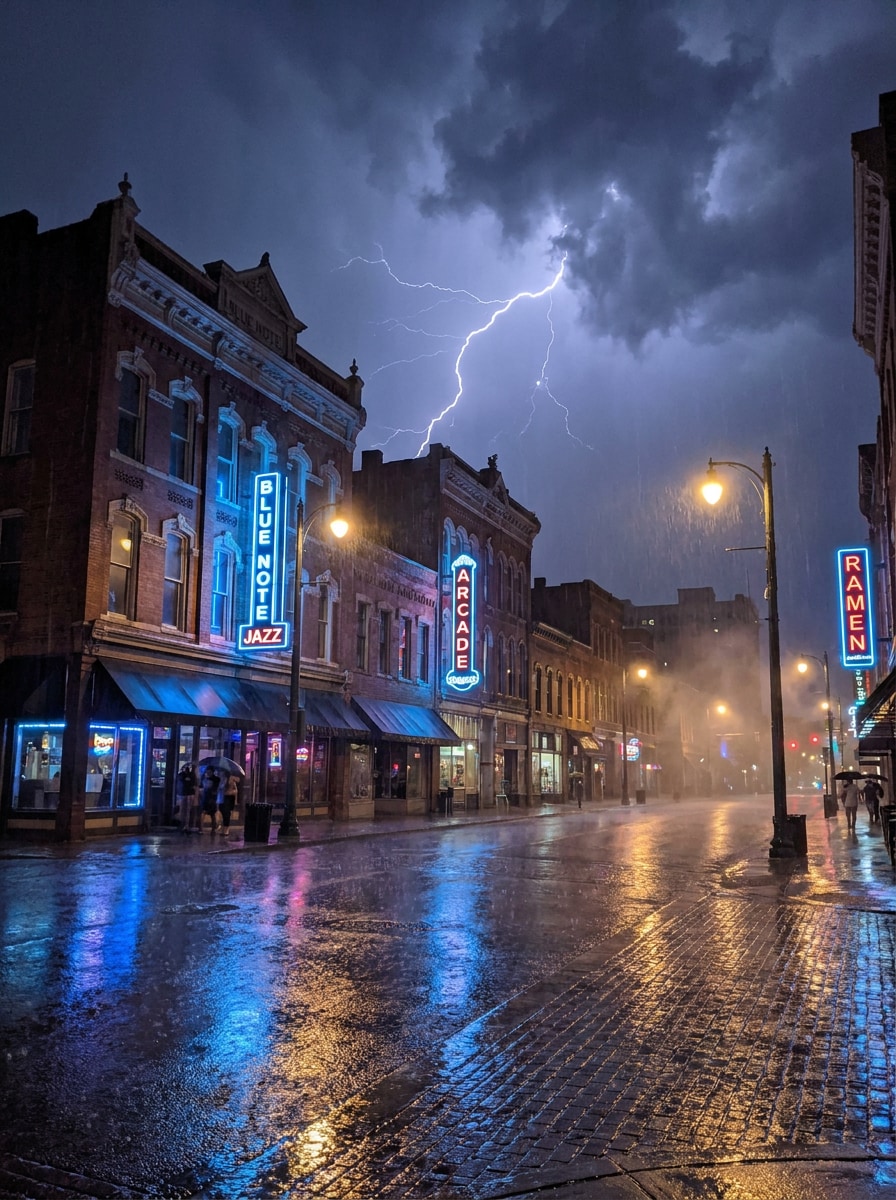
Neon Thunder Mood
Use the uploaded night scene and transform it into a neon storm with realistic lightning, moody clouds, subtle rain, and urban reflections. Keep streets, architecture, and signs recognizable while blending electric blue tones, soft glow, wet surfaces, and dramatic atmosphere for a stylized but believable edit.
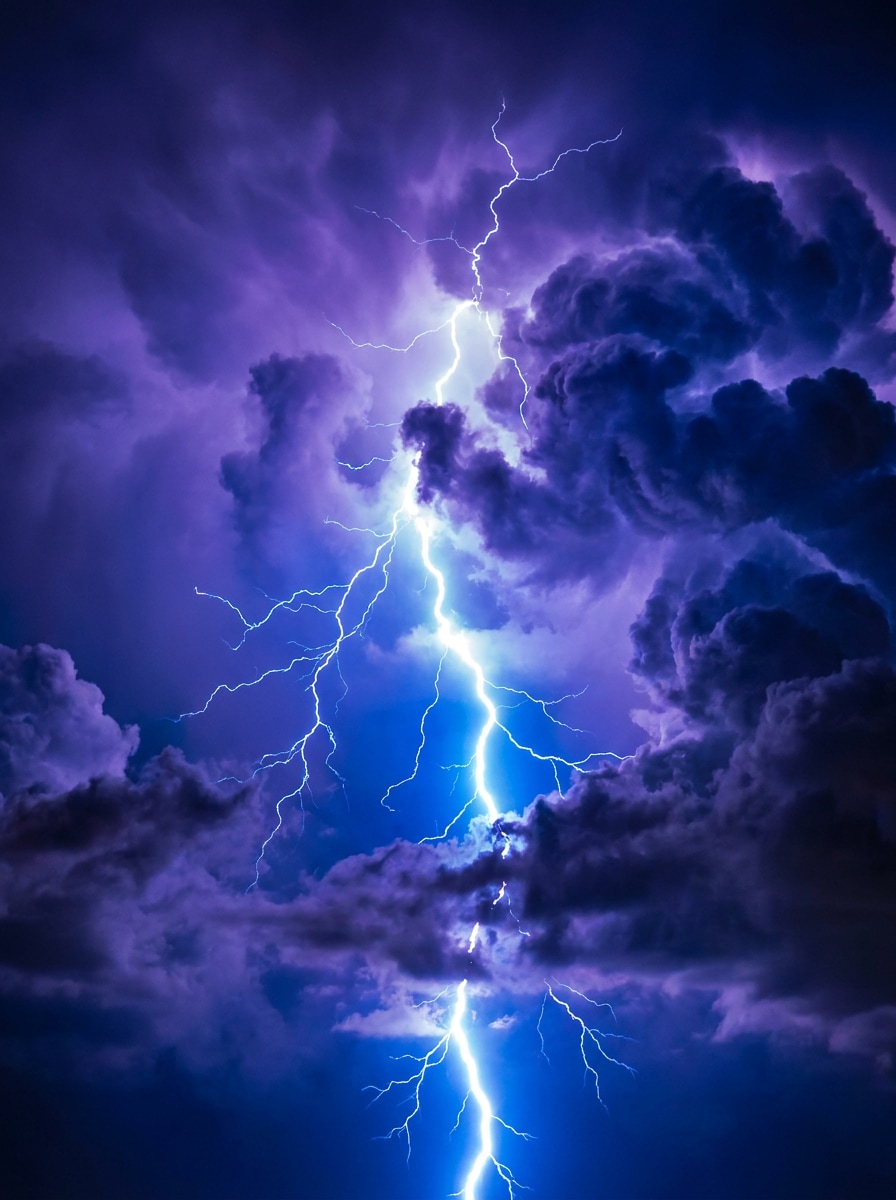
Phone Wallpaper Storm
Use the uploaded image and turn it into a striking vertical storm wallpaper with bold central lightning placement. Preserve the main subject, simplify distractions, add vivid thunderclouds, crisp contrast, rich blue-purple tones, atmospheric glow, and a clean composition optimized for mobile screens.
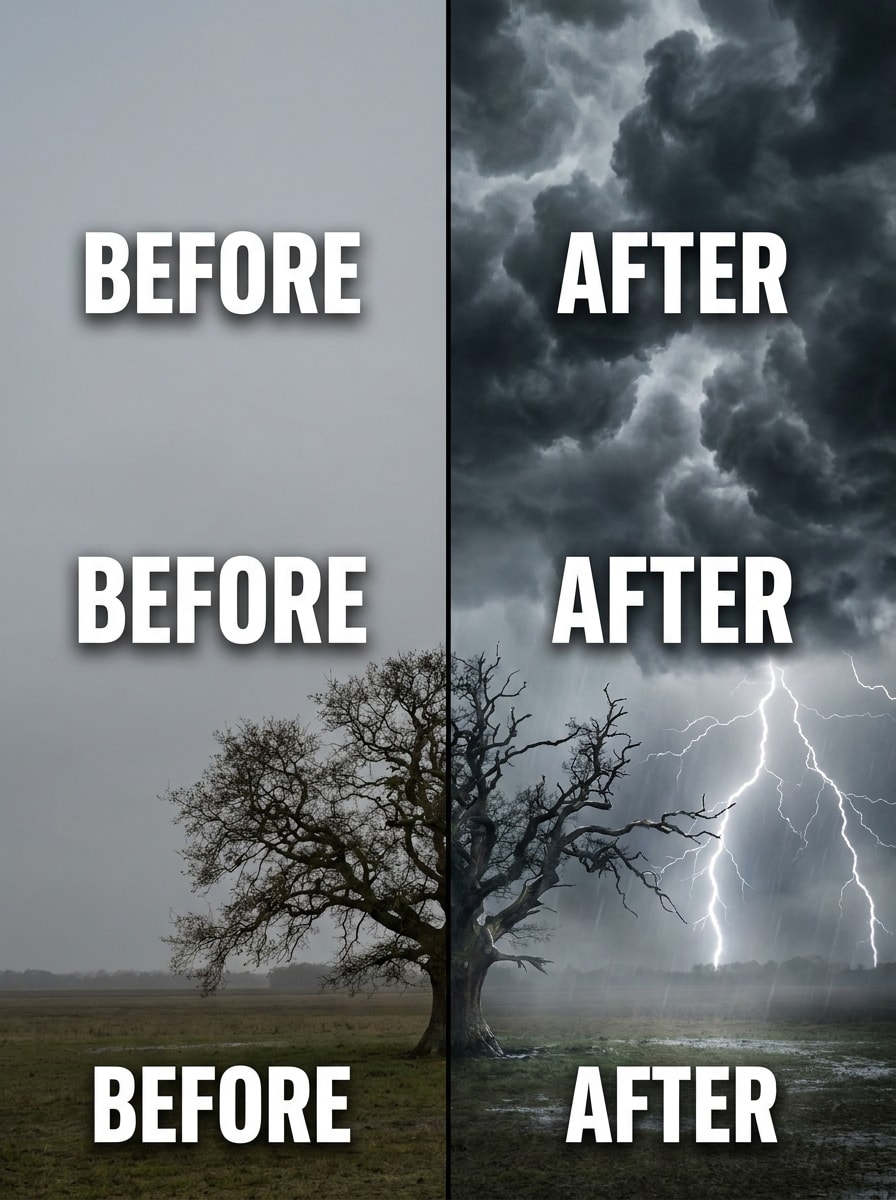
Before-After Viral Edit
Use the uploaded plain photo as the starting point and add lightning effect to photo areas that will create the biggest visual transformation. Keep the original subject recognizable while introducing realistic bolts, storm atmosphere, stronger contrast, volumetric clouds, and a dramatic social-friendly before-and-after look.
Why Use Media.io to Add Storm Lightning Effects
Keep the Scene Dramatic Without Losing Your Subject
Across portraits, landscapes, and skyline shots, Media.io uses reference-based image editing to place lightning around the scene while preserving the person, buildings, or terrain you started with, so the final storm look stays dramatic and recognizable.
Explore Different Looks Without Losing Direction
Need a quicker path than a layered desktop editor? Media.io works in the browser across laptops, tablets, and phones, so you can build a cinematic lightning scene from almost anywhere without installing extra software.
Create High-Resolution Images for Real Use
Some results need to do more than look good in a preview. Media.io helps generate cleaner add lightning to photo with output up to 4K so the final image holds up in wallpapers, decks, and mockups.
Keep the Workflow Moving Across Devices
For creators who bounce between mobile and desktop, Media.io keeps add lightning to photo creation in the browser so the workflow stays practical wherever you happen to be working.
How to Add Lightning to a Photo Online
Turn your words into stunning visuals in three simple steps, then continue refining the result if you want to take it further.
Step 1
Upload Your Reference Image
Start with a clear JPG, PNG, or JPEG photo. Landscapes, portraits, city scenes, and dark-sky shots work especially well when the sky area or background gives the AI room to place believable storm details.
Step 2
Describe the Change and Set Options
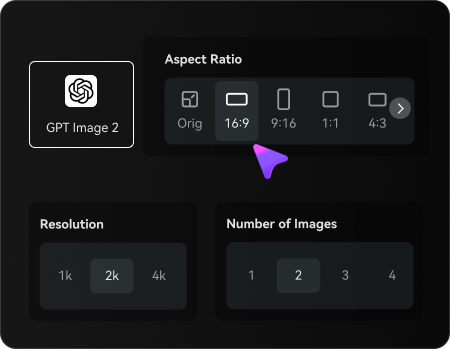
Tell Media.io where and how to place the lightning—such as a single sky strike, a cinematic portrait background, or a neon thunder look. Then choose your model, aspect ratio, resolution, and how many variations to generate.
Step 3
Generate, Download, and Keep Improving
Create several versions, compare bolt placement and atmosphere, and download your favorite result. If needed, refine the prompt, regenerate for a better scene match, or continue editing for social posts, wallpapers, and creative projects.
Unlock the Potential of Photoshop Lightning Effect
See how creators use this Add Lightning To Photo tool for content, marketing, and personal projects, then adapt each idea to fit the brief.
Turn Plain Landscapes Into Dramatic Weather Scenes
Upgrade travel shots, mountain views, or open-field photos with storm clouds and realistic sky strikes. Media.io works well as a storm lightning photo editor for creators who want a cinematic outdoor edit without manually building every bolt and glow from scratch.
Create Moodier Portraits for Social Content
Add electric skies or blue storm highlights behind a subject for eye-catching profile photos, posters, and reels. Media.io delivers the punch of a photoshop lightning effect-style look while keeping faces and styling much easier to manage.
Design Scroll-Stopping Wallpapers and Cover Art
Transform night shots, city scenes, or simple backgrounds into bold vertical wallpapers and promotional visuals. A strong AI lightning effect in Media.io helps musicians, gamers, and content creators build more dramatic branding in just a few edits.
What Users Say
Noah P.
Travel Content Creator
"Great for landscape drama" I used it on a mountain photo and the lightning looked surprisingly natural. The terrain stayed sharp, and I got a cinematic storm scene in a couple of tries.
Jasmine R.
Social Media Manager
"Fast on mobile" I wanted to add lightning to a photo on my iPhone for a campaign teaser. It worked in the browser, and the vertical outputs were perfect for stories and reels.
Ethan C.
Music Promo Designer
"Better than starting in layers" For cover art concepts, this saved me a lot of time compared with building a storm effect manually. I could test multiple moods and keep the original subject recognizable.
Mia L.
Portrait Photographer
"Useful for dramatic edits" The portrait results were strong. I added lightning behind my subject and got cool rim light without ruining skin texture, which is usually the hardest part with effect tools.
Upload a JPG, PNG, or JPEG image to Media.io, then enter a prompt describing the storm look you want, such as a single sky strike, multiple bolts, or a cinematic portrait background. You can choose the model, aspect ratio, resolution, and number of outputs before generating your edited image in the browser.
2. Can I create a realistic lightning effect for free?
Yes, free users can try Media.io with free credits, which is helpful if you want to test a realistic lightning scene before upgrading. Free results may include a watermark, while paid plans offer more usage and watermark-free high-resolution downloads on the pricing page.
3. What photos work best for an AI lightning generator?
Photos with visible sky, dark backgrounds, open outdoor space, city skylines, or clear portrait separation usually work best. If you want a browser-based way to create a believable lightning photo effect, images with strong subject clarity and enough room for cloud buildup give Media.io more space to shape the storm naturally.
4. Will the lightning effect keep my original subject clear?
Media.io is designed for image-to-image editing, so your uploaded reference helps guide the result and keep the main subject recognizable. That makes Media.io useful when you want to add storm drama behind a person, building, or landscape instead of replacing the whole scene.
5. How do I add lightning to a photo on iPhone?
Open Media.io in your iPhone browser, upload your image, and describe the storm effect you want. Since Media.io is web-based, you do not need to install a separate app to follow an add lightning effect to photo workflow on mobile.
6. How long does it take to generate a storm effect?
Generation time can vary based on your chosen model, settings, and queue conditions, but Media.io is built to be fast. In most cases, you can upload a photo, generate several storm variations, and compare results within a short editing session.