As criações são armazenadas por apenas 7 dias. Os recursos criados após o upgrade para um plano de assinatura serão armazenados permanentemente.
Desbloqueie seu potencial criativo e experimente a magia da IA de mídia hoje!
Add Sun Rays to Photo for Realistic Golden Light Effects
Use AI to add realistic sunlight, flare, and glowing beams to portraits, landscapes, and indoor shots. Media.io helps you add sunlight to photo online fast, whether you want to add sun to photo, create a warm sun rays photo effect, or try a subtle AI sun rays filter. This workflow is especially useful for add sunshine to photo.
Review these example directions, then customize the prompt details to get stronger results with this add sun rays to photo tool.
Warm Backlit Sun Rays
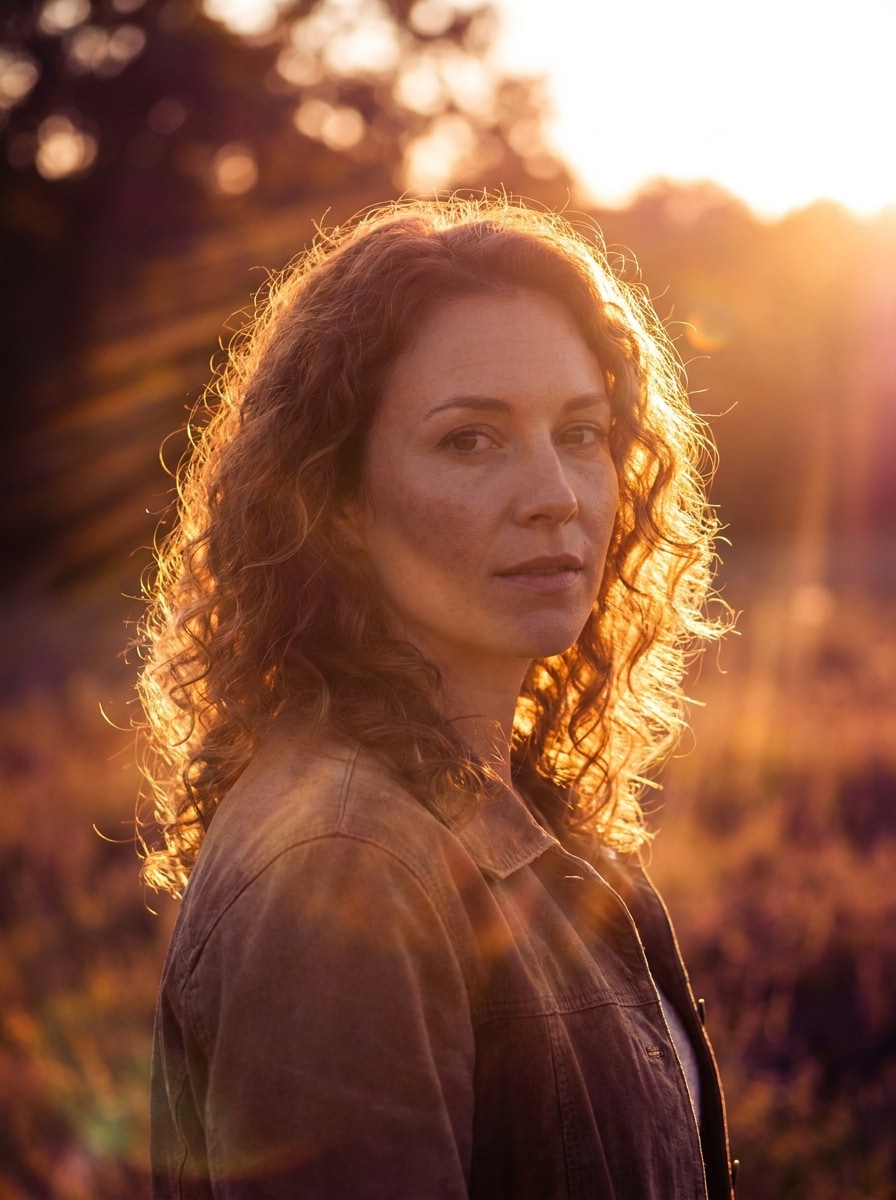
Use the uploaded image as the subject and transform it into a warm golden-hour portrait with realistic sunlight streaming from behind. Add soft volumetric sun rays, glowing rim light on hair and shoulders, gentle lens glow, warm amber highlights, natural skin tones, balanced contrast, and a cinematic editorial mood.
Dreamy Sunset Flare
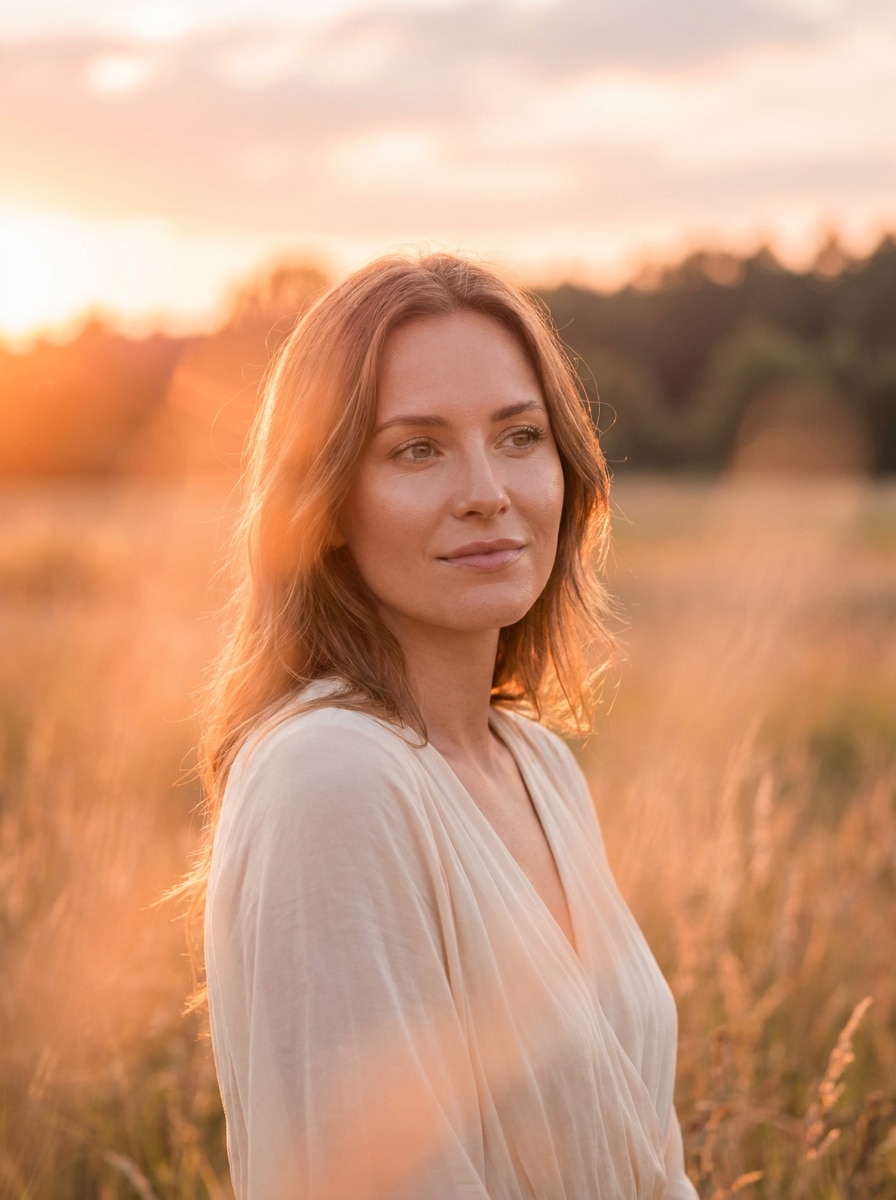
Use the uploaded image as the subject and give it a dreamy sunset makeover with soft orange sun flare, delicate haze, glowing highlights, and warm backlight. Keep facial features sharp, preserve natural textures, add gentle atmospheric depth, and create an elegant, romantic editorial portrait with smooth golden color grading.
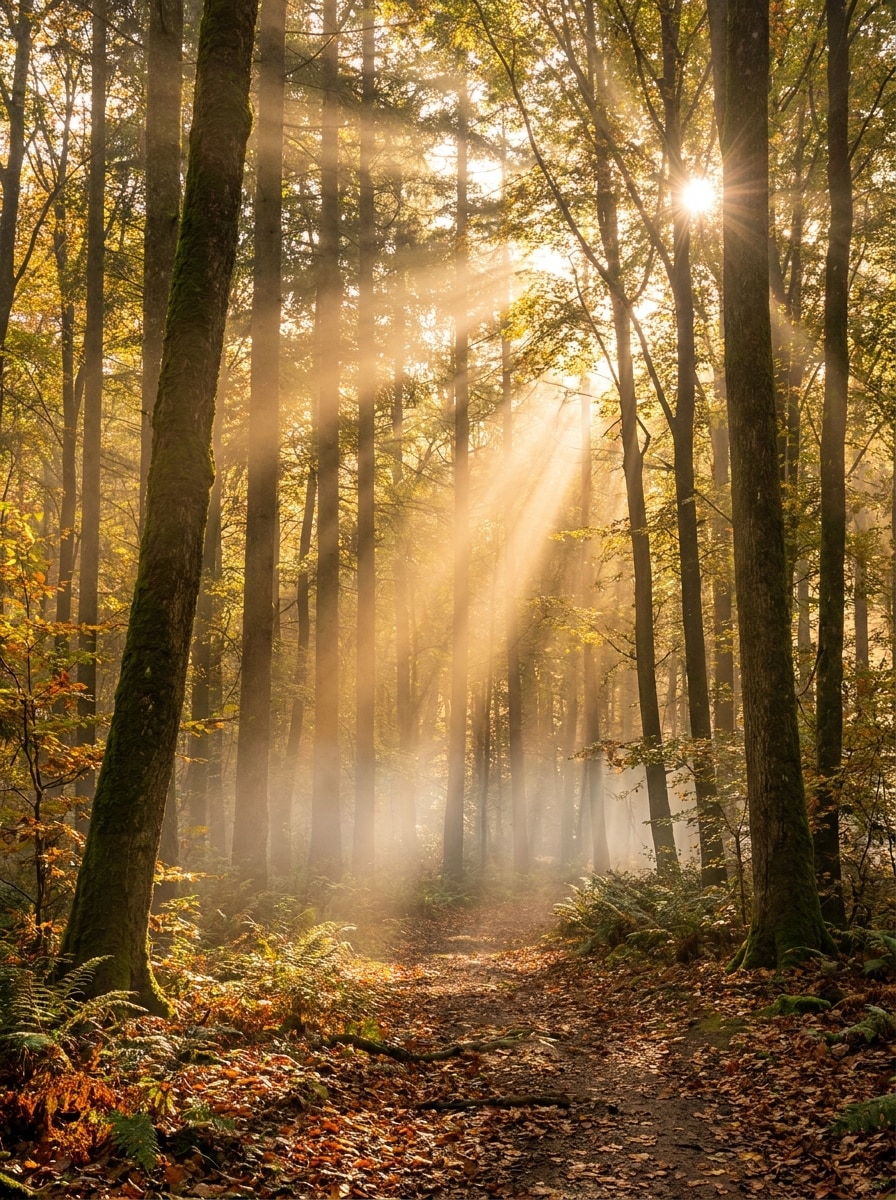
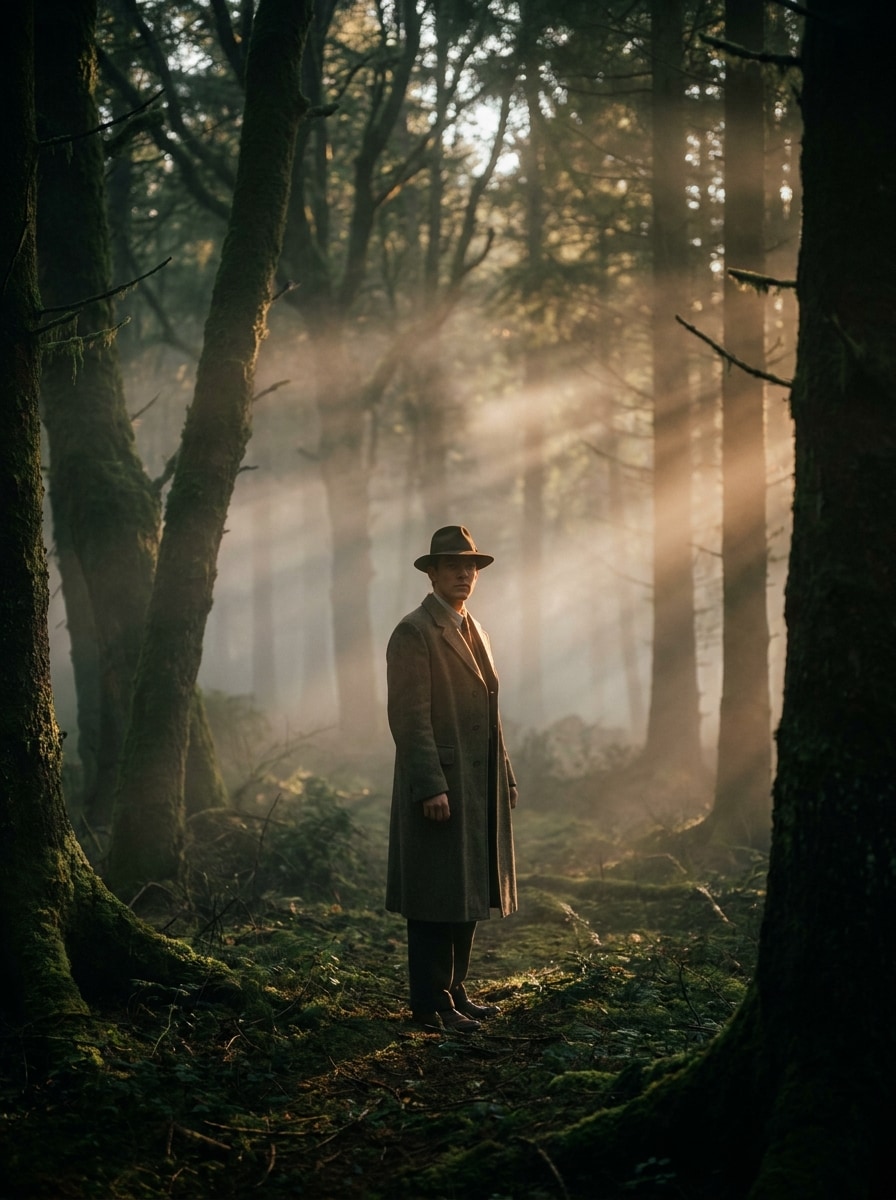
Forest Light Beams
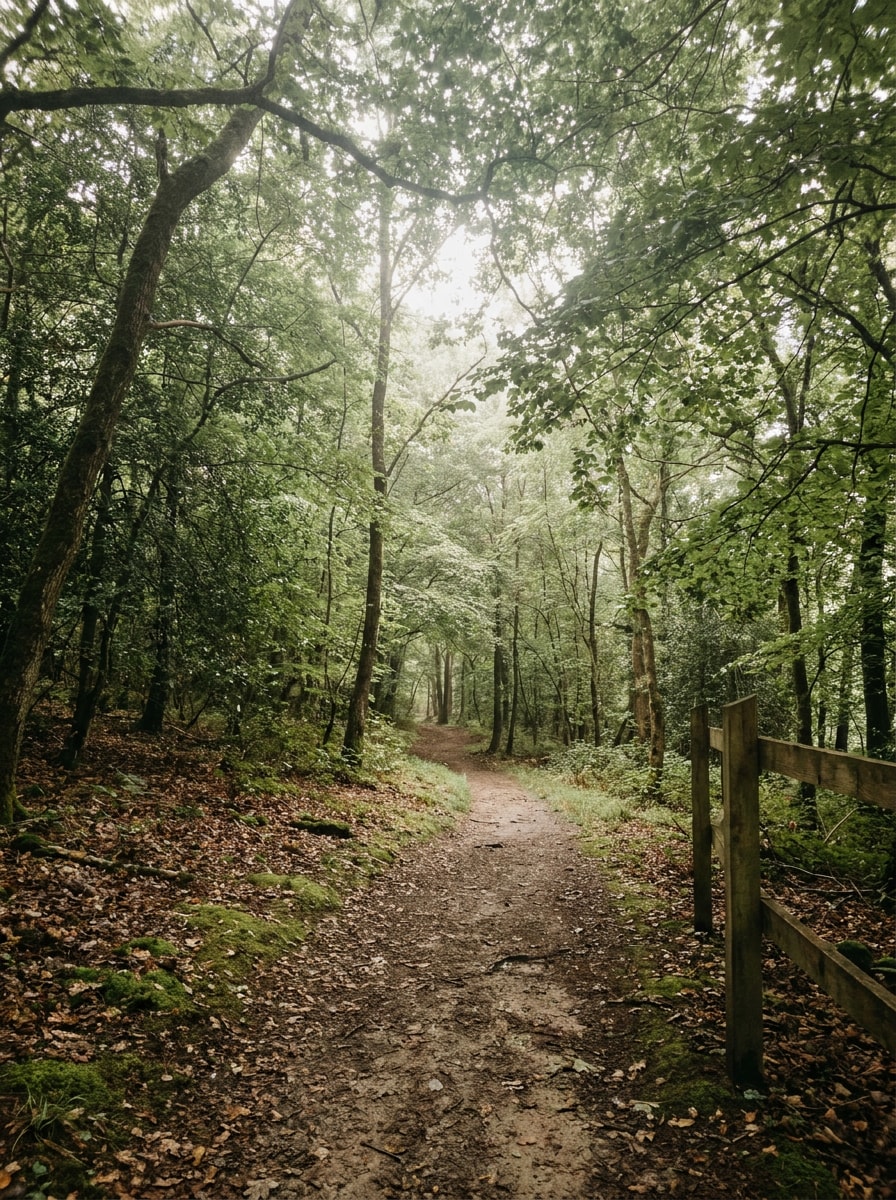
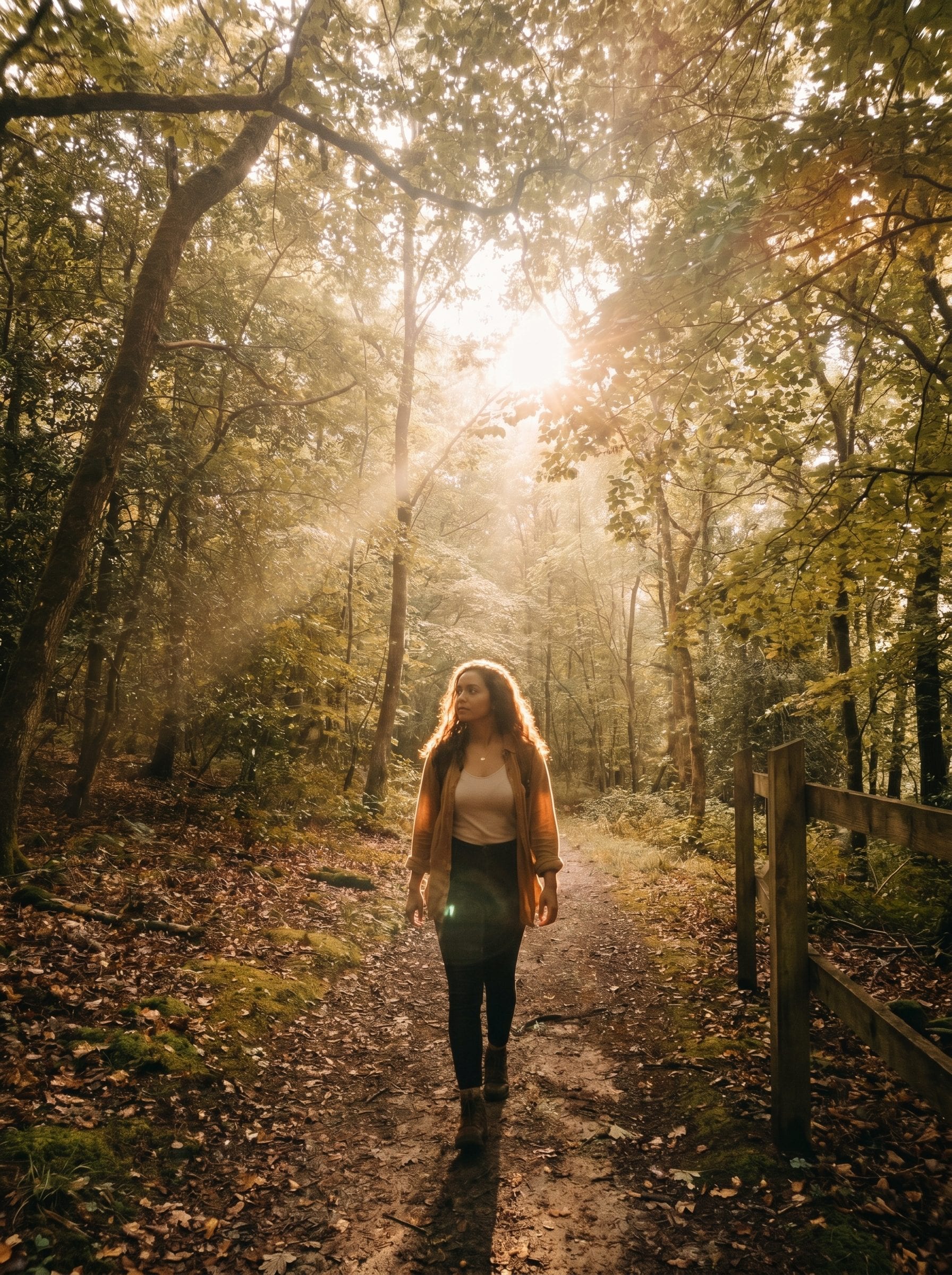
Use the uploaded forest or outdoor photo and add magical sunlight passing through the trees. Create realistic volumetric light beams, soft mist, warm natural highlights, preserved foliage texture, layered depth, and a cinematic woodland mood with believable contrast and a calm green-and-gold palette.
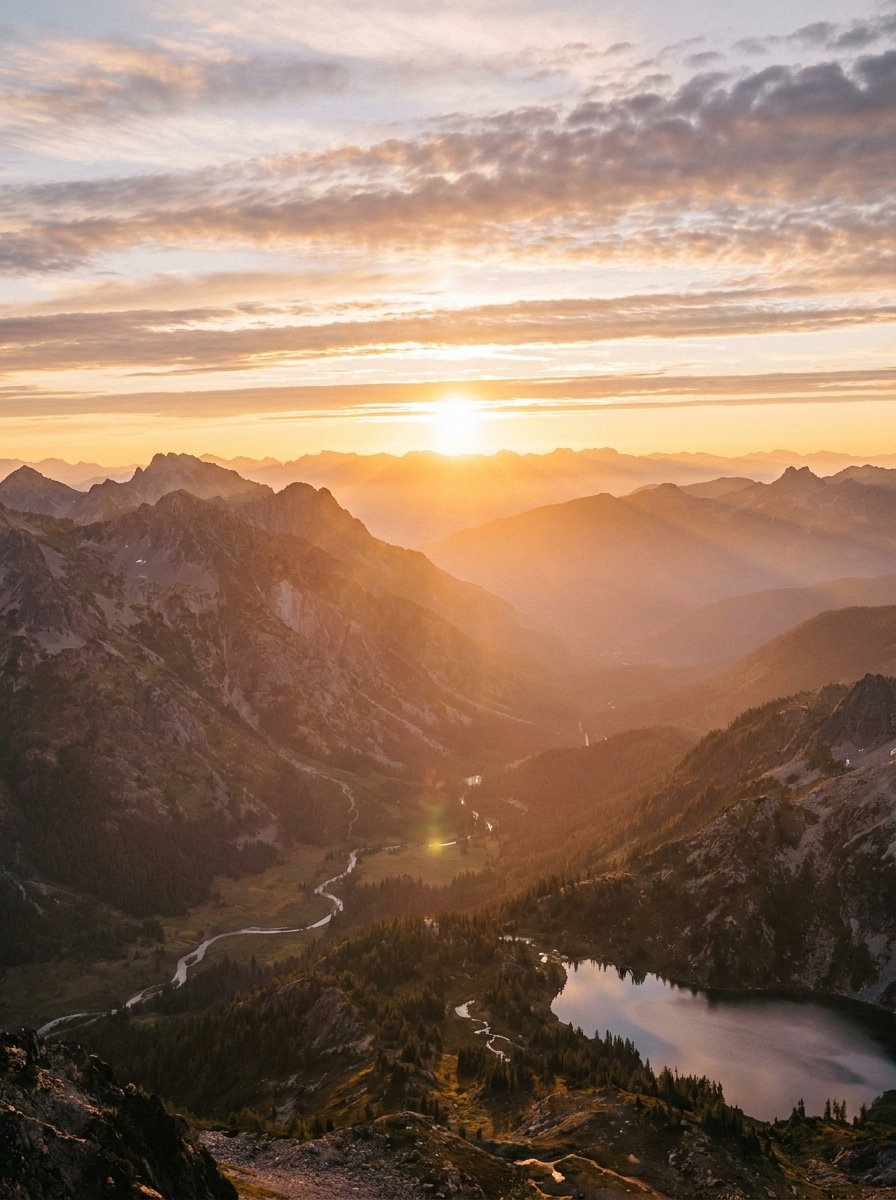
Mountain Sunrise Glow
Use the uploaded landscape as the base and turn it into a bright sunrise scene with directional sunlight from the horizon. Add subtle sun beams, warm golden glow, soft atmospheric haze, enhanced sky depth, realistic terrain detail, and a clean cinematic color balance that feels natural rather than overprocessed.
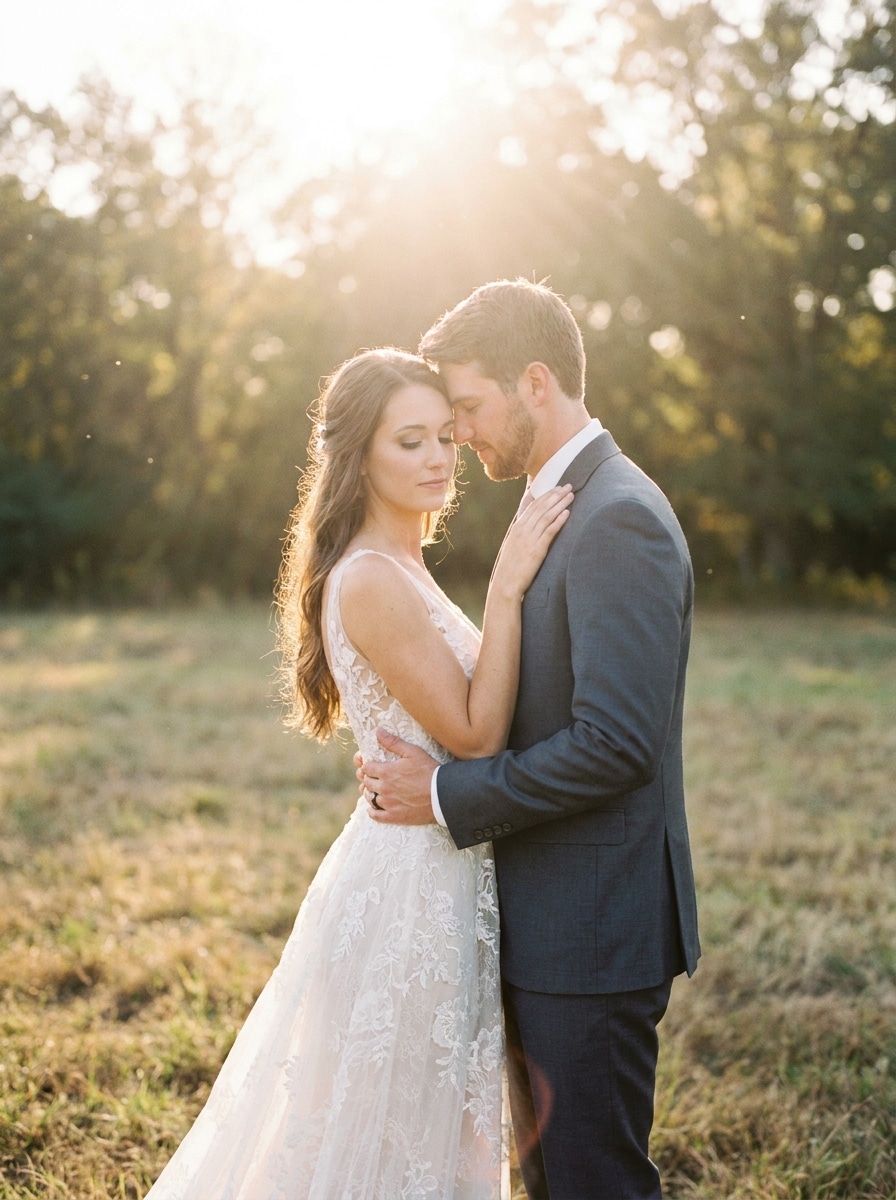
Soft Ceremony Sunlight
Use the uploaded wedding photo and add elegant natural sun rays for a soft ceremonial glow. Create warm backlight around the couple, flattering highlights on clothing and skin, gentle haze, delicate contrast, and a romantic fine-art look while keeping faces, fabric detail, and the moment authentic.
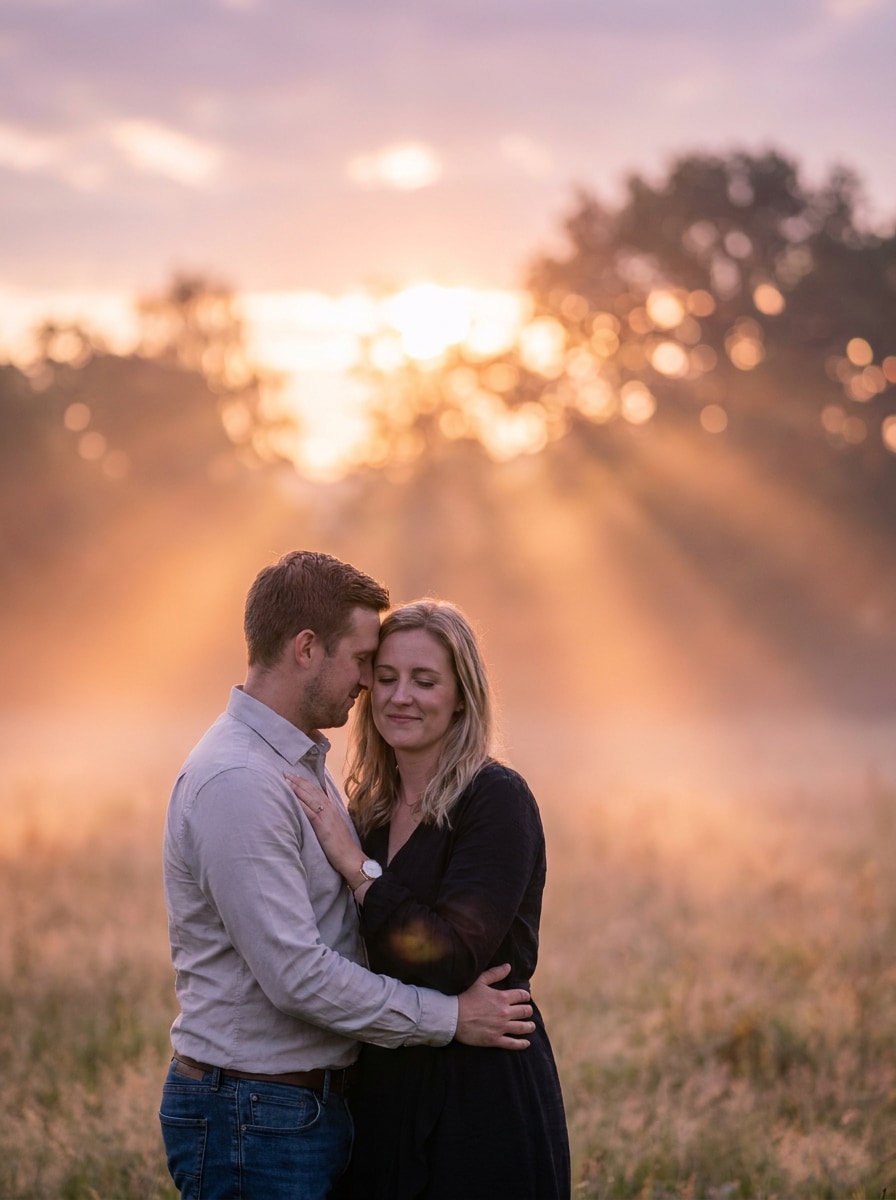
Ethereal Couple Glow
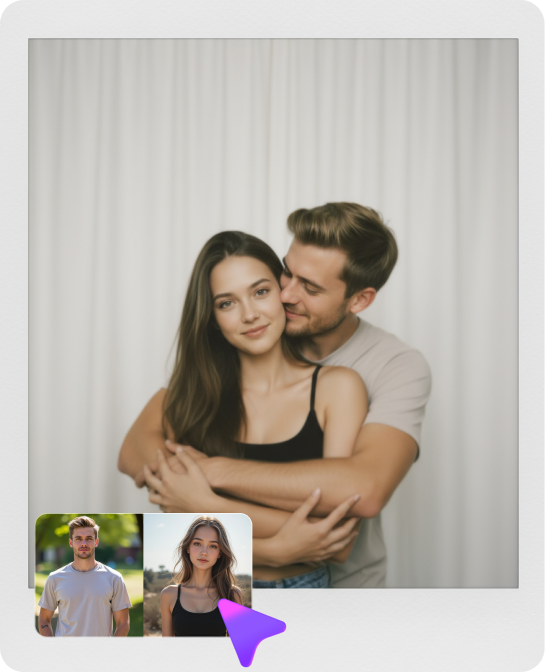
Use the uploaded couple photo as the subject and add magical sunset light with soft volumetric rays, dreamy haze, warm golden highlights, and creamy bokeh. Preserve facial detail and clothing texture while creating an ethereal, intimate, cinematic mood with a gentle amber and blush color palette.
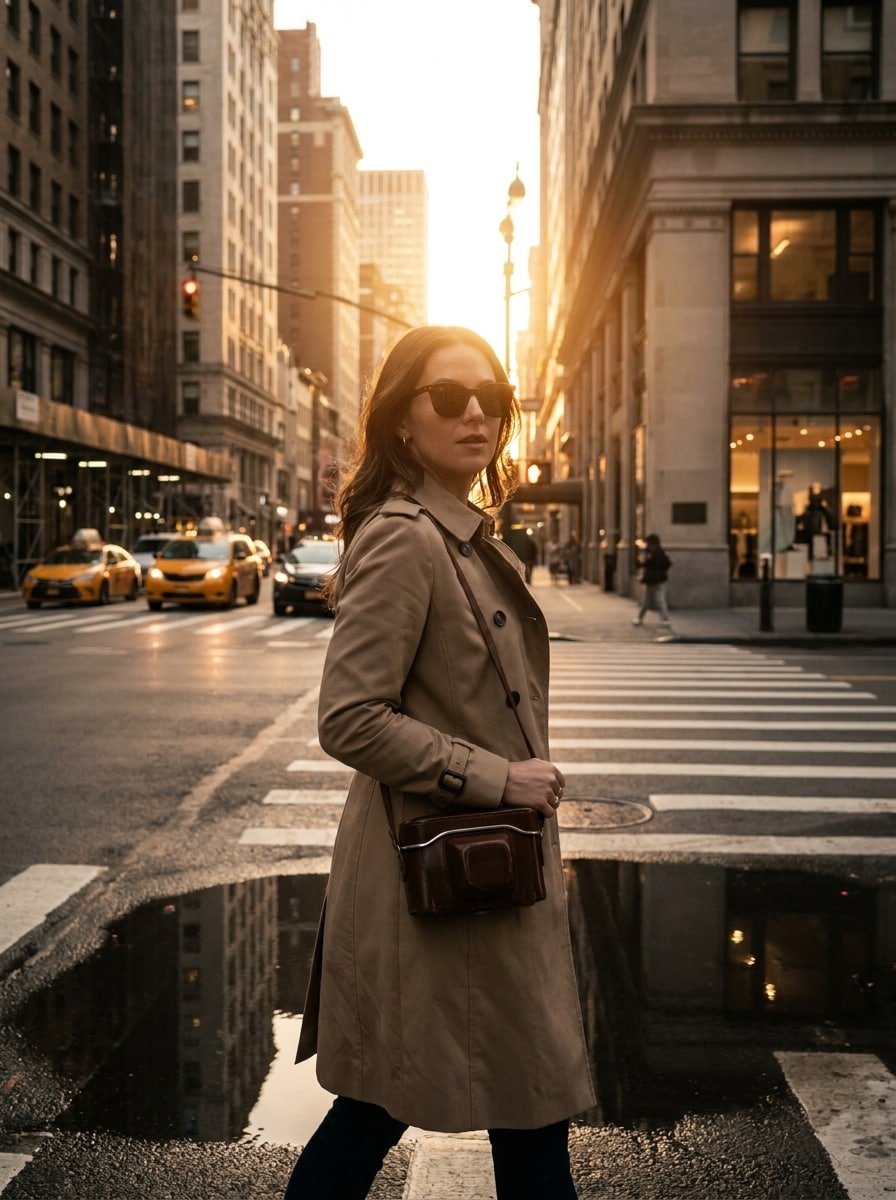
City Lens Flare Pop
Use the uploaded street photo and add a stylish late-afternoon sunlight effect with controlled warm flare, realistic reflections, crisp subject detail, and cinematic urban contrast. Keep the look polished and believable, with subtle golden highlights, clean shadows, and an editorial city-photography mood.
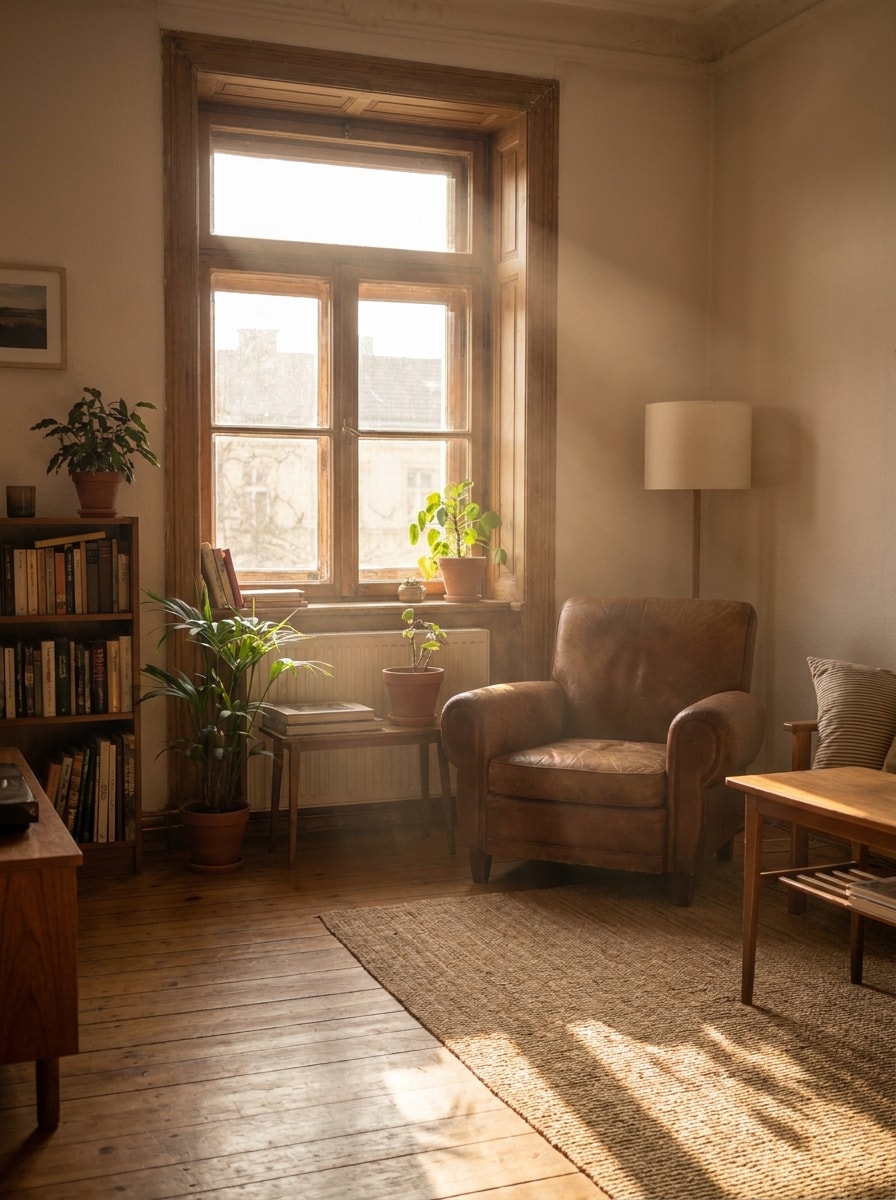
Window Light Rays
Use the uploaded indoor image and create natural sunlight entering through a window. Add soft light rays, warm interior glow, realistic directional shadows, preserved room texture, and a clean lifestyle aesthetic with airy brightness, subtle dust haze, and cozy morning color tones.
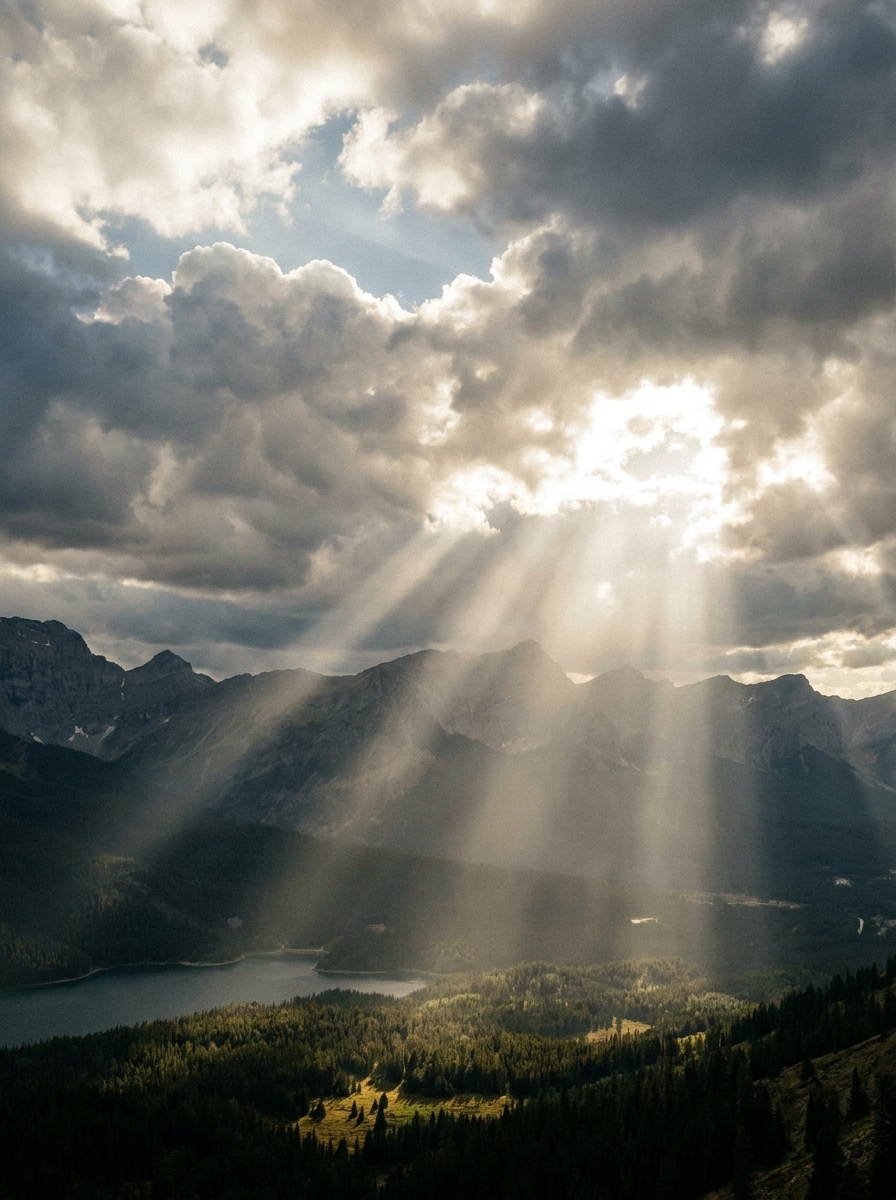
Heavenly Sunbeams
Use the uploaded landscape or architectural scene and add dramatic sunbeams breaking through the sky. Create strong volumetric rays, cinematic cloud lighting, balanced contrast, realistic atmosphere, and an epic yet believable mood with cool shadow tones and warm highlights for visual impact.
Moody Misty Light
Use the uploaded image as the base and add moody cinematic light rays with soft mist and directional sunlight. Preserve subject sharpness while deepening atmosphere, shaping contrast, and building a premium filmic look with muted earth tones, warm highlights, and rich shadow detail.
Why Use Media.io to Add Sunshine and Light Rays
Reference-Based Edits That Preserve Faces and Scene Detail
For upload-based edits, Media.io helps keep the reference subject visually consistent while you change the lighting direction to add sun rays to photo scenes, making personalized results easier to trust and use.
Directional Light That Looks Naturally Shot
When the art direction is still open, Media.io lets you test multiple looks around the same add sun rays to photo idea, making it easier to find the right style without rebuilding from zero.
Keep Final Visuals Sharp for Real Projects
When a add sun rays to photo is headed for real publishing use, Media.io gives you sharper output up to 4K, which helps the image stay clear across presentations, backgrounds, and reused assets.
Create in Browser Across Devices
Some add sun rays to photo concepts get drafted on the go and finished later at a desk. Media.io keeps that process online, so you can return to the same workflow without extra installs or setup.
How to Add Sun Rays to a Photo Online
Turn your words into stunning visuals in three simple steps, then continue refining the result if you want to take it further.
Step 1
Upload Your Reference Image
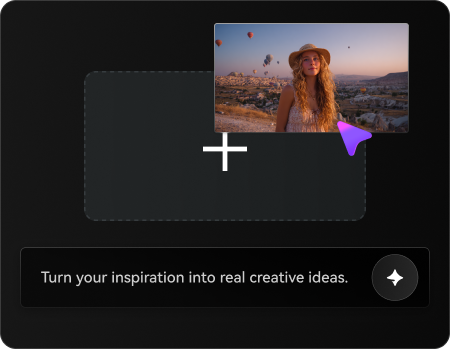
Start with a clear portrait, landscape, wedding shot, or indoor photo in JPG, PNG, or JPEG. Choose an image where you want the new sunlight to feel believable, such as a backlit subject, open sky, window scene, or tree-filled background.
Step 2
Describe the Change and Set Options
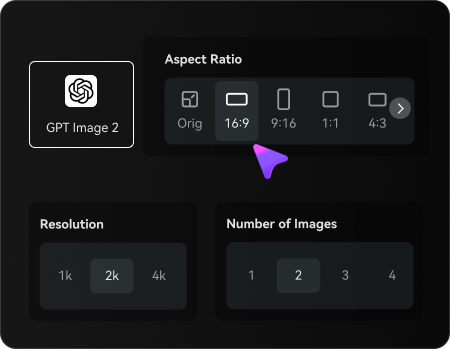
Tell the editor what kind of light you want to add, such as golden-hour beams, soft lens flare, or window sunlight. Then choose your model and adjust aspect ratio, resolution, and image count to match the final look you need.
Step 3
Generate, Download, and Keep Improving
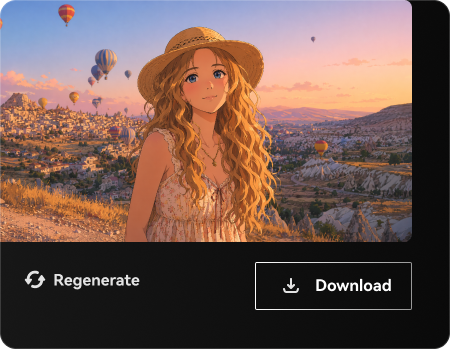
Create several variations, compare how the rays fall across the scene, and download your favorite result. If needed, refine the prompt, try a new crop, or continue editing for cleaner backgrounds, stronger glow, or a more cinematic finish.
See how creators use this add sun rays to photo tool for content, marketing, and personal projects, then adapt each idea to match your brief.
Warm Up Flat Portraits in Seconds
Turn ordinary outdoor portraits into golden-hour style images with soft backlight, rim glow, and believable haze. Media.io is ideal when you want a fast sunlight rays photo editor look for Instagram posts, profile photos, or client previews without manual masking.
Bring Depth to Landscapes and Travel Shots
Enhance forests, mountains, beaches, and city views with directional beams that guide the eye and add atmosphere. With Media.io, you can create a cinematic sun rays photo effect for thumbnails, prints, or travel content, making flat daylight scenes feel more dramatic.
Create Romantic Wedding and Couple Edits
Add delicate glow, airy warmth, and graceful light falloff to engagement and ceremony photos. Media.io works well when you want to add sunlight that feels soft and emotional, while still keeping faces, fabrics, and natural color true to the moment.
What Users Say
Emily R.
Lifestyle Photographer
"Much faster than manual overlays" I used it on a portrait session that was shot in dull afternoon light, and the result looked surprisingly natural. The rays followed the scene better than basic flare overlays, and I could generate a few styles quickly.
Jason M.
Travel Creator
"Great for landscapes and reels covers" I wanted sunrise-style beams on a mountain photo without opening heavy editing software. Media.io gave me multiple usable versions, and the aspect ratio options made it easy to prep both vertical and wide formats.
Priya S.
Wedding Content Editor
"Helpful for romantic light edits" The soft sunlight styles worked really well for couple photos. It kept skin tones and dress details cleaner than I expected, which matters when clients want a dreamy look that still feels realistic.
Noah T.
Social Media Designer
"Easy on phone and desktop" I tested it on both my laptop and tablet for quick campaign visuals. The browser workflow was simple, and I liked being able to tweak the prompt to get anything from subtle window light to stronger cinematic beams.
Upload your image to Media.io, then describe the lighting effect you want, such as golden-hour beams, soft window light, or a subtle flare. Media.io uses image-to-image AI to transform your reference photo, so you can add sun rays to photo scenes directly in a browser without complex manual editing.
2. Is there a free AI tool to add sunlight to photos?
Media.io offers free credits so you can test sunlight edits before subscribing. If you need more usage, you can view plan options on the pricing page. Free users may see watermarks, while paid subscribers can download watermark-free high-resolution images with more available credits.
3. What is the difference between sun rays, lens flare, and sun flare effects?
Sun rays are visible beams of light passing through air, trees, windows, or haze. Lens flare is the optical glow, streak, or reflection created when bright light hits the camera lens. Sun flare is a broader term that can include lens artifacts plus a bright glowing sun source. If you want to add sunlight to photo online with a more natural relighting feel, sun rays usually look more scene-based than decorative overlays.
4. How do I make added sun rays look realistic instead of fake?
Start with a photo where the light direction already makes sense, then use prompts that mention warm highlights, soft volumetric beams, realistic shadows, and subtle haze instead of extreme effects. Media.io works best with a clear reference image, helping the added light follow the subject and environment more naturally.
5. Can I add sun rays to portrait and landscape photos?
Media.io supports image-to-image editing for portraits, landscapes, wedding shots, travel scenes, and indoor images. You can use it to add sun to photo portraits with backlit glow or enhance wide outdoor scenes with beams through trees, sky, or horizon light.
6. Will the edited image stay high resolution after adding light rays?
Media.io offers 1K, 2K, and 4K resolution options for image-to-image edits. That means you can keep strong visual quality after applying an AI sun rays filter, whether you need a social post, a cover image, or a larger export for presentation and print-oriented use. Free users may have watermarks.