Первая подписка доСкидка 50%
Купить сейчас

AI-видео с переходом Diwali Patakha и промптами | Media.io

Превратите свою фотографию в переход в стиле диавали-патакха. Исследуйте AI-подсказки для видео с изящными вращениями, развевающимися дупаттами и эффектными появлениями под золотой фейерверк. Создайте свой собственный эффект.
All Submissions

Diwali Patakha Transition AI Video Generator

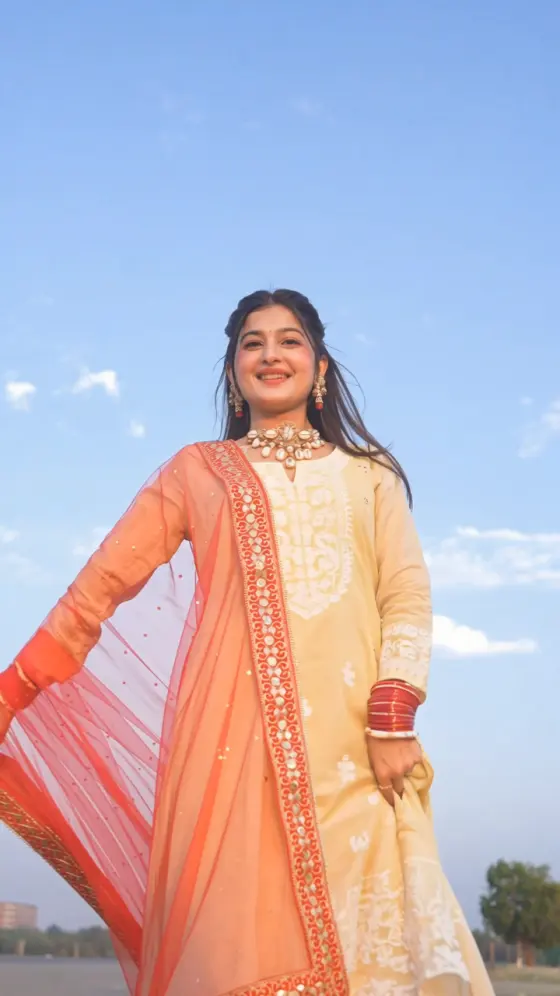
Give your Diwali look a cinematic reveal. Turn your photo into a Diwali patakha transition with a graceful twirl, a flowing dupatta, and golden fireworks lighting up the night behind you. Explore copy-ready AI video prompts for an original photo-to-video creation, or use a matching reference video in a compatible mode to guide the turn, scene change, and over-the-shoulder smile.

Create My Diwali Transition Explore Toy Car Trend

Start with one clear photo, ideally showing your festive outfit and arms. For closer reference matching, choose a mode that accepts both a photo and a video. Input options, duration, audio, and 9:16 output vary by mode.

Your Diwali Look. One Twirl. A Sky Full of Fireworks.

Put Yourself in the Fireworks Reveal

Make the Diwali patakha transition your own with a recognizable face and a festive look you love. Start with a clear photo, then guide the turn, expression, and final pose. A lehenga, saree, Anarkali, or kurta can give your personal celebration its own style.

Let Your Dupatta Lead the Transition

Give your Diwali twirl transition a flowing visual connection. A dupatta sweeping around the body or a skirt opening during a turn can bridge the scene change. Keep the same outfit throughout and let the movement carry the reveal from an everyday setting into a festive night.

Trade an Ordinary Background for Golden Skies

Build your Diwali fireworks transition around a clear before-and-after moment: a softly lit opening, a continuous turn, then golden bursts against a deep night sky. Keep the fireworks behind the person and the face softly illuminated so your expression stays at the heart of the scene.

Make Your Festive Entrance Shareable

Prepare your Diwali AI transition video for Instagram Reels, Shorts, or WhatsApp Status. Choose vertical framing where supported, leave room for the flowing fabric and fireworks, and finish with a smile. Add your chosen music and refine the reveal timing before sharing your favorite take.

How to Make a Diwali Patakha Transition from Your Photo

01

Step 1: Pick Your Festive Photo

Choose one clear, single-person photo with a visible face, arms, and outfit. A three-quarter or full-body image gives the turn more room. If you want a flowing dupatta reveal, use a photo that already includes one. Avoid heavy obstructions and tightly cropped clothing.

02

Step 2: Choose Your Reveal

Copy a Diwali fireworks transition AI prompt below for an original photo-to-video creation. For a closer version of a specific clip, use a matching template if available, or add the reference video in a supported mode. Specify the turn, scene-change point, and clothing source.

03

Step 3: Review and Add Your Music

Generate your Diwali patakha AI video and check the face during the turn, the continuity of the outfit, and the fireworks placement. Simplify or retry if the fabric distorts. Download your preferred take, add your chosen soundtrack, and time the reveal to the music in your editor.

Diwali Patakha Transition AI Prompts to Copy and Customize

Profile illustration for the reference-guided Diwali patakha transition prompt
Reference-Guided Patakha Reveal

One identity photo + a matching reference video in a supported mode

Step into the Diwali fireworks transition with your own recognizable face. Prompt: “Use Image 1 as the facial identity reference for the single subject in Video 1. Use the video to guide the turn, fabric movement, camera framing, scene-change point, and fireworks sequence. Retain the reference outfit and setting sequence. Preserve the uploaded person's recognizable facial features, skin tone, and hairstyle throughout. Follow the reference movement continuously through the transition, keeping body position and rotation direction coherent. Recreate the fireworks behind the subject, the upward glance, and the final over-the-shoulder smile where present in the reference. Keep hands, jewelry, and clothing stable. No extra people, duplicated limbs, face blending, added gestures, outfit changes, text, or logos. Follow the reference within the selected mode's supported duration and aspect ratio.”

Profile illustration for the one-photo Diwali fireworks transition prompt
One-Photo Fireworks Twirl

One three-quarter or full-body photo + an image-to-video prompt

Turn your festive portrait into an original day-to-night fireworks reveal. Prompt: “Animate the person in Image 1 as the only subject. Begin in the source setting, preserving their recognizable face, hairstyle, outfit, jewelry, and body proportions. The person makes one graceful turn while the clothing follows naturally. At the midpoint of the turn, use brief motion blur to transition the background into a deep night sky. Keep body placement and rotation direction continuous. Golden fireworks bloom high behind the person as the turn slows. They look up, then glance back toward the camera with a warm smile. Finish with a short hold as the fabric settles. Use a steady three-quarter or full-body composition and soft warm light on the face. No outfit transformation, extra spins, additional people, distorted hands, text, or logos. Create an original interpretation rather than an exact reference recreation.”

Profile illustration for the flowing dupatta Diwali transition prompt
Flowing Dupatta Night Reveal

One festive photo with a visible dupatta + a fabric-led transition prompt

Use the sweep of your dupatta to connect two festive worlds. Prompt: “Use Image 1 as the visual reference for one person wearing the same festive outfit and dupatta throughout. Preserve their recognizable face, hairstyle, skin tone, and body proportions. Begin with a brief front-facing hold in the source setting. The person turns smoothly, letting the visible dupatta sweep across the foreground without wrapping around the face. During the fabric's brief occlusion, change the background to a dark Diwali night sky. As the fabric clears, reveal golden fireworks behind the person. Continue the same turn into a gentle over-the-shoulder smile. Keep the dupatta attached naturally to the outfit, with consistent color, embroidery, and fabric texture. Use a steady camera and realistic cloth movement. No detached fabric, extra arms, identity changes, clothing morphing, text, or logos. This is a creative fabric-led variation.”

Profile illustration for the gentle Diwali fireworks portrait animation prompt
Golden Fireworks Portrait

One prepared night portrait + a gentle animation prompt

Prefer a softer festive moment? Animate the fireworks reveal's final look. Prompt: “Animate the prepared Diwali night portrait in Image 1. Keep the single person's recognizable face, hairstyle, outfit, jewelry, body position, and source composition consistent. Begin with their gaze directed slightly upward. Golden fireworks bloom in the distant sky behind them, adding subtle warm highlights without obscuring the face. The person gently turns their head toward the camera and smiles. Let the hair and any visible loose fabric move lightly in the breeze. Hold the finished expression as the fireworks fade. Keep the camera steady and the head movement small. No full-body spin, scene change, extra people, flickering jewelry, distorted eyes, text, or logos. Create a gentle portrait animation as an alternative to the full patakha transition.”

FAQs About Diwali Patakha Transition AI Videos

1. What is the Diwali patakha transition trend?

The Diwali patakha transition is a festive video reveal that connects a person's turn or flowing dupatta movement with a dramatic fireworks scene. In the version explored here, a daytime setting gives way to a dark sky filled with golden fireworks, followed by a look upward or a smile back at the camera. The outfit can stay the same throughout; changing clothes is not essential to the effect.

2. What photo should I upload for a Diwali fireworks transition?

Choose a sharp photo of one person with a clear face and visible arms. A three-quarter or full-body composition gives the model more information for the turn and clothing movement. Use a photo in the festive outfit you want to animate, especially if the prompt should preserve it. For a dupatta-led version, include the dupatta clearly in the image. A close-up portrait is better suited to the gentle fireworks portrait prompt.

3. Can I make the Diwali transition with one photo and a prompt?

One photo and a descriptive prompt can guide an original Diwali fireworks reveal, with results varying by model and input. To follow a particular video's rotation, camera framing, and transition timing more closely, use a matching template if available or a reference-video workflow that supports both inputs. A prompt naming the trend alone does not specify the full sequence. For more control, generate the opening and fireworks shots separately and join them during the turn in an editor.

4. How can I reduce face changes and distorted dupatta movement?

Start with a clear image and one simple turn. Specify whether the outfit comes from your photo or the reference video, then keep that source consistent throughout the prompt. Avoid combining repeated spins, outfit changes, large camera moves, and complex hand gestures. Review the face during the turn and the fabric around the arms. If the result distorts, shorten the movement, try a gentler head turn, or generate two shots for editing. Identity and fabric consistency are not guaranteed.

5. Does the AI video include trending music and a beat-synced reveal?

Music, generated sound, and source-audio retention depend on the selected mode. A Diwali transition prompt does not automatically supply a particular trending recording or guarantee a cut on its beat. Preview the generated audio, then add your chosen music through your editor or publishing app where available. Align the turn or night-sky reveal with the beat during editing, and choose 9:16 output where supported for Reels, Shorts, or WhatsApp Status.

Explore Media.io Online AI Tools
Media.io tools icon Create Images and Videos