
Make Trends Easier to Follow
Animate each data point or time period to show how values rise, fall, or stabilize.
 Seedance 2.5
Bring Excel charts to life with AI-powered video storytelling. Turn changing values, trends, rankings, and comparisons into chart-focused videos that are easier to follow than a static worksheet.
Start with a clean table and one chart-worthy insight.
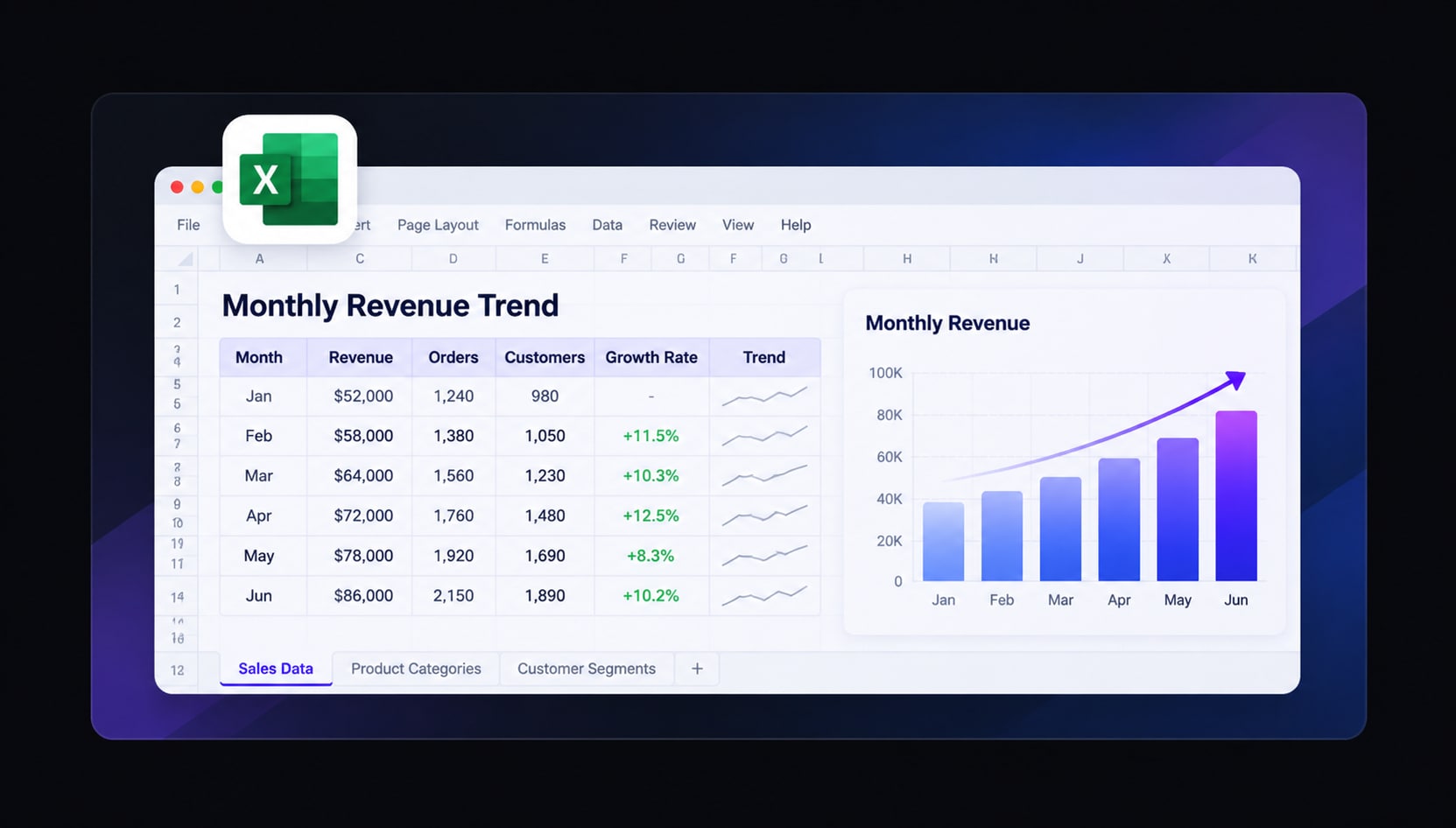
Excel animated charts are moving data visuals built from spreadsheet values. Instead of presenting a static bar, line, or comparison chart, a video can reveal changes over time, emphasize a rising or falling trend, and guide viewers through the key result. Animation should clarify the numbers, not change them.
Jump to the workflow that best matches what you want to create.
Show how numbers change, not just where they end. Motion helps viewers follow a trend or comparison in the order you intend.
Animate each data point or time period to show how values rise, fall, or stabilize.
Use movement to draw attention to a peak, turning point, or unexpected comparison.
Start with data already organized in Excel instead of manually rebuilding every chart frame.
Share short chart explainers in meetings, reports, lessons, and social posts.
Explore practical ways to transform Excel data into videos designed around what your audience needs to see.
Turn category values, monthly sales, or market comparisons into animated bar charts. Introduce the figures one by one so viewers can track what changed. An animated bar chart from Excel is especially useful for rankings, performance comparisons, and quick business summaries.
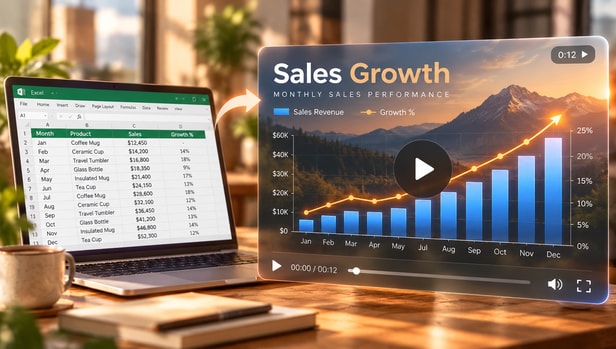
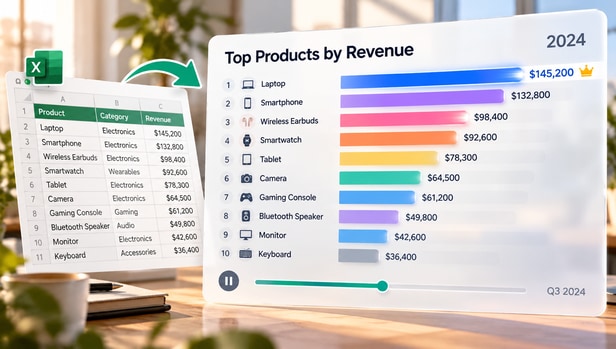
Show revenue, traffic, engagement, or costs changing across weeks and months with a flowing line chart. A clear Excel line chart animation makes turning points and periods of growth easier to explain without reading every row.
Compare products, departments, or regions across multiple periods using animated transitions between values. Keep category names and chart scales consistent so the Excel chart animation stays accurate and easy to read.
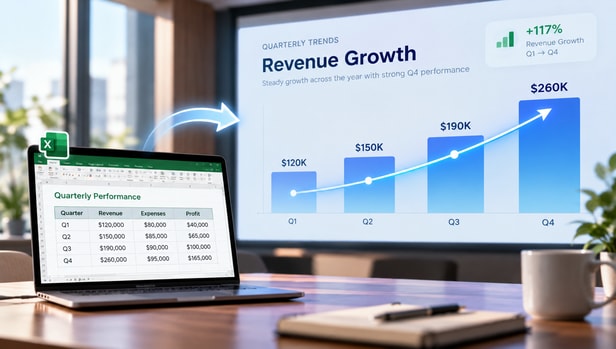
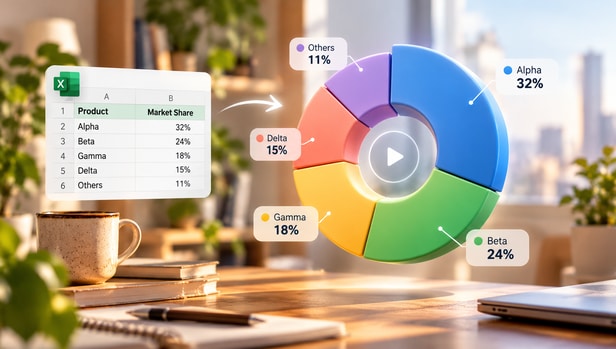
Use moving charts to teach patterns, demonstrate a calculation result, or summarize findings in a presentation. Turn Excel graphs into videos when motion helps explain the story behind the data rather than adding decoration.
Choose a focused data table with clear headers, consistent units, and values that support a useful trend or comparison.
Choose a bar, line, or comparison style; set the order of reveals and identify the values the audience should notice.
Create the chart video, check labels and axis scales against Excel, and export in an available video format.
A successful animated chart begins with trustworthy numbers and a clear visual question.
Focus the video on the most useful insight, and verify the final visual against the source spreadsheet.
Animation adds emphasis, so every reveal and comparison must remain faithful to the source.
Match every label, chart mark, and displayed total against the Excel data.
Avoid misleading cropped axes, inconsistent intervals, or distorted transitions.
Separate what the data shows from what you infer about the trend.
Both can communicate data. Choose based on how your audience will consume the story.
Shows values and comparisons in sequence, emphasizing when and where the chart changes.
Presents the chart at once and lets readers scan or analyze the values at their own pace.
Prepare a clean Excel table, decide which trend or comparison matters, and use the data as source material for a chart animation video. Confirm the displayed values and labels before publishing.
You can use category and time-based Excel data as the basis for an animated bar chart. Introduce values in sequence and preserve consistent scale and labels.
Yes, a line-chart video can reveal data points over time and highlight meaningful rises, drops, or turning points. Use a timeline with reliable intervals.
Bar charts, line charts, rankings, simple comparisons, and other visuals with a clear sequence tend to work well. Extremely dense charts may require simplification.
It should not. The animation is a different presentation of the same source values. Always review numbers, categories, units, and scales.
Use animation for guided viewing and time-based storytelling. Use static or interactive Excel charts when the reader needs to inspect many individual values.
Yes. A short chart video can introduce a trend or result during a meeting, report presentation, or lesson. Check the export options of the workflow.
MP4 is a common video format, but specific export options depend on the current product workflow. Check the options available when your video is ready.