
이미지에서 이미지까지
Nano Banana Pro
이미지 업로드
0 / 9
내 기록에서 선택하거나 업로드하려면 클릭하거나 드래그하세요
아이디어가 없나요? 먼저 이미지를 생성하세요. >
지원되는 업로드 형식: jpg, png, jpeg.
프롬프트
0/2000
1K
자동
1
바나나 프로 무제한 모드
제작물
아이디어 허브
전체
목록 생성
작업물은 7일 동안 저장됩니다. 업그레이드 후 생성된 에셋은 영구 저장됩니다.
ai_video_generator창의적 잠재력을 풀고 미디어 AI의 마법을 즉시 경험하십시오!

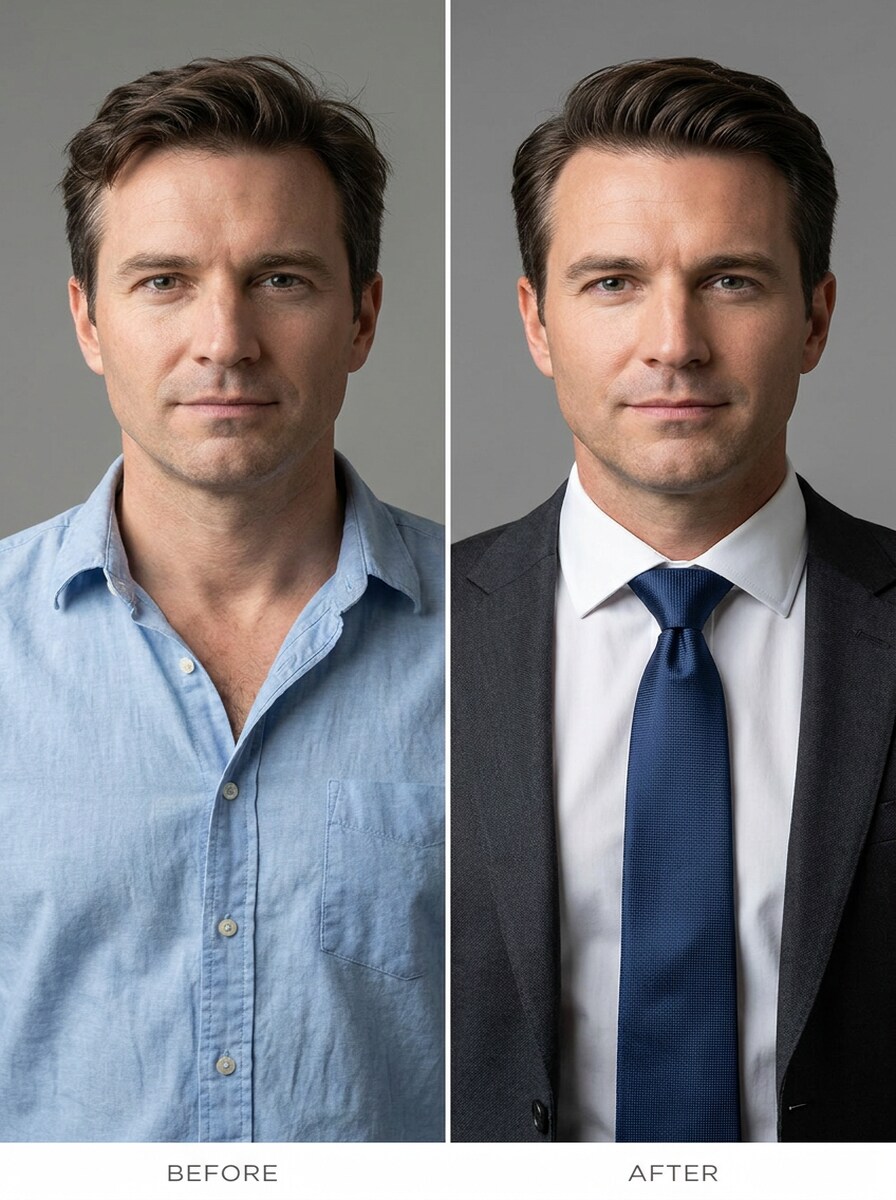
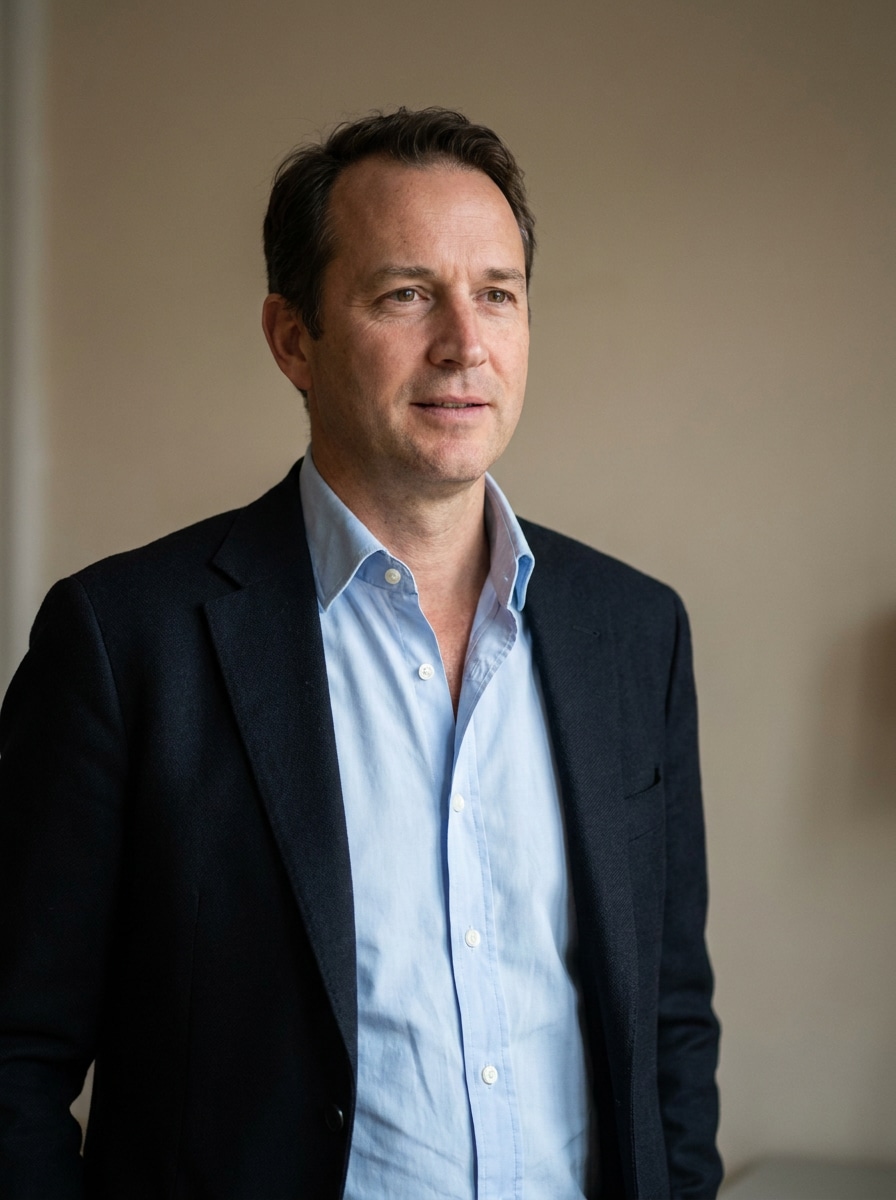
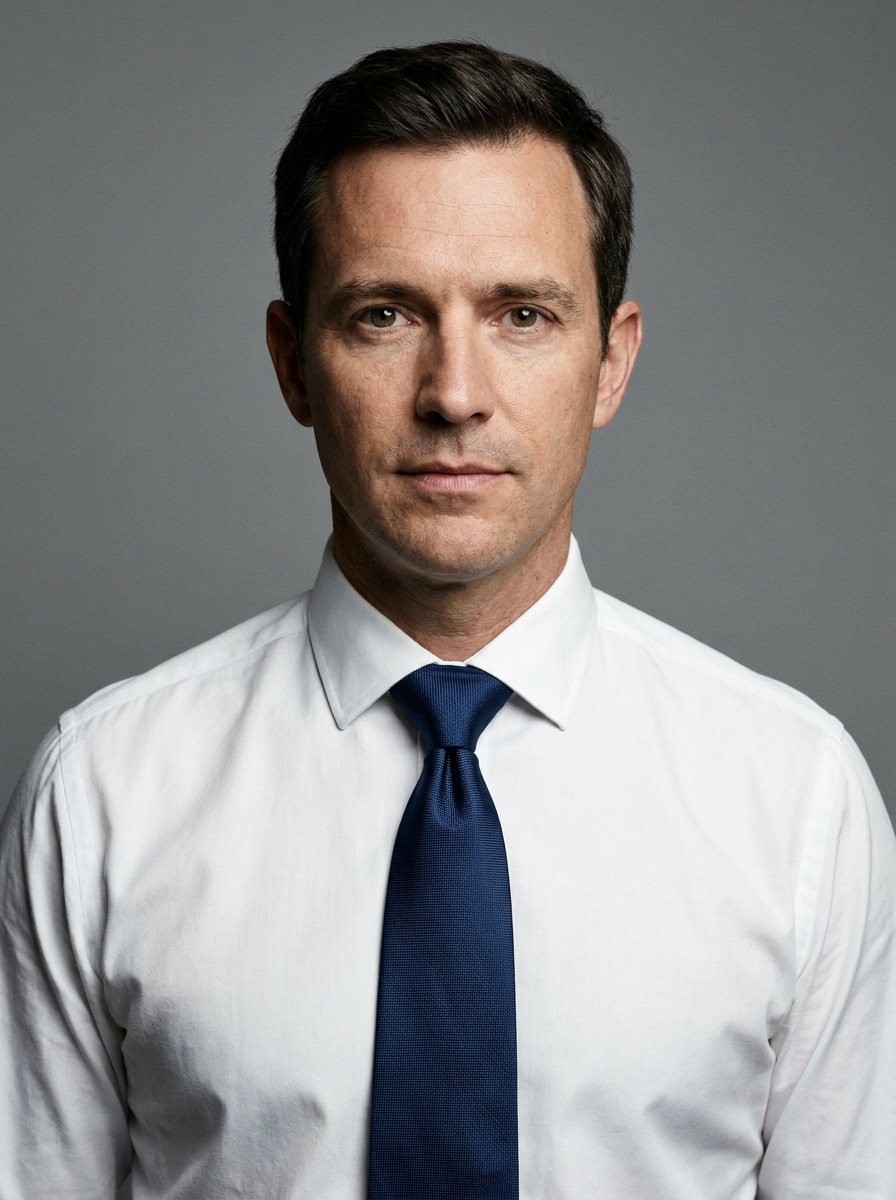
Add Tie to Photo for Professional Headshots in Minutes

Add Tie To Photo Before
Add Tie To Photo After

Turn a casual portrait into a polished business image with add tie to photo editing. Media.io helps you create realistic necktie looks for resumes, LinkedIn, and ID-style portraits with fast virtual tie try on results, natural collar alignment, and easy online editing from one upload. Creators often use it for add coat and tie to photo online free.

Add a Tie to My Photo

Type your idea -> AI designs it. Free to try.

Review these example directions, then tailor the prompt details to get stronger results with this Add Tie To Photo workflow in Media.io, including tie try on AI prompts for different formal looks.

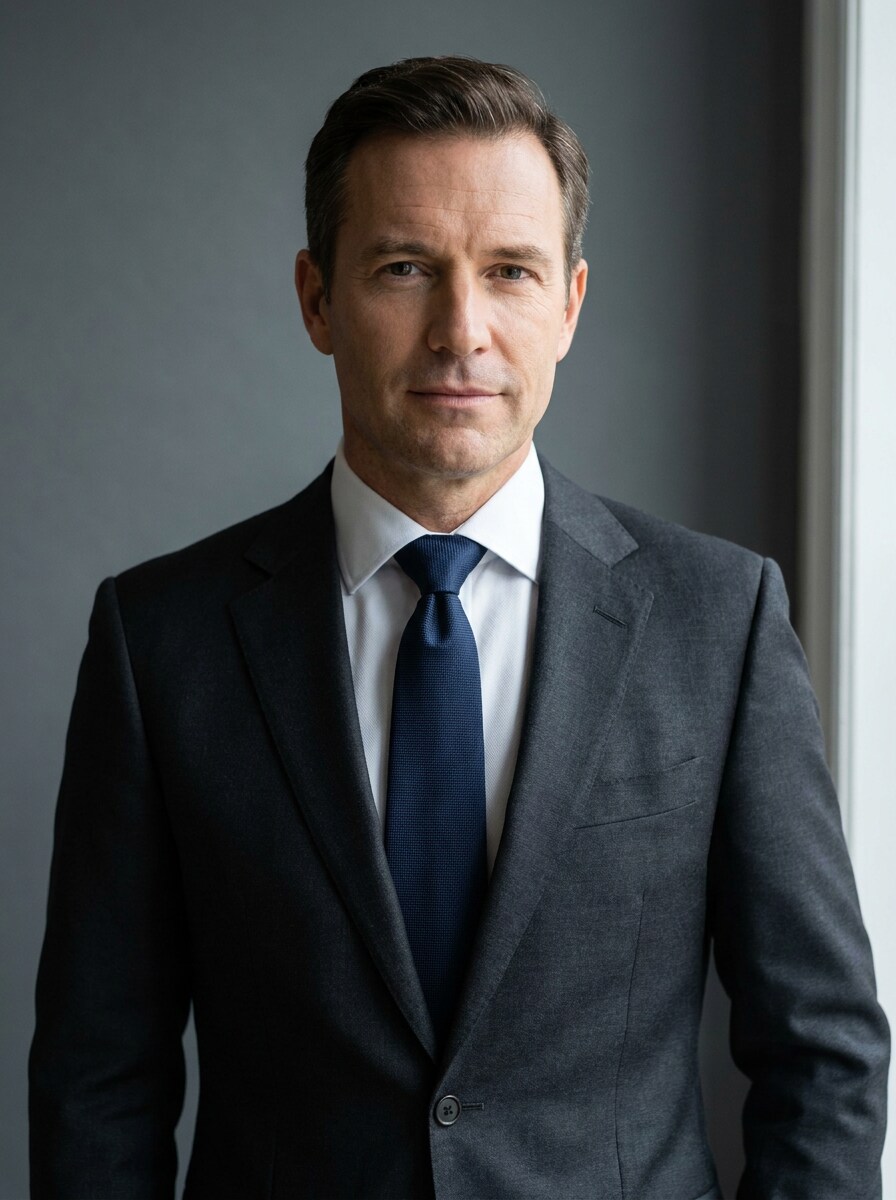
Classic Corporate Necktie

Classic Corporate Necktie

Use the uploaded image as the subject and add a realistic navy silk necktie centered neatly under the collar. Match the original head angle, lighting direction, fabric shadows, and skin reflections. Keep the face unchanged, preserve the background, and create a polished corporate headshot with clean professional styling.

Executive Red Tie

Executive Red Tie

Use the uploaded portrait as the subject and add a deep red executive tie with a clean knot and realistic silk texture. Align it naturally with the shirt collar and torso perspective, preserve the person’s identity and background, and create a confident formal portrait with polished studio realism.

Minimal LinkedIn Tie

Minimal LinkedIn Tie

Use the uploaded image as the subject and add a subtle dark charcoal tie for a clean LinkedIn-ready look. Keep the edit understated, realistic, and business appropriate with soft fabric folds, balanced contrast, natural collar placement, unchanged facial features, and a professional portrait finish.

Smart Casual to Formal

Smart Casual to Formal

Use the uploaded casual portrait as the subject and transform it into a formal business photo by adding a realistic tie that fits the neckline naturally. Blend the tie with the existing lighting, body posture, and collar shape while keeping the face, expression, and background consistent.

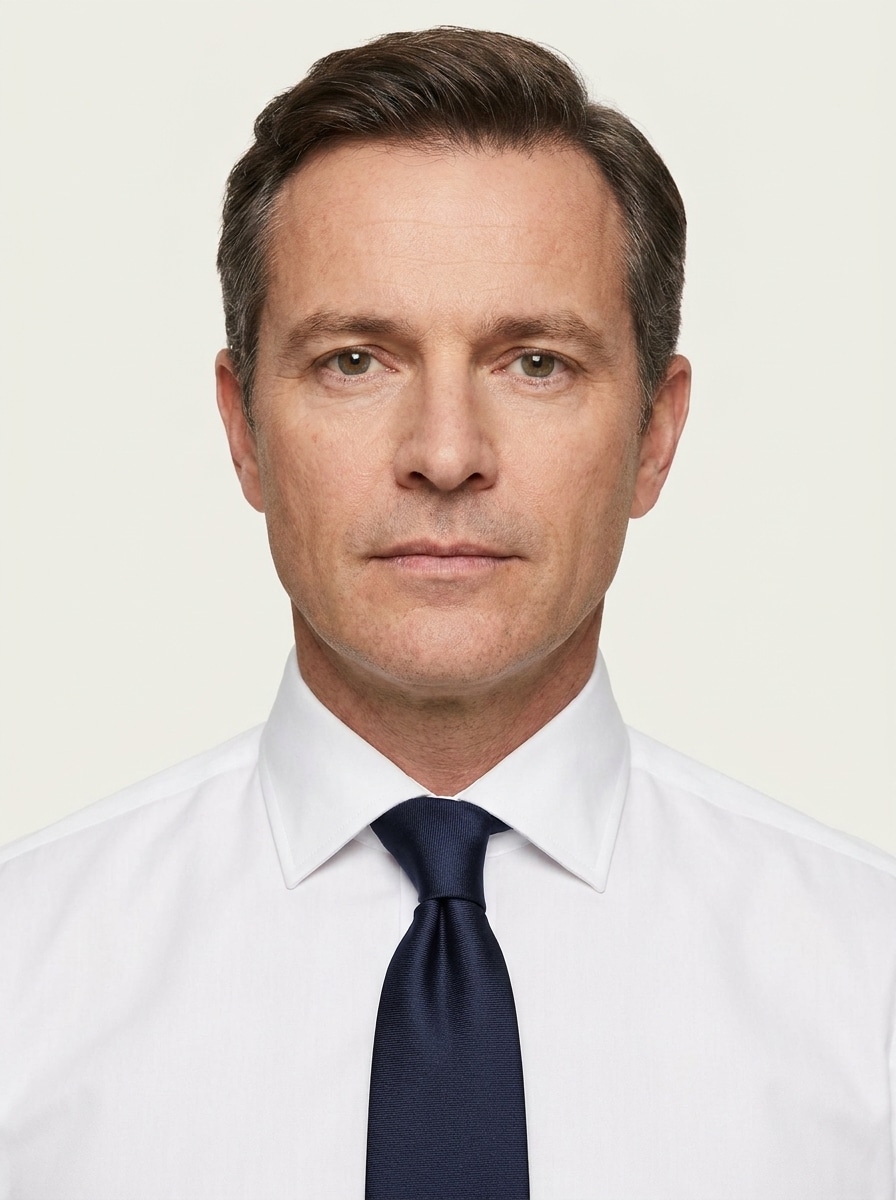
Passport Style Formal Tie

Passport Style Formal Tie

Use the uploaded ID-style portrait as the subject and add a neat formal tie that looks tidy, centered, and proportionate. Preserve the plain background, frontal composition, and natural facial details while creating a clean official-looking portrait with realistic fabric texture and subtle shadows.

Graduation or Ceremony Tie

Graduation or Ceremony Tie

Use the uploaded image as the subject and add a refined ceremonial tie suitable for graduation or a formal event. Keep the knot structured, the fabric texture soft but realistic, and the edit naturally integrated with the shirt, neckline, lighting, and overall portrait composition.

Striped Professional Tie

Striped Professional Tie

Use the uploaded portrait as the subject and add a realistic striped professional tie with tailored menswear styling. Match the tie’s perspective to the torso angle, create natural fabric folds and shadows, preserve identity and background, and deliver an authentic office-ready portrait with refined detail.

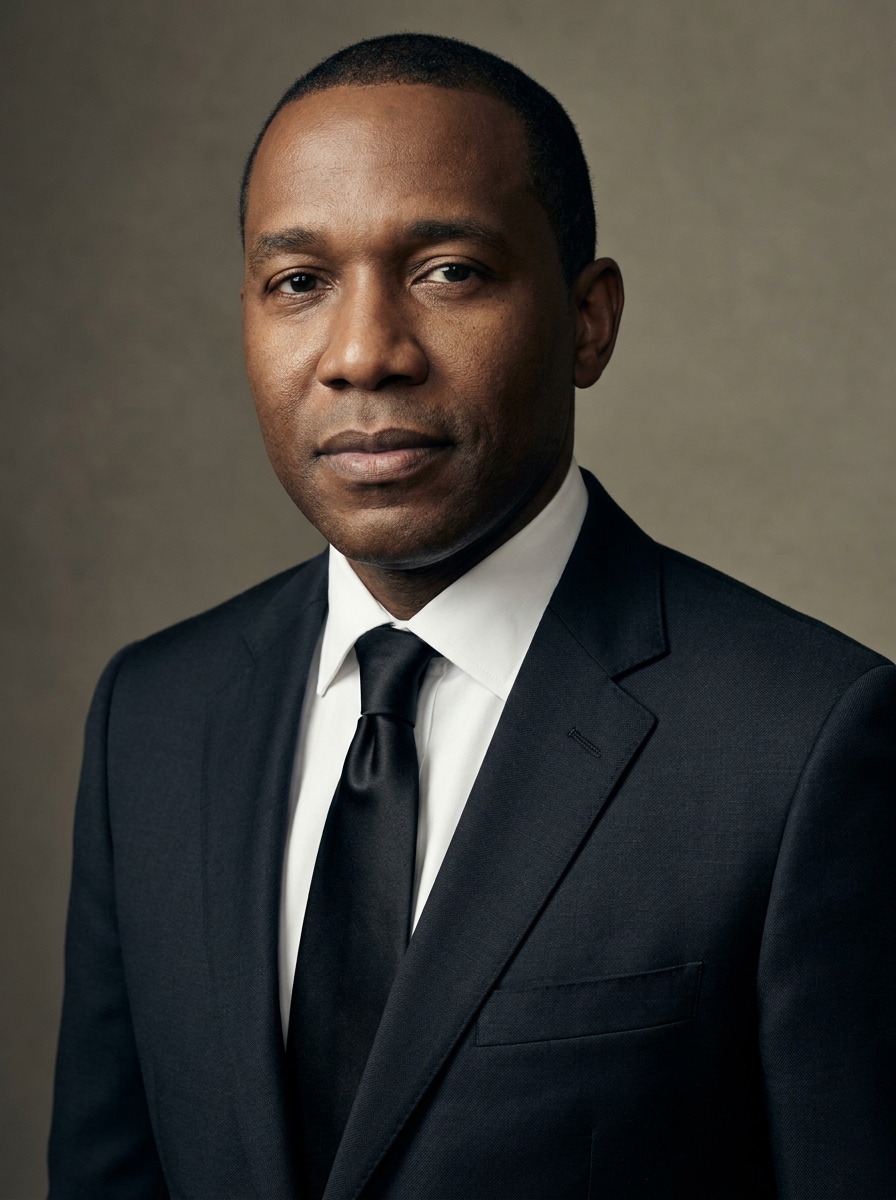
Black Formal Tie

Black Formal Tie

Use the uploaded photo as the subject and add a sleek black formal tie for a more elegant look. Form a clean knot, match the portrait lighting with subtle shadows, preserve the original face and background, and create a realistic polished result suitable for formal events or business use.

Tie with Suit Enhancement

Tie with Suit Enhancement

Use the uploaded image as the subject and add a realistic necktie while subtly refining the visible outfit area into a more cohesive formal look. Keep identity intact, preserve the original lighting and background, and make the portrait feel more professional without looking overedited.

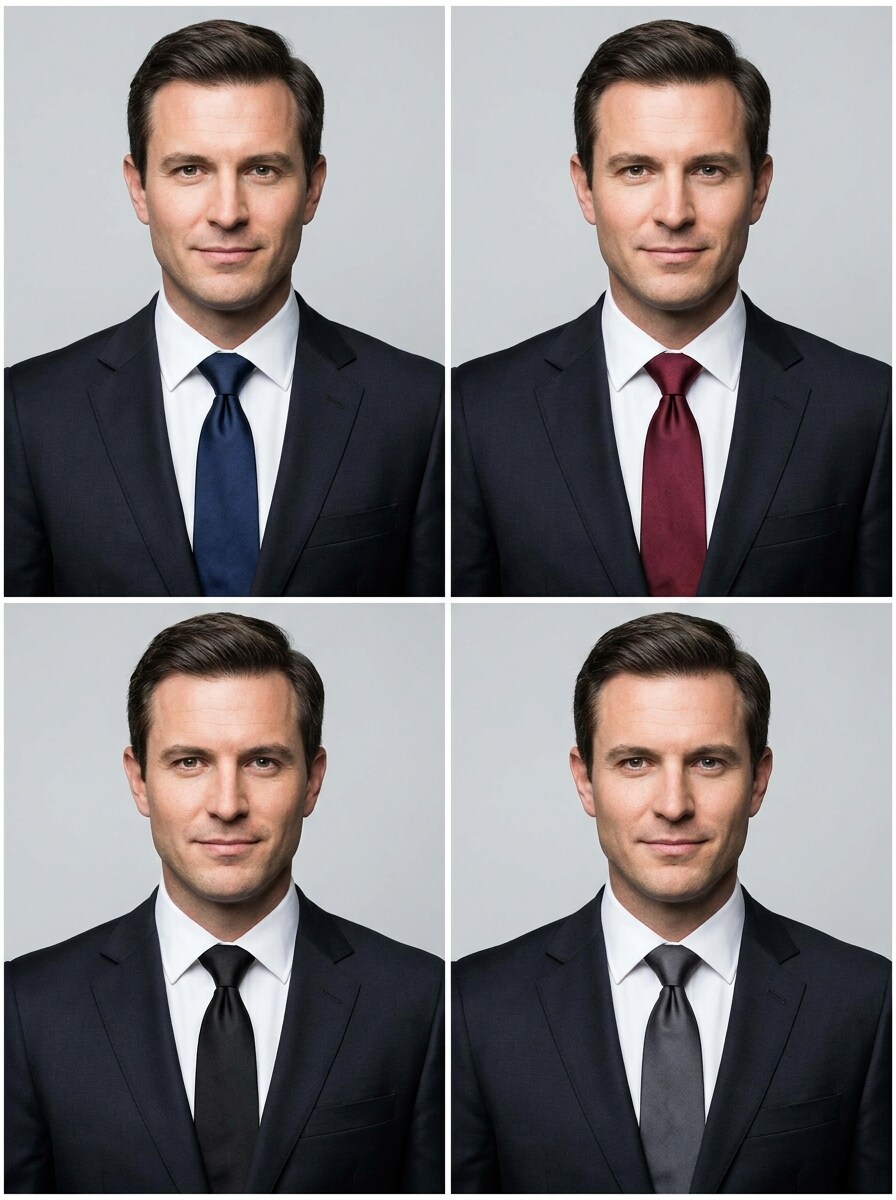
Multiple Tie Color Options

Multiple Tie Color Options

Use the uploaded portrait as the subject and generate several realistic versions with different tie colors such as navy, burgundy, black, and gray. Keep the face, pose, collar shape, and lighting consistent across all variations so it feels like a true tie try on AI comparison.

Why Use Media.io to Add a Tie to a Photo

One upload, multiple business-ready style variations

For upload-driven edits, Media.io keeps the reference subject visually consistent while changing the final add tie to photo direction, which makes personalized outputs easier to use with confidence.

Realistic tie placement that fits the collar naturally

When style is part of the decision-making, Media.io helps you compare multiple directions from the same add tie to photo base, which makes creative selection more efficient.

Generate Cleaner Output Up to 4K

Some results need to do more than look good in a preview. Media.io helps generate cleaner add tie to photo with output up to 4K so the final image holds up in wallpapers, decks, and mockups.

Easy editing from phone or desktop

Switching devices should not slow production. Media.io lets you build, adjust, and download add tie to photo in the browser, which makes it easier to keep momentum when you move between screens.

How to Add a Tie to a Photo Online

Turn your words into stunning visuals in three simple steps, then continue refining the result if you want to take it further.

how to use image to image AI for add tie to photo step 1
Step 1

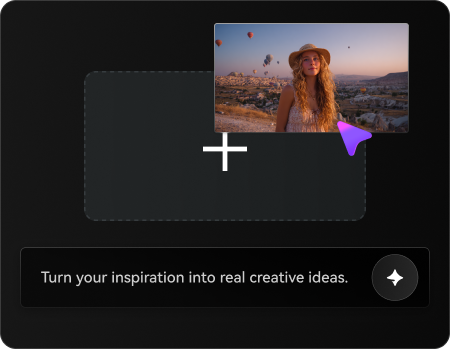
Upload Your Reference Image

Start with a clear portrait, headshot, or ID-style photo where the collar and upper chest are visible. JPG, PNG, and JPEG uploads work best, especially front-facing images with clean lighting and a simple background.

how to use image to image AI for add tie to photo step 2
Step 2

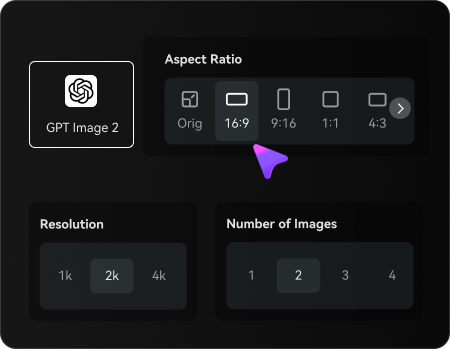
Describe the Change and Set Options

Tell the AI what tie you want, such as navy silk, black formal, or striped business style. Then choose your model and adjust aspect ratio, resolution, or image count if you want several tie variations to compare.

how to use image to image AI for add tie to photo step 3
Step 3

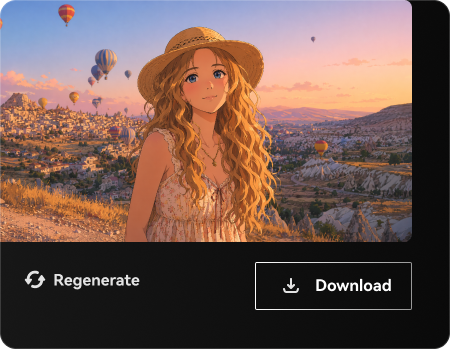
Generate, Download, and Keep Improving

Create the edited result, compare versions, and download the one that fits your use. If needed, refine the prompt for better color, knot shape, or outfit balance, then regenerate until the portrait looks right.

Unlock the Potential of Add Coat And Tie To Photo Online

See how creators use this Add Tie To Photo tool in Media.io for content, marketing, and personal projects, then adapt each idea to fit the brief.

Upgrade a casual headshot for LinkedIn and resumes

Turn an everyday portrait into a polished professional profile photo without booking a new shoot. Media.io helps create a cleaner business appearance for job applications, team pages, or networking platforms from an existing image.

Create formal versions for ID, visa, or office records

A neat tie edit can help standardize portraits for internal directories, school submissions, or document-style photos. Media.io makes it easier to give an existing image a more formal upper-body look without retaking the picture.

Compare styles before choosing the final look

Use try on necktie online workflows in Media.io to preview different colors, stripe patterns, and formality levels from the same upload. It is a practical way to test what looks most confident, modern, or appropriate for the setting.

What Users Say

user
Marcus Reed

Job Seeker

star star star star star

"Fast upgrade for my resume photo" I used one casual portrait and got a business-ready version in minutes. The tie looked naturally aligned with my collar, and the result was good enough for LinkedIn and my CV.

user
Elena Foster

HR Coordinator

star star star star star

"Useful for formal employee portraits" We sometimes need cleaner directory photos without scheduling a new session. Media.io made it easy to add a professional tie while keeping the face and background consistent.

user
David Lin

Graduate Student

star star star star star

"Helpful for ceremony and application photos" I tested several tie colors from the same photo and picked the one that matched my application style best. The variations were realistic and saved me a lot of time.

user
Noah Bennett

Small Business Owner

star star star star star

"Simple on phone and desktop" I needed a more formal headshot quickly and did the edit from my phone. The workflow was straightforward, and the final image looked polished instead of heavily filtered.

Add Tie to Photo FAQ

1. How can I add a tie to a photo online?

Upload your portrait to Media.io, enter a prompt describing the tie you want, and generate the edited version. This image-to-image workflow helps Media.io add the tie in a way that matches your pose, collar area, and overall portrait style more naturally.

Media.io supports reference-based portrait editing, which helps the AI place a tie in a way that follows the visible shirt collar, lighting, and body angle. That makes Media.io useful for business headshots, formal profile pictures, and realistic portrait upgrades.

Media.io free users can start with free credits, so you can test an add coat and tie to photo online workflow before upgrading. If you need more usage or watermark-free high-resolution downloads, you can check the pricing page.

The best results usually come from a clear portrait with the face, neck, shirt collar, and upper chest visible. Front-facing or slightly angled headshots with even lighting and a simple background give Media.io a better base for a believable tie shape and clean collar alignment.

Yes, you can describe different tie colors, patterns, and levels of formality in your prompt, such as navy silk, black formal, burgundy, or striped business styles. Media.io can also support a virtual styling test if you want to try on necktie online before choosing a final look.

You can customize the add tie to photo result by adjusting details in the prompt, such as style direction, tie color, formality, and overall visual mood, so Media.io can generate a version that better fits your intended portrait use.

Media.io Online AI Tools Quality Rating:
vote 4.7 (162,357 Votes)