Vos créations sont conservées pendant seulement 7 jours. Les éléments créés après la mise à niveau de l'Abonnement seront stockés de façon permanente.
Libérez votre potentiel créatif et découvrez la magie de l'IA médiatique dès mIAntenant!
Filtre photo sous-marin pour une récupération rapide et naturelle des couleurs en ligne
Transformez vos photos de plongée sous-marine, de snorkeling et de natation en images plus claires et plus vibrantes avec un filtre photo sous-marin. Media.io aide à supprimer la dominante bleu-vert, à restaurer les tons chauds et à appliquer un filtre sous-marin IA en ligne sans télécharger d'application. Cette configuration fonctionne bien pour l'effet portrait sous-marin.
Saisissez votre idée -> l'IA la crée. Gratuit à essayer.
Consultez ces exemples de directives, puis adaptez les détails de l'invite pour obtenir de meilleurs résultats avec ce filtre photo sous-marin Media.io et un rendu plus précis du filtre de scène sous-marine.
Récupération de récif fidèle à la réalité
Utilisez l'image téléchargée comme sujet et restaurez-la avec une correction des couleurs sous-marines réaliste. Supprimez la dominante bleu-vert, récupérez les rouges et les oranges naturels dans les coraux et l'équipement, améliorez la clarté de l'eau, équilibrez le contraste, préservez les teintes de peau authentiques et gardez les textures nettes avec un éclairage propre et crédible.
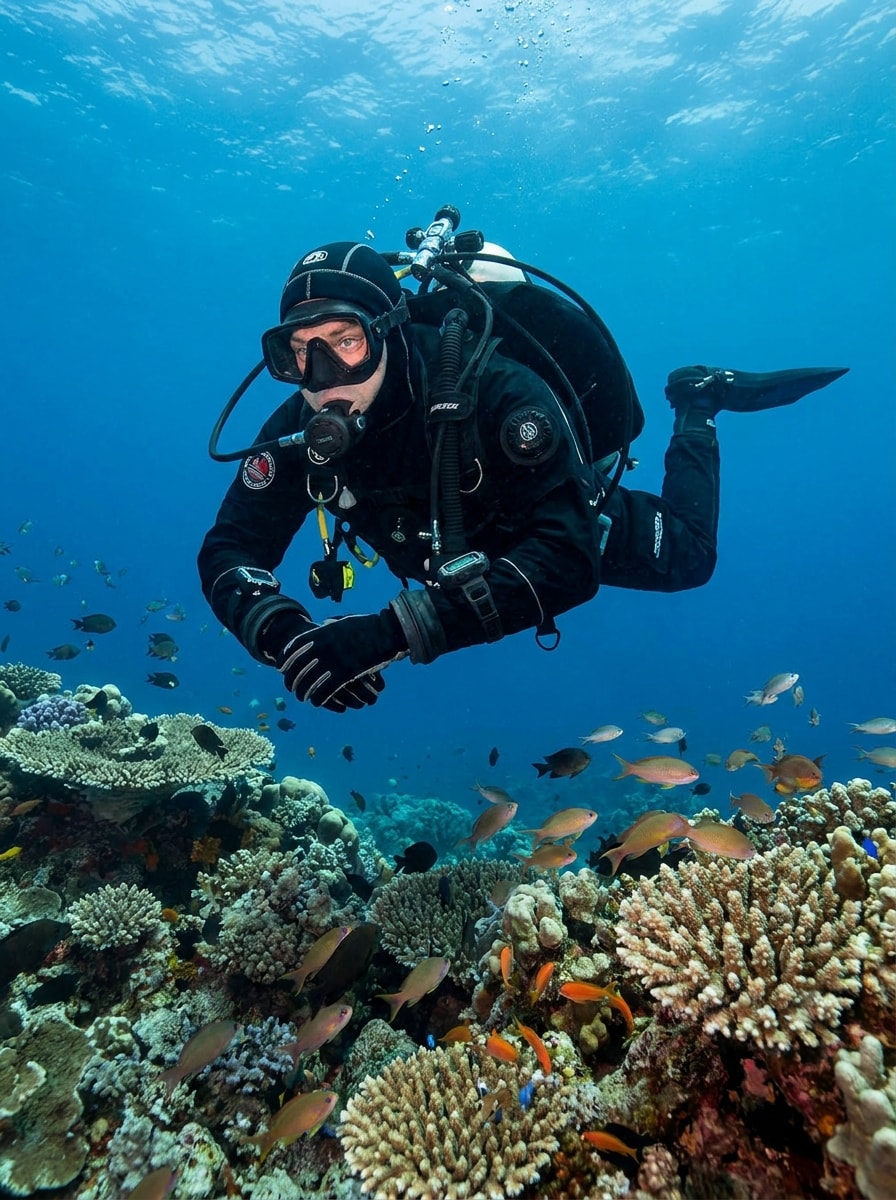
Correction plongée en un clic
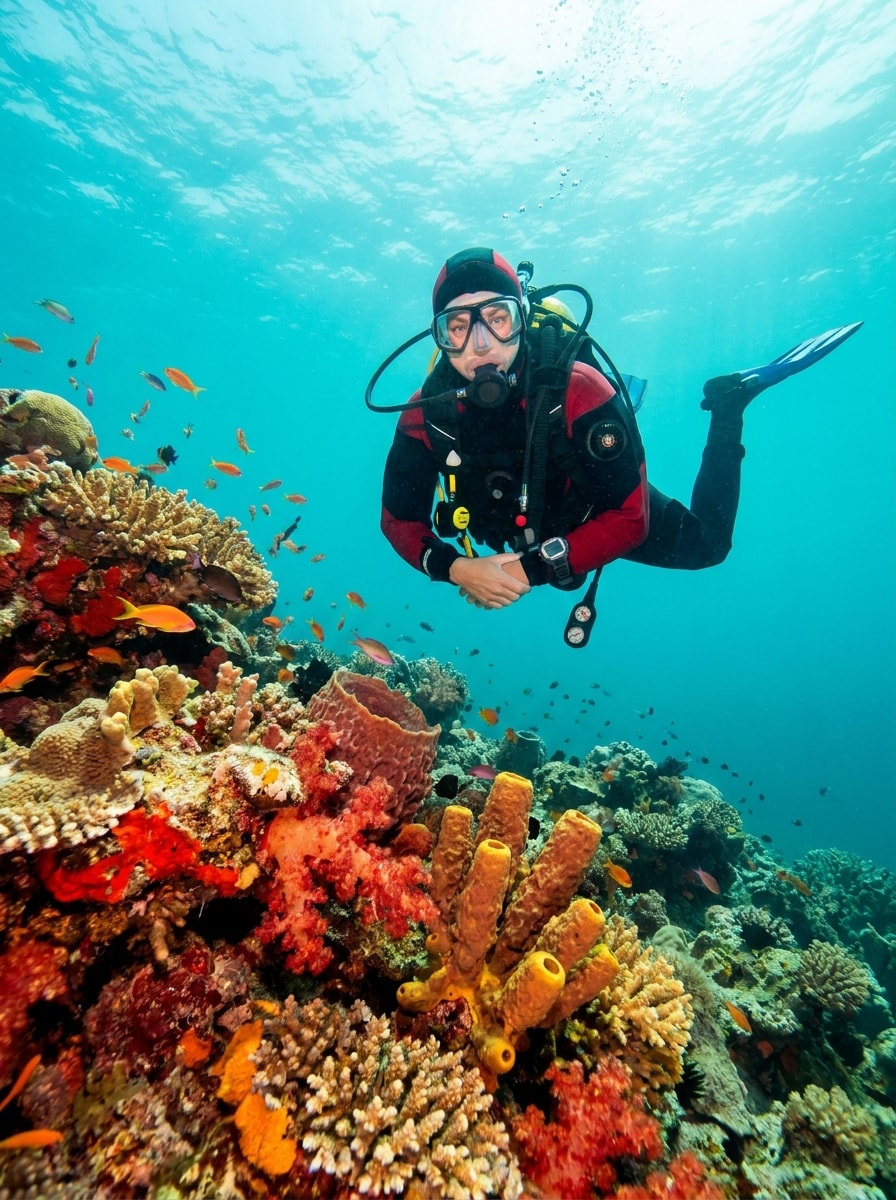
Utilisez la photo de plongée téléchargée comme sujet et apportez-lui une correction rapide et réaliste. Neutralisez la brume bleue, illuminez le plongeur, restaurez les tons chauds de la peau et de l'équipement, affinez les détails importants et gardez la photo avec filtre sous-marin propre, naturelle et prête à être partagée.
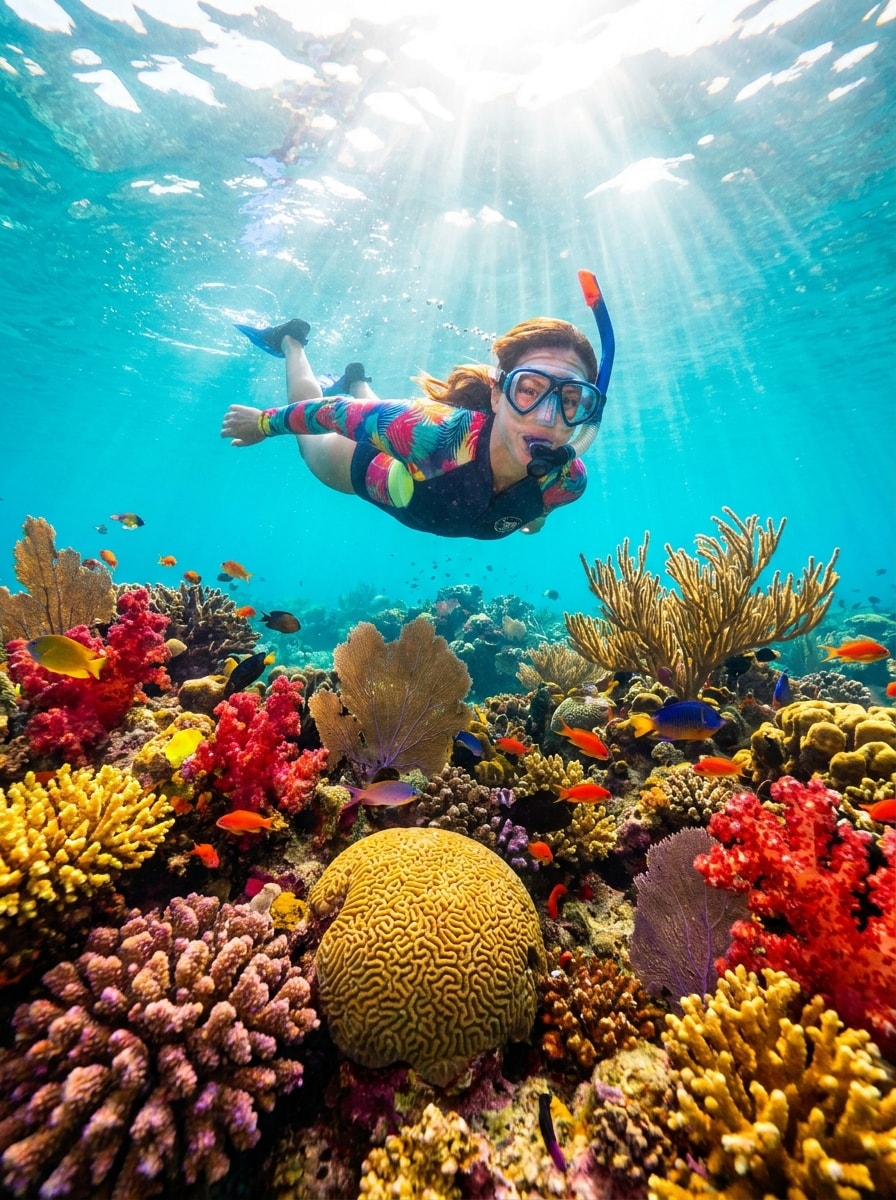
Éclat tropical de snorkeling
Utilisez l'image de snorkeling téléchargée comme sujet et transformez-la en un look tropical lumineux. Ajoutez de l'eau turquoise, ravivez les rouges et les jaunes des coraux, rehaussez les reflets ensoleillés, améliorez la visibilité et créez un filtre sous-marin océanique vivant mais crédible avec des détails nets et une énergie de vacances joyeuse.
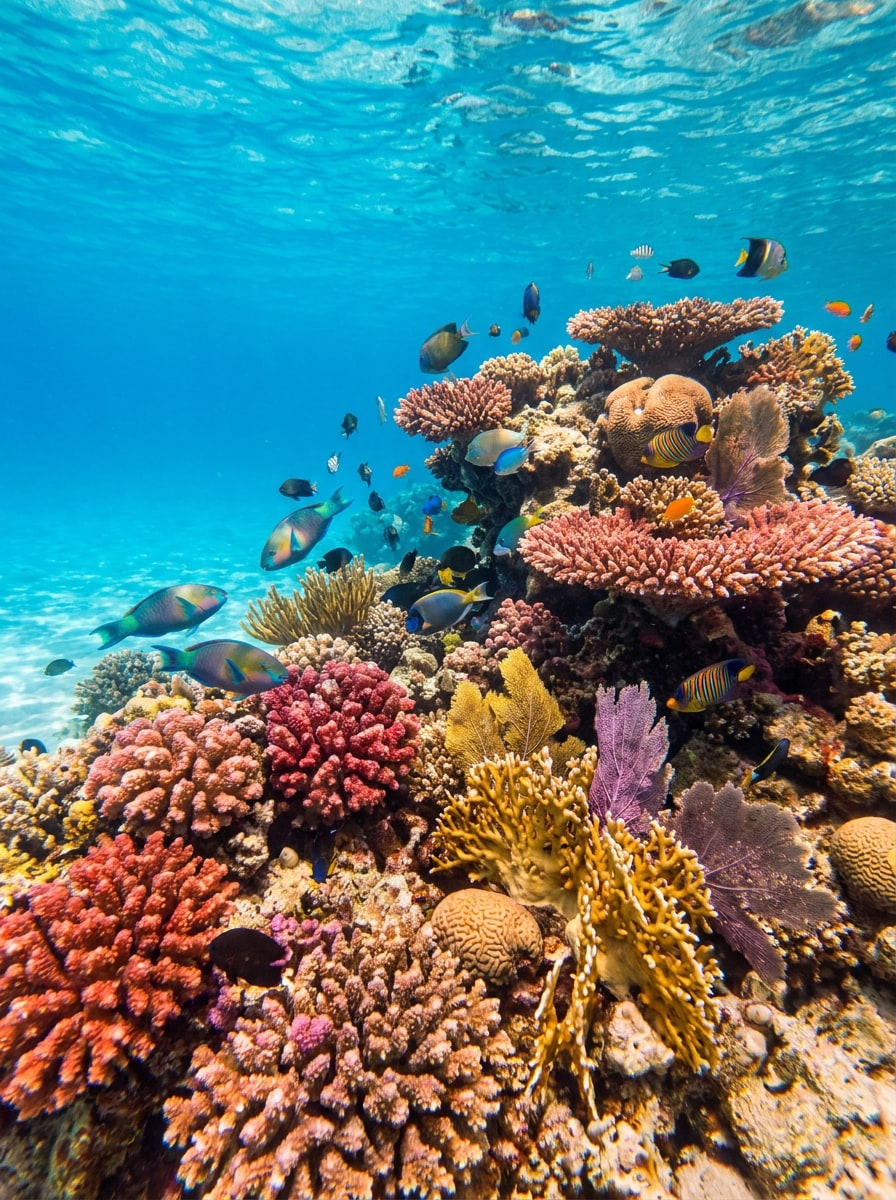
Boost de couleur corail
Utilisez l'image du récif téléchargée comme base et faites ressortir la vie corallienne sans la rendre artificielle. Restaurez les tons rouges, roses et oranges, supprimez la dominante de couleur trouble, augmentez le contraste local, affinez les textures fines et gardez les poissons, les rochers et l'eau d'apparence naturellement équilibrée.
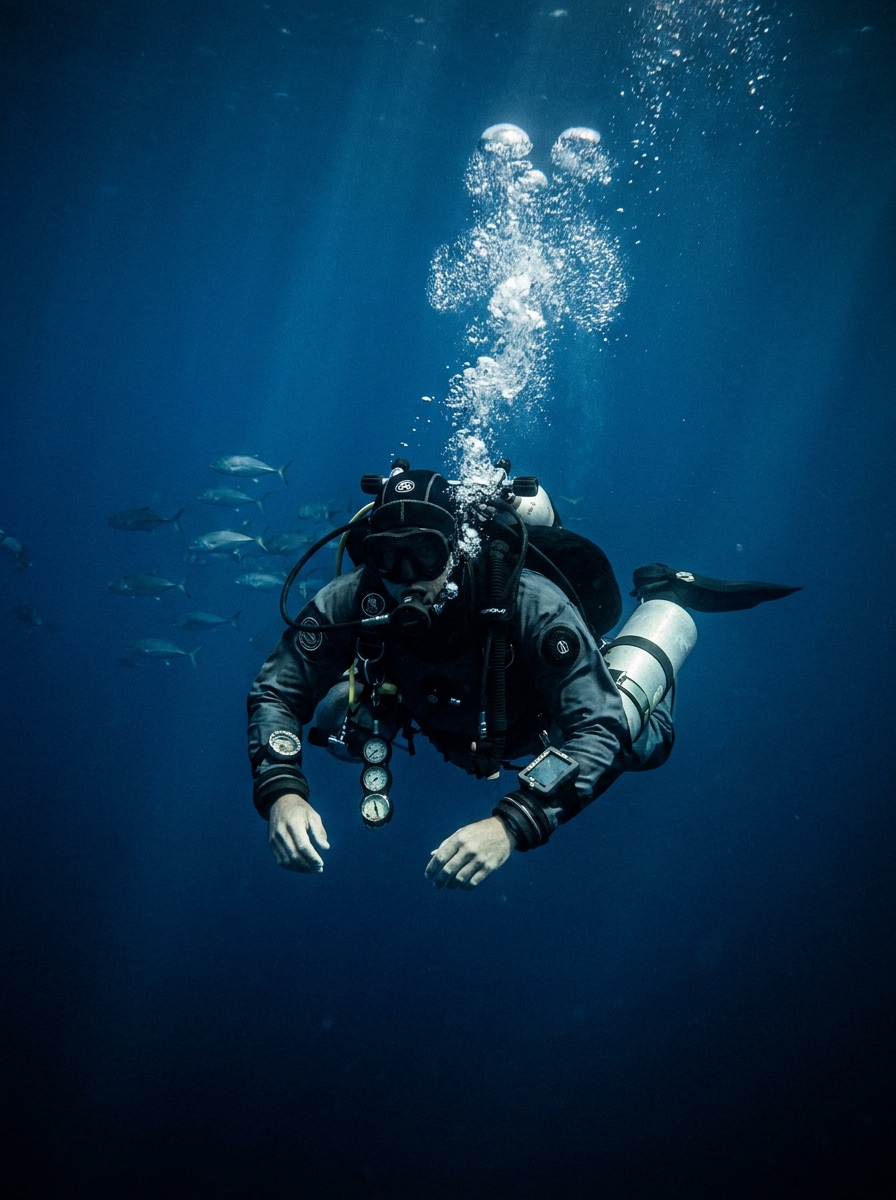
Bleu profond cinématique
Utilisez l'image téléchargée comme sujet et appliquez un filtre de scène sous-marine cinématique. Façonnez la photo avec de riches bleus profonds, des hautes lumières maîtrisées, un contraste évocateur, une séparation du sujet plus forte et un polissage éditorial de qualité supérieure tout en gardant l'atmosphère océanique immersive et élégante.
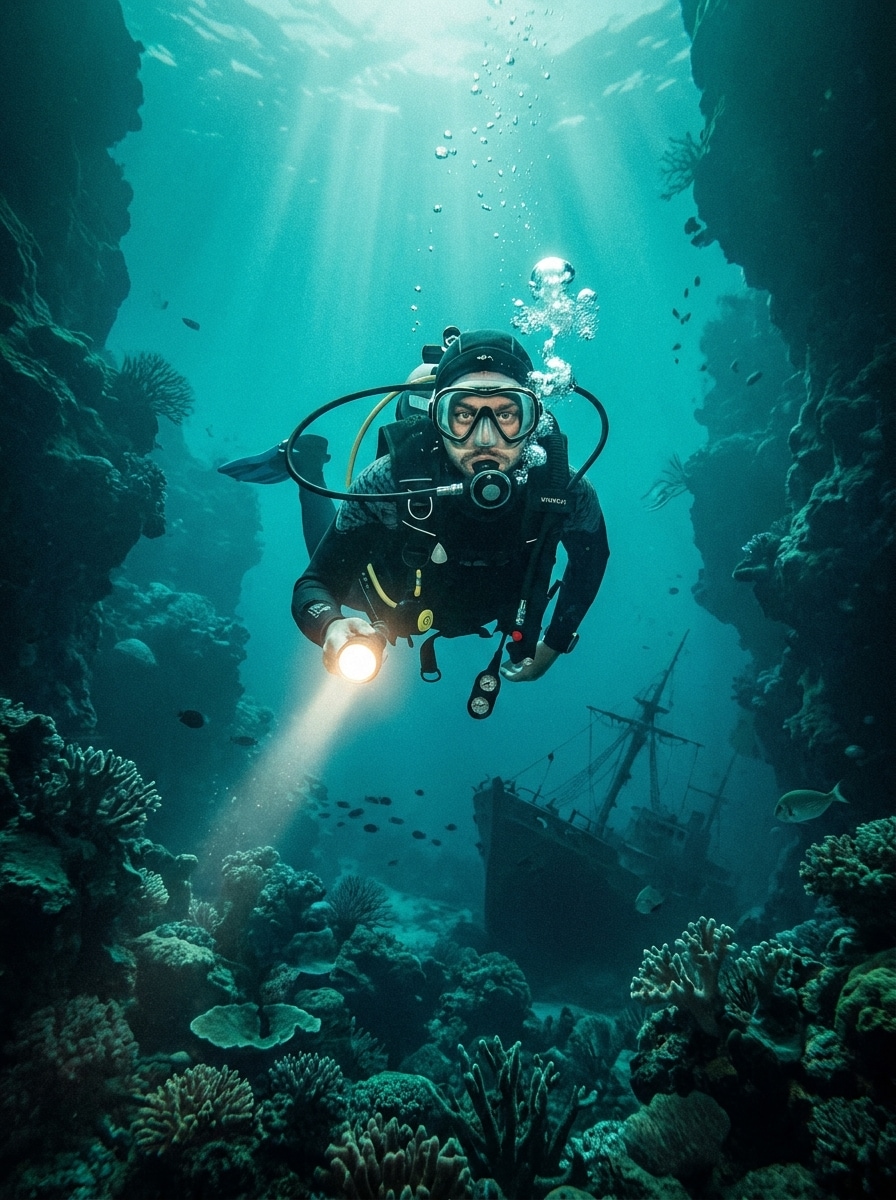
Étalonnage aventure sarcelle
Utilisez la photo sous-marine téléchargée comme sujet et créez un étalonnage sarcelle aventureux. Ajoutez de la profondeur, un contraste net, des détails visibles du plongeur, une ambiance dramatique subtile et un style photo de voyage soigné pour une photo avec filtre sous-marin frappante qui reste néanmoins ancrée dans la réalité.
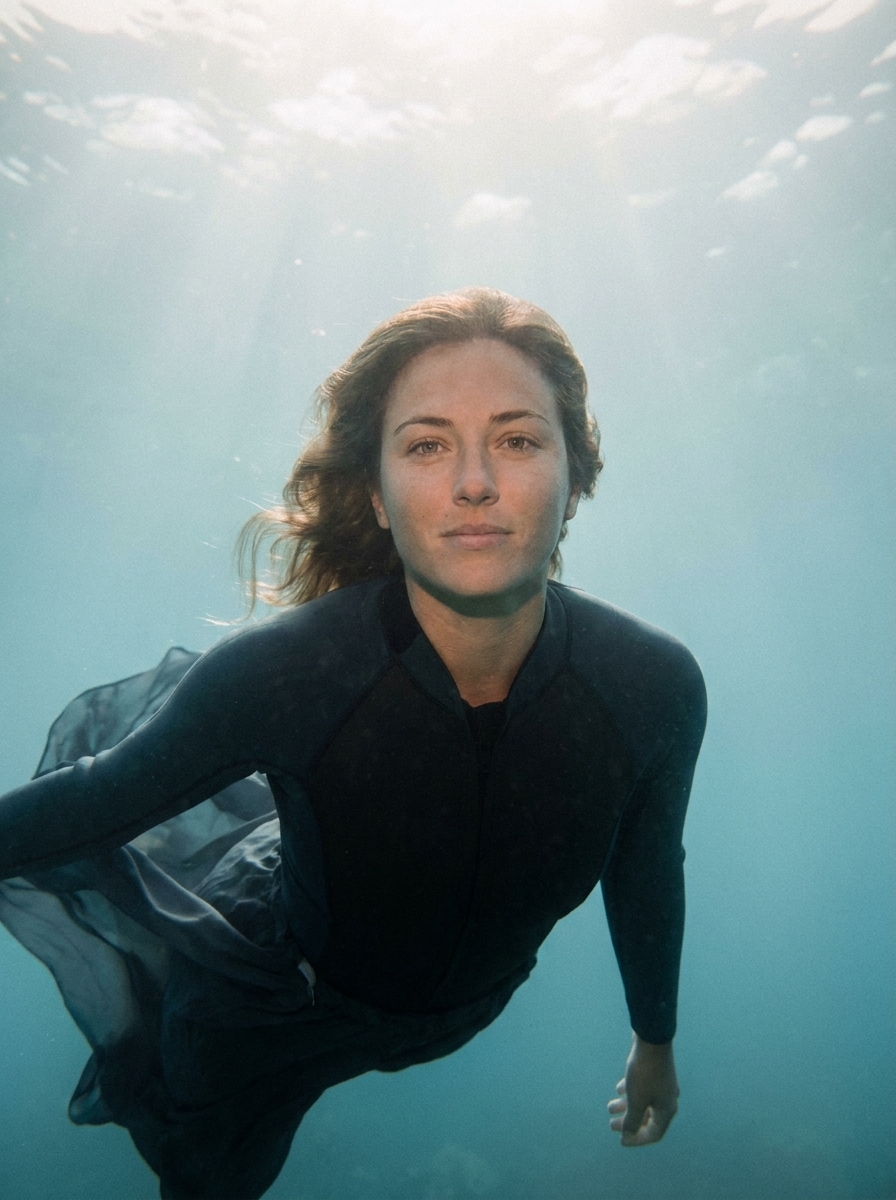
Sauvetage de portrait sous-marin
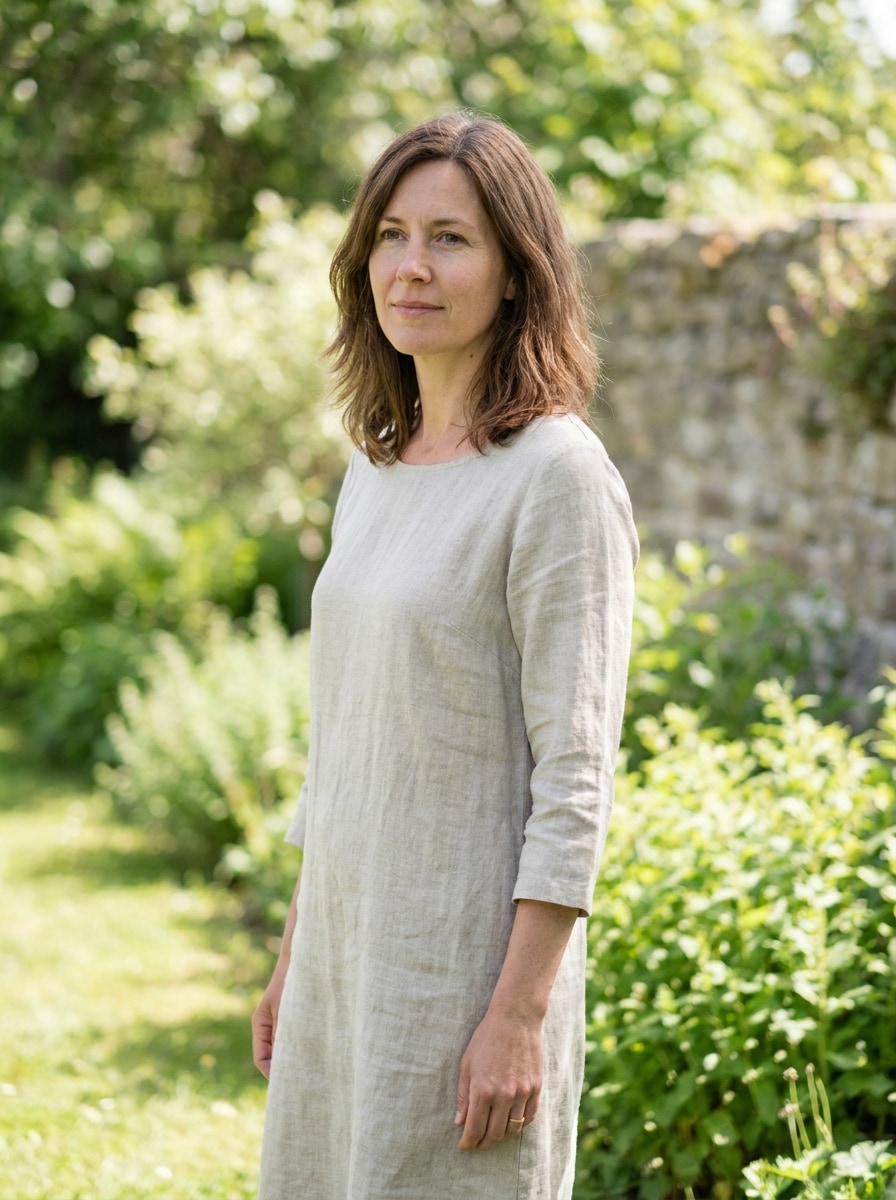
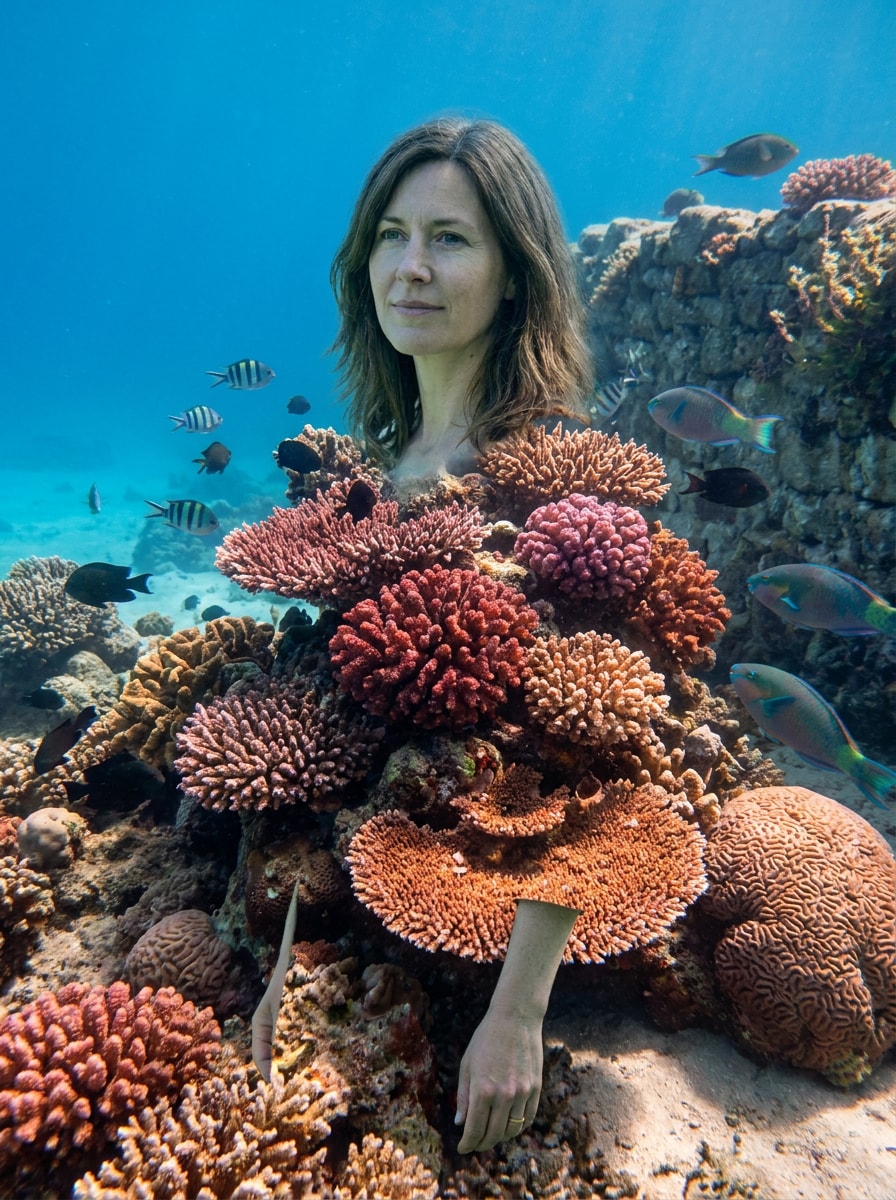
Utilisez le portrait téléchargé comme sujet et appliquez un l'effet portrait sous-marin naturel. Récupérez le teint de peau, réduisez la dominante cyan, améliorez la clarté du visage, adoucissez le bruit, préservez l'ambiance aquatique et gardez le résultat flatteur, réaliste et propre plutôt que surtraité.
Mise en valeur du sujet plongeur
Utilisez l'image téléchargée comme sujet et faites ressortir le plongeur plus clairement. Réduisez la brume, améliorez la séparation du fond, récupérez les détails de la combinaison et de l'équipement, boostez le contraste naturel et gardez les tons océaniques réalistes pour un plan d'action fort et lisible.
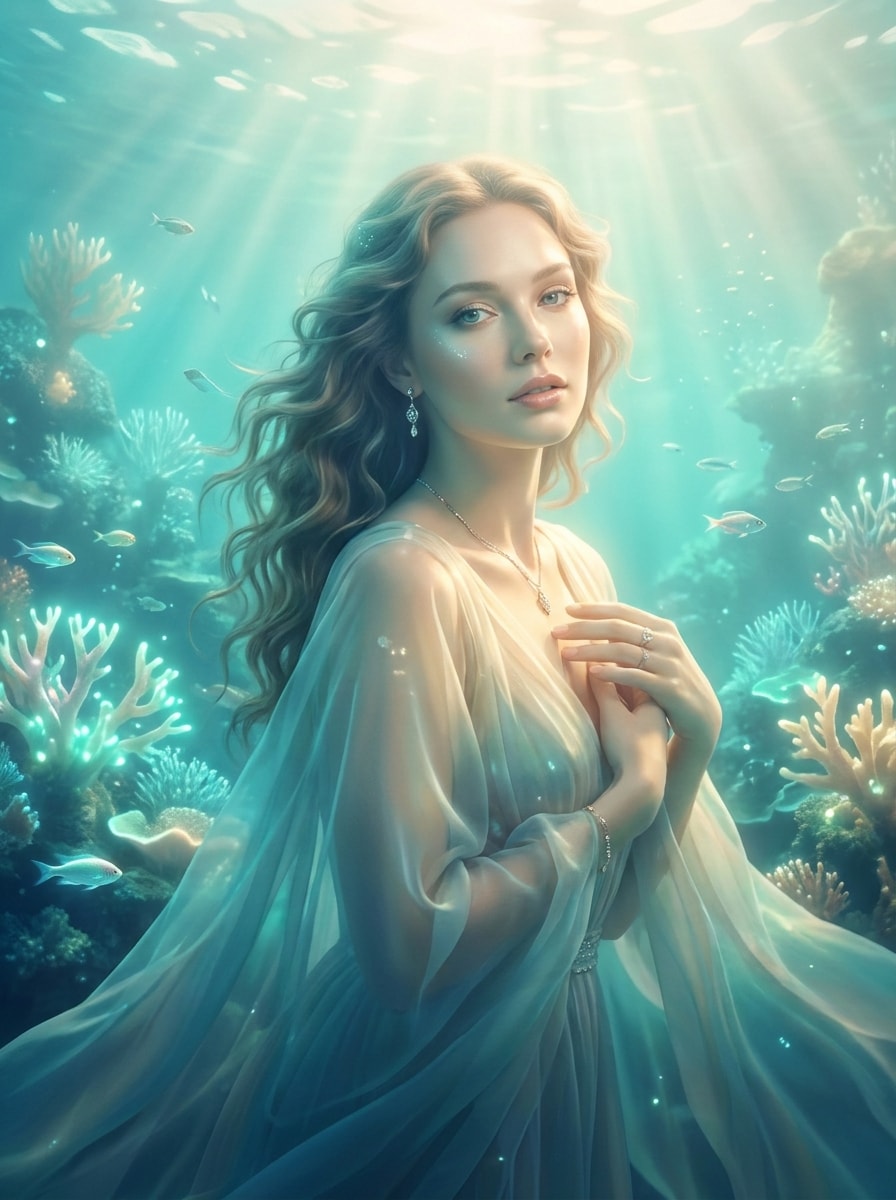
Lueur aqua sirène
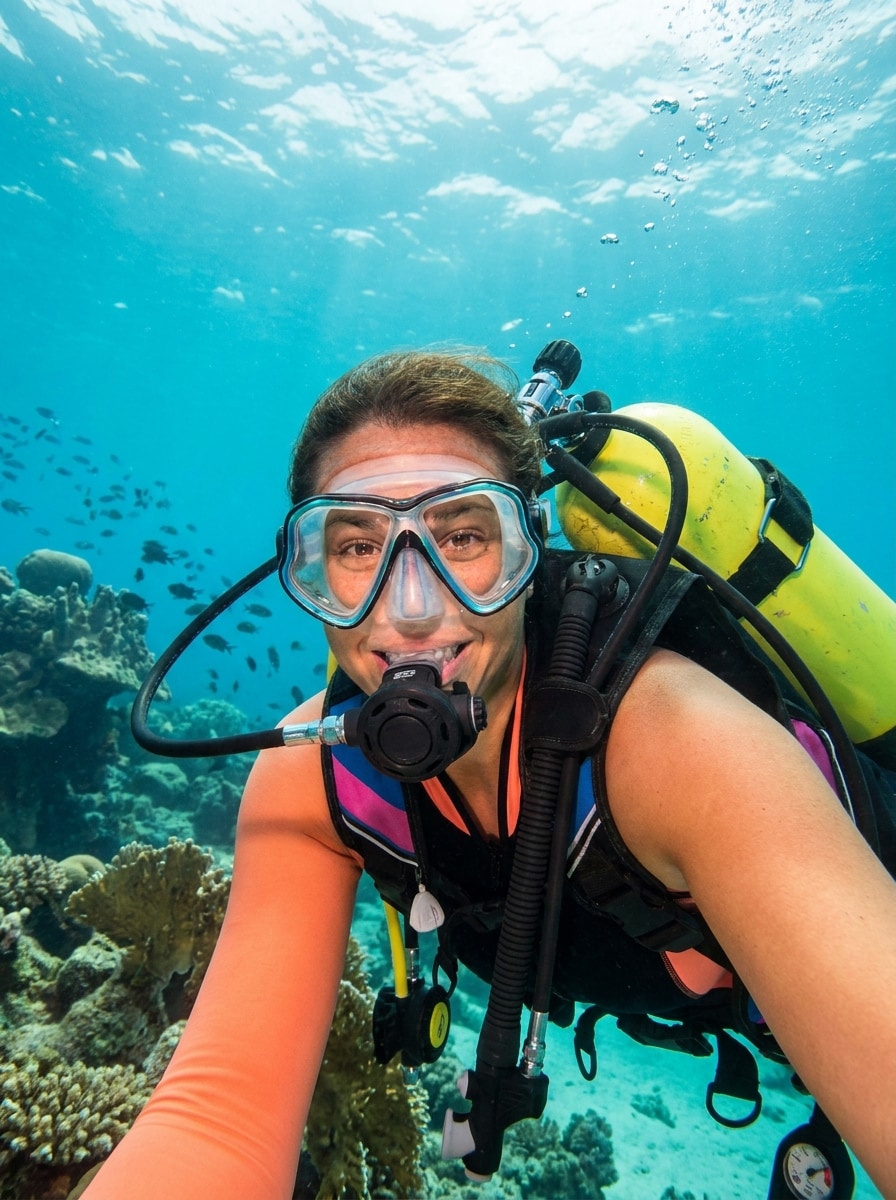
Utilisez l'image téléchargée comme sujet et créez un filtre selfie sous-marin féerique avec des tons aqua lumineux. Ajoutez des rayons de lumière doux, une lueur délicate, un contraste élégant, des transitions de couleurs fluides et une ambiance marine d'inspiration fantastique tout en préservant les traits du visage et une finition soignée de bon goût.
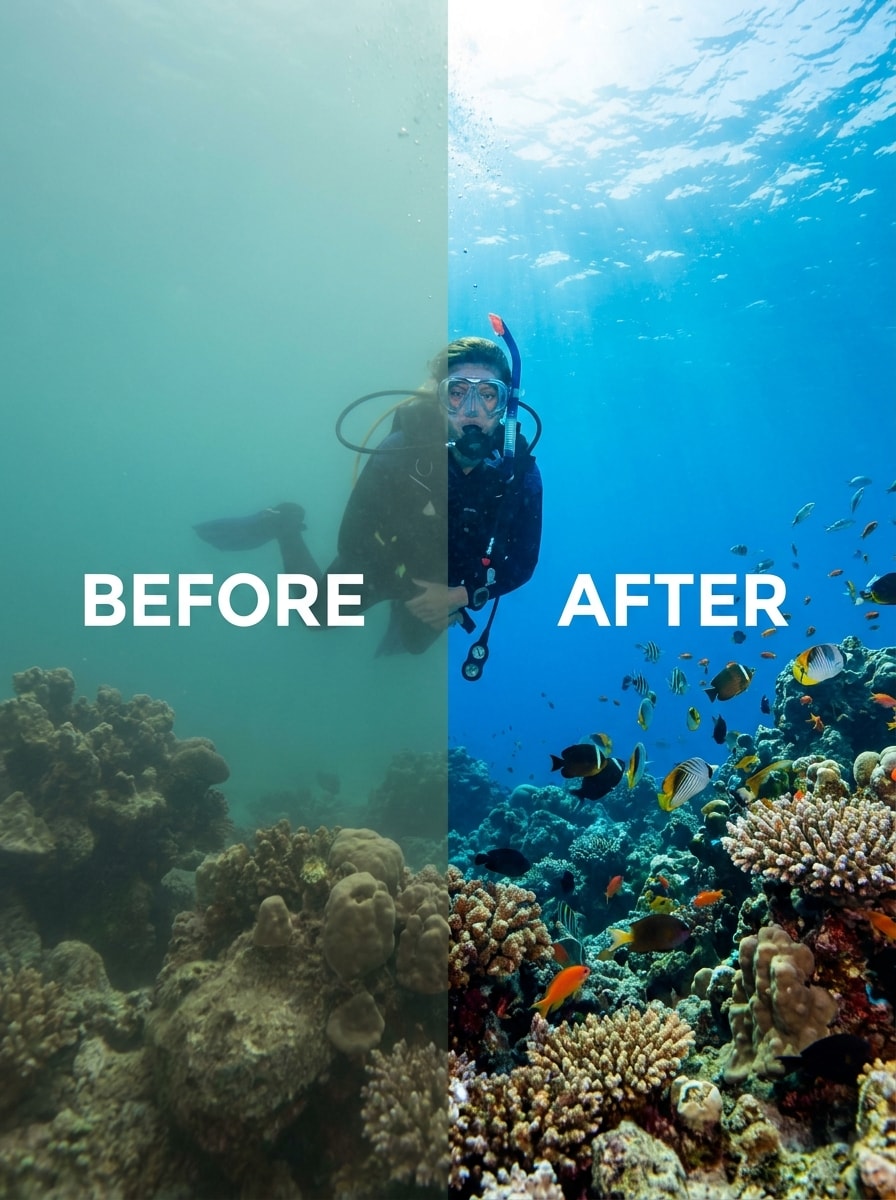
Filtre avant-après viral
Utilisez l'image téléchargée comme sujet et transformez une photo de plongée terne en une amélioration spectaculaire prête pour les réseaux sociaux. Récupérez des couleurs intenses, nettoyez l'eau, affinez le sujet principal et créez un résultat de filtre de scène sous-marine impressionnant mais toujours crédible.
Pourquoi utiliser Media.io pour les améliorations de photos sous-marines
Corrections basées sur la référence qui gardent votre sujet original reconnaissable
Le travail basé sur les références nécessite plus qu'un simple changement de style. Media.io aide à conserver les détails d'identité clés reconnaissables tout en retravaillant le look du filtre photo sous-marin, afin que le résultat soit personnel plutôt que générique.
Retravailler un sujet en plusieurs styles
Si le sujet doit encore se ressembler après la transformation, Media.io aide à conserver les repères d'identité essentiels tout en mettant à jour le style final du filtre photo sous-marin pour un résultat final plus propre.
Générer une sortie plus nette jusqu'en 4K
Lorsqu'un filtre photo sous-marin est destiné à une publication réelle, Media.io vous offre une sortie plus nette jusqu'en 4K, ce qui aide l'image à rester claire dans les présentations, les arrière-plans et les ressources réutilisées.
Édition web qui fonctionne sur tous vos appareils
Les idées ne commencent pas toujours à votre poste principal. Media.io vous permet de créer et d'affiner un filtre selfie sous-marin ou un concept océanique plus large dans le navigateur, afin que le passage entre téléphone et ordinateur de bureau soit fluide plutôt que perturbant.
Comment appliquer un effet de filtre photo sous-marin en ligne
Transformez vos mots en visuels époustouflants en trois étapes simples, puis continuez à affiner le résultat si vous souhaitez aller plus loin.
Étape 1
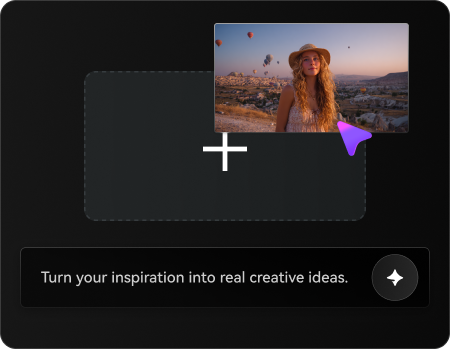
Téléchargez votre image de référence
Commencez avec une image JPG, PNG ou JPEG nette de plongée sous-marine, de snorkeling, de récif ou de natation. Une photo source plus nette donne à Media.io de meilleurs détails à préserver tout en améliorant la couleur, la visibilité et l'atmosphère sous-marine globale.
Étape 2
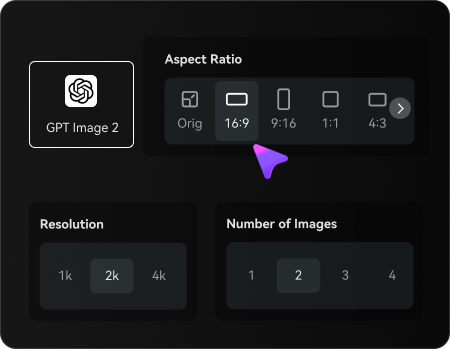
Décrivez le changement et définissez les options
Dites à l'IA ce que vous voulez, par exemple supprimer la dominante bleu-vert, restaurer les rouges coralliens ou créer un look de filtre selfie sous-marin. Choisissez ensuite votre modèle et ajustez le rapport d'aspect, la résolution ou le nombre d'images pour correspondre à votre objectif.
Étape 3
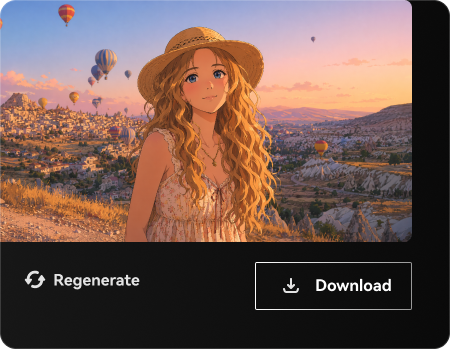
Générer, télécharger et continuer à améliorer
Créez plusieurs variations, comparez les résultats naturels et vifs, et téléchargez la version que vous préférez. Si nécessaire, affinez l'invite, essayez un autre modèle ou régénérez pour une récupération des couleurs plus propre et des détails sous-marins plus prononcés.
Découvrez comment les créateurs utilisent ce filtre photo sous-marin Media.io pour le contenu, le marketing et les projets personnels, puis adaptez chaque idée au brief.
Restaurez les souvenirs de plongée sans retouche manuelle laborieuse
Retrouvez la chaleur et la clarté perdues sous l'eau après des sorties de plongée ou de snorkeling. Avec Media.io, vous pouvez éviter la correction des couleurs compliquée et améliorer rapidement la dominante, le contraste et la visibilité du sujet pour des photos qui se rapprochent davantage de la scène réelle.
Rendez les photos de récifs et de vie marine dignes d'être partagées
Améliorez les textures des coraux, les détails des poissons et la couleur de l'eau pour les publications sur les réseaux sociaux, les récits de voyage et les souvenirs prêts à imprimer. Media.io fonctionne particulièrement bien lorsque vous souhaitez une finition tropicale lumineuse ou un résultat de filtre photo sous-marin plus net, que vous préfériez une récupération naturelle ou une ambiance de filtre sous-marin océanique qui reste crédible.
Peaufinez les portraits sous-marins pour les projets sociaux et créatifs
Améliorez les portraits de natation, les photos de piscine et les images à thème océanique féeriques avec une meilleure récupération du teint de peau, une brume plus douce et une lueur plus flatteuse. Media.io offre aux créateurs un moyen flexible de construire n'importe quoi, d'une restauration naturelle à un look aquatique stylisé, à partir d'une seule image téléchargée.
Ce que les utilisateurs disent de cet outil de photo sous-marine
Lena M.
Photographe de voyage
"Excellente récupération des couleurs pour les photos de récifs" Mes photos de snorkeling avaient cette dominante bleue terne, et cela les a corrigées de manière surprenante. J'ai pu récupérer la couleur des coraux et garder l'eau d'apparence naturelle plutôt que trop retouchée.
Carlos T.
Amateur de plongée sous-marine
"Facile à utiliser après un voyage de plongée" J'ai aimé pouvoir télécharger mon image originale et guider le rendu avec une invite. C'était beaucoup plus rapide qu'utiliser un éditeur complet, surtout pour des améliorations rapides avant-après.
Mia R.
Créatrice de contenu
"Bon équilibre entre styles naturels et vifs" Je l'ai testé pour des portraits sous-marins et du contenu de natation tropical. Les résultats étaient propres et je pouvais pousser l'ambiance vers quelque chose de plus cinématique sans perdre la personne sur la photo.
Devon P.
Blogueur outdoor
"Pratique sur téléphone et ordinateur de bureau" Le fait d'être basé sur le navigateur a fait une grande différence pour moi. J'ai commencé les retouches sur mon téléphone en voyage et j'ai terminé les téléchargements sur mon ordinateur portable plus tard, avec une qualité solide tout au long.
Découvrez Les Effets Vidéo et d'Image IA Les Plus Populaires
Un filtre photo sous-marin aide à améliorer les images prises sous la surface en corrigeant les problèmes courants de couleur et de clarté. Avec Media.io, vous pouvez télécharger une vraie photo et utiliser l'édition image-à-image guidée par IA pour réduire la dominante bleue ou verte, récupérer des tons plus chauds et rendre les détails du récif, du plongeur ou du portrait plus nets.
2. Comment puis-je corriger la dominante de couleur bleue ou verte dans les photos sous-marines ?
Téléchargez votre photo sur Media.io, puis décrivez la correction souhaitée, par exemple supprimer la dominante bleu-vert, restaurer les rouges ou rendre les teintes de peau plus naturelles. Vous pouvez générer des variations et comparer les résultats jusqu'à ce que l'image atteigne le bon équilibre entre récupération réaliste et un style de filtre de scène sous-marine plus prononcé.
3. Puis-je utiliser un filtre photo sous-marin en ligne gratuitement ?
Media.io offre des crédits gratuits aux nouveaux utilisateurs, afin que vous puissiez essayer le flux de travail d'édition sous-marine en ligne avant de passer à la version supérieure. Les exportations gratuites peuvent inclure un filigrane, tandis que les plans payants offrent des téléchargements haute résolution sans filigrane et plus de crédits. Vous pouvez comparer les options sur la page de tarification.
4. Le filtre améliorera-t-il les photos de plongée floues ou en faible luminosité ?
Media.io peut améliorer l'aspect général de certaines images de plongée en faible luminosité ou légèrement floues en améliorant la couleur, le contraste et les détails visibles, mais il ne récupérera pas parfaitement tous les fichiers gravement flous. Les meilleurs résultats proviennent généralement d'images sources nettes avec suffisamment de définition du sujet pour que l'IA puisse préserver et améliorer.
5. Un améliorateur de photo sous-marine IA conserve-t-il l'aspect naturel de l'image ?
Oui, selon l'invite et les paramètres que vous choisissez. Media.io prend en charge l'édition image-à-image guidée, vous pouvez donc demander une restauration réaliste des couleurs, une eau plus propre et un contraste doux plutôt qu'un rendu exagéré. Cela rend Media.io utile pour les corrections naturelles et les retouches stylisées, y compris un traitement de filtre sous-marin océanique.
6. Puis-je utiliser ce filtre sous-marin sur iPhone, Android ou ordinateur de bureau ?
Media.io est basé sur le web, vous pouvez donc l'utiliser dans un navigateur sur iPhone, Android, Windows ou Mac sans installer d'application séparée. Cela le rend pratique si vous souhaitez commencer à éditer sur mobile et continuer plus tard sur ordinateur.
Au-delà du filtre photo sous-marine en ligne alimenté par l'IA