
Design a Readable Toy Box
Describe the box color, transparent window, label area, and a clean tabletop. Simple packaging gives the miniature subject a stable frame.
Turn an authorized portrait into a Tiny Me in a Box AI video. Design a toy package, place a miniature version of the subject inside, and animate a small interaction between the box and the real-world scene.
See an authorized portrait become a toy-box scene with a miniature animated self.
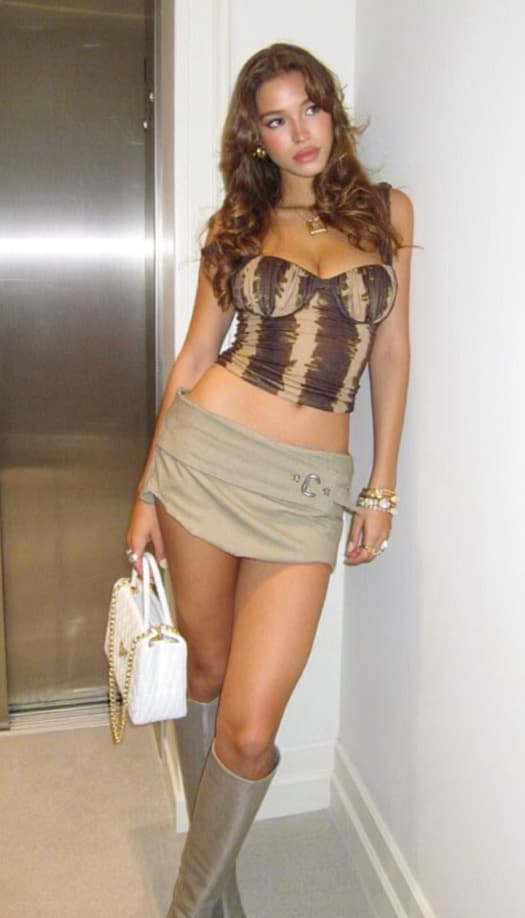
Portrait reference
Miniature self inside a toy box
Describe the box color, transparent window, label area, and a clean tabletop. Simple packaging gives the miniature subject a stable frame.
Use a clear authorized portrait and repeat key clothing or hair details. The tiny figure may still change across frames, so inspect the face and proportions.
Ask for a gentle wave, tap on the box window, or a look toward the real subject. Small actions are easier to keep coherent than complex object handling.
Use a vertical shot with a clear before-and-after idea. Add a caption and sound after generation, and avoid implying a real product endorsement.
Upload a clear authorized portrait to Media.io Image to Video. Choose a photo with visible face and clothing details.
Describe a toy box on a tabletop, a miniature version inside, and one simple interaction such as waving through the window.
Check the box edges, face, hands, and scale relationship. Simplify the prompt or try another take if the mini figure changes unexpectedly.
See what creators are making on TikTok, Reels & Shorts — watch the effects and try your next viral idea.
Explore All AI TrendsIt is a short visual concept based on the supplied trend brief. Media.io helps you create an original version; the exact motion, timing, and identity consistency can vary by model, so review every generated take.
Use Image to Video when you want to preserve a person, pet, or object from an authorized photo. Use Text to Video for a fully described scene. The available controls and results can vary by model.
Describe the scene as two or three ordered beats, use a stable vertical camera, and keep the main subjects visible. If one generation combines actions or changes identities, simplify the prompt or create separate short clips.
Add captions and audio in an editor after generation. Use music, show footage, logos, and other protected material only when you have permission. The visual page does not claim to include an official soundtrack.
Generative video is variable. Clear references, simple motion, short prompts, and a fixed camera can improve consistency, but they cannot guarantee an exact recreation. Generate several takes and choose the clearest one.