BEFORE
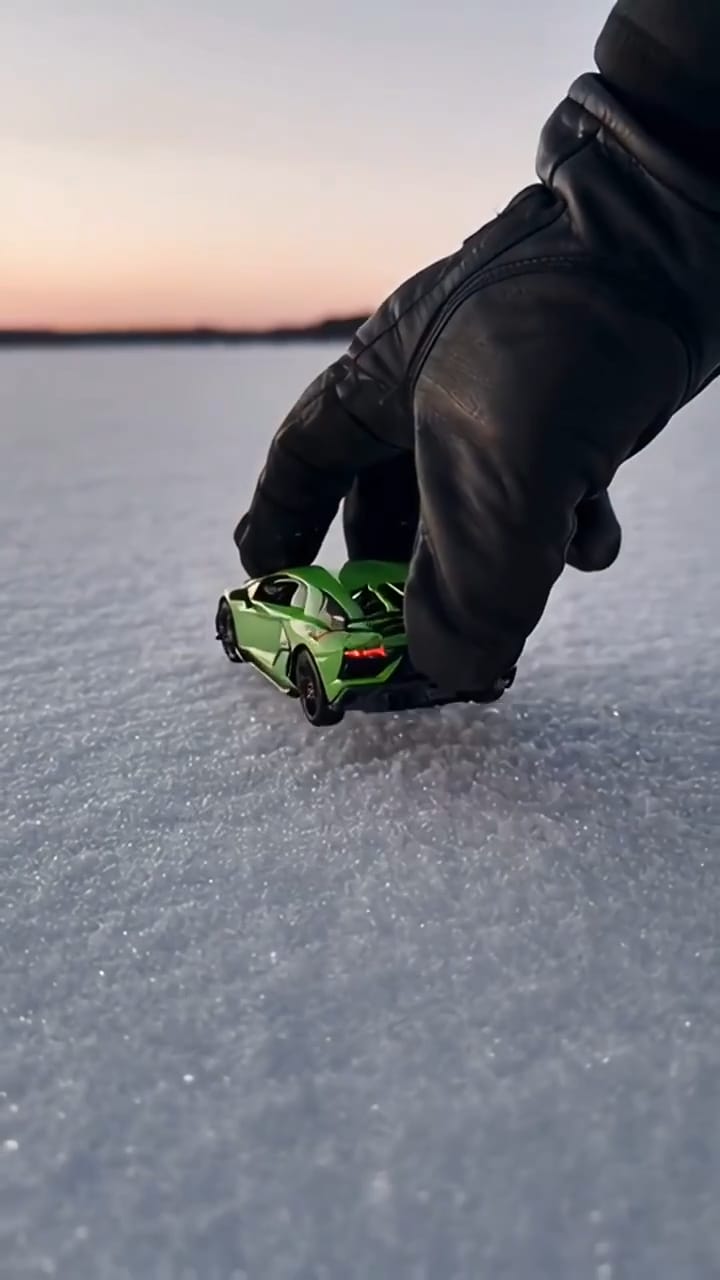
Original Car Photo
One starting image
Give your car a winter drift moment without filming on ice. Upload a clear car photo to Media.io Image to Video, describe a smooth turn on a closed snow course, and generate a short clip. Preview the result, then download your favorite take for a Reel or Short.
One car photo becomes a cinematic snow-drift clip.
One starting image
Auto-plays muted; use controls to pause
Start with one clear photo that shows the car body and wheels. In your prompt, name the paint color, silhouette, and wheel details you want to keep, so the snow drift feels connected to your vehicle. If a detail changes, try a sharper photo or another take.
Describe one controlled turn on a closed snowy track, then add the camera angle and snow spray you want to see. A simple action gives the generator a clearer motion brief and makes it easier to spot a good result when you preview the clip.
Try a pine-lined test course, a wide snow practice pad, or blue-hour lighting for a different mood. A snowy source image gives the model a stronger starting point; when using a car photo from another season, describe the setting clearly and check how the background changes.
Choose a portrait format when your selected model offers one, then preview the car, wheels, and camera motion before downloading. Add your own caption or licensed soundtrack in an editor to turn the AI drift clip into a Reel, Short, or car-page post.
Select “Create My Winter Drift Video” to open Media.io Image to Video. This workflow starts with a still car photo and a prompt describing how you want the scene to move.
Pick an image with one car fully in view, preferably from the side or a front three-quarter angle. Keep the body and wheels unobstructed, and use a photo you own or have permission to upload.
Try “One smooth drift on a closed snowy track, low tracking camera, natural snow spray; keep the same car.” Click Generate, check the car shape and wheel motion, then download the take you prefer.
See what creators are making on TikTok, Reels & Shorts — watch the effects and try your next viral idea.
Explore All AI TrendsIt is an AI-generated clip of a car sliding through a snowy turn. You can start with a car photo in Media.io Image to Video and describe the track, drift, and camera movement in a prompt. The result depends on your source image, prompt, and selected model, so preview each take before using it.
Open Image to Video, upload a clear photo of one car, and write a short motion prompt. For example, ask for one smooth drift on a closed snow track with a low tracking camera and natural snow spray. Click Generate, review the car and wheel motion, then download your preferred clip. You can add captions or licensed music in an editor such as CapCut afterward.
Use a sharp, well-lit image with the full car, wheels, and body outline visible. A side or front three-quarter view gives the generator clear vehicle details to work from; avoid heavy crops, blocked wheels, and several cars in one frame. A snowy source photo may help the winter setting look more consistent. Only upload images you own or have permission to use.
Yes. Use Media.io Text to Video and describe the car, snowy closed course, drift direction, lighting, and camera movement. That path is useful for an original winter rally scene. If you want the clip to resemble your own car, a photo in Image to Video gives you a stronger visual reference.
Ask the prompt to keep one car with the same body shape, paint, wheels, and visible markings throughout the shot. Describe one continuous turn, tires staying on the ground, and snow spraying behind the car rather than changing its shape. AI can still alter details, so inspect the result and try another take if the vehicle or motion looks off. Keep the scene on a closed course, not a public road or an unverified frozen lake.