Seleccione / @ carácter, describa la escena que desea generar.
0/2000
9:16
1K
1
Modo Ilimitado Banana Pro
Creaciones
Centro de Ideas
Cómo funciona
Todo
Funciones populares
Ver todo
Desafío creativo de Halloween
Ver todo
Historia de Frutas con IA
Ver todo
Video de Historia de IA
Ver todo
Videos Virales Hoy
Ver todo
Videos de Productos de IA
Ver todo
Personaje de IA
Ver todo
Tendencias de Baile
Ver todo
GPT Image 2
Ver todo
Seedance 2.0
Ver todo
Emparejamiento de Celebridades con IA
Ver todo
Indicaciones de Poses para Parejas
Ver todo
Prompts de Poses de Chica AI Estética
Ver todo
Sugerencias de Pose Elegante para Chicos AI
Ver todo
Lista de generación
Tus creaciones solo se guardan durante 7 días. Los recursos creados después de actualizar a Membresía se almacenarán de forma permanente.
¡Desbloquea tu potencial creativo y experimenta la magia de Media AI ahora mismo!
Identificador de gemas con IA para un Análisis de IA rápido basado en fotos
Sube una foto clara de una gema para identificar posibles coincidencias de piedras en segundos. Este identificador de gemas basado en navegador admite identificación de gemas, revisiones de joyería, análisis de piedras sueltas y flujos de trabajo en los que necesitas identificar una gema a partir de una foto en el móvil o en el escritorio sin necesidad de descargar ninguna aplicación.
Escribe tu idea -> La IA la diseña. Pruébalo gratis.
Revisa estas indicaciones de ejemplo y luego adapta los detalles del prompt para obtener mejores resultados con este identificador de gemas en línea de Media.io.
Superponer análisis con IA
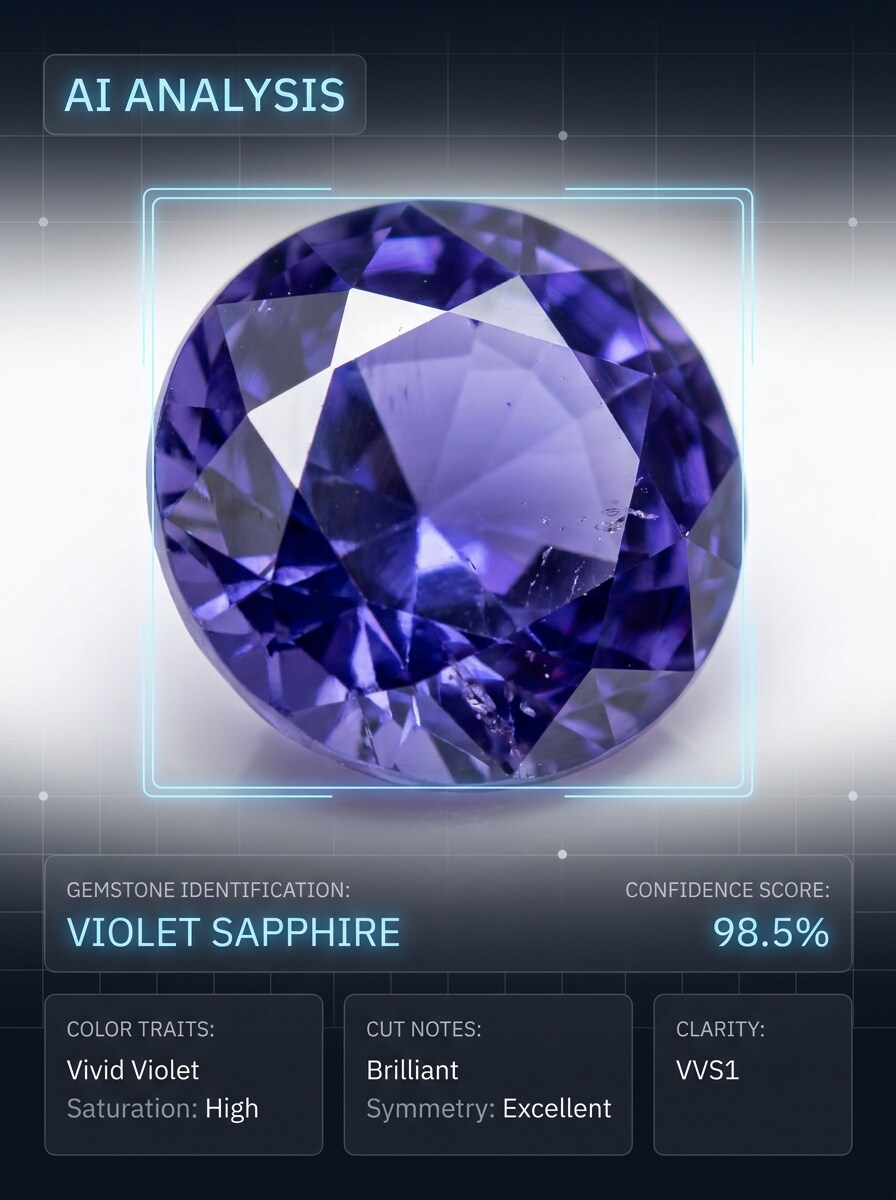
Usa la imagen cargada como sujeto y transfórmala en una demostración pulida de Análisis de IA. Mantén la piedra preciosa realista mientras añades una interfaz limpia estilo navegador con una etiqueta del nombre de la piedra, puntuación de confianza, características de color, Notas de corte, llamadas sutiles, fondo blanco, detalle macro nítido y una Presentación científica confiable.
Identificación antes y después
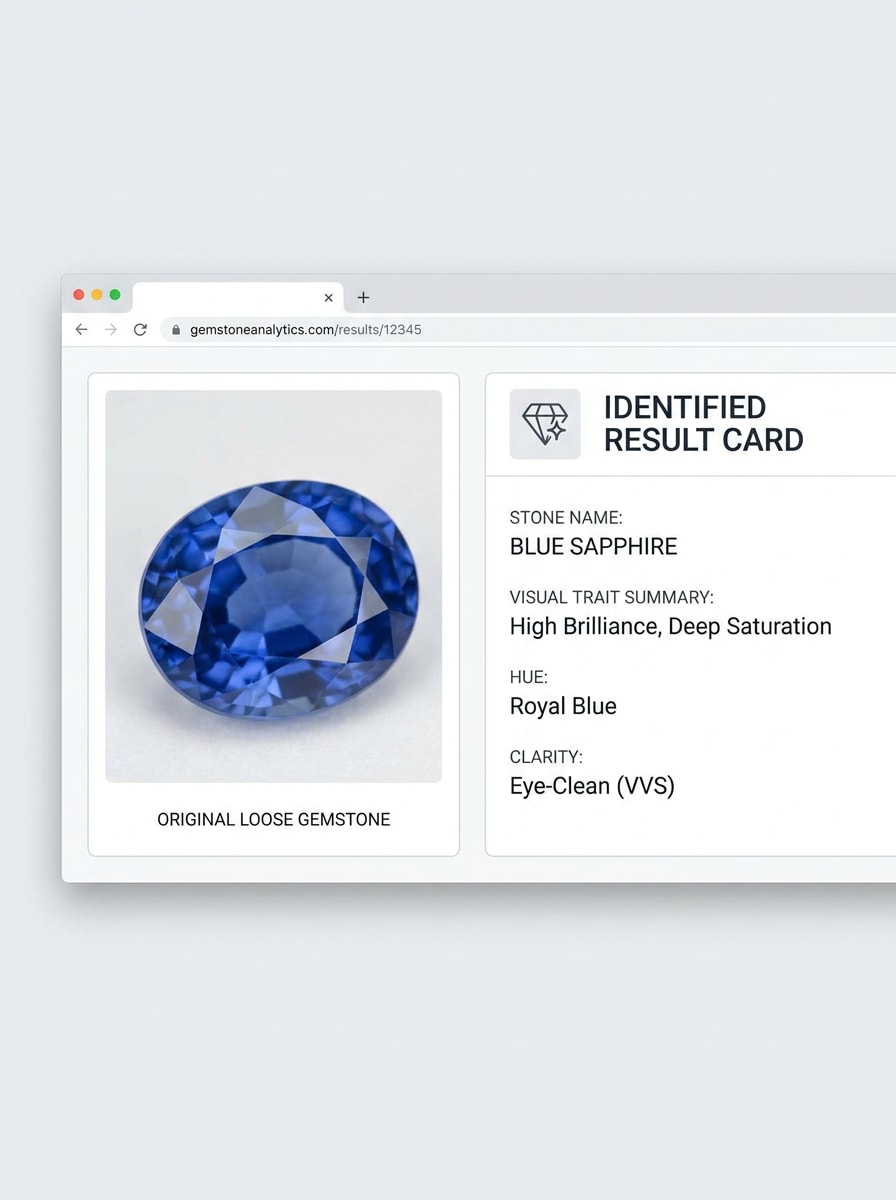
Usa la imagen subida como sujeto y crea una comparación visual de identificación lado a lado antes y después. Muestra la foto original de la gema a la izquierda y una tarjeta de resultado refinada a la derecha con el nombre probable de la piedra, Resumen de rasgos visuales, familia de color e interfaz moderna y elegante, iluminación brillante y aspecto educativo limpio.
Macro de piedra suelta
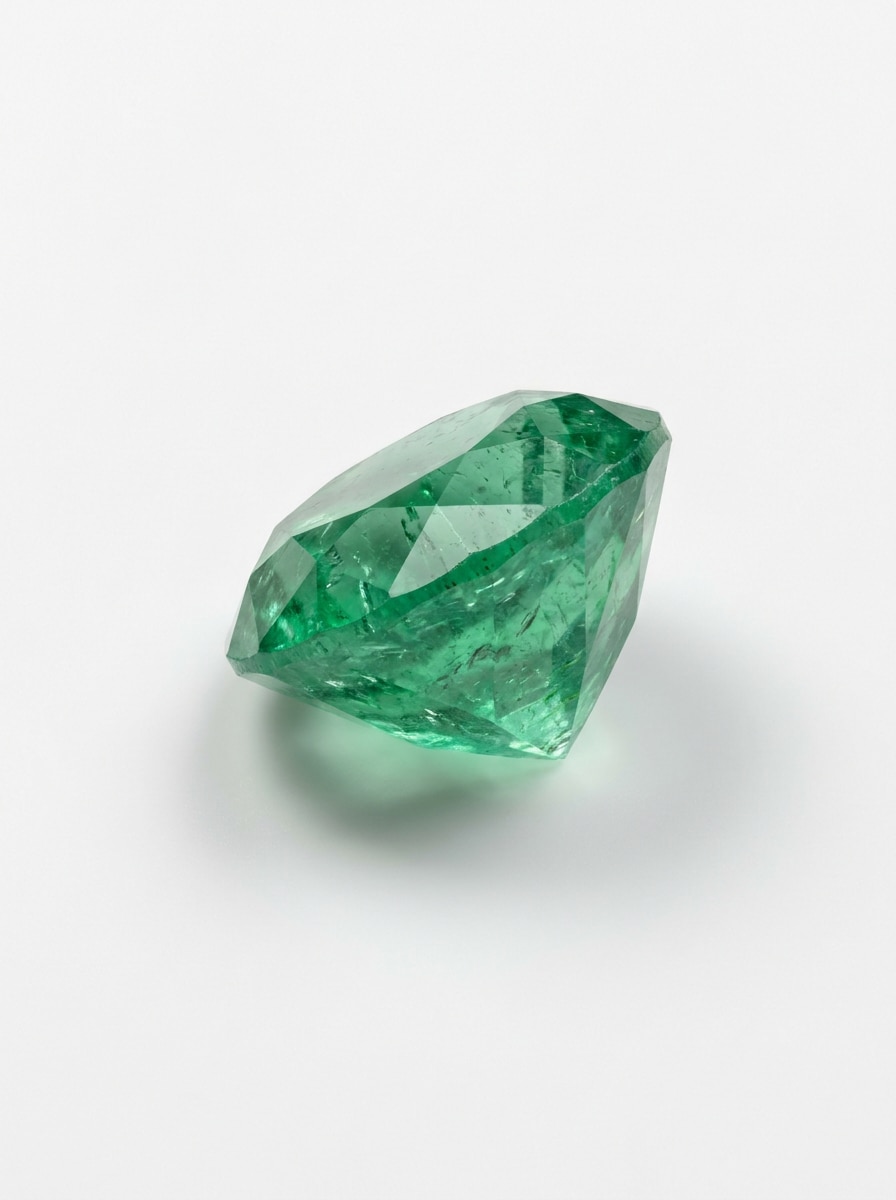
Usa la imagen cargada como sujeto y mejórala en un visual macro de análisis de alto detalle para inspección de piedras sueltas. Conserva facetas, inclusiones, transparencia y profundidad de color realistas, con iluminación de estudio difusa, enfoque preciso, mínima distracción de fondo y una Presentación limpia adecuada para revisión y comparación de piedras preciosas.
Primer plano de piedra en joyería
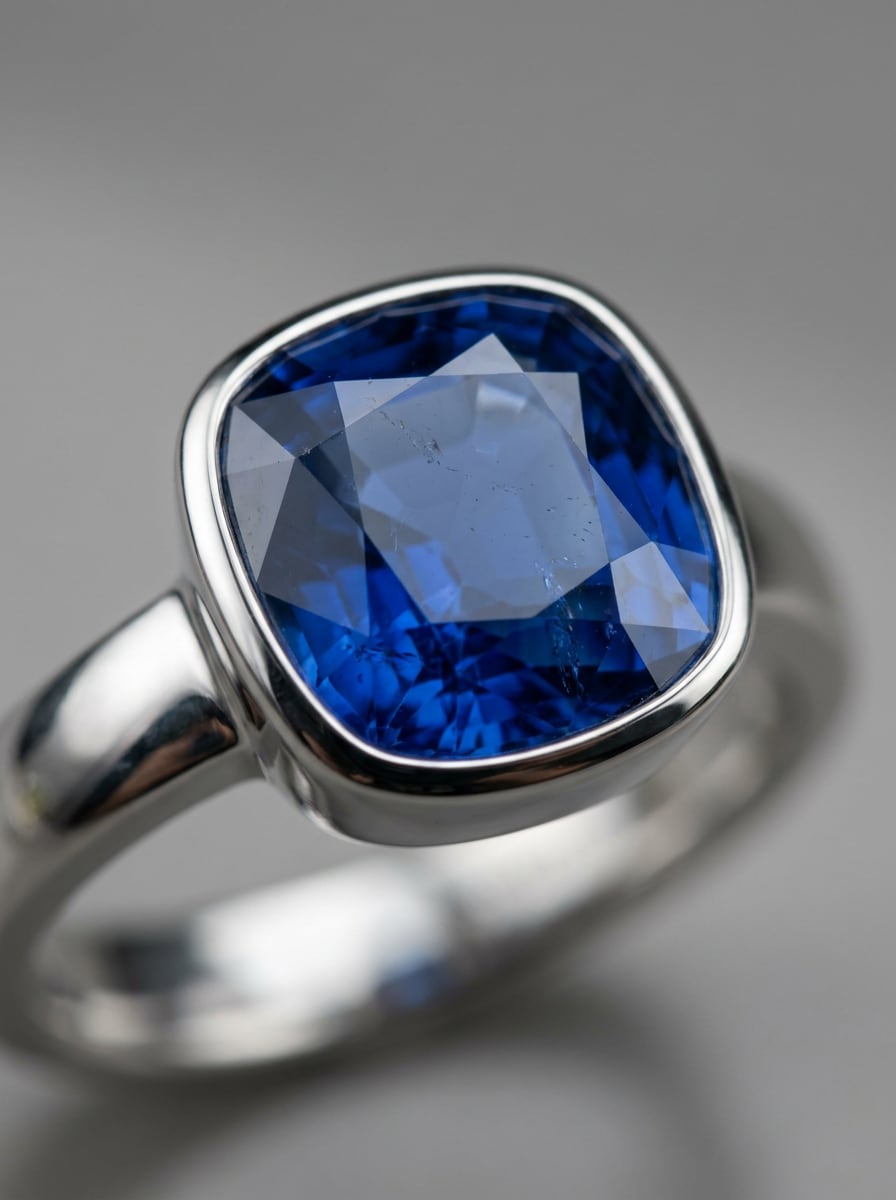
Usa la imagen cargada como sujeto y transfórmala en un primer plano Premium de piedra de joyería para facilitar el análisis. Centra la atención en la piedra central, mantén el metal realista pero secundario, usa reflejos limpios, Profundidad de campo reducida, reflejos refinados y un estilo editorial de lujo que aún respalde los detalles de identificación.
Cuadrícula comparativa de piedras similares
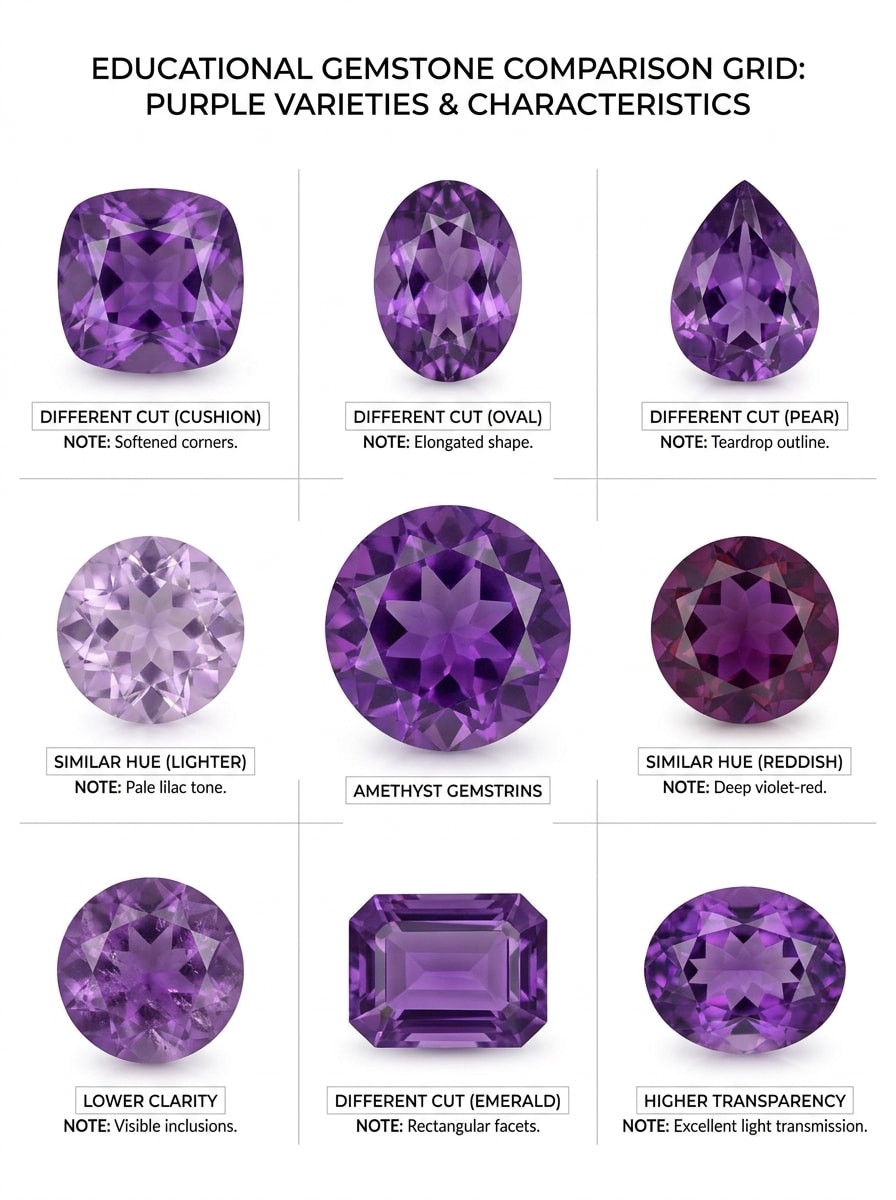
Usa la imagen subida como piedra de referencia y construye una cuadrícula comparativa educativa a su alrededor. Muestra la gema subida junto a piedras visualmente similares con etiquetas, tarjetas de Notas sutiles para tono, claridad, transparencia y diferencias de corte, Diseño blanco limpio, estilo de infografía editorial y jerarquía visual altamente legible.
Gráfico de familia de colores
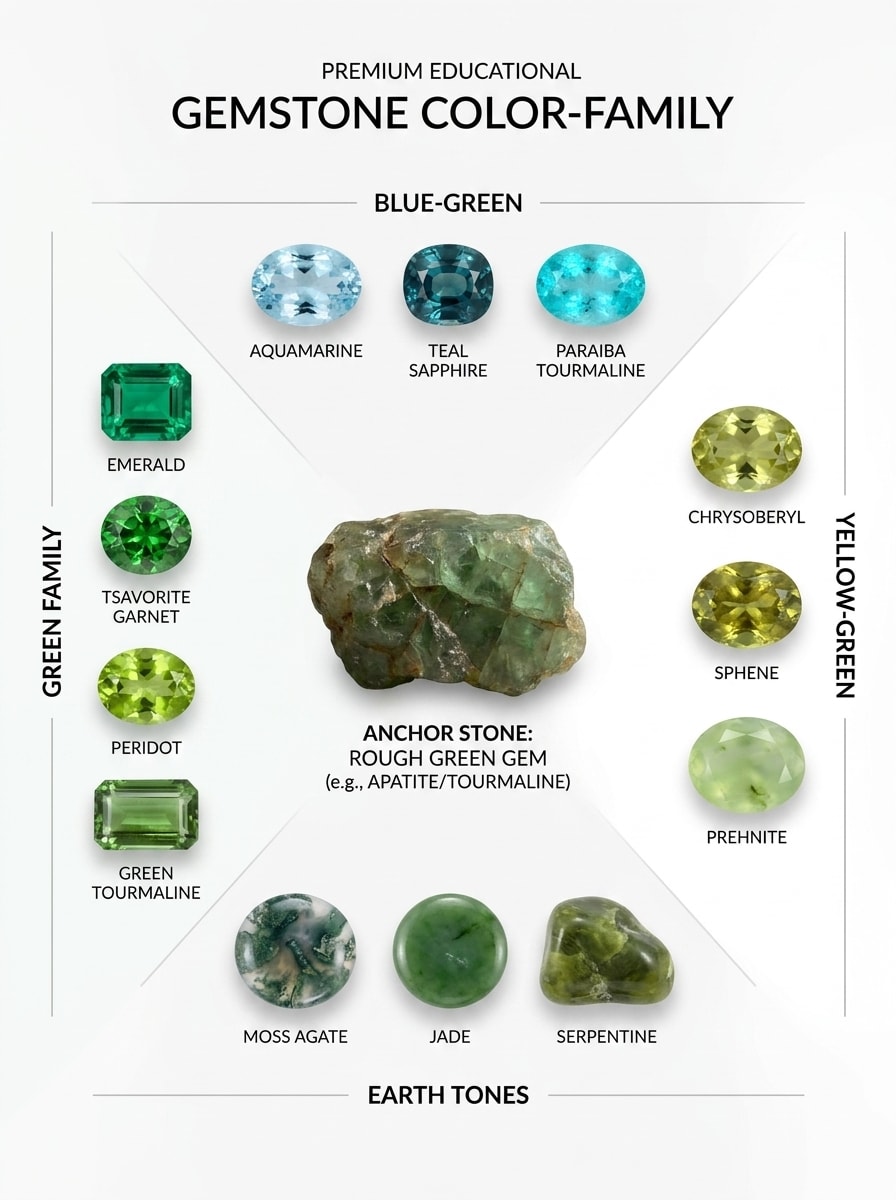
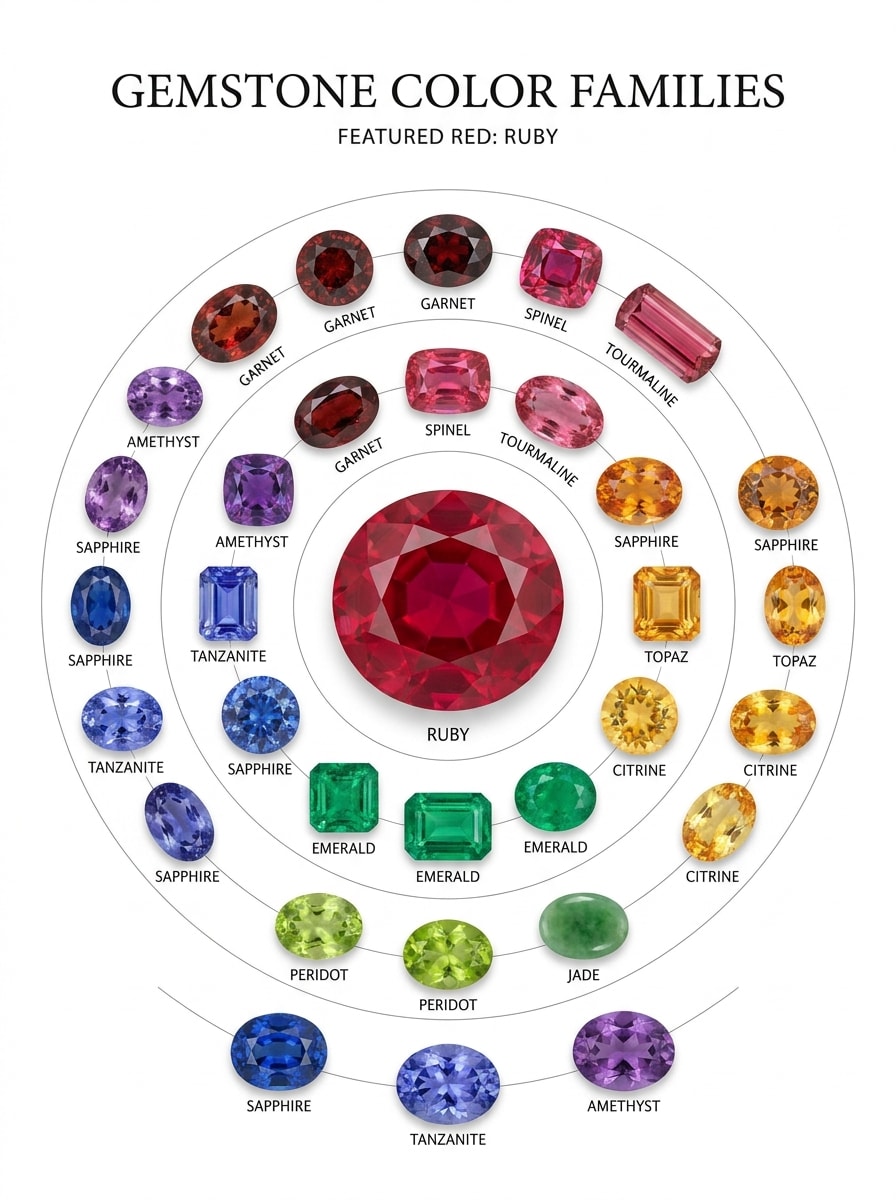
Usa la imagen cargada como sujeto ancla y transfórmala en un Gráfico de familias de color de piedras preciosas. Rodea la piedra de referencia con gemas coordinadas en tonos relacionados, añade etiquetas limpias y marcadores de categoría sutiles, mantén un fondo blanco brillante, estilo educativo Premium y agrupación visual clara para facilitar la comparación basada en color.
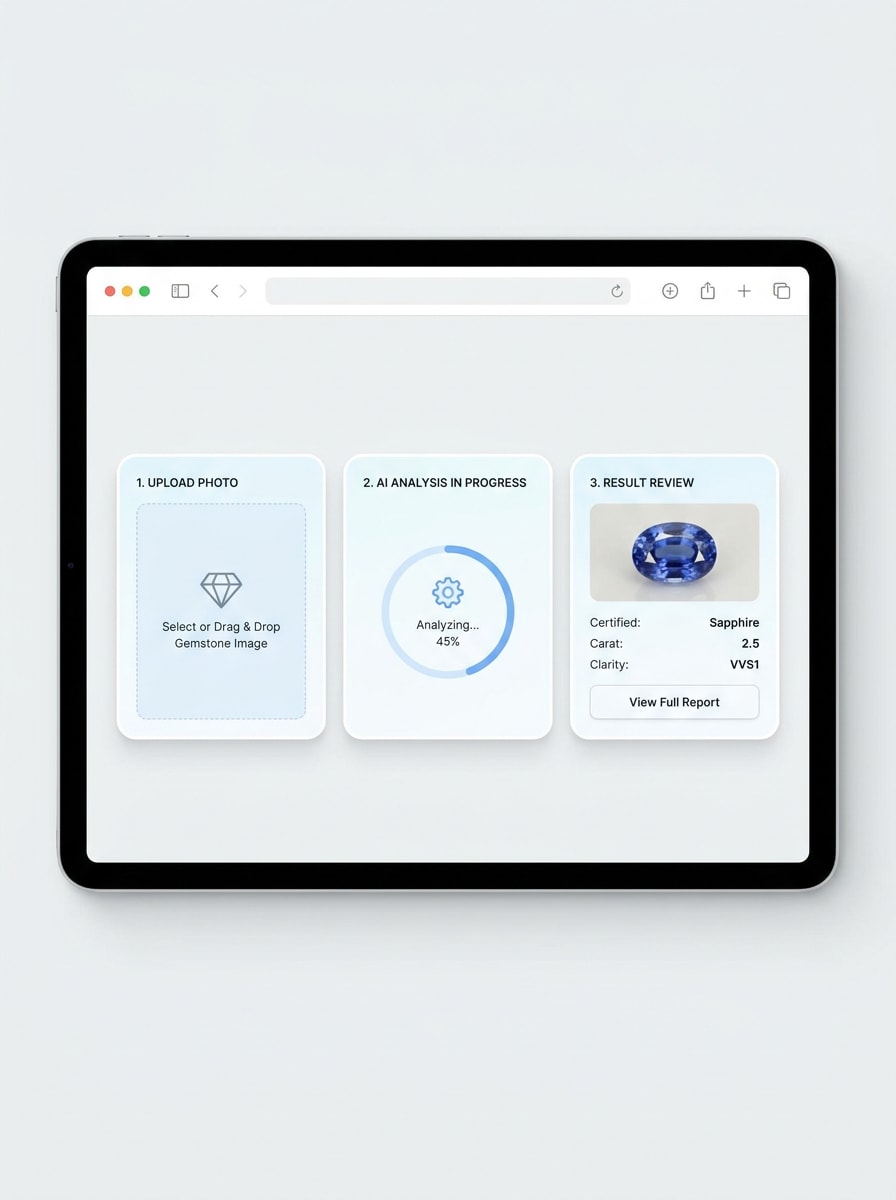
Flujo de carga paso a paso
Usa la imagen subida como sujeto y conviértela en una visualización de flujo de trabajo paso a paso en el navegador. Muestra etapas claras para la carga de fotos, el análisis y la revisión de resultados, con etiquetas concisas, tarjetas de interfaz limpias, sombras Suave, paleta neutra brillante y un estilo SaaS fácil de usar que transmita rapidez y claridad.
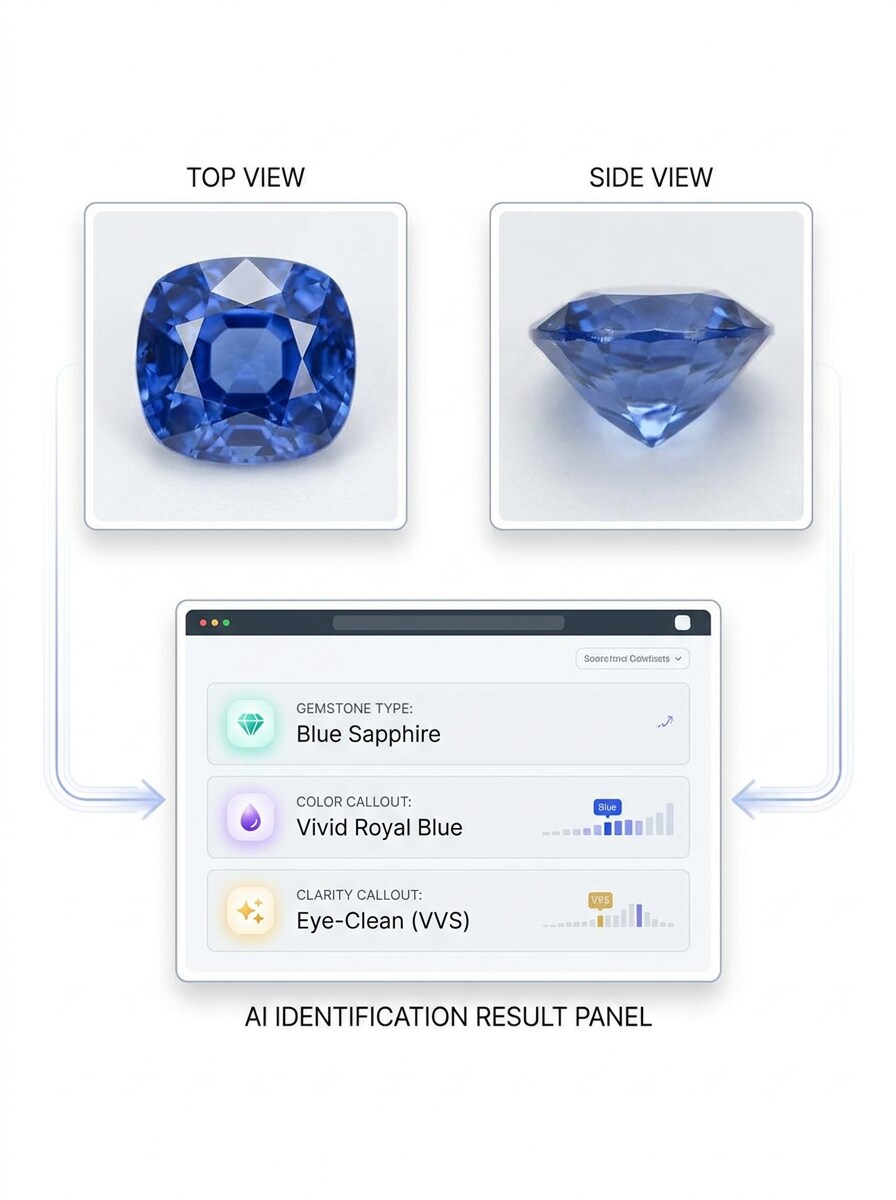
Análisis multiángulo
Usa la imagen subida como sujeto principal y crea una demostración de análisis de gemas multiángulo. Presenta variaciones de vista superior y Vista lateral que alimentan un único panel de resultados de identificación, con interfaz técnica limpia, indicaciones de color y claridad, espacio en blanco equilibrado y una estética moderna y creíble que combine laboratorio y aplicación web.
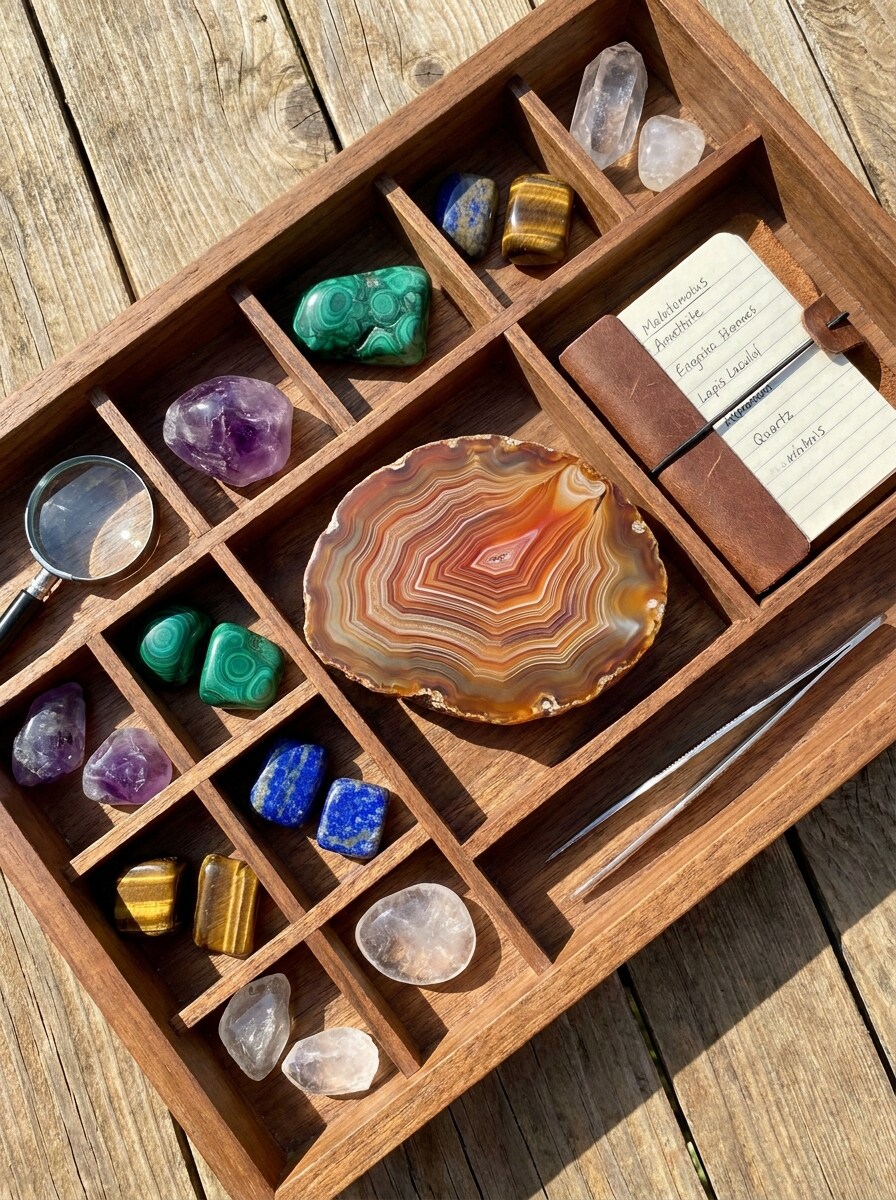
Descubrimiento en bandeja de gemas
Usa la imagen cargada como inspiración y Transformara la escena en un visual de descubrimiento estilo bandeja de coleccionista de gemas. Dispón múltiples piedras pulidas en una bandeja ordenada, mantén la gema cargada visualmente prominente, añade luz natural brillante, texturas realistas, composición organizada y una atmósfera acogedora de aficionado para comparación y descubrimiento.
Maqueta móvil de escáner de cristales y gemas
Usa la imagen cargada como sujeto escaneado y transfórmala en un mockup de escáner de piedras preciosas para móvil. Muestra la vista de cámara de un Teléfono inteligente reconociendo la piedra con una tarjeta de resultado, UX móvil moderna y limpia, fondo mínimo brillante, bordes nítidos y un visual práctico de escaneo a resultado para usuarios cotidianos.
Por qué usar Media.io para la identificación de gemas en línea
Análisis basado en fotos sin descargar una aplicación
Para una identificación de piedras preciosas rápida en línea, Media.io te permite subir una foto clara de la piedra en tu navegador y revisar los rasgos visibles sin software adicional, lo que facilita comprobar gemas sueltas, piezas de joyería o preguntas sobre identificación de piedras preciosas en bruto desde prácticamente cualquier lugar.
Explora diferentes estilos sin perder el rumbo
Las decisiones de estilo a menudo dependen de diferencias visuales sutiles, y Media.io te ayuda a comparar múltiples direcciones a partir de la misma imagen del identificador de gemas para que la selección creativa resulte más rápida y consistente.
Genera resultados más limpios de hasta 4K
Cuando un visual de identificador de piedras preciosas está destinado a un uso de publicación real, Media.io te ofrece una salida más nítida de hasta 4K, lo que ayuda a que la imagen se mantenga clara en presentaciones, fondos y recursos reutilizados.
Funciona sin problemas en flujos de trabajo de Teléfono y escritorio
Ya sea en investigación de escritorio o en comprobaciones rápidas desde el Teléfono, Media.io mantiene el flujo de trabajo del escáner de gemas en línea en el navegador, para que puedas cambiar entre dispositivos con mayor fluidez mientras revisas imágenes de piedras o Notas de identificación de rocas y gemas.
Cómo usar el identificador de gemas con IA
Convierte tus palabras en imágenes impresionantes en tres sencillos pasos y luego sigue refinando el resultado si deseas llevarlo más lejos.
Paso 1
Sube tu imagen de referencia
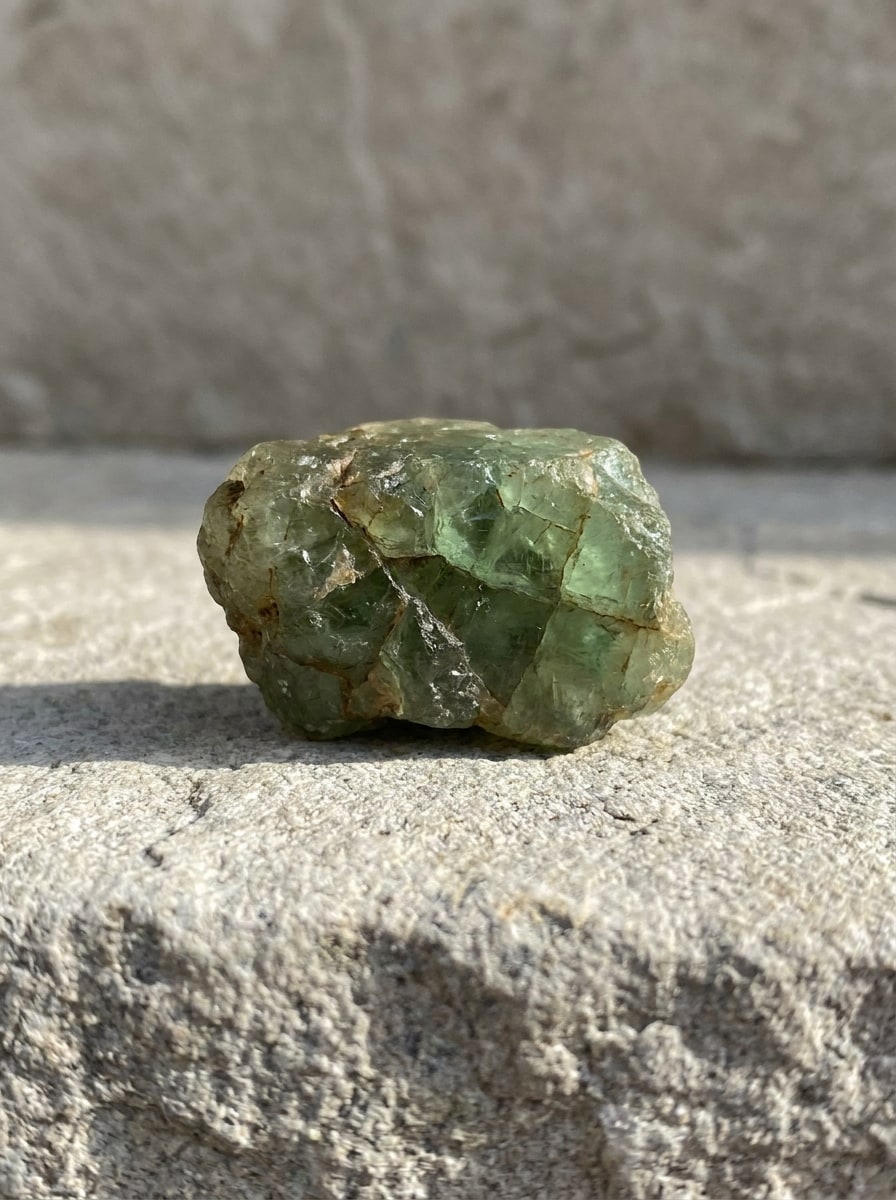
Sube una foto clara de tu piedra suelta, cristal, perla o pieza de joyería en formato JPG, PNG o JPEG. Para mejores resultados de identificación de gemas, usa una imagen nítida con buena iluminación, color visible y un fondo con pocas distracciones.
Paso 2
Describe el cambio y configura las opciones
Añade un prompt que explique lo que deseas analizar o visualizar, como superponer un escaneo limpio, un tablero de comparación o una revisión de piedra. Luego elige el modelo y ajusta la Relación de aspecto, la Resolución y la cantidad de imágenes para adaptarse a tu flujo de trabajo.
Paso 3
Genera, descarga y sigue mejorando
Genera el resultado, compara variaciones y descarga la versión que facilite más la revisión de la piedra. Si es necesario, sube otro ángulo, refina el prompt o crea una comparación lado a lado más clara para una inspección más detallada.
Desbloquea el potencial de la identificación de gemas
Descubre cómo creadores, coleccionistas y compradores usan este identificador de gemas de Media.io para contenido, investigación y proyectos personales, y luego adapta cada idea a tus necesidades.
Revisa piedras sueltas antes de etiquetarlas o publicarlas
Coleccionistas, revendedores y aficionados pueden subir fotos macro para agilizar la revisión visual antes de crear anuncios, etiquetas de almacenamiento o publicaciones educativas. Media.io es especialmente útil para la identificación de piedras preciosas en etapas tempranas cuando necesitas un punto de partida rápido basado en el navegador.
Compara gemas similares y variaciones de color
Usa comparaciones visuales lado a lado para diferenciar piedras parecidas por tono, claridad, transparencia y corte. Media.io funciona bien para la identificación de amatistas, comparaciones de piedras moradas e investigaciones más amplias de identificación de rocas y piedras preciosas o identificación de rocas y gemas cuando deseas una referencia visual más clara.
Inspecciona piedras engastadas en anillos, colgantes y pendientes
Las fotos de joyería suelen ser más difíciles de interpretar debido a los reflejos y los engastes metálicos, pero primeros planos claros pueden servir como un primer análisis útil. Prueba Media.io para piedras centrales de anillos, hallazgos vintage, identificación de gemas en bruto o incluso preguntas como cómo identificar perlas reales a partir de la foto de un collar.
Lo que dicen los usuarios sobre este identificador de gemas
Lena Ortiz
Vendedora de joyería vintage
"Útil para preparar anuncios rápidamente" Lo uso cuando fotografío anillos y colgantes para reventa. El flujo de trabajo en el navegador es sencillo, y los resultados en formato comparativo me ayudan a revisar posibles coincidencias de piedras antes de escribir las descripciones de los productos.
Marcus Hale
Aficionado a rocas y minerales
"Un punto de partida visual útil" Quería un buscador de gemas por foto sin tener que descargar otra aplicación. Media.io me facilitó subir fotos claras desde mi Teléfono y crear visualizaciones de análisis más limpias para las Notas de mi colección.
Priya N.
Creadora de contenido
"Genial para publicaciones educativas sobre gemas" Los estilos de superponer del análisis con IA y la cuadrícula de comparación son perfectos para contenido de formato corto. Puedo convertir una foto básica de una gema en algo que se ve más pulido, organizado y más fácil de entender para los espectadores.
Ethan Brooks
Propietario de tienda de cristales
"Funciona bien en dispositivos móviles" Lo probé tanto en escritorio como en Teléfono, y se adaptó perfectamente a mi flujo de trabajo diario. Para la identificación aproximada de gemas y comprobaciones visuales rápidas, el proceso de carga es rápido y sencillo.
Explora los efectos de video e imagen con IA más populares
Preguntas frecuentes sobre el identificador de gemas
1. ¿Cómo funciona un identificador de gemas con IA a partir de una foto?
Un identificador de gemas con IA utiliza tu imagen cargada como referencia y analiza rasgos visibles como color, corte, claridad, forma y apariencia general. En Media.io, subes una foto clara y revisas una vista de análisis basada en imagen en tu navegador, sin necesidad de descargar ninguna aplicación.
2. ¿Puedo identificar una gema en línea de forma gratuita?
Sí, puedes probar la identificación de gemas en línea con Media.io usando créditos gratuitos. Si necesitas más uso o flujos de trabajo de mayor volumen, consulta la página de precios para opciones de suscripción. Los usuarios gratuitos pueden ver marcas de agua, mientras que los planes de pago permiten descargas en alta resolución sin marca de agua.
3. ¿Qué tan preciso es un identificador de gemas a partir de una imagen?
Un identificador de gemas a partir de una imagen es más útil como una ayuda visual rápida, y la calidad del resultado depende en gran medida de la claridad de tu foto cargada. Una iluminación limpia, facetas visibles, color preciso y múltiples ángulos pueden mejorar los resultados, especialmente para tareas de búsqueda de gemas por foto e identificación de gemas en línea que involucran piedras de apariencia similar.
4. ¿Qué tipo de foto ofrece el mejor resultado de identificación de gemas?
La mejor imagen es nítida, está bien iluminada y enfocada en la piedra con mínimas distracciones de fondo. Para obtener resultados más sólidos en la identificación de piedras preciosas en Media.io, utilice iluminación neutra, evite Filtros intensos, controle los reflejos y cargue vistas de cerca que muestren el color, la transparencia, las inclusiones y los detalles del corte. Si es posible, pruebe más de un ángulo para la identificación de piedras preciosas en bruto o piedras engastadas en joyería.
5. ¿Puede identificar piedras engastadas en joyería?
Sí, puedes subir fotos de piedras engastadas en anillos, collares, pendientes u otras piezas de joyería. Las tomas cercanas y claras ayudan a Media.io a revisar la piedra central visible de manera más efectiva, lo cual es útil para la identificación de gemas, la identificación de gemas en línea y las comprobaciones de identificación de gemas donde el engaste metálico está presente pero no resulta demasiado distractor.
6. ¿El identificador de gemas funciona en iPhone, Android y escritorio?
Media.io está basado en la web, por lo que el identificador de gemas funciona en iPhone, Android, Windows y Mac siempre que tengas un navegador. Esto lo hace conveniente para la identificación de gemas en línea, la identificación de piedras preciosas en línea o comprobaciones rápidas de identificación de rocas y gemas mientras compras, clasificas o fotografías piedras.
Más allá del identificador de gemas en línea con IA