As criações são armazenadas por apenas 7 dias. Os recursos criados após o upgrade para um plano de assinatura serão armazenados permanentemente.
Desbloqueie seu potencial criativo e experimente a magia da IA de mídia hoje!
AI Blush Filter for Natural, Cute, and Glam Photo Edits
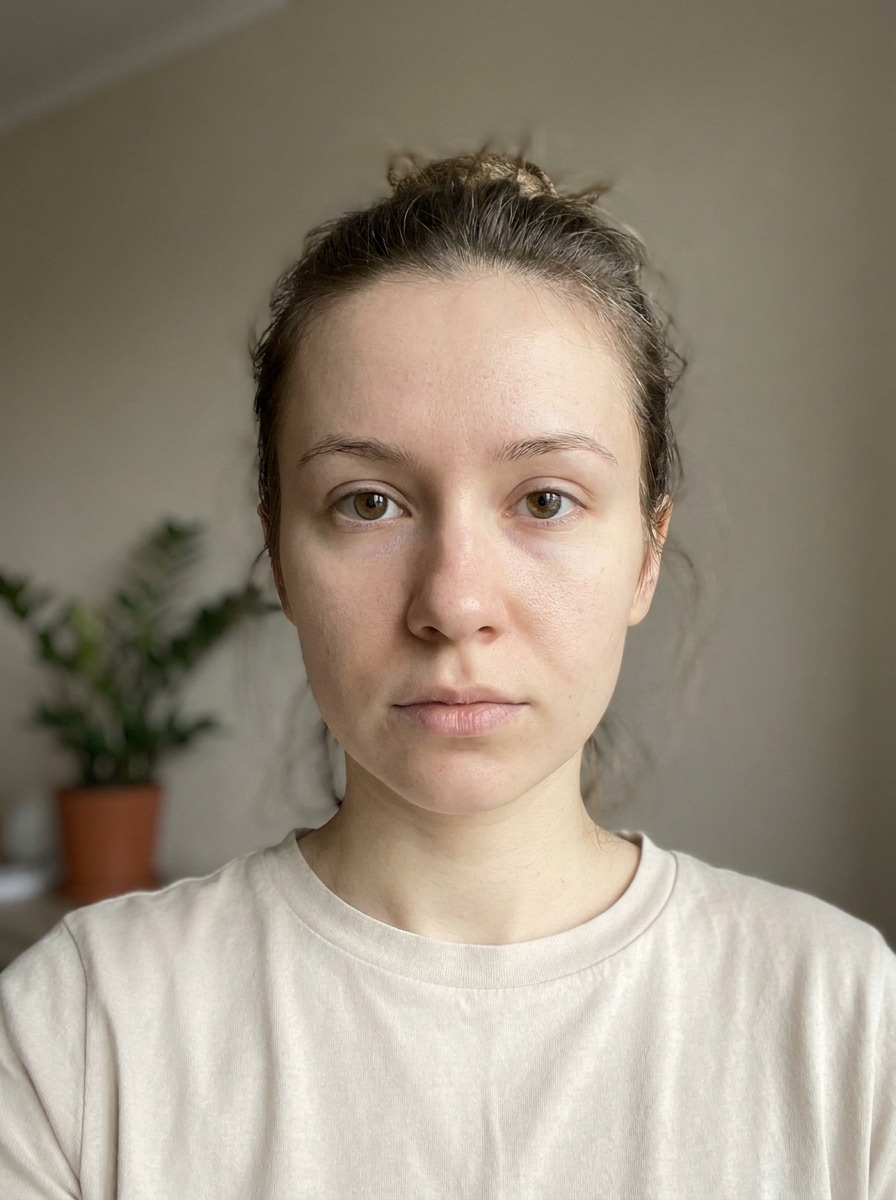
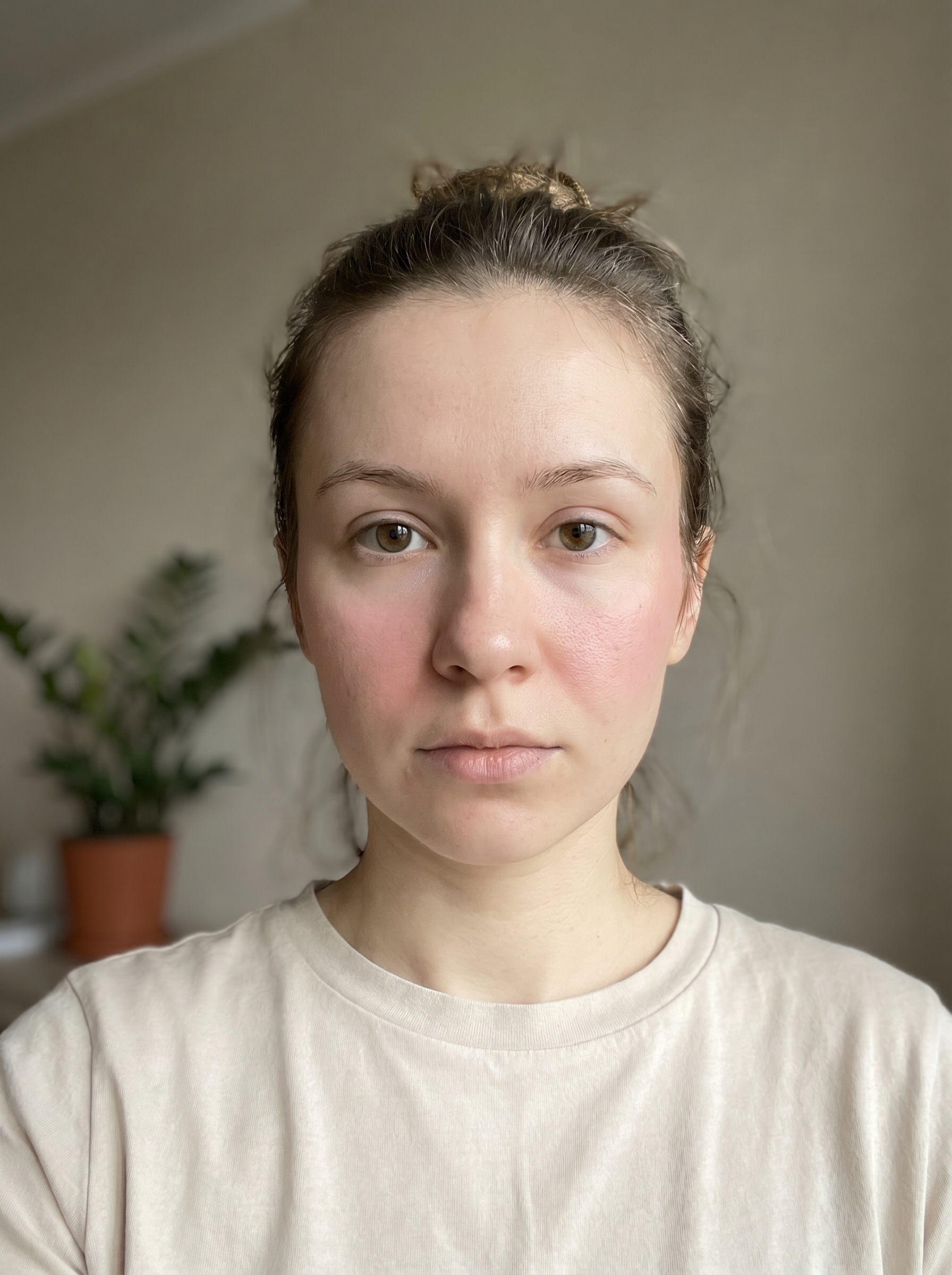
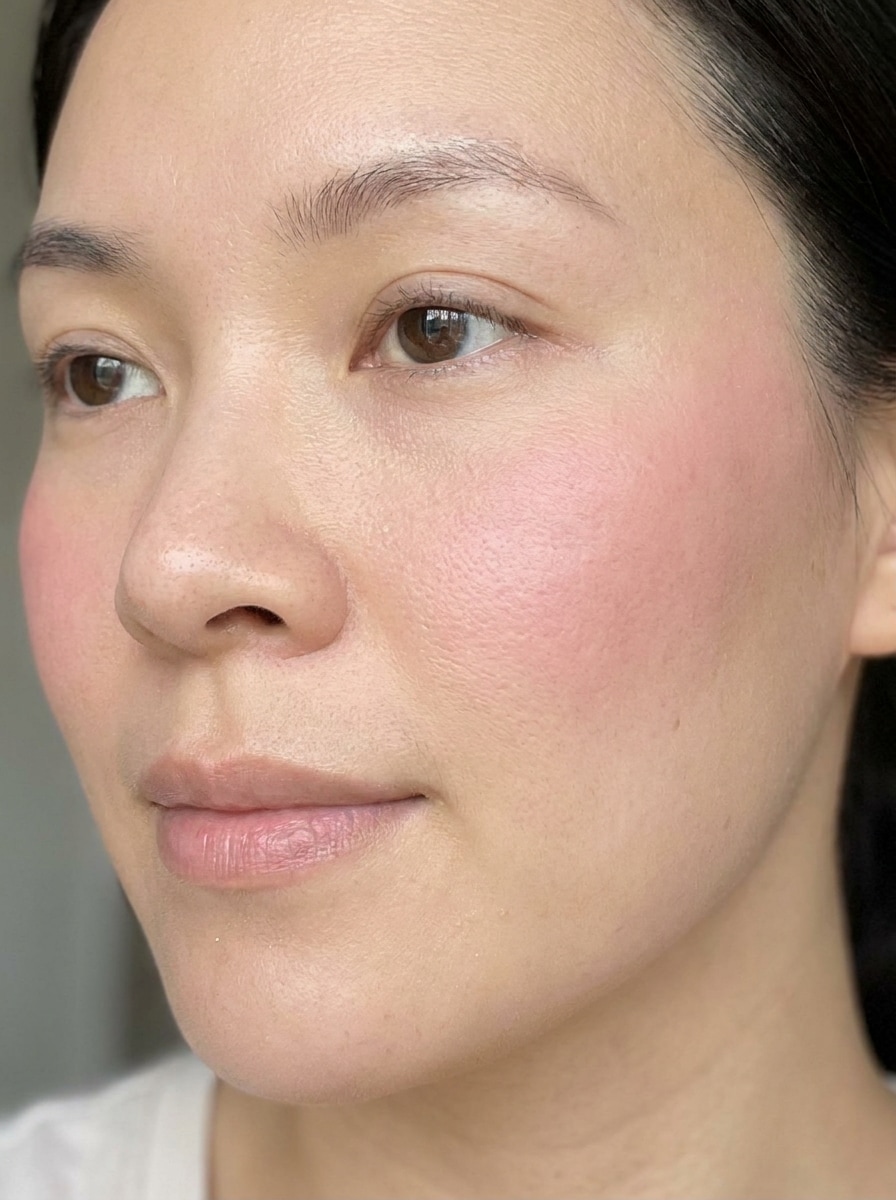
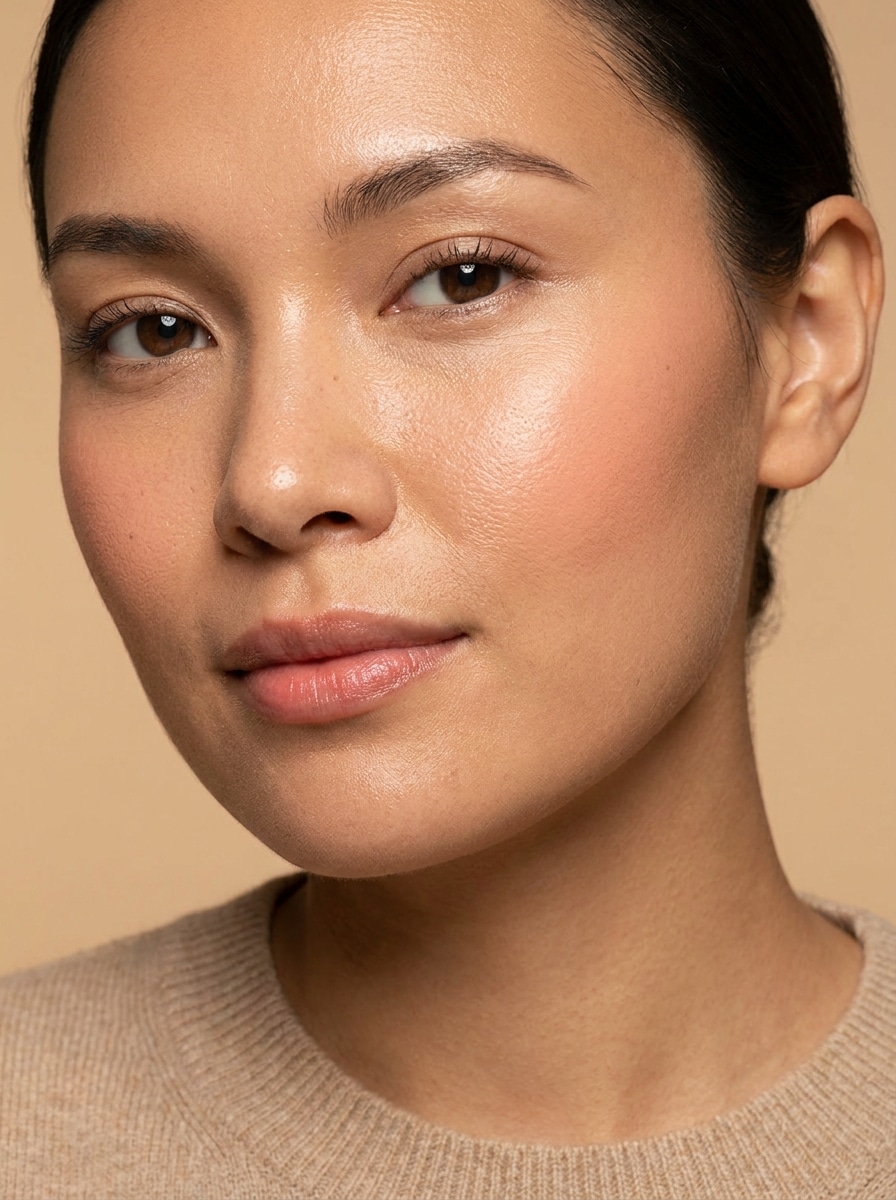
Use this blush filter to add soft cheek color, rosy warmth, or a polished makeup effect to selfies and portraits. Upload a photo, choose a style, and add blush to photo edits in seconds with realistic skin texture, fast previews, and easy downloads. This workflow is especially useful for cute blush filter.
Review these example directions, then tailor the prompt details to get stronger results with this blush filter in Media.io.
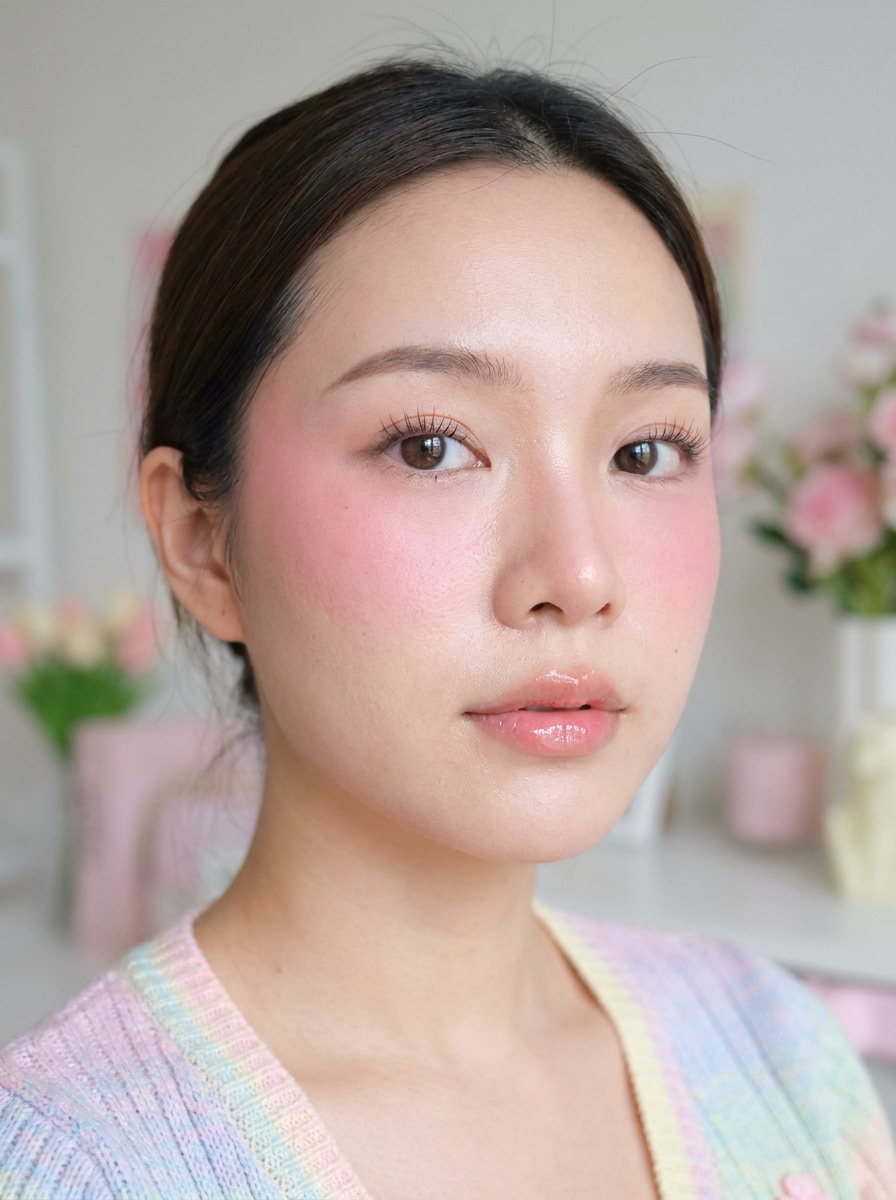
Soft Rosy Cheeks
Use the uploaded image as the subject and apply a soft rosy blush filter with natural cheek placement, gentle blending, and a fresh everyday makeup finish. Keep realistic skin texture, balanced tones, soft daylight lighting, subtle warmth, and a clean, photoreal portrait look.
Peach Fresh Makeup
Use the uploaded selfie as the subject and add a light peach blush effect across the cheeks with airy blending and a fresh daily makeup vibe. Preserve natural skin detail, soft shadows, healthy warmth, and a bright, realistic portrait finish with clean color harmony.
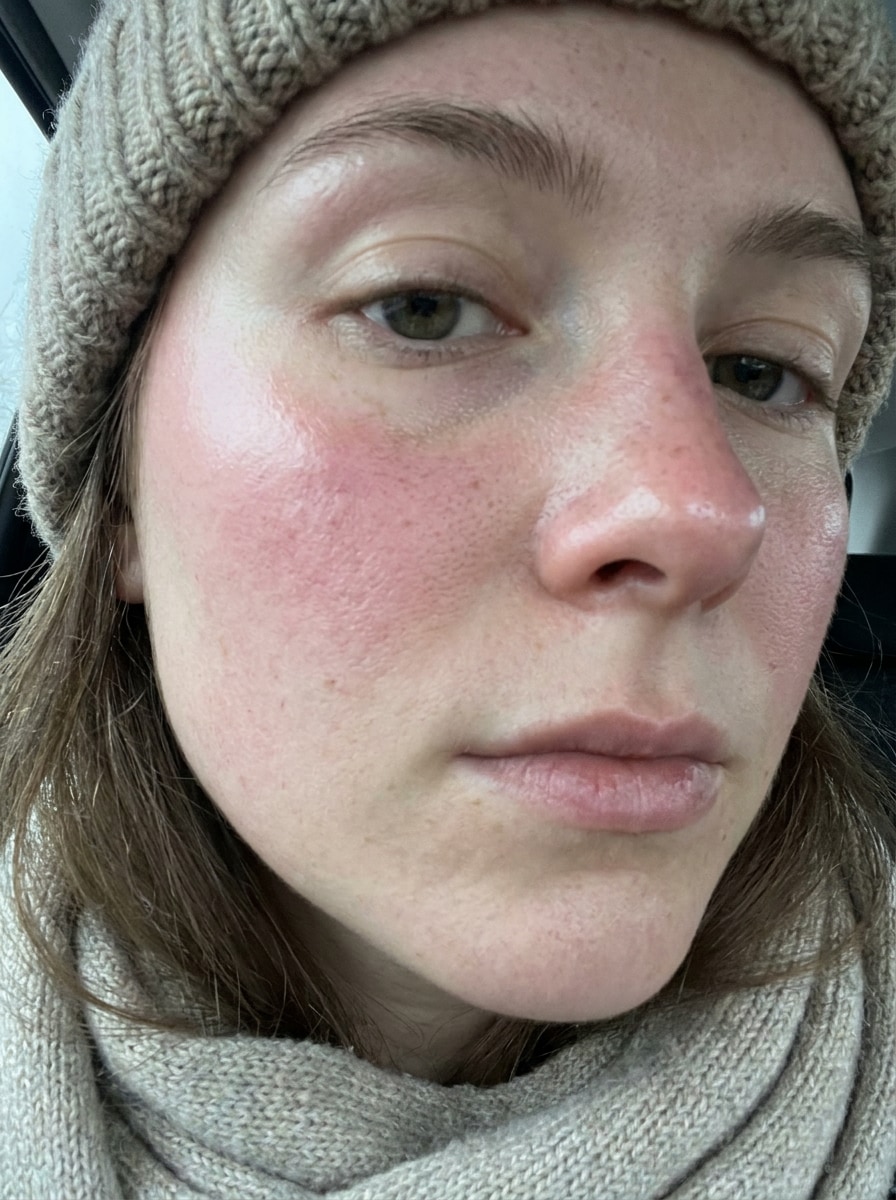
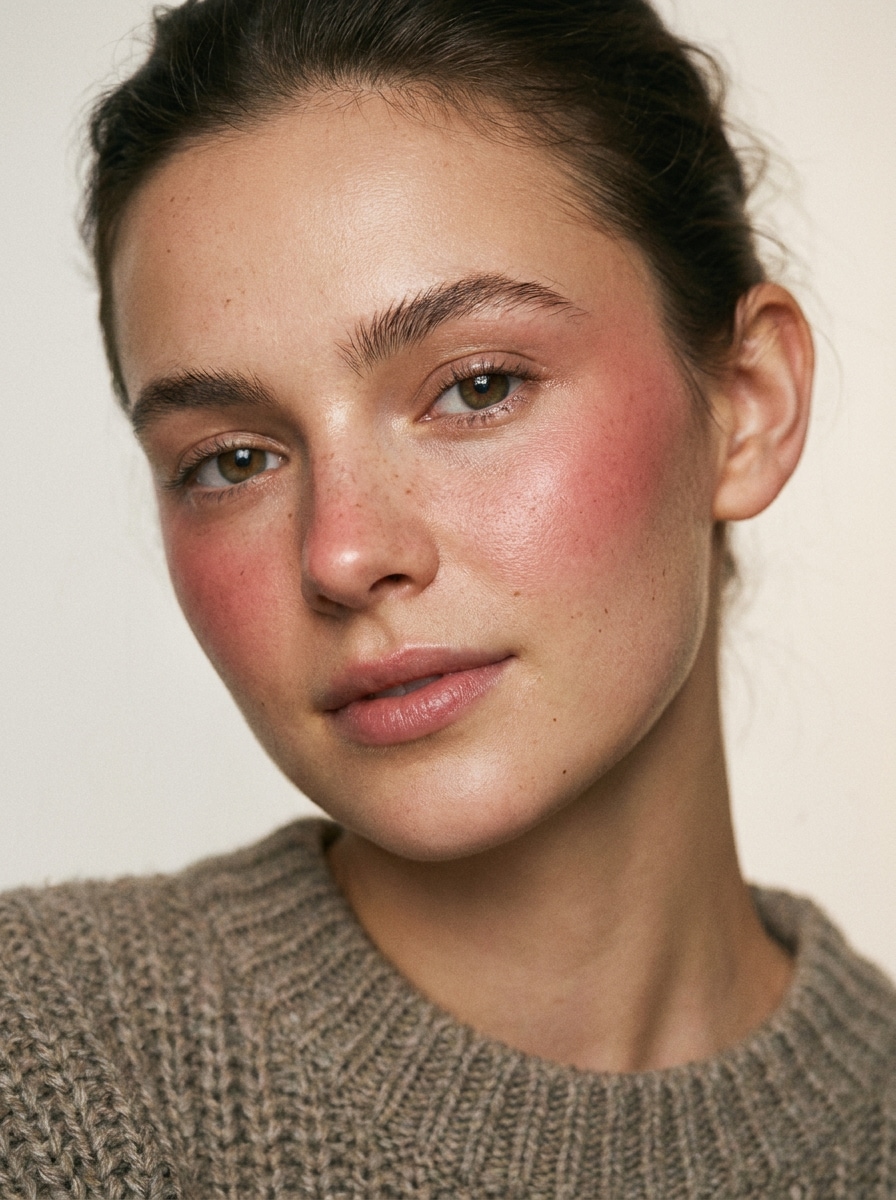
Cold Girl Blush
Use the uploaded portrait as the subject and create a trendy cold girl blush look with a pink flush across the cheeks and nose bridge. Keep the finish slightly dewy, the skin realistic, the lighting crisp and wintery, and the overall mood fresh, cute, and social-ready.
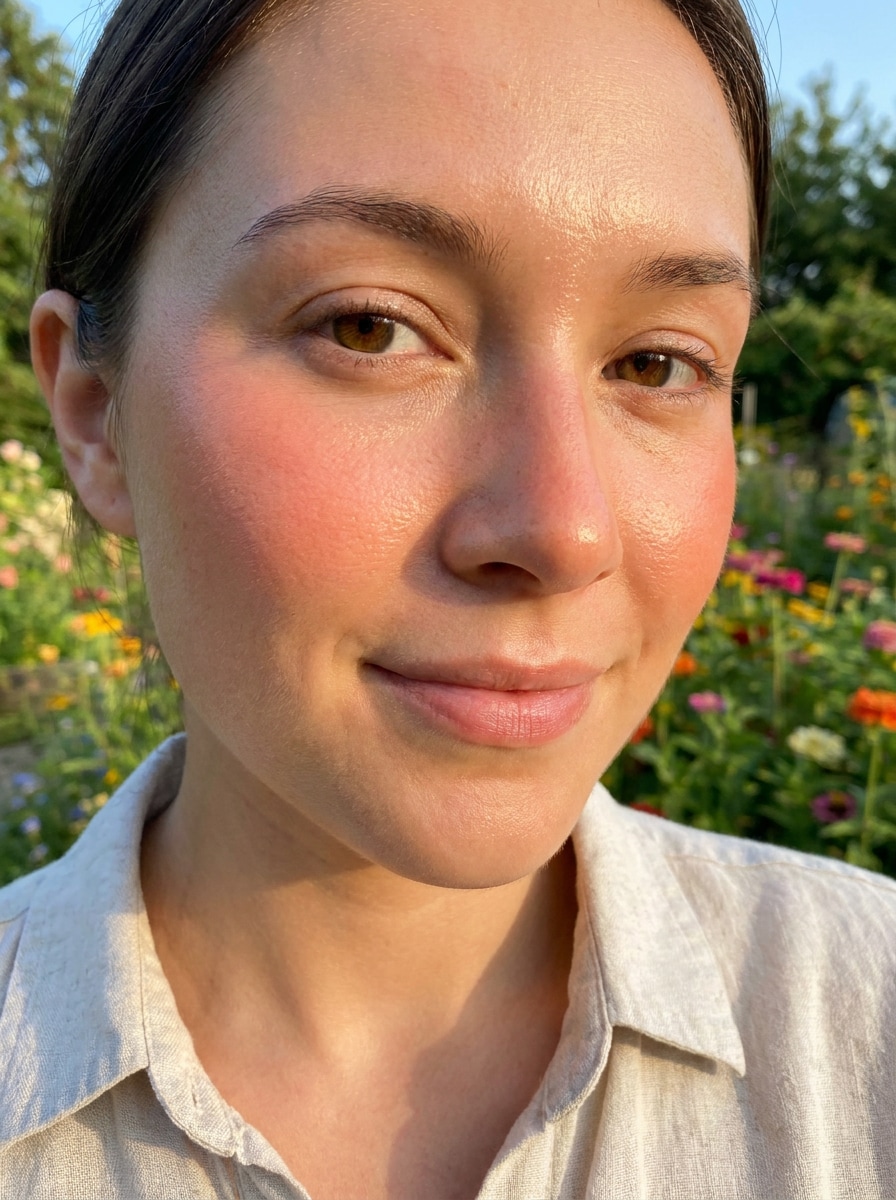
Sun-Kissed Blush
Use the uploaded image as the subject and add a sun-kissed blush effect with warm coral tones swept over the upper cheeks and nose. Maintain natural texture, soft golden light, radiant healthy skin, and a relaxed summer mood with a realistic beauty-filter finish.
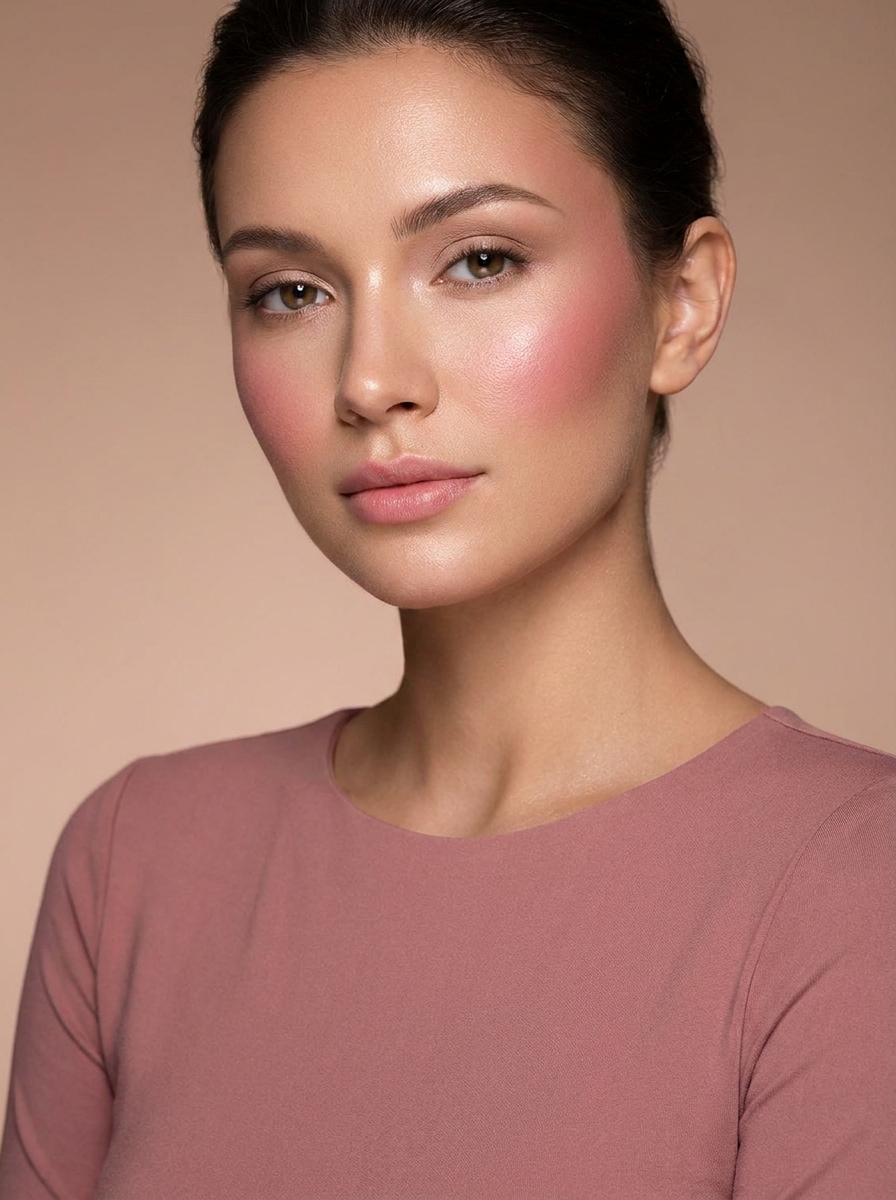
Soft Glam Blush
Use the uploaded portrait as the subject and apply a soft glam blush filter with lifted cheek placement, refined blending, and a polished event-ready finish. Keep elegant pink-fully clothed tones, smooth but realistic skin, flattering light, and a sophisticated high-end beauty mood.
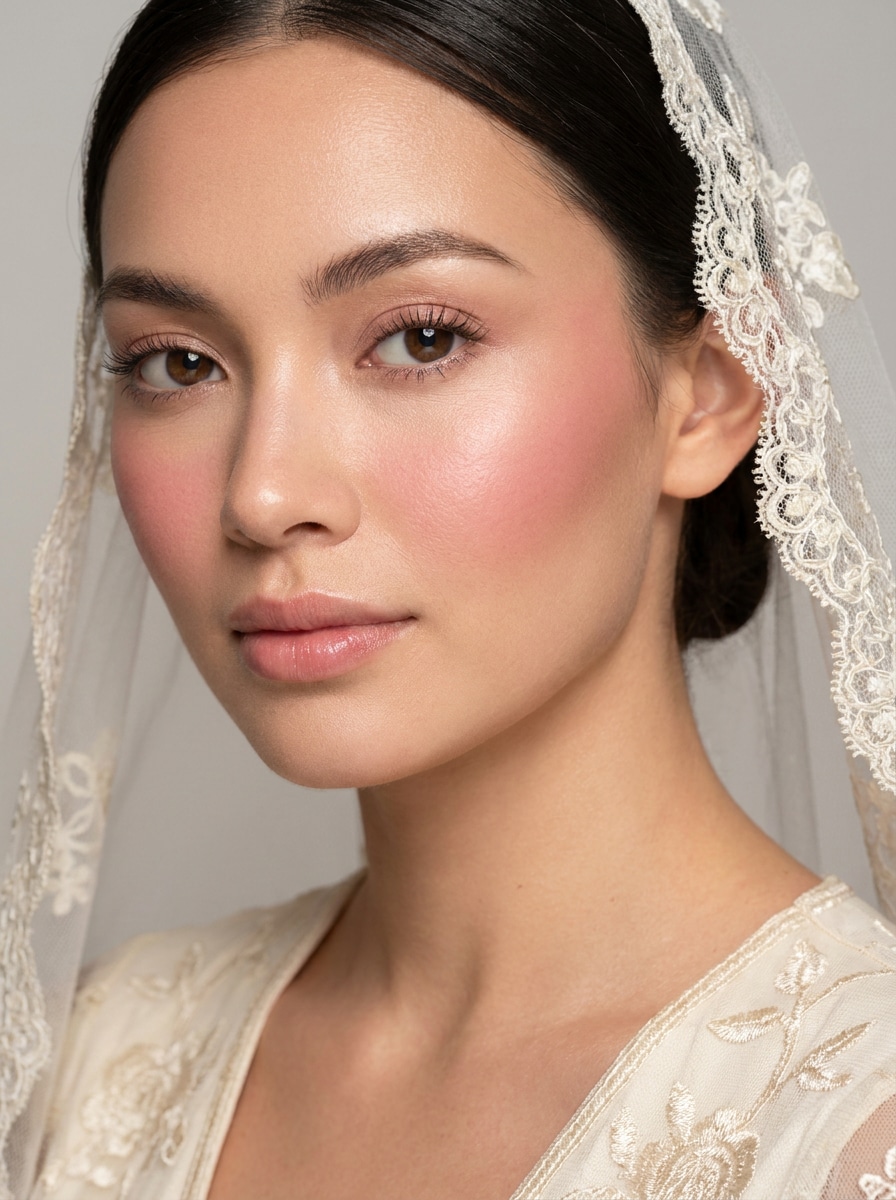
Bridal Pink Blush
Use the uploaded image as the subject and create a bridal-inspired pink blush filter with soft romantic cheek color, seamless blending, and luminous skin. Preserve realistic facial detail, elegant lighting, delicate tones, and a graceful polished look for portraits or wedding edits.
Doll Blush
Use the uploaded portrait as the subject and transform it with a cute blush filter featuring concentrated pink cheeks, softly lifted placement, and a playful youthful mood. Keep the skin believable, the lighting bright and gentle, and the final look sweet without appearing overprocessed.
Igari Blush
Use the uploaded photo as the subject and add an igari blush style with color placed high under the eyes and softly across the cheeks. Keep trendy editorial energy, balanced pink-red tones, realistic texture, gentle lighting, and a fashion-forward but wearable portrait finish.
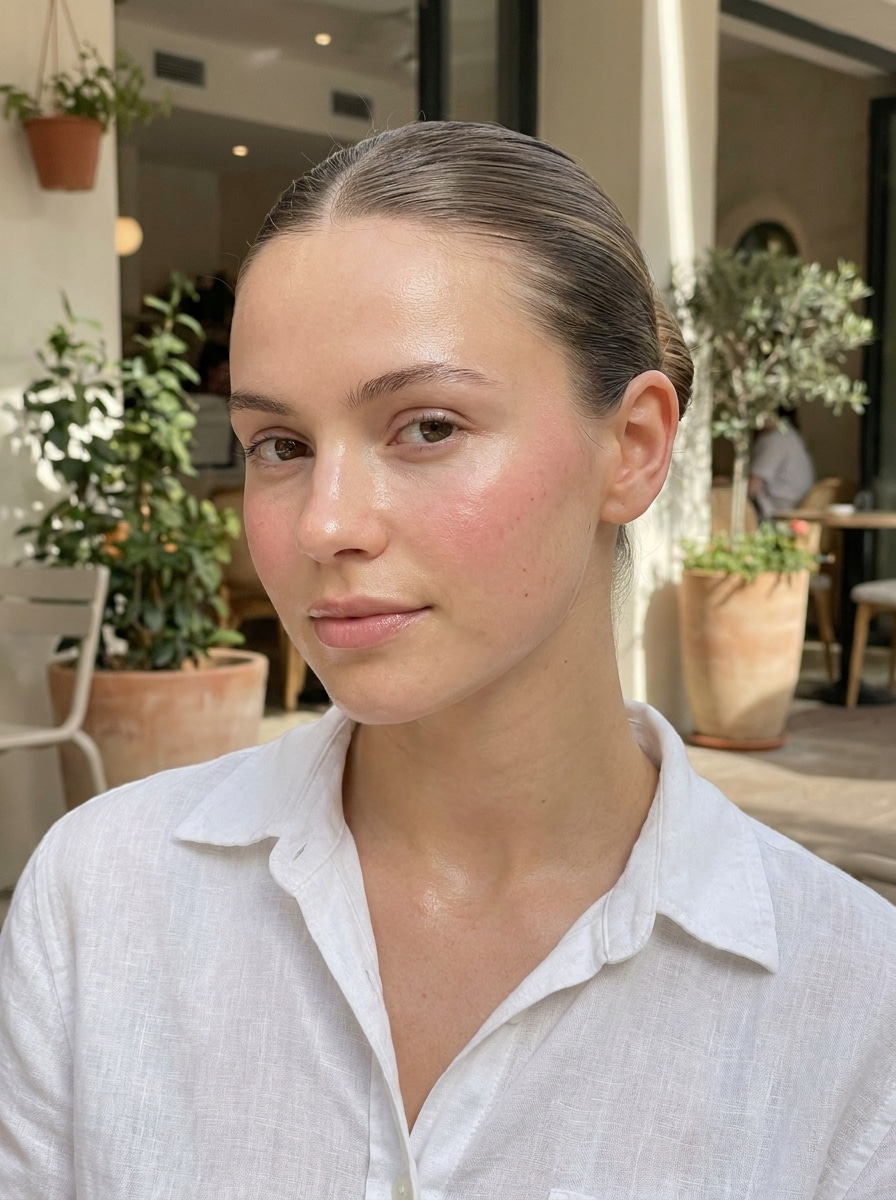
Clean Girl Blush Glow
Use the uploaded selfie as the subject and apply a clean girl beauty look with subtle blush, dewy glow, and softly lifted cheeks. Preserve natural skin detail, neat understated makeup, fresh daylight tones, and an effortless polished finish that feels modern and camera-ready.
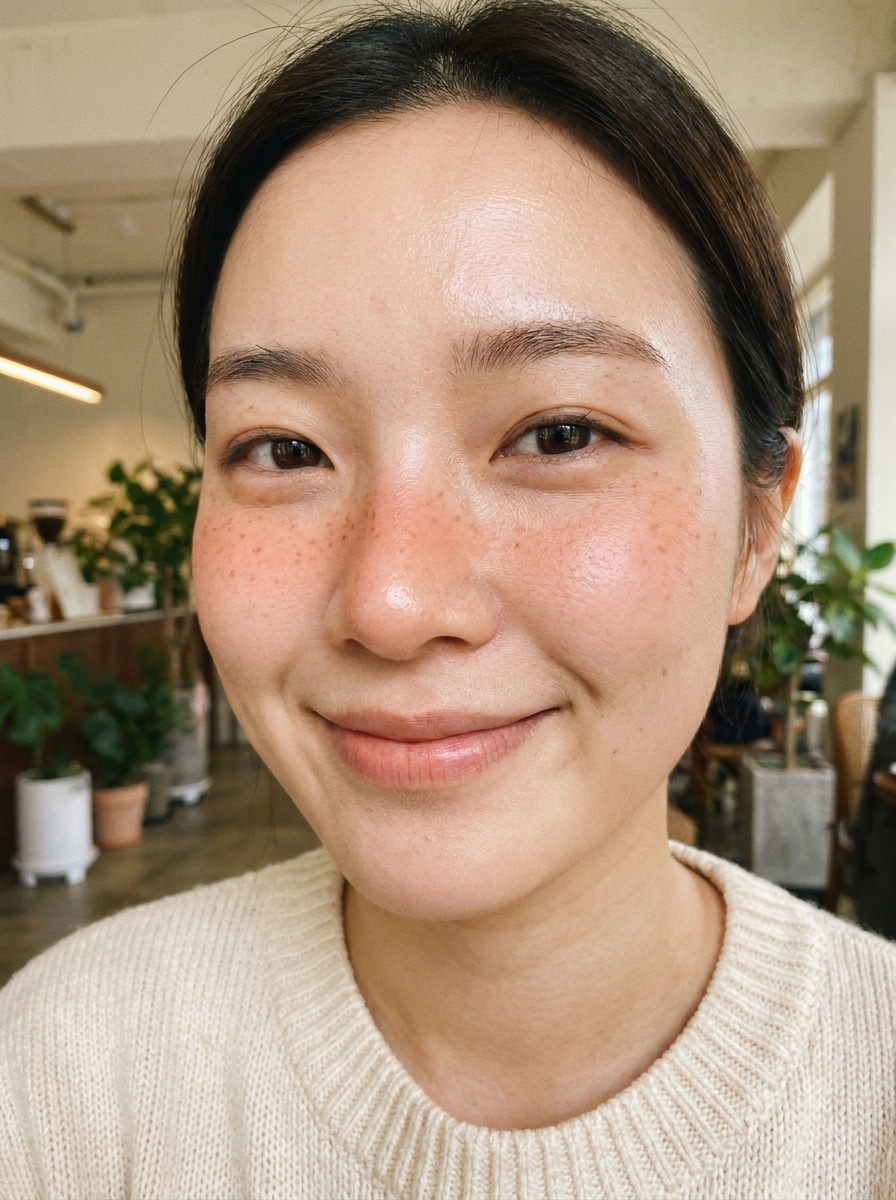
Blush with Freckles
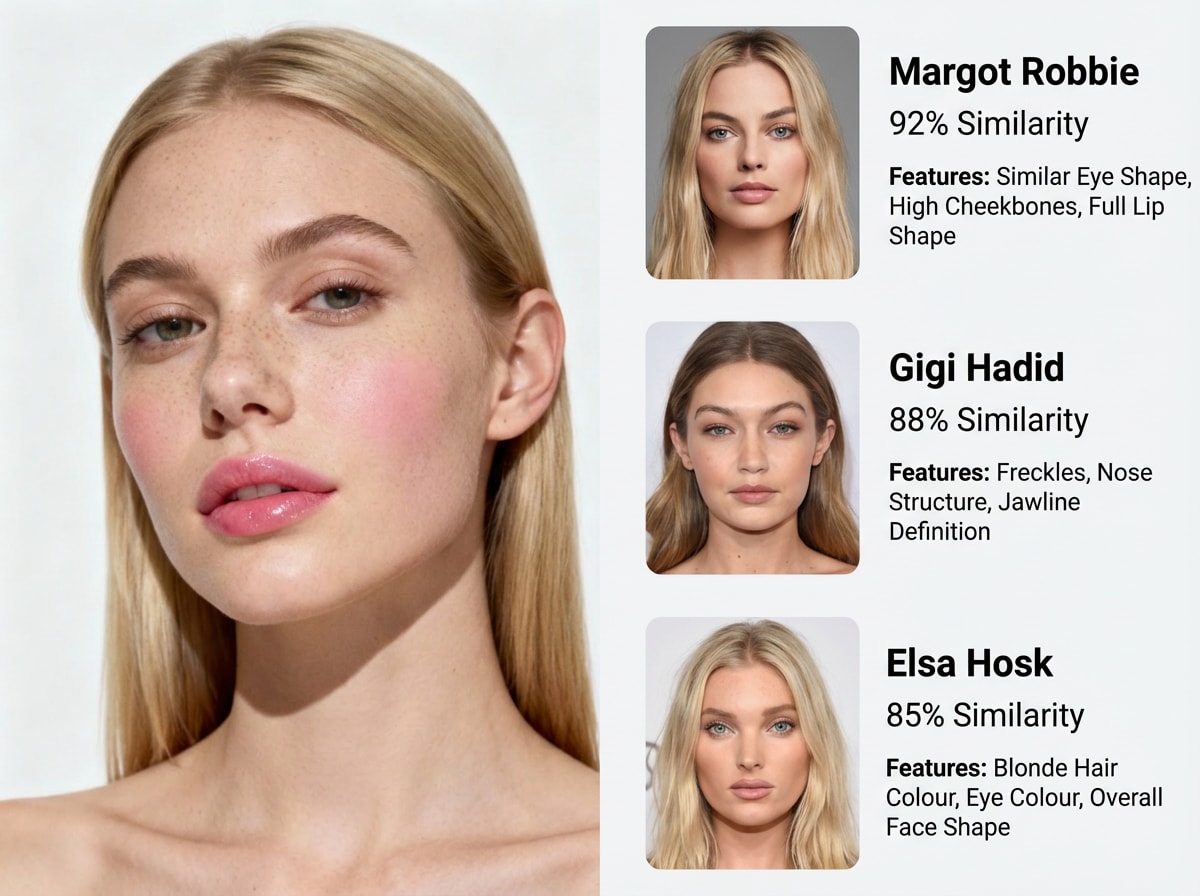
Use the uploaded portrait as the subject and enhance it with blended blush on the cheeks and nose plus soft natural freckles. Keep the finish warm, youthful, and realistic, with visible skin texture, gentle glow, balanced lighting, and a trend-driven beauty edit that still looks natural.
Why Use Media.io for Blush Makeup Photo Edits
Reference-Based Editing for Your Own Selfies
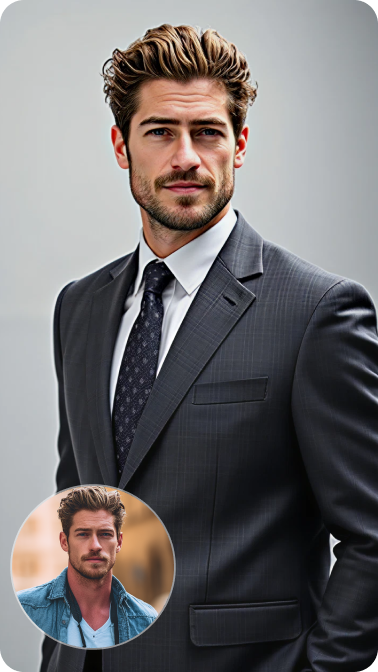
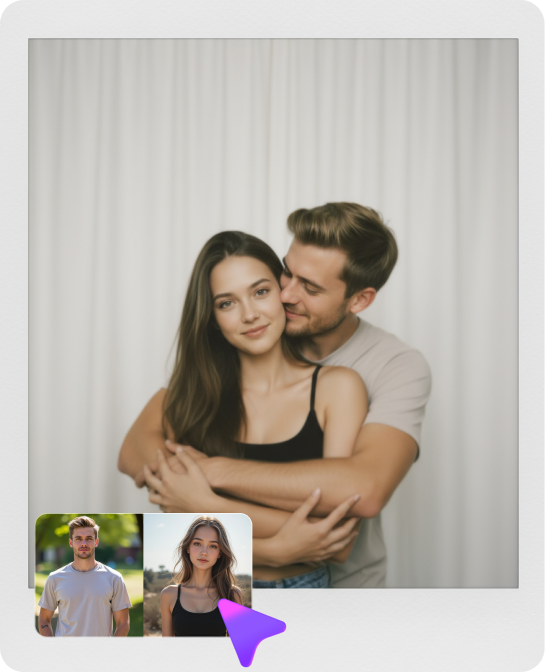
Reference-based work needs more than a loose style shift. Media.io helps keep key identity details recognizable while reworking the blush filter visual look, so the result feels personal instead of generic.
Face-Aware Blush That Still Looks Like Real Skin
Different outputs call for different aesthetics. Media.io helps you explore varied treatments of the same blush filter visual concept so the final visual lands in the right tone faster.
Keep Final Visuals Sharp for Real Projects
Some results need to do more than look good in a preview. Media.io helps generate cleaner blush filter visuals with output up to 4K so the final image holds up in wallpapers, decks, and mockups.
Create in Browser Across Devices
Ideas do not always start at your main editing setup. Media.io lets you create and refine a pink blush filter look right in the browser, so moving between phone and desktop feels smooth instead of disruptive.
How to Apply a Blush Filter Online
Turn your words into stunning visuals in three simple steps, then continue refining the result if you want to take it further.
Step 1
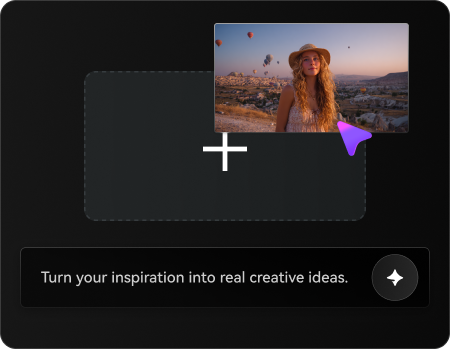
Upload Your Reference Image
Start with a clear selfie or portrait in JPG, PNG, or JPEG format. Choose a photo where the cheeks, nose, and skin texture are visible so the blush effect can be placed naturally and match your face.
Step 2
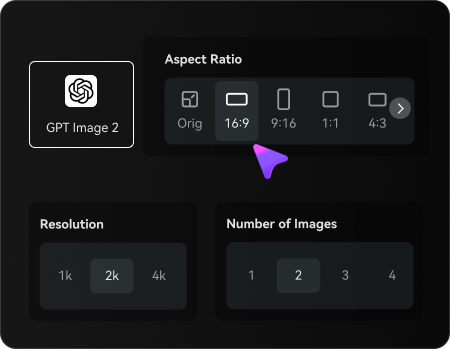
Describe the Change and Set Options
Enter the blush look you want, such as rosy, peach, cold-girl, or soft glam, then choose your preferred model and adjust settings like aspect ratio, resolution, or the number of image variations.
Step 3
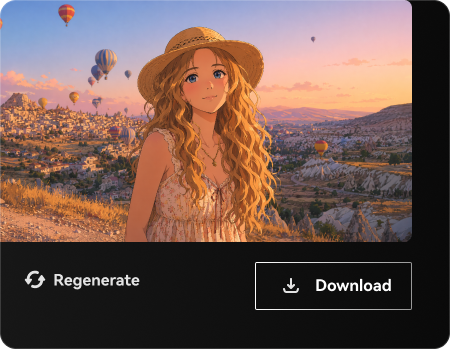
Generate, Download, and Keep Improving
Create the edit, compare the results, and download your favorite version. If you want a softer or bolder finish, refine the prompt and generate again until the color, placement, and mood feel right.
See how creators use this blush filter for content, marketing, and personal projects, then adapt each idea to fit the brief.
Upgrade Everyday Selfies Without Heavy Retouching
Give casual portraits a healthy flush and brighter beauty look in seconds. This is ideal when you want a subtle makeup boost for profile photos, stories, or personal posts without spending time on manual editing.
Test Trending Beauty Looks Before Posting
Try cold-girl, peach, bridal, or dewy cheek styles on the same image to see what fits your face best. It is a fast way to preview a virtual makeover before sharing content or recreating the makeup in real life.
Create Polished Beauty Content for Social and Campaigns
Beauty creators, influencers, and small brands can quickly produce scroll-stopping portraits with consistent cheek color and flattering glow. A quick pink blush filter look or warm flush can make thumbnails, promos, and before-after visuals feel more refined.
What Users Say About This Blush Filter
Mia R.
Beauty Content Creator
"Great for natural blush edits" I wanted a quick way to soften my selfies without making them look fake. This tool gave me realistic cheek color and let me test rosy and peach looks fast.
Taylor C.
Lifestyle Influencer
"Easy to use on phone" I edited a portrait from my phone and got a clean, dewy blush result in a couple of tries. The face still looked like me, which matters a lot for beauty posts.
Jenna L.
Wedding Photographer
"Useful for bridal mood previews" The soft pink and glam options are helpful when I want to mock up a polished portrait look for clients. It is fast and the skin texture stays more realistic than I expected.
Ava P.
Student Creator
"Fun for trending makeup styles" I used it to try cold-girl blush and freckles on the same selfie. It is simple, quick, and much easier than trying to paint makeup effects by hand.
A blush filter for photos is an image-editing effect that adds virtual cheek color to a selfie or portrait. With Media.io, you upload your photo and use AI image-to-image editing to create anything from a soft rosy flush to a polished blush makeup look.
2. How can I add a natural blush filter to a selfie online?
Upload a clear selfie to Media.io, then describe the look you want, such as soft rosy cheeks, peach blush, or a natural everyday finish. Media.io uses your image as a reference, so you can apply blush online while keeping your face recognizable and the result more realistic.
3. Is there a free AI blush filter I can try?
Media.io offers free credits for new users, so you can test a blush filter before upgrading. Free exports may include a watermark, while paid plans support watermark-free high-resolution downloads. You can compare options on the pricing page.
4. Can I choose different blush styles like pink, peach, or sun-kissed?
Yes, you can describe different styles in your prompt and generate variations from the same uploaded portrait. That makes it easy to try a rosy everyday edit, a peachy glow, a sun-kissed finish, or a more stylized blush makeup filter without starting over.
5. Will the blush makeup filter keep my skin looking realistic?
Media.io is designed for reference-based photo editing, so it can enhance cheek color while preserving the overall look of your original portrait. Results depend on the source photo and prompt, but clear uploads and specific instructions help the blush blend more naturally with visible skin texture.
6. Does the blush filter work on phone and desktop?
Media.io is web-based, so you can use the blush filter on phones, tablets, laptops, and desktop computers through a browser. It works across common platforms including Windows, Mac, iOS, and Android, which makes quick selfie editing easy from almost anywhere.