
AI Video Editor Online - Edit, Replace, and Transform Video with Prompts
Edit existing video with simple text instructions instead of rebuilding the shot from scratch. Media.io Video Edit lets you upload a short video, describe what you want to change, optionally add reference images, and generate a new version with AI.
- Powered by Kling 3.0 Omni
- Remove, Add, and Swap edits
- Up to 4 optional reference images
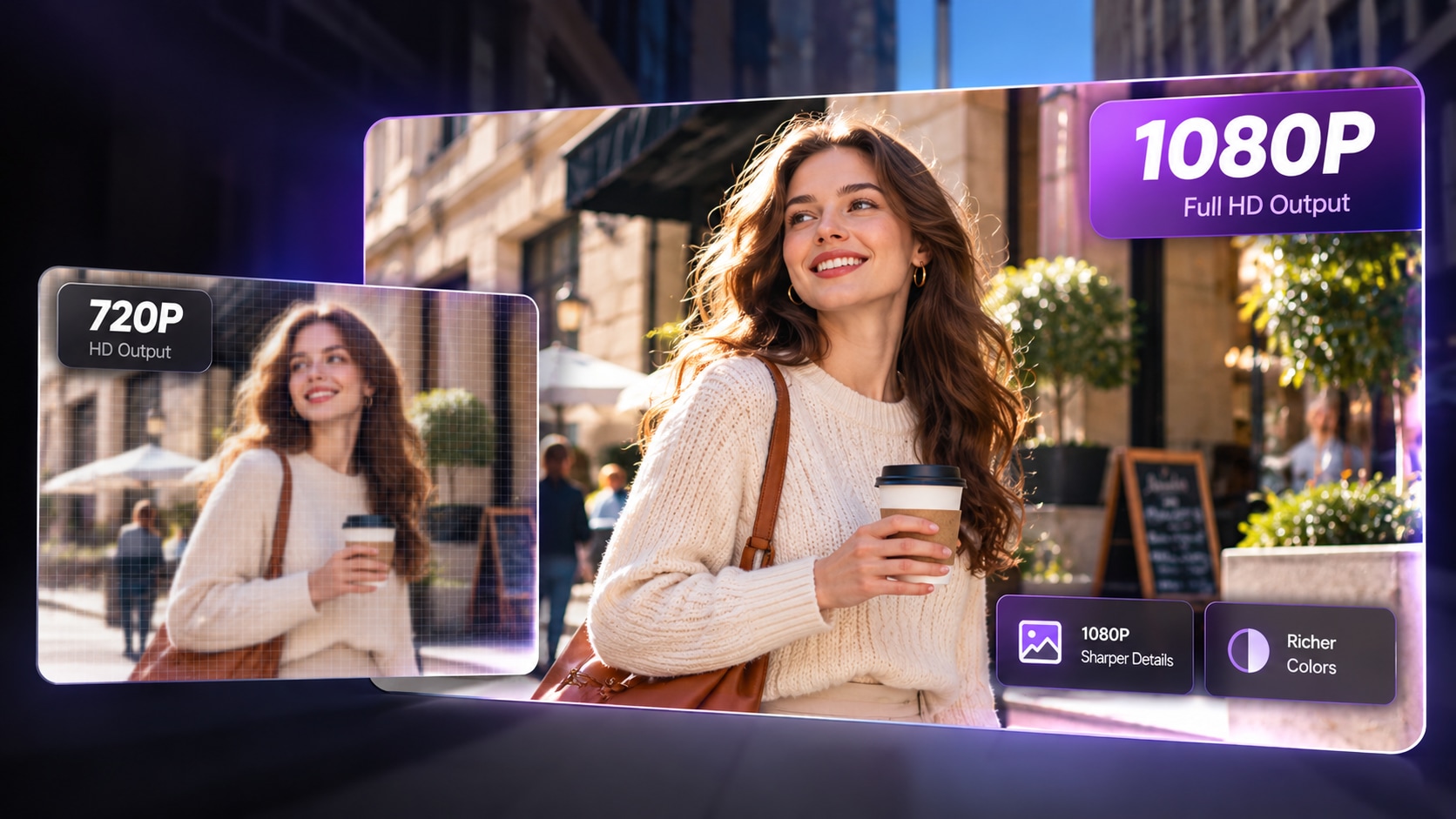
- 720P and 1080P generation
See What AI Video Edit Can Change
Switch between four real editing workflows and compare the source clip with the AI-edited result. Each example shows the exact change requested while the rest of the shot stays as consistent as possible.
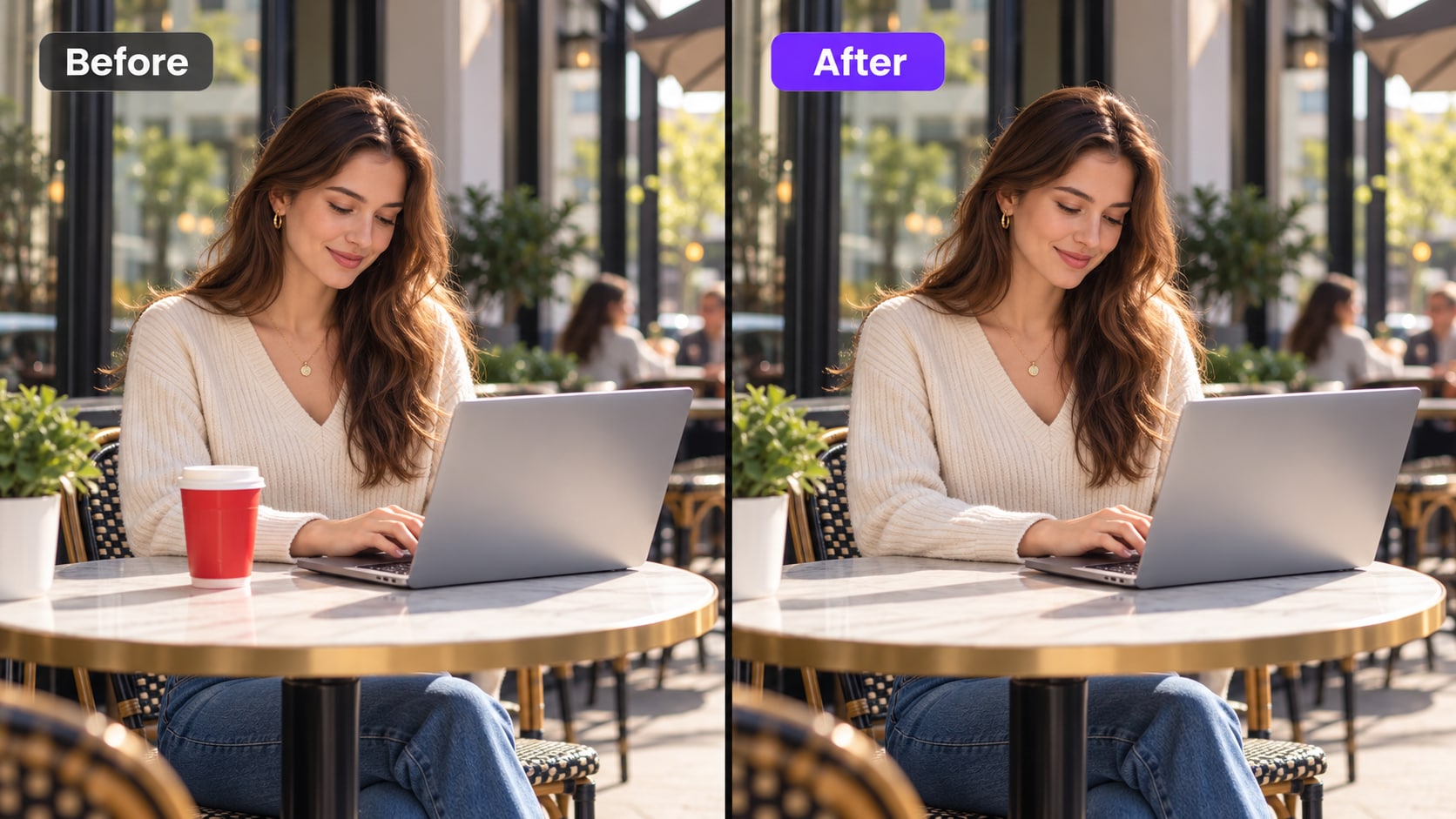
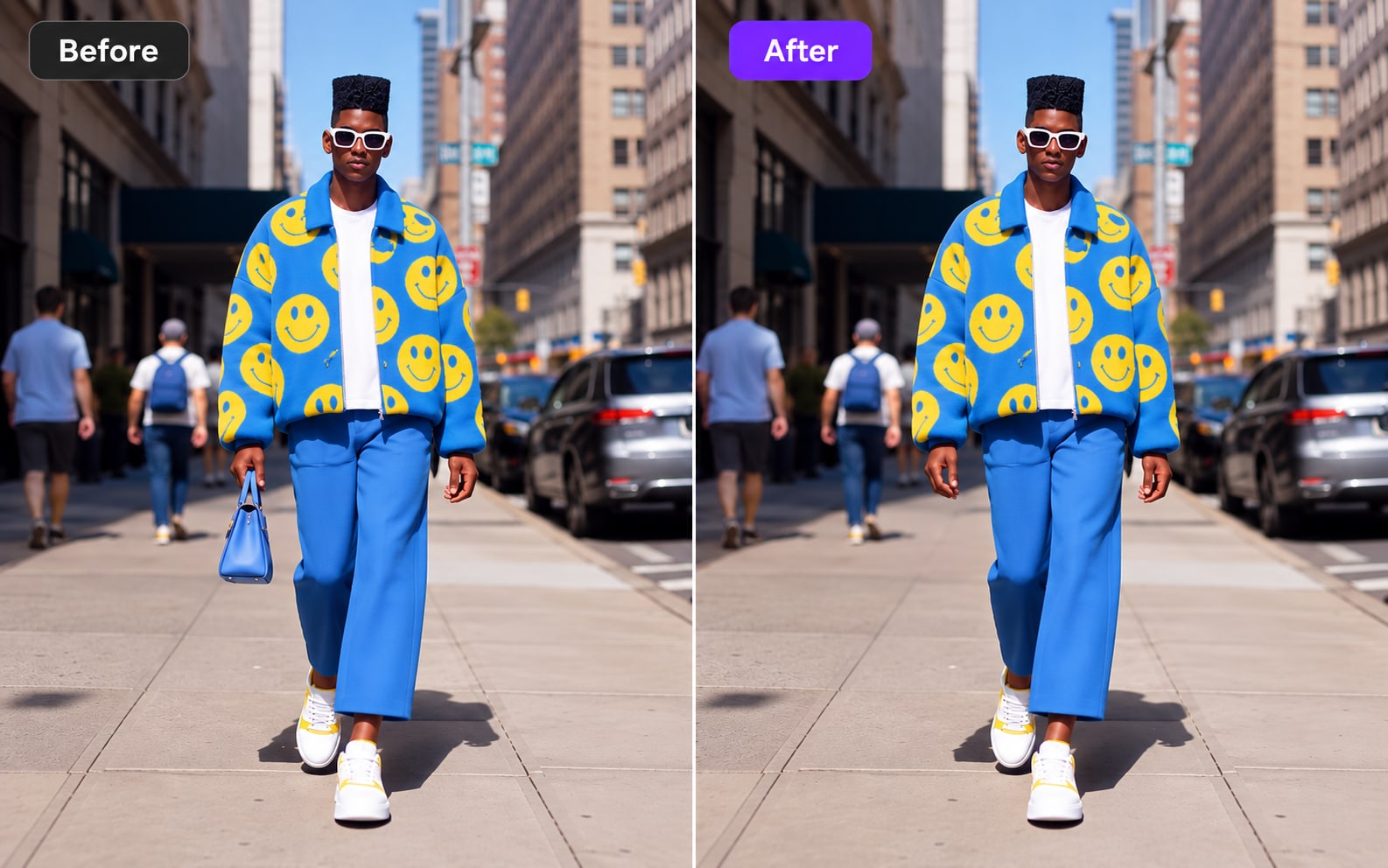
The unwanted bag is removed while the subject, outfit, background, and motion remain visually consistent.
The sunglasses are added to the moving subject while the original scene and identity remain intact.
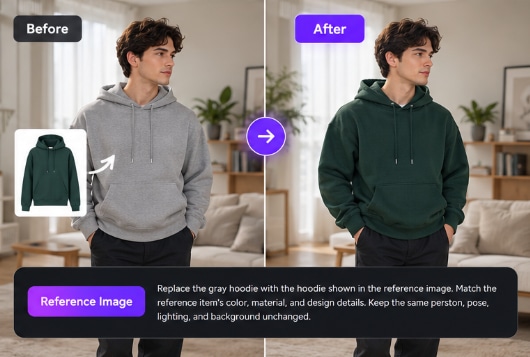
The outfit changes while the person, motion, framing, and surrounding environment stay consistent.
Remove, Add, or Swap What You Want in a Video
Choose the edit that matches your task, then describe the result in plain language. Media.io gives you quick actions for Remove, Add, and Swap, while the prompt box lets you add the details the model needs.
Use Remove when you want to clean up a visible object or distracting detail while keeping the rest of the shot as the editing context.
Use Add to introduce a new object, accessory, or scene detail into the existing clip without starting over from a blank generation.
Use Swap when one visible object, outfit, or detail should be replaced with another while the original shot remains the foundation.
Add reference images when text alone is not enough to show the object, outfit, product, or visual direction you want the edit to follow.
Everything You Need for Prompt-Based Video Editing
Media.io Video Edit combines source video, text instructions, and optional visual references in one workflow, helping you make focused changes to an existing shot without rebuilding the whole scene manually.
Tell AI What to Change with a Prompt
Start from the video you already have and describe the visual edit you want. This prompt-first workflow is useful when you need to replace or swap a visible detail without opening a traditional timeline and rebuilding the shot element by element.
- Describe the target edit in natural language
- Keep the original video as the visual foundation
- Use concise instructions for more focused changes
Use Reference Images for More Visual Direction
When a text prompt cannot fully describe the result, add reference images to show the object, product, outfit, or style direction you want the model to follow. Media.io supports up to four optional reference images in the Video Edit workflow.
- Add up to 4 image references
- Use references to clarify specific visual details
- Combine text and images in the same edit request
Keep the Edit Focused on the Shot You Already Like
AI Video Edit is especially useful when most of the source clip already works and only one visual part needs to change. Instead of recreating the entire scene, use the existing video to preserve the composition, subject, and motion as the editing context.
- Useful for targeted replacements and swaps
- Start from an existing performance or camera move
- Review the generated result against the original clip
Choose the Output Resolution You Need
The current Media.io Video Edit workflow provides 720P and 1080P generation options. Choose the setting that fits how you plan to review, share, or continue working with the edited clip.
- Generate at 720P or 1080P
- Preview the result before using it downstream
- Use the final result in social, creative, or production workflows
Video Edit Input at a Glance
Maximum file size
Supported clip duration
Optional reference images
Generation option
Current upload support: MP4/MOV, 720p-2160p source resolution, and 24-60fps.
How to Edit a Video with AI in Media.io
Make a targeted change to an existing clip in three simple steps.
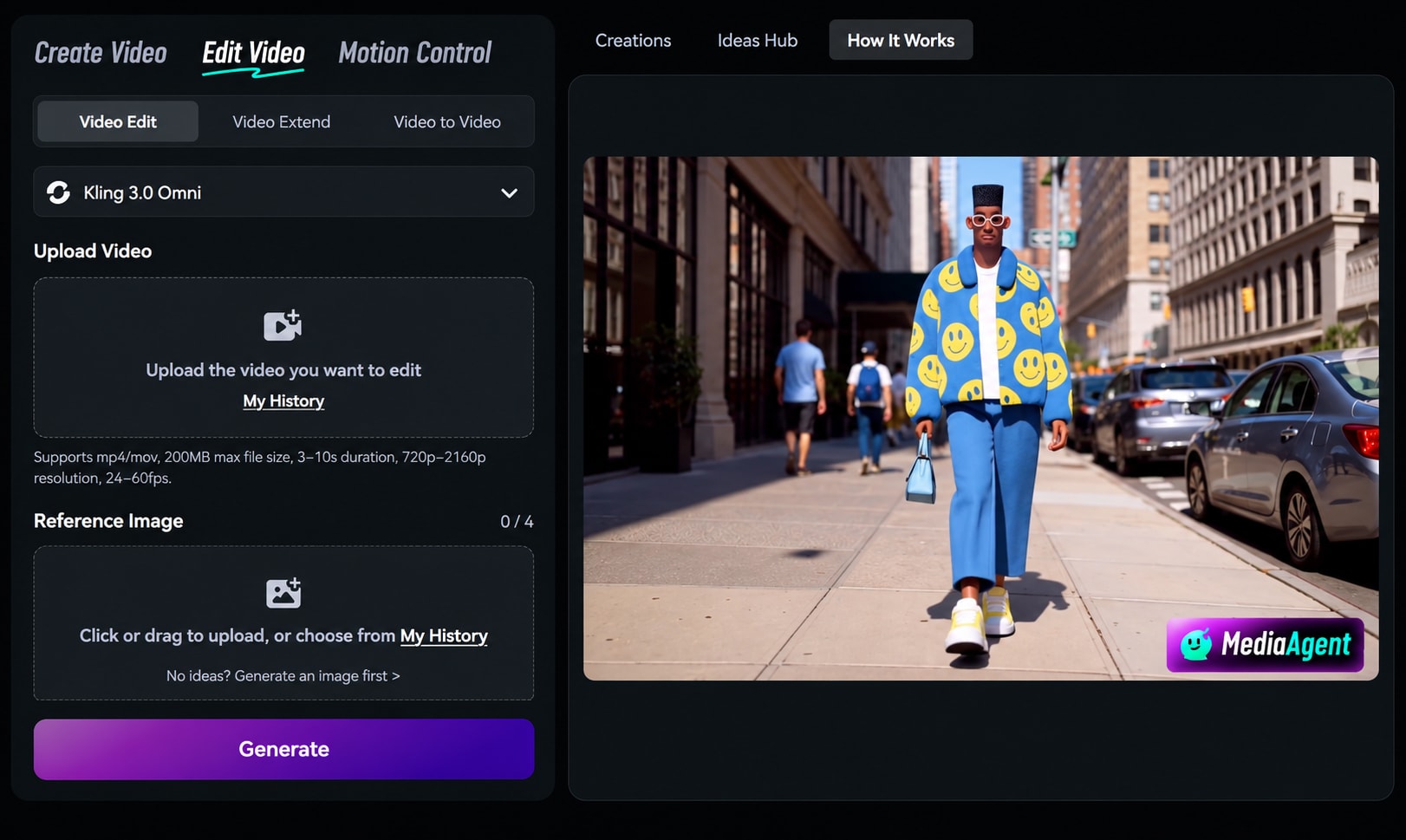
Upload Your Source Video
Add an MP4 or MOV clip that meets the current Video Edit input requirements. Start with a shot where the subject and the part you want to change are easy to see.
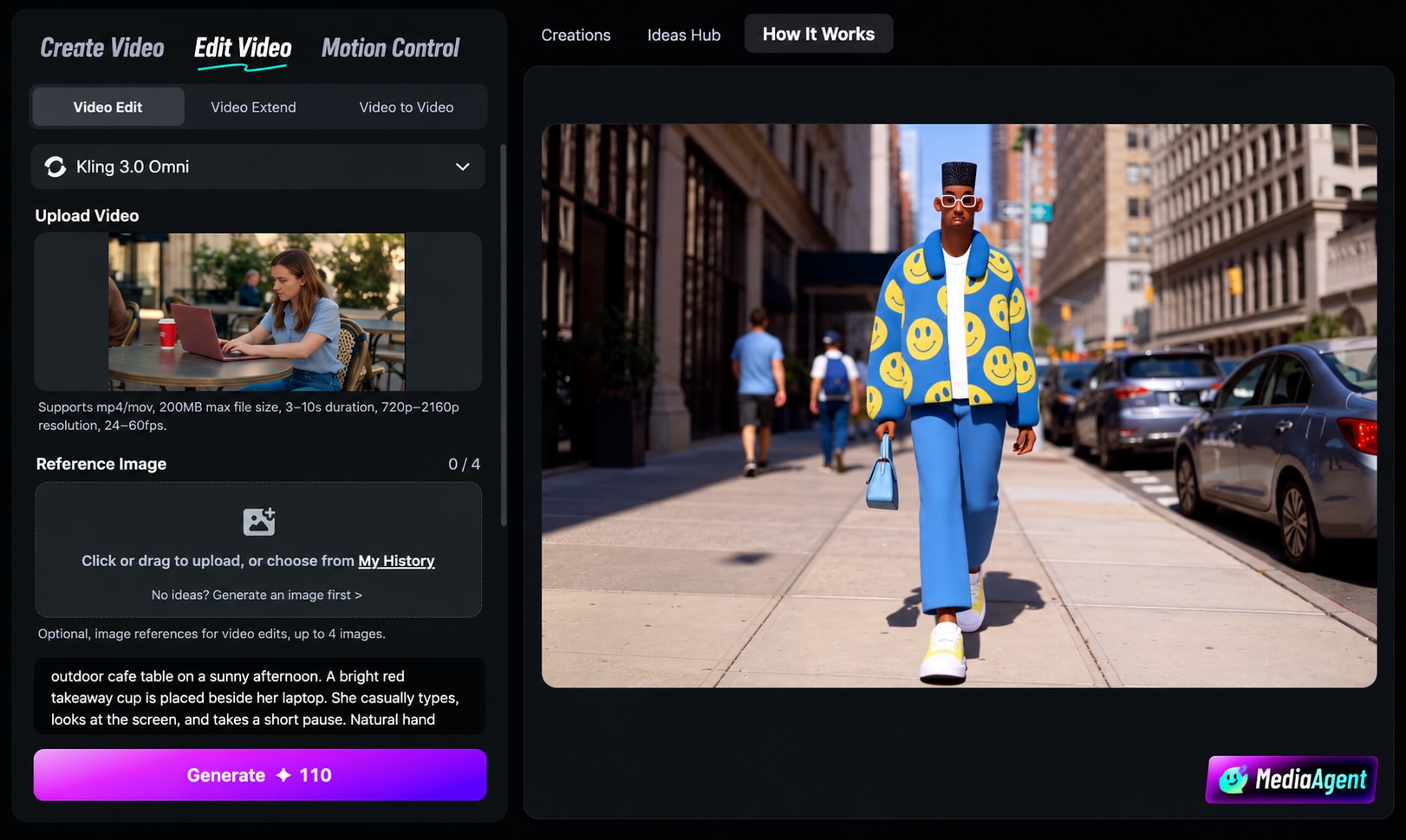
Describe the Edit
Write a clear prompt explaining what should change. Add up to four optional reference images if they help define the replacement object or visual direction.
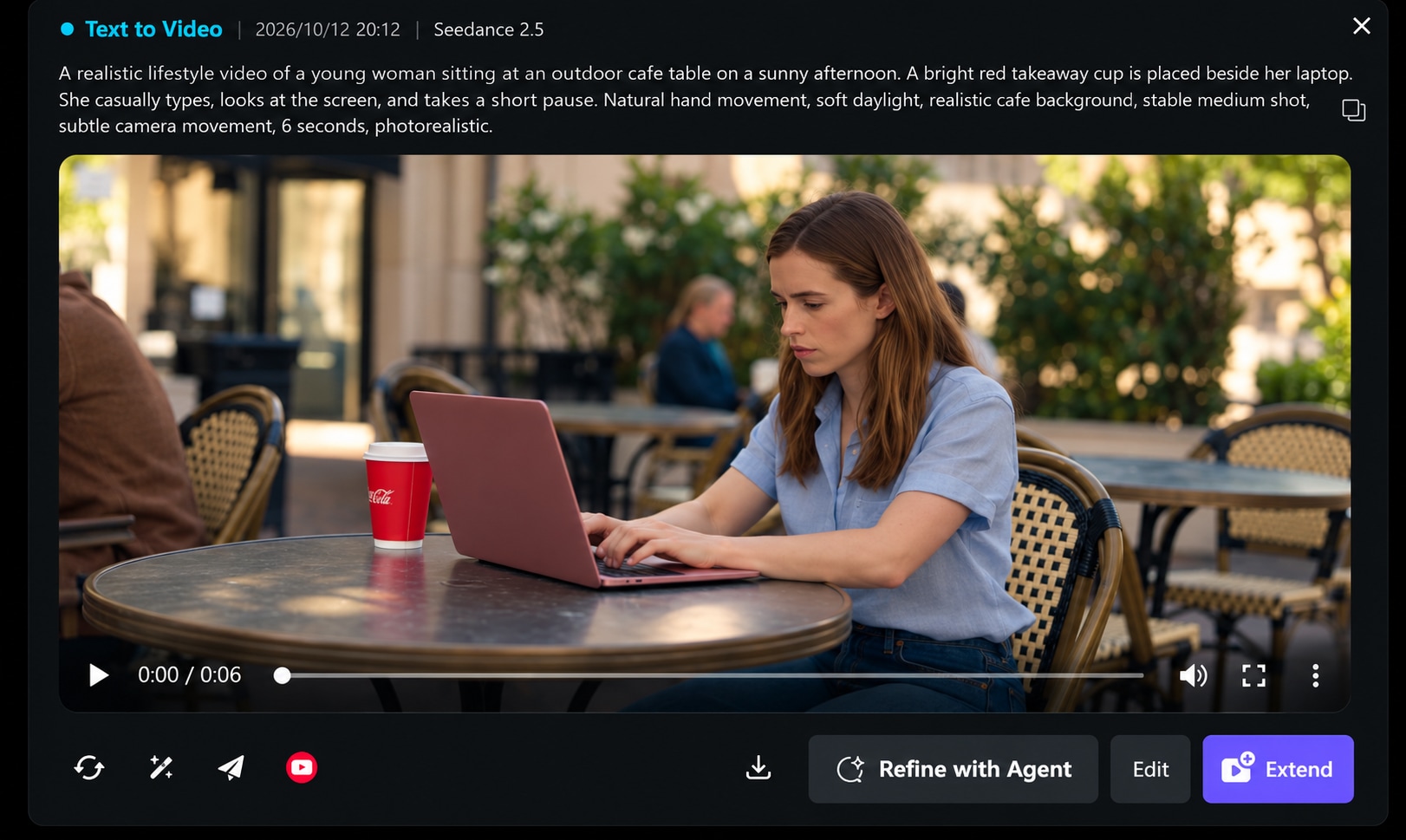
Generate and Review
Choose 720P or 1080P and generate the edit. Compare the result with the source clip and check subject consistency, motion, object placement, and the requested visual change.
Popular Ways to Use AI Video Edit
Use prompt-based editing when the original motion and framing already work but one part of the shot needs to change.
Product Swaps
Replace a visible product or prop in an existing clip while keeping the surrounding shot as the editing context.
Outfit Changes
Update clothing or accessories in creator, fashion, lifestyle, or character footage without reshooting the entire scene.
Creative Variations
Create alternate versions of a shot for concept testing, campaign variations, or different visual directions.
Shot Fixes
Correct or replace a distracting visible detail when the rest of the clip is already usable.
Write Better Video Edit Prompts
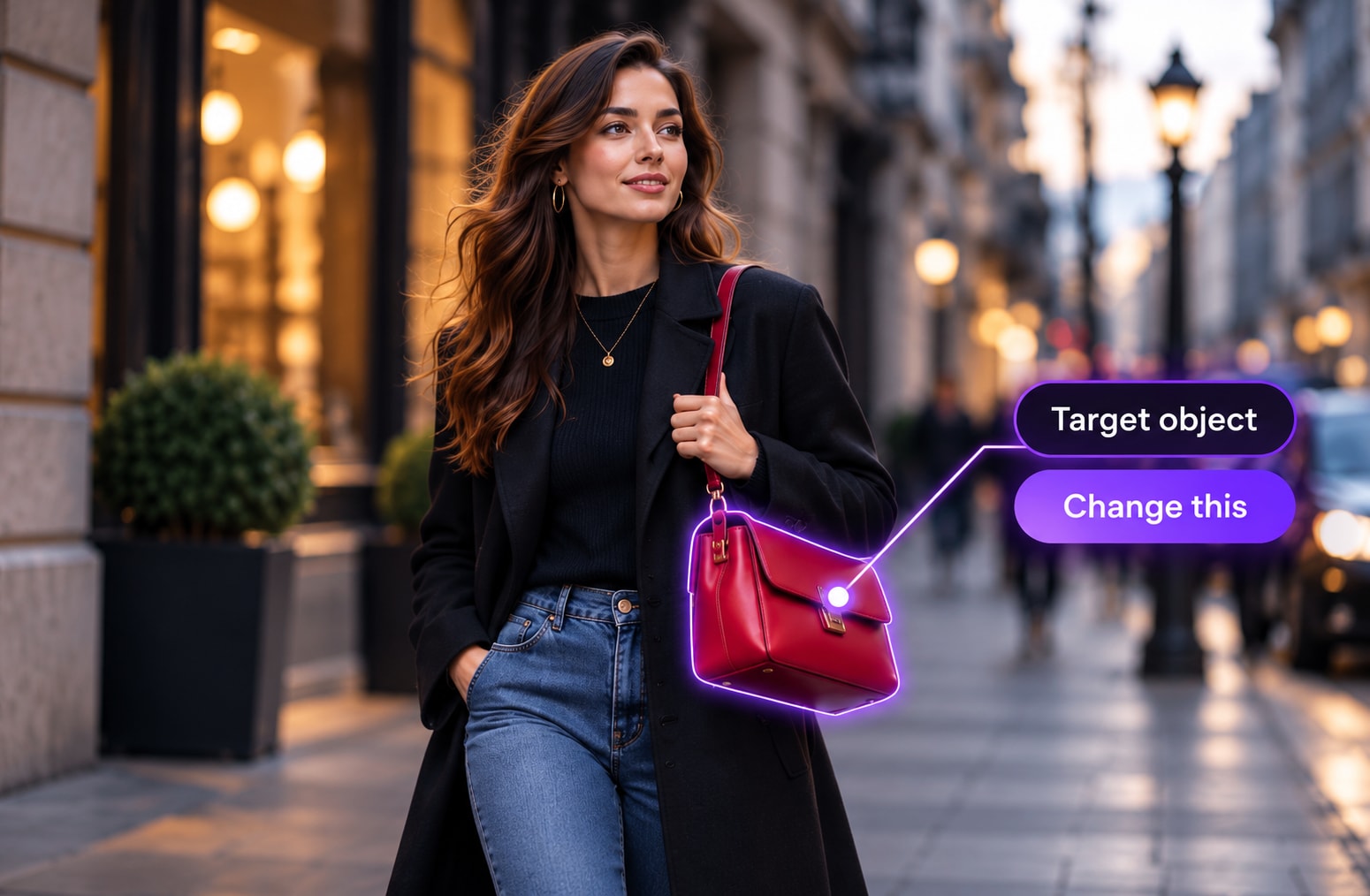
Name the exact thing you want to change
Use a specific target such as jacket, handbag, poster, chair, or product package instead of a vague instruction like make it better.
Describe what should stay the same
When consistency matters, mention the subject, camera angle, pose, lighting, or background you want the edit to preserve.
Use a reference image when appearance matters
If the replacement object has a specific design, upload a clear reference image instead of relying only on a long text description.
Frequently Asked Questions About AI Video Editing
1. What is Media.io Video Edit?
Media.io Video Edit is an AI workflow for changing an existing video with text instructions. You upload a source clip, describe the edit, optionally add image references, choose a generation resolution, and create a new edited version.
2. What video formats can I upload?
The current Video Edit interface supports MP4 and MOV uploads.
3. What are the current upload limits?
The current interface lists a maximum file size of 200MB, a supported duration of 3-10 seconds, source resolution from 720p to 2160p, and frame rates from 24 to 60fps.
4. Can I use reference images for a video edit?
Yes. Reference images are optional, and the current workflow supports up to four images for additional visual guidance.
5. What resolution can I generate?
The current Video Edit interface provides 720P and 1080P generation options.
6. What kinds of edits work best?
Focused requests are easier to communicate than broad rewrites. Clearly identify the object or visible detail to change, describe the desired replacement, and use a reference image when the target appearance is specific.
7. Is Video Edit the same as Video to Video?
No. Media.io lists Video Edit and Video to Video as separate workflows. Video Edit focuses on prompt-guided changes to an existing video, while Video to Video is presented as a separate mode in the product interface.
Explore More AI Video Workflows
Continue from editing into generation, extension, motion control, and other Media.io video workflows.